

Shared event fields, chronology and documents
The Master data references and Event Details every event shares, how event time differs from posted time, and how to attach documents.
Applies to: the Add Events drawer, all eight Event Types
Audience: Anyone who records events
Prerequisites: at least one Location and one Trade Item in the account
Related: Wholechain Events Overview; Get started with Events and Shipments; Events overview and list navigation; Direct Ship and Direct Receive; Link Trace Info; Add Events form reference; Background: Understanding Event-Based Traceability; GDST and Wholechain
Purpose
All eight event types use the same Add Events drawer. This article explains the parts every event shares, how event time and posted time differ, and how to attach documents. The common Master data references and Event Details fields are described once, in the Field and action reference below, so each event type's article covers only what is specific to that type.
Before you begin
You need at least one Location and one Trade Item in your account. See Trade Items, Locations and Trade Partners.
To choose an Event Type, see the Wholechain Events Overview.
Open the drawer
Select Add Events
On Events, select Add Events. The drawer opens with Single Event and Bulk Upload tabs.
Choose Event Type, Location and Products
Under Master Data References, choose Event Type, then Location (for Ship and Receive: Origin Location and Destination Location), then Products. Custom Data Template is optional and outside the scope of this guide.
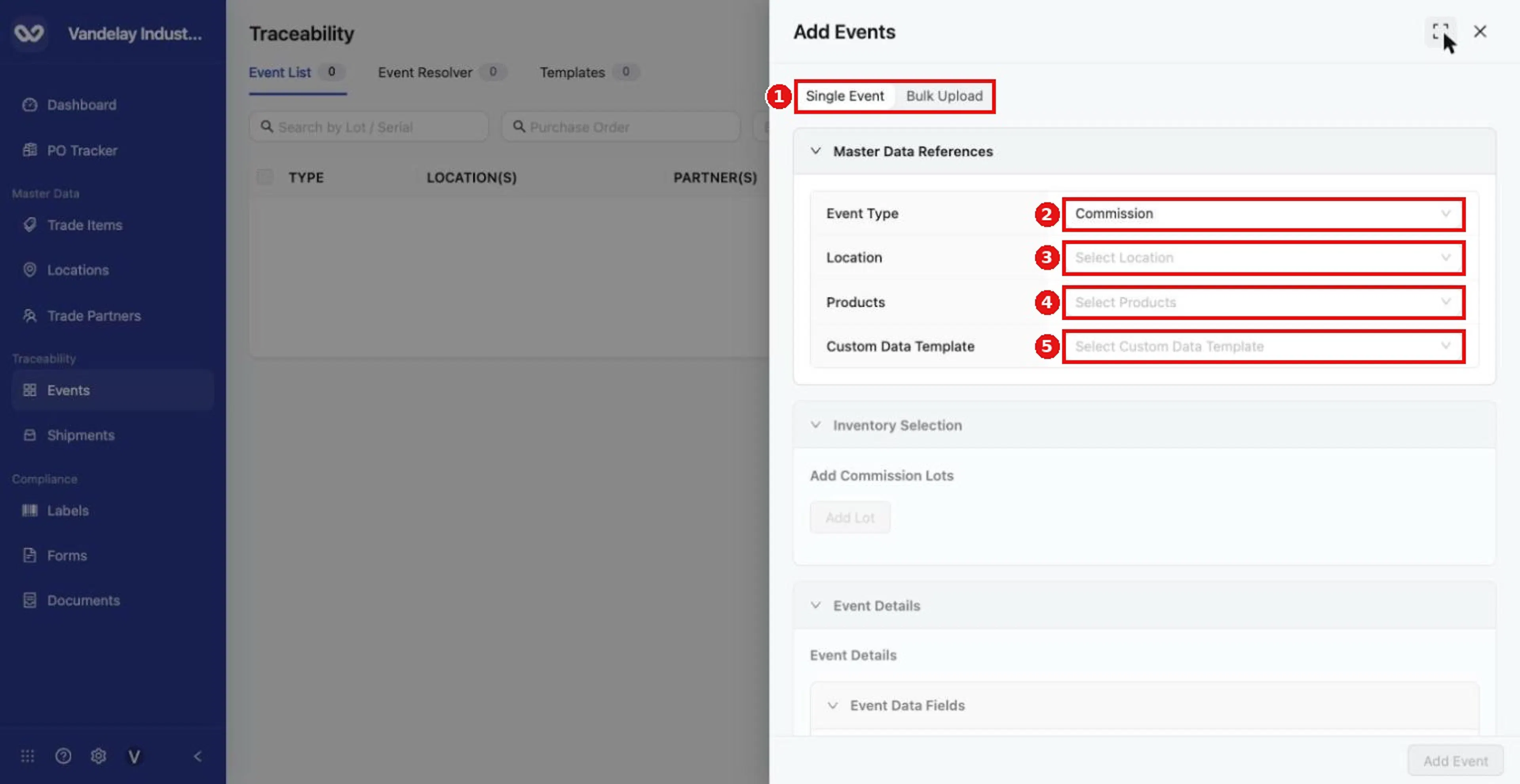
Select Add Events. The drawer opens with Single Event and Bulk Upload tabs and the Master Data References section.
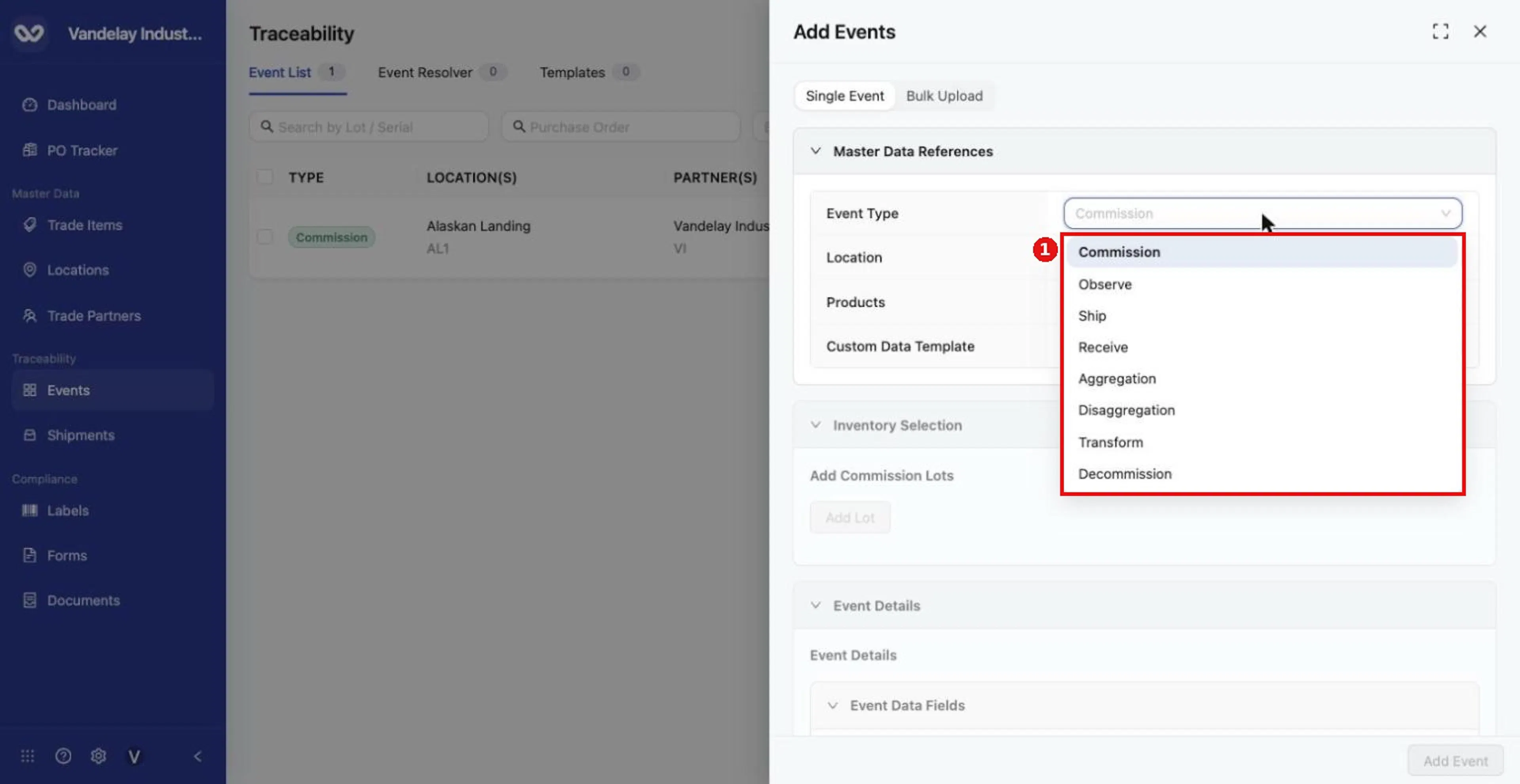
Open the Event Type list to see the eight event types: Commission, Observe, Ship, Receive, Aggregation, Disaggregation, Transform and Decommission.
Changing Event Type resets Location and Products, so choose the type first.
Complete Event Details
Enter Date and Time
Enter Date and Time.
Optionally enter PO Number
Optionally enter PO Number.
Confirm Time Zone
Confirm Time Zone. It defaults to the account time zone set under Organization Settings > Account. Choose another zone if you are logging the event in a different one. How the zone affects what the lists show is explained in "Event time, posted time and time zones" below.
Choose Business Step and Disposition
Choose Business Step and Disposition. The list is searchable and shows values with their vocabulary, such as (CBV).
Optionally enter Read Point
Optionally enter Read Point.
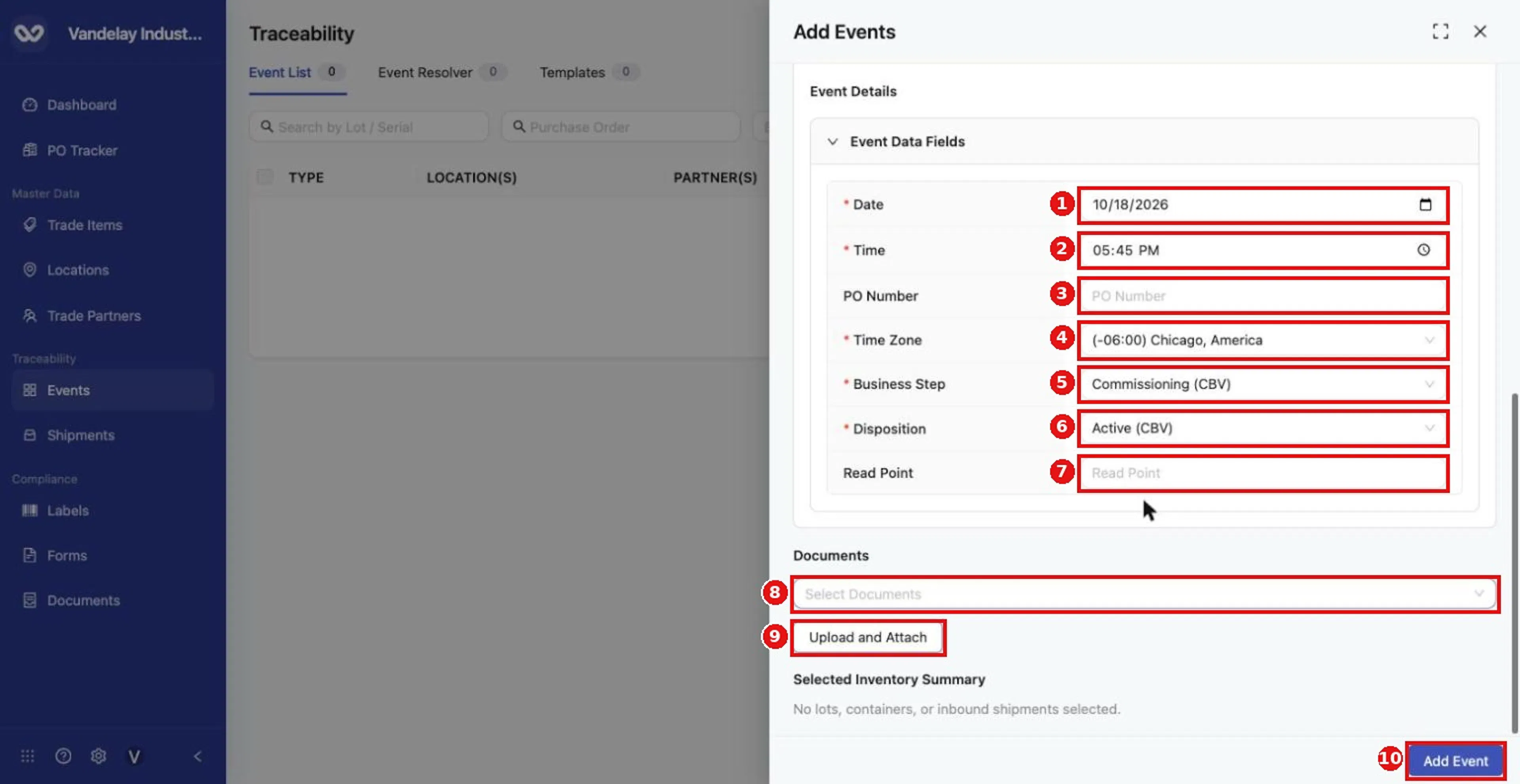
Complete Event Details: Date, Time, PO Number, Time Zone, Business Step, Disposition and Read Point. Required fields carry a red asterisk.
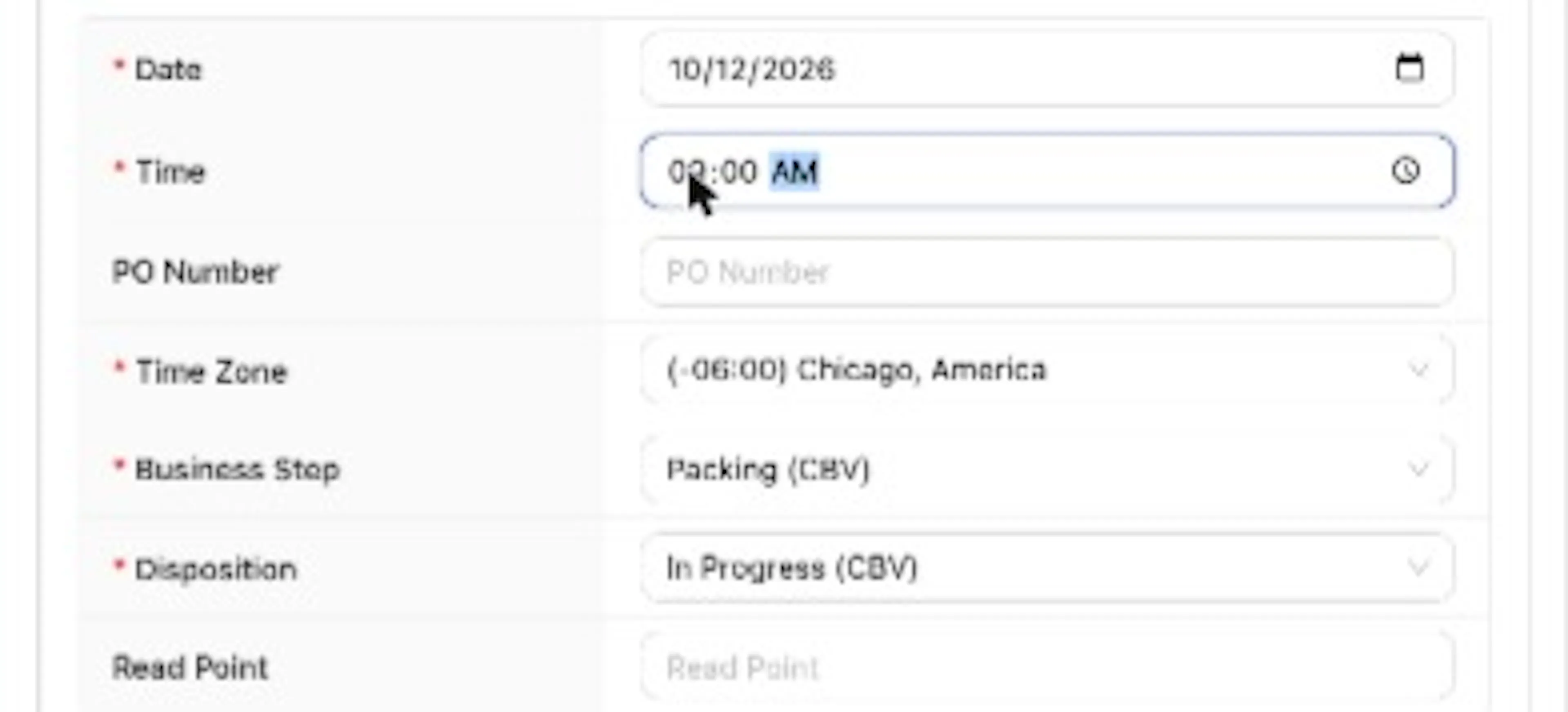
The Time field. Enter the time of the event in the Time Zone you select.

Account time zone shown under Organization Settings > Account. New events default their Time Zone field to this value.
Fields with a red asterisk are required. Each event type pre-fills a Business Step and Disposition; you can change them. The defaults are listed under "Default Business Step and Disposition by event type" below.
Event time, posted time and time zones
The Event Date is the time you enter for when the event happened. The Posted Date is when the record was saved. You can record events with past dates, so the two can differ. Correct dates, times and Business Step values make the chain readable later.
Event times in lists, maps and diagrams are the UTC time, so you can see what the UTC time is for each entry. The offset in parentheses beside a time, such as (-06:00), is the time zone the event was logged in. For example, an event logged at 08:00 in a (-06:00) zone appears as 14:00 (-06:00). On the form, the Time Zone field lets you log the event in your own time zone; it defaults to the account time zone set under Organization Settings > Account.
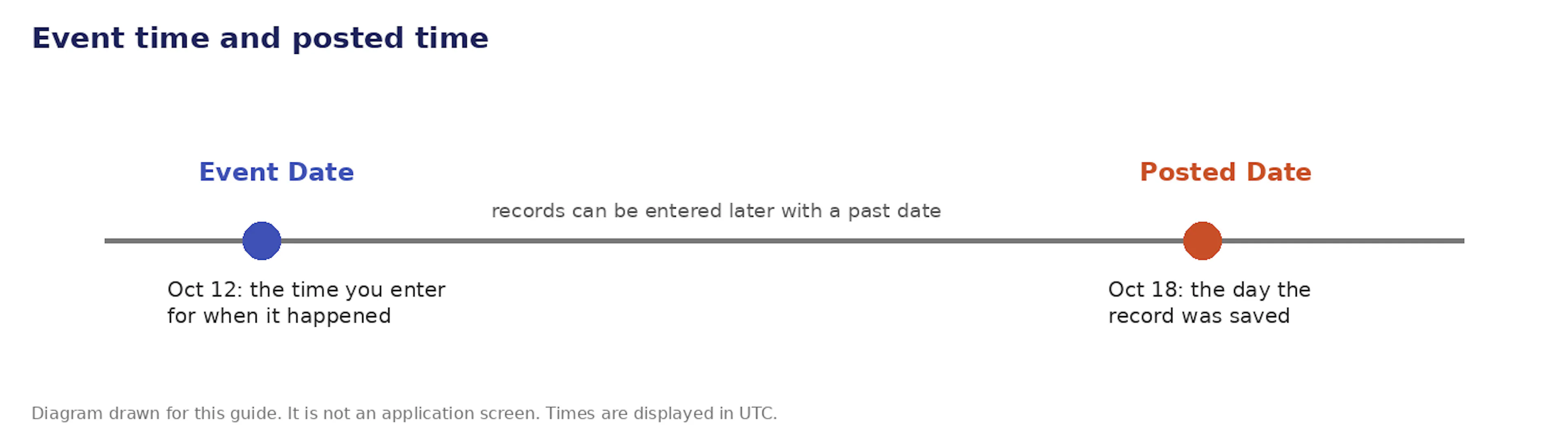
Diagram drawn for this guide: event time and posted time.
Attach documents
Select an existing document
In Documents, open Select Documents and tick an existing document.
Or upload a new file
To add a new file instead, select Upload and Attach.
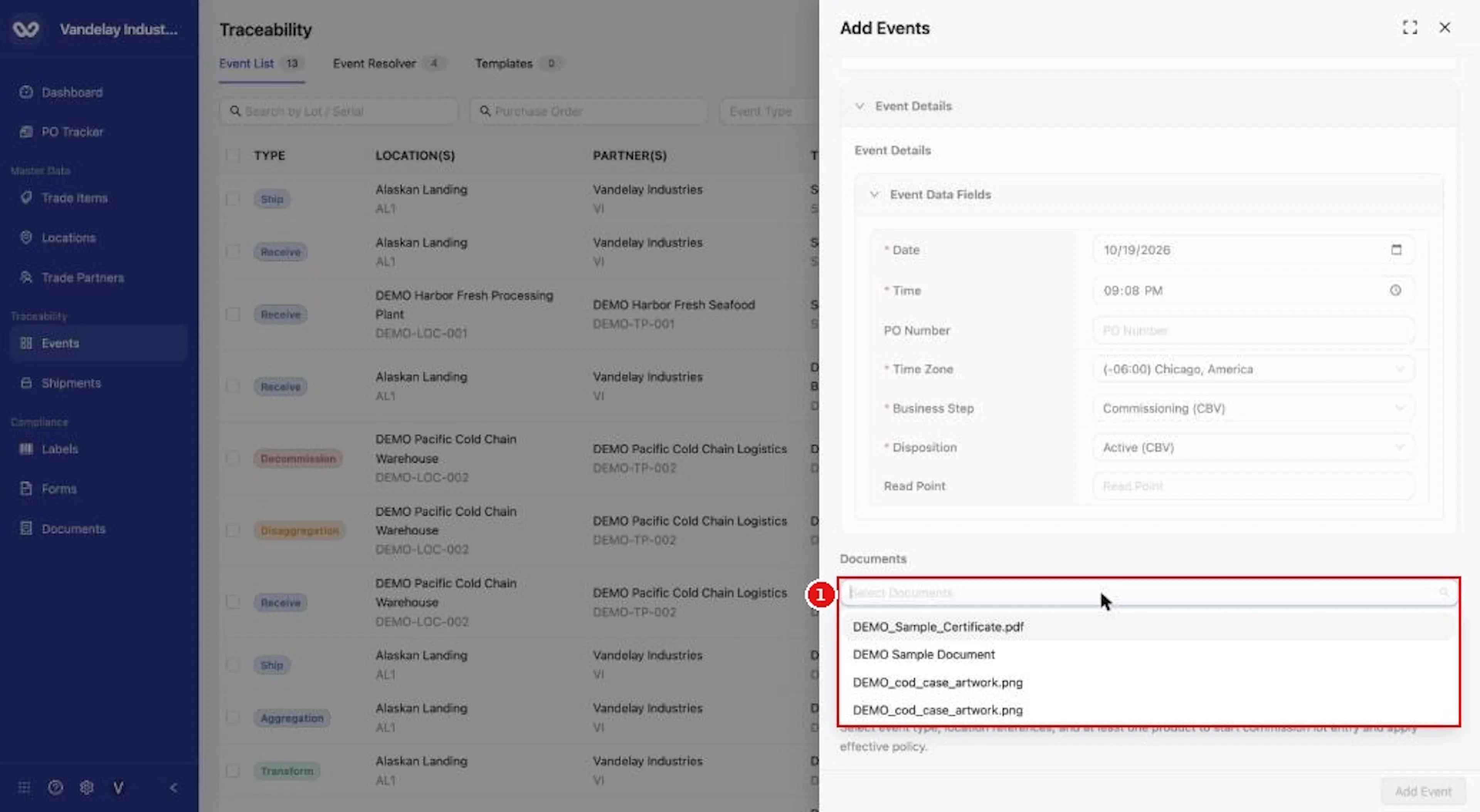
In Documents, open Select Documents to attach a document that already exists in Wholechain.
Review and add
Check the Selected Inventory Summary
Read the Selected Inventory Summary at the bottom of the drawer. It lists the lots, containers or inbound shipments you selected and, for event types that ask for quantities, the quantity. A Disaggregation takes a whole container apart and asks for no quantity.
Select Add Event
Select Add Event. A confirmation appears and the event is listed.
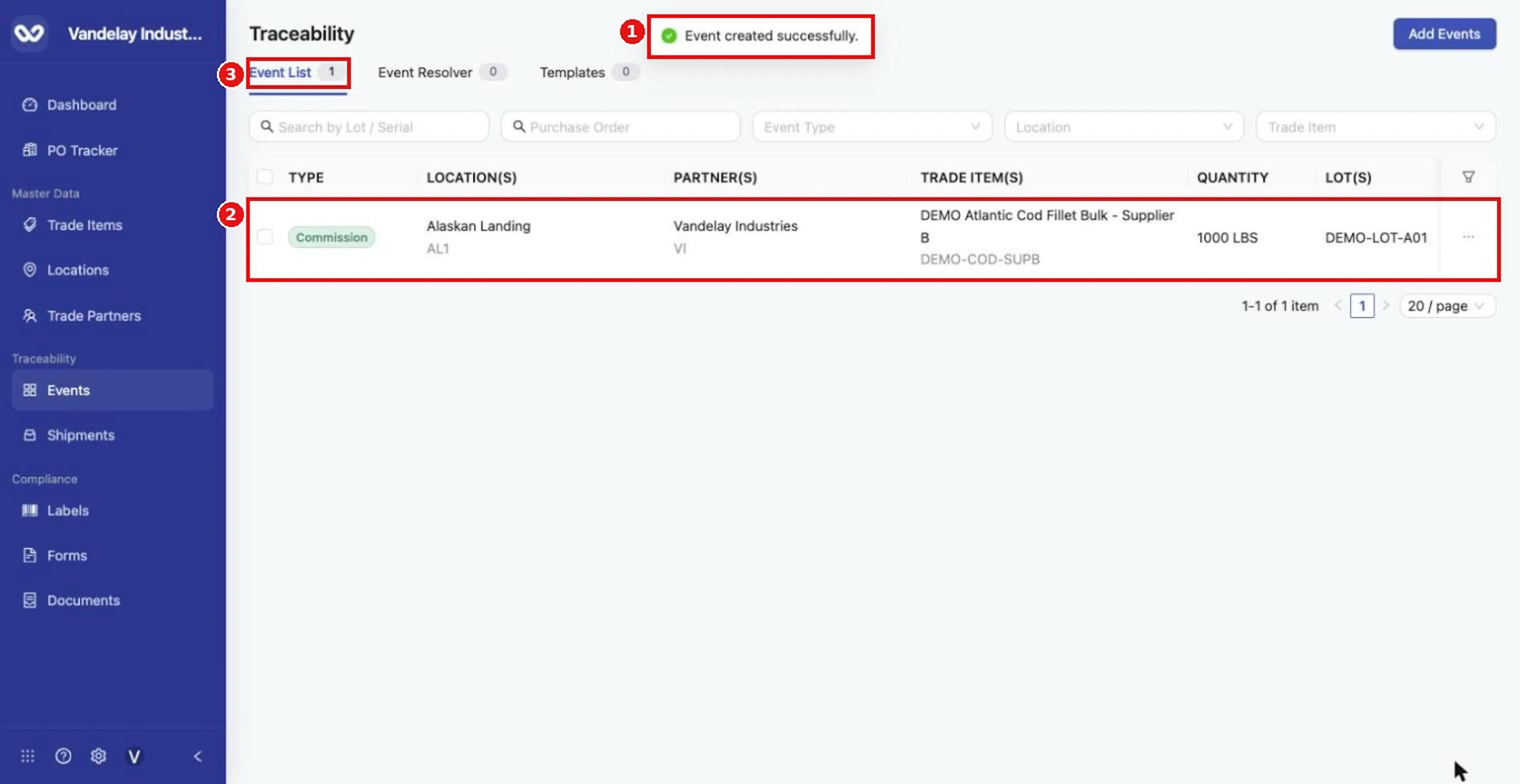
After Add Event, a confirmation appears and the new event is listed in the Event List.
Bulk Upload
The Bulk Upload tab (titled Bulk Event Upload) offers a CSV Template link and a drop box that accepts .csv files. Bulk procedures are outside the scope of this guide.
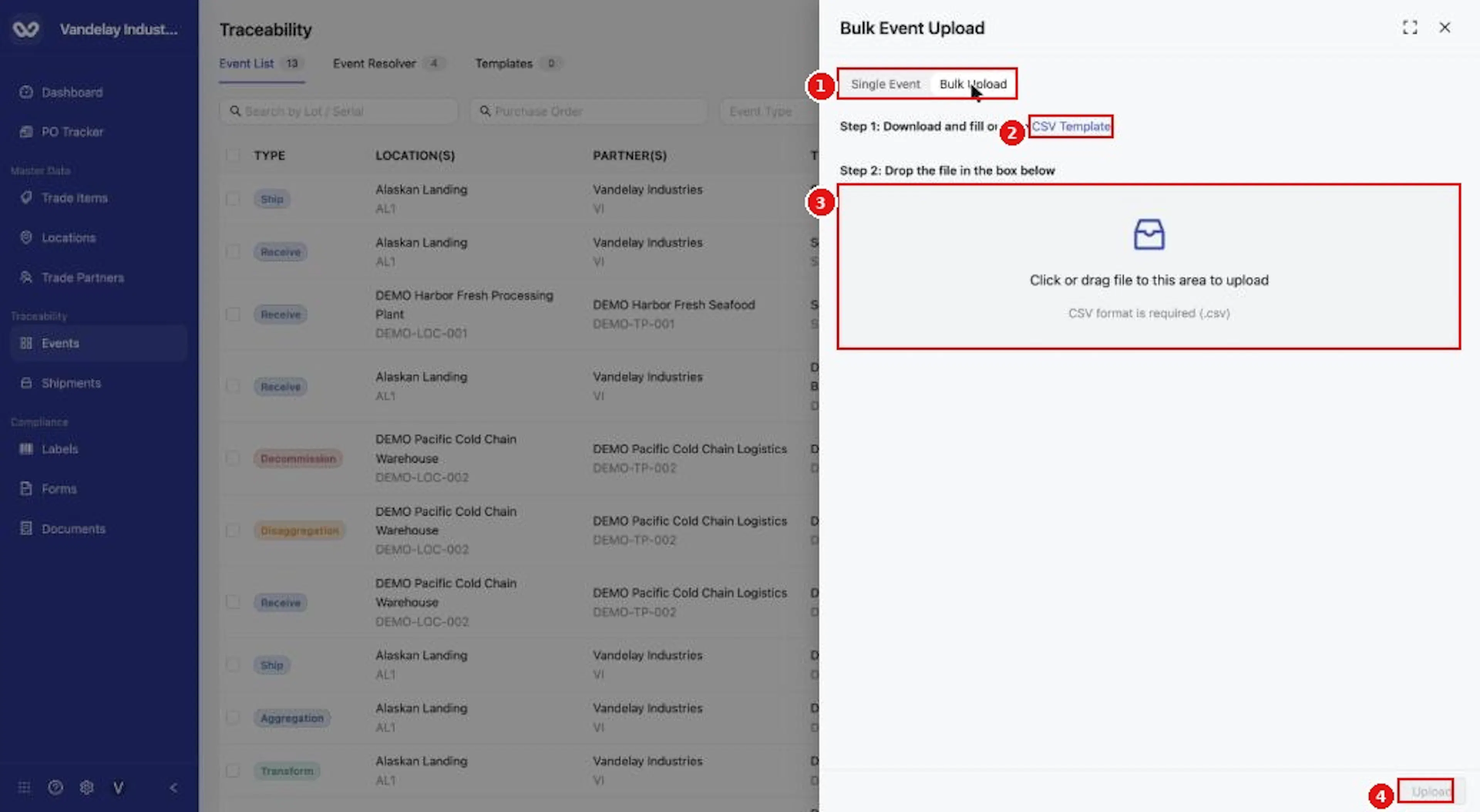
The Bulk Upload tab (Bulk Event Upload) offers a CSV Template link and a drop box. Bulk procedures are outside the scope of this guide.
Expected result
A confirmation message, and a new row in the Event List. See Events overview and list navigation.
Troubleshooting
- Add Event is greyed out. Choose Event Type, Location and Products first, then select the inventory.
- The wrong time appears in the list. Check the Time Zone you chose when entering the event. The list shows the UTC time with that zone's offset beside it.
- A ticked inbound shipment cleared. Choosing a product after ticking an inbound shipment clears the tick. Choose Products first, then tick the shipment again.
Other questions are answered in the FAQ. The rules that apply across events are in Rules and restrictions.
Field and action reference
Master data references
| Field | Req. | Type | Values | Default |
|---|---|---|---|---|
| Event Type | Yes | Dropdown | Commission, Observe, Ship, Receive, Aggregation, Disaggregation, Transform, Decommission. Changing it resets Location and Products. | Commission |
| Location | Yes | Dropdown | Locations in the account, including external Locations of Trade Partners. Used by Commission, Observe, Aggregation, Disaggregation, Transform and Decommission. | None |
| Origin Location | Yes | Dropdown | As above. Used by Ship and Receive in place of Location. A shared Location can be used as the origin Location on Receive events. | None |
| Destination Location | Yes | Dropdown | As above. Used by Ship and Receive. A shared Location can be used as the destination Location on Ship events. | None |
| Products | Yes | Multi-select dropdown | Trade Items in the account. Choose at least one. | None |
| Custom Data Template | No | Dropdown | Templates defined for the account. | None |
Choose Event Type, the location fields and Products first. Then fill in the Inventory Selection fields, which depend on the event type and are described in each event type's article. Transform and Decommission cannot use the Containers tab: containers must be disaggregated first. A Ship can use only part of a lot. Add Event stays disabled until the event type, the location fields and at least one product are chosen and inventory is selected.
Event Details (all event types)
| Field | Req. | Type | Values | Default |
|---|---|---|---|---|
| Date | Yes | Date picker | A calendar date. | Today |
| Time | Yes | Time picker | A time of day. | The current time |
| PO Number | No | Text | Free text. | Empty |
| Time Zone | Yes | Dropdown | 337 zones, each shown as "(offset) City, Region", for example "(-06:00) Chicago, America". | The account time zone, set under Organization Settings > Account |
| Business Step | Yes | Searchable dropdown | See Business Step values. | Depends on event type (see below) |
| Disposition | Yes | Dropdown | See Disposition values. | Depends on event type (see below) |
| Read Point | No | Text | Free text. | Empty |
Default Business Step and Disposition by event type
| Event Type | Business Step | Disposition |
|---|---|---|
| Commission | Commissioning (CBV) | Active (CBV) |
| Observe | Packing (CBV) in Wholechain; you can change it, for example to Stock Taking or Temperature | In Progress (CBV) |
| Transform | Commissioning (CBV) | Active (CBV) |
| Aggregation | Packing (CBV) | In Progress (CBV) |
| Ship | Shipping (CBV) | In Transit (CBV) |
| Receive | Receiving (CBV) | In Progress (CBV) |
| Disaggregation | Unpacking (CBV) | In Progress (CBV) |
| Decommission | Decommissioning (CBV) | Inactive (CBV) |
Business Step values
CBV: Accepting, Arriving, Assembling, Collecting, Commissioning, Consigning, Creating Class Instance, Cycle Counting, Departing, Destroying, Disassembling, Dispensing, Encoding, Entering/Exiting, Holding, Inspecting, Installing, Killing, Loading, Other, Packing, Picking, Receiving, Removing, Repackaging, Repairing, Replacing, Reserving, Retail Selling, Shipping, Staging Outbound, Stock Taking, Storing, Transporting, Unloading, Unpacking, Void Shipping, Decommissioning. Each is shown with "(CBV)" after the name.
GDST: Fishing Event, Farm Harvest, Transshipment, Landing, Feeding, Hatching, Temperature, Packaging, Commingling, Sampling, Freezing. Each is shown with "(GDST)" after the name.
There is no Business Step named Transform. Choose the step that matches the activity.
Disposition values
CBV: In Transit, Inactive, Active, Container Closed, Damaged, Destroyed, Dispensed, Disposed, Encoded, Expired, In Progress, No Pedigree Match, Non Sellable Other, Partially Dispensed, Recalled, Reserved, Retail Sold, Returned, Sellable Accessible, Sellable Not Accessible, Stolen, Unknown. Each is shown with "(CBV)" after the name.
GDST: Entering Commerce (GDST).
A Decommission requires a Disposition and has no field named Reason. The Disposition is the field that records why a lot was decommissioned.
Documents and summary
| Control | Req. | Description |
|---|---|---|
| Select Documents | No | Dropdown of documents already in the account; you can attach more than one. |
| Upload and Attach | No | Uploads a file from your computer and attaches it to the event. Files of any type are accepted. Image files (such as JPEG and PNG) can be viewed in the file viewer and on the Documents tab. Other file types can be downloaded. |
| Selected Inventory Summary | Not an input | Summarizes the lots, containers or inbound shipments you selected. Shows "No lots, containers, or inbound shipments selected." until you select inventory. |
Bulk Upload
| Control | Description |
|---|---|
| CSV Template | Link on the Bulk Upload tab (titled Bulk Event Upload). |
| Drop box | Accepts .csv files. |