

Aggregate
Record an Aggregation event to pack all or part of one or more lots into a container identified by an SSCC or a Logistic ID.
Applies to: the Add Events drawer, Event Type Aggregation
Audience: Anyone who packs lots into a pallet, carton or other container
Prerequisites: the lot exists at the Location; an 18-digit SSCC or a Logistic ID for the container
Related: Wholechain Events Overview; Shared event fields; Disaggregate; Ship; Add Events form reference; Background: Aggregate Events
Purpose
Use Aggregate to pack lots into a container. The event type is named Aggregation in the application. An Aggregation records which lots are inside which container, so the container can be shipped and traced as one unit.
Before you begin
- The lot must exist at the Location.
- You need an 18-digit SSCC or a Logistic ID for the container.
- You can pack part of a lot; the rest of the lot stays loose.
- The fields every event shares (Date, Time, Time Zone, Business Step, Disposition and so on) are explained once in Shared event fields. This article covers only what is specific to Aggregation.
Add an Aggregation
Choose the Event Type, Location and Products
Select Add Events, set Event Type to Aggregation, then choose Location and Products.
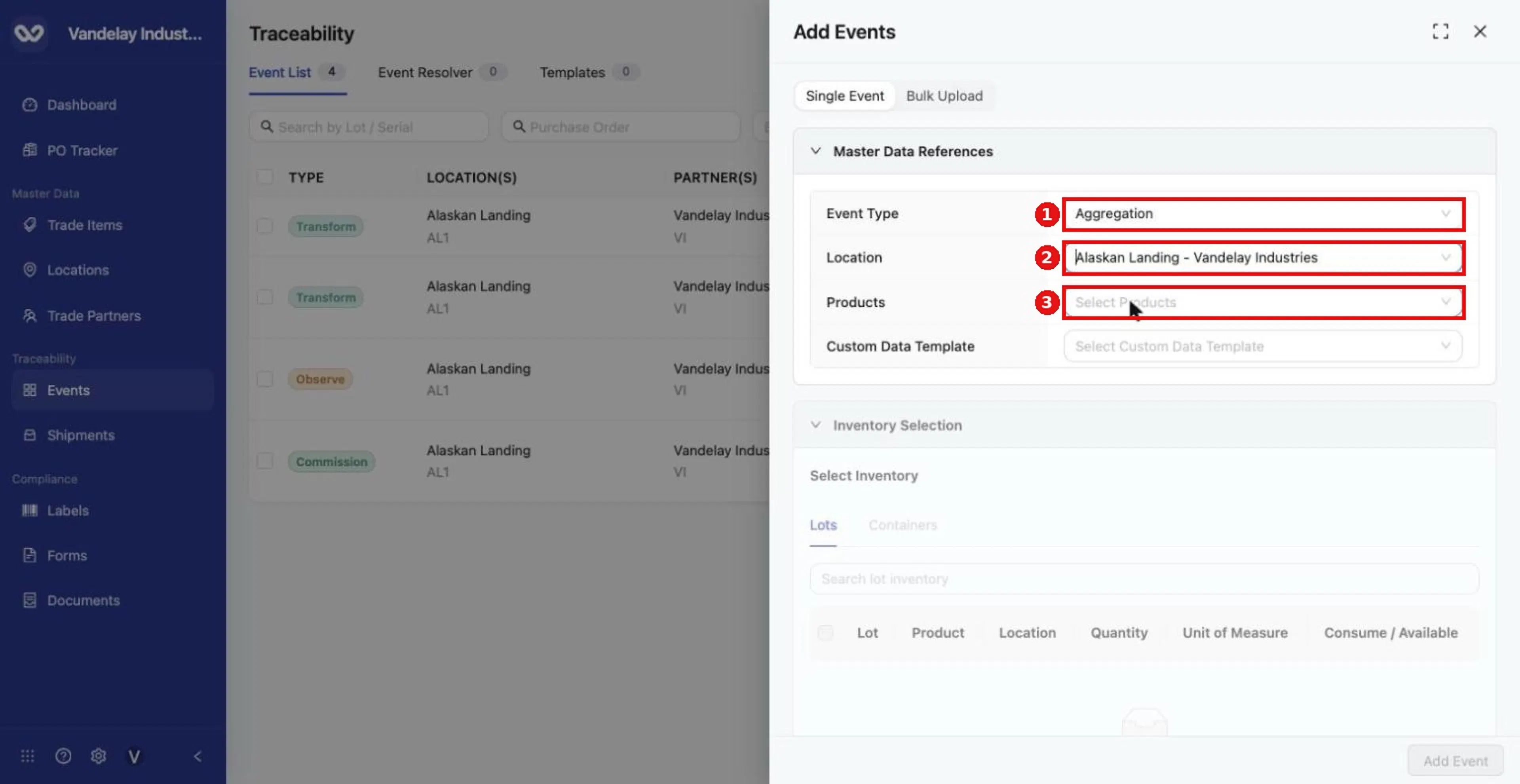
For an Aggregation, choose Event Type Aggregation, a Location and Products.
Tick the lot and enter the amount to pack
On the Lots tab, tick the lot and enter how much goes into the container. You can pack part of a lot.
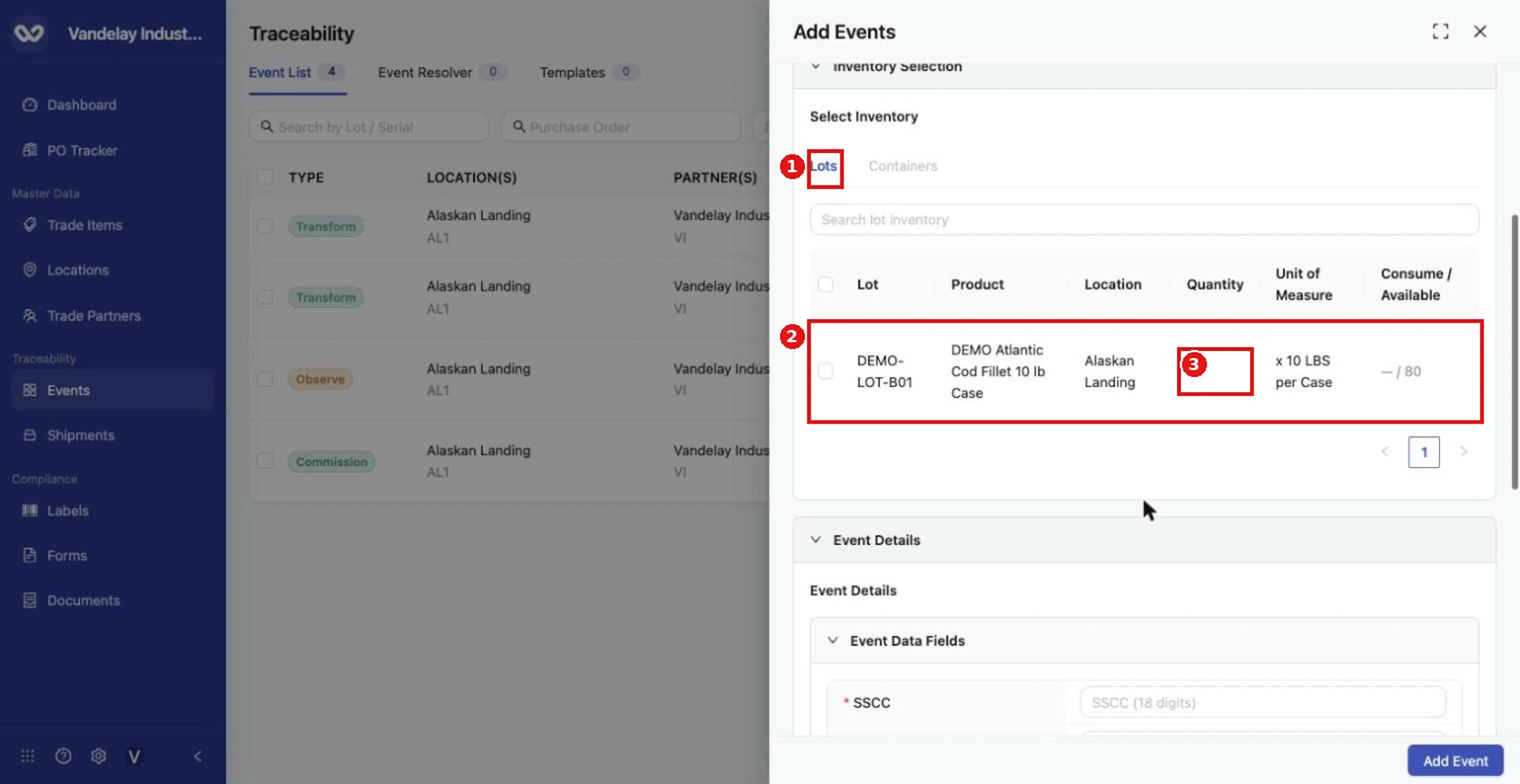
Select the lot to pack. Choose how much of the lot goes into the container.
Enter the SSCC or a Logistic ID
Enter the SSCC (18 digits) or a Logistic ID. Entering one removes the requirement for the other.
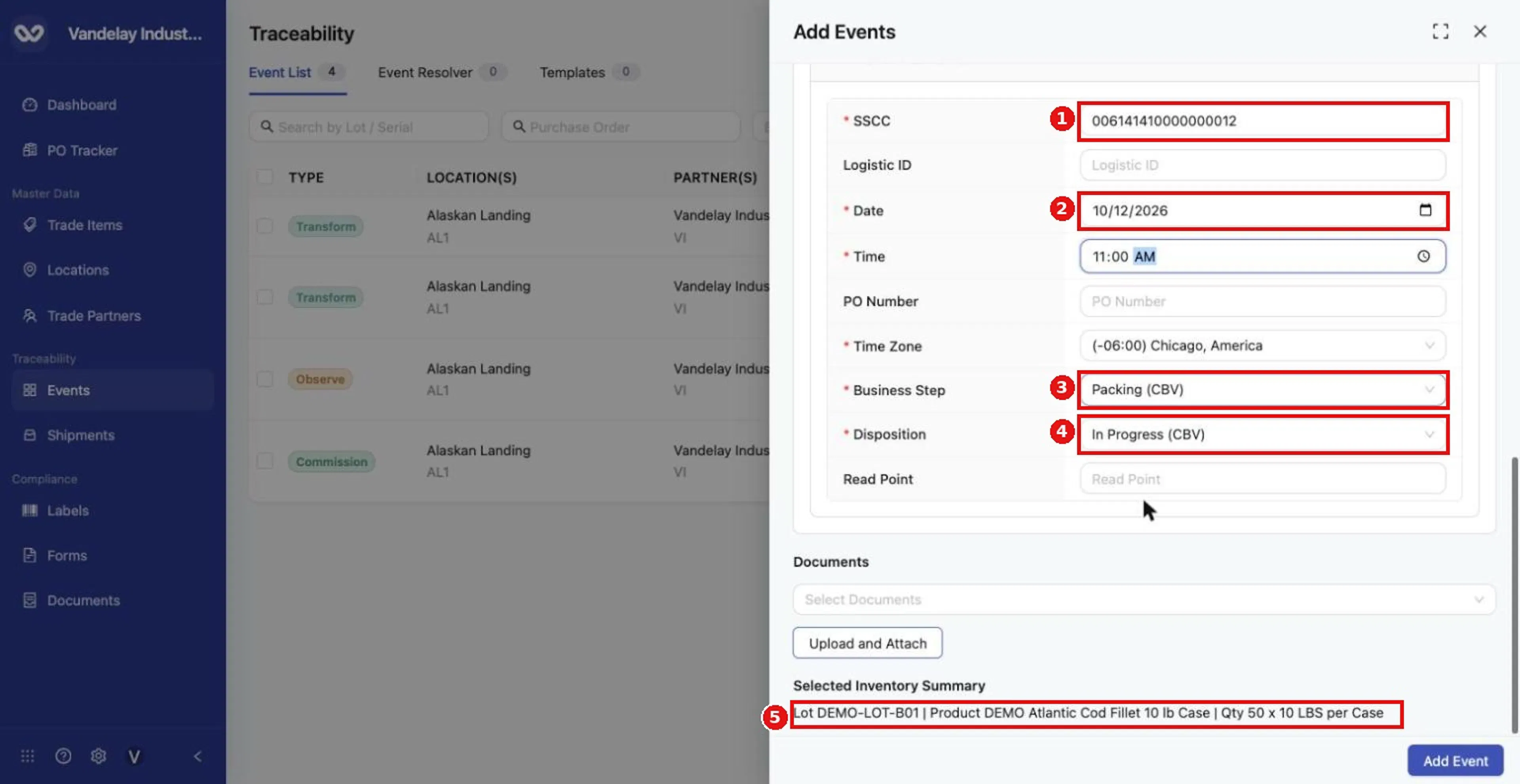
Enter the 18-digit SSCC, then set Date, Time, Business Step and Disposition. Check the Selected Inventory Summary before you add the event.
Complete Event Details
Complete Event Details. The form pre-fills Packing (CBV) and In Progress (CBV). Every field is described in Shared event fields.
Check the summary and select Add Event
Check the Selected Inventory Summary, then select Add Event.
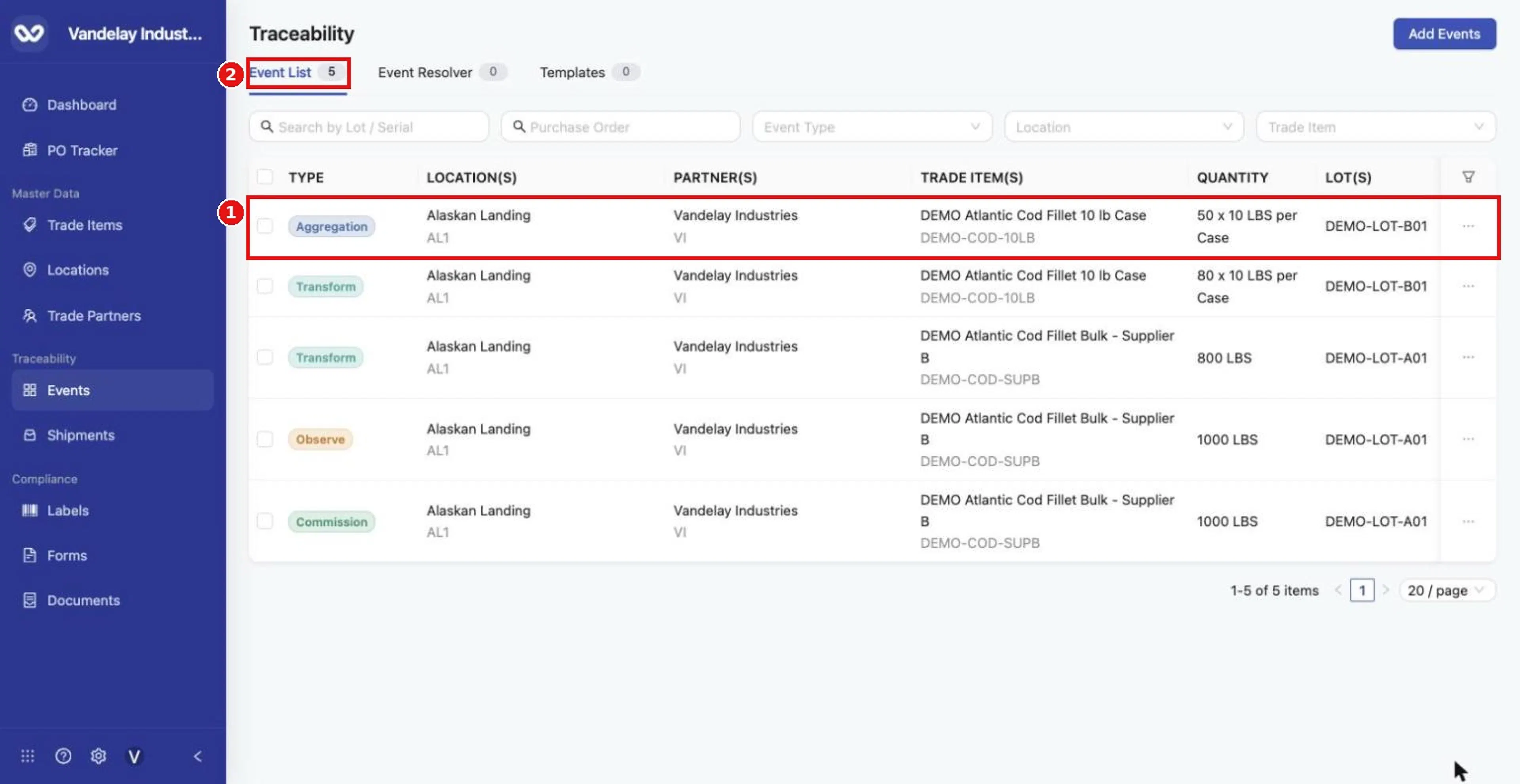
The Aggregation appears in the Event List with the quantity that was packed.
Expected result
An Aggregation row appears in the Event List with the packed quantity. Example: 50 of 80 cases of DEMO-LOT-B01 in SSCC 006141410000000012.
Troubleshooting
- The SSCC is rejected. Check that it has 18 digits.
- Part of the lot stays loose. That is expected when you pack only part of the lot.
General questions about Add Events are answered in the Events FAQ.
Field and action reference
The common Master Data References fields and the Event Details fields are in Shared event fields. The fields below are specific to Aggregation.
Defaults for Aggregation
| Field | Default |
|---|---|
| Business Step | Packing (CBV) |
| Disposition | In Progress (CBV) |
Inventory selection
| Event Type | Inventory Selection |
|---|---|
| Aggregation | Lots selection with partial Consume amounts, plus a container identifier (see Container identifier below). |
Container identifier
| Field | Req. | Values |
|---|---|---|
| SSCC | Conditional: required unless Logistic ID is filled | 18 digits. |
| Logistic ID | Conditional: required unless SSCC is filled | Identifier text. |
Entering an SSCC removes the required marker from Logistic ID, and the reverse.