

Disaggregate
Record a Disaggregation event to unpack a whole container so its lots can be handled individually.
Applies to: the Add Events drawer, Event Type Disaggregation
Audience: Anyone who unpacks a pallet, carton or other container, for example after receiving it
Prerequisites: a container exists at the Location, for example after a Receive
Related: Wholechain Events Overview; Shared event fields; Aggregate; Receive; Add Events form reference; Background: Disaggregate Events
Purpose
Use Disaggregate to unpack a container so its lots can be handled individually. The event type is named Disaggregation in the application. It lets you work with the lots again after a container arrives.
Before you begin
- A container must exist at the Location, for example after a Receive.
- Disaggregation takes the whole container apart. You do not enter quantities, and you cannot unpack only part of a container.
- Transform and Decommission cannot use the Containers tab, so disaggregate a container first if you want to transform or decommission what is inside it.
- The fields every event shares (Date, Time, Time Zone, Business Step, Disposition and so on) are explained once in Shared event fields. This article covers only what is specific to Disaggregation.
Add a Disaggregation
Choose the Event Type, Location and Products
Select Add Events, set Event Type to Disaggregation, then choose Location and Products.
Tick the container on the Containers tab
Open the Containers tab and tick the container. No quantity is entered; the whole container is unpacked.
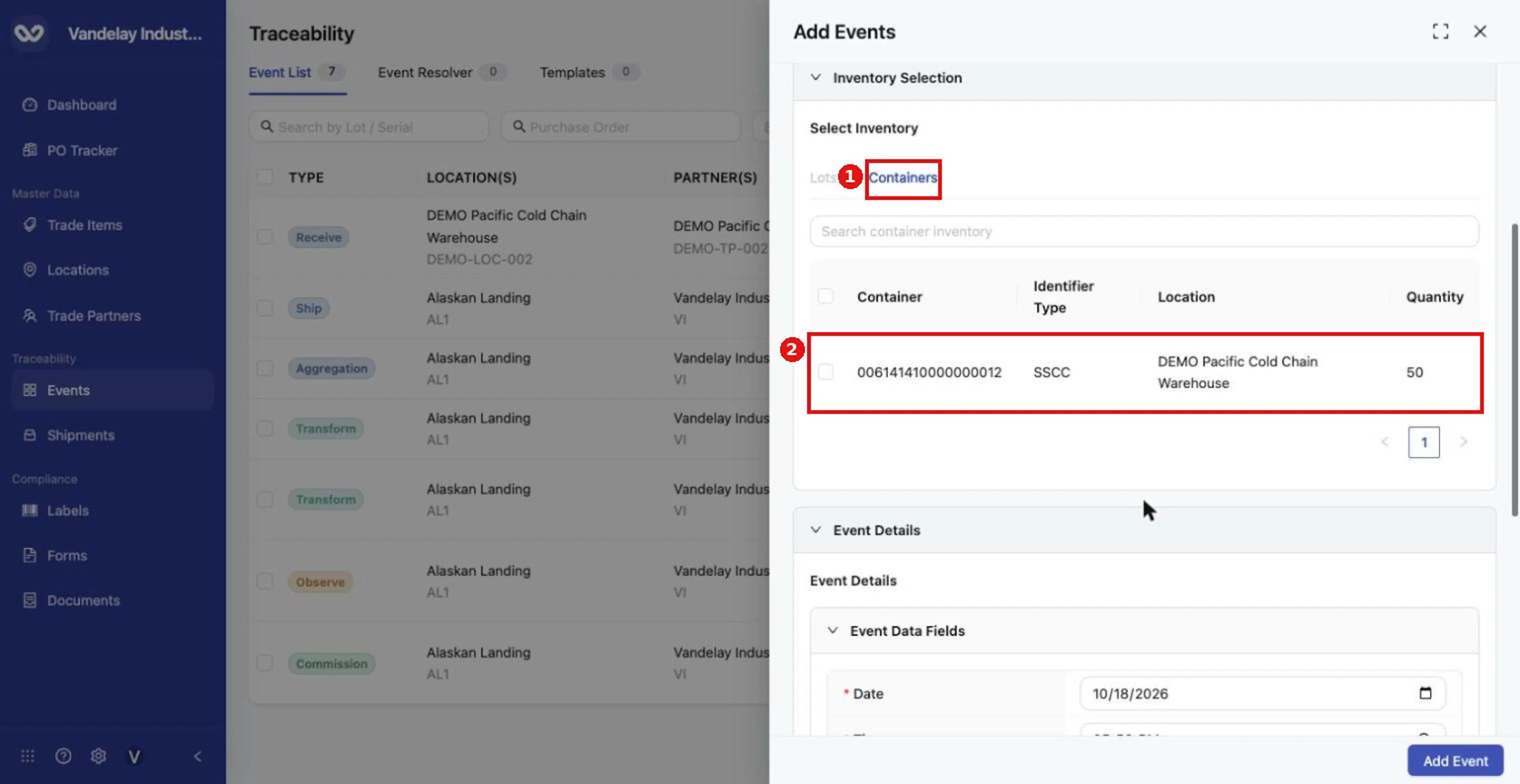
For a Disaggregation, open the Containers tab and select the container to unpack.
Complete Event Details
Complete Event Details. The form pre-fills Unpacking (CBV) and In Progress (CBV). Every field is described in Shared event fields.
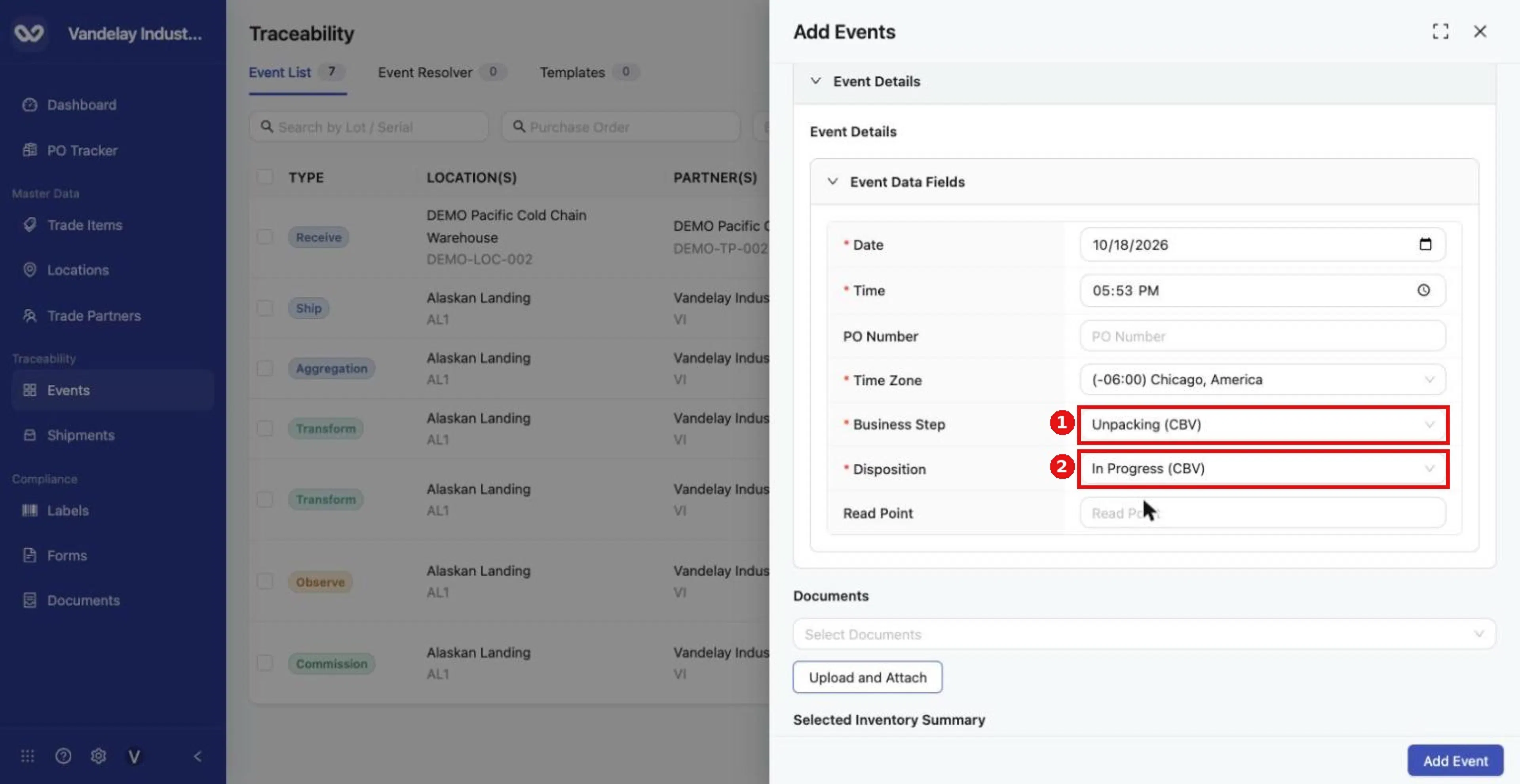
Set the event details. Business Step for this demonstration is Unpacking (CBV).
Select Add Event
Select Add Event.
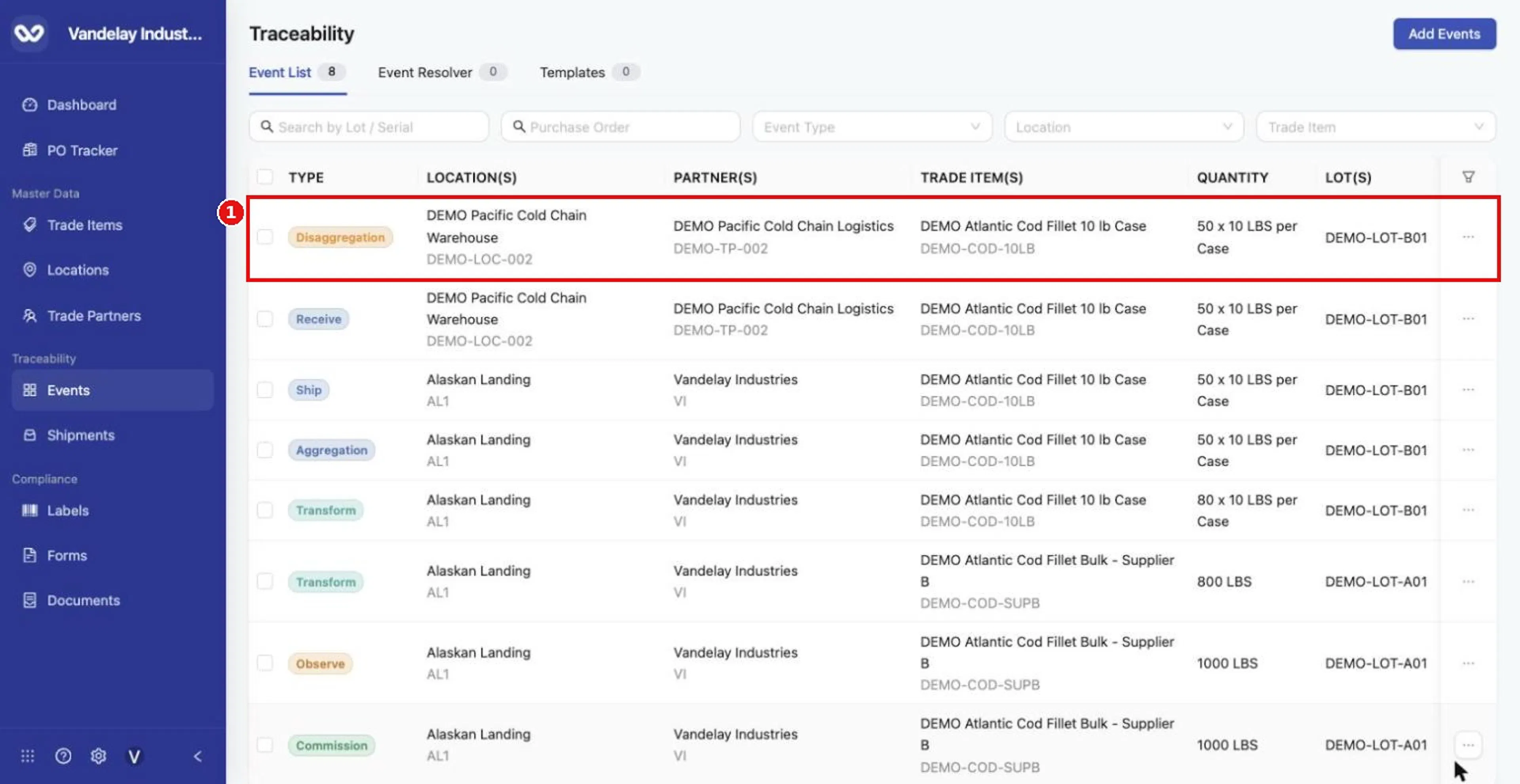
The Disaggregation appears at the top of the Event List.
Expected result
A Disaggregation row appears in the Event List at the Location where you unpacked the container.
Troubleshooting
- The container is not listed. It may be at another Location, or it may already be unpacked.
- You cannot unpack part of a container. Disaggregation applies to the whole container.
General questions about Add Events are answered in the Events FAQ.
Field and action reference
The common Master Data References fields and the Event Details fields are in Shared event fields. The fields below are specific to Disaggregation.
Defaults for Disaggregation
| Field | Default |
|---|---|
| Business Step | Unpacking (CBV) |
| Disposition | In Progress (CBV) |
Inventory selection
| Event Type | Inventory Selection |
|---|---|
| Disaggregation | Containers tab with columns Container, Identifier Type, Location, Quantity. Whole container only; no quantity entry. |