

Find and manage Trade Items
Set up the Trade Item List table, search and filter it, then link, share, download or archive many Trade Items at once.
Applies to: The Trade Item List in the Trade Items module.
Audience: Anyone who works with Trade Items day to day, including admins and users managing master data.
Prerequisites: At least one Trade Item in your account. Brands must exist before you can link Trade Items to one, and sharing needs at least one Wholechain-connected Trade Partner.
Related: Get started with Trade Items; Add Trade Items; Edit Item Details; Locations, attachments, and sharing; Trade Item Groups; Master Data Settings; Archived
Common actions
| I want to... | Where to do it |
|---|---|
| Show, hide or reorder list columns | Configure the table |
| Find a Trade Item by name, identifier, UPC, GTIN or alias | Search and filter |
| Show only items at a Location or in a group | Search and filter |
| Add one Trade Item or many from Excel | Add Trade Items |
| Change an item's details, identifiers, units, brand or aliases | Edit Item Details |
| Set a brand on many items | Bulk link to a brand |
| Put many items in a Trade Item Group | Bulk link to a group |
| Create or manage groups | Trade Item Groups |
| Share many items with Trade Partners | Bulk share |
| Share or set permissions on one item | Locations, attachments, and sharing |
| Set a data policy for one item | Set a data policy for one Trade Item |
| Download selected items to Excel | Download master data |
| Download every item, manage external identifiers, upload aliases | In Settings: Master Data Settings |
| Archive an item | Archive a Trade Item |
| Restore an archived item | In Settings: Archived |
Purpose
Use the Trade Item List to find the Trade Items you need and act on several of them at once. This article covers choosing the table columns, searching and filtering, selecting rows, and the command bar actions: link to a brand or group, share, download and archive.
Before you begin
- Open the list from the Trade Items module. Sub-products and archived items are not listed.
- For Trade Items settings in Settings (Brands, external identifiers, alias bulk upload, master data download), click the gear icon at the top of the Trade Items page (or open Settings with the gear icon at the bottom of the left-hand navigation bar), which opens Master Data Settings > Trade Item (Master Data Settings).
- A Trade Item Identifier is your own unique item number (the Item Number/ID column in bulk files; Settings calls it Trade Item Number / ID). Items shared with you also show the Owner Trade Item Identifier.
Configure the table
Show the columns you need, in the order you want.
Click the funnel icon in the table header
The funnel icon is at the right end of the table header. Column Display opens.
Tick or untick columns
Available columns are listed in the Field and action reference. Some columns are hidden by default; tick them to show them.
Reorder the columns
Drag a row by its handle or use its up and down arrows.
Click Reset to restore the default layout
Use this at any time to return to the default columns and order.
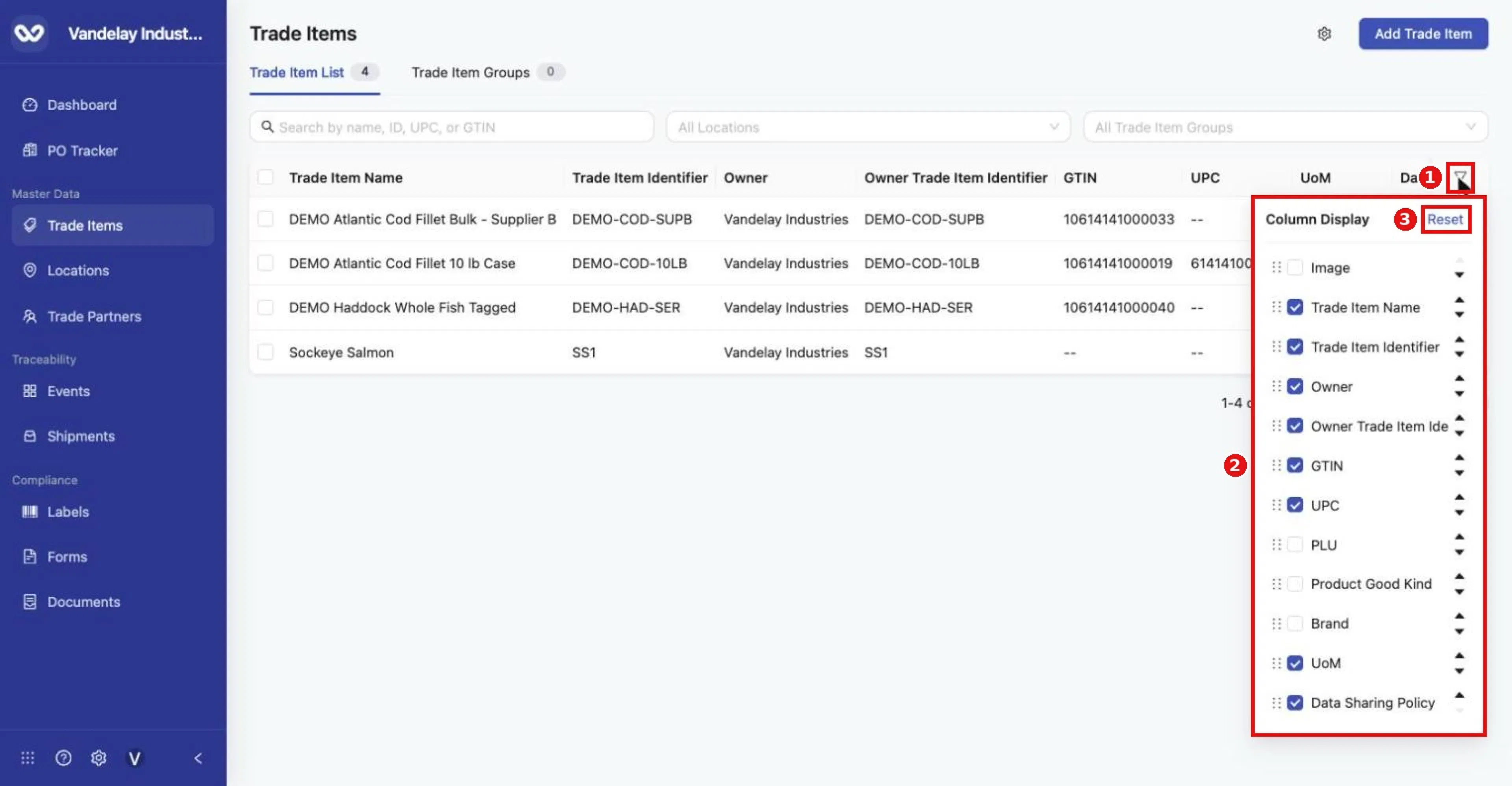
The funnel icon at the right of the table header opens Column Display: tick or untick columns, drag the handle or use the arrows to reorder, and Reset to restore defaults.
The table updates immediately. For example, an Image column appears when you tick it.
Search and filter
Type in Search by name, ID, UPC, or GTIN
You can search by name ("cod"), Trade Item Identifier (DEMO-COD-SUPB), UPC (614141000012), GTIN (10614141000040) or an alias value (ERP-COD-4471).
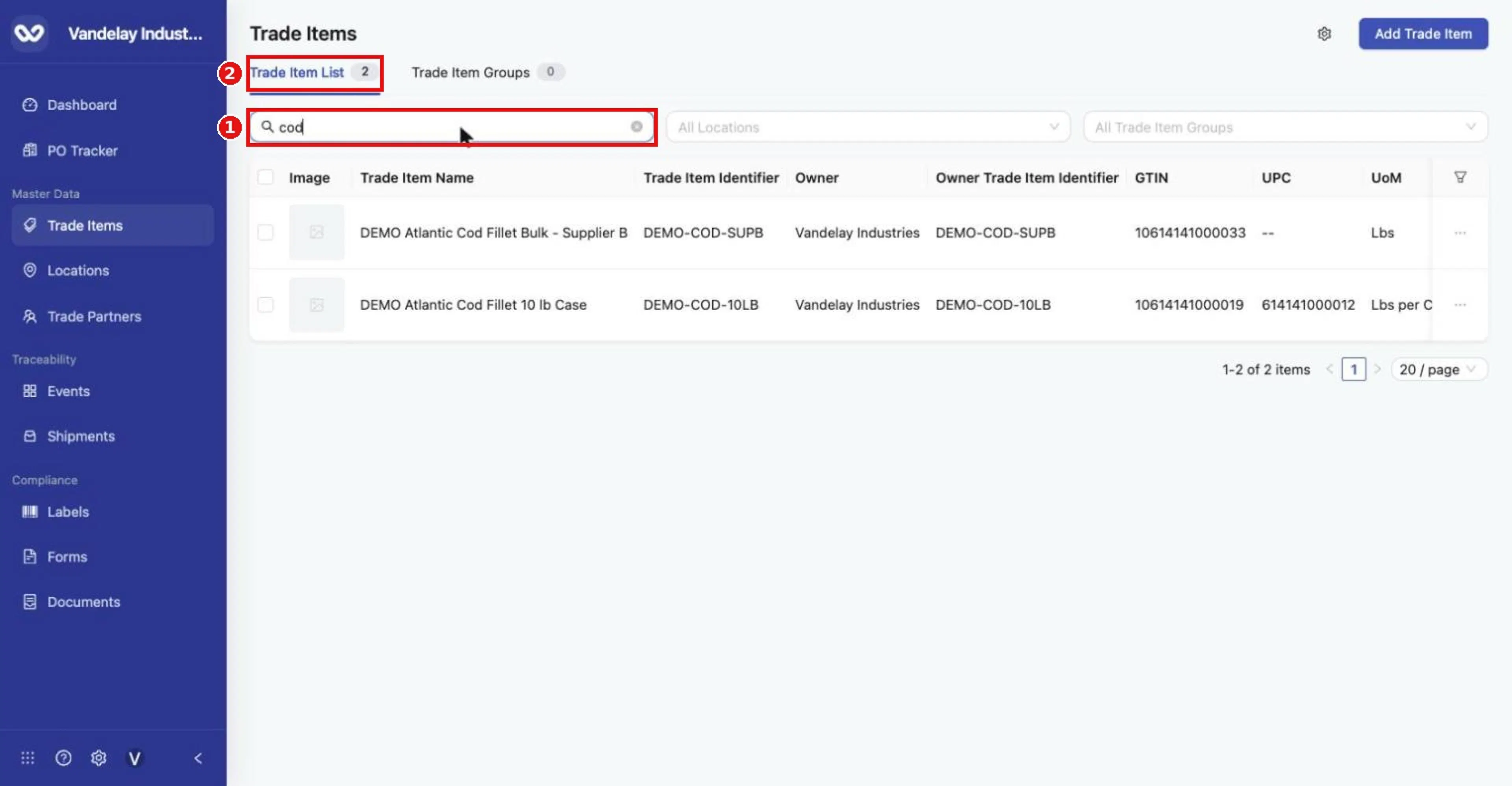
Search box: typing 'cod' narrows the list to matching items (count shows 2).
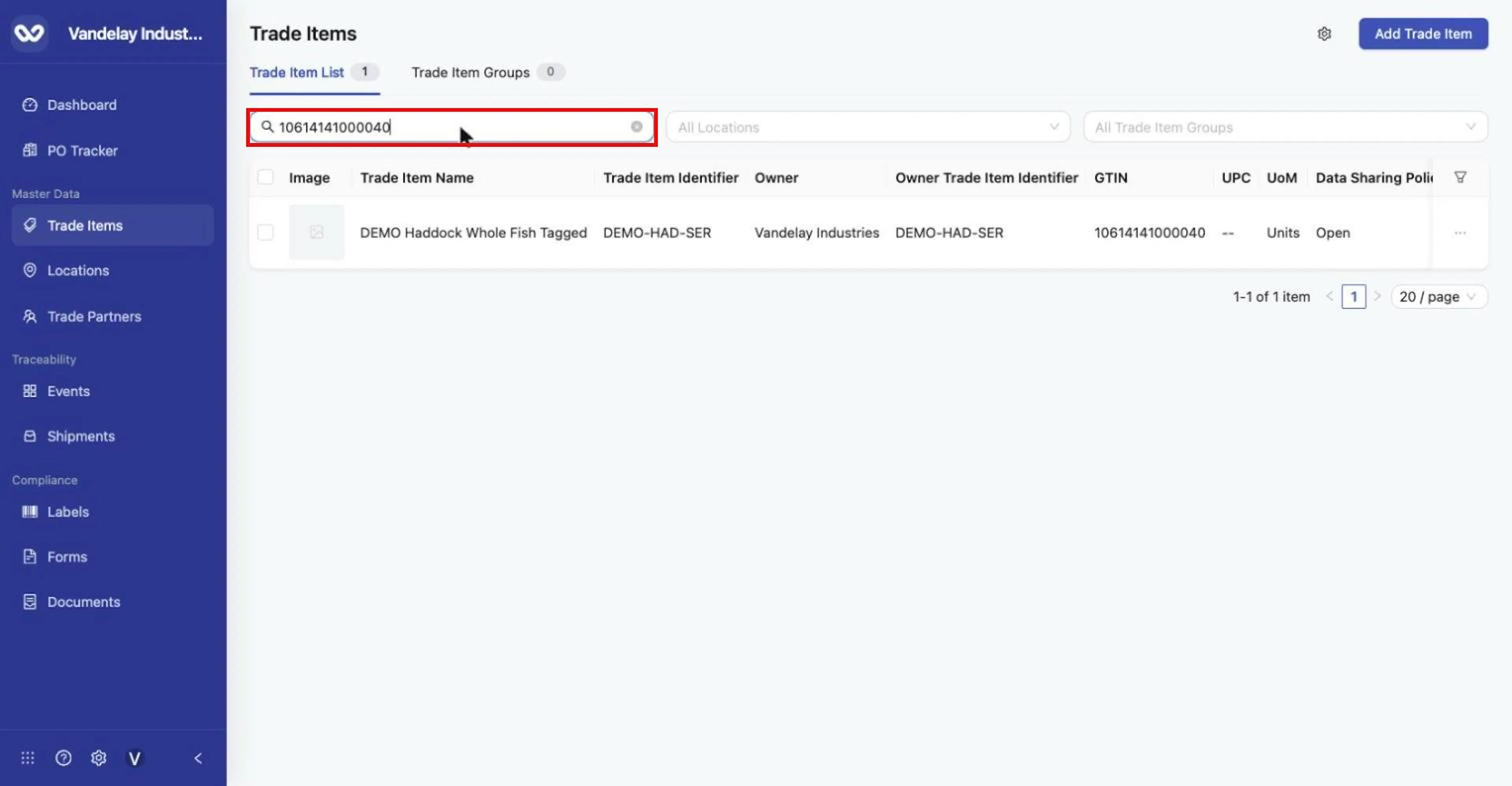
Searching by GTIN returns the single matching item. Identifier, UPC and alias values also work.
Use All Locations to filter by Location
This shows only items with active inventory at the chosen Location or Locations.
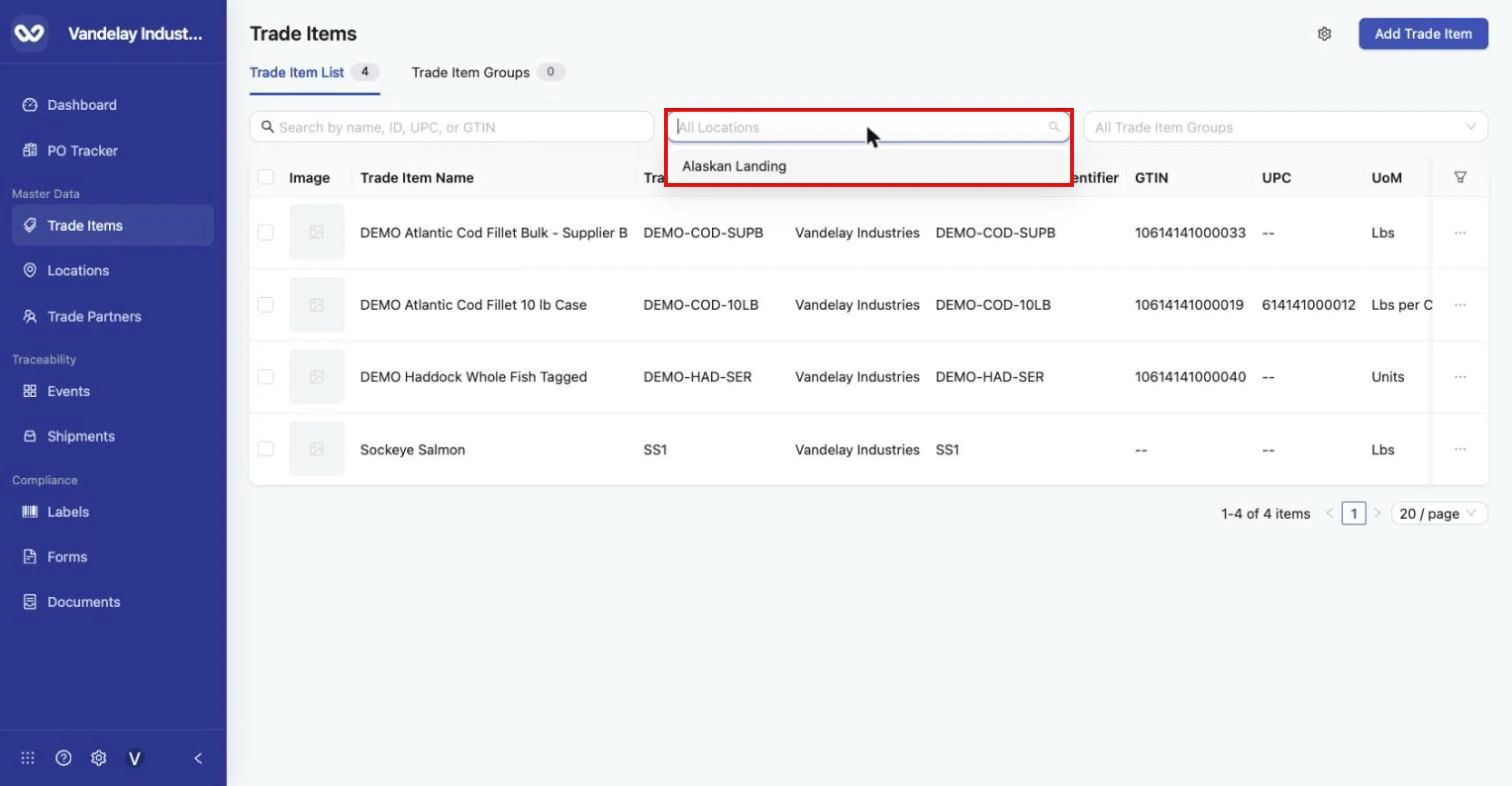
All Locations filter: pick one or more locations.
Use All Trade Item Groups to filter by group
This shows only the members of the chosen groups.
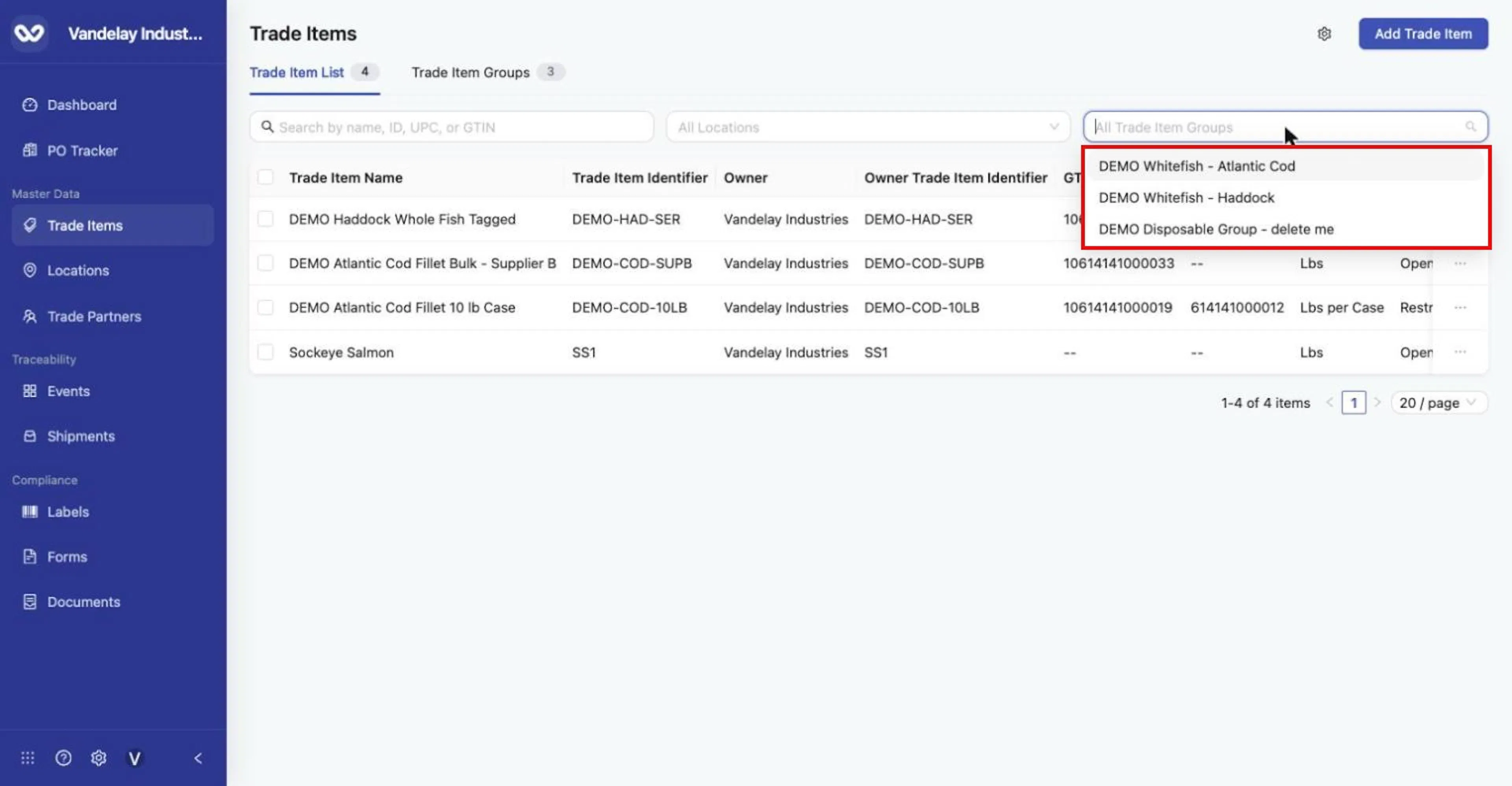
All Trade Item Groups filter lists every group.
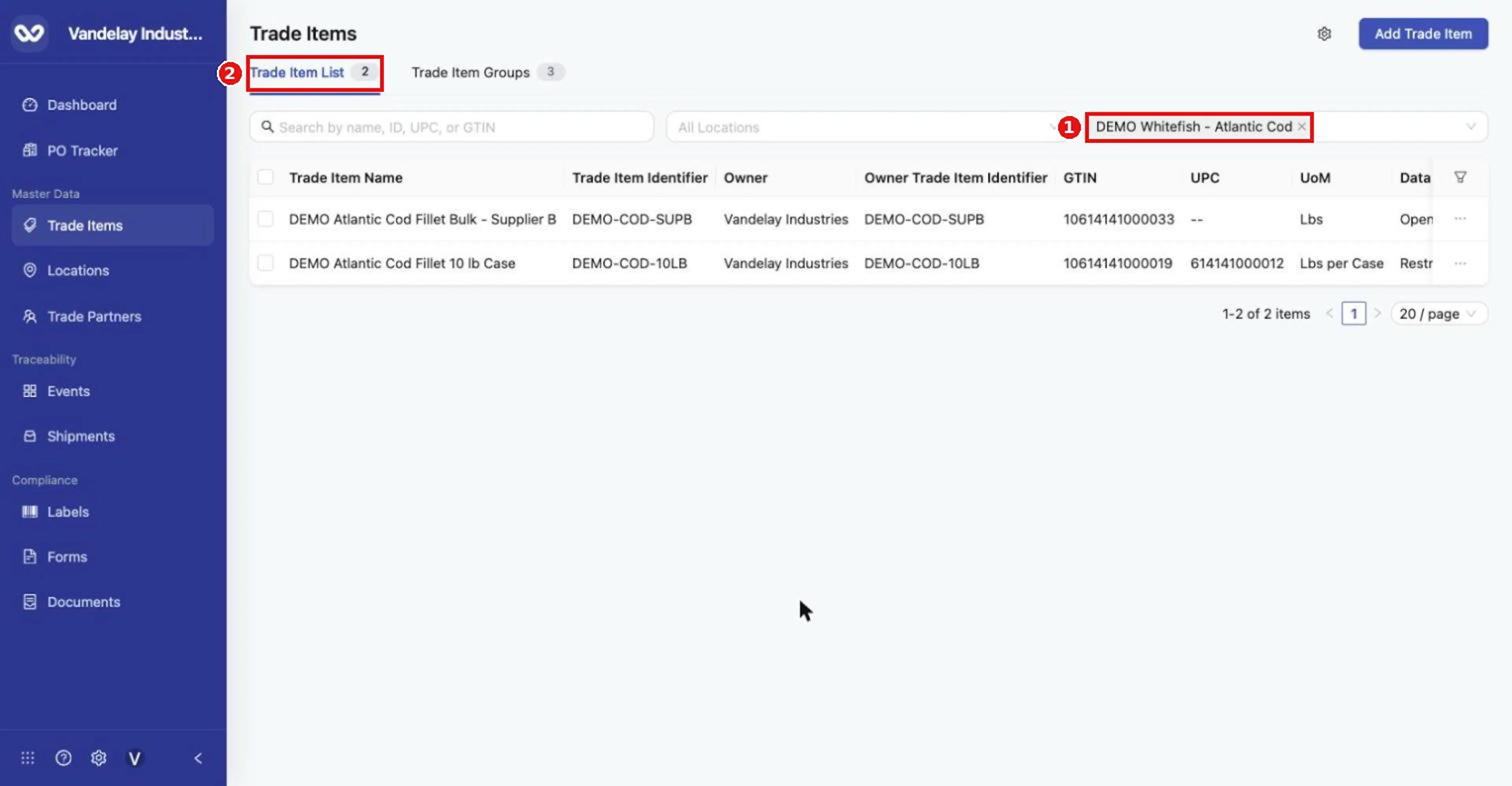
Filtered to one group: only its member items are listed (count 2). Remove the tag (x) to clear the filter.
Clear the search or filter
Click the x in the search box, or the x on a filter tag.
Recognizing an empty result. The count beside Trade Item List shows 0 and the table reads No Data. In the example, filtering by Alaskan Landing returns no items because none of them has inventory there yet.
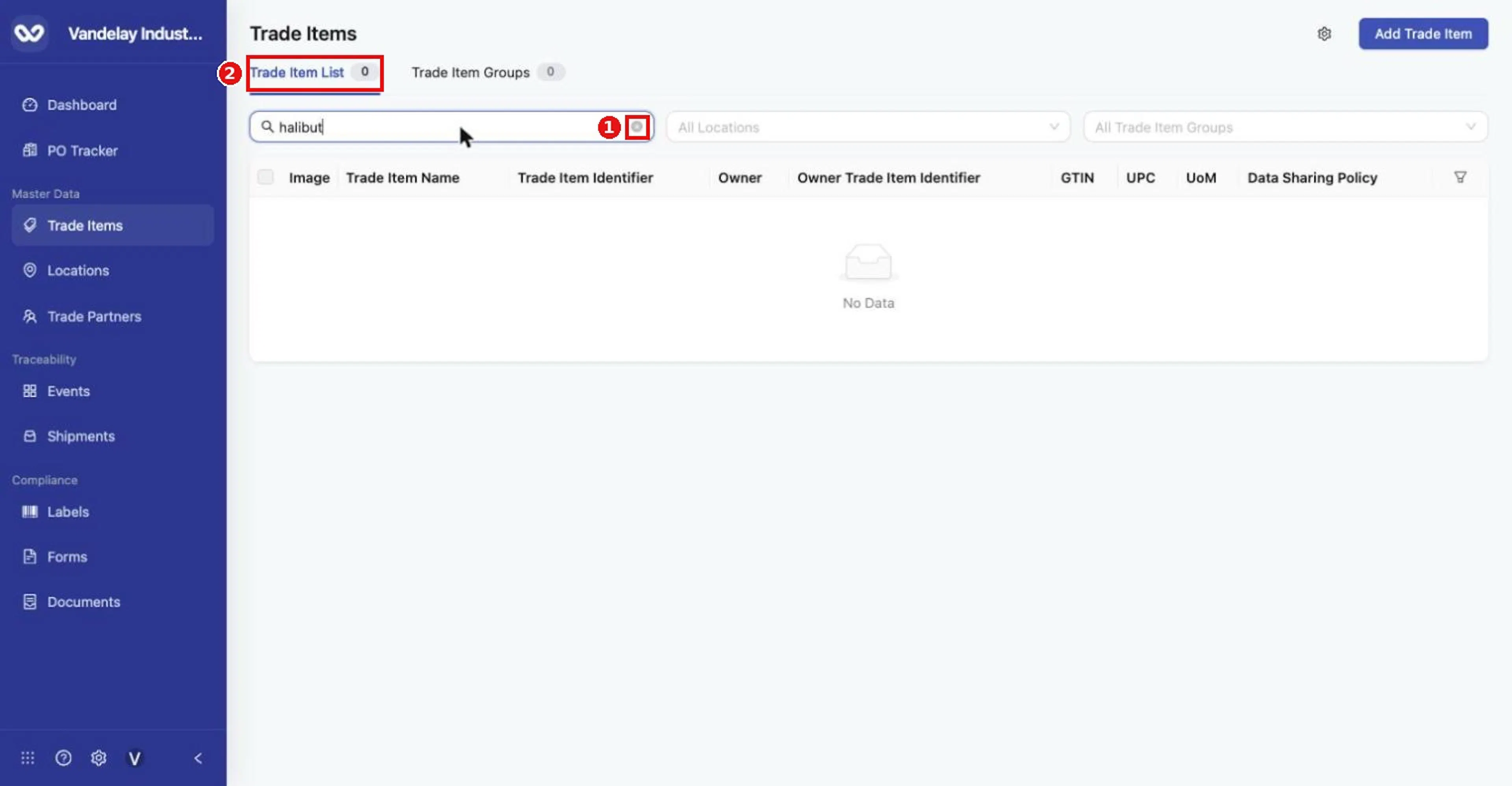
An empty filtered result: the count reads 0 and the table shows 'No Data'. Clear the search with the x at the right of the box.
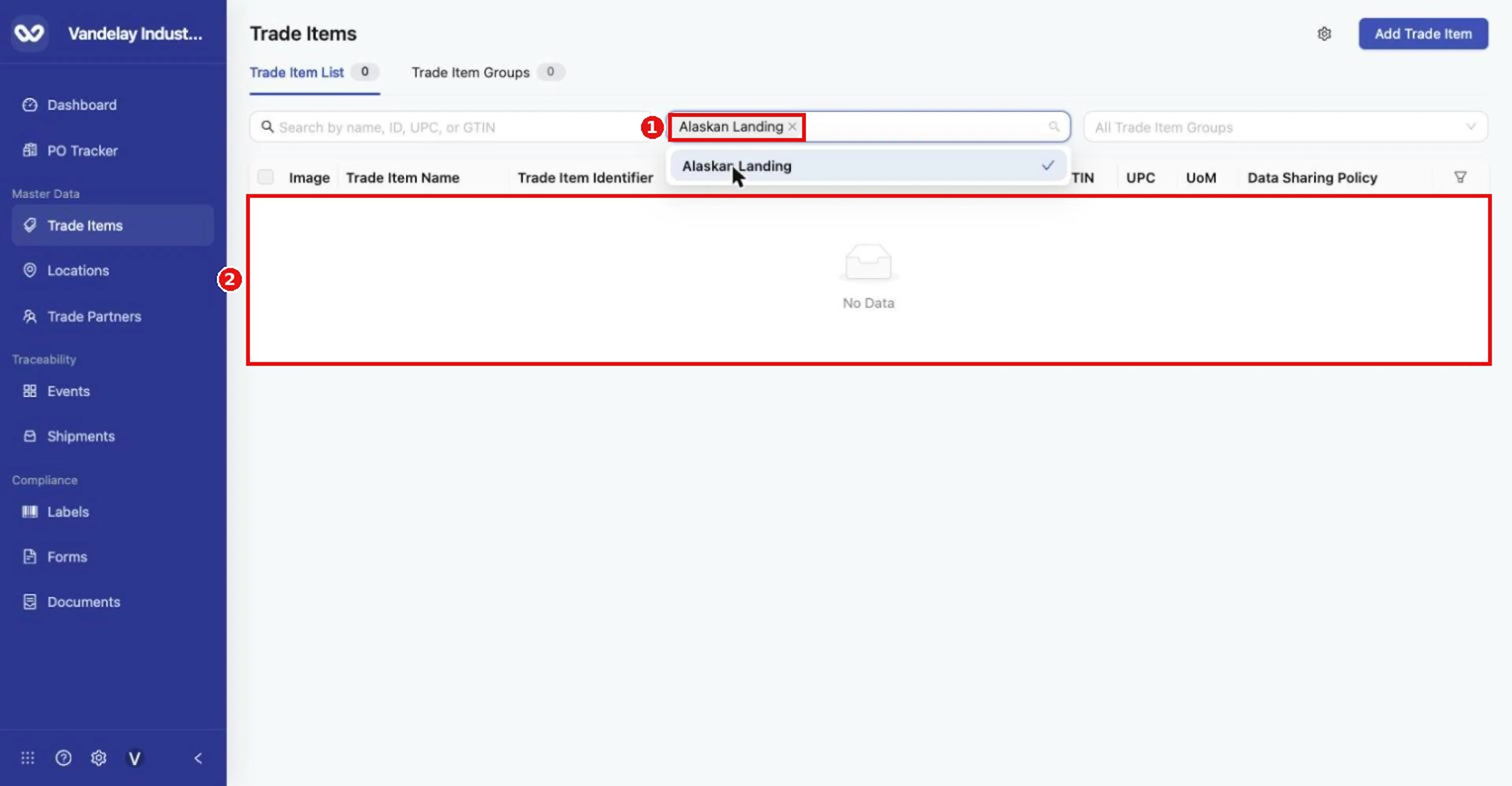
Filtering by a location lists only items with active inventory there. Here no item has inventory yet, so the result is empty. Remove the location tag (x) to clear.
Select items and use the command bar
Tick the left-hand checkboxes, or the header checkbox to select all items on the page. A command bar appears at the bottom with n selected, Link, Share, Download and a three-dot menu. The actions below all start from this bar.
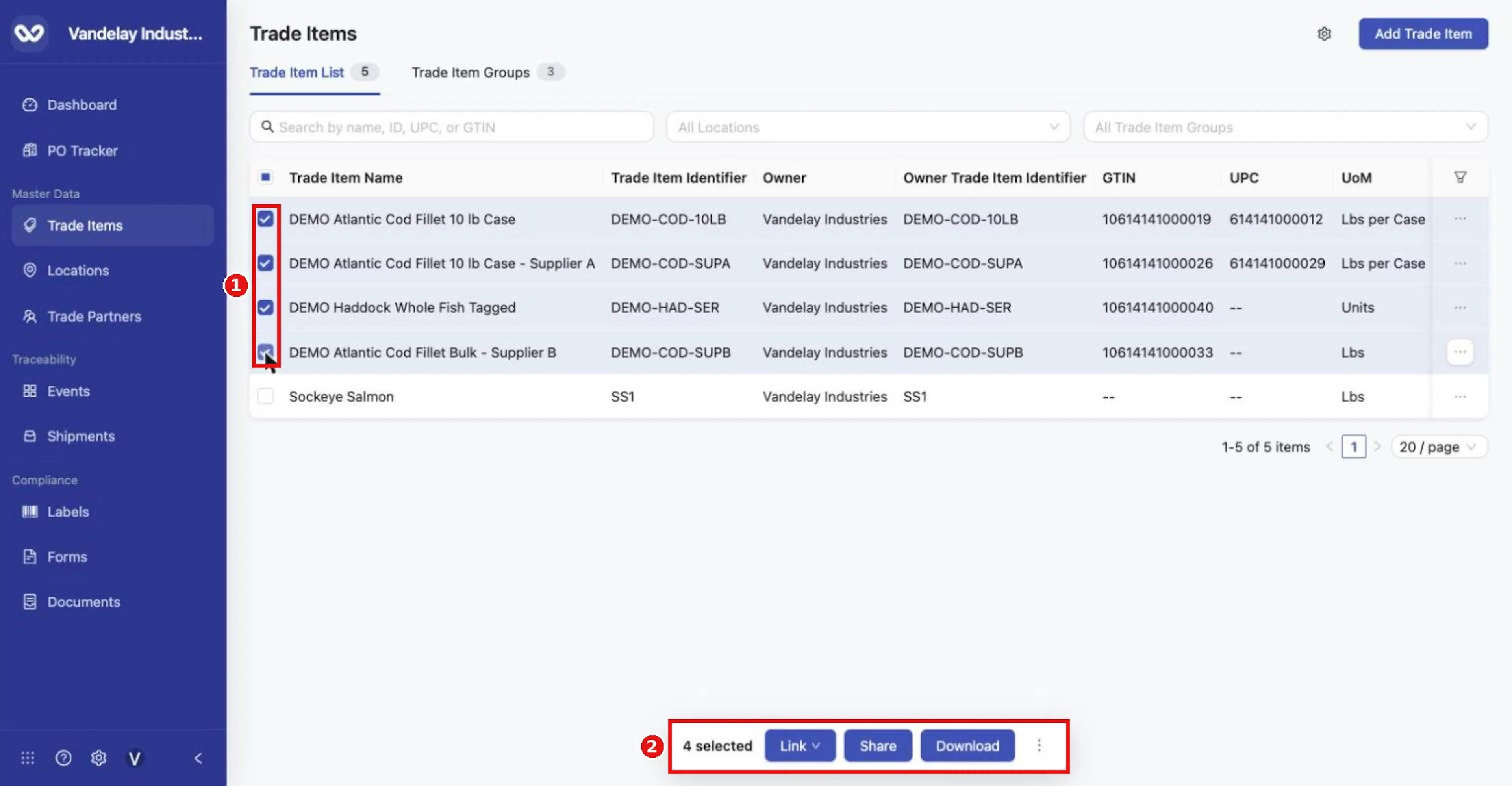
Four items selected; the command bar shows '4 selected'.
Bulk link to a brand
Select the items and choose Link to Brand
Select the items, click Link, then click Link to Brand.
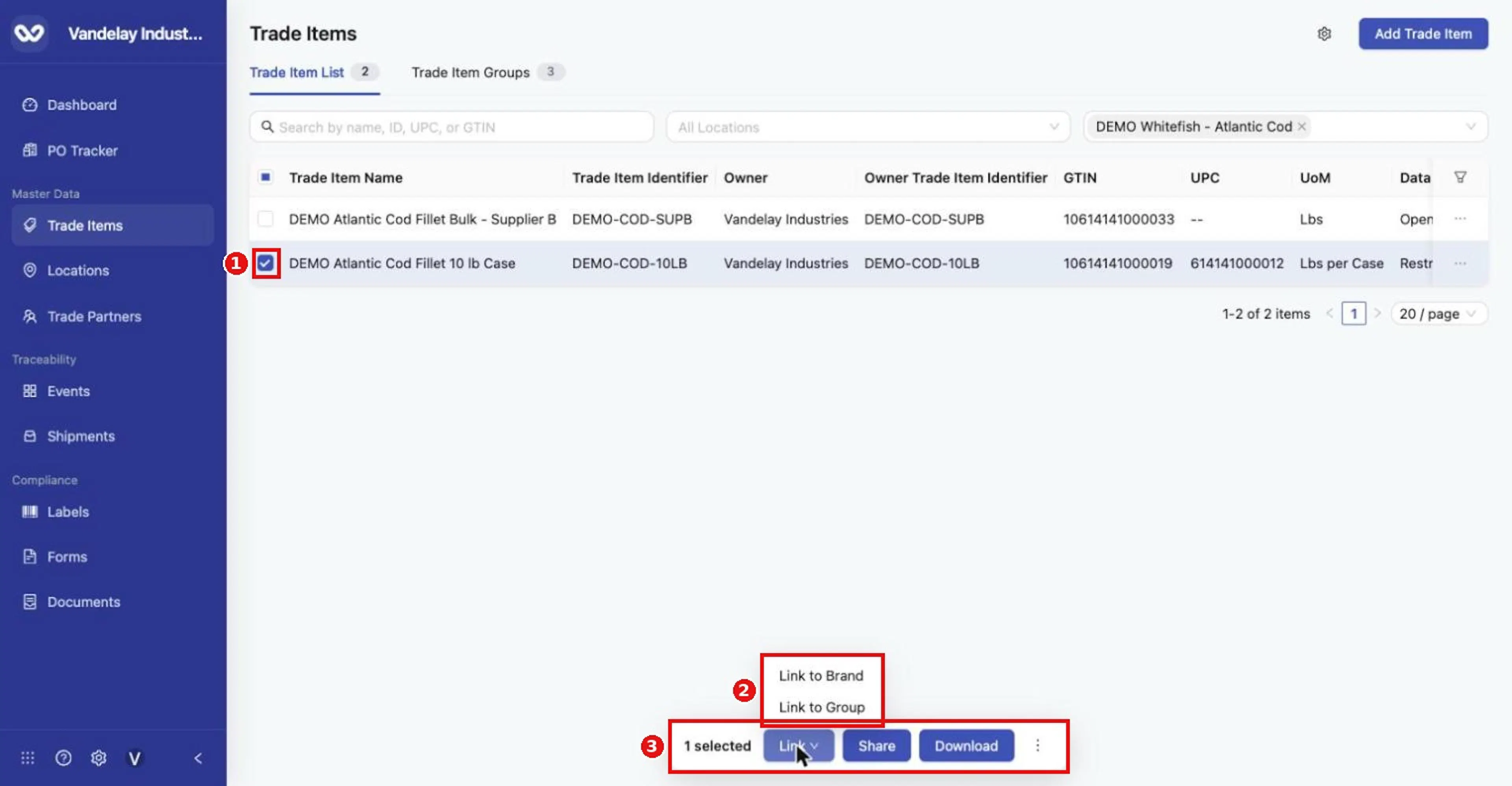
Tick the left-hand checkbox to select rows. The command bar appears: Link, Share, Download and a three-dot menu. Link offers Link to Brand and Link to Group.
Choose the Brand
The Selected Trade Items table shows Trade Item Name, Trade Item Identifier, GTIN and Current Brand. Brands are created in Organization Settings > Brands; see Master Data Settings.
Click Link Trade Items
Check the review table first.
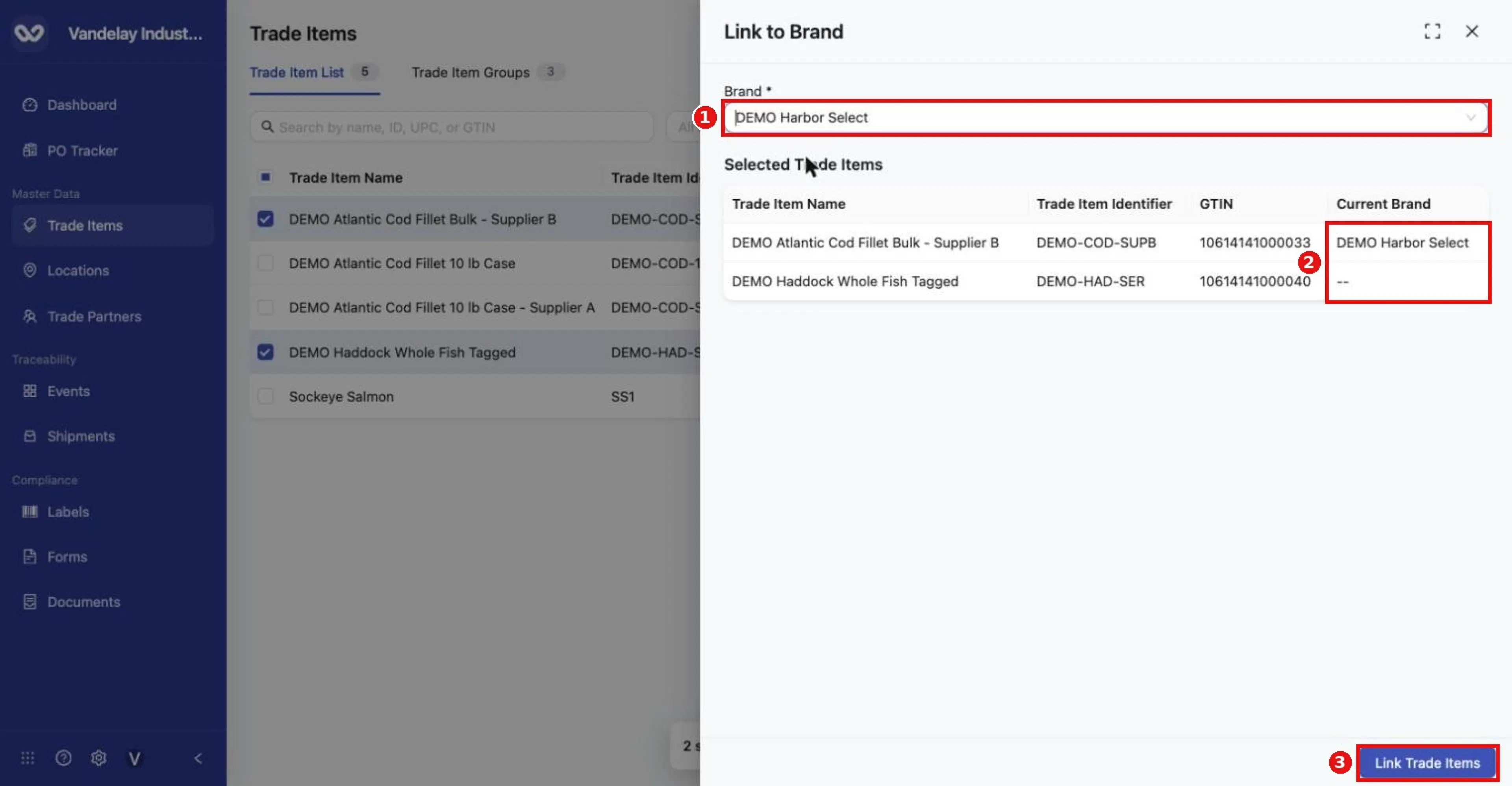
Link to Brand review: Current Brand shows each item's existing brand (one already has it, one has none). Click Link Trade Items.
Expected result. Trade items linked to brand appears.
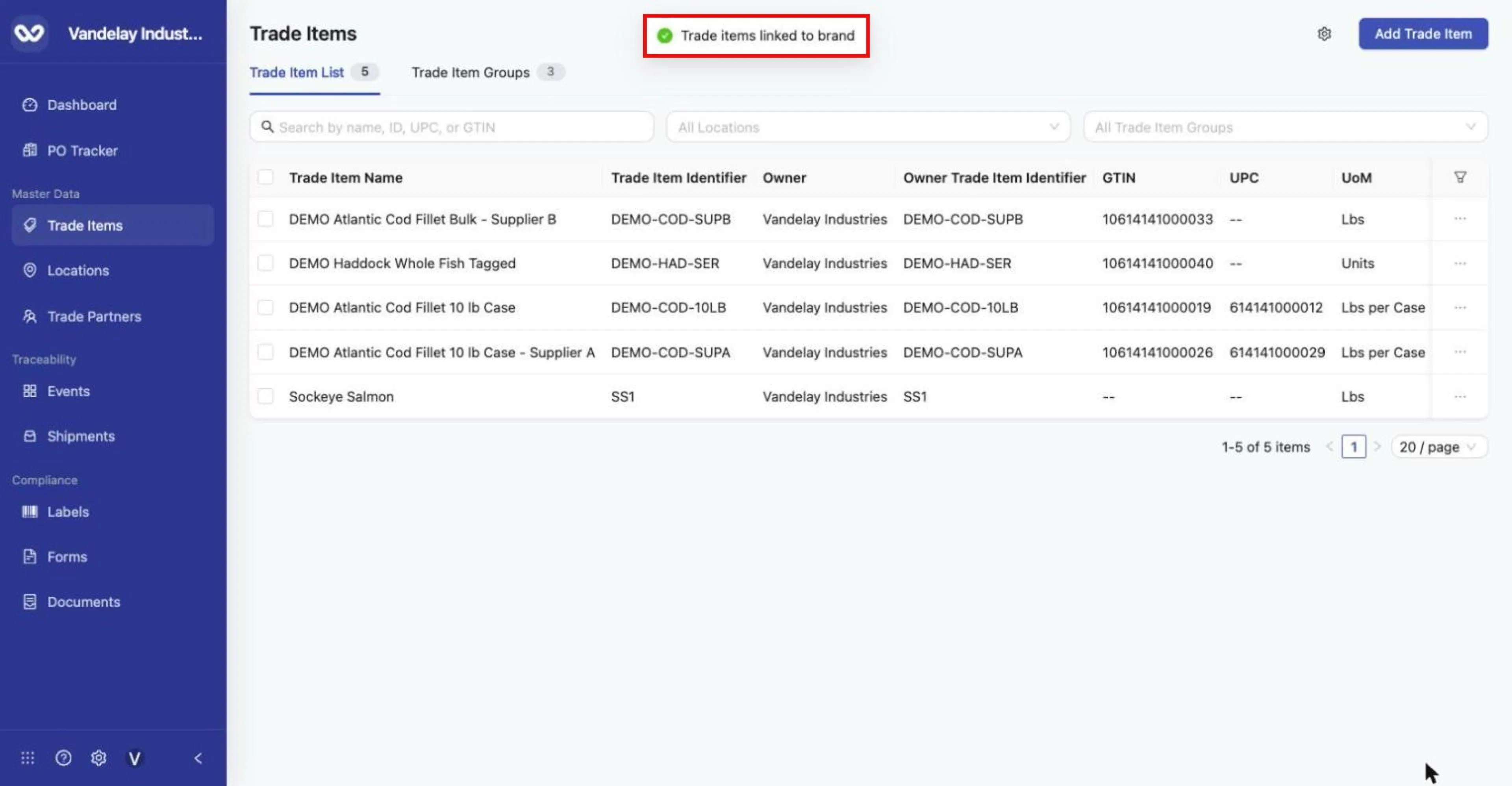
'Trade items linked to brand'.
Bulk link to a group
Select the items and choose Link to Group
Select the items, click Link, then click Link to Group.
Choose the Trade Item Group
The review table shows Current Trade Item Group.
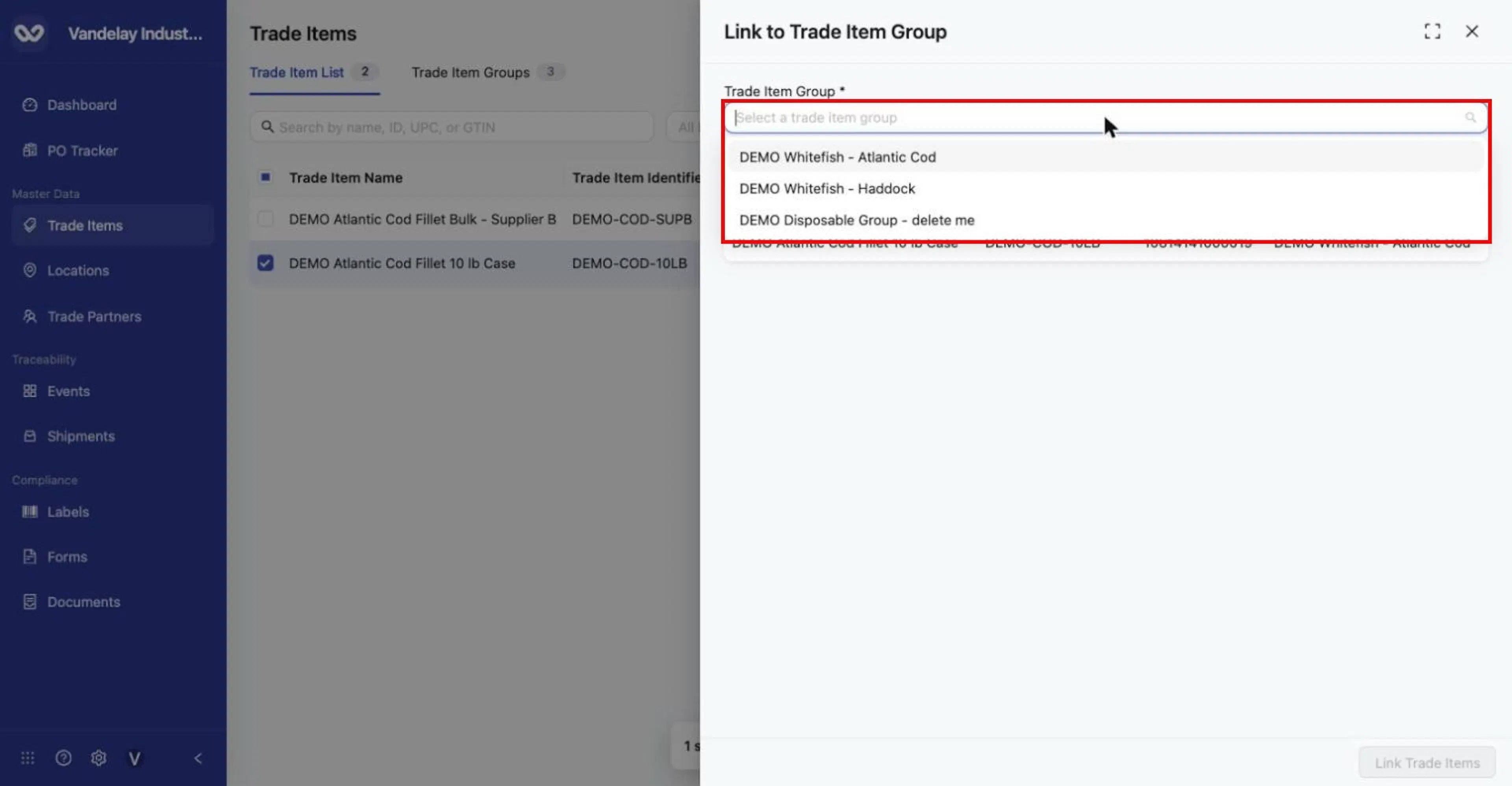
Link to Trade Item Group: choose the destination group.
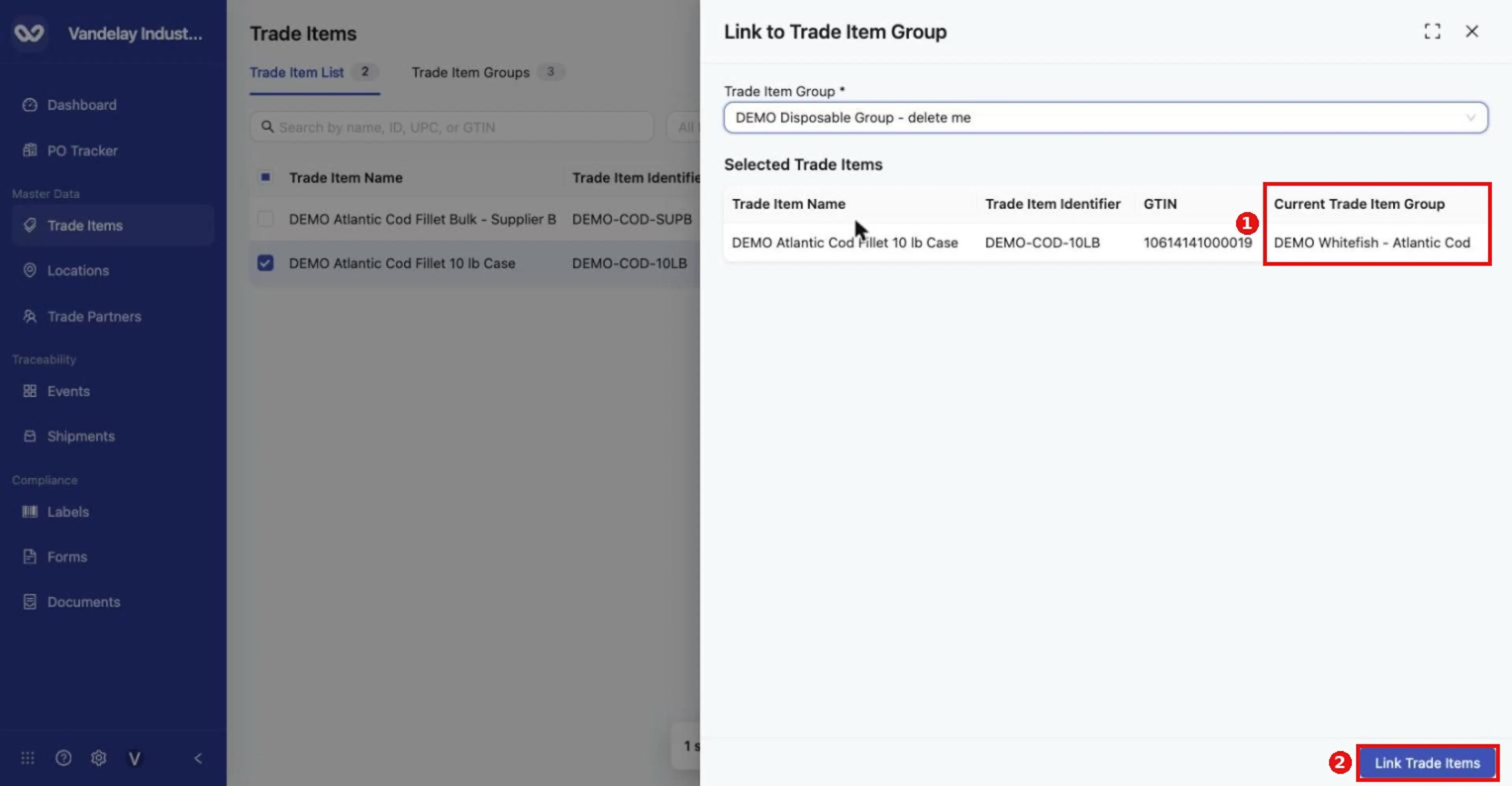
The review table shows each item's Current Trade Item Group. Click Link Trade Items.
Click Link Trade Items
The change is applied to every selected item.
Expected result. Trade items added to trade item group appears. The new group replaces the previous one, because an item belongs to one group at a time.
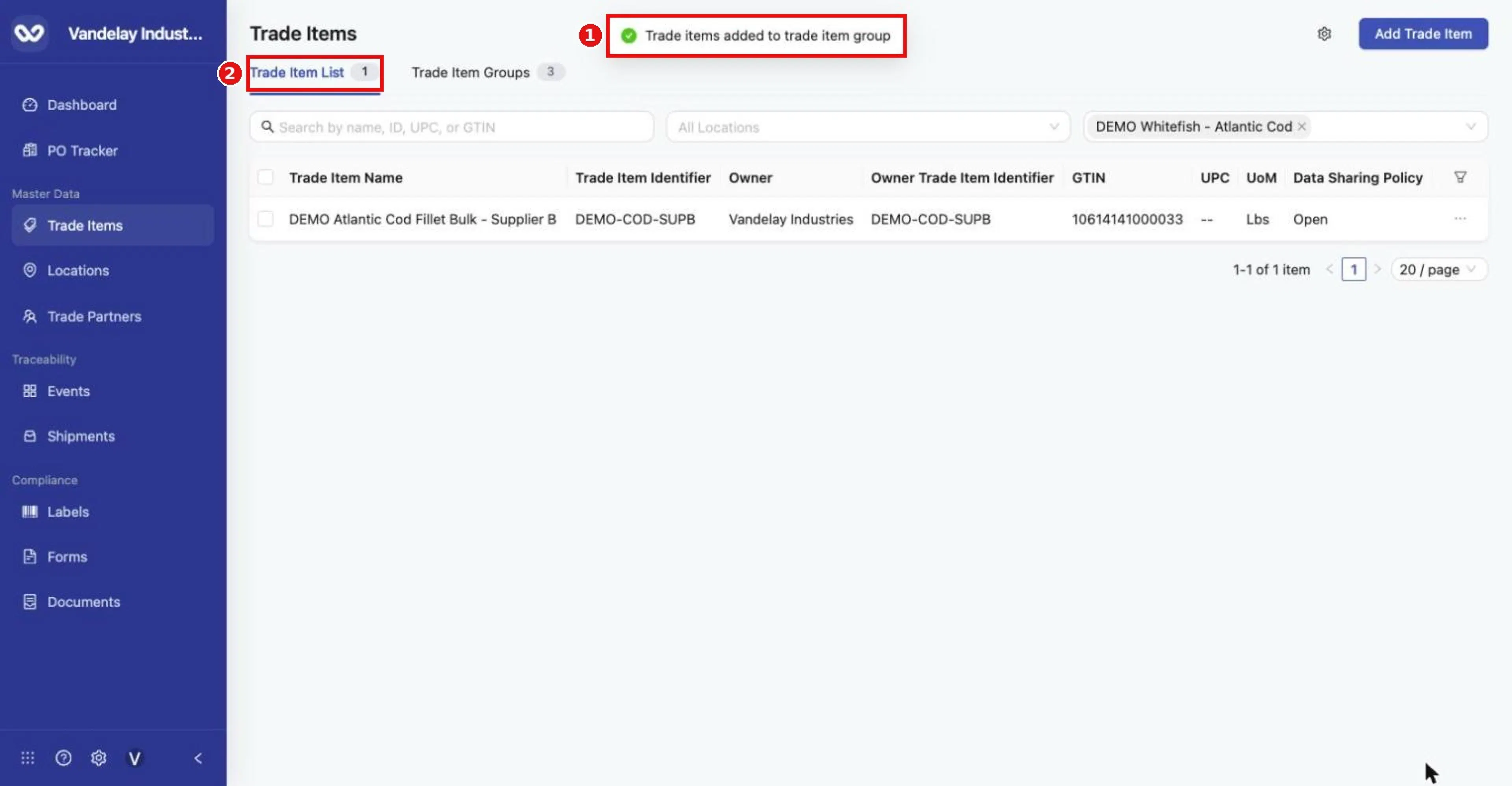
'Trade items added to trade item group'. The item drops out of the Atlantic Cod group filter: linking replaced its previous group.
For other ways to put items in a group, including by identifier, see Trade Item Groups.
After linking a parent item (one with sub-products) to a group, open it and check its Sub Products. Re-add any that are missing with Add Sub Product (see Edit Item Details).
Bulk share
Select the items and click Share
The Share Trade Items panel opens with Select TradePartner.
Choose partners and their access
Choose partners and set their access (Viewer or Editor, as for a single item in Locations, attachments, and sharing). Only Wholechain-connected partners are listed; with none, the list shows No Data.
Click Share
The selected items are shared with the chosen partners.
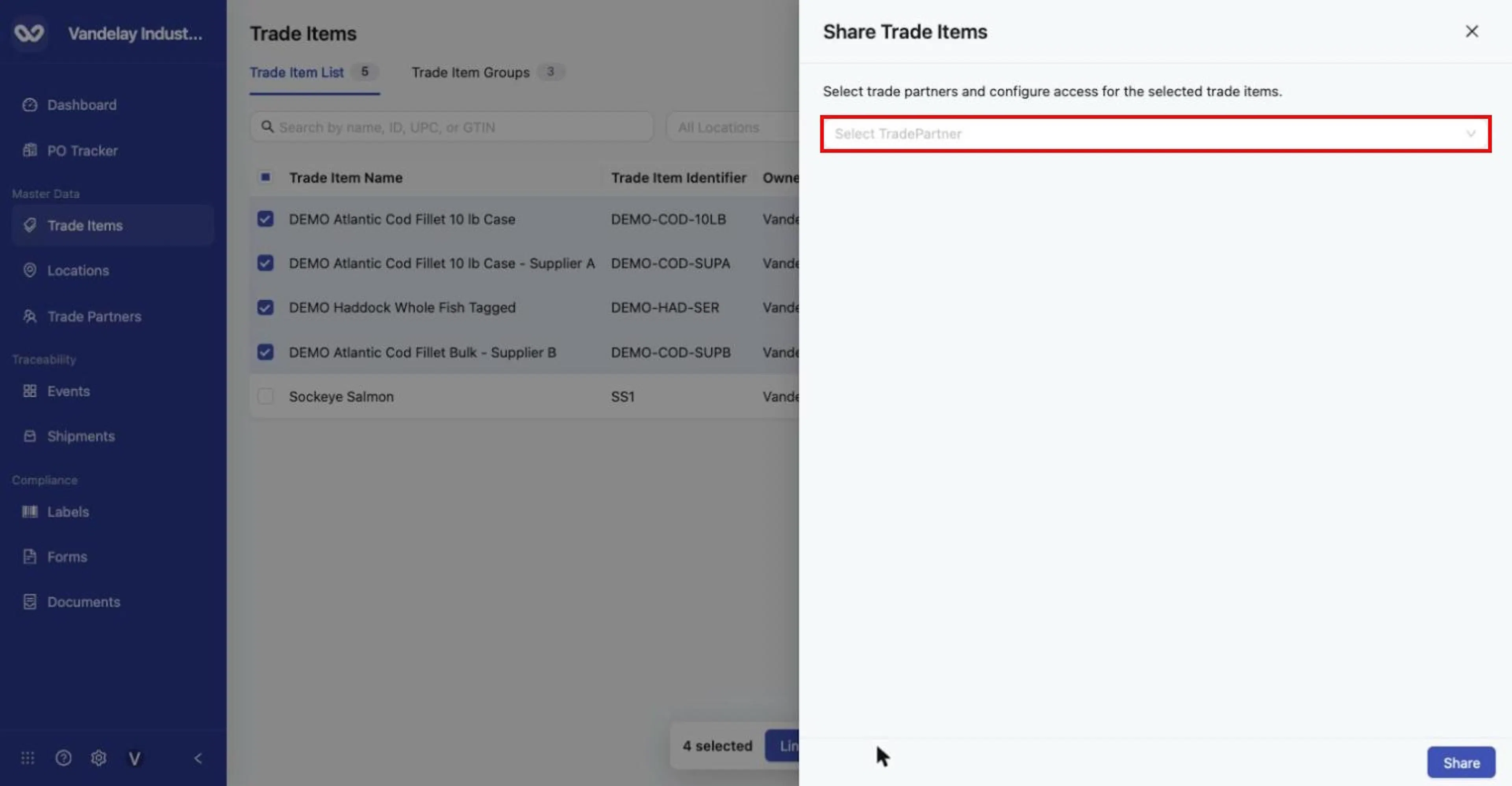
Bulk Share opens Share Trade Items with a Select TradePartner field. Choose connected partners and their access, then click Share.
Download master data
Download exports the Trade Items you selected. To export every item in the account instead, use the Download option in Master Data Settings > Trade Item (see Master Data Settings).
Select the items and click Download
Use the command bar at the bottom of the list.
Save the export
The browser saves trade_item_master_data.xlsx to its download folder (Chrome may add a number). A confirmation message appears.
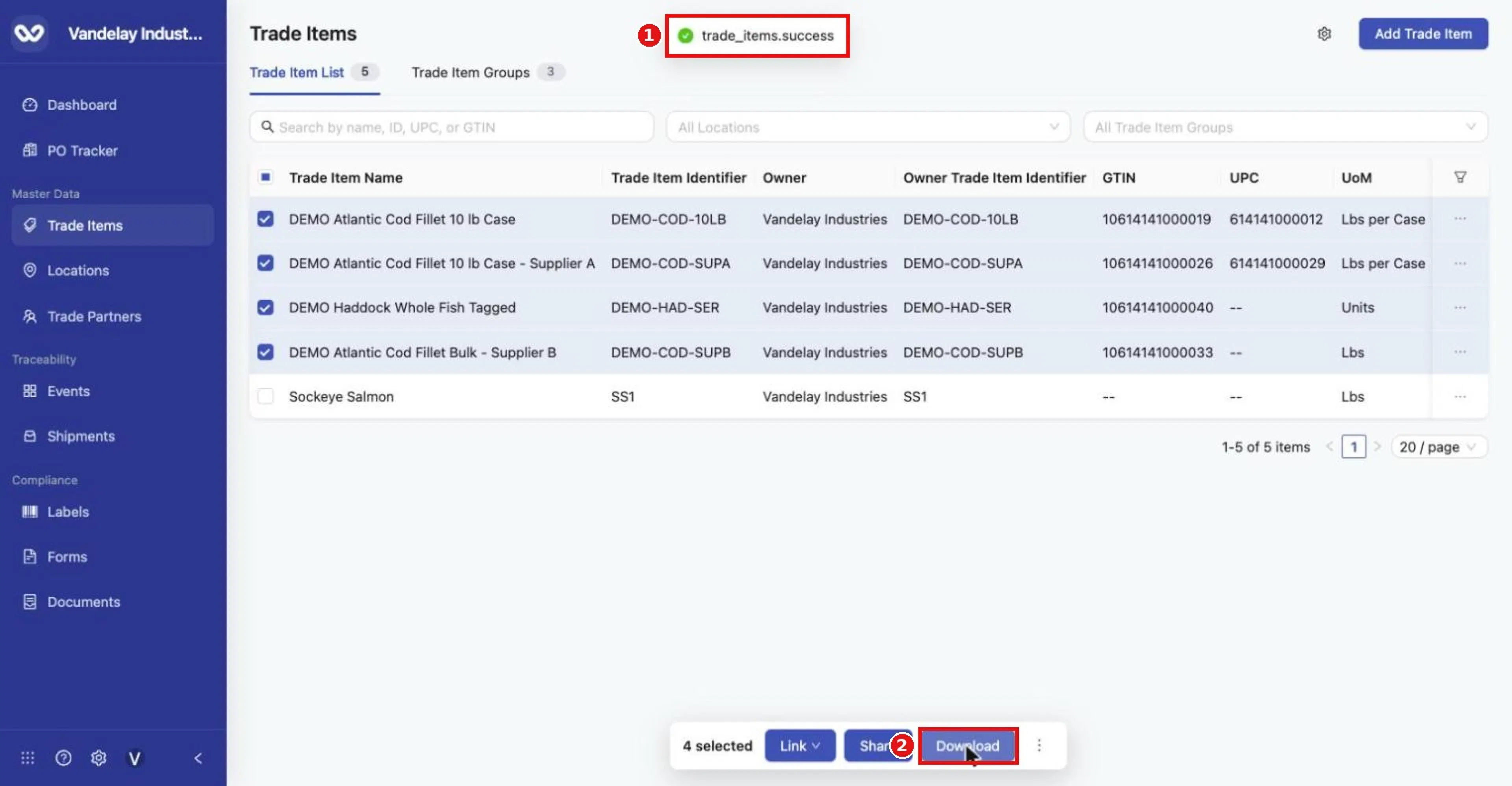
Download saves an Excel file of the selected items' master data.
The columns in the file are listed in the Field and action reference.
Archive a Trade Item
Remove an item you no longer use from the active list without deleting it.
Before you begin. An item cannot be archived while it has active inventory. If it has, archiving fails and an error message tells you to clear the active inventory first.
Choose Archive
Either select items and open the command bar's three-dot menu, then click Archive; or open the row's … menu, which offers View Settings and Archive.
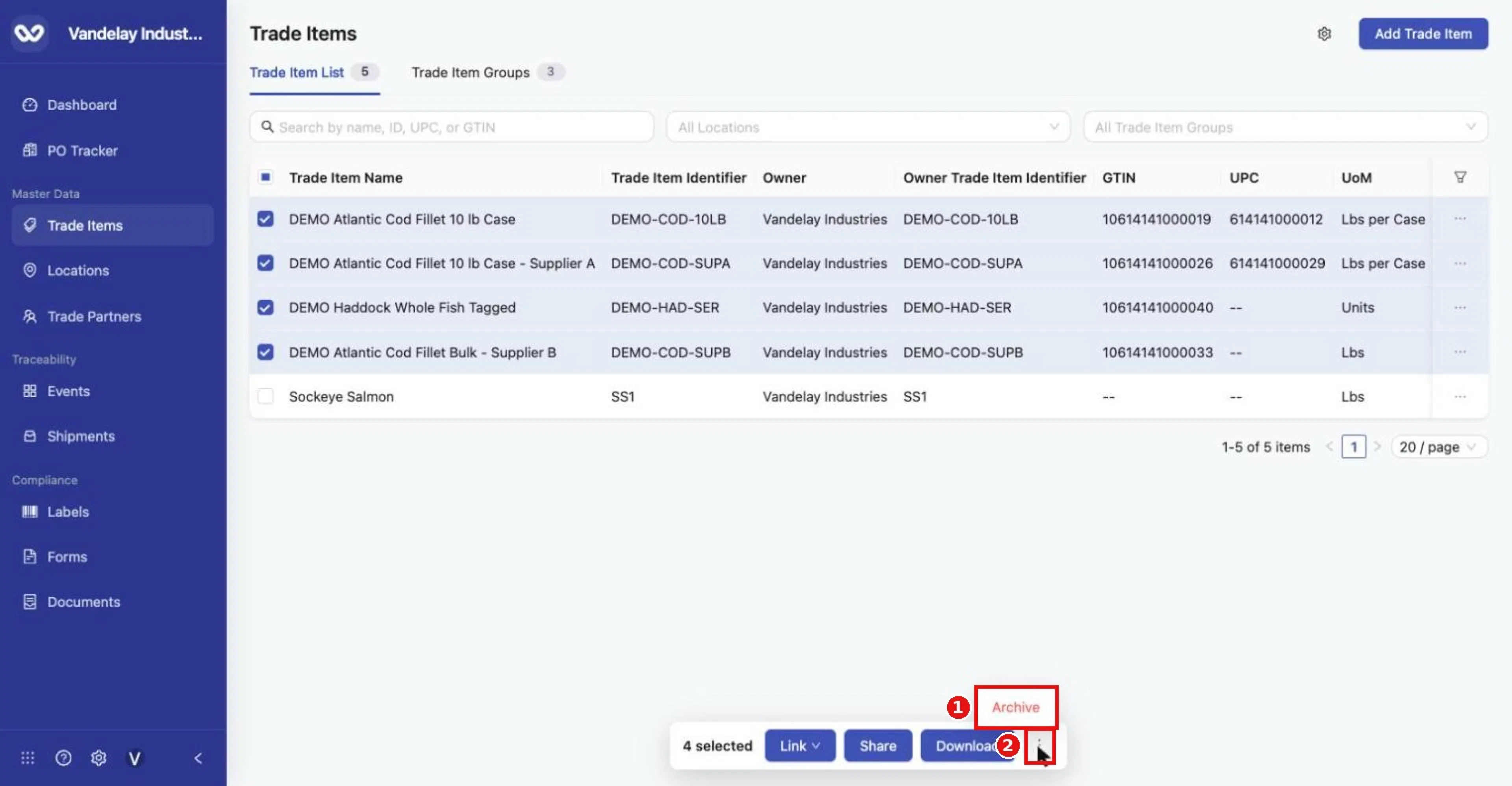
The command bar's three-dot menu contains Archive.
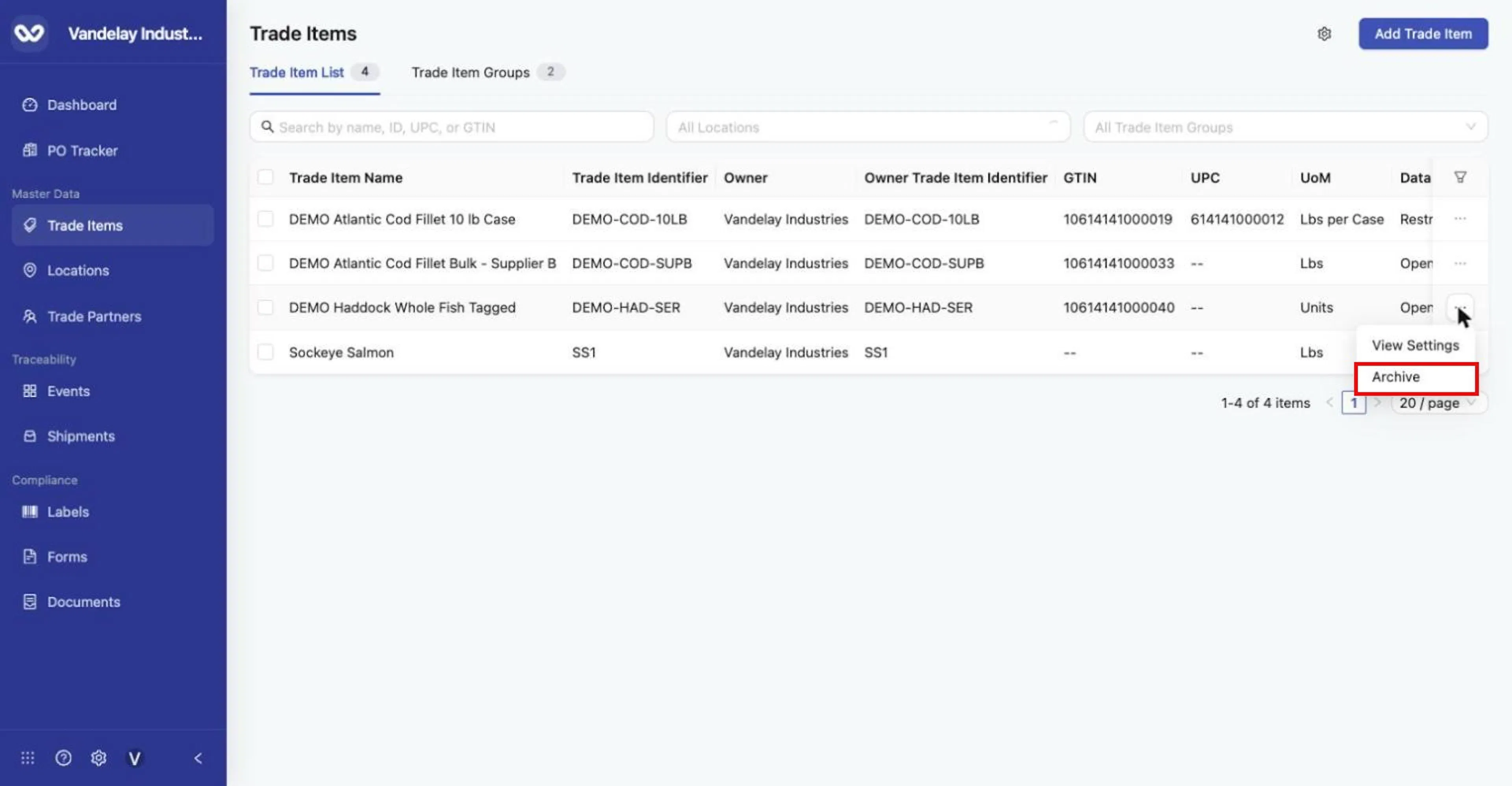
Row ... menu > Archive.
Read the confirmation and click Archive
The message reads "Archiving this product will remove its tags from any documents". Click Archive to continue or Cancel.
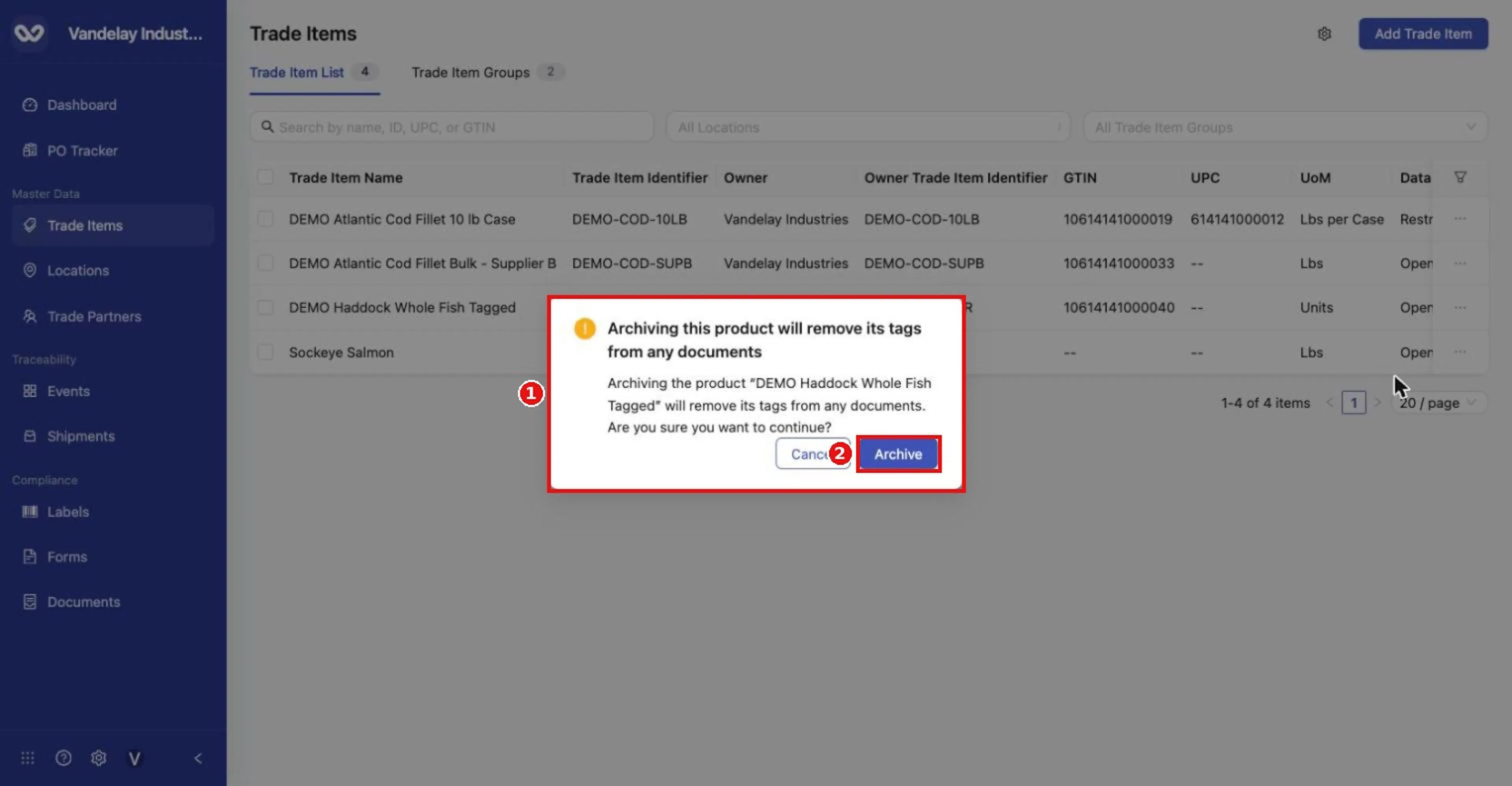
Confirmation: 'Archiving this product will remove its tags from any documents.' Click Archive to continue.
Expected result. Successfully archived … appears with a View Archived link, and the item leaves the list.
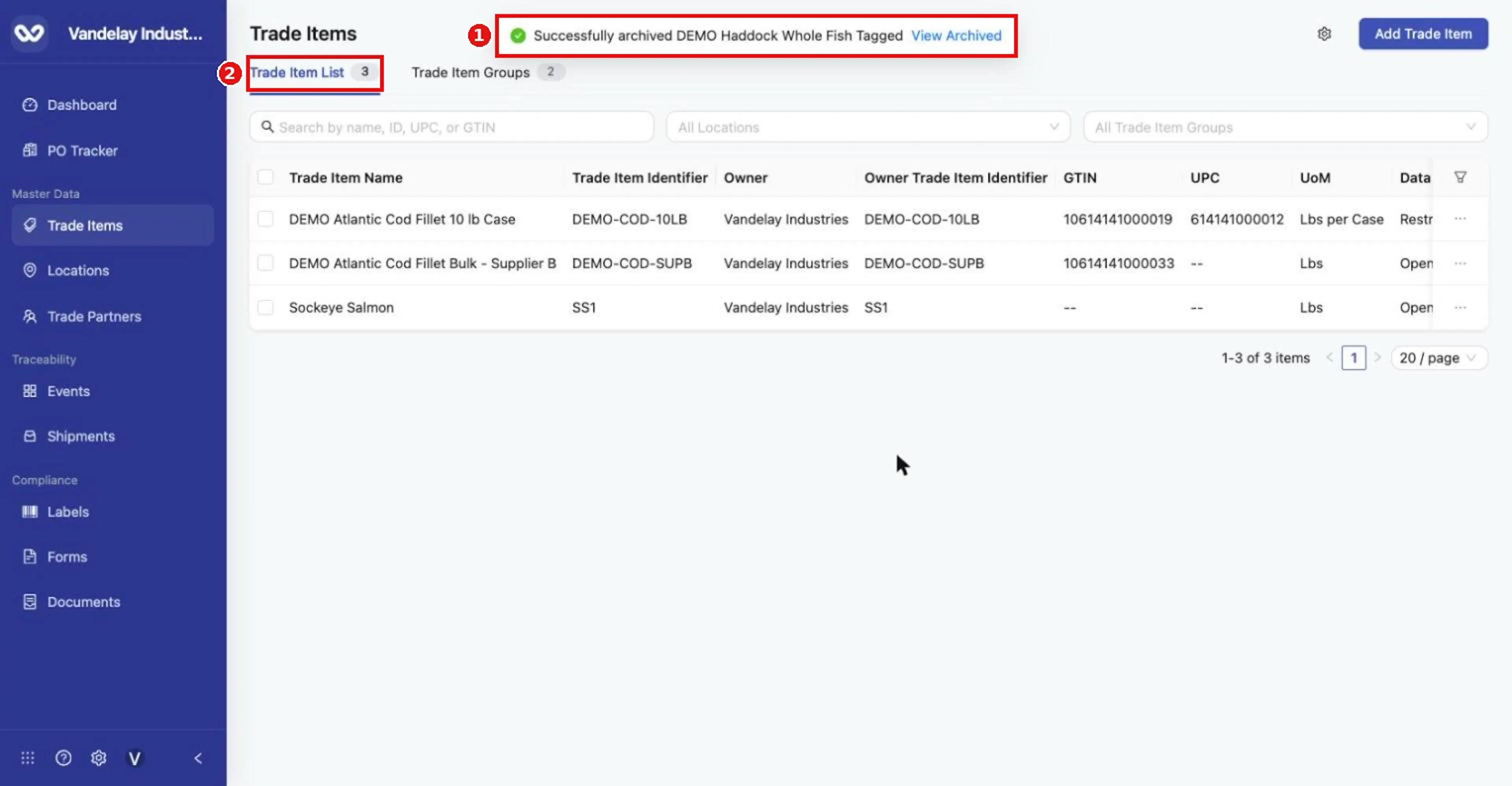
'Successfully archived…' with a View Archived link. The item leaves the active list (count 4 to 3).
Restoring. Archived Trade Items are restored in Master Data Settings > Archived with Move to Trade Items, one at a time or several together. See Archived for the steps and the archive rules.
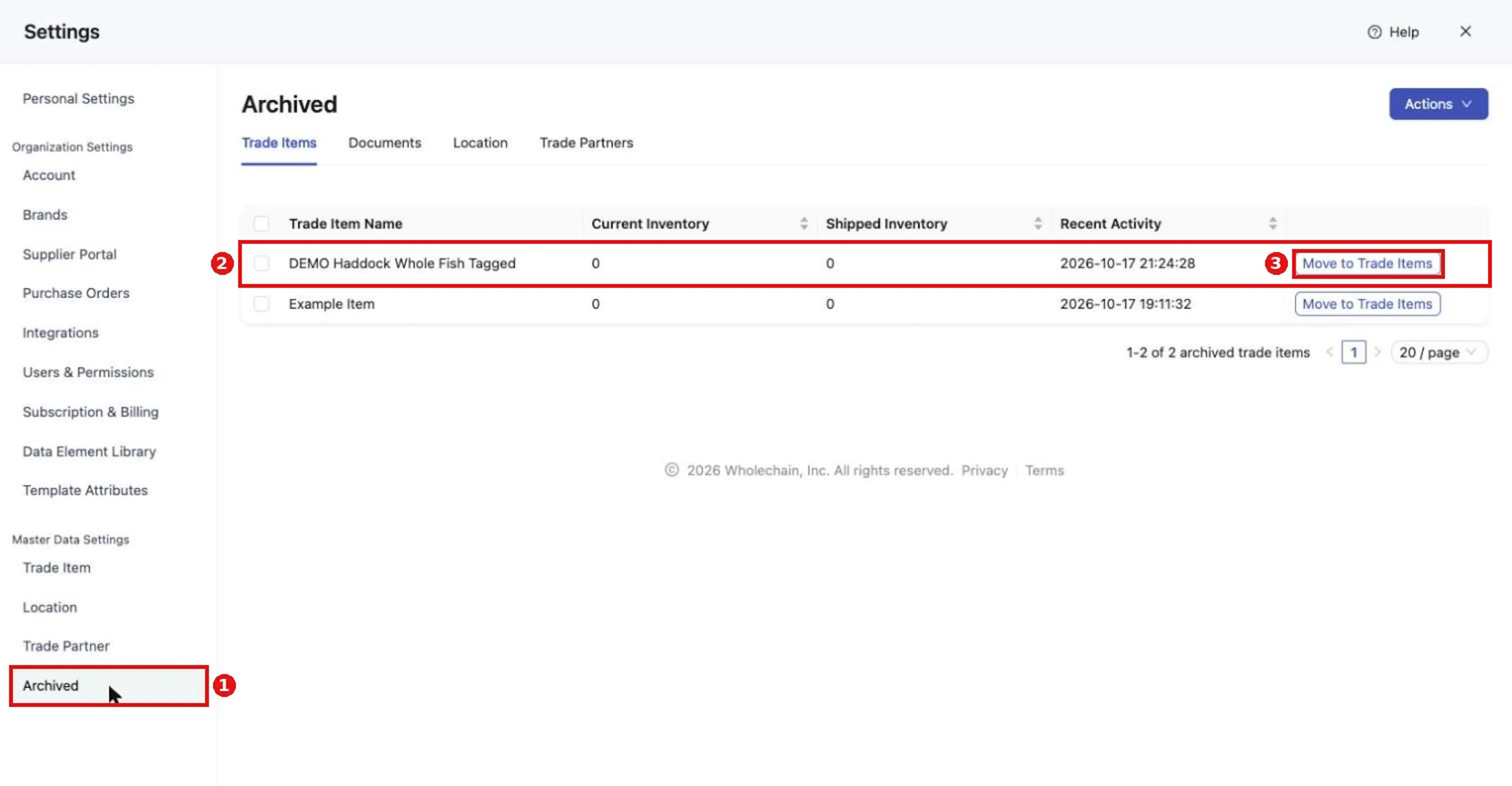
The Archived page in Settings lists archived Trade Items with Current Inventory, Shipped Inventory, Recent Activity and a Move to Trade Items button to restore.
Expected result
The table shows the columns you chose, in your order. Searches and filters narrow the list and stay applied until you clear them. Bulk actions confirm with a message (Trade items linked to brand, Trade items added to trade item group), a download saves an Excel file, and archived items leave the list.
Troubleshooting
- The list shows 0 and No Data. A search term or filter is still applied. Clear it with the x in the search box or on the filter tag. A location filter shows only items with active inventory there.
- I cannot find an item. Sub-products and archived items are not listed. Restore archived items in Master Data Settings > Archived; see Archived.
- Archiving fails. The item has active inventory. Clear it first, then archive again.
- The partner list in Share is empty. Only Wholechain-connected Trade Partners are listed.
- A parent item lost a sub-product after linking to a group. Open the parent, check Sub Products, and re-add any that are missing with Add Sub Product.
- A column is missing. Some columns are hidden by default. Tick them in Column Display, or click Reset.
- Need more help? Contact support@wholechain.com.
Field and action reference
Table columns
Turn columns on or off and reorder them in Column Display (funnel icon at the right end of the table header). Reset restores the default layout.
| Column | Description |
|---|---|
| Image | Thumbnail from the item's Product Images attachment; a placeholder icon when there is none. |
| Trade Item Name | The item's name. Click it to open the item drawer. |
| Trade Item Identifier | Your own item number for the product. |
| Owner | The company that owns the record. |
| Owner Trade Item Identifier | The owner's item number. For items you own, the same as Trade Item Identifier. |
| GTIN | GS1 Global Trade Item Number. |
| UPC | 12-digit Universal Product Code. |
| PLU | Price Look-Up code (4 or 5 digits). |
| Product Good Kind | Finished Goods, Semi-Finished Goods or Raw Materials. |
| Brand | The item's brand. |
| UoM | Unit of measure, for example "Lbs", "Lbs per Case" or "Item" (serialized items). |
| Data Sharing Policy | Open or Restricted. |
Search and filters
| Control | Behavior |
|---|---|
| Search by name, ID, UPC, or GTIN | Matches Trade Item Name, Trade Item Identifier, UPC, GTIN and product alias values. Clear with the x in the box. |
| All Locations | Shows only items with active inventory at the selected Location(s). |
| All Trade Item Groups | Shows only members of the selected group(s). |
Search terms and filters stay applied until cleared. An empty result shows a count of 0 and No Data. Sub-products and archived items are not listed.
Actions
| Action | Where | What it does |
|---|---|---|
| Add Trade Item | Top right | Opens the Add Trade Item drawer with Single Trade Item and Bulk Upload tabs (see Add Trade Items). |
| View Settings | Row … menu | Opens Trade Item Settings for the item. |
| Archive | Row … menu, or command bar three-dot menu | Archives the item. Restore it in Settings (see Archived). |
| Link, then Link to Brand | Command bar (rows selected) | Sets the brand of all selected items. |
| Link, then Link to Group | Command bar | Sets the Trade Item Group of all selected items, replacing any current group. |
| Share | Command bar | Shares the selected items with connected Trade Partners. |
| Download | Command bar | Exports the selected items to Excel. |
Select rows with the left-hand checkboxes (the header checkbox selects all on the page). The command bar shows n selected.
Link to Brand
| Field | Req. | Values |
|---|---|---|
| Brand | Yes | A brand created in Organization Settings > Brands. |
The review table shows Trade Item Name, Trade Item Identifier, GTIN and Current Brand. Link Trade Items applies the change.
Link to Group
| Field | Req. | Values |
|---|---|---|
| Trade Item Group | Yes | An existing Trade Item Group. |
The review table shows each item's Current Trade Item Group. The new group replaces the current one.
Share (bulk)
| Field | Req. | Values |
|---|---|---|
| Select TradePartner | Yes | One or more Wholechain-connected Trade Partners. |
| Permission | Yes | Viewer or Editor (see Locations, attachments, and sharing). |
Download columns
Produced by Download on the command bar (selected items). File trade_item_master_data.xlsx, sheet Products, one row per item. A sample with demo items only: EXPORT_trade_item_master_data_demo_items.xlsx. The column list is also in the Trade Item master data export reference.
| Column | Contents |
|---|---|
| Trade Item Identifier | Your item number |
| Trade Item Name | Item name |
| GTIN / PLU / UPC | Codes |
| Product Good Kind | Finished Goods, Semi-Finished Goods or Raw Materials |
| Description | Description |
| Unit of Measure | For example "10Lbs Cases", "Lbs", "Units" |
| Parent Item | Parent, for sub-products |
| Wholechain Product ID | Internal ID |
| Traceability Type | Lot or Serial |
| EPC URN | Generated URN |
| Commodity | Trade Item Group |
| Brand | Brand |
| Owner | Owning company |
| Owner Trade Item Identifier | Owner's item number |
| Data Sharing Policy | Open or Restricted |
| Archived | Archived status |
Custom attributes and aliases are not included.
Archive
| Action | Details |
|---|---|
| Archive | Row … menu or command bar three-dot menu. Confirmation: "Archiving this product will remove its tags from any documents". Result: Successfully archived with a View Archived link; the item leaves the list. |
| Restore | In Master Data Settings > Archived (Move to Trade Items). See Archived. |
An item with active inventory cannot be archived.