

Edit Item Details
Edit a Trade Item's Basic Details, identifiers, units, Custom Attributes, Brand, Commodity, Product Aliases and Sub Products from the item's Details tab.
Applies to: the Details tab of the Trade Item drawer
Audience: Anyone maintaining Trade Item master data
Prerequisites: an existing Trade Item; permission to edit master data. For Brands, the brand must already exist in Organization Settings > Brands.
Related: Get started with Trade Items; Add Trade Items; Locations, attachments, and sharing; Set a data policy for one Trade Item; Trade Item Groups
Purpose
Review and correct everything a Trade Item records about the product itself: its name and identifiers, how it is counted, extra facts (Custom Attributes), its brand and group, the other codes it is known by (Product Aliases) and the item records grouped beneath it (Sub Products).
Before you begin
Click any Trade Item name in the list to open its drawer. The Details tab is a long page with these sections, top to bottom: Basic Details, Custom Attributes, Brand, Commodity, Identifiers, Units & Measurement, Product Aliases, Sub Products and Data Sharing Policy. The Data Sharing Policy section is covered in Locations, attachments, and sharing.
How changes save. Text fields in Basic Details are edited inline and saved with a check-mark button. Drop-downs, toggles and radio buttons save on their own when you move to another field. Each save shows a green message such as Successfully saved DEMO Atlantic Cod Fillet 10 lb Case. Wait for this confirmation before you close the drawer or leave the page; a change made just before leaving may not be saved.
Edit Basic Details and the Trade Item Identifier
Open the Trade Item from the Trade Item List
Click the item's name in the Trade Item List.
Click the field you want to change
In Basic Details, click the value next to Trade Item Identifier (or any other field you want to change).
Type the new value
For example, type DEMO-COD-10LB.
Save with the check mark
Click the check-mark button to save, or the X to cancel.
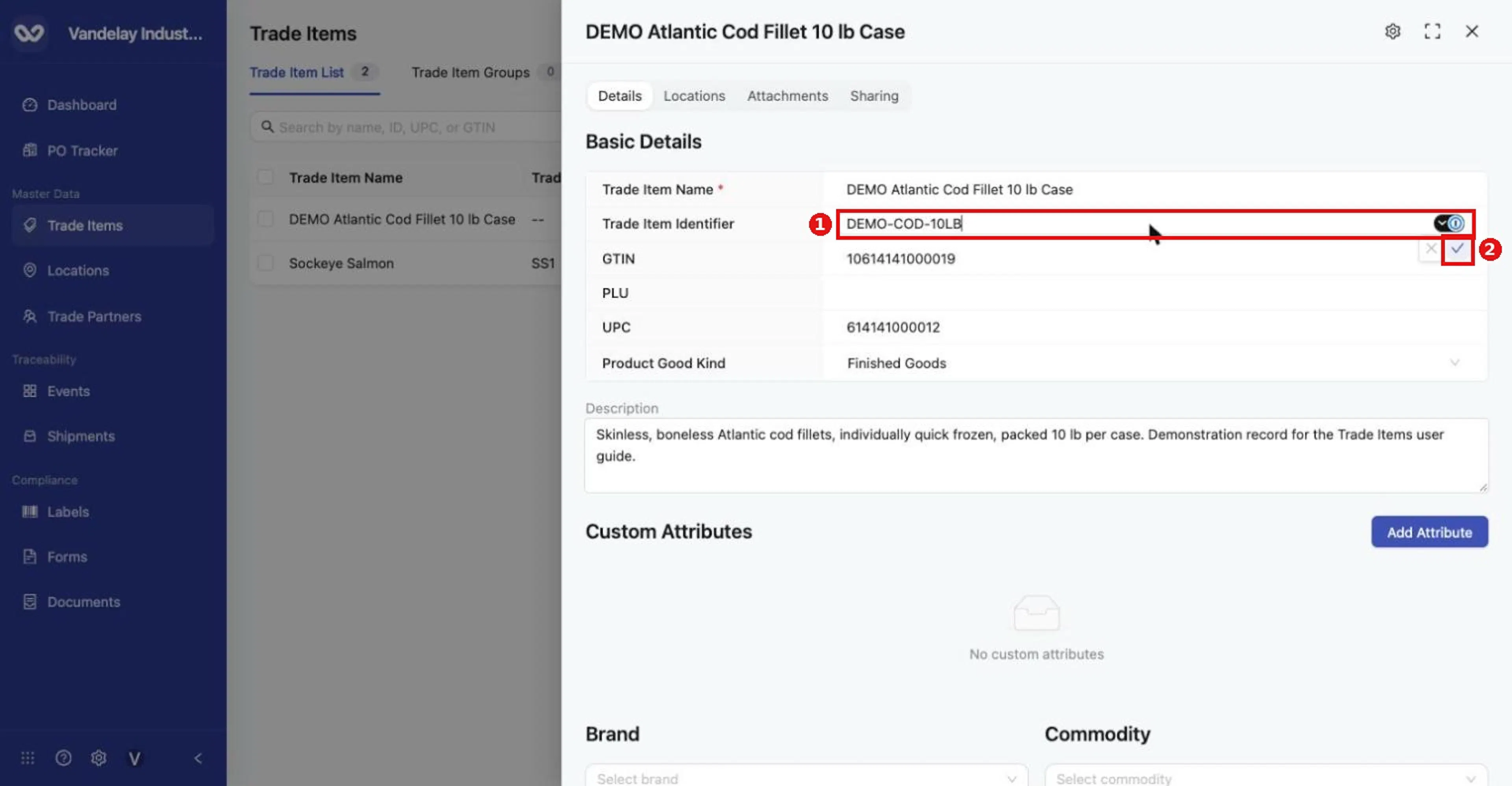
Click a value in Basic Details to edit it inline. Type the new value, then click the check mark to save (or X to cancel).
Why it matters. The three identifiers do different jobs:
- Trade Item Name: the readable name people see.
- Trade Item Identifier: your unique item number, usually from your ERP. It is the Item Number/ID column in bulk files, and Settings calls it Trade Item Number / ID. Items shared with you also show the Owner Trade Item Identifier. Other features rely on it. For example, adding items to a group in bulk matches items only by this identifier (Trade Item Groups), because names and GTINs can be shared by several items but each identifier is unique.
- Wholechain Product ID: Wholechain's internal database ID, shown read-only under Identifiers.
Result. Successfully saved … appears and the value shows in the item and in the list's Trade Item Identifier column. For items you own, the Owner Trade Item Identifier column shows the same value.
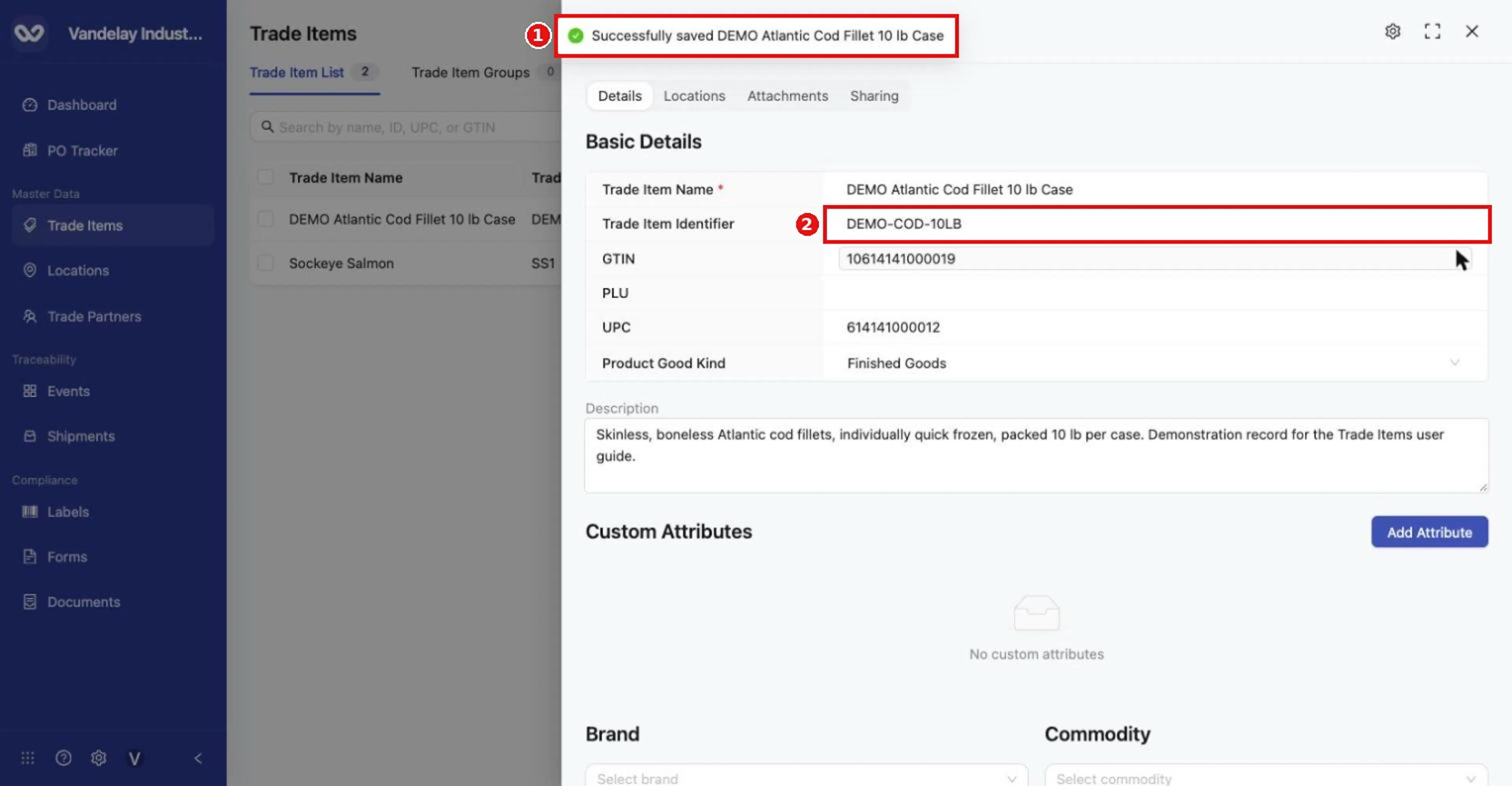
The confirmation 'Successfully saved…' appears and the identifier shows in the item and list.
Troubleshooting. Trade Item Name is required (red asterisk) and cannot be left empty. If the check mark is hidden by a browser password-manager icon inside the field, click just outside the icon.
Add Custom Attributes
Store extra facts about one item, such as a catch area, as KDEs (Key Data Elements). Decide the attribute's name, a short machine-friendly Element ID, and the value.
Click Add Attribute
In Custom Attributes, click Add Attribute.
Fill in the three required fields
- Attribute: the readable name (example:
DEMO Catch Area). - Element ID: the data key (example:
demoCatchArea). It is not filled in automatically. - Value: the value for this item (example:
FAO 21 Northwest Atlantic).
Click Add Attribute to save
Click Add Attribute at the bottom of the panel.
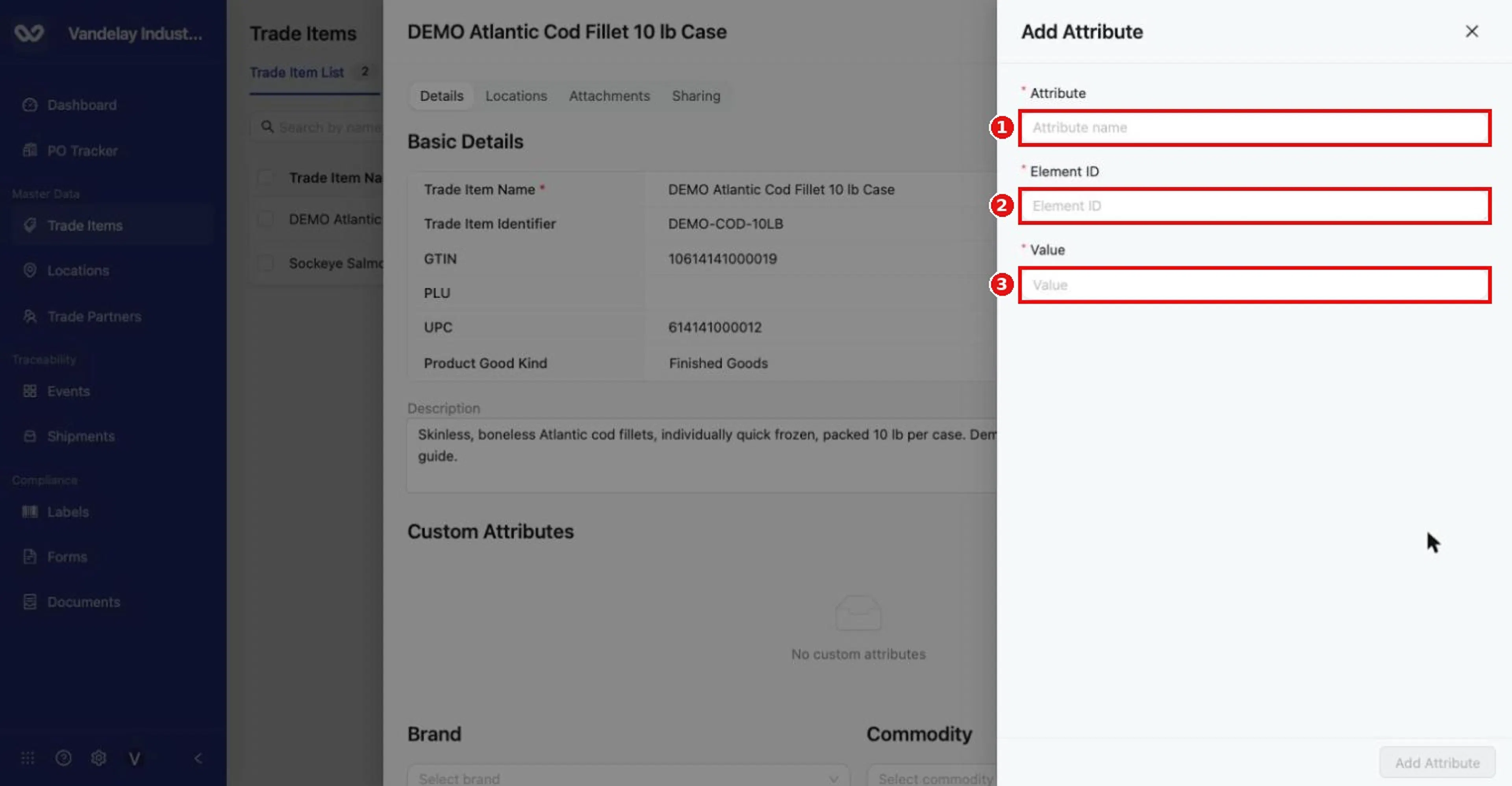
Add Attribute panel with three required fields: Attribute, Element ID and Value.
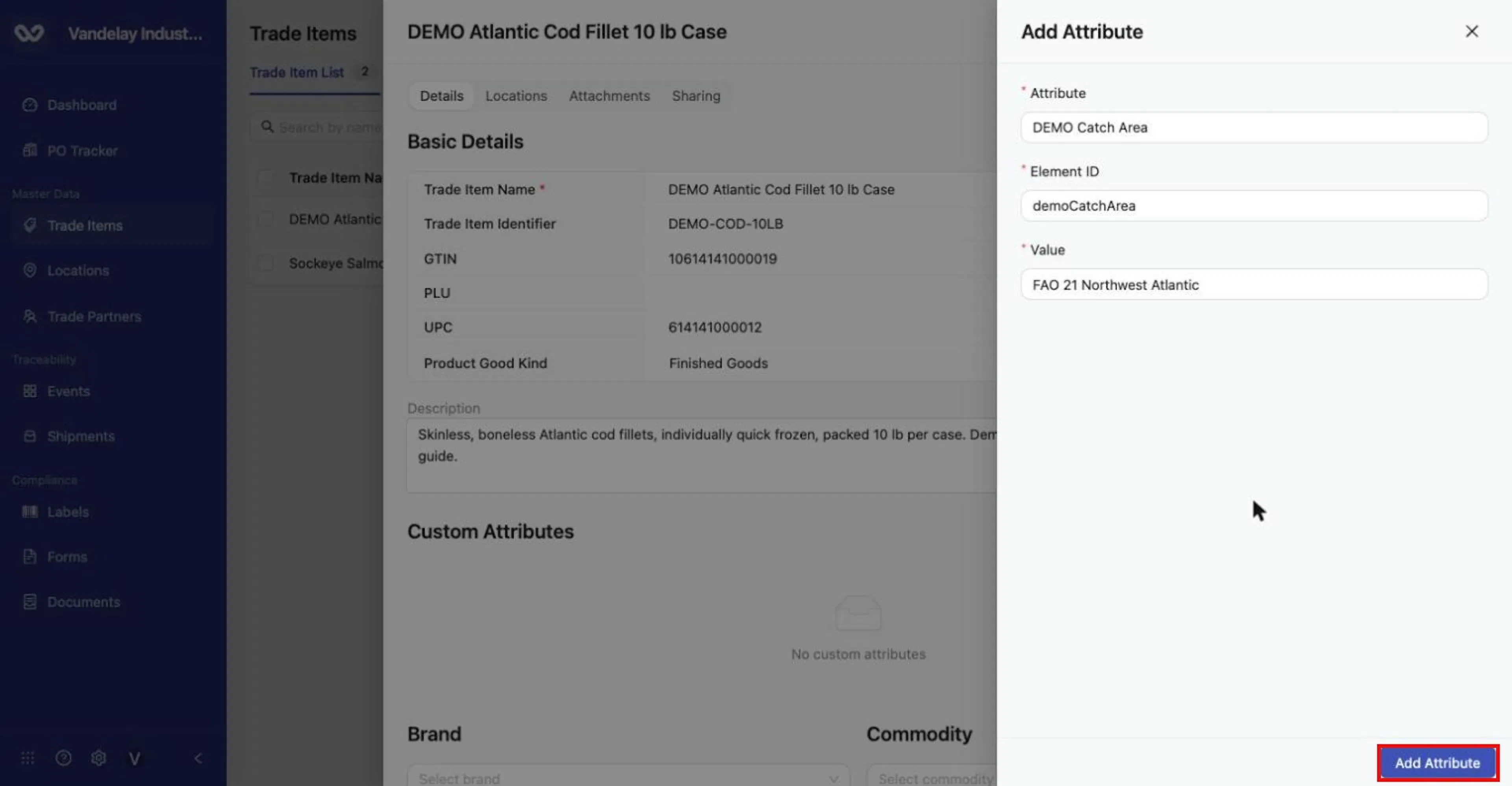
Example attribute filled in. Click Add Attribute to save.
Result. Successfully saved … appears and the attribute appears as a row in the table. The row's … menu offers Delete. There is no edit option, so to change a value, delete the row and add it again.
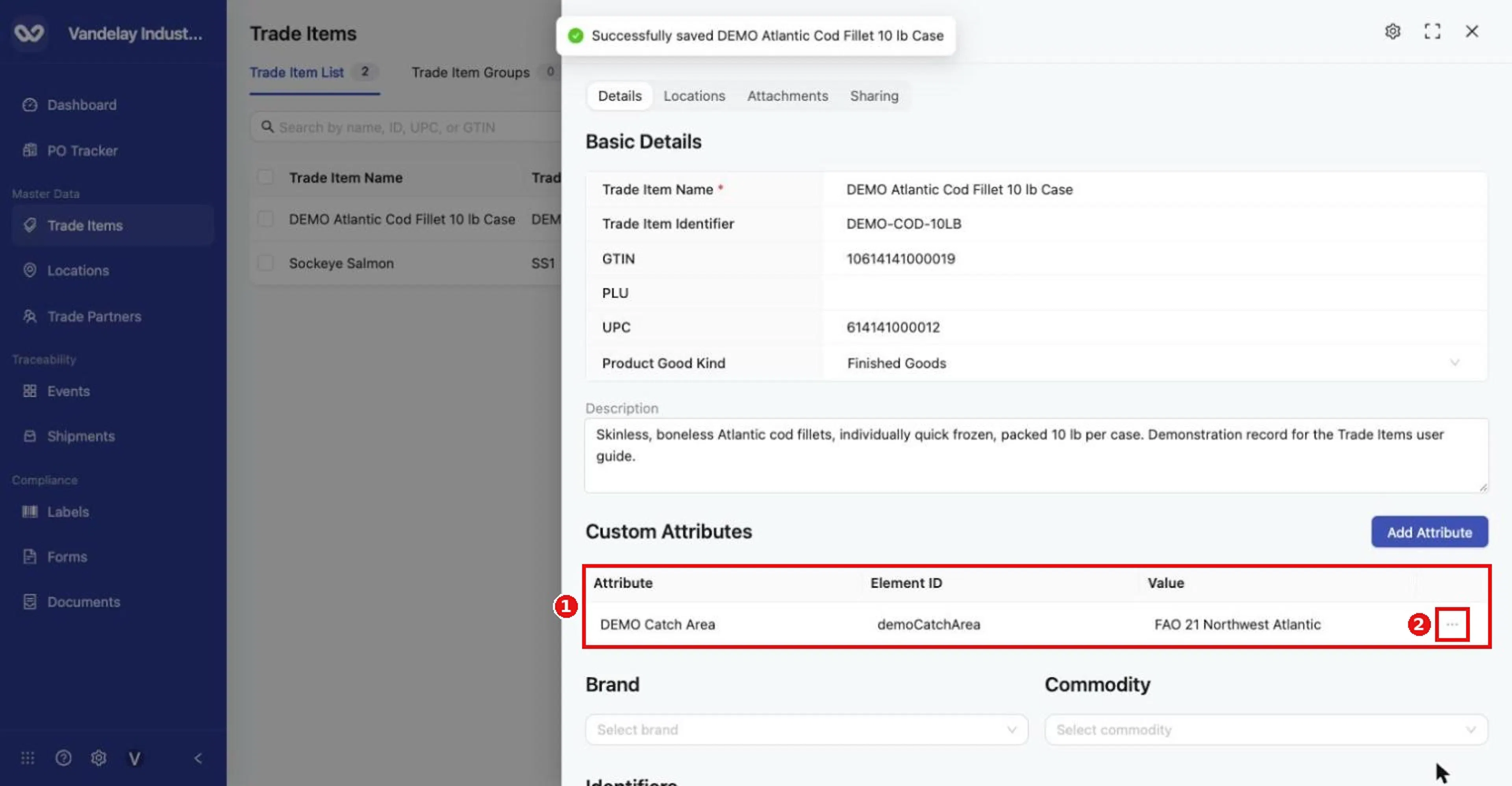
The attribute now appears in the Custom Attributes table. Use the row's ... menu to manage it.
Defining a field versus entering its value. These are two separate steps:
- Defining a KDE (its name, type and rules) happens in a data policy. Data Policies must first be switched on for the account by an Admin in Organization Settings > Account (Account settings). A policy set in Settings is universal for all Trade Items (Master Data settings, Data elements and policies). A Trade Item Group's policy is a sub-group of the universal policy and is managed on the Trade Item Groups sub-tab of Master Data Settings > Trade Item, and also in the Data Policy tab of the Trade Item Group drawer (Trade Item Groups tab, then open the group; see Trade Item Groups). A policy for one item is set on that item's details drawer (Set a data policy for one Trade Item).
- Entering the value always happens on the individual item, here in Custom Attributes. KDEs that a policy applies to the item are listed here so you can fill in their values.
If a KDE you expect from a policy is not listed in Custom Attributes, contact Wholechain support at support@wholechain.com.
Choose a Brand
The brand must already exist. Brands are created in Organization Settings > Brands (open Settings with the gear icon at the bottom of the left-hand navigation bar, or with the Settings button on the Dashboard). The examples use the brand DEMO Harbor Select.
Open the Brand drop-down
Open the Brand drop-down (Select brand).
Choose the brand
Select the brand from the list.
Wait for the save confirmation
Click elsewhere and wait for Successfully saved ….
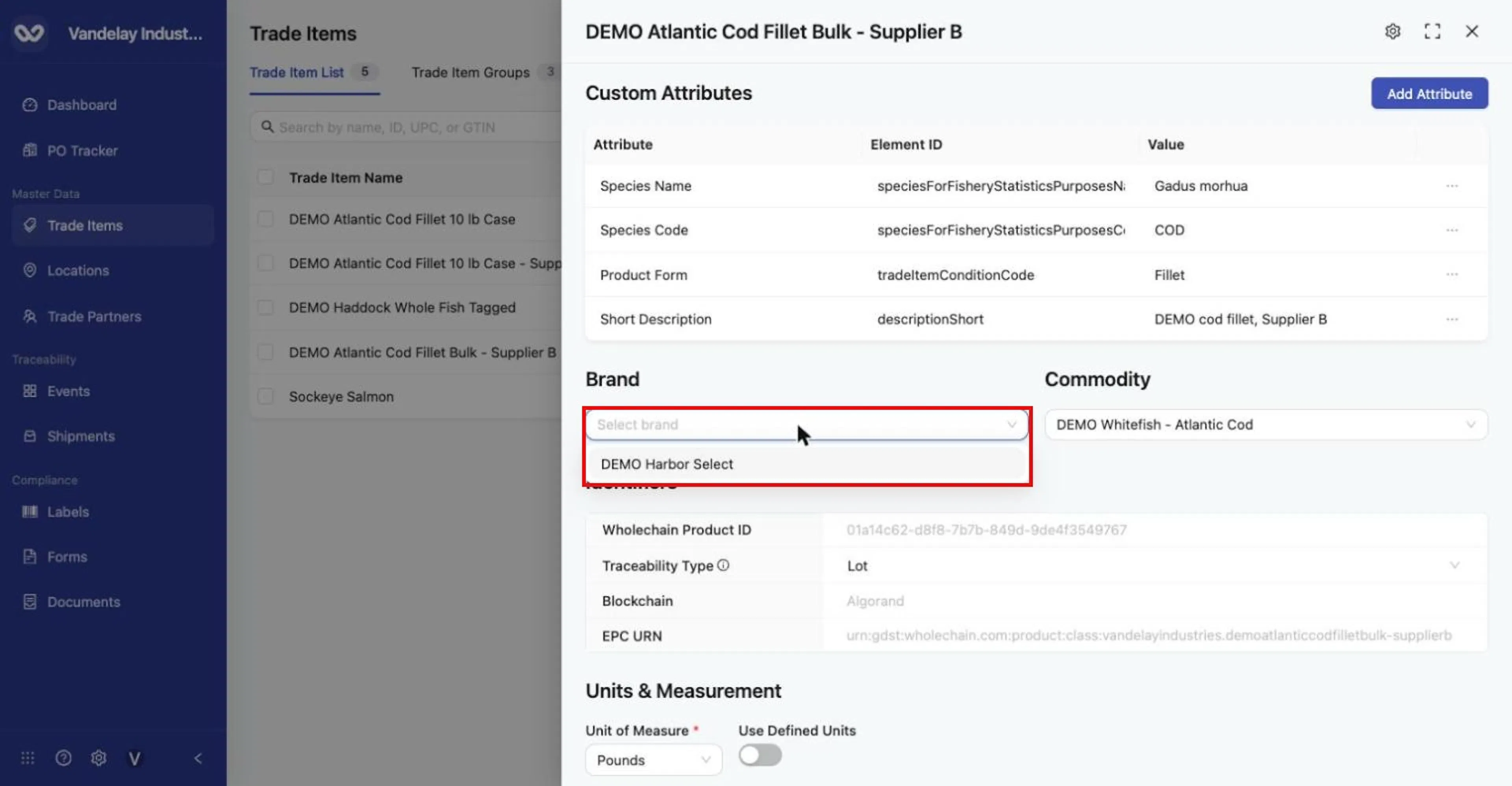
Open the Brand selector and choose an existing brand (brands are created in Settings).
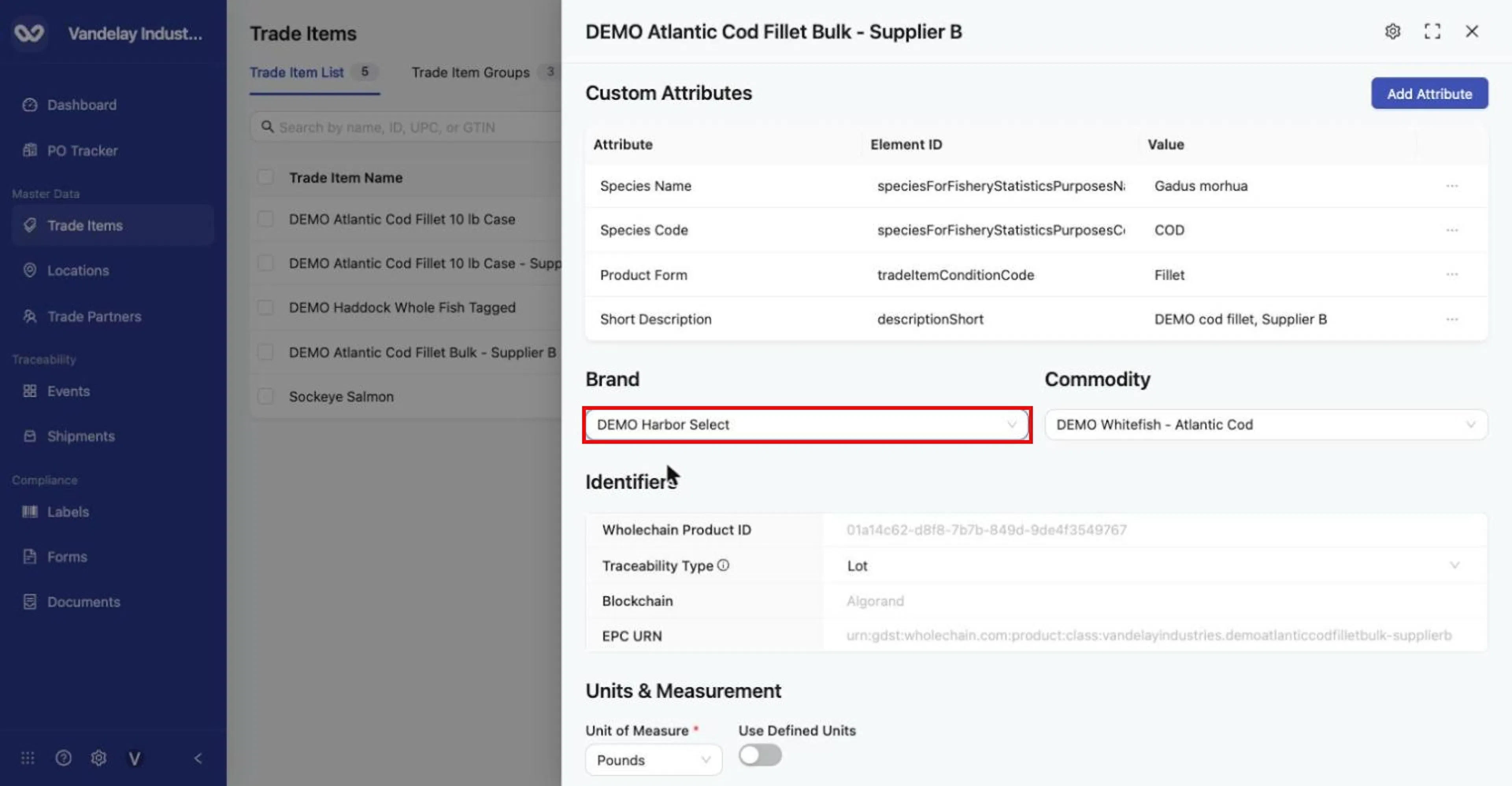
Brand set to DEMO Harbor Select. The change saves when you click elsewhere ('Successfully saved…').
An item has one brand at a time; the selector holds a single value. If the account has no brands, the list shows No data.
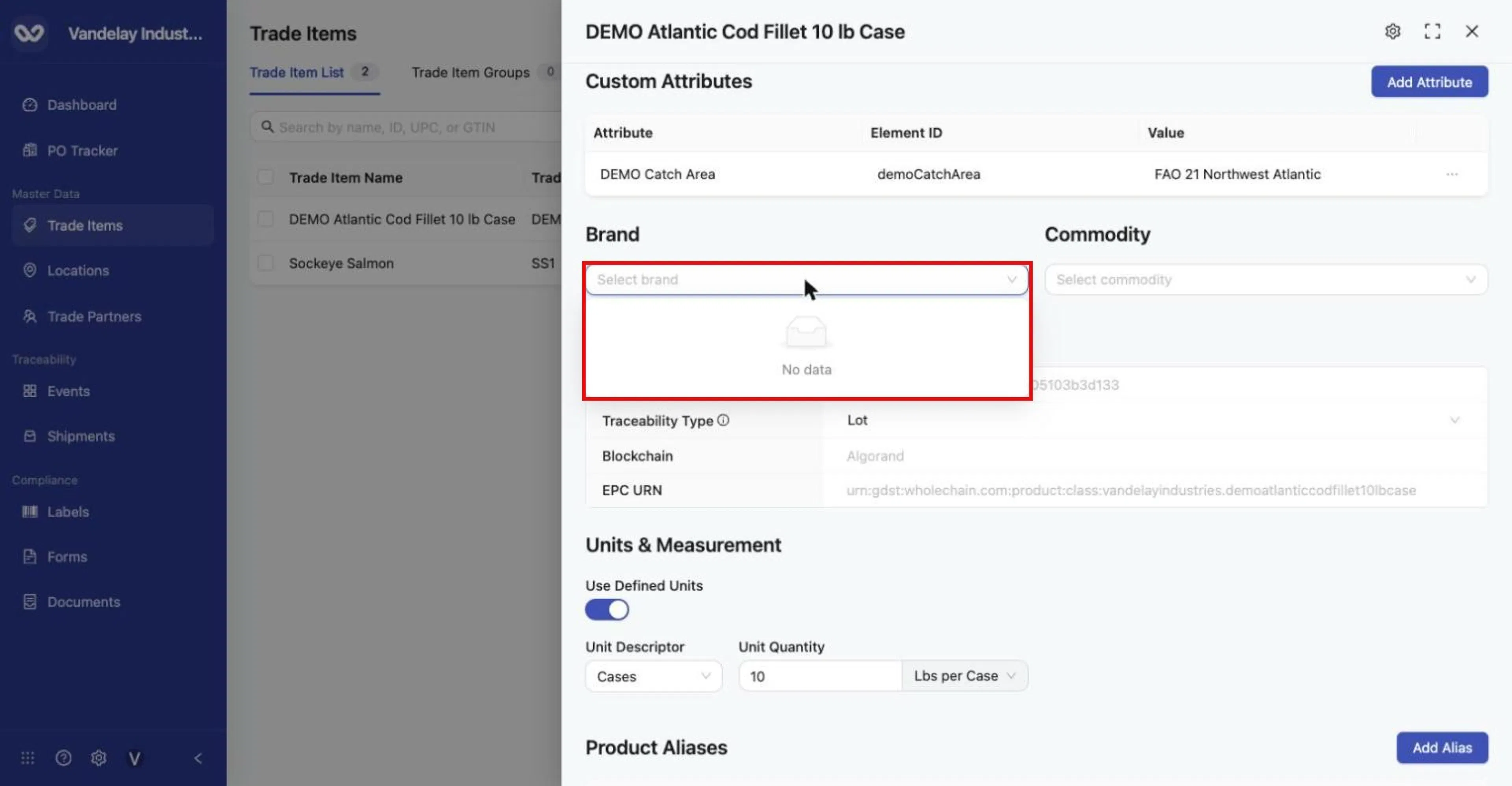
The Brand list shows 'No data' when the account has no brands yet.
Put the item in a Trade Item Group (Commodity)
Open the Commodity drop-down
It lists your Trade Item Groups.
Choose the group
The change saves when you click elsewhere.
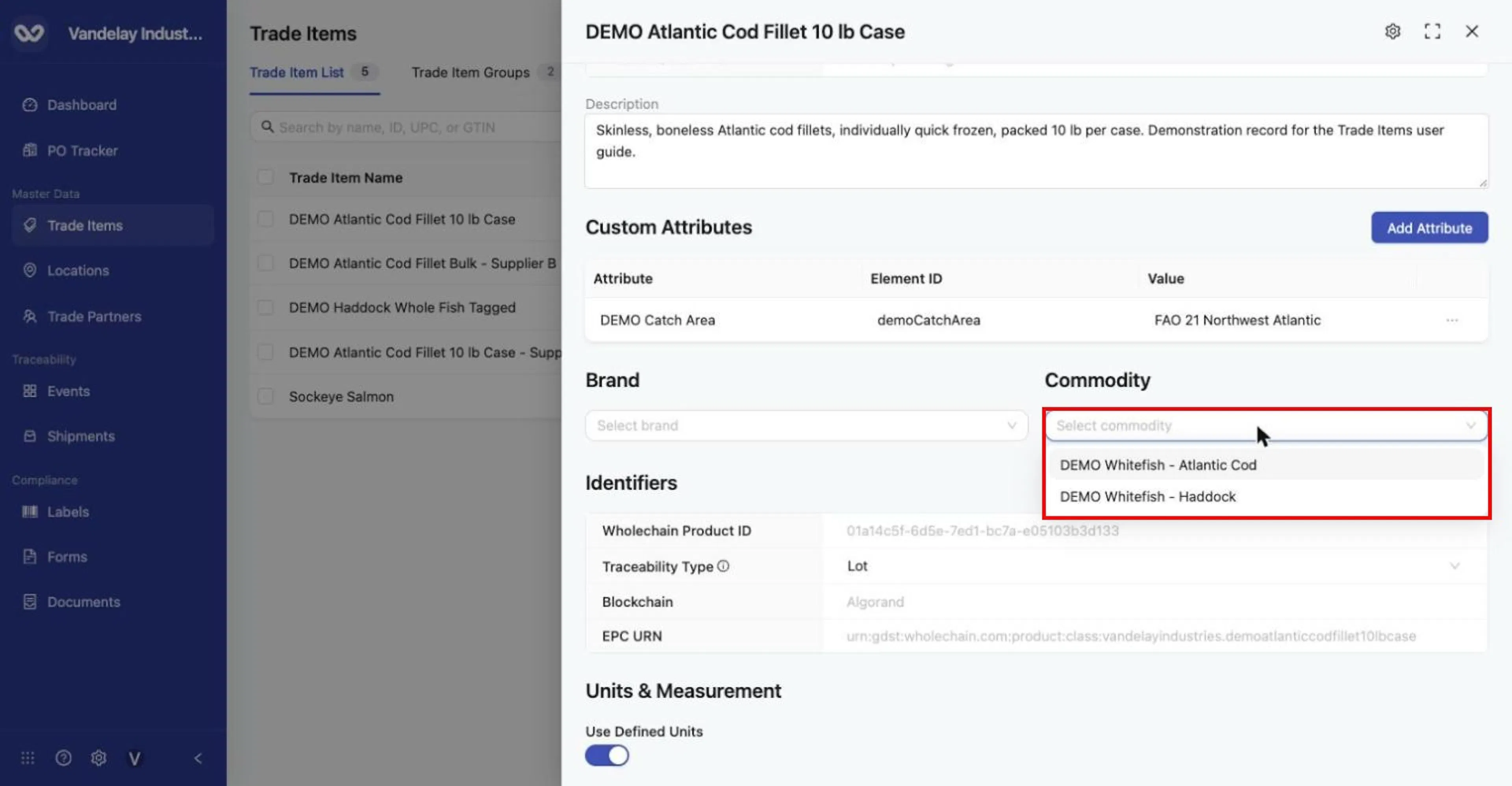
Choose a Trade Item Group from the item's Commodity dropdown.
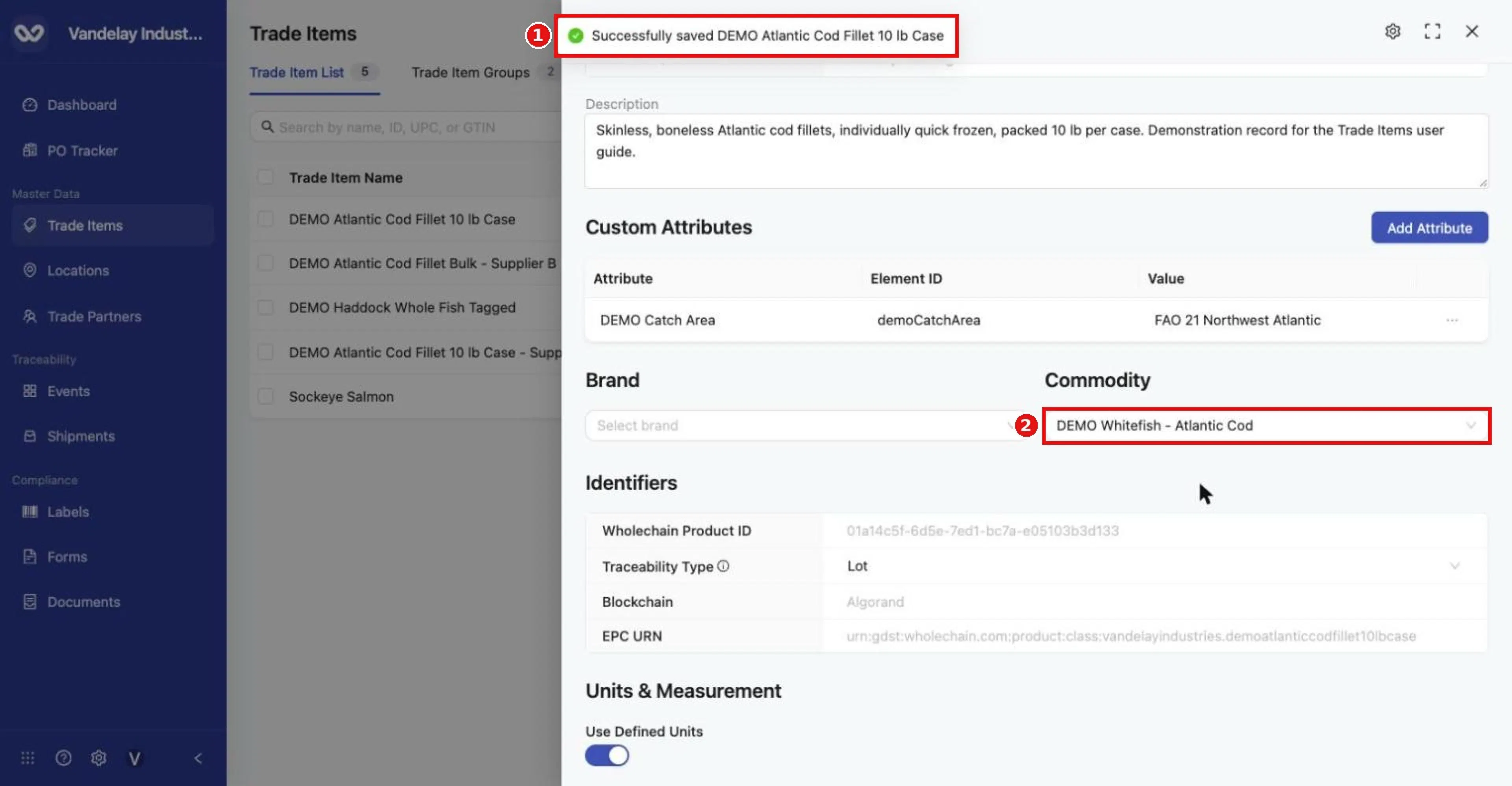
Commodity saved ('Successfully saved…'). The item is now a member of that group.
In the interface, Commodity on the item is the same thing as its Trade Item Group. An item belongs to one group at a time: choosing another group, or linking the item to a different group from the list, replaces the previous group (see Find and manage Trade Items). If the group is deleted, the item's Commodity becomes empty and the item itself remains.
Review identifiers and change the Traceability Type
The Identifiers section is read-only, apart from Traceability Type.
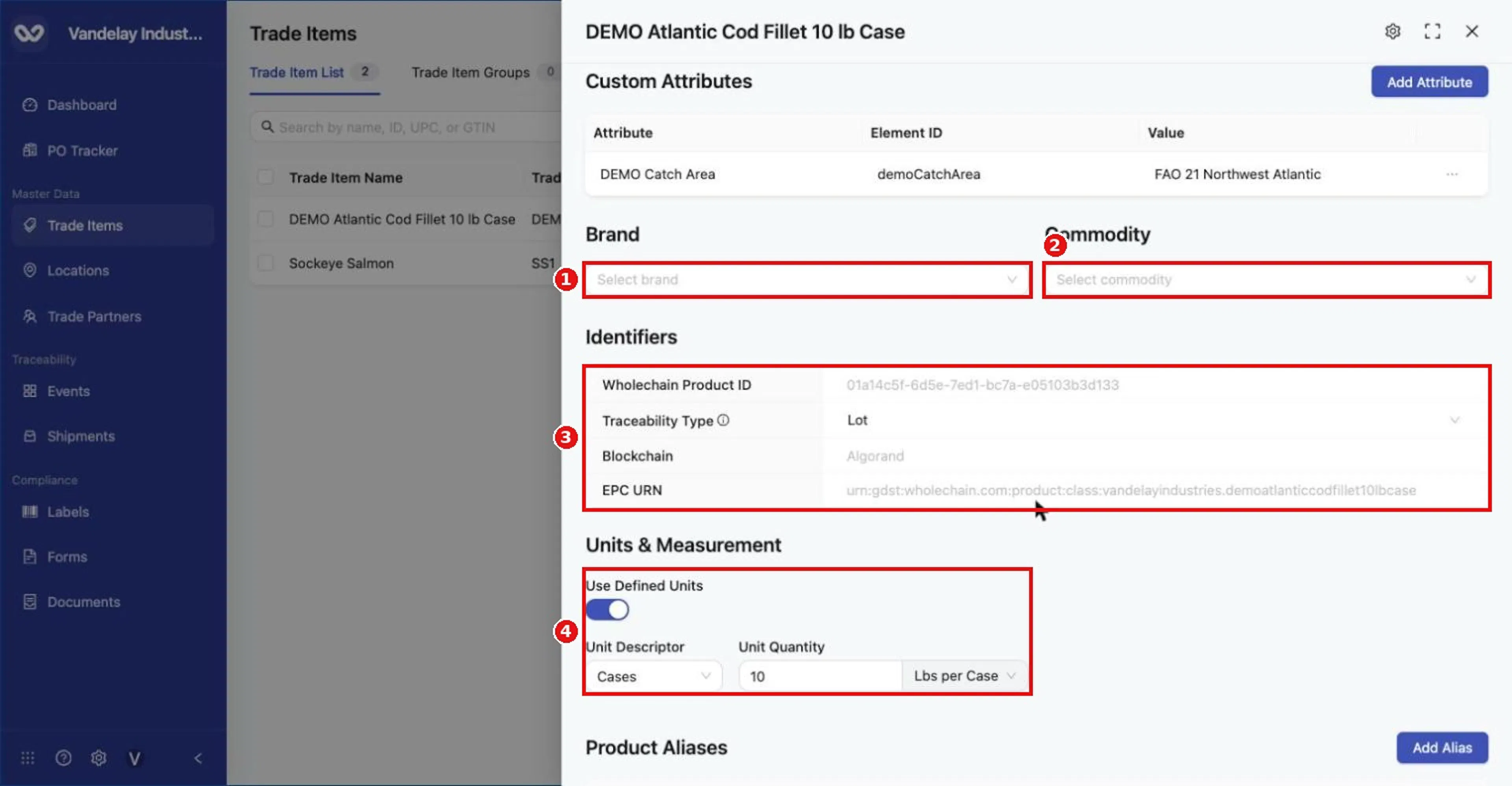
Brand and Commodity selectors, the read-only Identifiers section (Wholechain Product ID, Traceability Type, Blockchain, EPC URN), and Units & Measurement.
- Wholechain Product ID: Wholechain's internal database ID for the item (example
01a14c5f-6d5e-7ed1-bc7a-e05103b3d133). - Traceability Type: Lot or Serial, set at creation and editable here only while the item has no active inventory.
- Blockchain: the blockchain shown for the item's records (Algorand in the example account). It is read-only.
- EPC URN: the unique URN Wholechain generates for the item's class record. It is built from your company and item name, for example
urn:gdst:wholechain.com:product:class:vandelayindustries.demoatlanticcodfillet10lbcase. Because it is unique per record, it keeps two records apart even when they have similar names or the same GTIN.
To change the Traceability Type (only while the item has no inventory):
Hover over the info icon beside Traceability Type
It reads "Cannot change after inventory exists".
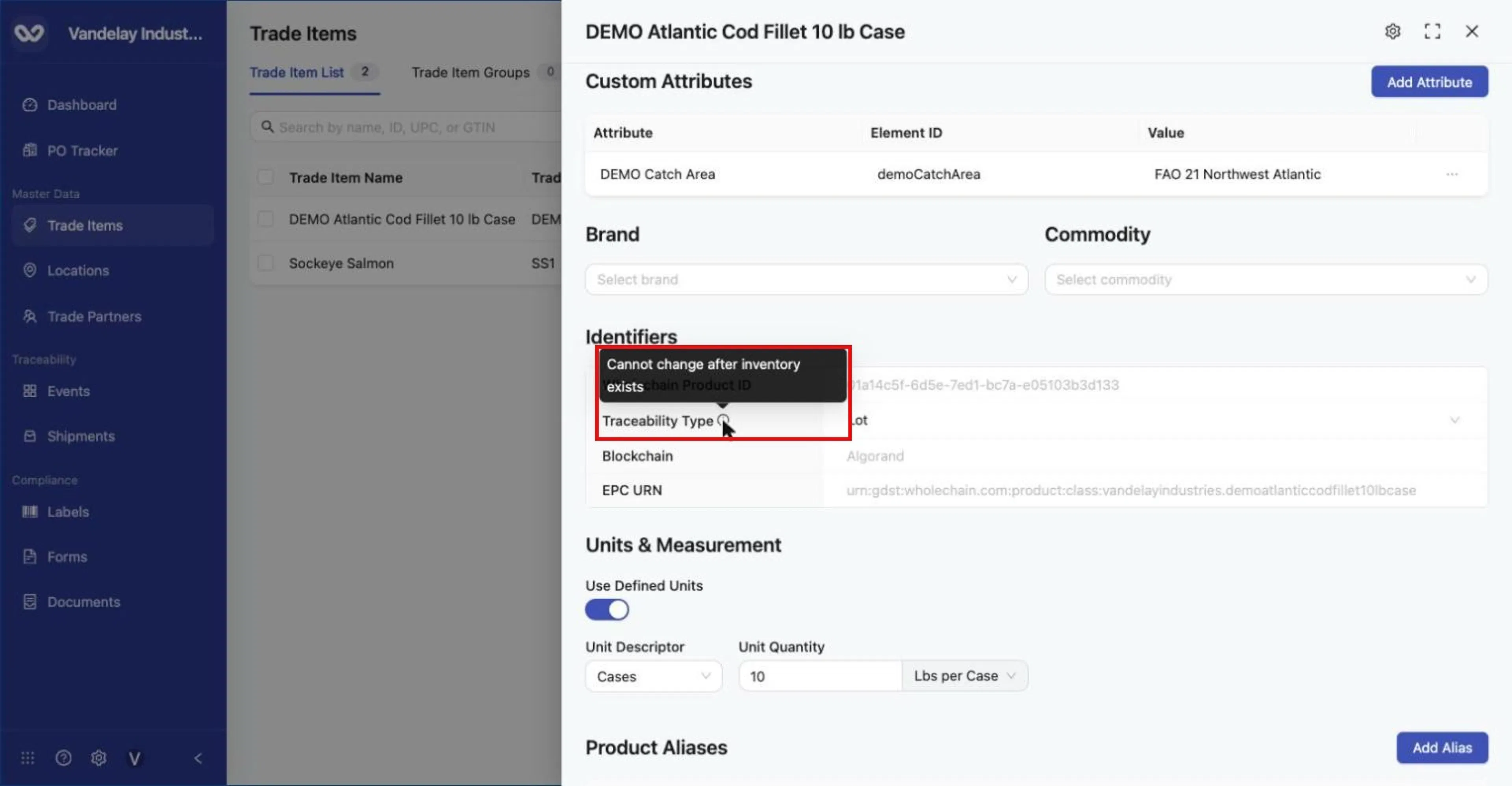
Hover the info icon beside Traceability Type: 'Cannot change after inventory exists'.
Choose the new type
Open the Traceability Type selector and choose the new type.
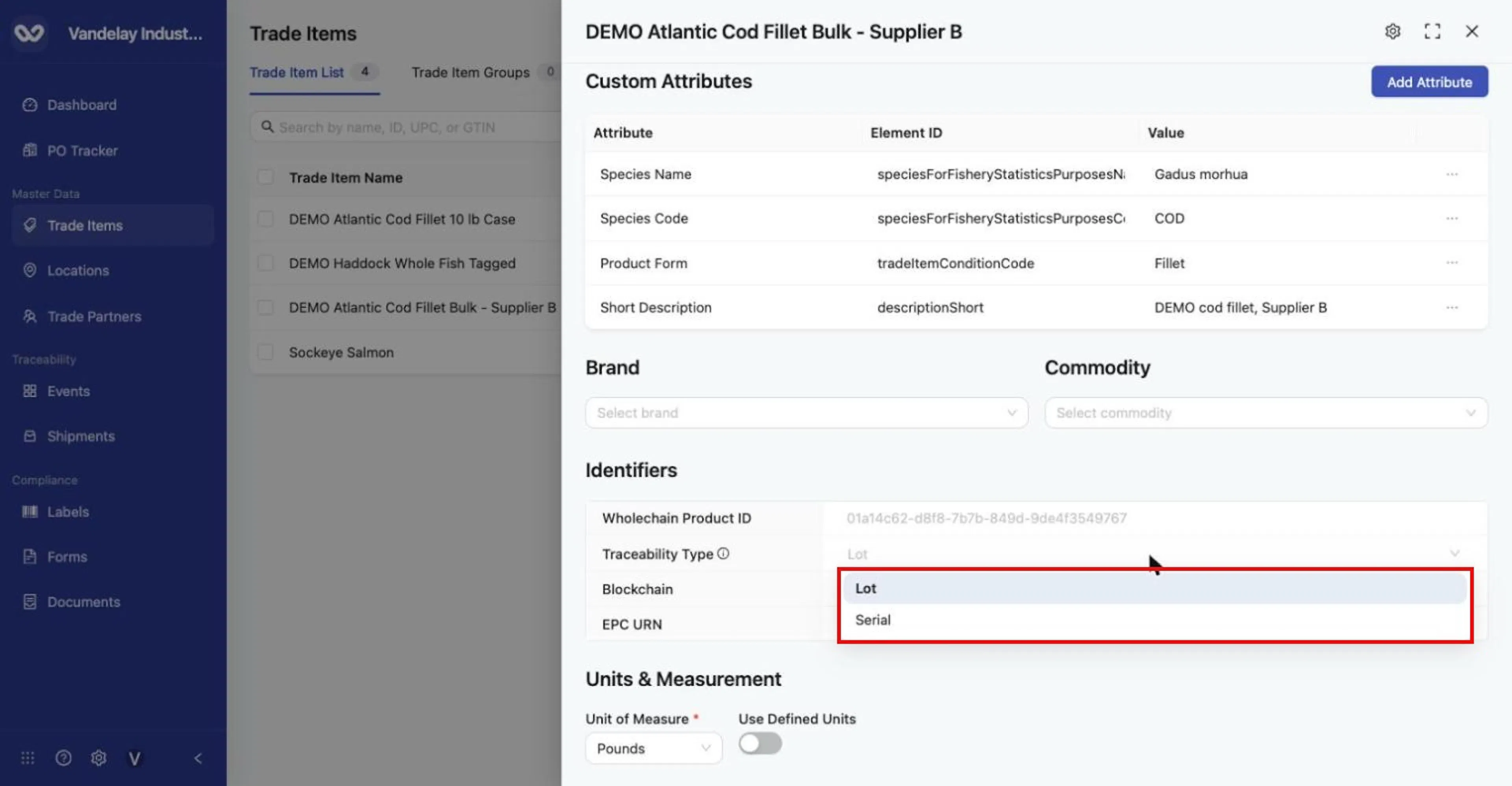
On an item with no inventory, open the Traceability Type selector in Identifiers and choose the new type.
Wait for the save confirmation
Wait for Successfully saved ….
What to expect:
-
Switching to Serial removes the Use Defined Units toggle and greys out Unit of Measure, because serialized items are counted one at a time. The list then shows UoM Item.
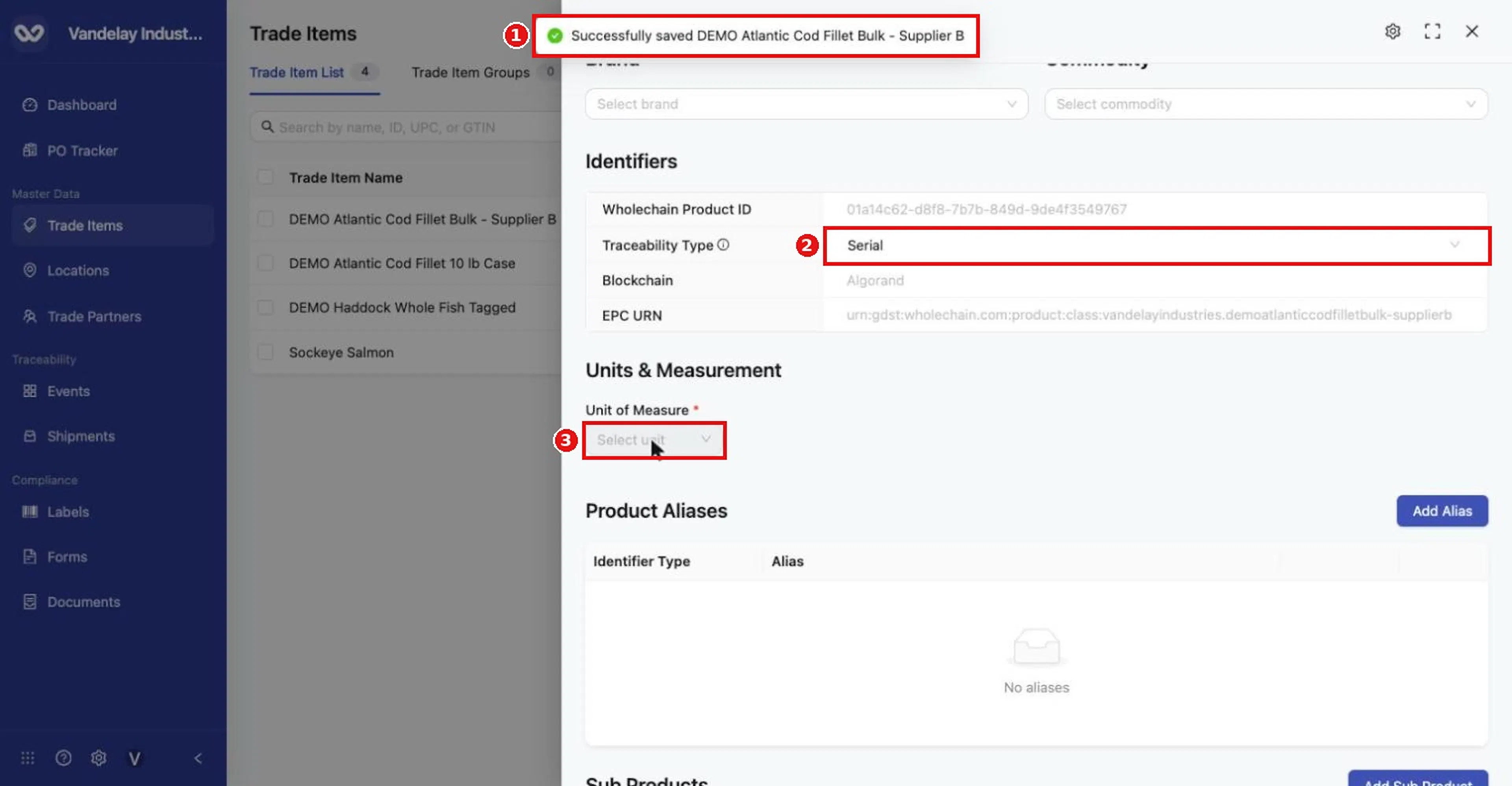
After switching to Serial: the change saves, the Use Defined Units toggle disappears, and Unit of Measure becomes unavailable (the list then shows UoM 'Item'). After switching to Serial: the change saves, the Use Defined Units toggle disappears, and Unit of Measure becomes unavailable (the list then shows UoM 'Item').
-
Switching back to Lot clears the unit, so choose Unit of Measure again.
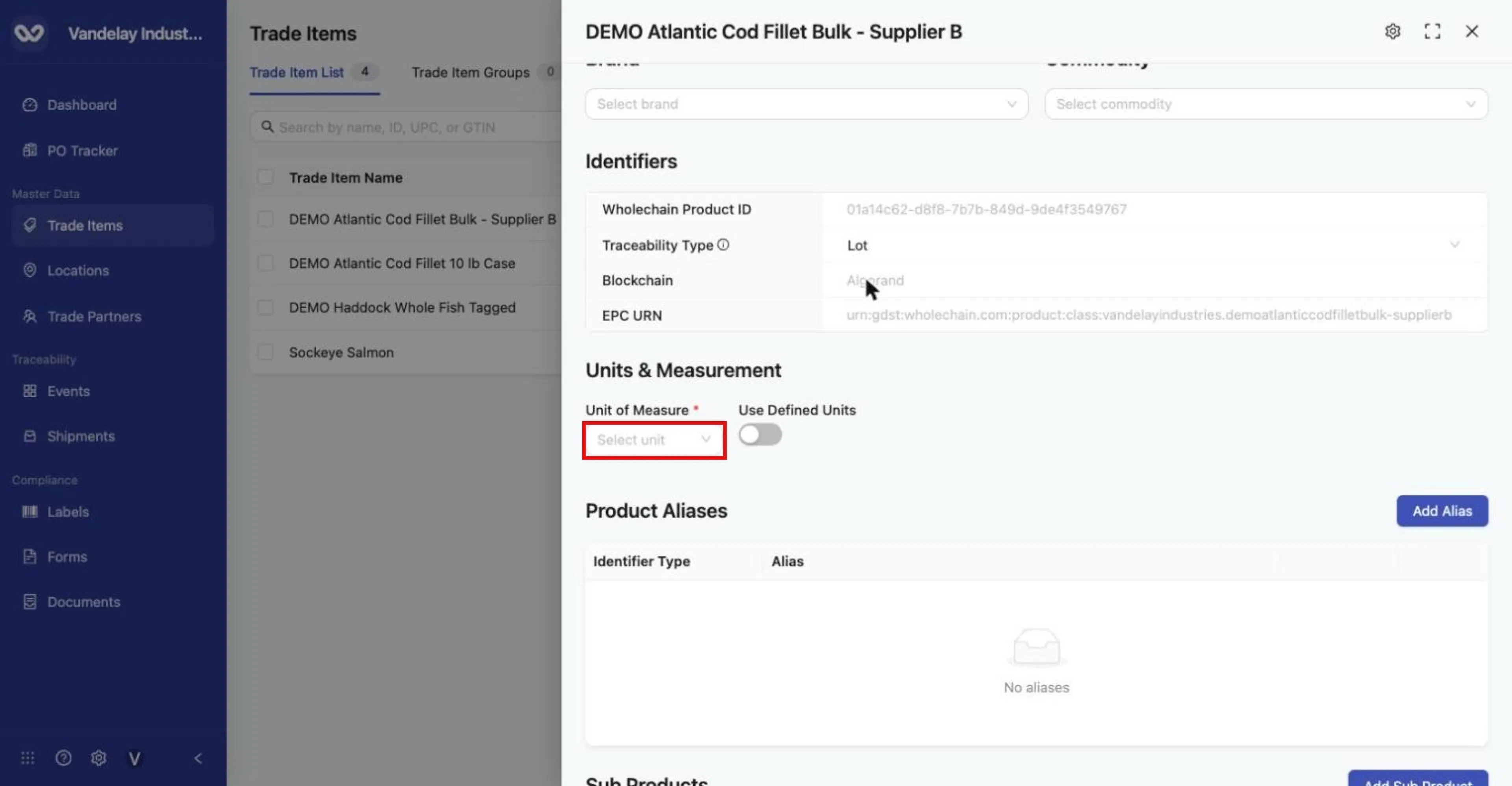
Switching back to Lot clears the unit; Unit of Measure must be chosen again. Switching back to Lot clears the unit; Unit of Measure must be chosen again.
Change Units & Measurement
The unit can be changed only while the item has no active inventory. If the item has active inventory, the change fails and an error message tells you to clear the active inventory first. The same applies to Traceability Type.
Choose the new unit
In Units & Measurement, open Unit of Measure and pick Pounds, Kilograms, Cases or Units, or turn on Use Defined Units and set Unit Descriptor, Unit Quantity and the base unit.
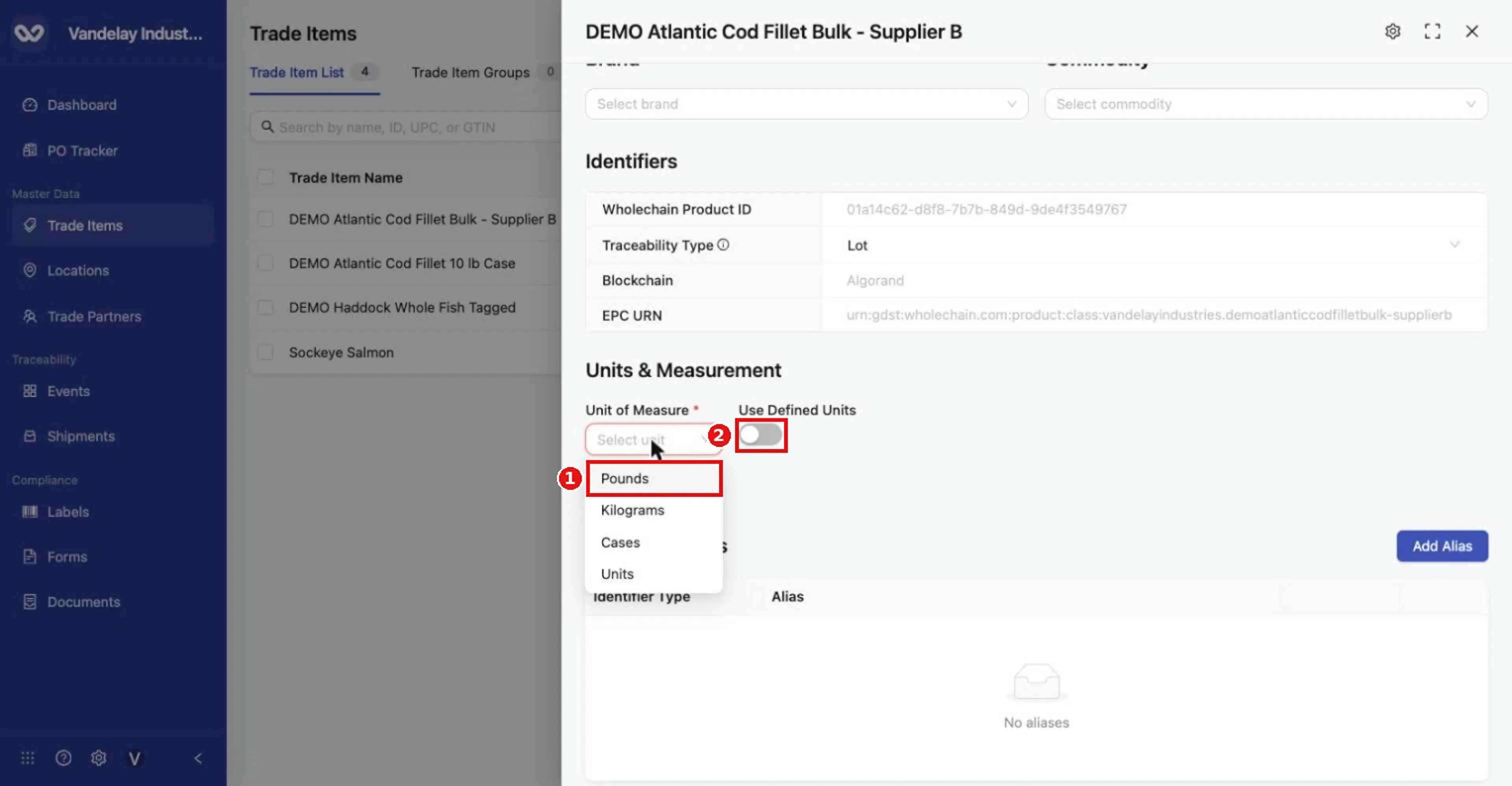
Open Unit of Measure and pick the unit (Pounds, Kilograms, Cases, Units), or turn on Use Defined Units.
Wait for the save confirmation
Click elsewhere and wait for Successfully saved ….
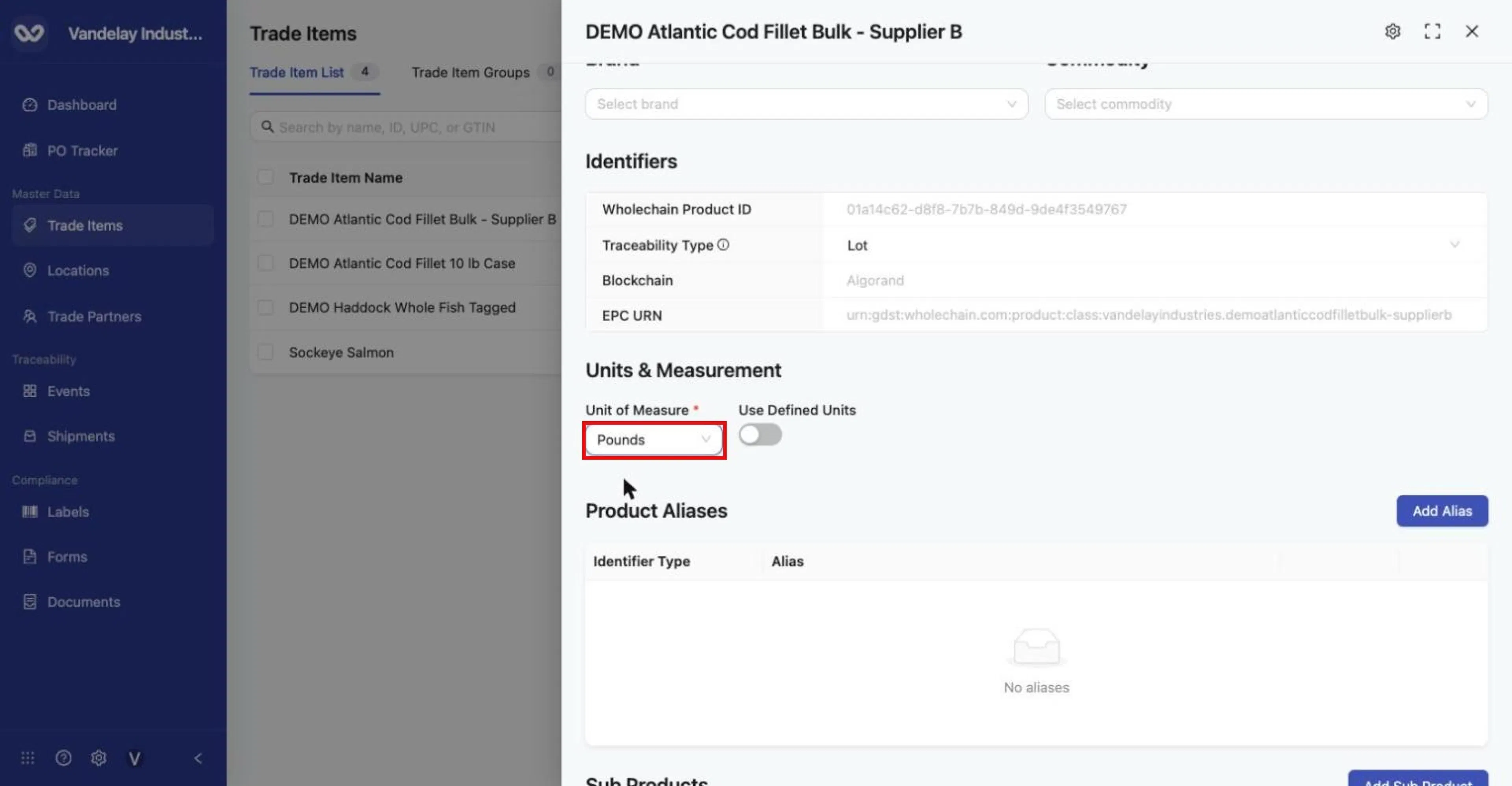
Unit of Measure set to Pounds. Changes in this section save when you move to another field; wait for 'Successfully saved…' before closing or reloading, or the change is lost.
If the change is gone after a reload, it was not saved. Make the change again and wait for the confirmation message before leaving.
Add Product Aliases
Tell Wholechain about other codes for the same product, such as a supplier's item number, a second GTIN or another system's URN. When data arrives through an API integration or a bulk event upload using one of these codes, Wholechain can recognize the item.
Add one alias
Click Add Alias
In Product Aliases, click Add Alias. The panel opens on the Manual tab.
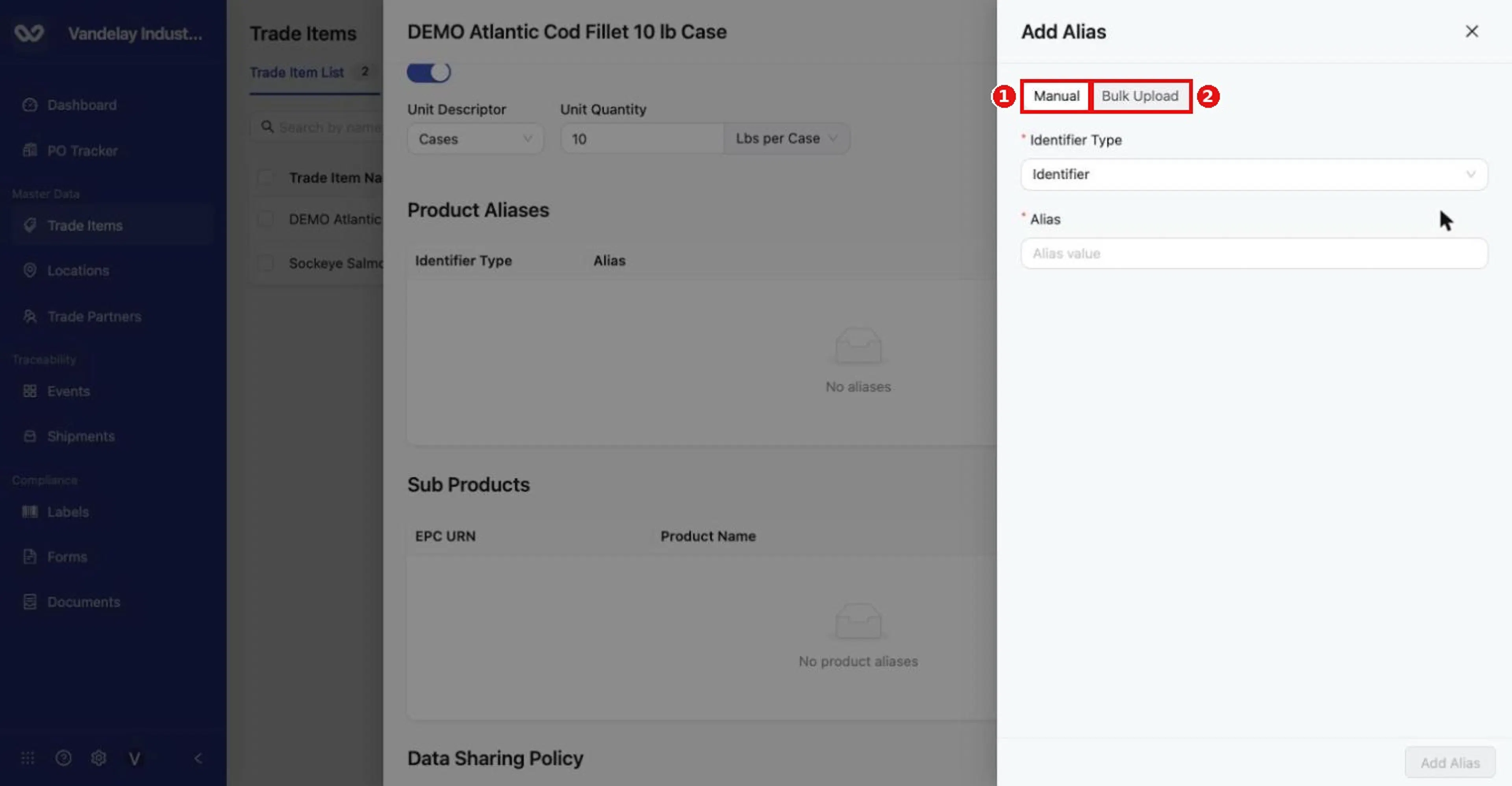
Add Alias panel, Manual tab. Bulk Upload is the second tab.
Choose the Identifier Type
Open Identifier Type and choose External Identifier, URN or GTIN.
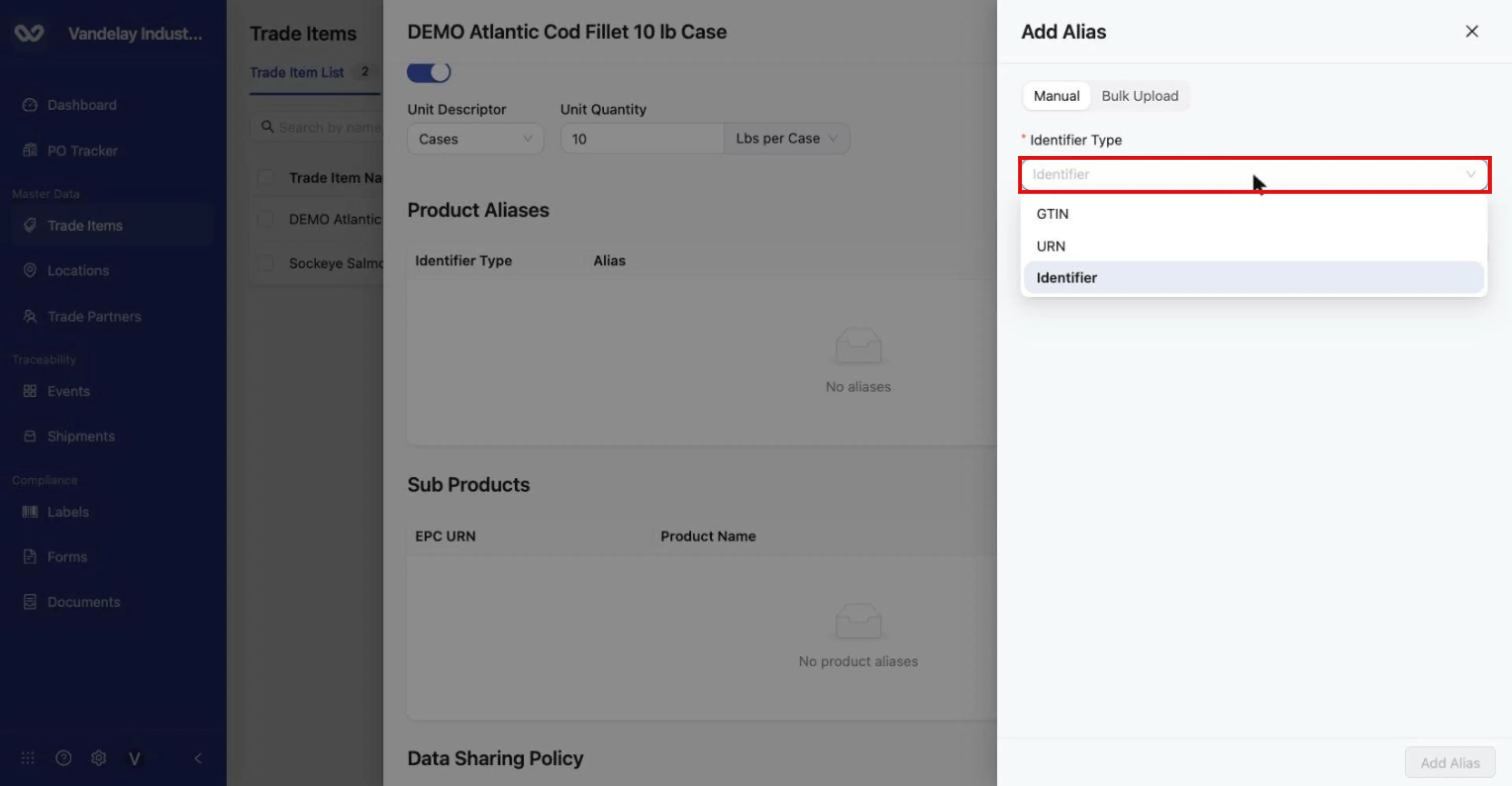
Identifier Type options: GTIN, URN, Identifier.
Type the alias
In Alias, type the value (example: ERP-COD-4471).
Click Add Alias
Click Add Alias.
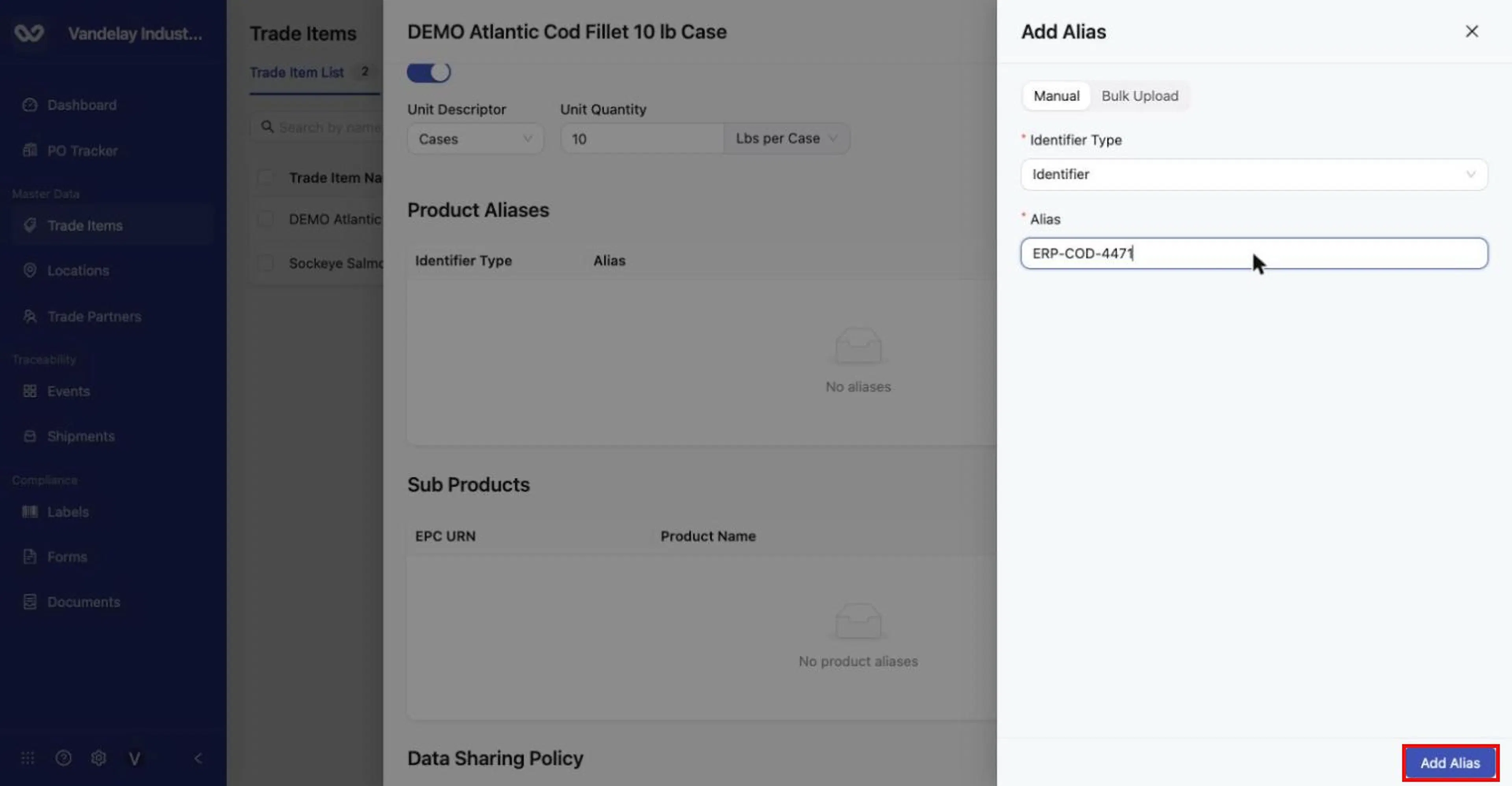
Example: Identifier Type 'Identifier', Alias 'ERP-COD-4471'. Click Add Alias.
Result. Alias added appears and the alias is listed. The list search also finds the item when you search for the alias value.
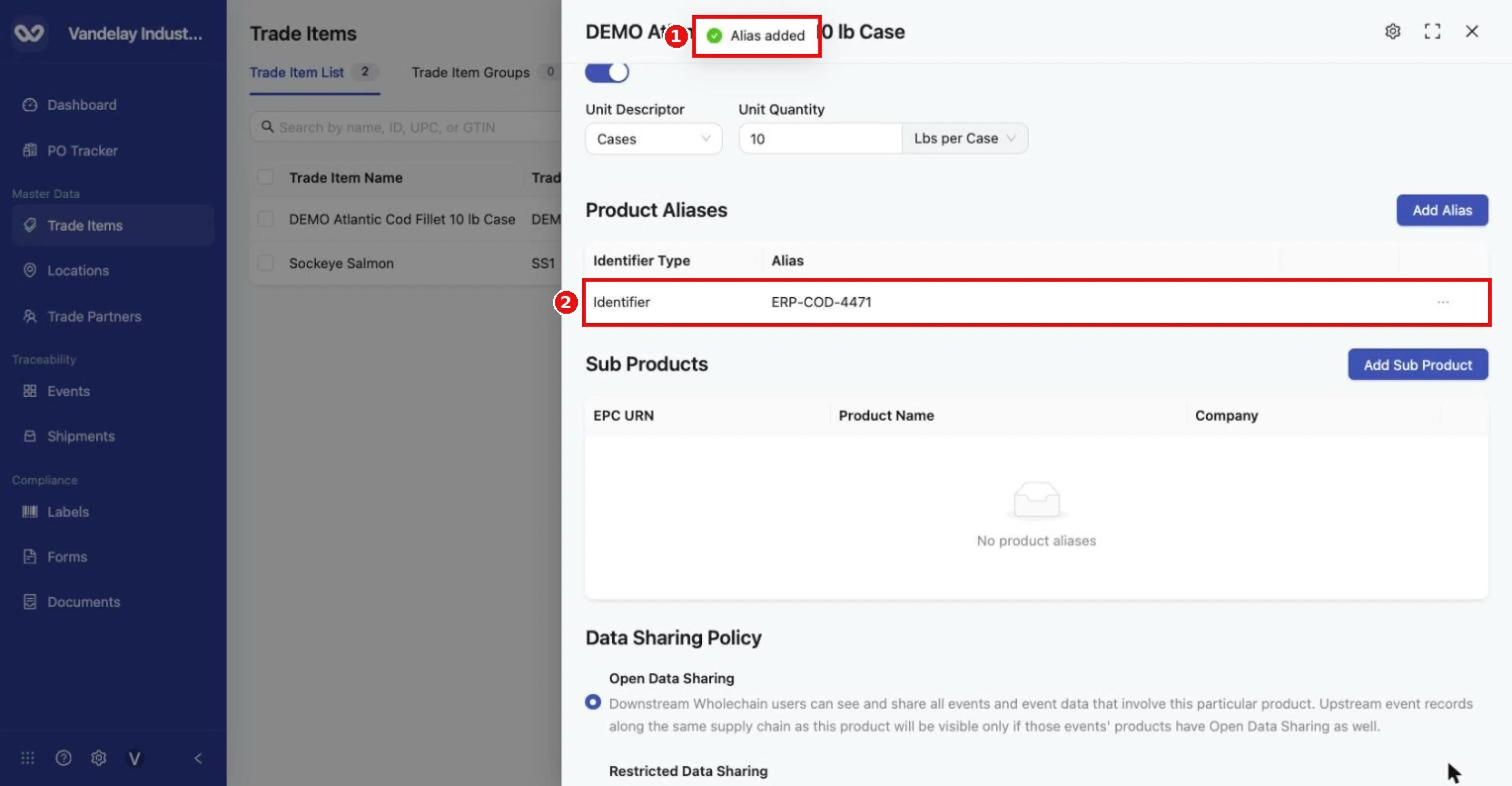
'Alias added' confirmation; the alias appears in the Product Aliases table.
Add several aliases with Excel
Use bulk upload when you have several extra aliases for this item. It is quicker, but you can also add any number of aliases one at a time.
Open the Bulk Upload tab
Click Add Alias, then the Bulk Upload tab.
Download the template
Click Excel Template to download product_alias_upload_template.xlsx. It has two columns: Alias and Alias Type (keys alias and alias_type in row 2). The Alias Type cells offer a drop-down with ExternalIdentifier, Gtin and Urn. These are the template's spellings; the screen shows External Identifier, GTIN and URN.
Enter one alias per row
Enter one alias per row from row 3 and save. The template has no column for the item: the aliases go to the item whose drawer you uploaded from.
Upload the file
Drop the file in the upload area and click Upload.
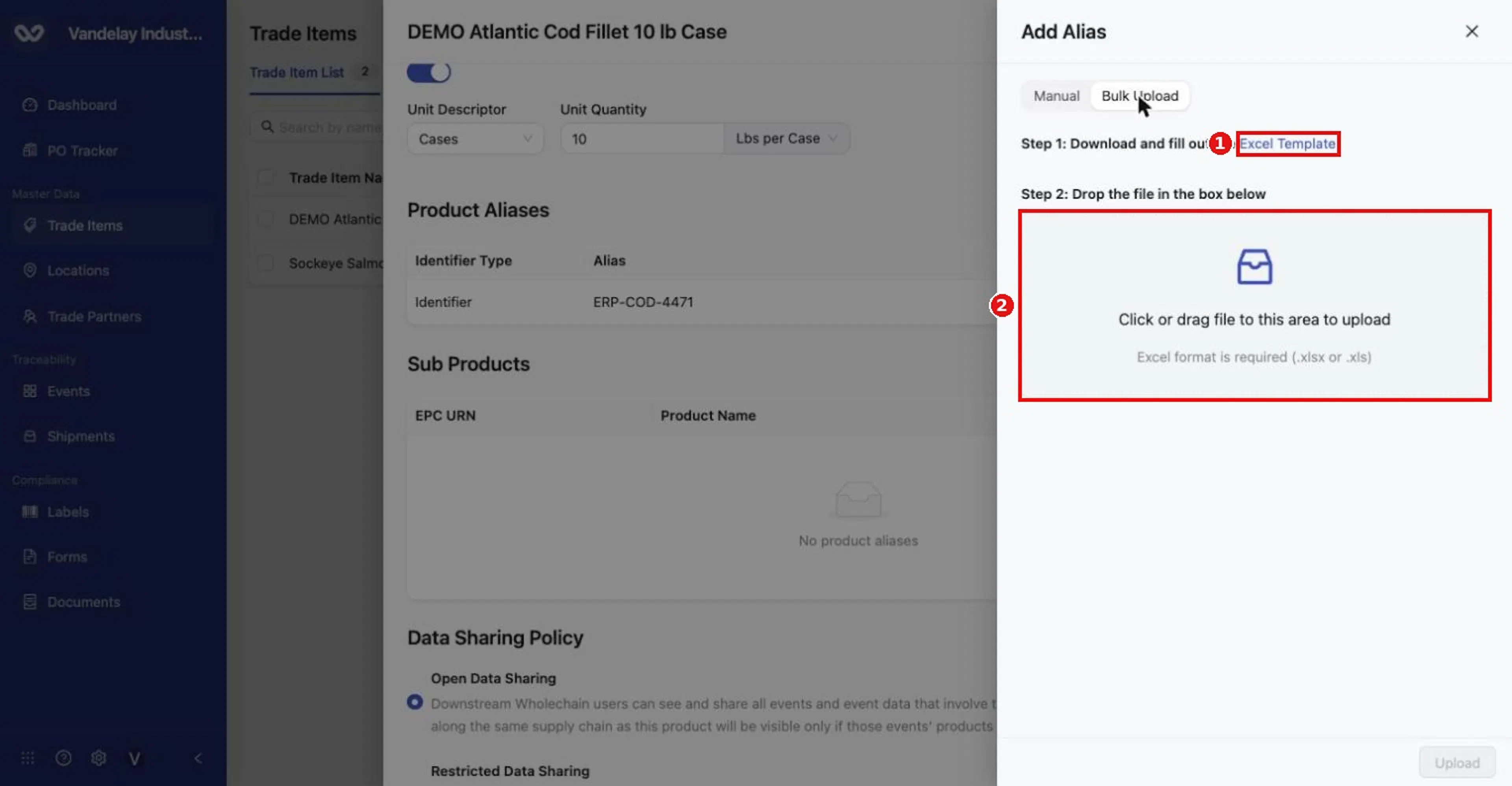
Alias Bulk Upload tab. Step 1: download the Excel Template. Step 2: drop the completed file in the upload area.
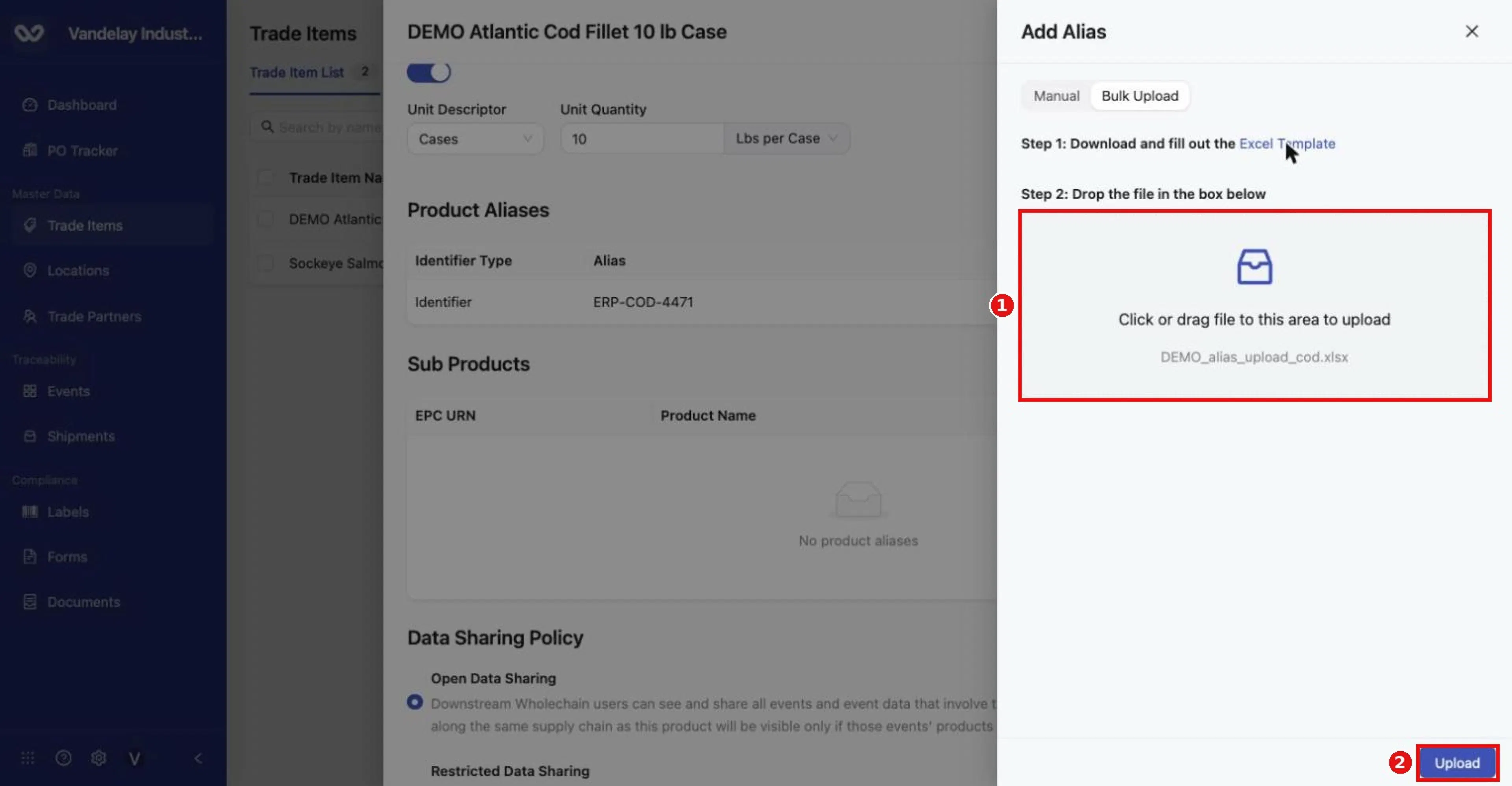
The selected file name appears in the upload area and Upload becomes active.
Result. Trade item aliases uploaded successfully. appears and the aliases are listed with their types (External Identifier, GTIN or URN).
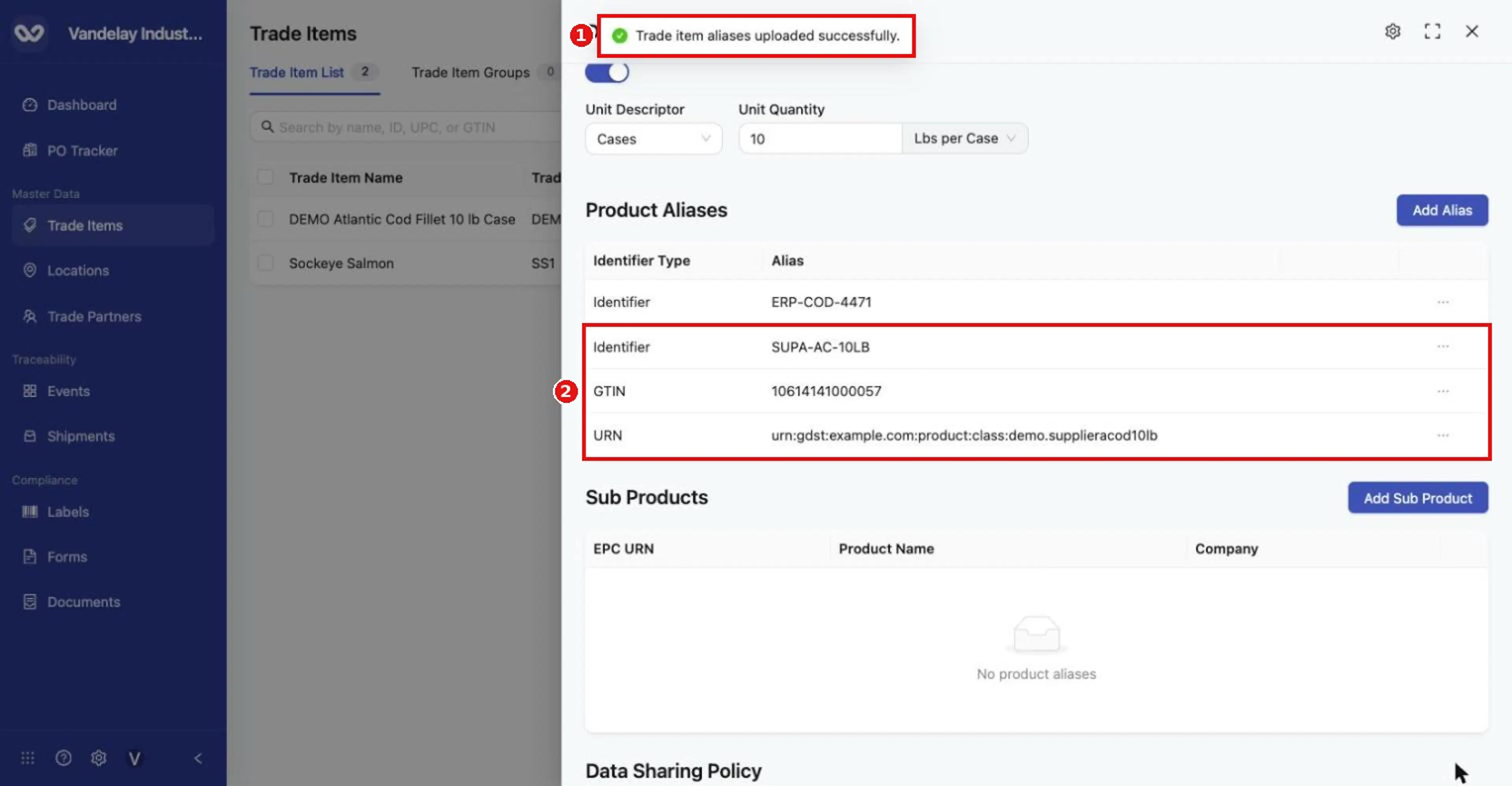
'Trade item aliases uploaded successfully.' Three aliases (Identifier, GTIN, URN) were added from the spreadsheet.
Sample file: DEMO_alias_upload_cod.xlsx. Aliases for many Trade Items at once are uploaded in Master Data Settings > Trade Item: see Master Data settings.
Add Sub Products
Organize several item records for the same product beneath one parent item. For example, you receive the same 10 lb cod case from Supplier A and Supplier B under the suppliers' own item records, and you want them grouped under your own item, DEMO Atlantic Cod Fillet 10 lb Case. Parent and child must use compatible units of measure, and only compatible items are offered. For example, a parent measured in Lbs per Case offers other Lbs per Case items, but not an item measured in Lbs.
Open the parent item and click Add Sub Product
In Sub Products, click Add Sub Product.
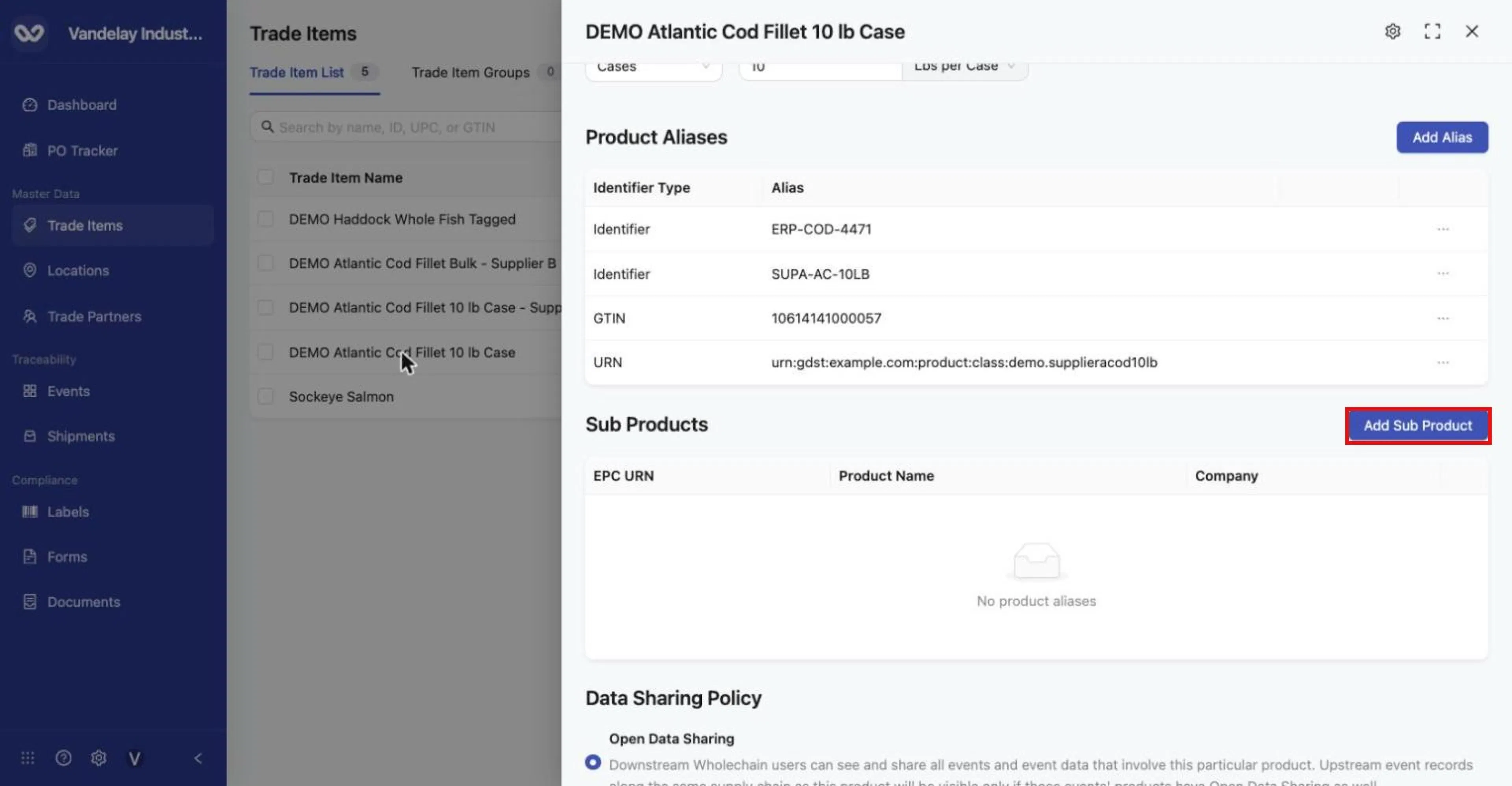
Sub Products section of the parent item. Click Add Sub Product.
Select the eligible item
The panel that opens is titled Add Alias Product. Open Product and select the eligible item(s).
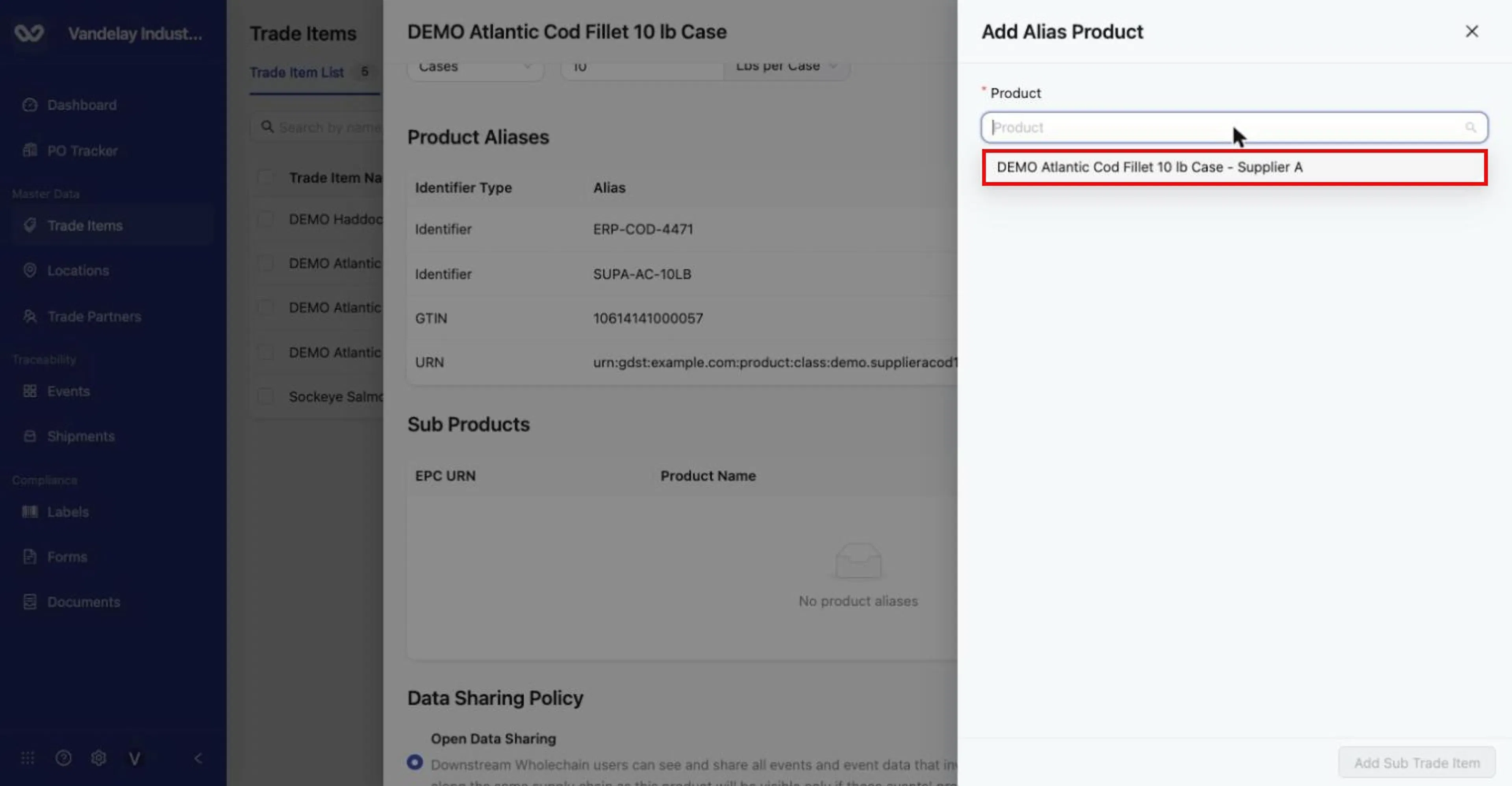
Only items with a compatible unit of measure are offered. Here only the Supplier A item (also 'Lbs per Case') is listed; the Supplier B item measured in Lbs is not.
Click Add Sub Trade Item
Click Add Sub Trade Item.
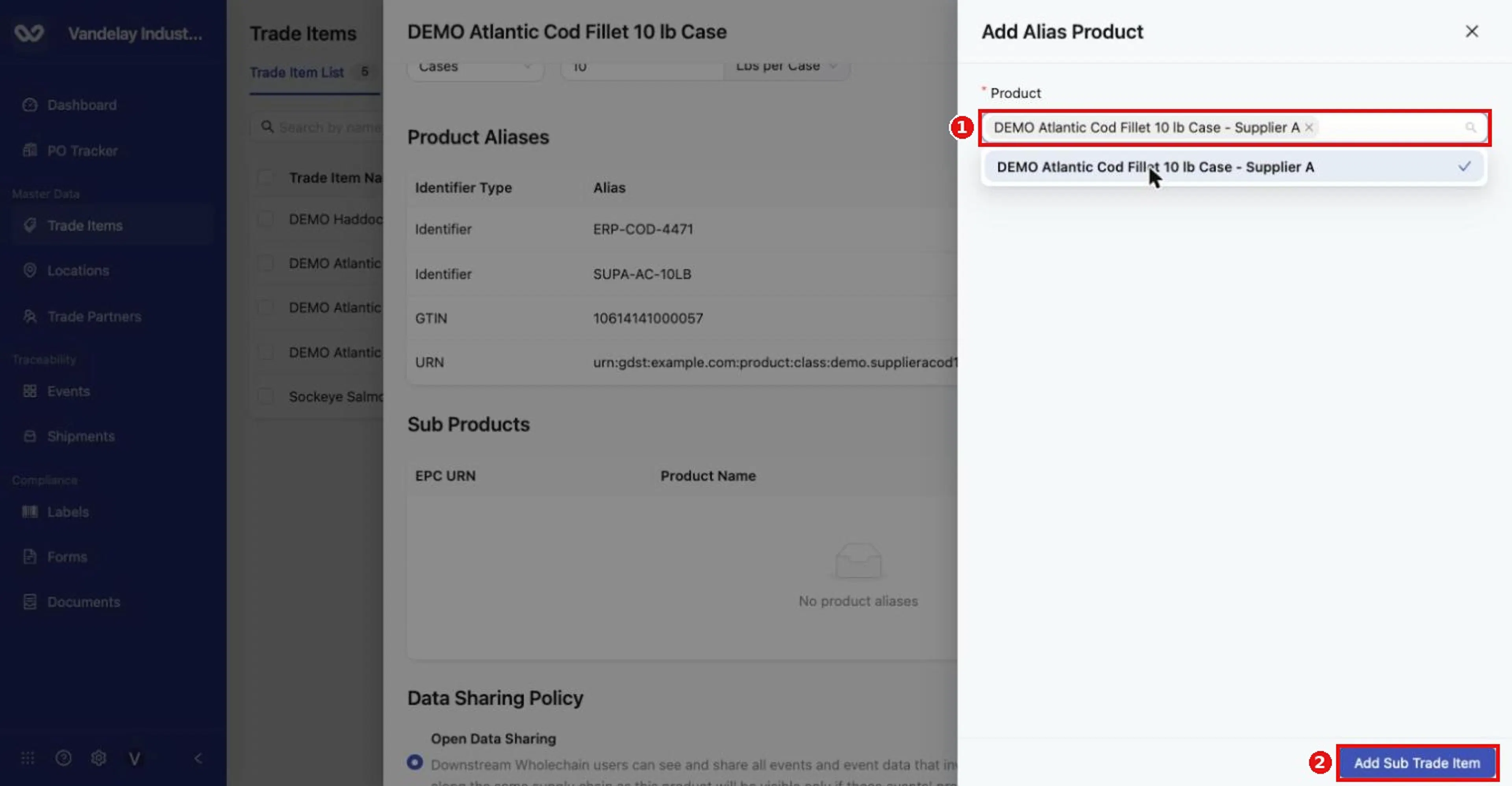
Select the item, then click Add Sub Trade Item.
Result. Successfully saved … appears, the child appears under Sub Products with its EPC URN, Product Name and Company, and the child no longer appears as its own row in the Trade Item List (the count goes down by one).
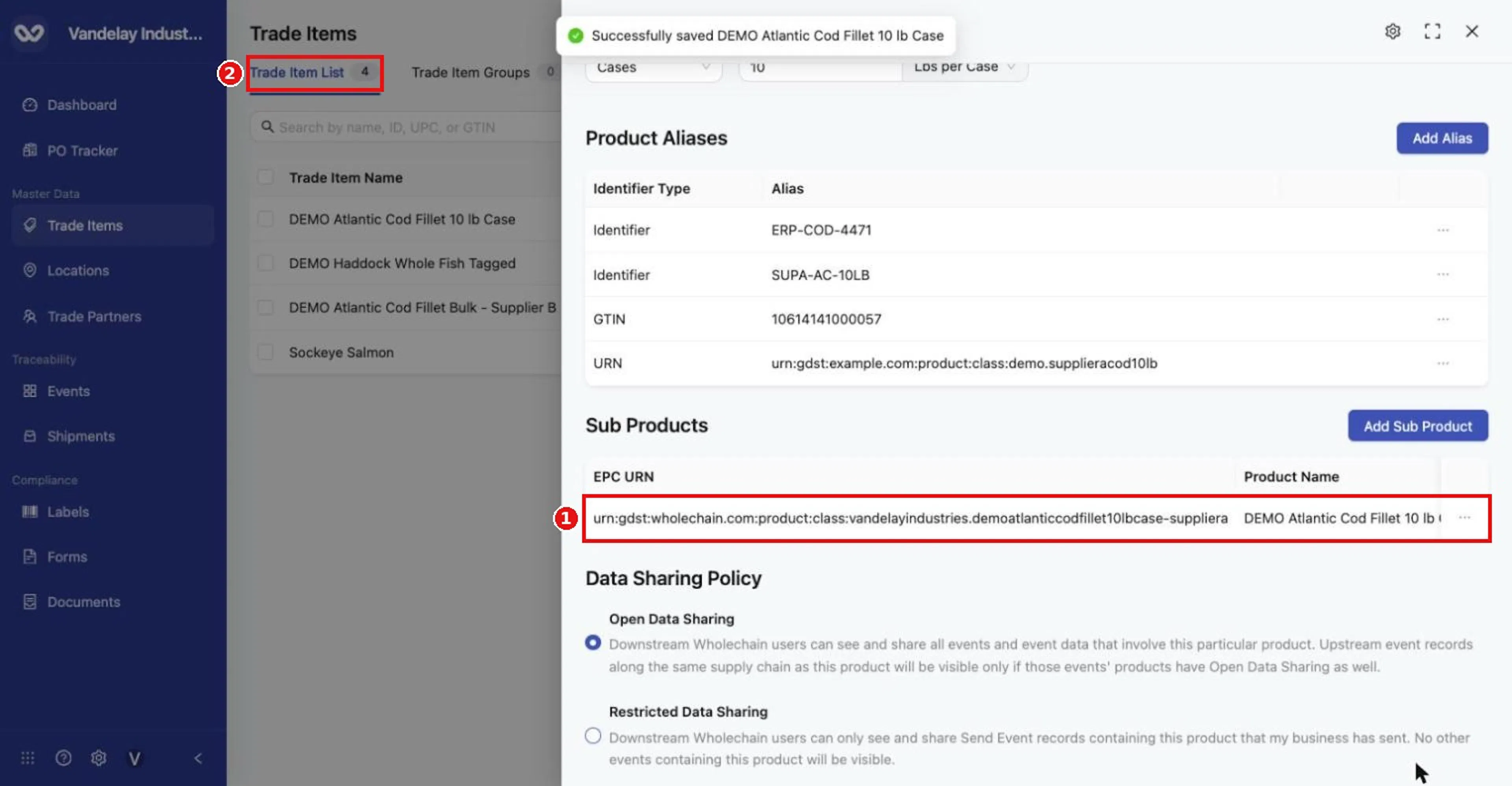
The child item now appears under Sub Products. The list count drops from 5 to 4 because the child item no longer appears as its own row in the list.
Sub-products organize related records under one parent without rewriting their underlying traceability data.
Expected result
Every change shows Successfully saved … (or Alias added, Trade item aliases uploaded successfully.) and appears on the item and, where it is a list column, in the Trade Item List.
Troubleshooting
- A change is gone after reloading. It was not saved. Make the change again and wait for the confirmation message before leaving.
- A KDE you expect from a policy is not listed in Custom Attributes. Contact Wholechain support at support@wholechain.com.
- A sub-product you want is not offered. Check its unit of measure; only compatible items are listed.
- A child item reappeared in the list. Open the parent and check Sub Products. If the child is missing (for example after the parent was linked to a group from the list), re-add it with Add Sub Product.
- The empty Sub Products table reads "No product aliases". That is the label the screen currently shows when an item has no sub-products.
- The Traceability Type or unit will not change. The item has active inventory. Clear the active inventory first.
Field and action reference
The Trade Item drawer
Click an item name to open its drawer. The header shows the item name, a Settings (gear) icon, an expand icon and a close icon. The drawer has four tabs: Details, Locations, Attachments and Sharing. Text fields in Basic Details are edited inline and saved with a check-mark button (X cancels). Drop-downs, toggles and radio buttons save when focus moves to another field. Each save shows Successfully saved followed by the item name.
Details: Basic Details
| Field | Req. | Editable | Values |
|---|---|---|---|
| Trade Item Name | Yes | Yes | Text. Cannot be empty. |
| Trade Item Identifier | No | Yes | Your unique item number. Used by bulk group matching. |
| GTIN | No | Yes | As in the single-item form. A GTIN with an invalid check digit is rejected on save. |
| PLU | No | Yes | 4 or 5 digits. |
| UPC | No | Yes | 12 digits. |
| Product Good Kind | No | Yes | Finished Goods, Semi-Finished Goods, Raw Materials. |
| Description | No | Yes | Text. |
Details: Custom Attributes
| Column | Description |
|---|---|
| Attribute | Readable name of the attribute. |
| Element ID | Machine-readable key. |
| Value | The value for this item. |
| … | Row menu: Delete. |
| Add Attribute field | Req. | Values |
|---|---|---|
| Attribute | Yes | Readable name, e.g. Catch Area. |
| Element ID | Yes | Machine-friendly key, e.g. catchArea. Not filled in automatically. |
| Value | Yes | The value, e.g. FAO 21 Northwest Atlantic. |
Values cannot be edited in place; delete the row and add it again.
Details: Brand and Commodity
| Field | Req. | Values |
|---|---|---|
| Brand | No | One brand created in Organization Settings > Brands. Shows No data if no brands exist. |
| Commodity | No | One Trade Item Group. Choosing another group replaces the current one. Empty if the group is deleted. |
Details: Identifiers
| Field | Editable | Description |
|---|---|---|
| Wholechain Product ID | No | Wholechain's internal ID for the item (UUID). |
| Traceability Type | Only without active inventory | Lot or Serial. Tooltip: "Cannot change after inventory exists". |
| Blockchain | No | The blockchain shown for the item's records. |
| EPC URN | No | Unique identifier for the item class, generated from the company and item name. Format: urn:gdst:wholechain.com:product:class:<company>.<itemname>. |
Changing Traceability Type (no active inventory only): to Serial, Use Defined Units is removed, Unit of Measure is disabled and the unit becomes Item; to Lot, the unit is cleared and must be chosen again.
Details: Units & Measurement
| Field | Req. | Values |
|---|---|---|
| Use Defined Units | No | Toggle; not shown for Serial items. |
| Unit of Measure | Conditional | Pounds, Kilograms, Cases, Units (toggle off). |
| Unit Descriptor | Conditional | Cases, Units, Totes, Pallets (toggle on). |
| Unit Quantity + base unit | Conditional | Number + Pounds, Kilograms, Cases or Units (toggle on). |
Units can be changed only while the item has no active inventory.
Product Aliases
Alternative identifiers for the same item, used to recognize the item in integrations and bulk event uploads. List search also matches alias values.
| Add Alias > Manual field | Req. | Values |
|---|---|---|
| Identifier Type | Yes | External Identifier, URN or GTIN. |
| Alias | Yes | The alias value, e.g. a supplier or ERP item number. |
Add Alias > Bulk Upload. Template product_alias_upload_template.xlsx, one alias per row from row 3, for the item whose drawer is open.
| Column | Key | Values |
|---|---|---|
| Alias | alias | The alias value. |
| Alias Type | alias_type | ExternalIdentifier, Gtin or Urn (drop-down). |
Results: Alias added / Trade item aliases uploaded successfully.
Sub Products
Other Trade Item records grouped under this item (the parent). The table lists each sub-product's EPC URN, Product Name and Company.
| Field | Req. | Values |
|---|---|---|
| Product | Yes | One or more existing items with a compatible unit of measure. |
Add Sub Trade Item saves. A sub-product no longer appears as its own row in the Trade Item List. When there are none, the table reads "No product aliases".