

Managing labels
Wholechain Labels: managing labels. For label managers.
For: label managers.
Where this fits. Labels has three working levels: label designers lay out templates in the Design Editor, label managers link a Trade Item and set which inputs are editable in the Field Editor, and operators fill in and print from Label Entry.
Find labels in the Label List
Purpose. See every label in your account and find the one you need.
Steps
Go to Compliance → Labels
Go to Compliance → Labels. The Label List tab opens with a count of your labels.
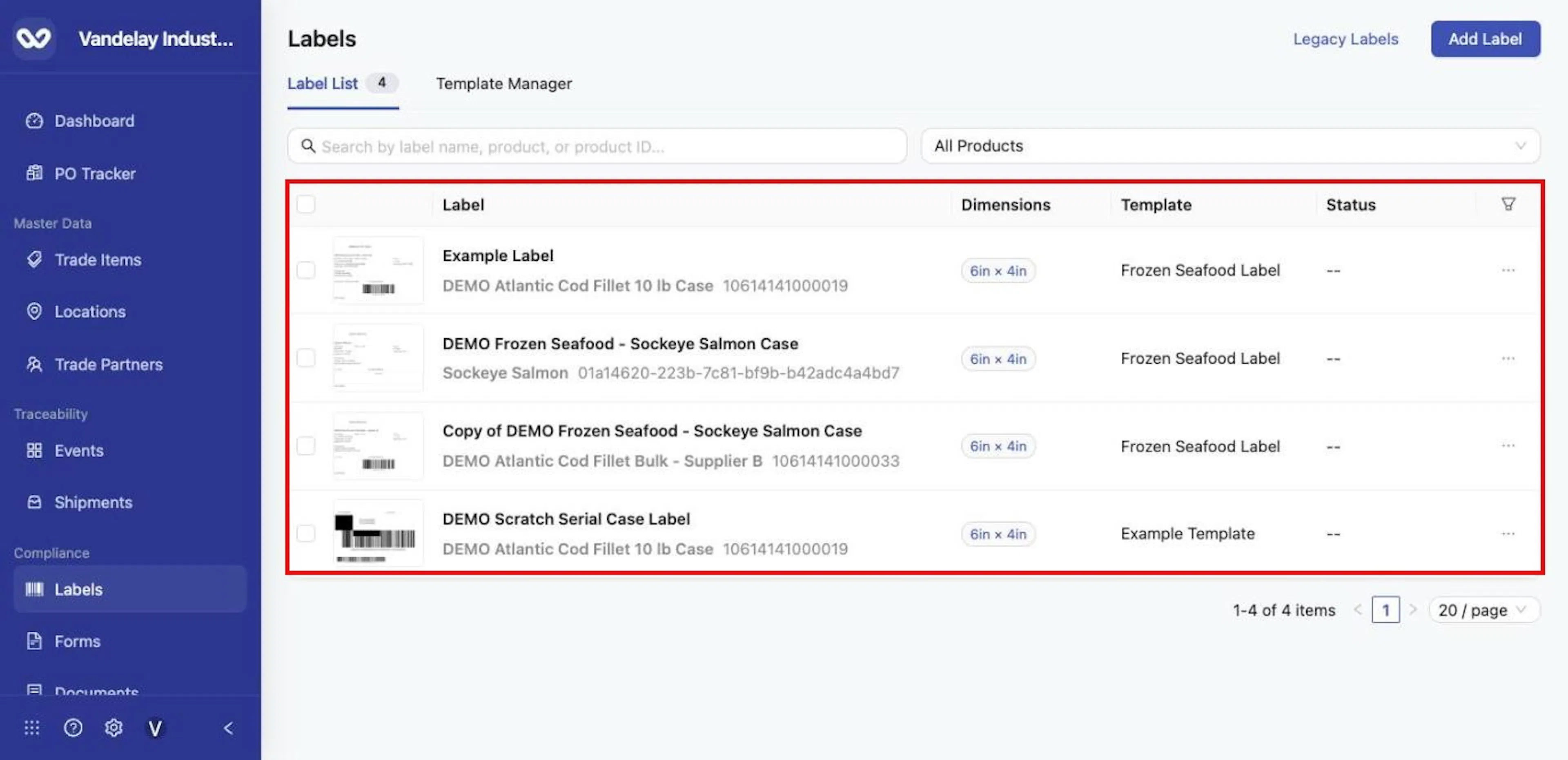
Each row shows the label name, its Trade Item and GTIN, the dimensions, the template and the status.
Read what each row shows
Each row shows a preview, the Label name with the linked Trade Item and its GTIN, the Dimensions, the Template and the Status. A Trade Item without a GTIN shows its identifier instead.
Search by label name, product or product ID
Type in Search by label name, product, or product ID... to match label names, Trade Item names and identifiers.
Use the All Products drop-down to show only the labels for one Trade Item
Use the All Products drop-down to show only the labels for one Trade Item.
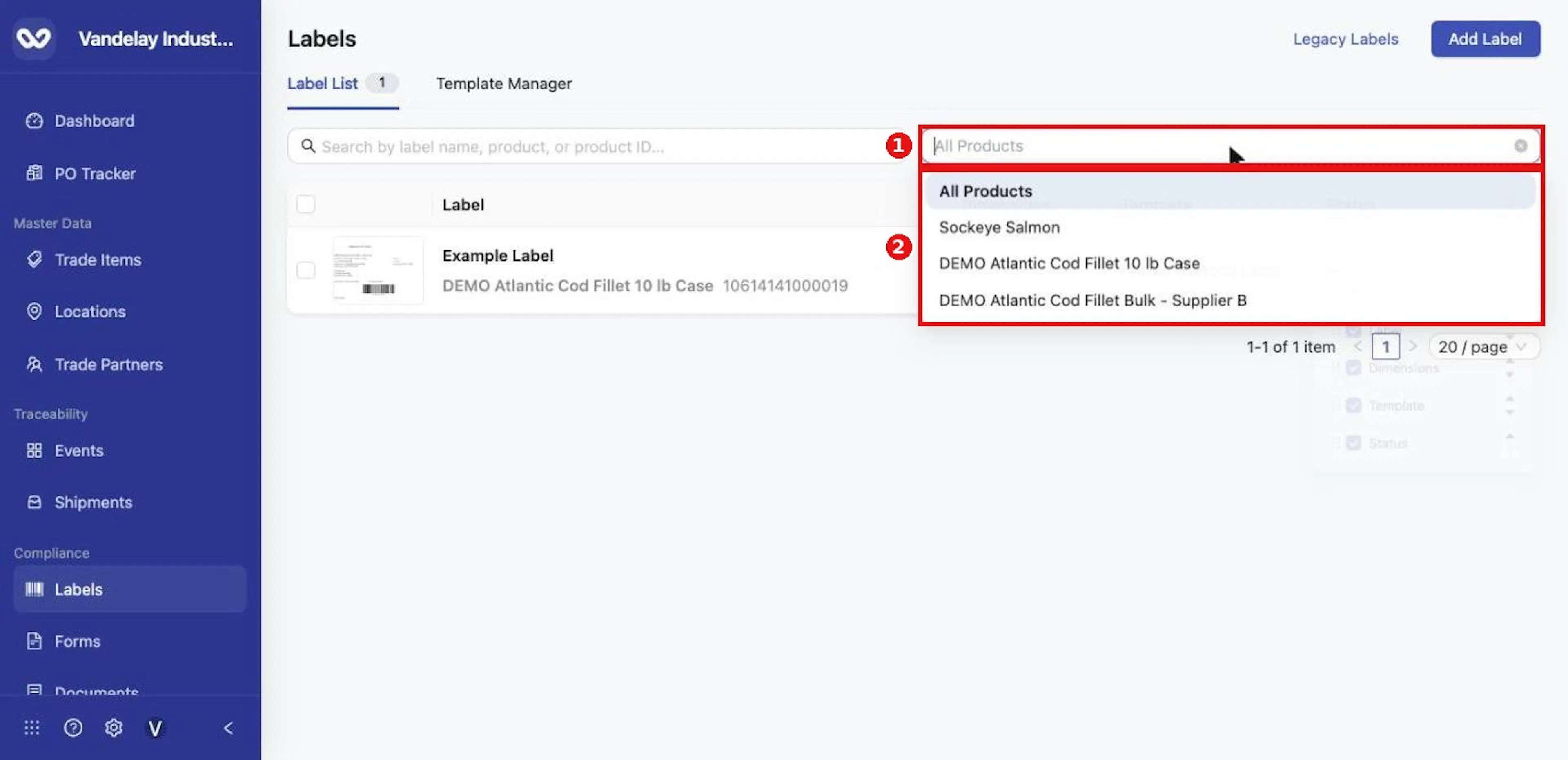
Use the All Products drop-down to show only one Trade Item's labels.
Click the funnel icon at the right of the header to open Column Display
Click the funnel icon at the right of the header to open Column Display. Tick or untick columns, reorder them with the arrows or drag handles, and click Reset to restore the defaults.
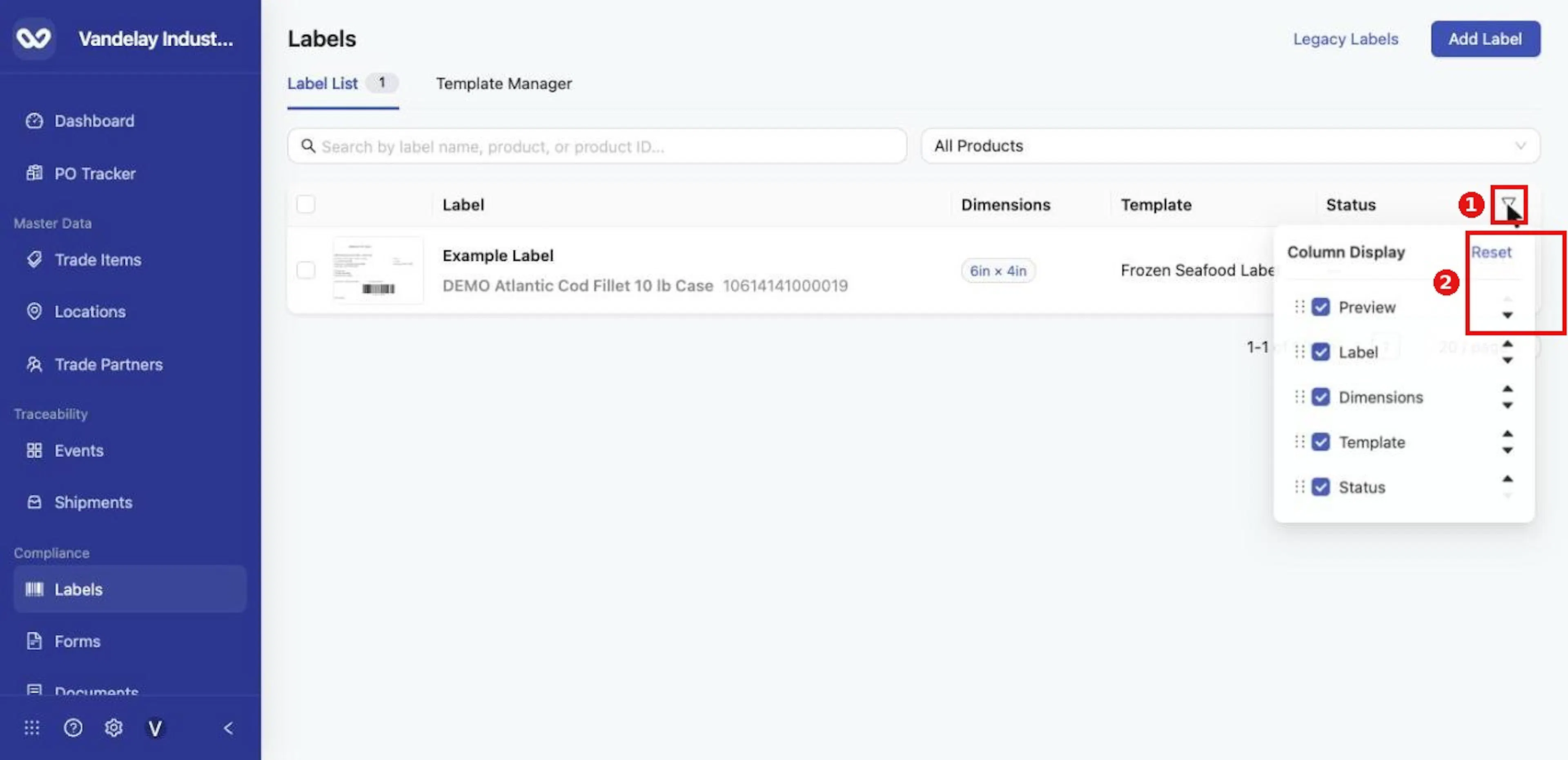
Click the funnel icon to open Column Display, then tick, reorder or Reset the columns.
Expected result. The list shows the labels that match your search and filter, with the item count and page controls at the bottom right.
Add a label
Purpose. Create a label from a published template.
Example values. Label Name: Frozen Seafood - Sockeye Salmon Case; Template: Frozen Seafood Label.
Steps
Click Add Label at the top right
Click Add Label at the top right. The Add Label drawer opens.
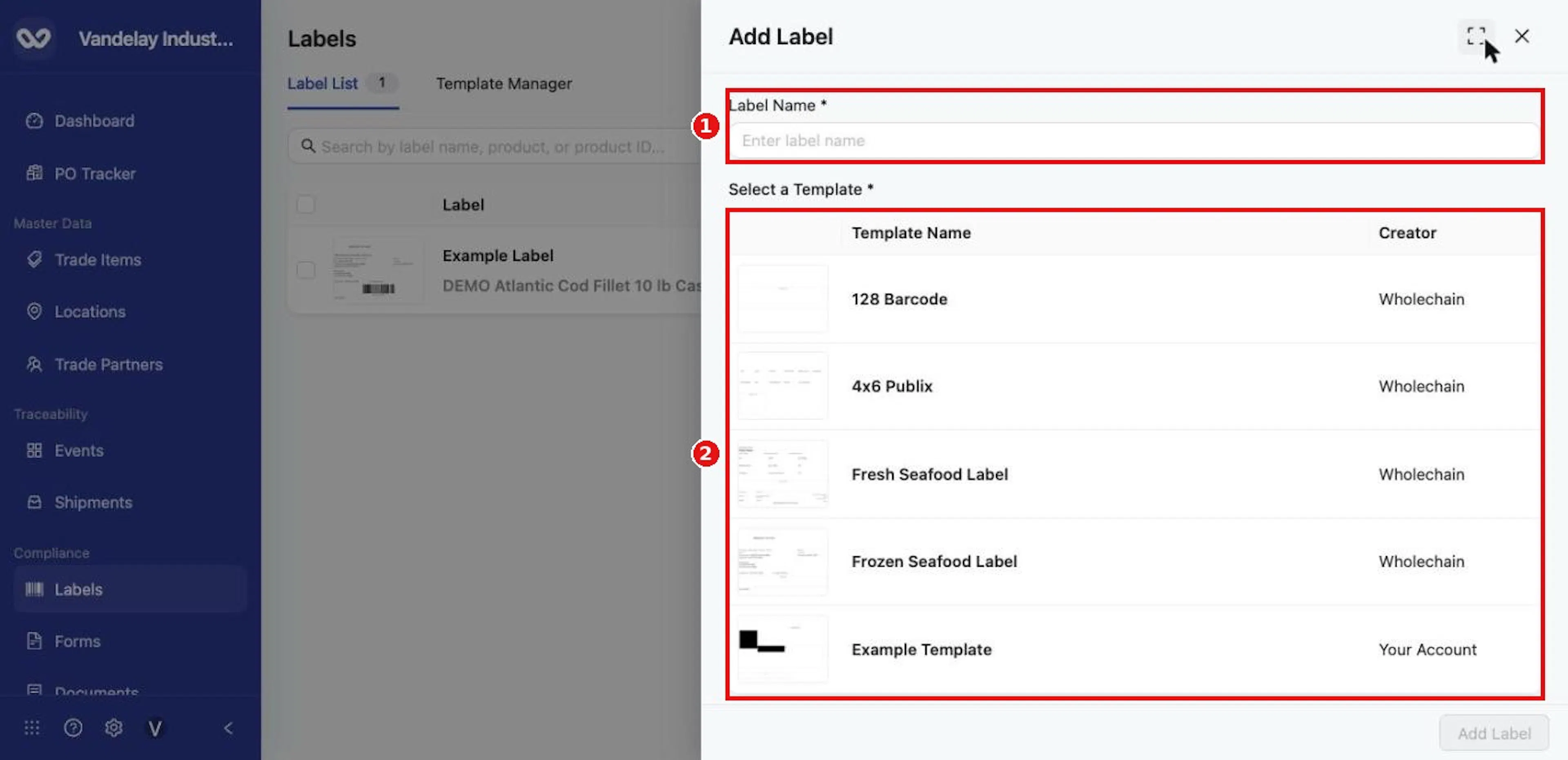
Type a Label Name and choose a template. Only published templates are listed.
Type a Label Name
Type a Label Name. Choose it carefully: a label cannot be renamed after it is created.
Under Select a Template, click a row
Under Select a Template, click a row. The Creator column shows Wholechain for Wholechain's templates and Your Account for your own published templates.
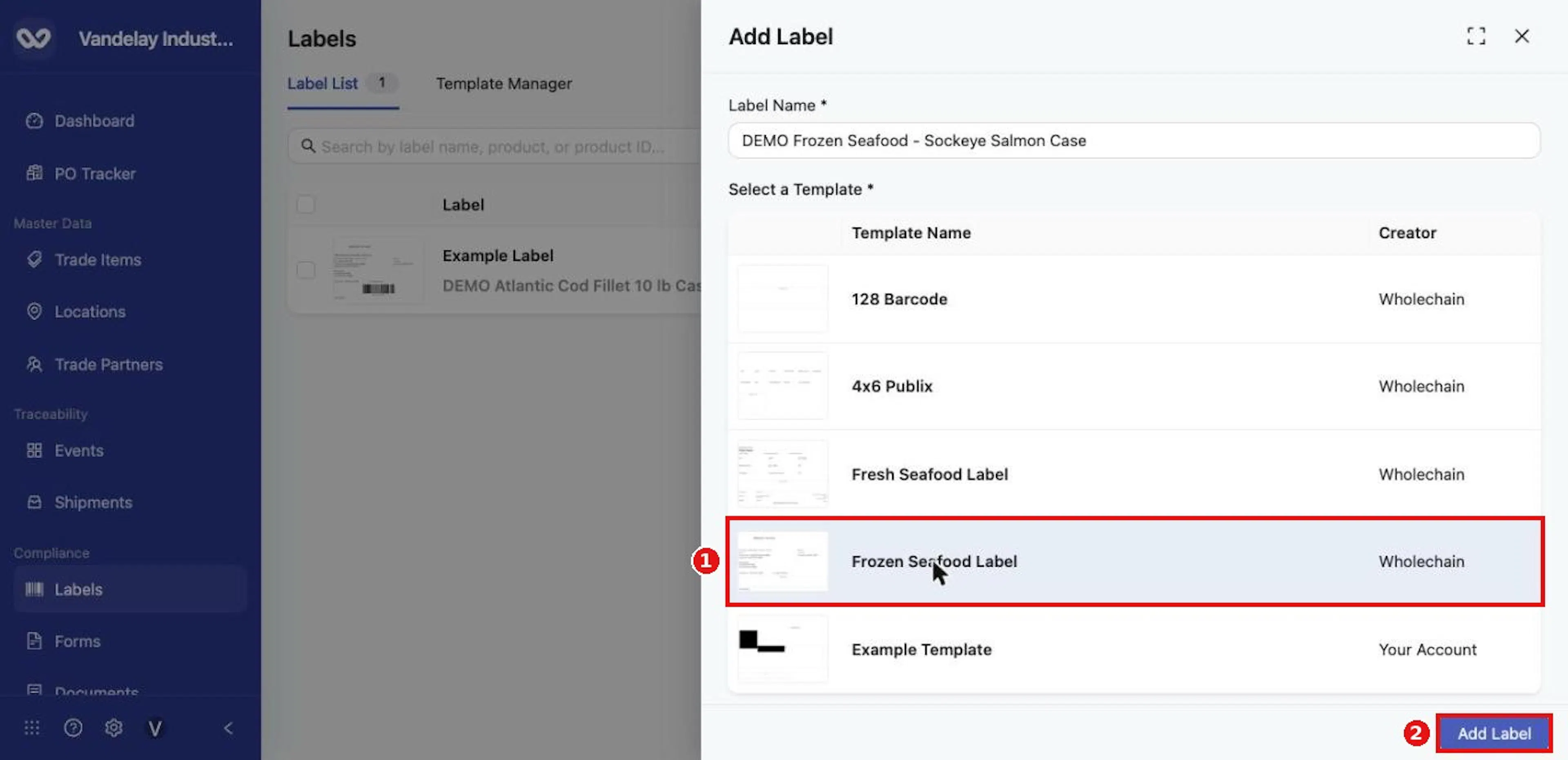
With a name entered and a template selected, click Add Label.
Click Add Label
Click Add Label. The label is created and opens in the Field Editor.
Why it matters. The template fixes the label's layout and size; everything else is set per label in the Field Editor.
Expected result. The new label appears in the Label List with its dimensions and template.
Troubleshooting
- Your own template is missing from the list? Publish it first (see Managing templates).
Link a Trade Item and fill in the label
Purpose. Connect the label to a Trade Item and complete the fixed values.
Example values. Linked Product: Sockeye Salmon; Distributor name and address; Vendor stock number.
Steps
In the Field Editor, open Linked Product and choose the Trade Item
In the Field Editor, open Linked Product and choose the Trade Item. Each entry shows the item's name and identifier.
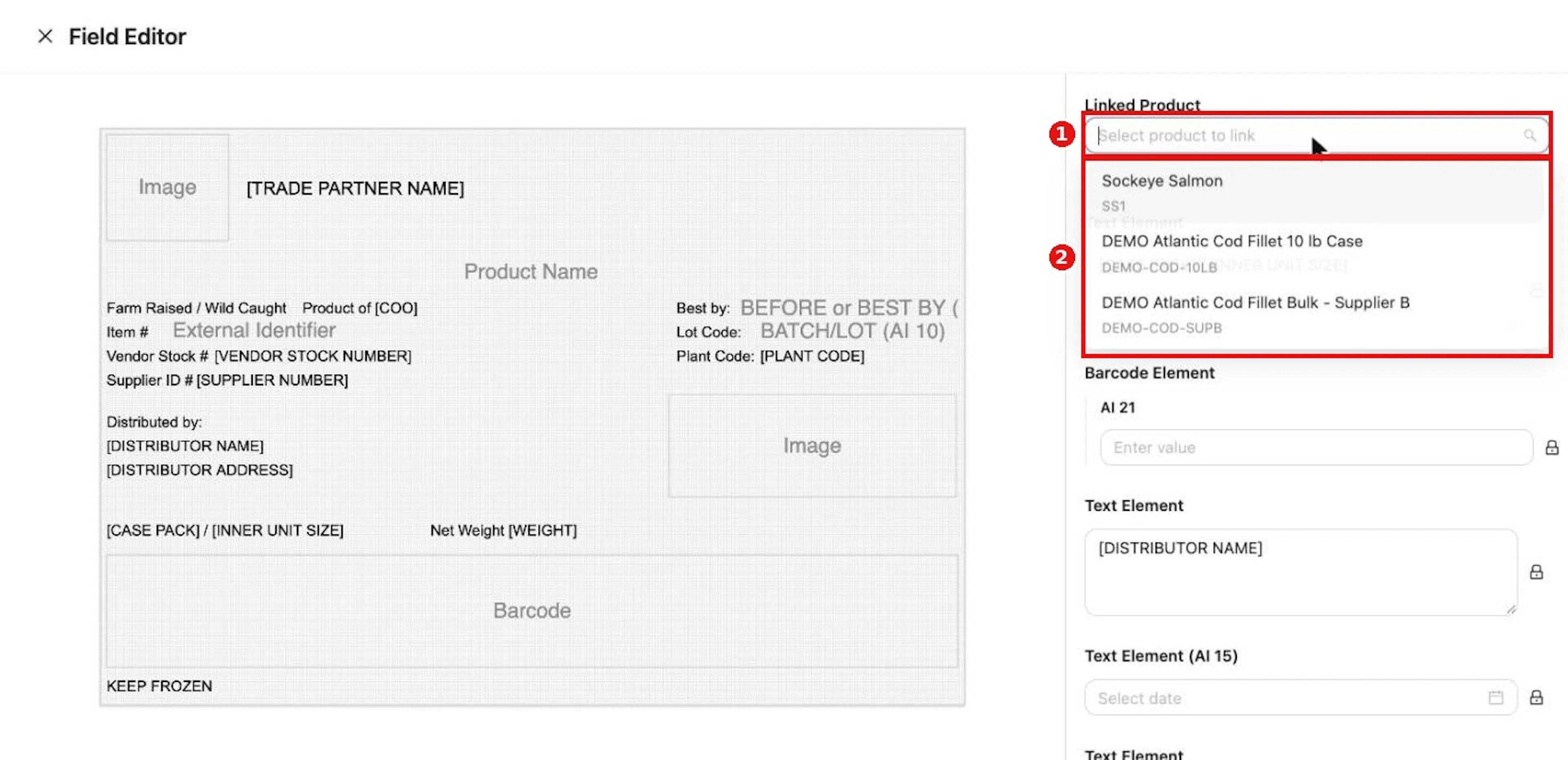
Open Linked Product and choose the Trade Item for this label.
The message Linked product updated confirms the link
The message Linked product updated confirms the link. Elements that use a KDE fill with the item's values, and barcodes that use the GTIN draw on the preview.
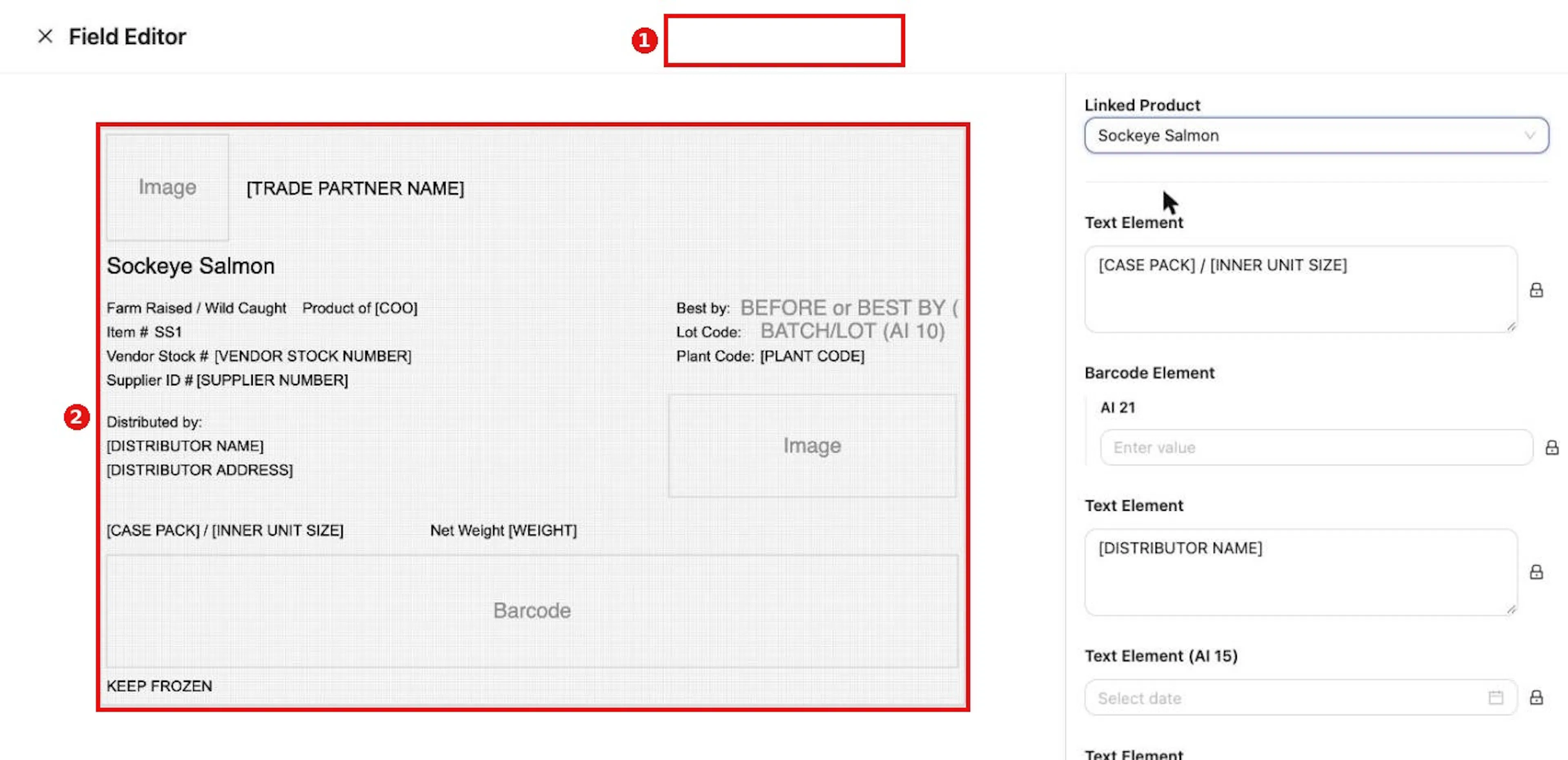
After linking, the Trade Item's values fill the preview and the message Linked product updated appears.
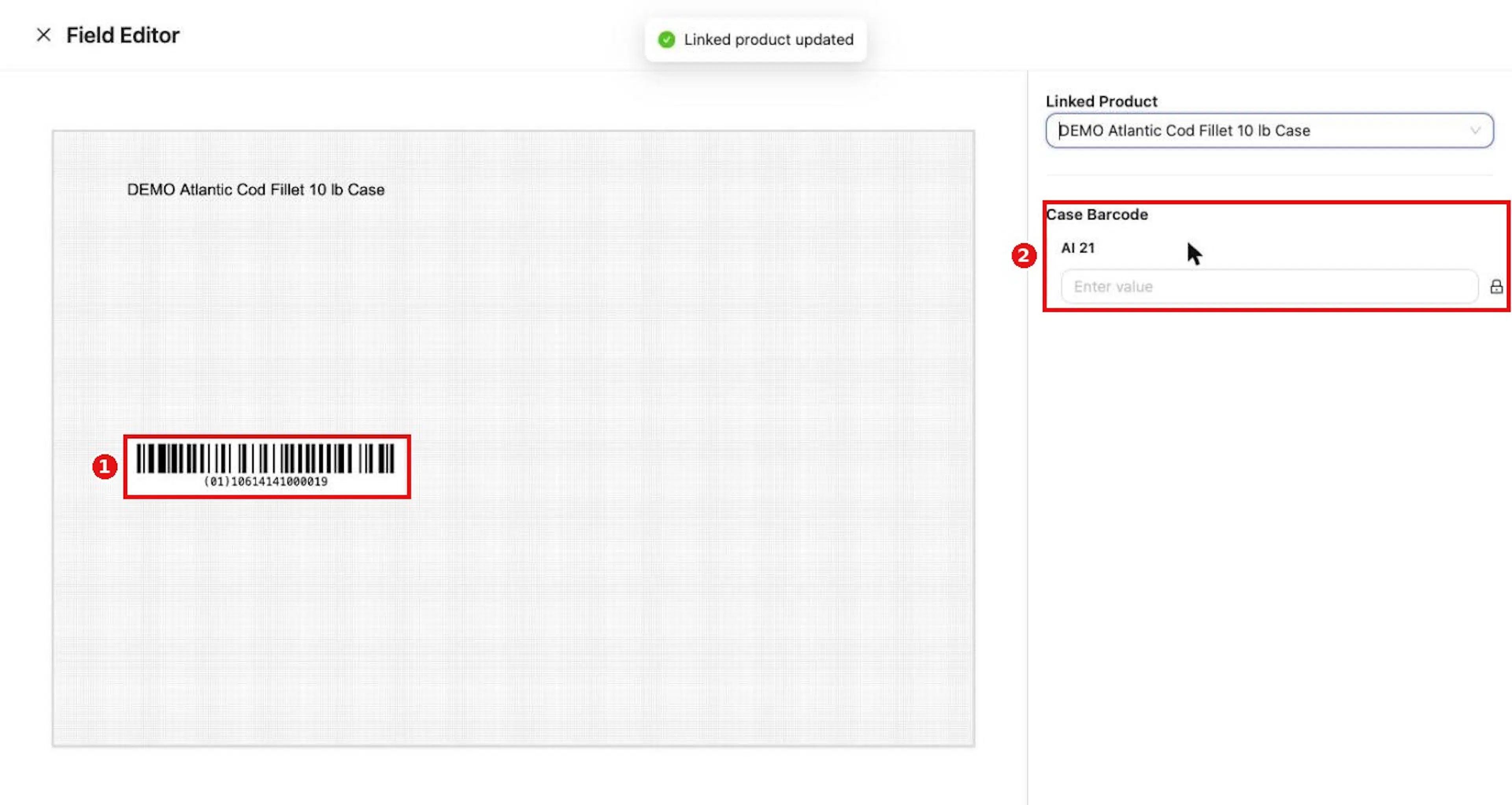
A barcode item with KDE Fallback GTIN encodes (01) and the Trade Item's GTIN as soon as a product is linked; the AI 21 serial waits for its value.
Work down the panel
Work down the panel. Each input is titled with its element name or type and, where it has one, its AI, for example Text Element (AI 15). Type fixed values such as the distributor name, pick dates with the date picker, and use Upload for an image.
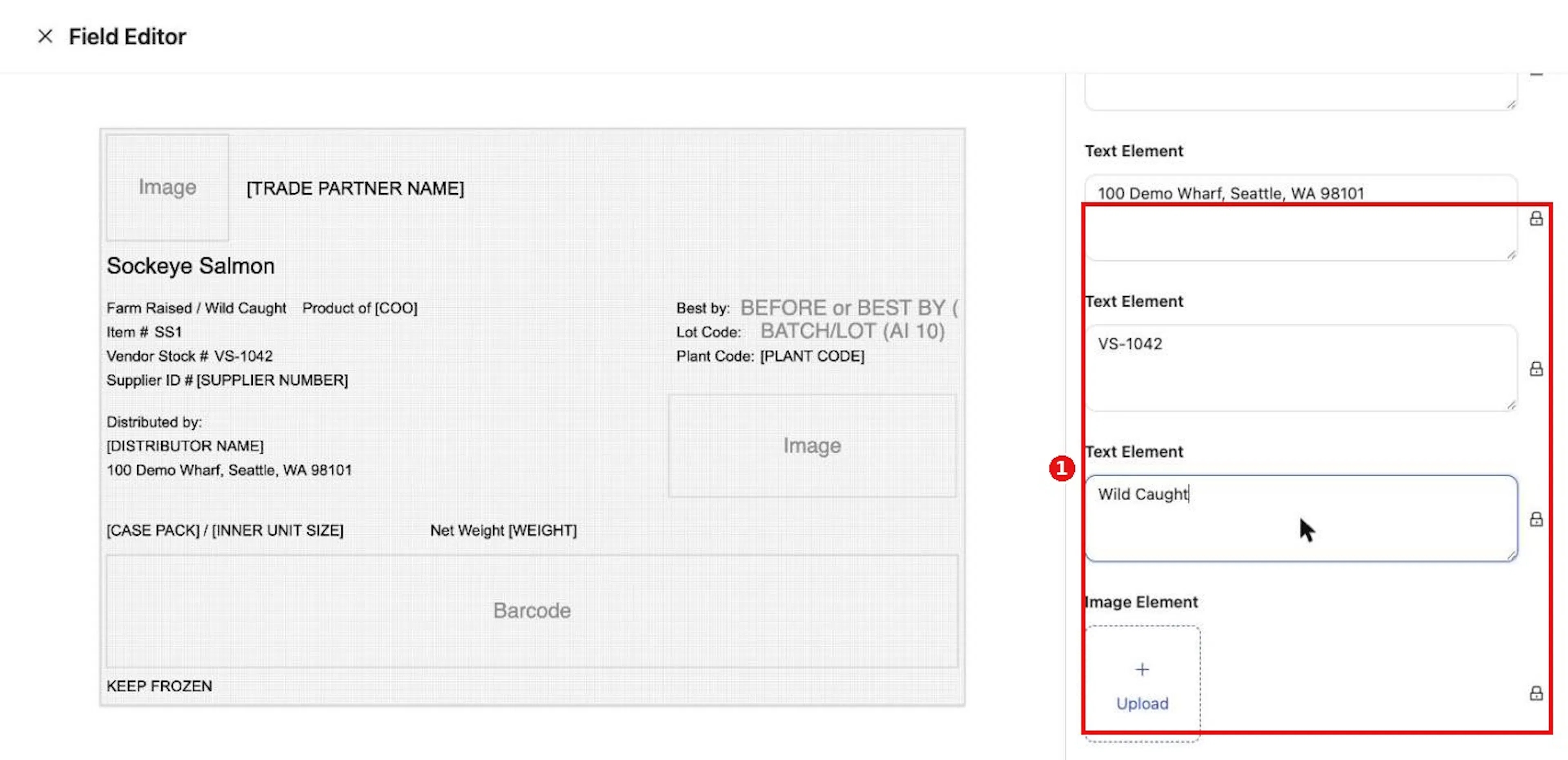
Type fixed values into the inputs. The preview updates when you leave a field.
The preview updates when you leave a field
The preview updates when you leave a field.
Close the editor with the X beside Field Editor
Close the editor with the X beside Field Editor. Your entries are saved, and you return to the Label List.
Why it matters. Values you fill in here print on every copy of the label and do not need to be typed by operators.
Expected result. The Label List thumbnail shows the filled-in label.
Troubleshooting
- To change the Trade Item later, choose Edit from the label's row menu and pick another Linked Product.
Choose the inputs operators can change
Purpose. Unlock the inputs operators fill in at print time, such as lot codes, dates and serial numbers, and keep everything else fixed.
Steps
In the Field Editor, find the lock icon beside each input
In the Field Editor, find the lock icon beside each input. All inputs start locked.
Hover the icon
Hover the icon. The tooltip reads Unlock in form view when the input is locked and Lock in form view when it is unlocked.
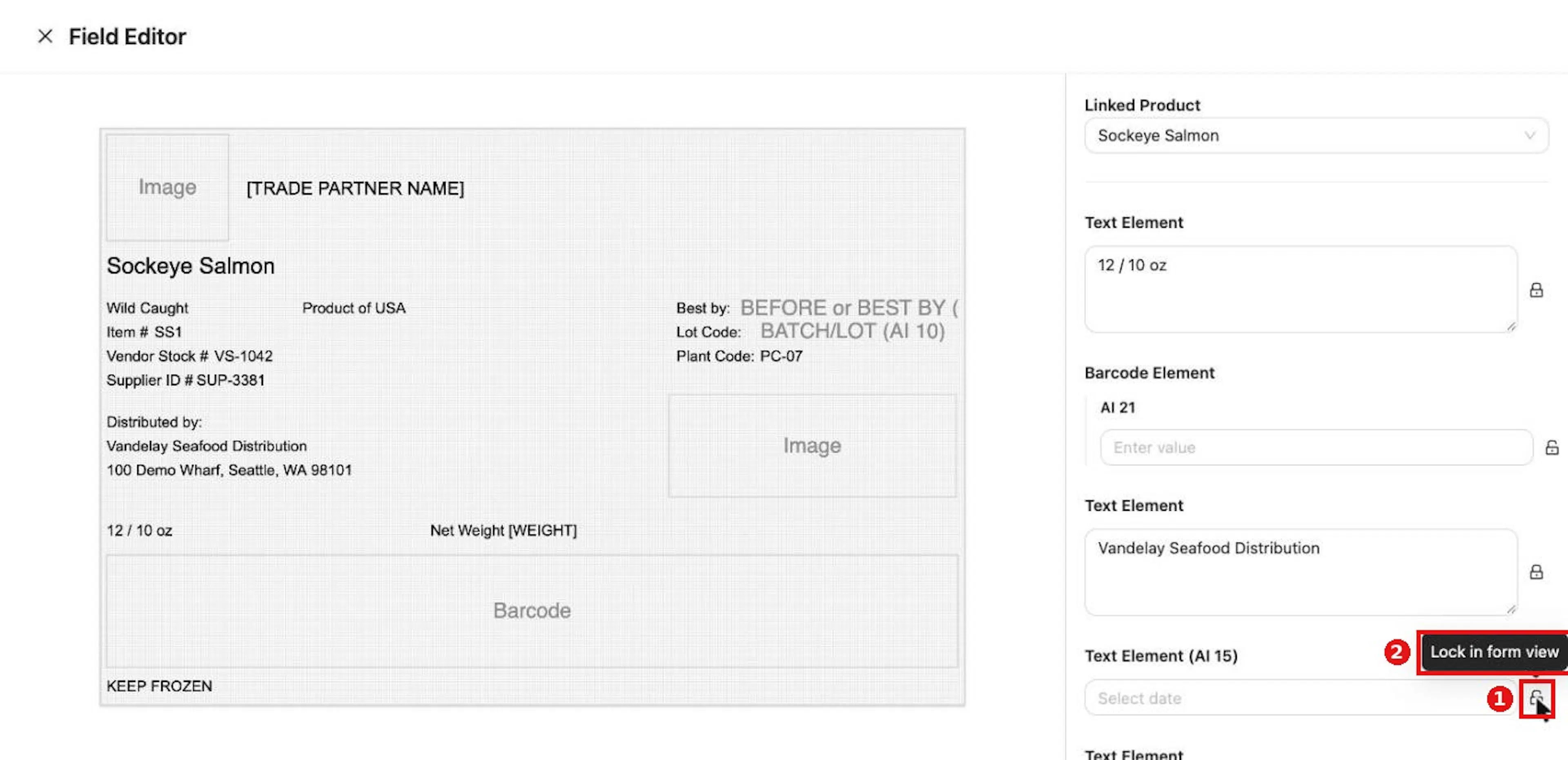
Hover a lock icon: Unlock in form view shows the input to operators; Lock in form view hides it.
Click the icon to unlock an input
Click the icon to unlock an input. Leave its value empty if operators will enter it.
Close the editor to save
Close the editor to save.
Why it matters. Operators see only the unlocked inputs in Label Entry, so the form stays short and fixed details cannot be changed by mistake.
Expected result. The lock states are kept when you reopen the label and when you duplicate it.
Duplicate a label
Purpose. Make a second label with the same template and set-up, for example for another Trade Item.
Steps
Open the label's row menu and choose Duplicate
Open the label's row menu and choose Duplicate.
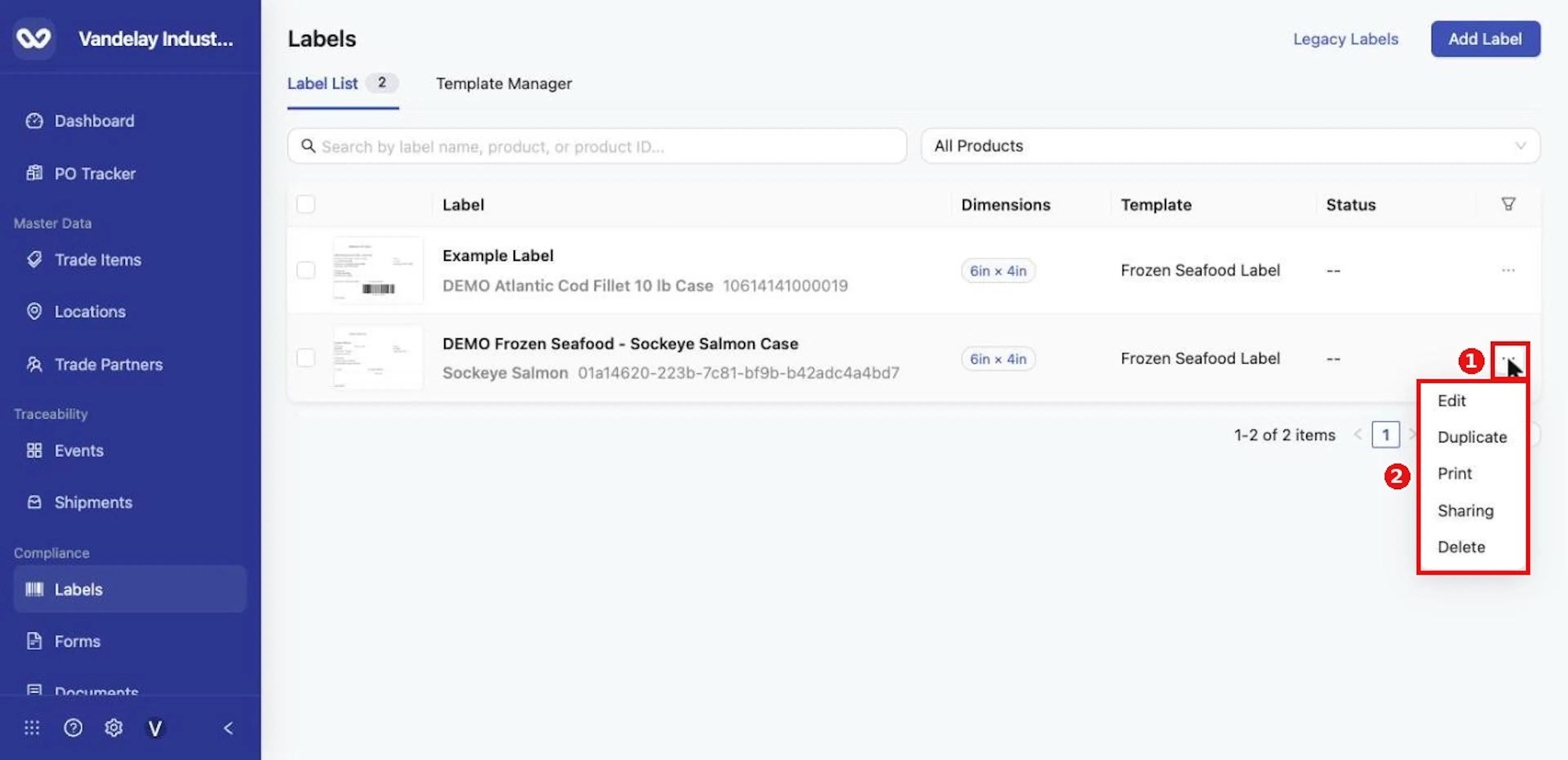
The row menu offers Edit, Duplicate, Print, Sharing and Delete.
Check that the copy opens in the Field Editor
The message Label duplicated successfully appears, and the copy opens in the Field Editor. It is named Copy of followed by the original name and is linked to the same Trade Item.
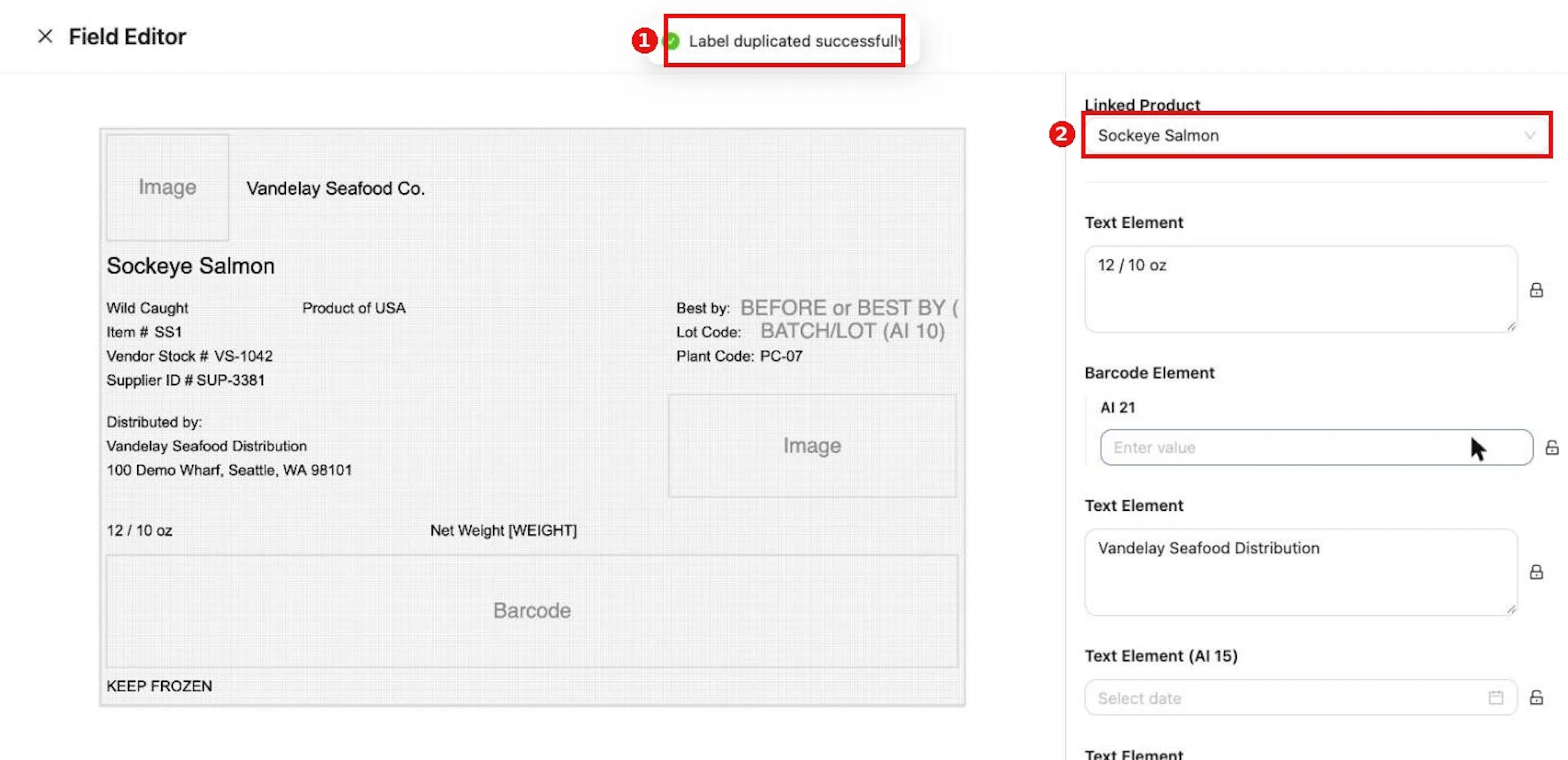
Duplicate creates Copy of the original and opens it in the Field Editor.
Choose another Linked Product if needed, adjust the inputs and close the editor
Choose another Linked Product if needed, adjust the inputs, and close the editor.
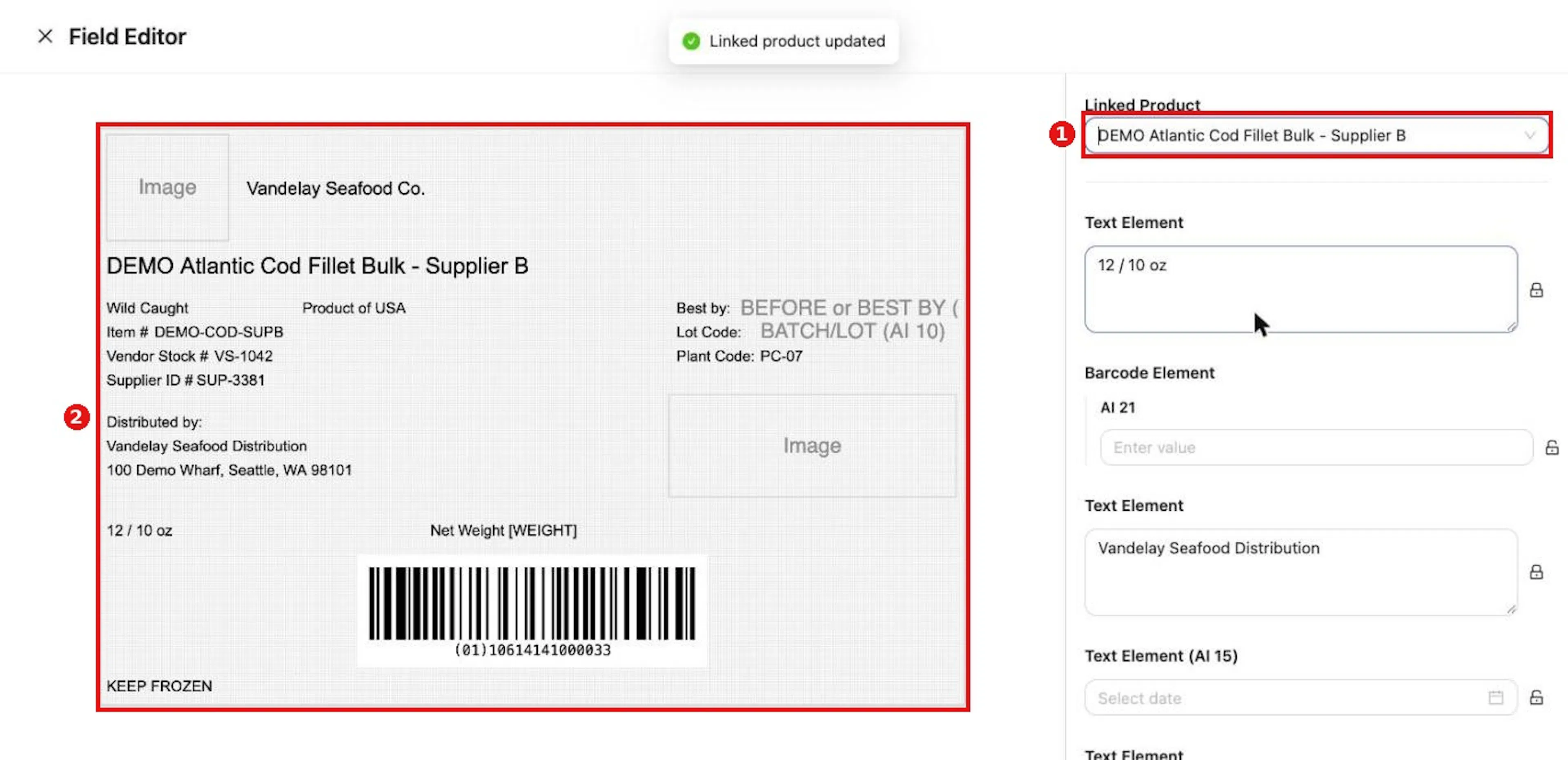
Choose another Linked Product for the copy; the preview and barcode update.
Expected result. The copy appears in the Label List with its own Trade Item and keeps the original's lock states.
Delete a label
Purpose. Remove a label you no longer need.
Steps
Open the label's row menu and choose Delete
Open the label's row menu and choose Delete.
Read the Delete Label dialog
Read the Delete Label dialog: Are you sure you want to delete this label? This action cannot be undone.
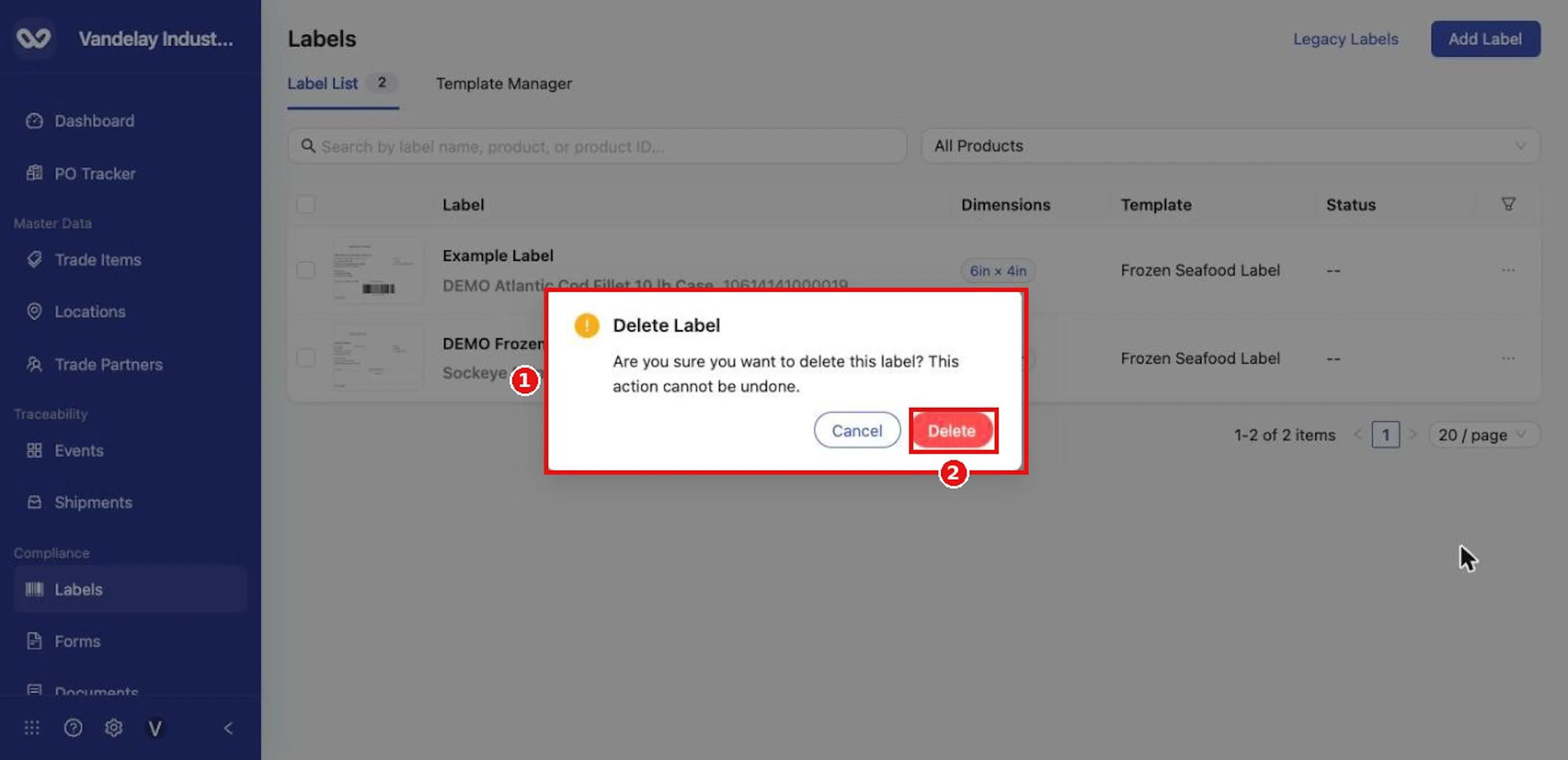
Confirm with Delete, or Cancel to keep the label.
Click Delete to confirm, or Cancel to keep the label
Click Delete to confirm, or Cancel to keep the label.
Why it matters. A label that has been shared with Trade Partners is also deleted from their accounts.
Expected result. The label is removed from the Label List and from the Trade Item's Labels tab.
Field and action reference
Label List
Table columns
| Column | Description |
|---|---|
| (checkbox) | Selects a row. |
| Preview | Thumbnail of the label. |
| Label | The label name. Under it: the linked Trade Item name and its GTIN, or the Trade Item's unique identifier when the item has no GTIN. |
| Dimensions | Label size, shown as width × height, for example 6in × 4in. |
| Template | The template the label was built from. |
| Status | The label's status. Shows -- when none applies. |
The funnel icon at the right of the header opens Column Display.
Column Display
| Control | What it does |
|---|---|
| Checkbox beside Preview, Label, Dimensions, Template, Status | Shows or hides the column. |
| Up and down arrows, drag handle | Changes the column order. |
| Reset | Restores the default columns and order. |
Search and filter
| Control | Description |
|---|---|
| Search box (Search by label name, product, or product ID...) | Matches label name, Trade Item name and Trade Item identifier. |
| All Products drop-down | Searchable list of your Trade Items. Choose one to show only its labels. Choose All Products to clear the filter. |
Row actions
Open a row's menu with the three-dot button at the right of the row.
| Action | What it does |
|---|---|
| Edit | Opens the label in the Field Editor. |
| Duplicate | Makes a copy named Copy of followed by the original name, with the same template and linked Trade Item, and opens it in the Field Editor. A message reads Label duplicated successfully. |
| Opens the Print Label window (see Printing). | |
| Sharing | Opens the label Sharing panel (see Sharing labels). |
| Delete | Asks for confirmation, then deletes the label (see Messages). A label shared with Trade Partners is also deleted from their accounts. |
Clicking anywhere else on a row opens Label Entry.
Page controls
The bottom right shows the item range (for example 1-4 of 4 items), page buttons and a page-size drop-down (20 / page).
Adding a label
Add Label at the top right of the Label List opens the Add Label drawer. The expand icon at the top of the drawer enlarges it.
Add Label drawer
| Field | Req. | Type | Values and validation | Default |
|---|---|---|---|---|
| Label Name | Yes | Text | Any name you choose. A label cannot be renamed after it is created. | Empty |
| Select a Template | Yes | Single choice from a table | Table columns: preview, Template Name, Creator. Creator is Wholechain for templates supplied by Wholechain and Your Account for templates you created. Only published templates are listed. | None selected |
Add Label (button, bottom right) is available once a name is entered and a template is selected. It creates the label and opens the Field Editor.
Field Editor
The Field Editor opens full screen when you add or edit a label. The X at the upper left saves and closes it and returns you to the Label List.
Linked Product
| Field | Req. | Type | Values |
|---|---|---|---|
| Linked Product | No | Searchable drop-down | Your Trade Items, each shown with its name and identifier. |
Choosing a Trade Item shows Linked product updated. The label's elements then fill with that item's values (for example name, item number and GTIN), and barcodes that use the GTIN draw on the preview.
Inputs
The panel lists one input for every element that needs a value, in layout order. Each is titled with the element type and, where it uses one, its AI, for example Text Element, Text Element (AI 15), Barcode Element (with one input per encoded AI, such as AI 21) and Image Element.
| Input type | Entry control |
|---|---|
| Text | Text box. |
| Date AI (for example 15, 17) | Date picker. |
| Numeric AI (for example 01, 3202) | Number box. Net-weight AIs take a 6-digit GS1 value. |
| Barcode AI | Text box labeled with the AI. |
| Image | Upload button. |
Enter values in plain form; Wholechain converts them to the correct AI format automatically. The preview on the left updates when you leave a field.
Locks
Each input has a lock icon.
| State | Icon tooltip | Effect |
|---|---|---|
| Locked (default) | Unlock in form view | Operators cannot see or change the input in Label Entry. |
| Unlocked | Lock in form view | Operators can fill in the input in Label Entry. |
Click the icon to switch. Lock choices are saved with the label and are kept when you duplicate it.