

Events overview and list navigation
Read, filter and sort the Event List, choose its columns, and open the Map, Diagram and List views of a supply chain.
Applies to: the Events module, Event List tab
Audience: Anyone who needs to find an event or follow a lot through the supply chain
Prerequisites: at least one recorded event; access to the Events module
Related: Get started with Events and Shipments; Wholechain Events Overview; Shipments overview and table controls; Shared event fields; Link Trace Info; Event List reference; Background: Understanding Event-Based Traceability
Purpose
The Event List is where you see every recorded event and start new ones. This article shows how to read the list, narrow it down, choose columns, and open the Map, Diagram and List views of a supply chain. Because the list shows one row per lot, you can follow each lot on its own.
To record a new event, see the Wholechain Events Overview. To read shipments instead of events, see Shipments overview and table controls.
Before you begin
Open Events under Traceability in the left navigation. Times in the list, on the map and in the diagram are shown in UTC, with the time zone the event was logged in beside them in parentheses; this is explained in Shared event fields.
Read the Event List
Select Events
Select Events. The Event List tab opens with a counter beside its name.
Read each row
Read each row: Type, Location(s), Partner(s), Trade Item(s), Quantity and Lot(s). More columns are available (see "Choose columns").
Notice that the list is lot-by-lot
Notice that the list is lot-by-lot. One Transform event produces two rows, one for the input lot and one for the output lot, and the counter counts rows.
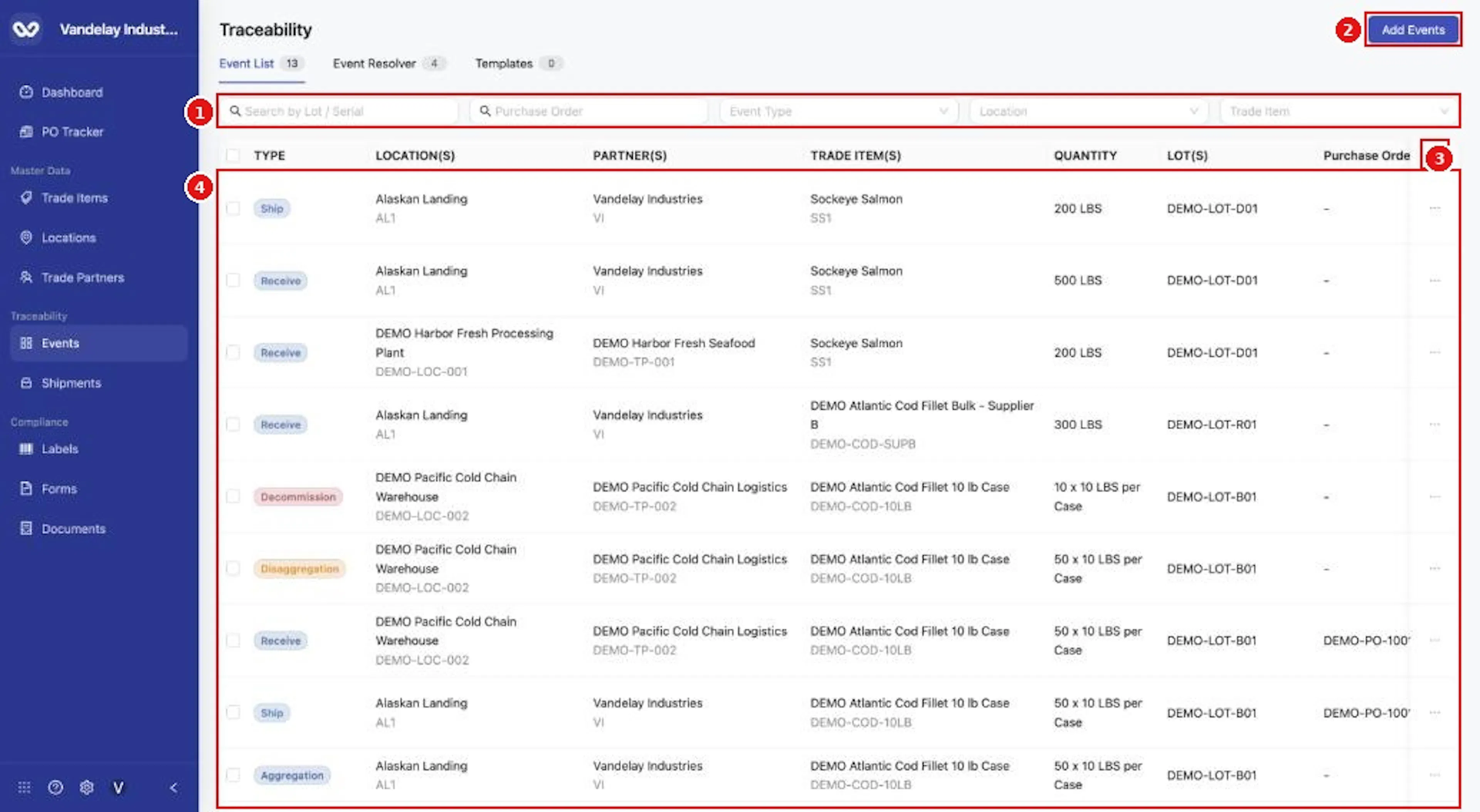
The Event List shows one row per event and lot. Use the filters above the table, Add Events, and the column icon.
Filter the list
Search by lot
To find a lot, type in Search by Lot / Serial.
Search by purchase order
To find a purchase order, type in Purchase Order.
Limit by event type
To limit by type, open Event Type and tick one or more types.
Filter by Location or Trade Item
Use Location and Trade Item in the same way.
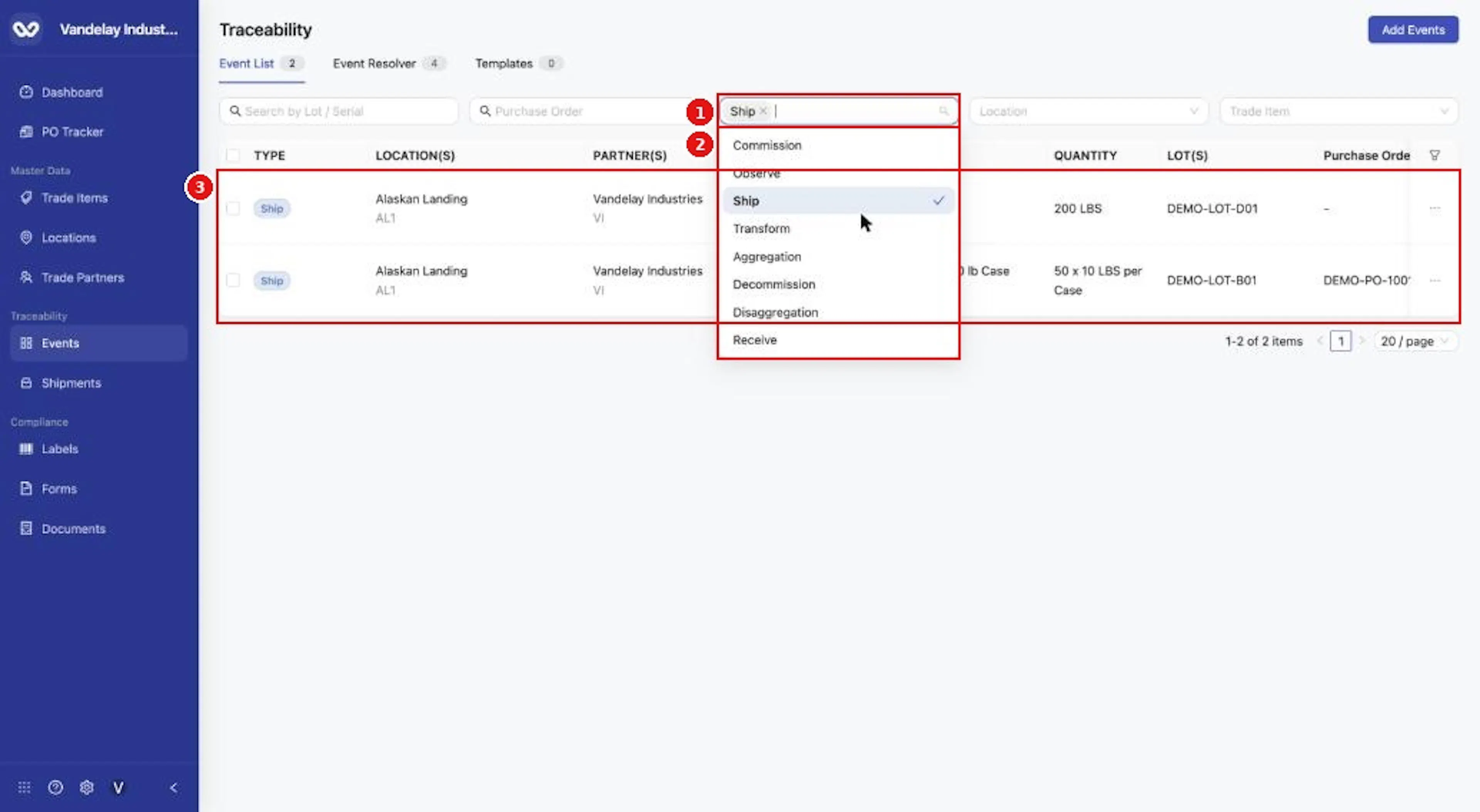
Filter by Event Type. You can pick more than one type.
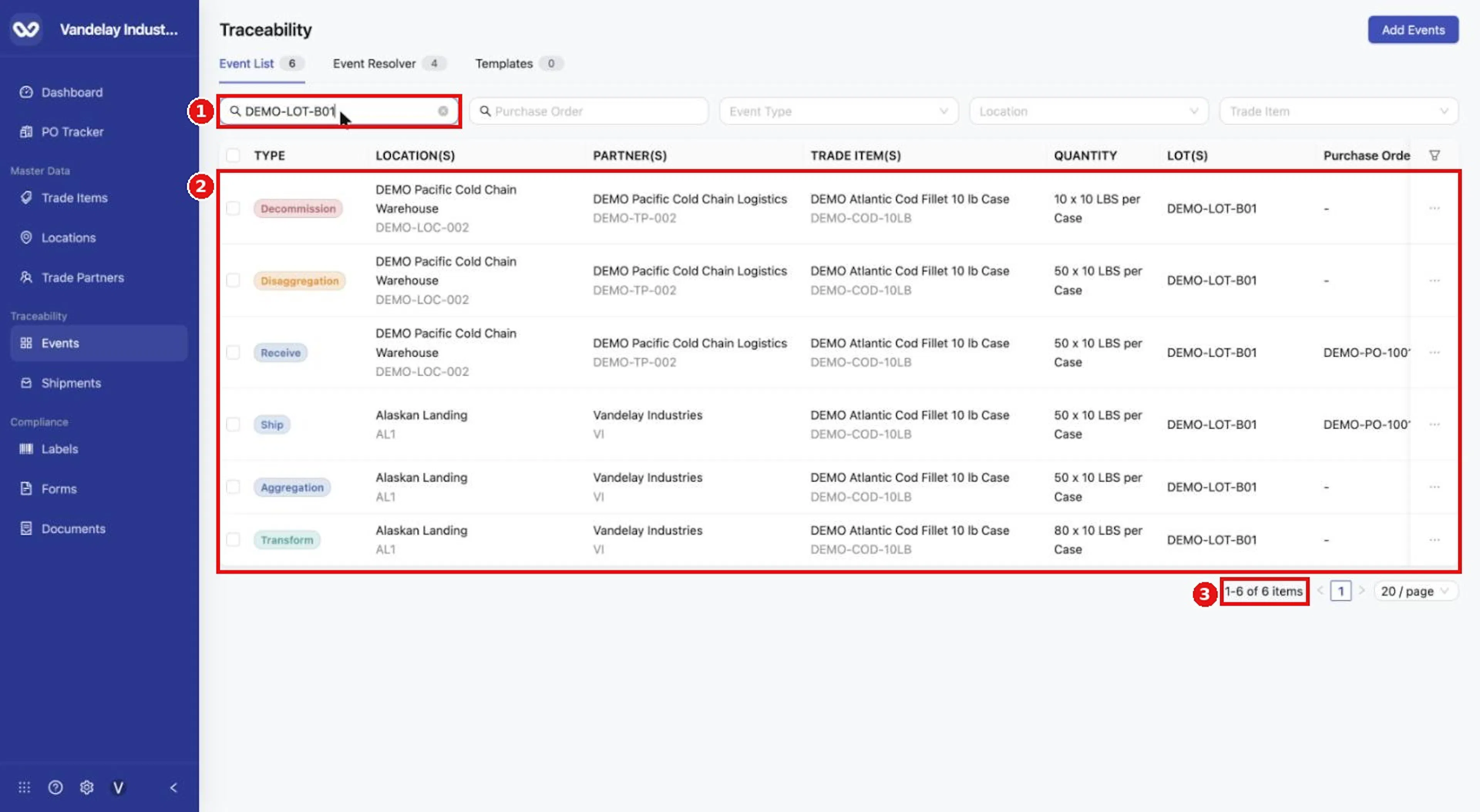
Search by Lot / Serial to see every event for a lot.
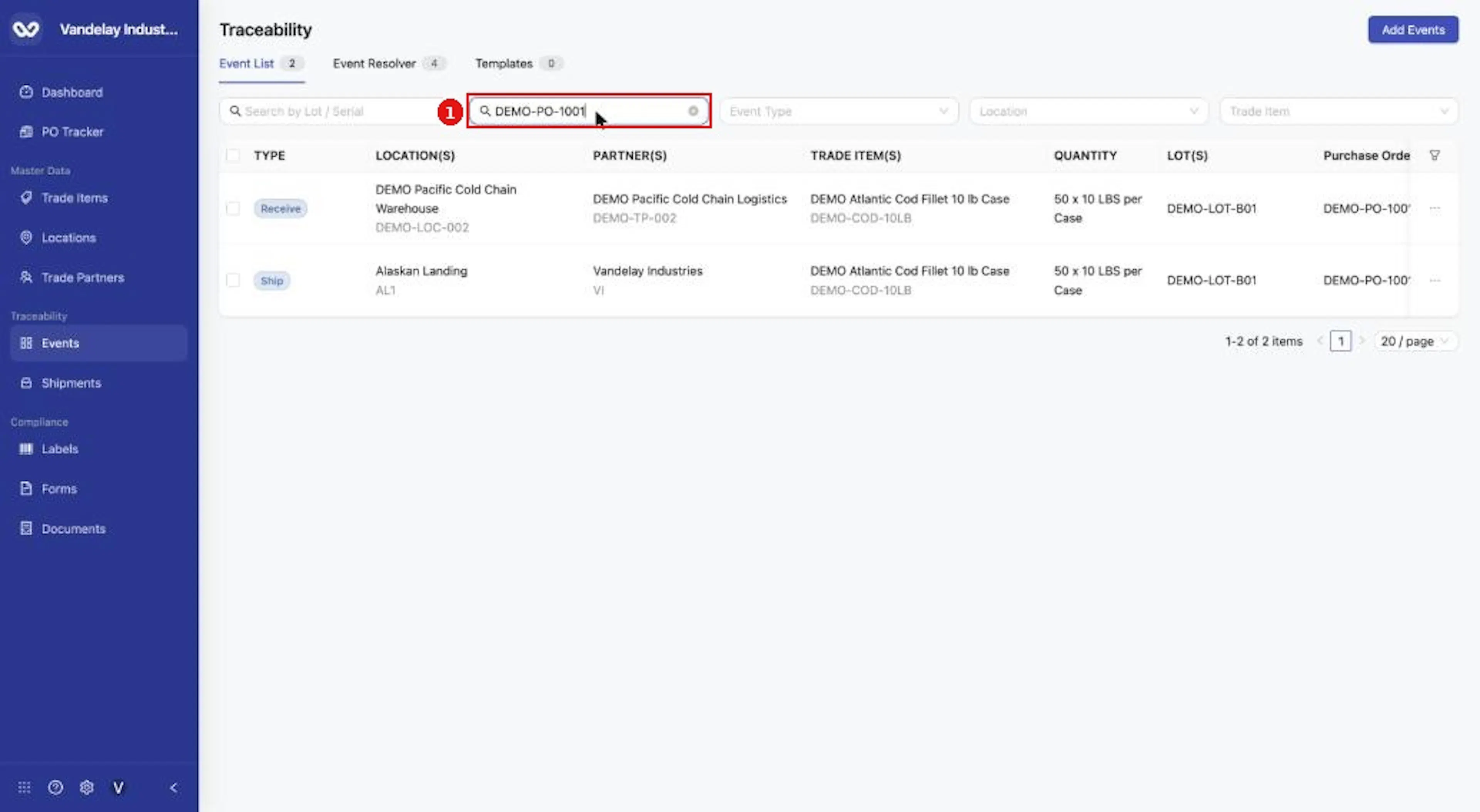
Search by Purchase Order to see events with that PO number.
Choose columns
Open the column panel
Select the column icon at the right end of the header row.
Tick, clear and reorder columns
Tick or clear Type, Location, Trade Partner, Trade Item, Quantity, Lot/Serial, Purchase Order, Event Date, Posted Date, Ship From Location and Ship To Location. Use the arrows or drag handles to reorder.
Restore the defaults
Select Reset to restore the default columns.
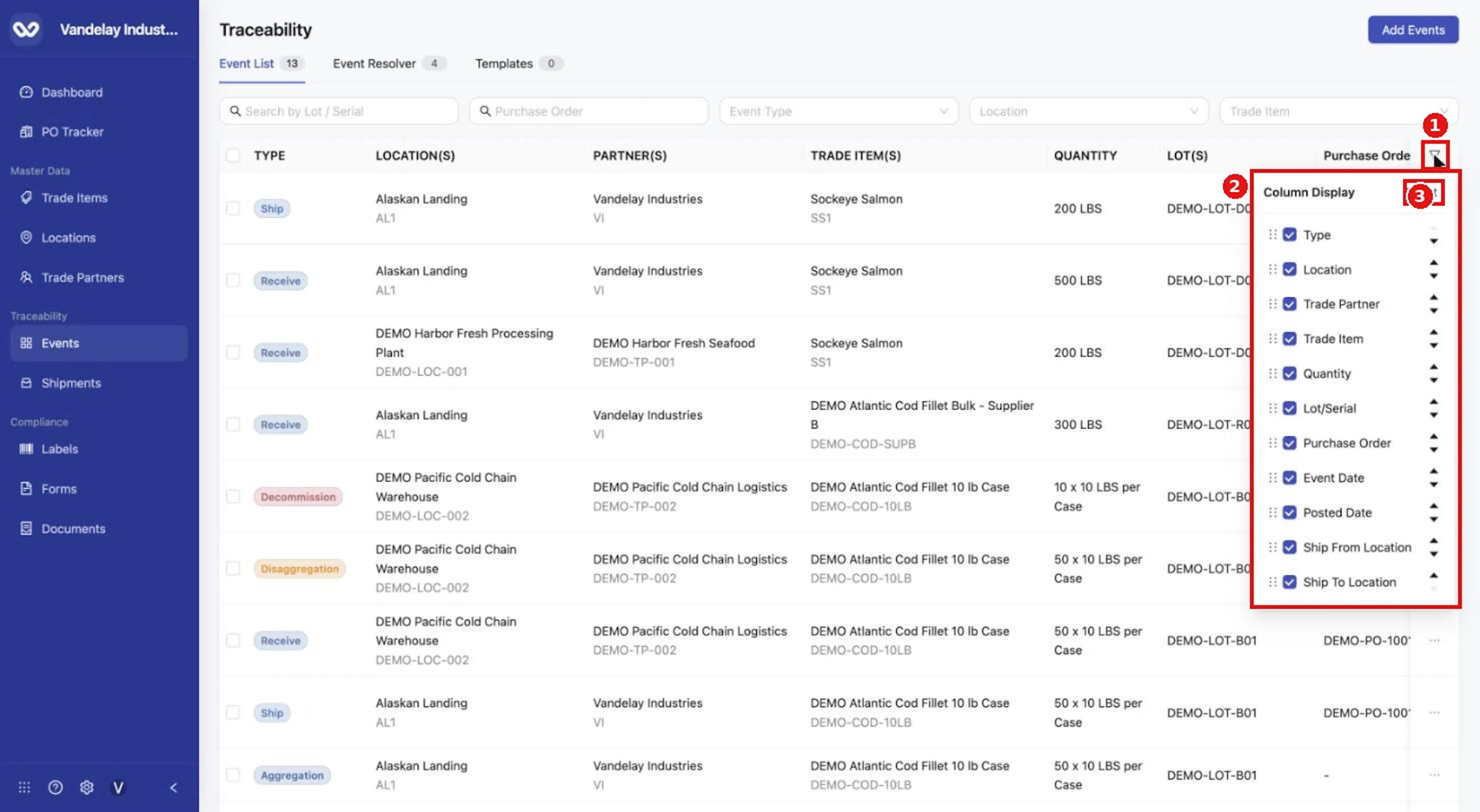
Select the column icon to show, hide or reorder columns. Reset restores the defaults.
Use the row menu
Select the three dots at the end of a row to see Add Event and Remove Event. Add Event opens the Add Events drawer; for the list of event types, see the Wholechain Events Overview. Removing an event changes your records; do not use it unless you intend to.
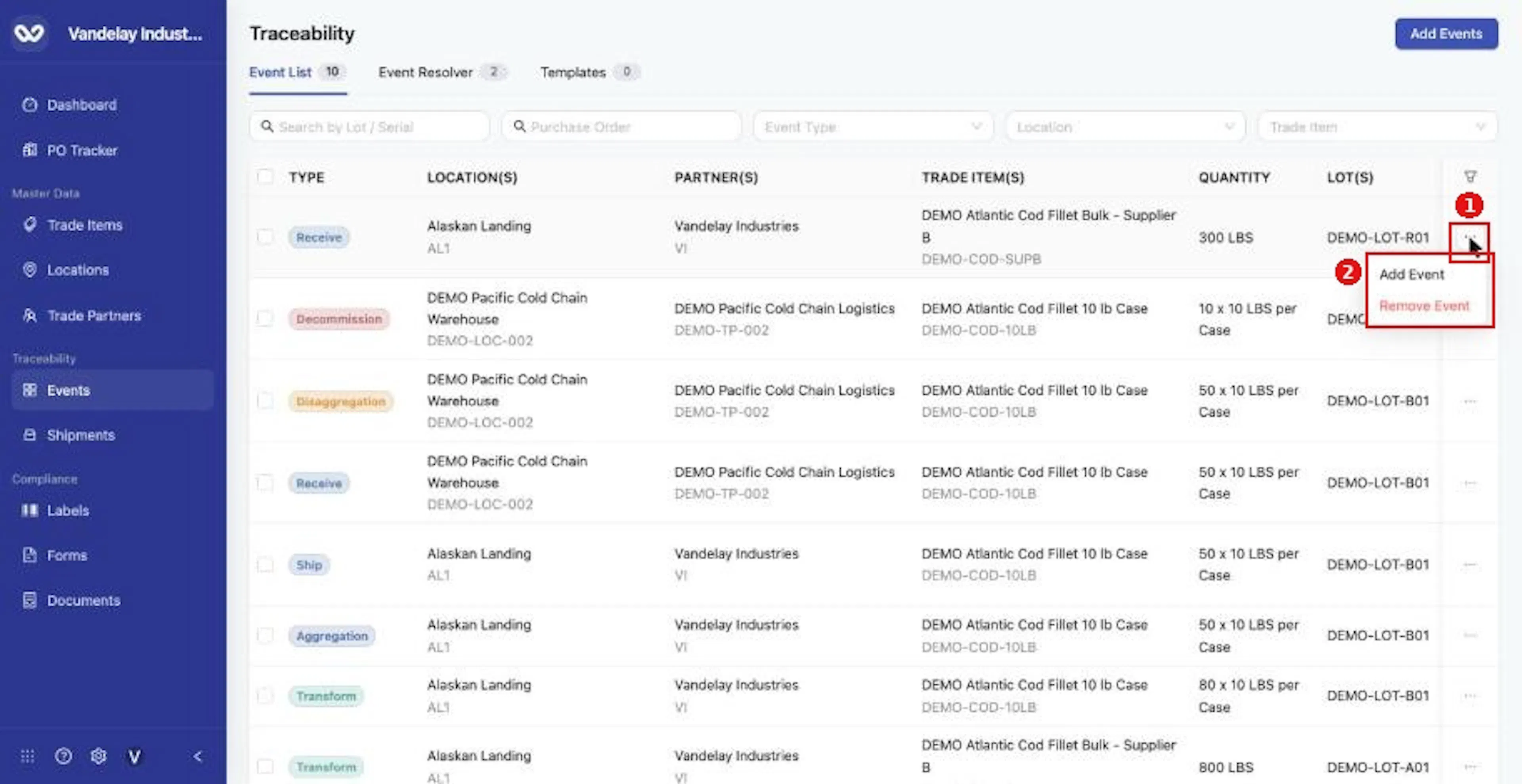
The three-dot menu at the end of a row offers Add Event and Remove Event.
Open the Map, Diagram and List views
Click a row
Click a row. A window opens with Map, Diagram and List tabs and Cancel and Ok buttons.
Read the Map
On Map, read the pins, the route line with arrows, and the popup that lists events at each Location.
Read the Diagram
On Diagram, read the chain of event nodes. Each link is labelled with the lot or SSCC that passes between events. Use the zoom and fit icons.
Read the List
On List, read every lot in the chain and how it was used. Transform rows are marked (input) and (output).
Close the window
Select Ok or Cancel to close.
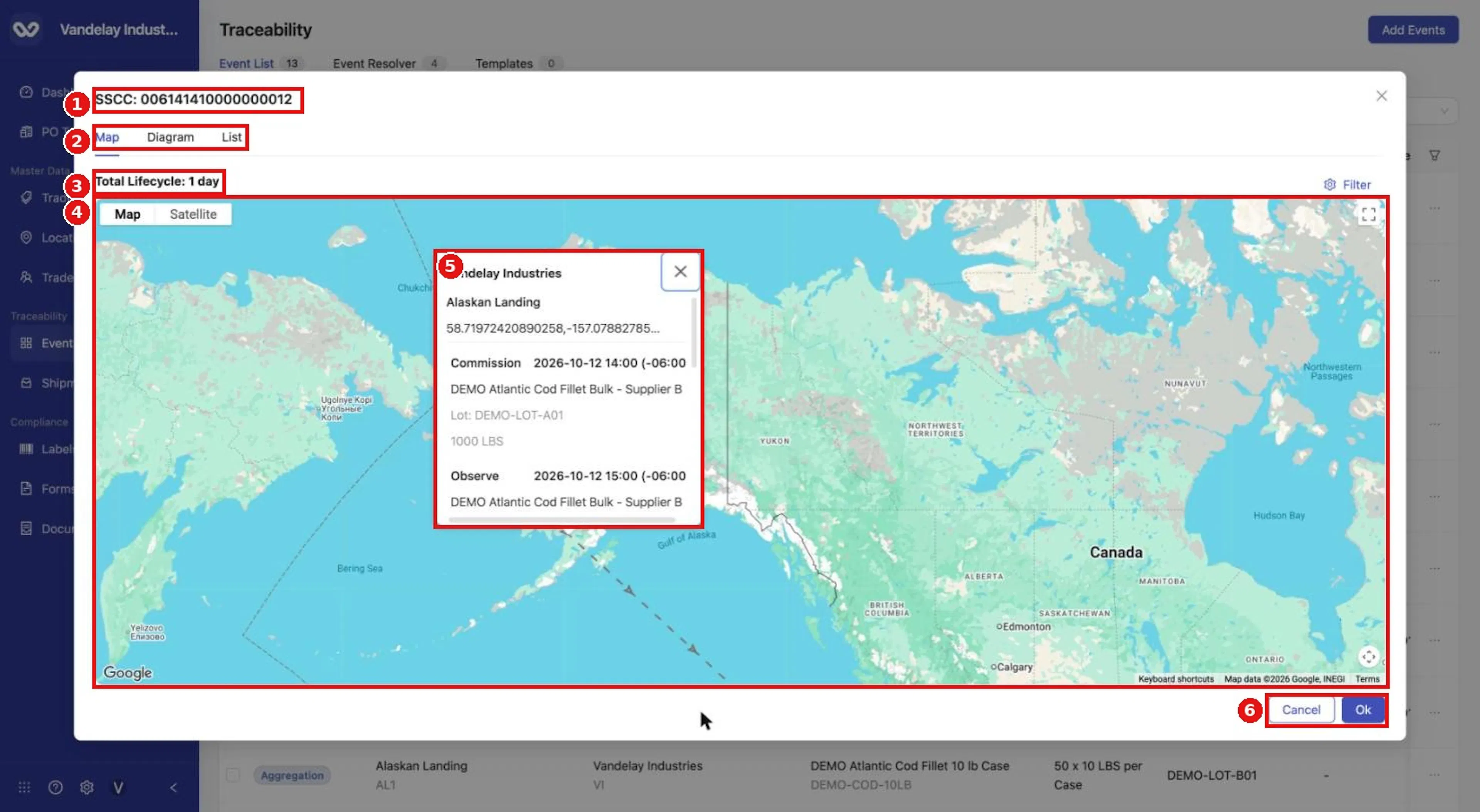
Click a row to open the lifecycle window. The Map tab shows locations, a route line with arrows, and popups listing events.
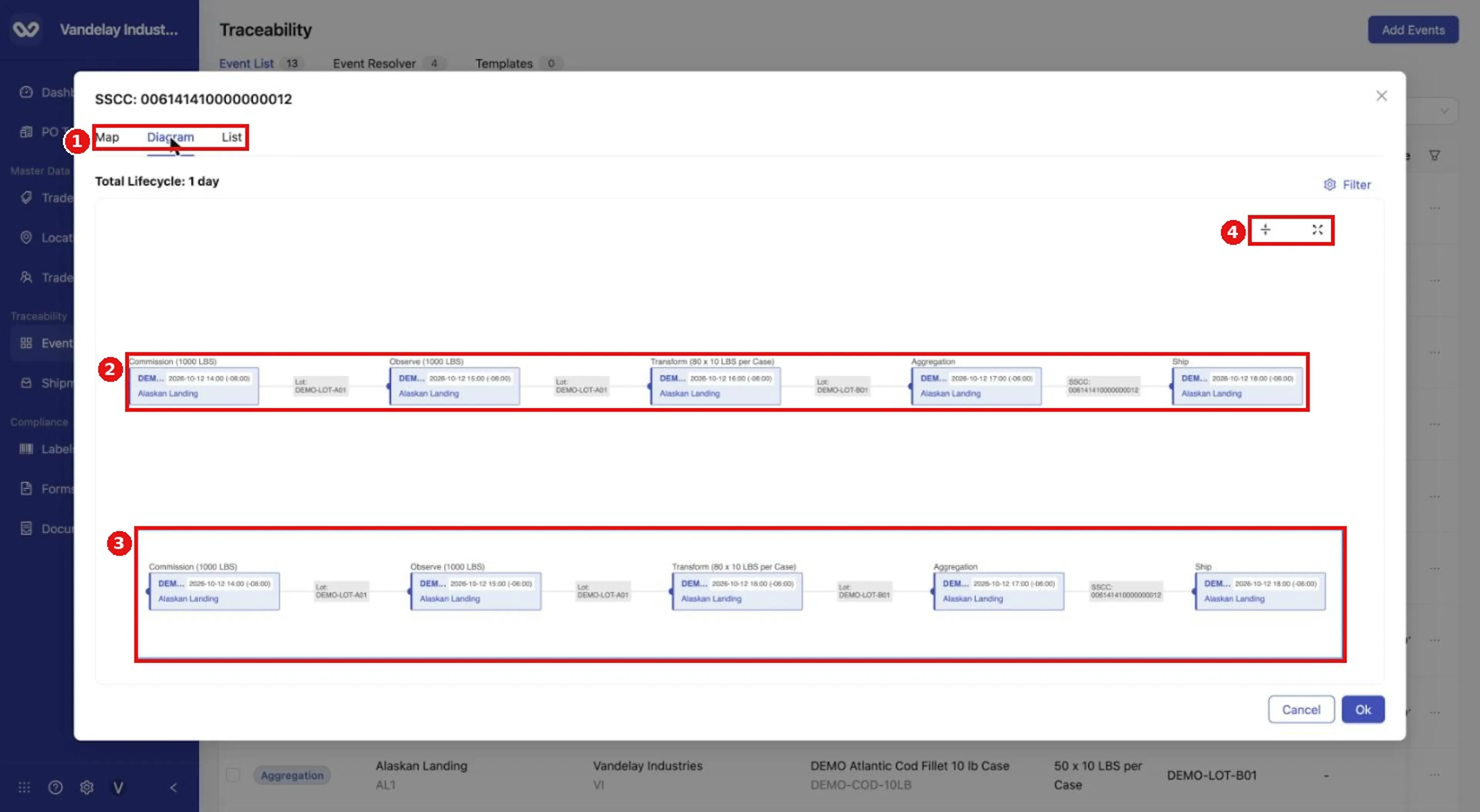
The Diagram tab shows events as nodes chained together, with Lot or SSCC labels on the links.
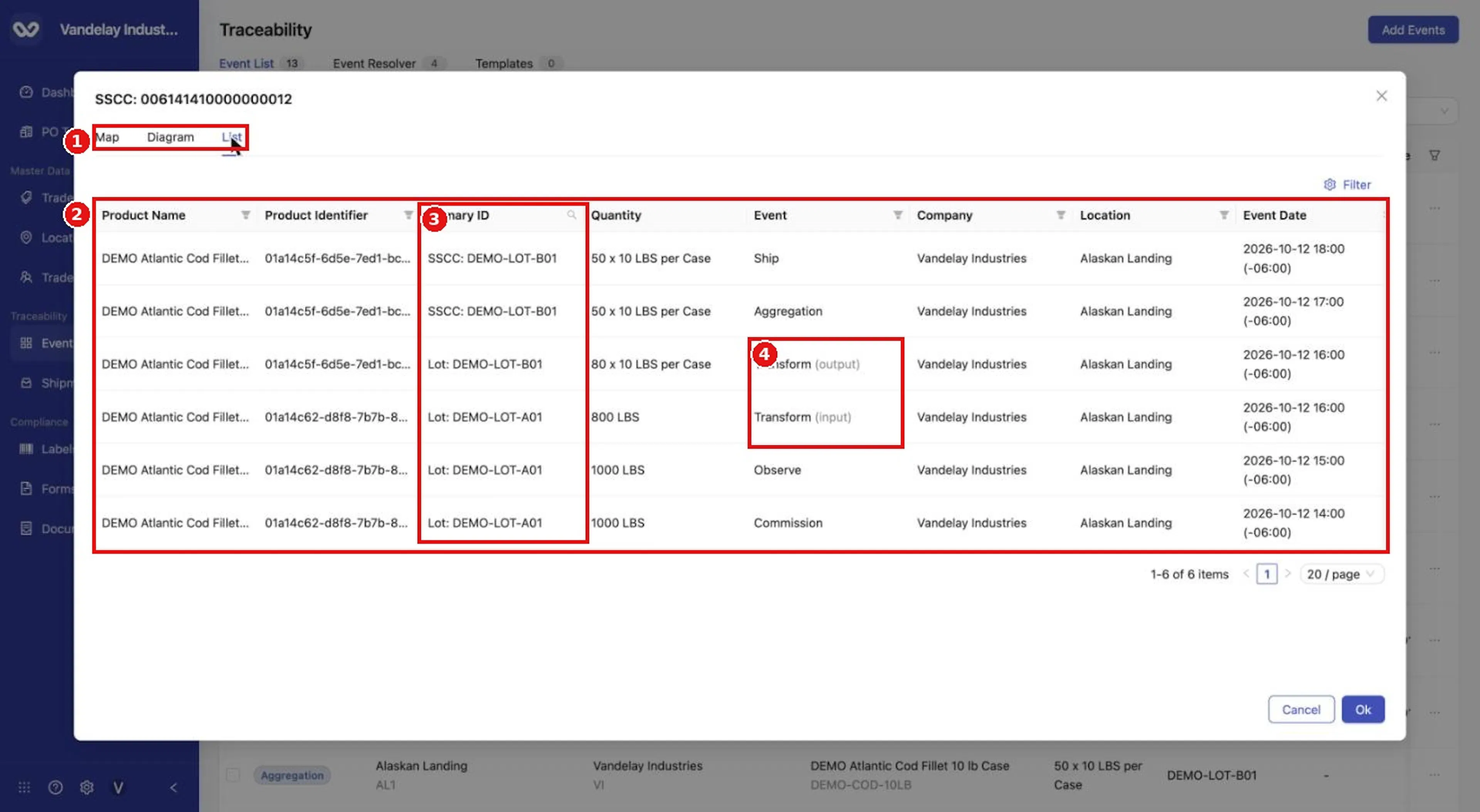
The List tab lists every lot in the chain and the event that used it. Transform rows are labelled (input) and (output).
Clicking a row for a container shows the SSCC as the window title; clicking a row for a product shows the product name, and the chain there is longer.
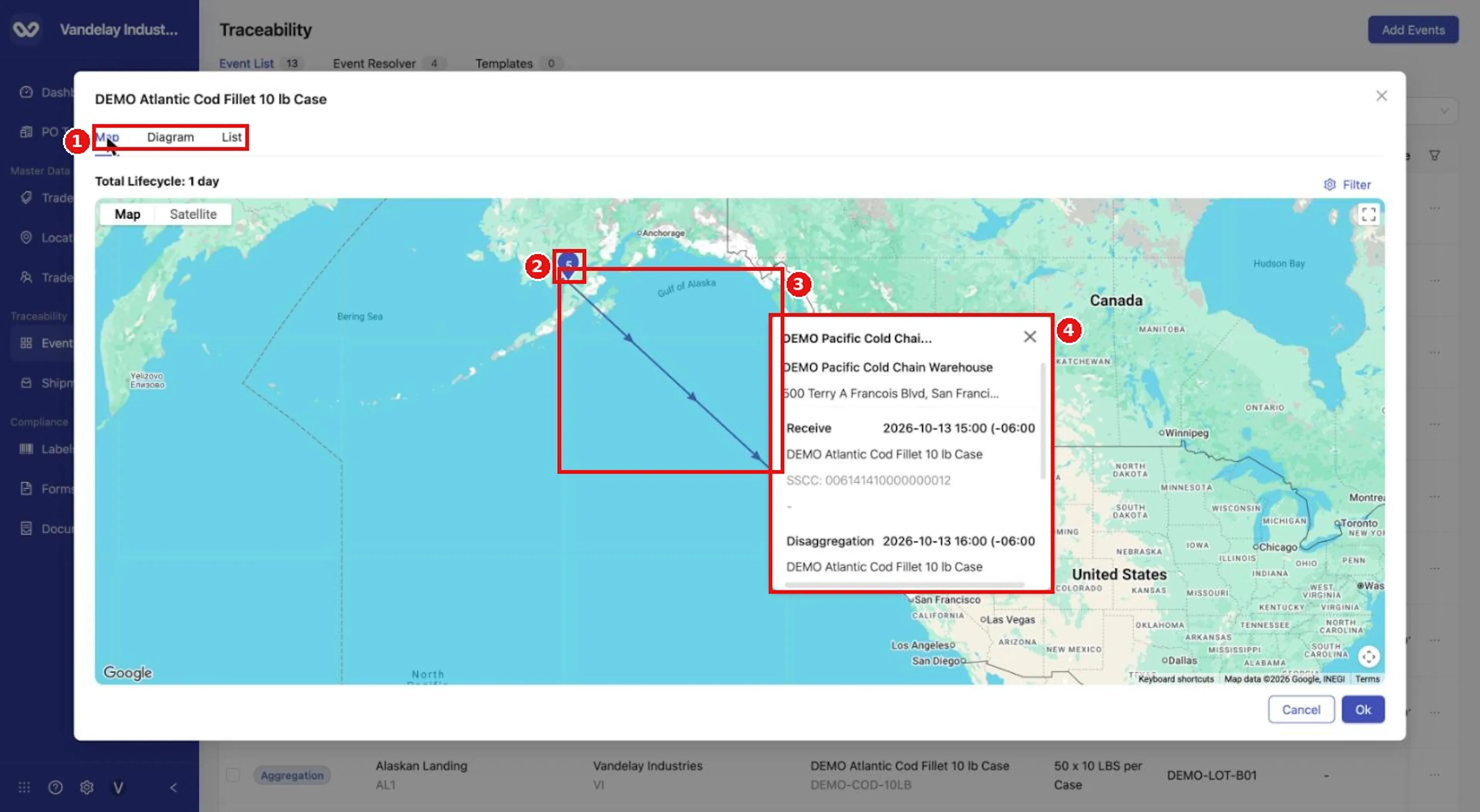
Clicking a trade-item row opens the same window for the product. The map shows the full route; the badge shows how many events sit at a location.
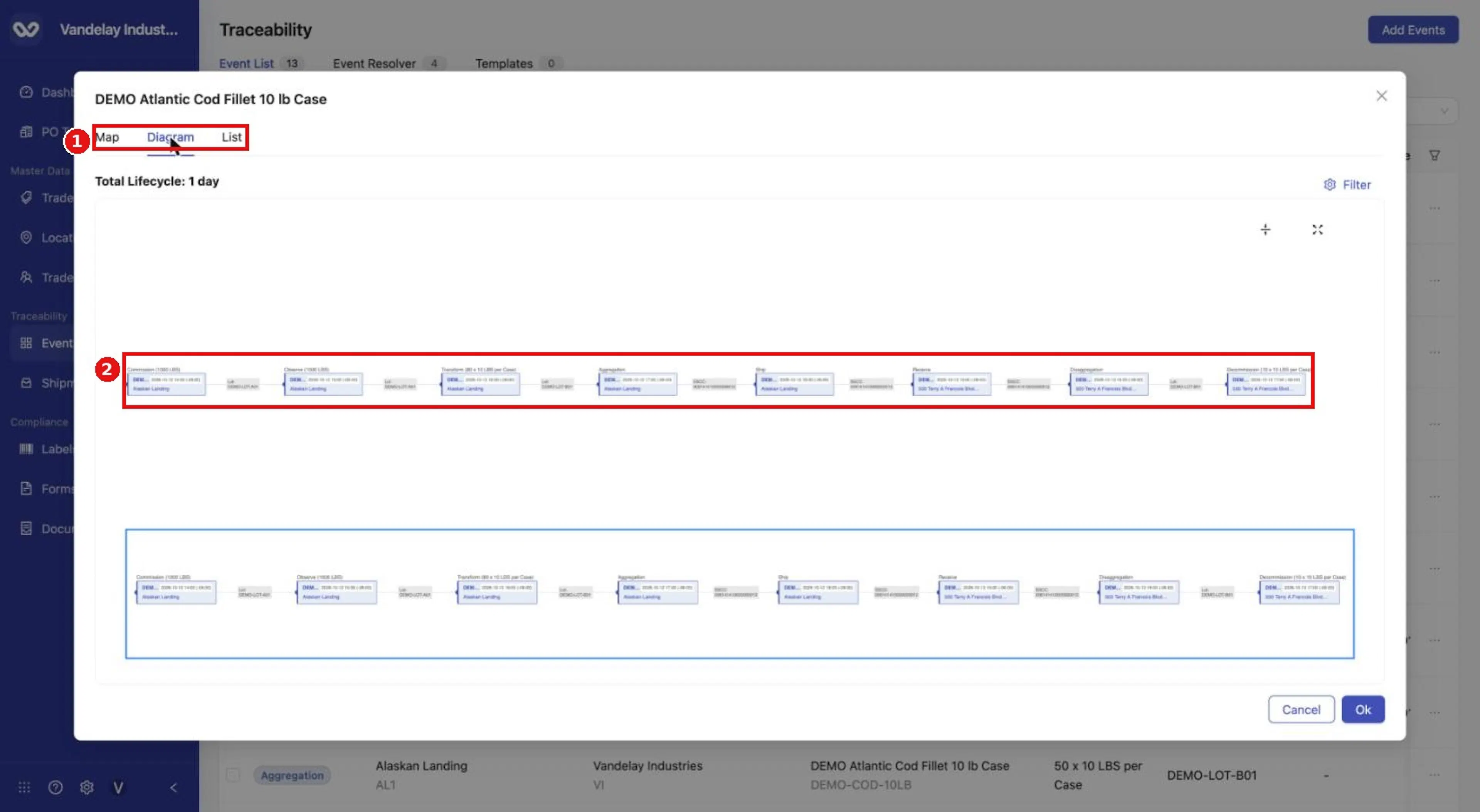
The Diagram for the full chain runs from Commission through Decommission.
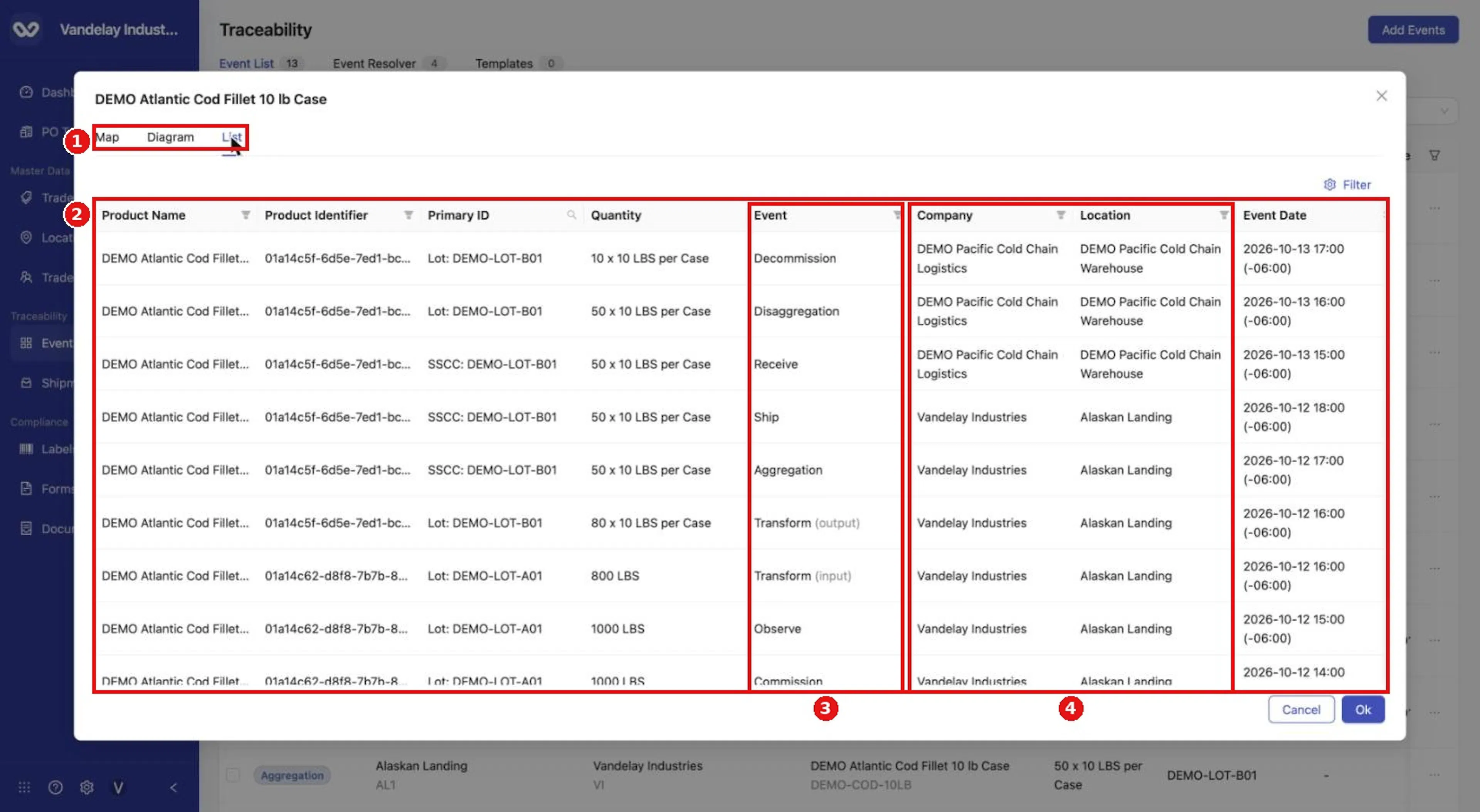
The List shows each lot, how it was used, and where and when each event took place. Times shown are UTC.
In the List, a Primary ID such as "SSCC: DEMO-LOT-B01" means the lot is inside a container while the row still shows that individual lot's information.
Expected result
You can locate any event, adjust the columns, and see where a lot travelled and which events used it.
Troubleshooting
- The window shows a loading message. The supply chain is being fetched. Wait a few seconds for each tab.
- A lot you expect is missing. Clear the filters, then search again by Lot / Serial.
- The counter is higher than the number of events you entered. Transform events appear as two rows, because the list shows one row per lot.
- A Direct Ship is not in the Event List. It appears as a Ship row after you use Link Trace Info. See Link Trace Info.
Event Resolver and Templates are outside the scope of this guide. For other questions, see the FAQ.
Field and action reference
Tabs and screens
| Screen | Tabs and main controls |
|---|---|
| Events | Event List, Event Resolver, Templates. Add Events button at the top right. |
| Add Events drawer | Single Event and Bulk Upload modes. See Shared event fields. |
| Supply chain window (from an Event List row) | Map, Diagram and List tabs; Cancel and Ok buttons. |
| Link Trace Information drawer | Event details, Shipment Lots, All Events and Inventory Lots tabs. See Link Trace Info. |
Event Resolver, Templates and Bulk Upload are outside this reference. The Shipments screens are described in Shipments overview and table controls.
Table columns
| Column | Description |
|---|---|
| Row checkbox / select-all | Selects rows for a bulk action. |
| TYPE | The event type, as a coloured label. |
| LOCATION(S) | Location name and its identifier. |
| PARTNER(S) | Trade Partner name and its identifier. |
| TRADE ITEM(S) | Product name and item identifier. |
| QUANTITY | Quantity and unit of measure. Case items show quantity as "x LBS per Case". |
| LOT(S) | Lot code. |
| Purchase Order | PO number, or "-". |
| EVENT DATE | Event time in UTC with the logged zone's offset in parentheses. |
| POSTED | The date the event was recorded in the app. |
| Ship From Location | Origin of a Ship or Receive event; "-" for other types. Off by default. |
| Ship To Location | Destination of a Ship or Receive event; "-" for other types. Off by default. |
| Row menu (...) | Row actions (see Row and bulk actions). |
The list has one row per lot. A Transform therefore shows as two rows, one for the input lot and one for the output lot. The counter beside Event List counts rows. Rows are listed newest event time first. Page size is 20 / page.
Search and filters
| Control | Matches |
|---|---|
| Search by Lot / Serial | Lot or serial code. |
| Purchase Order | PO number. |
| Event Type | One or more event types: Commission, Observe, Ship, Transform, Aggregation, Decommission, Disaggregation, Receive. |
| Location | A Location. |
| Trade Item | A Trade Item. |
Column display
The funnel icon at the top right of the table opens the column display panel. It lists Type, Location, Trade Partner, Trade Item, Quantity, Lot/Serial, Purchase Order, Event Date, Posted Date, Ship From Location and Ship To Location. Each has a checkbox, a drag handle and up and down arrows. Reset restores the default columns.
Row and bulk actions
| Action | Where | What it does |
|---|---|---|
| Open the supply chain | Click a row | Opens the supply chain window with Map, Diagram and List tabs. |
| Add Event | Row menu (...) | Opens the Add Events drawer. |
| Remove Event | Row menu (...) | Removes the most recent event on the lot or serial. It fails if later events used that lot or serial. |
| Bulk Delete | Appears after you tick rows, with "N events selected" and Deselect | Removes several events at once. All events in the supply chain must be selected, or it fails. |
The selection counter counts events, not rows. Selecting all 13 rows of a list that contains one Transform shows "12 events selected". The full rules are in Rules and restrictions; on-screen messages are in Messages.
Supply chain window
Clicking a row opens a window titled with the container identifier (for example "SSCC: 006141410000000012") when the event involves a container, or with the product name otherwise. The header shows Total Lifecycle and a Filter link.
| Tab | Shows |
|---|---|
| Map | Location pins with an event-count badge, route lines with direction arrows, an information popup per location listing its events, a Map / Satellite toggle, and fullscreen and recenter buttons. |
| Diagram | A left-to-right chain of event nodes. Each node shows the event type and quantity, with the product, time and location. Edge labels show the lot or SSCC. Zoom and fit controls are at the top right. |
| List | One row per lot per event, 20 per page. |
List columns: Product Name, Product Identifier, Primary ID, Quantity, Event, Company, Location, Event Date. Transform rows are labelled Transform (input) and Transform (output). A Primary ID such as "SSCC: lot code" means the lot is inside a container; the row still shows the individual lot's details.