

Dashboard overview and shortcuts
Open the Wholechain Dashboard, use Settings and Add, read record counts, and review Notifications and Invites.
Applies to: The Wholechain Dashboard.
Audience: All Wholechain users.
Prerequisites: A Wholechain account and a signed-in session.
Related: Dashboard map and Location waypoints; Dashboard purchase order preview; Dashboard FAQ
This article covers the Wholechain Dashboard: how to open it, the Settings button, the Add drop-down, the record-count tiles, and the Notifications and Invites table. The map is covered in Dashboard map and Location waypoints, and the purchase order preview in Dashboard purchase order preview.
About the Dashboard
The Dashboard gives you a high-level overview of your Wholechain account. It is the first module in the left sidebar, directly below the Wholechain logo and your company name, and it is the page you see each time you sign in.
From the Dashboard you can:
- See where your Locations are on a map.
- Open Settings, which opens on your Personal Settings.
- Start adding purchase orders, Trade Items, Locations, Trade Partners, or events.
- See how many records your account holds and jump to the matching module.
- Review recent account activity and the invitations that have been sent.
- Preview your purchase orders.
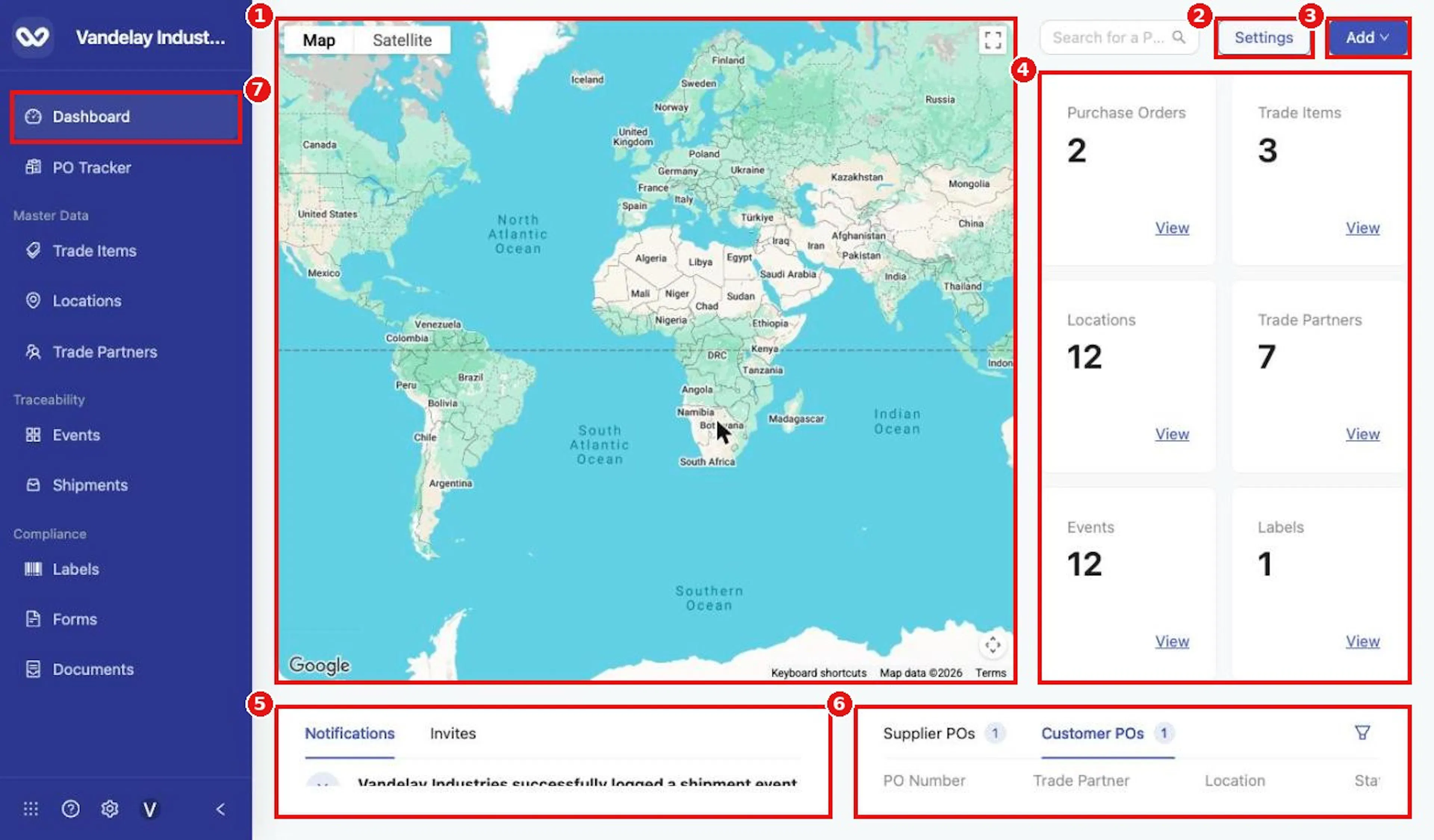
The Dashboard, with numbered areas.
The numbered areas in the picture are described in the sections that follow:
- Map with waypoints for your Locations.
- Settings button.
- Add drop-down.
- Record-count tiles for Purchase Orders, Trade Items, Locations, Trade Partners, Events, and Labels.
- Notifications and Invites table.
- Purchase order preview (Supplier POs and Customer POs) with its filter.
- Dashboard in the left sidebar.
Open the Dashboard
Sign in to Wholechain
Sign in to Wholechain. The Dashboard opens automatically.
To return to it at any time
To return to it at any time, select Dashboard at the top of the left sidebar.
Articles in this guide
| Article | Audience | Use it to |
|---|---|---|
| Dashboard overview and shortcuts | All Wholechain users | Open the Dashboard, use Settings and Add, read record counts and open modules from tiles, and read Notifications and Invites |
| Dashboard map and Location waypoints | Users who view or check Locations | Zoom and switch map views, read waypoint pop-ups, and open Location details |
| Dashboard purchase order preview | Users who work with purchase orders | Read the purchase order preview, open PO Tracker from it, and choose which purchase orders show by default |
| Dashboard FAQ | All Wholechain users | Find quick answers to common Dashboard questions |
Glossary
| Term | Meaning |
|---|---|
| Dashboard | The first module in the left sidebar; the page shown at sign-in |
| Waypoint | A pin on the Dashboard map that marks a Location |
| Pop-up | The small box that opens when you select a waypoint |
| Drawer | A panel that slides in from the right, such as an Add drawer or the Location details drawer |
| Tile | One of the six record-count boxes on the right of the Dashboard |
| Trade Partner | A company you trade with in Wholechain |
| PO Tracker | The module for tracking purchase orders |
Dashboard Settings button
The Settings button, at the top right of the Dashboard, opens the Settings screen on Personal Settings, the first tab. Organization Settings and Master Data Settings are sections of the same screen. Select the X at the top right of the screen to return to the Dashboard. For help with the options on it, see the Settings documentation.
Add resources from the Dashboard
The Add drop-down lets you start adding a resource without leaving the Dashboard.
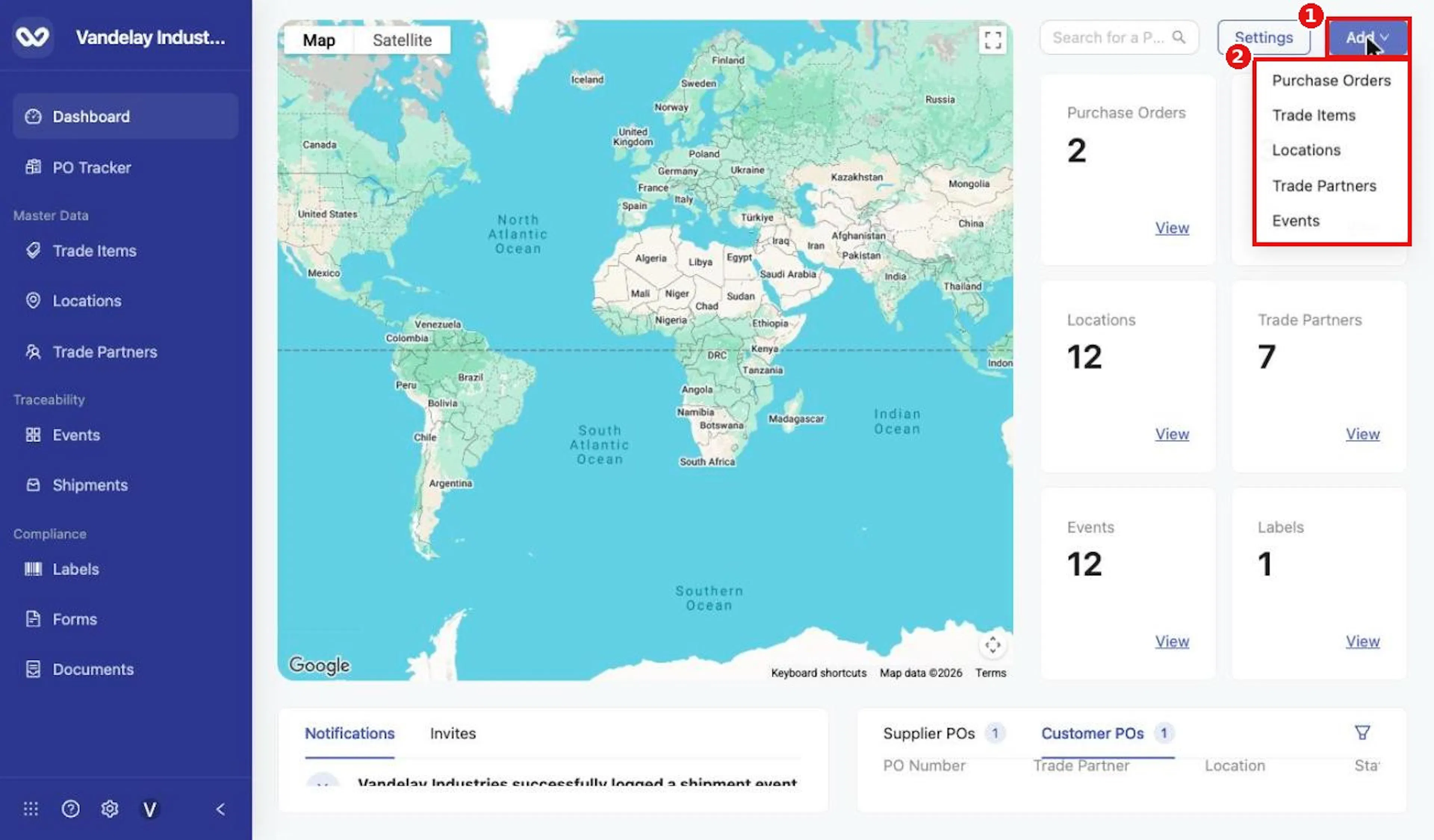
The Add drop-down.
| Add option | Drawer that opens |
|---|---|
| Purchase Orders | Add Purchase Orders |
| Trade Items | Add Trade Item |
| Locations | Add Locations |
| Trade Partners | Add Trade Partners |
| Events | Add Events |
Open and close an Add drawer
Select Add at the top right of the Dashboard
Select Add at the top right of the Dashboard.
Select the resource you want to add
Select the resource you want to add. The matching drawer slides in from the right. Each drawer has a Single tab for one record and a Bulk Upload tab.
To leave without creating anything
To leave without creating anything, select the X at the top right of the drawer. No record is created unless you complete the form and use the button at the bottom of the drawer.
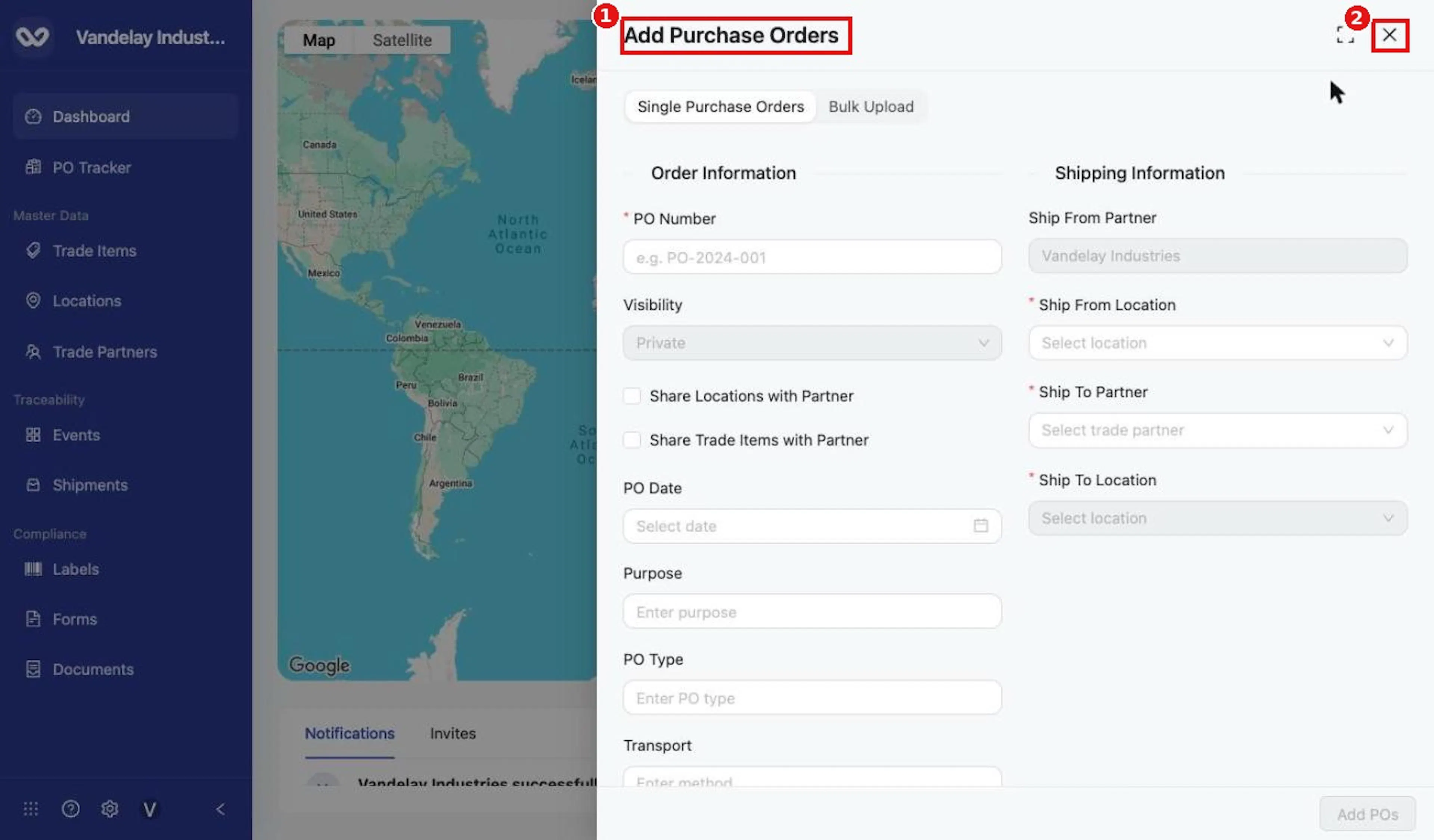
The Add Purchase Orders drawer, with the X to close it.
For the remaining steps, see the creation instructions in the documentation for each module:
- Purchase orders: PO Tracker documentation
- Trade Items: Trade Items documentation
- Locations: Locations documentation
- Trade Partners: Trade Partners documentation
- Events: Events documentation
Dashboard record counts and module shortcuts
Six tiles at the top right of the Dashboard show how many records of each kind your account has. For example, a Purchase Orders count of 1 means one purchase order has been created in your account.
| Tile | Opens |
|---|---|
| Purchase Orders | PO Tracker |
| Trade Items | Trade Items module |
| Locations | Locations module |
| Trade Partners | Trade Partners module |
| Events | Events module |
| Labels | Labels module |
Open a module from a tile
Find the tile for the resource you want
Find the tile for the resource you want.
Select the tile's title
Select the tile's title, or select View at the bottom of the tile. Either one opens the module.
To come back, select Dashboard in the left sidebar
To come back, select Dashboard in the left sidebar.
Note: The count on a tile is a quick summary. For the full list of records, open the module and use its list. For the purchase orders listed on the Dashboard itself, see Dashboard purchase order preview. For the Locations tile and the map, see Dashboard map and Location waypoints.
Dashboard Notifications and Invites
At the bottom left of the Dashboard, a table with two tabs summarizes recent activity and invitations.
Notifications
The Notifications tab is selected by default. It logs activity in your account. Each entry names the user or company that acted and what they did, for example "successfully logged a shipment event", "successfully received a shipment", or "uploaded document" followed by the document name.
Select Notifications to see recent account activity
Select Notifications to see recent account activity.
Scroll within the table to read more entries
Scroll within the table to read more entries.
Invites
The Invites tab shows the invitations that have been sent from your account. Each row has the recipient's Email and the Trade Partner the invitation is associated with. A count and page controls at the bottom show how many invitations there are.
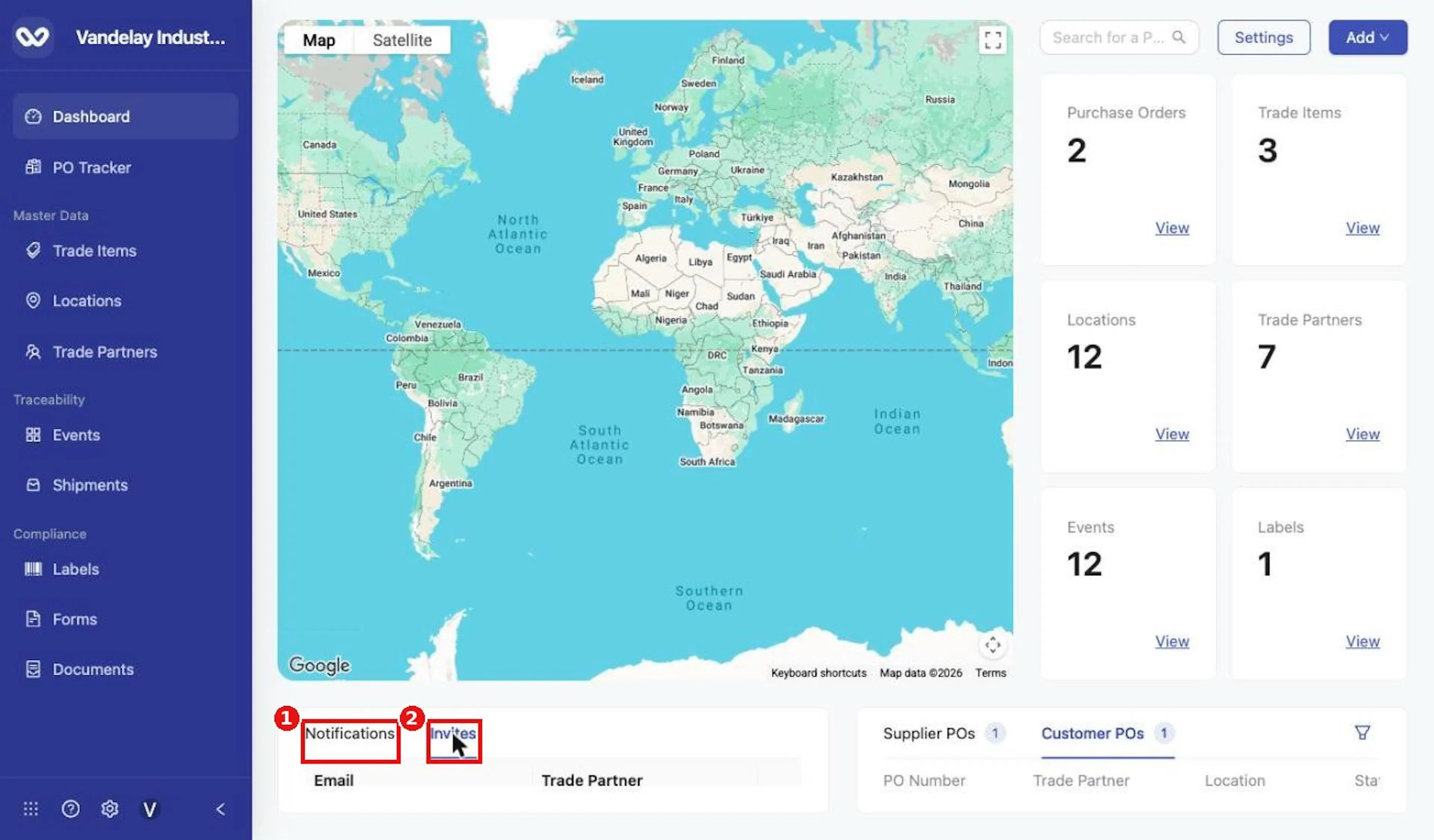
The Invites tab.
Select Invites
Select Invites to see the invitations that have been sent.
Select Notifications to go back to the activity log
Select Notifications to go back to the activity log.
The Invites tab is a record of invitations. To invite a Trade Partner, use the Trade Partners module; the invitation steps are in the Trade Partners documentation.
Field and action reference
Dashboard overview
The Dashboard is the first module in the left sidebar, below the Wholechain logo and the company name. It is the page shown when a user signs in. It gives a high-level overview of account information, with shortcuts to modules, existing records, and resource creation.
Areas of the Dashboard
| Area | Location | Purpose |
|---|---|---|
| Map | Main portion of the page | Shows waypoints for Locations |
| Settings | Top right | Opens the Settings screen on Personal Settings |
| Add | Top right | Opens a drawer to begin adding a resource |
| Record-count tiles | Right of the map | Show record counts and open modules |
| Notifications / Invites table | Bottom left | Shows account activity and sent invitations |
| Purchase order preview | Bottom right | Shows supplier or customer purchase orders |
Settings and Add
Settings button
Opens the Settings screen, which opens on Personal Settings, the first tab. Below it are the Organization Settings section (Account, Brands, Supplier Portal, Purchase Orders, Integrations, Users & Permissions, Subscription & Billing, Data Element Library, Template Attributes) and the Master Data Settings section (Trade Item, Location, Trade Partner, Archived). Close it with the X at the top right.
Add drop-down
| Add option | Drawer opened | Tabs in the drawer | Bottom button |
|---|---|---|---|
| Purchase Orders | Add Purchase Orders | Single Purchase Orders, Bulk Upload | Add POs |
| Trade Items | Add Trade Item | Single Trade Item, Bulk Upload | Add Trade Item |
| Locations | Add Locations | Single Location, Bulk Upload | Add Location |
| Trade Partners | Add Trade Partners | Single Trade Partner, Bulk Upload | Create Trade Partner |
| Events | Add Events | Single Event, Bulk Upload | Add Event |
The bottom button is unavailable until the required fields are complete. Closing a drawer with the X creates no record. For the fields in each drawer, see the documentation for the matching module.
Record-count tiles
| Tile | Count shows | Opens |
|---|---|---|
| Purchase Orders | Purchase orders in the account | PO Tracker |
| Trade Items | Trade Items in the account | Trade Items module |
| Locations | Locations in the account | Locations module |
| Trade Partners | Trade Partners in the account | Trade Partners module |
| Events | Events in the account | Events module |
| Labels | Labels in the account | Labels module |
Selecting a tile's title or its View link opens the module.
Notifications and Invites
Notifications tab
| Item | Description |
|---|---|
| Entry | The user or company and the action taken, for example "successfully logged a shipment event", "successfully received a shipment", "uploaded document", "updated document". |
Invites tab
| Column | Description |
|---|---|
| The recipient's email address | |
| Trade Partner | The Trade Partner associated with the invitation |
The table shows a count of items and page controls. The tab lists sent invitations.
Rules and restrictions
| Rule | Applies to | Behavior |
|---|---|---|
| Saved preference | PO preview filter | The choice persists and applies at sign-in. |
| Coordinates-only Locations | Waypoint pop-up | No address is shown. |
| Closing a drawer | Add drawers | Creates no record. |
| Counts | Tiles | Show the number of records of each kind for the account. |
Dashboard quick reference
| I want to… | Do this |
|---|---|
| Return to the Dashboard | Select Dashboard at the top of the left sidebar |
| Zoom the map | Double-click, or hold ⌘ and scroll |
| Switch map views | Select Map or Satellite |
| Turn terrain on or off | Select Map (again if it is already showing), then use Terrain |
| Turn labels on or off | Select Satellite, then use Labels |
| See a Location's Trade Partner and address | Select its waypoint |
| Open Location details | Select the waypoint, then select the location name in the pop-up |
| Open Settings | Select Settings |
| Start adding a record | Select Add, then choose a resource |
| Close an Add drawer without saving | Select the X at the top right of the drawer |
| Open a module from a tile | Select the tile title or View |
| See sent invitations | Select Invites |
| Open PO Tracker from the preview | Select a row |
| Change the purchase orders shown by default | Select Filter, then choose Supplier POs or Customer POs |