

Trade Partner details, aliases, and documents
Open a Trade Partner's drawer, correct its details, add an alias, and keep supporting documents with the partner.
Applies to: the Trade Partner drawer (tabs Details, Locations, Trade Items, Attachments and Invites)
Audience: Anyone maintaining Trade Partner master data
Prerequisites: an existing Trade Partner; permission to edit master data. For documents, have the file ready.
Related: Get started with Trade Partners; Trade Partner List; Add Trade Partners; Invitations; Master Data Settings; Trade Partners FAQ; Reference Guide: Trade Partner details; Reference Guide: Module overview; Rules and restrictions; Field and action reference
Purpose
See and manage everything about one Trade Partner in one place: correct its details, record other identifiers it is known by (aliases), and attach certificates and other supporting files.
Before you begin
Select a Trade Partner's name in the Trade Partner List to open its drawer. The drawer has five tabs:
| Tab | What it holds |
|---|---|
| Details | Basic Details, Associated Trade Item Groups, and Trade Partner Aliases. |
| Locations | The partner's Locations, and an Add Location button. |
| Trade Items | Trade Items linked to the partner. |
| Attachments | Documents for the partner. |
| Invites | The invitation form for connecting with the partner. |
Your own company's drawer has the same tabs except Invites.
Some details cannot be edited when the Trade Partner is connected in Wholechain, because they belong to another Wholechain account (see Rules and restrictions).
Open the Trade Partner drawer
Select the Trade Partner's name
In the list, select a Trade Partner's name. The drawer opens with the five tabs above.
Enlarge or close the drawer
Select the maximize icon at the top of the drawer to enlarge it, or the x to close it.
The Locations tab
Each row shows the Location identifier, name and address. Select Add Location to add another Location to this partner (see Add Locations).
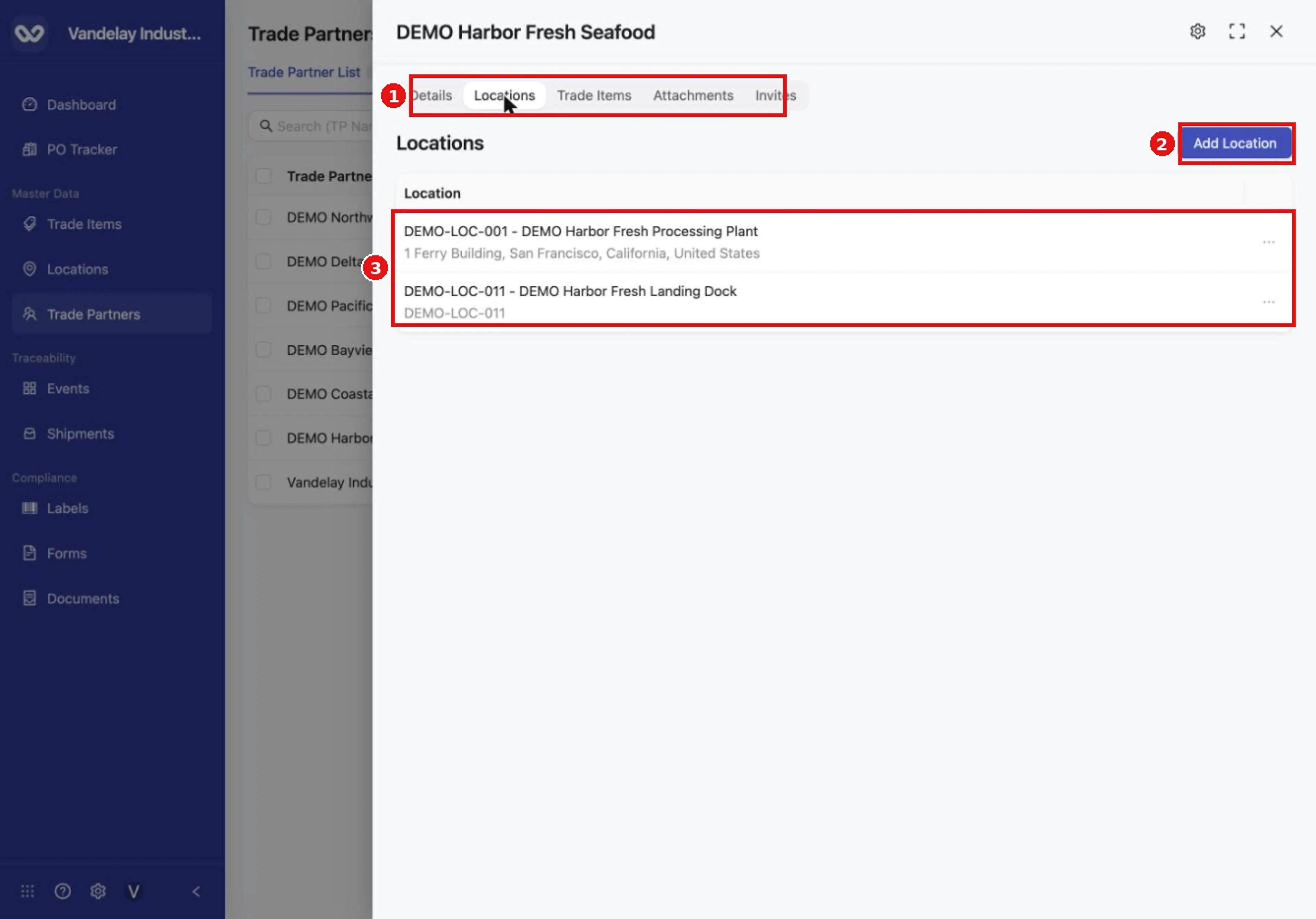
Open a Trade Partner and select the Locations tab to see its Locations and add another.
The Trade Items tab
The Trade Items tab lists the Trade Items linked to this Trade Partner, with the columns Trade Item, Trade Item Identifier and Trade Item Group.
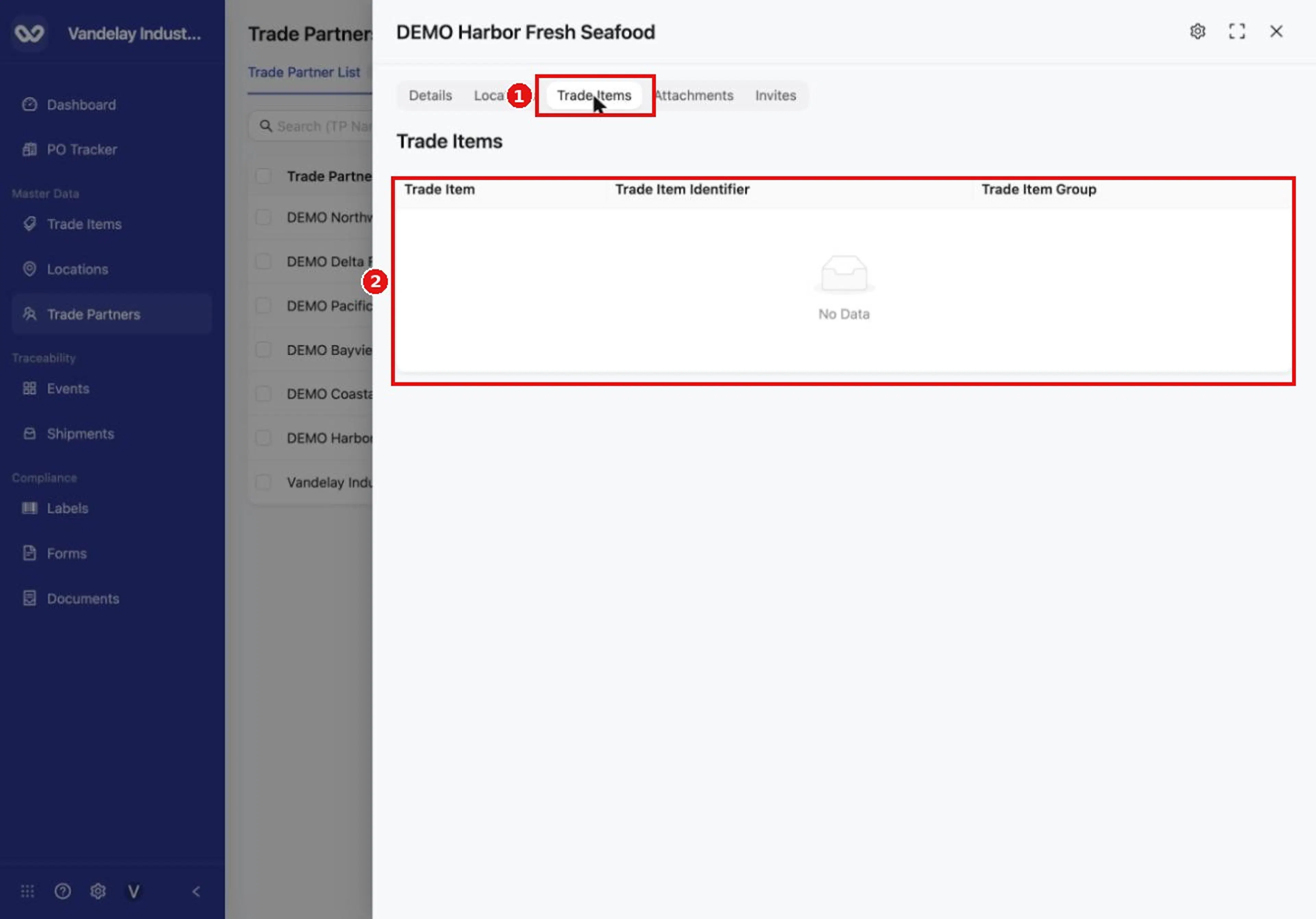
The Trade Items tab lists Trade Items linked to this Trade Partner.
The Invites tab
For a partner that has no invitation, the tab reads "You have not sent an invite for this Trade Partner. Send an invite to connect with their company." The form fields are the same as in Invitations.
Edit Trade Partner details
Open the drawer and stay on the Details tab
Open the Trade Partner's drawer and stay on the Details tab.
Select the value you want to change
Select the value you want to change, such as DUNS. An input box opens with a check mark and an x.
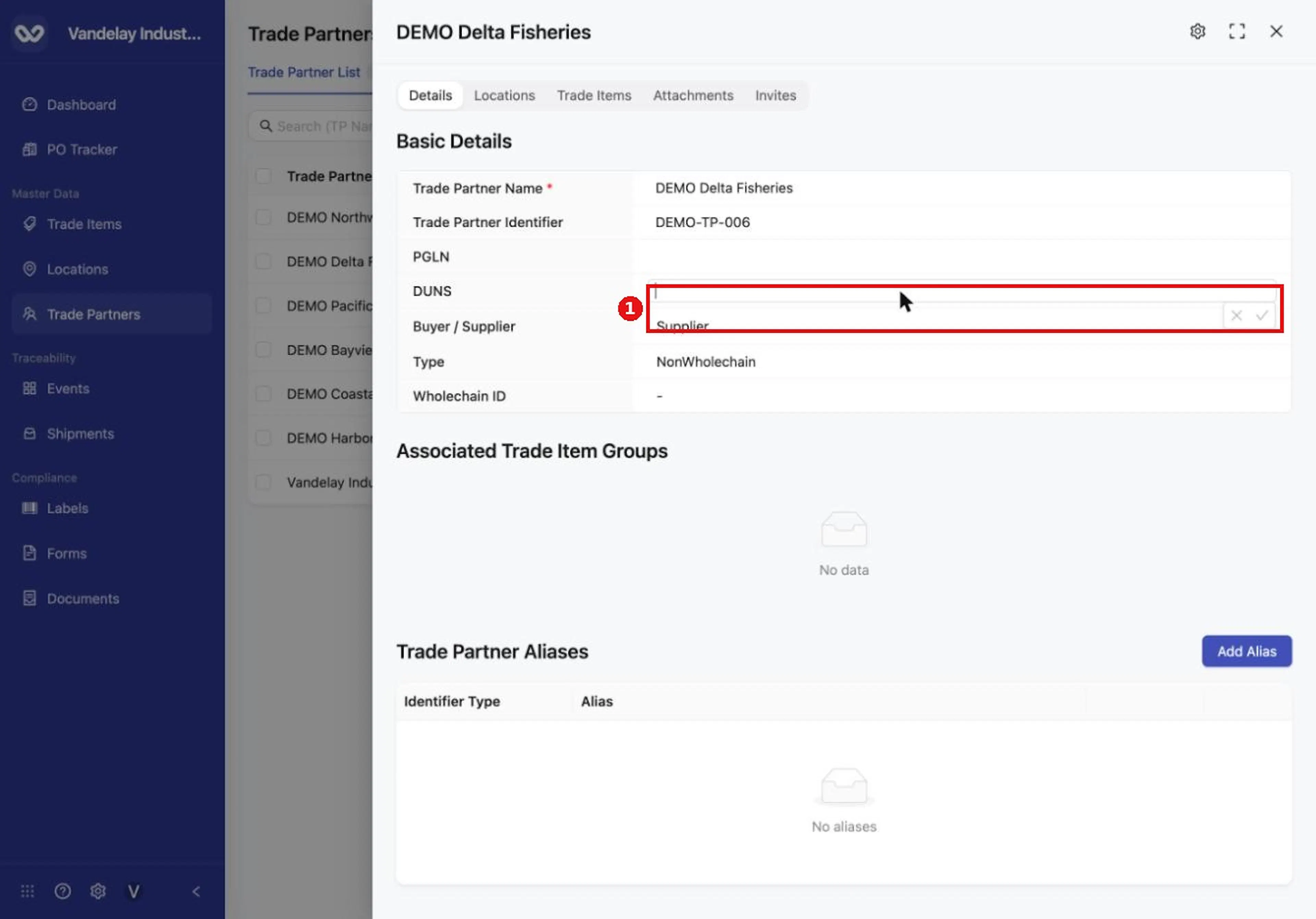
Select a value in Basic Details to edit it in place.
Type the new value
Type the new value.
Save or cancel
Select the check mark to save, or the x to cancel.
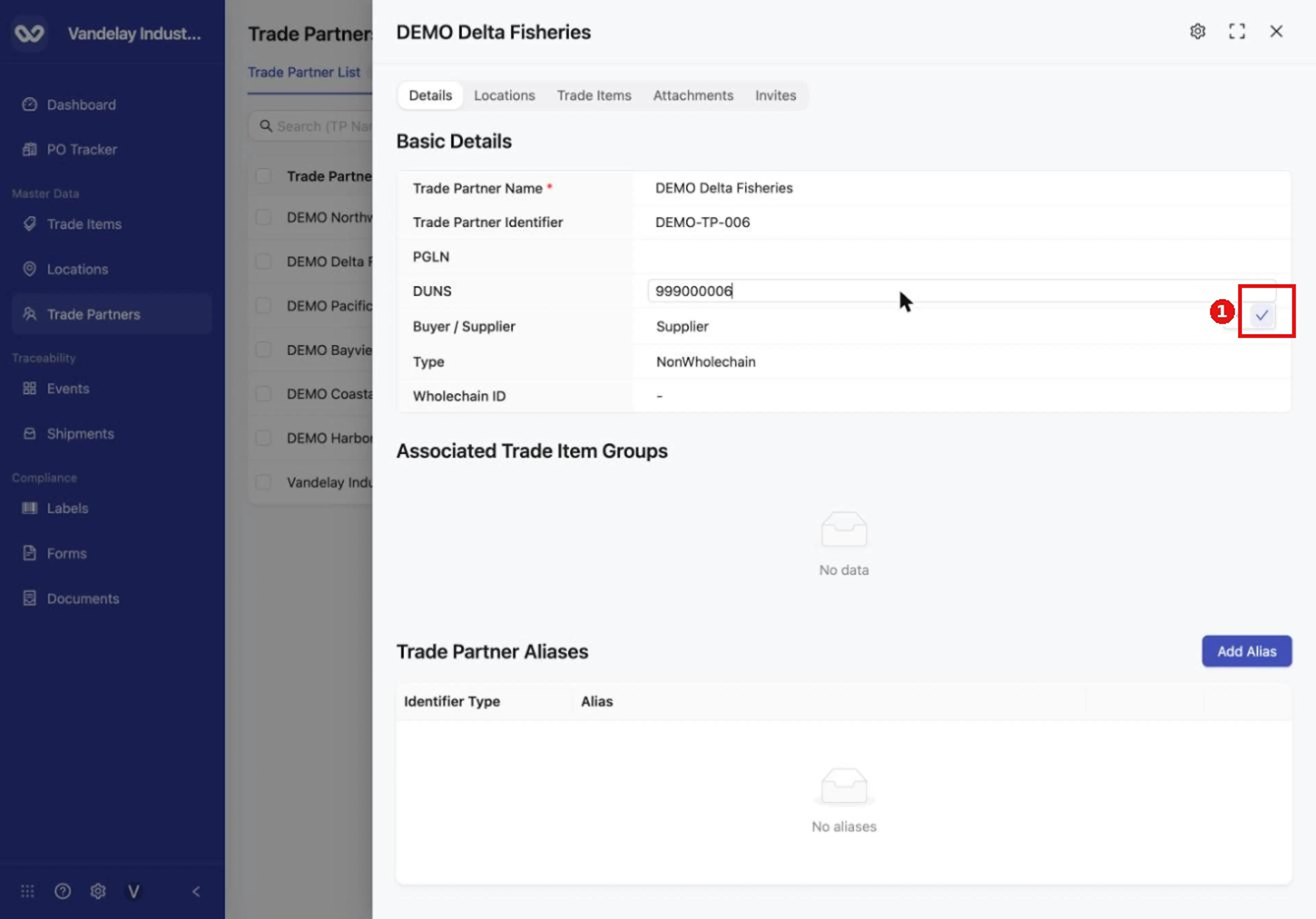
Type the new value, then select the check mark to save it, or the X to cancel.
The Type and Wholechain ID fields are read-only and cannot be edited.
Result. A message such as Trade partner details saved appears, and the new value shows in the field.
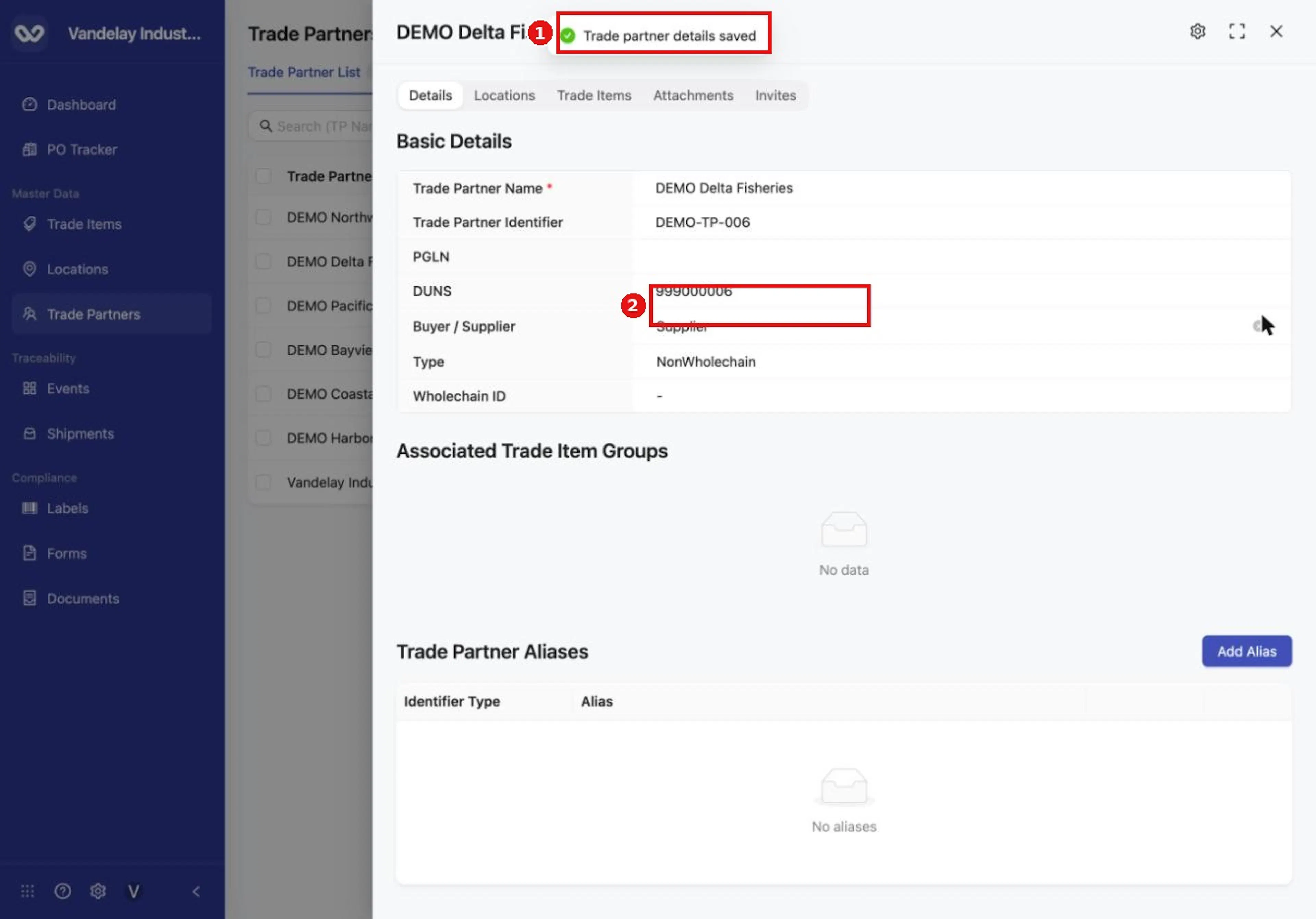
A confirmation appears when the change is saved.
Add an alias
An alias is another identifier that a Trade Partner is known by, so records that use it still match. Example values: Identifier Type External Identifier, Alias DEMO-TP-001-ALT.
Open Add Alias
Open the Trade Partner's drawer. In Trade Partner Aliases, select Add Alias. The Add Alias drawer opens on the Manual tab.
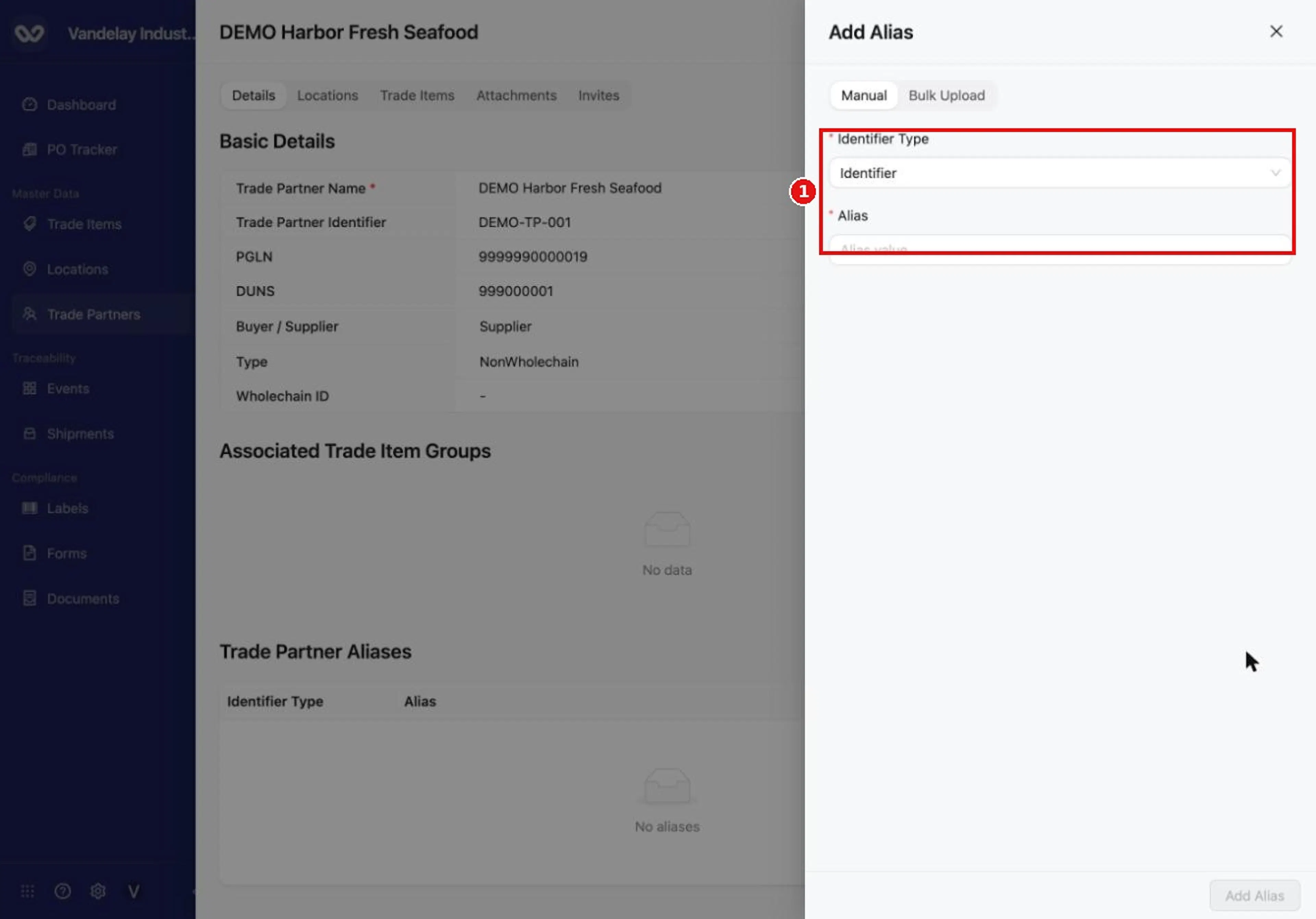
Select Add Alias to open the alias drawer. An alias is another identifier this Trade Partner is known by.
Select the Identifier Type
Select Identifier Type. The choices are External Identifier, URN and PGLN.
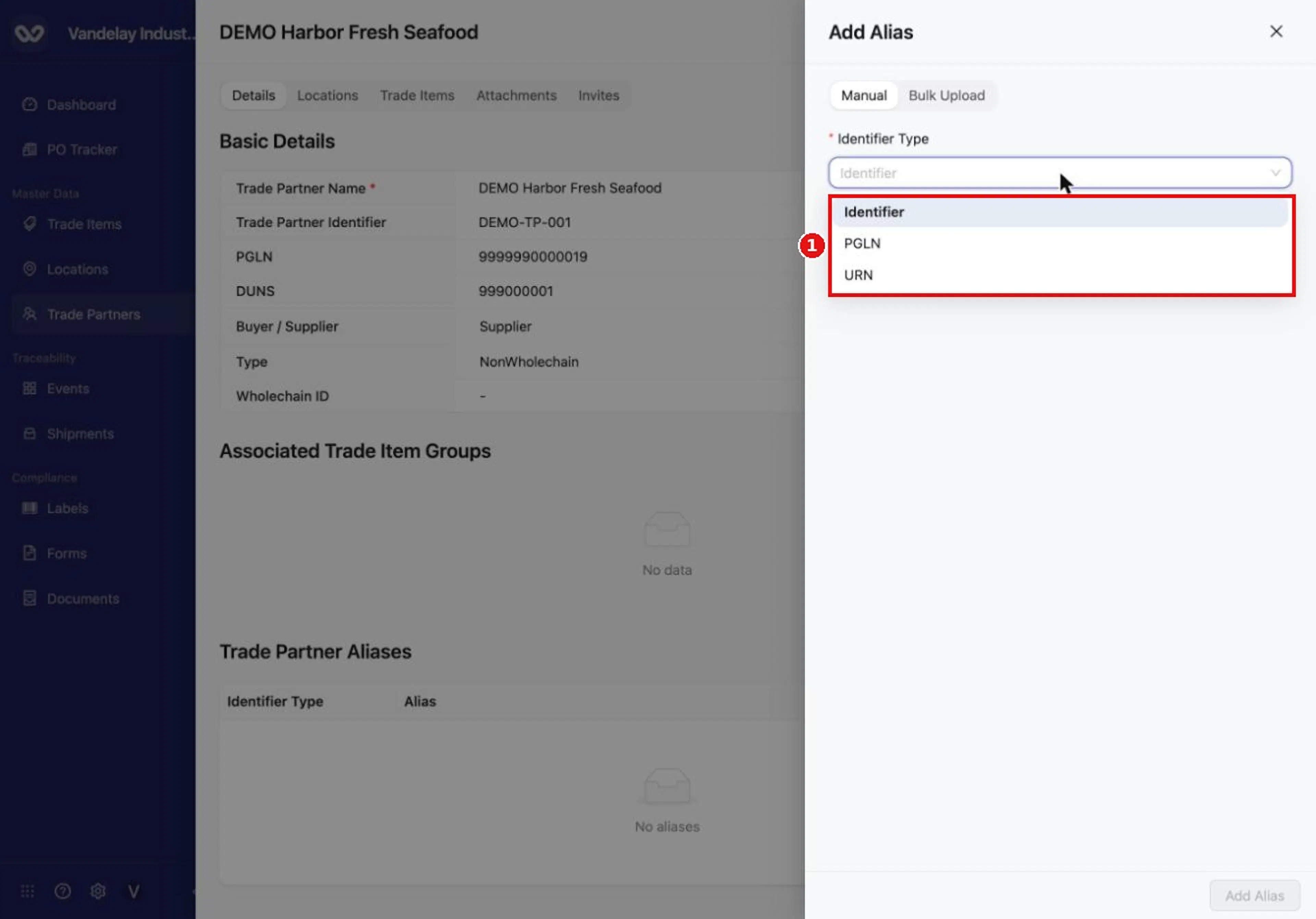
Identifier Type offers Identifier, PGLN and URN.
Type the alias
Type the Alias.
Select Add Alias
Select Add Alias.
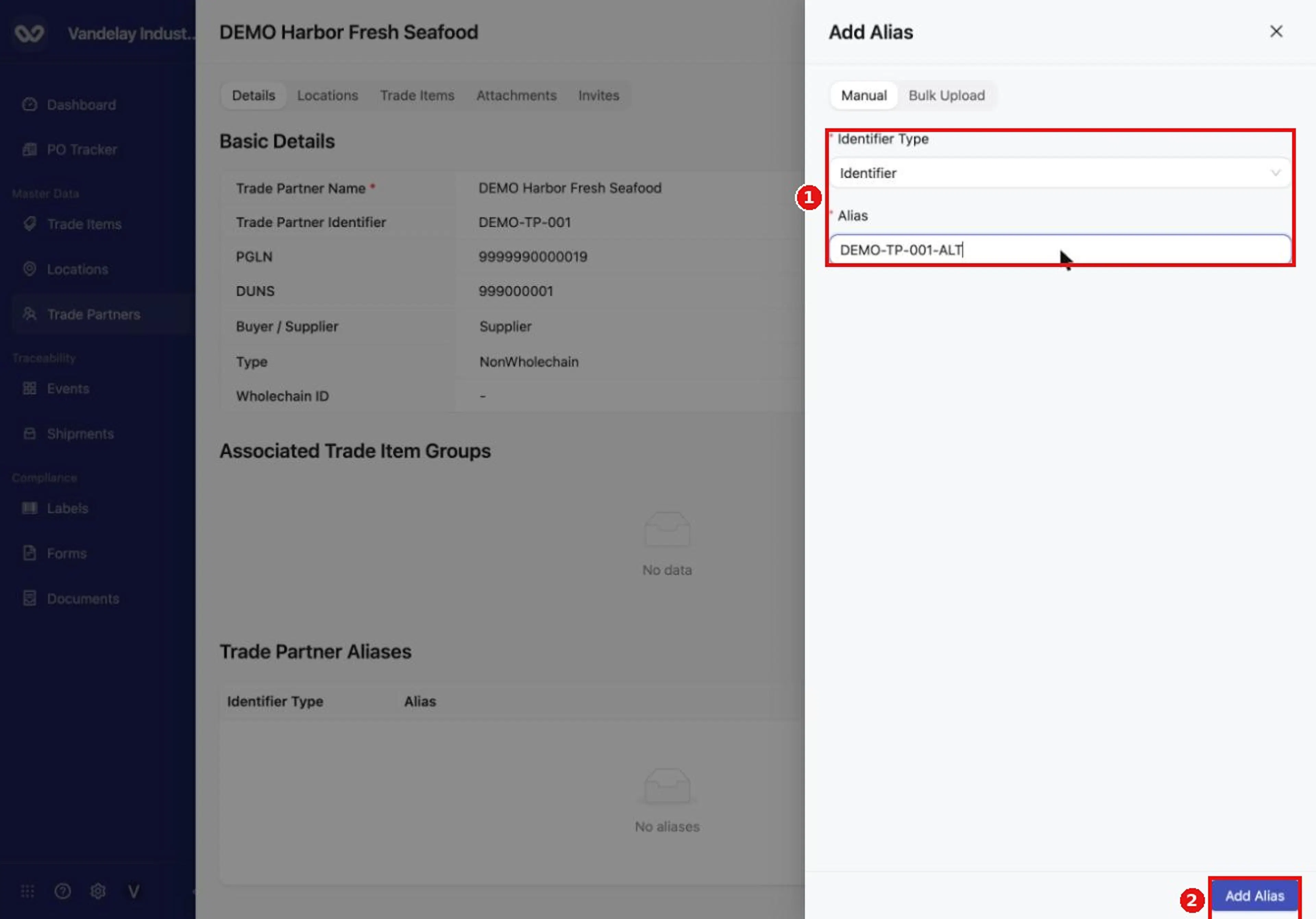
Enter the alias value, then select Add Alias.
Result. A message such as Alias added appears, and the alias is listed in the Trade Partner Aliases table. The row has a ... menu.
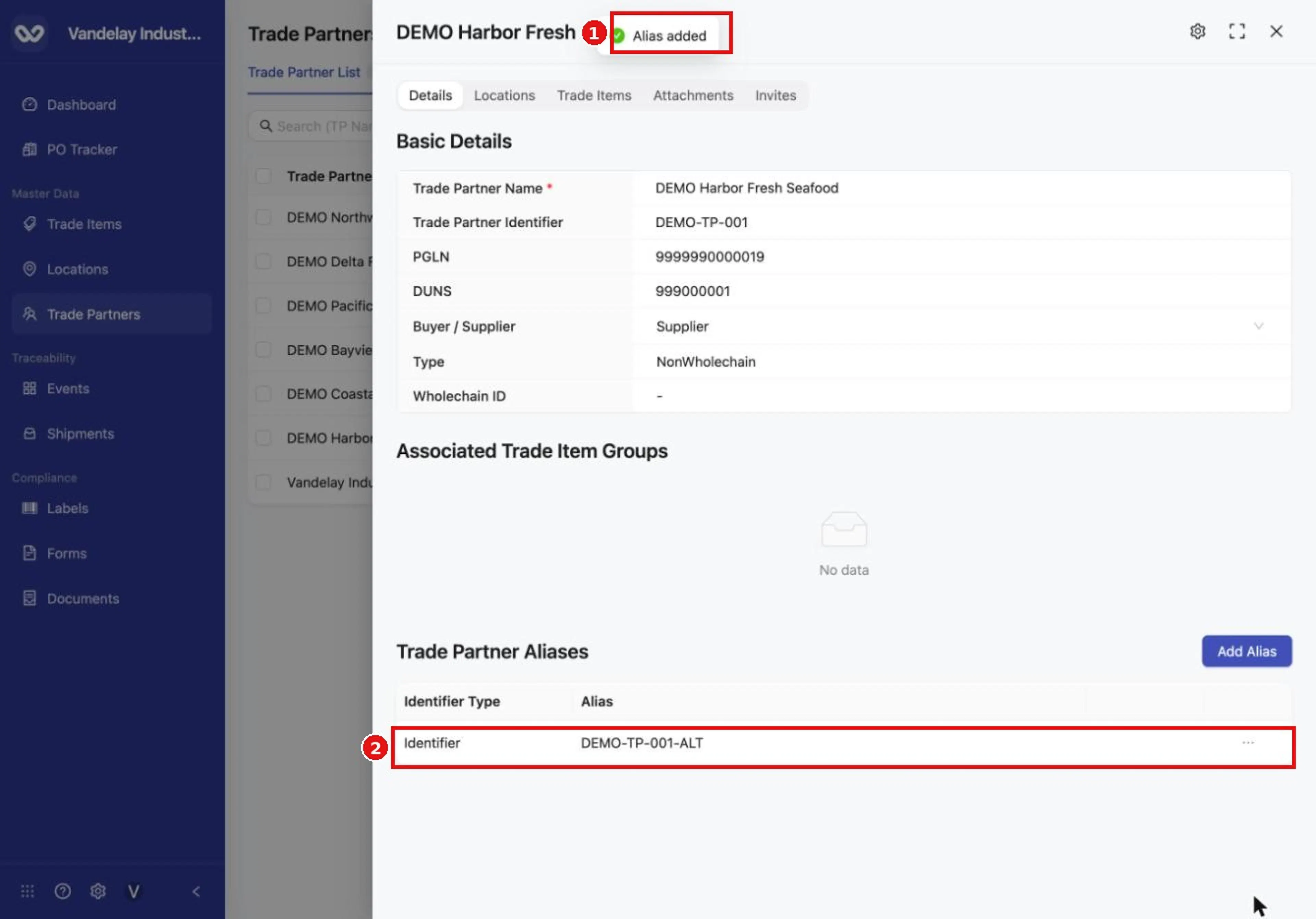
The alias appears in the Trade Partner Aliases table.
Bulk aliases. To add many aliases at once, use the account-wide alias bulk upload. Click the gear icon at the top of the Trade Partners page (or open Settings with the gear icon at the bottom of the left-hand navigation bar), which opens Master Data Settings > Trade Partner. It is described in Master Data Settings. The template has three columns: Parent External ID, Alias and Alias Type. For Trade Partners, Alias Type accepts External Identifier, PGLN or URN.
Attach documents
Open the Attachments tab
Open the Trade Partner's drawer and select Attachments.
Select Upload
Select Upload. The Add Documents form opens.
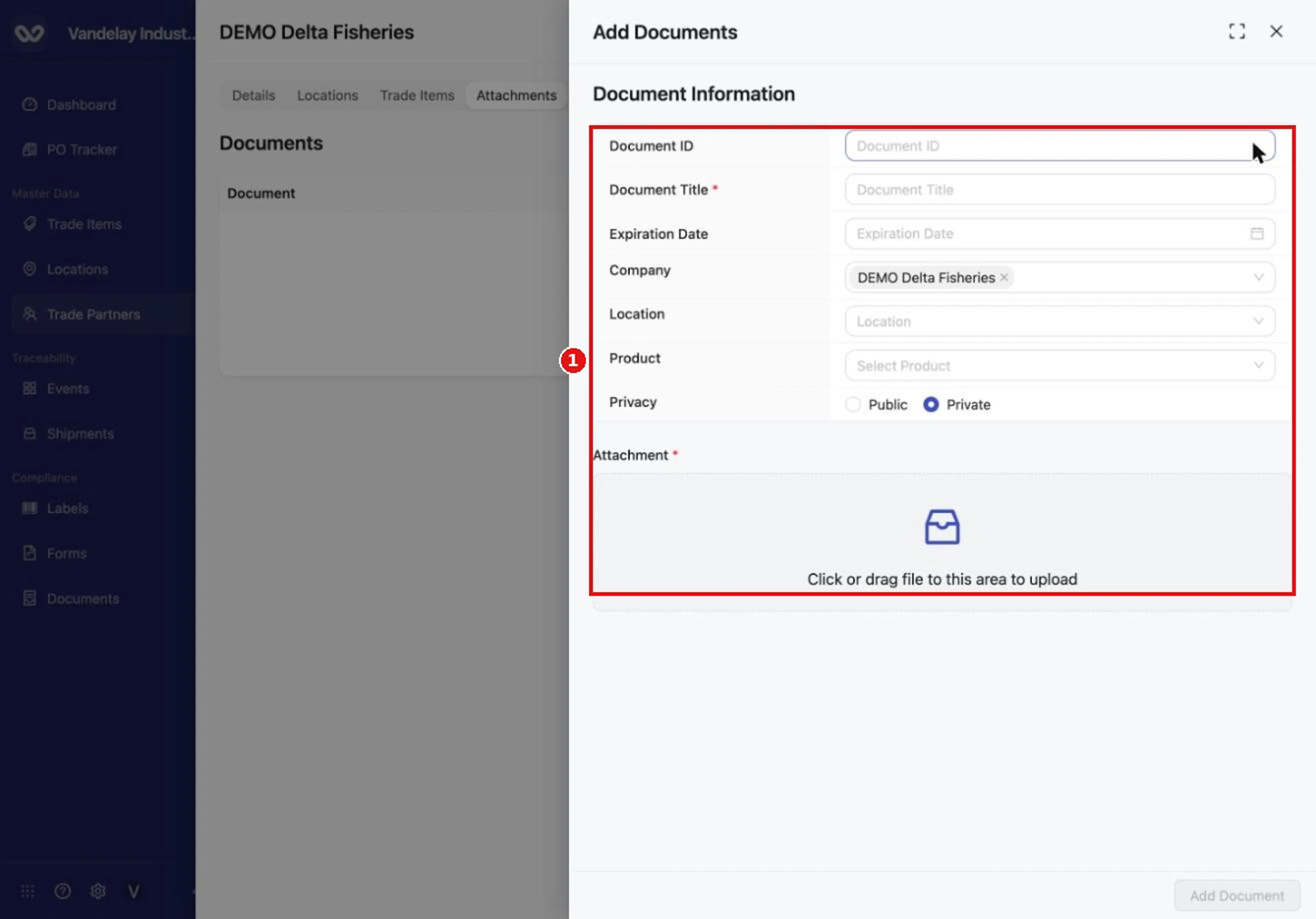
On the Attachments tab, Upload opens the Add Documents form.
Enter a Document Title
Enter a Document Title. This is required. A Document ID is optional. You can also set an Expiration Date, Company, Location, Product and Privacy.
Choose the privacy
Choose Public or Private for Privacy. Private is selected by default.
Add the file
Under Attachment, click the box or drag in a file. A preview appears.
Select Add Document
Select Add Document.
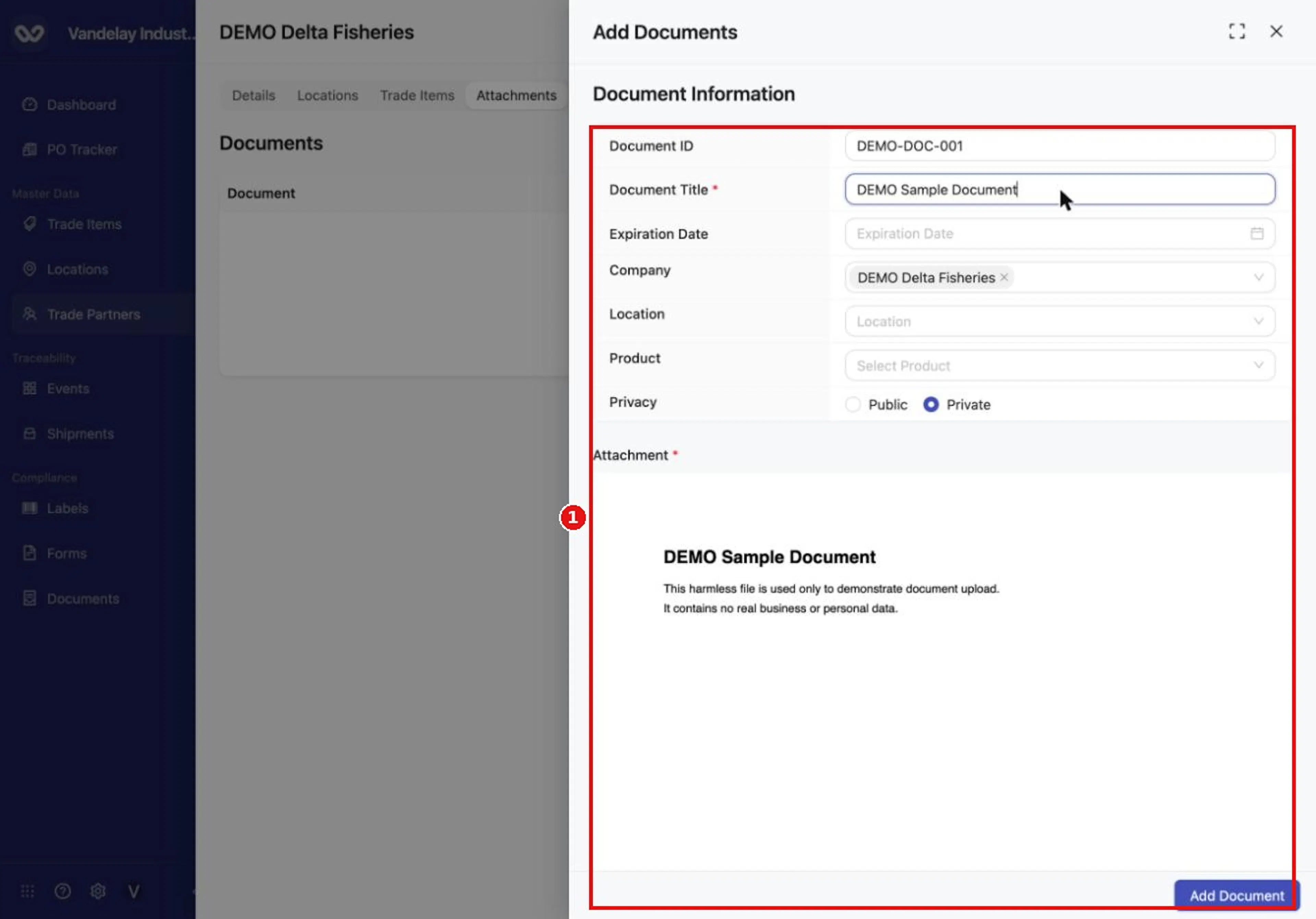
Fill in the document title, choose privacy, and attach a file. Document Title and Attachment are required.
The Company field is filled in with the Trade Partner whose drawer you opened.
Expected result
- Edits show Trade partner details saved and the new value appears in the field.
- A new alias shows Alias added and is listed in Trade Partner Aliases.
- A new document appears in the Attachments list with its title and category.
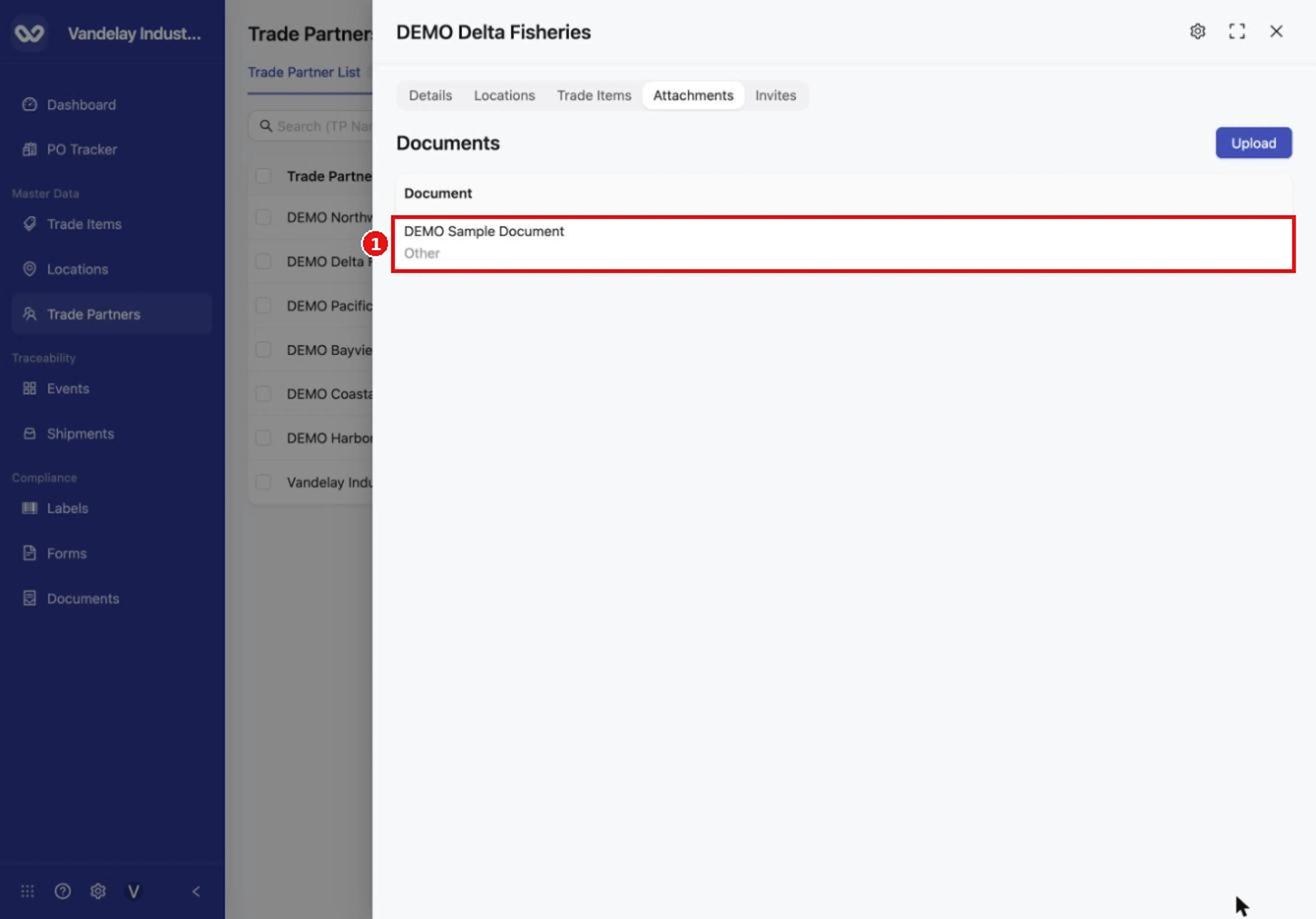
The document appears in the Attachments list.
Troubleshooting
- A value will not edit. If the Trade Partner is connected in Wholechain, its details belong to another Wholechain account and cannot be edited. Type and Wholechain ID are never editable. See Rules and restrictions.
- The name reverts after saving. Trade Partner Name is required. If you delete it and try to save, an error appears and Wholechain restores the name.
- Add Document does not complete. Document Title and Attachment are both required.
- The Attachments tab shows "No documents found". No documents have been added for this partner yet.
Field and action reference
Tabs
| Tab | Content |
|---|---|
| Details | Basic Details, Associated Trade Item Groups, Trade Partner Aliases |
| Locations | The partner's Locations with an Add Location button. Each row shows the identifier and name, and the address (or the identifier alone when there is no address), with a ... menu. |
| Trade Items | Trade Items linked to the partner (columns Trade Item, Trade Item Identifier, Trade Item Group) |
| Attachments | Documents list with an Upload button |
| Invites | The invitation form for this partner |
The drawer header shows the name and the icons for maximize and close (x).
Basic Details
| Field | Req. | Editable | Values |
|---|---|---|---|
| Trade Partner Name | Yes | Yes* | Text. If you delete the name and try to save, an error appears and Wholechain restores the name. |
| Trade Partner Identifier | No | Yes* | Text. It can be removed and saved empty. |
| PGLN | No | Yes* | Valid PGLN |
| DUNS | No | Yes* | Valid DUNS number |
| Buyer / Supplier | No | Yes* | Buyer or Supplier |
| Type | No | No | Shown for information; cannot be edited |
| Wholechain ID | No | No | Assigned by Wholechain; shows a dash when empty |
* Editable unless the Trade Partner is connected in Wholechain, in which case the details belong to another Wholechain account and cannot be edited.
To change an editable value, select it. An input box opens with a check mark (save) and an x (cancel). A saved change shows Trade partner details saved.
Associated Trade Item Groups
Lists the Trade Item Groups associated with the partner. When empty it shows No data.
Trade Partner Aliases
| Item | Description |
|---|---|
| Table columns | Identifier Type, Alias, and a ... menu per row |
| Add Alias | Opens the Add Alias drawer with Manual and Bulk Upload tabs |
| Add Alias (Manual) field | Req. | Values |
|---|---|---|
| Identifier Type | Yes | External Identifier, URN, PGLN |
| Alias | Yes | The alternative identifier |
The Bulk Upload tab uses the template described in Master Data Settings (open it from the gear icon at the top of the Trade Partners page), where the accepted Alias Type values (External Identifier, PGLN, URN) are listed.
Add Documents (Attachments tab)
The Upload button opens the Add Documents drawer.
| Field | Req. | Values | Default |
|---|---|---|---|
| Document ID | No | Text | Empty |
| Document Title | Yes | Text | Empty |
| Expiration Date | No | Date | Empty |
| Company | No | A Trade Partner | The partner whose drawer is open |
| Location | No | A Location | Empty |
| Product | No | A product | Empty |
| Privacy | No | Public or Private | Private |
| Attachment | Yes | A file; a preview appears once chosen | Empty |