

Dashboard purchase order preview
Read the purchase order preview, open PO Tracker from it, and choose which purchase orders show by default.
Applies to: The purchase order preview on the Wholechain Dashboard.
Audience: Users who work with purchase orders.
Prerequisites: A signed-in Wholechain account. Purchase orders must exist in the account for rows to appear.
This section covers the Wholechain Dashboard purchase order preview: its columns, opening PO Tracker from a row, and choosing which purchase orders show by default.
At the bottom right of the Dashboard, the purchase order preview lists your purchase orders. Two tabs, Supplier POs and Customer POs, show how many purchase orders of each kind you have.
When purchase orders are present, the table has these columns:
| Column | What it shows |
|---|---|
| PO Number | The purchase order number |
| Trade Partner | The Trade Partner on the purchase order |
| Location | The Location on the purchase order |
| Status | The purchase order status |
| Last Updated | The date the purchase order was last updated |
Open PO Tracker from the preview
Select any row in the preview
Select any row in the preview. PO Tracker opens. It opens the PO Tracker list; it does not open that single purchase order.
To come back, select Dashboard in the left sidebar
To come back, select Dashboard in the left sidebar. To open PO Tracker without using the preview, use the Purchase Orders tile; see Dashboard overview and shortcuts, section Dashboard record counts and module shortcuts.
For field definitions, statuses, and purchase order workflows, see the PO Tracker documentation.
Choose which purchase orders are shown by default
The Filter button (the funnel icon at the top right of the preview) lets you choose which purchase orders the preview shows. Your choice is saved as a preference, and it decides which purchase orders the Dashboard shows each time you sign in.
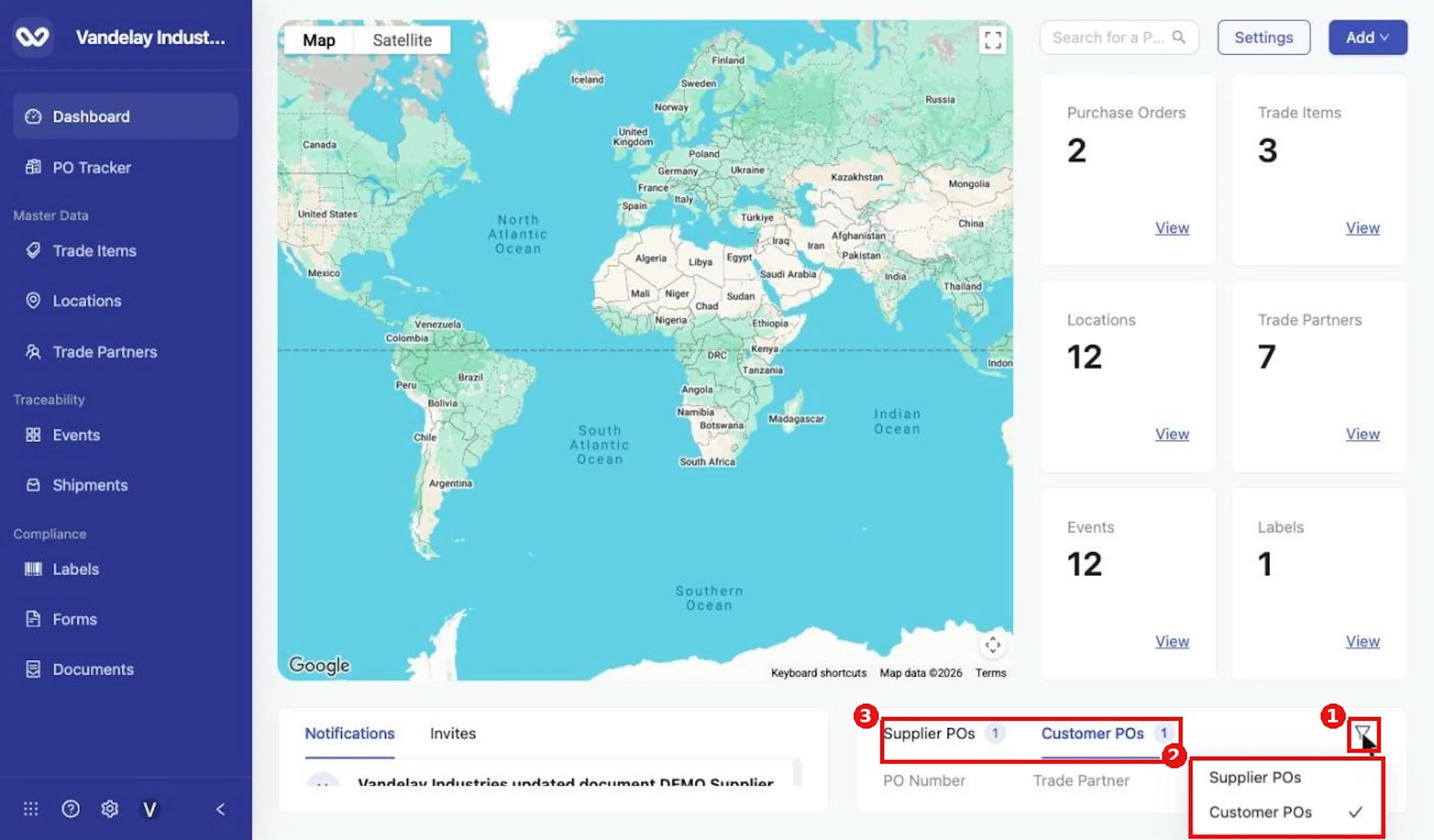
The purchase order Filter menu.
Select the Filter button
Select the Filter button.
Choose Supplier POs or Customer POs
Choose Supplier POs or Customer POs. A check mark shows the current choice, and the preview switches to match.
Your preference is saved automatically
Your preference is saved automatically. The next time you sign in, the Dashboard shows the purchase orders you chose.
To change it later, repeat these steps.
Field and action reference
Purchase order preview
Tabs and filter
| Element | Behavior |
|---|---|
| Supplier POs tab | Shows supplier purchase orders; the badge shows the count. |
| Customer POs tab | Shows customer purchase orders; the badge shows the count. |
| Filter button | Funnel icon. Opens a menu with Supplier POs and Customer POs; a check mark shows the current choice. |
Choosing an option switches the preview and saves the choice as a user preference. The saved preference controls which purchase orders the Dashboard shows when the user signs in.
Columns
| Column | Description |
|---|---|
| PO Number | Purchase order number |
| Trade Partner | Trade Partner on the purchase order |
| Location | Location on the purchase order |
| Status | Purchase order status |
| Last Updated | Date last updated |
Row action
Selecting a row opens PO Tracker. It does not open that single purchase order.