

Receive
Record that a shipment arrived at your Location by receiving it from the Inbound Shipments tab.
Applies to: Receive events, recorded from Add Events on the Events page
Audience: Anyone who takes goods in at a Location
Prerequisites: For the steps below, a shipment exists for your destination Location. Without one, use Direct Receive.
Related: Wholechain Events Overview; Shared event fields; Ship; Direct Ship and Direct Receive; Link Trace Info; Disaggregate; Shipments overview; Background: Receive Events
Purpose
Use Receive to record that a shipment arrived at your Location. A Receive closes the movement started by a Ship and puts the goods at the destination.
Before you begin
- Receiving an existing shipment. The steps below use the Inbound Shipments tab, so a shipment must exist for the destination Location.
- Receiving without an earlier Ship. A Receive does not require an earlier Ship when you post it with Direct Receive. Direct Receive lets the receiving entity log its Receive before the Ship is posted. See Receive without an earlier Ship.
- Linking with Link Trace Info. When a Receive is linked with Link Trace Info, it must be linked to a Ship event. Ship is the only event type that can be linked to a Receive, and this is how the supply chain logic is assembled. On a Receive, Link Trace Info lets you link upstream events that occurred with a date/time prior to the Direct Receive's date/time. Direct Receives show as Inbound Shipments (Shipments > Inbound), where the row menu offers Link Trace Info. See Link Trace Info.
- A shared Location can be used as the origin Location on a Receive.
- Fields shared by every event (Date, Time, Time Zone, PO Number, Business Step, Disposition, Read Point, documents) are explained in Shared event fields.
Receive an inbound shipment
Choose Receive and the Origin Location
Select Add Events, set Event Type to Receive, then open Origin Location and choose the sender.
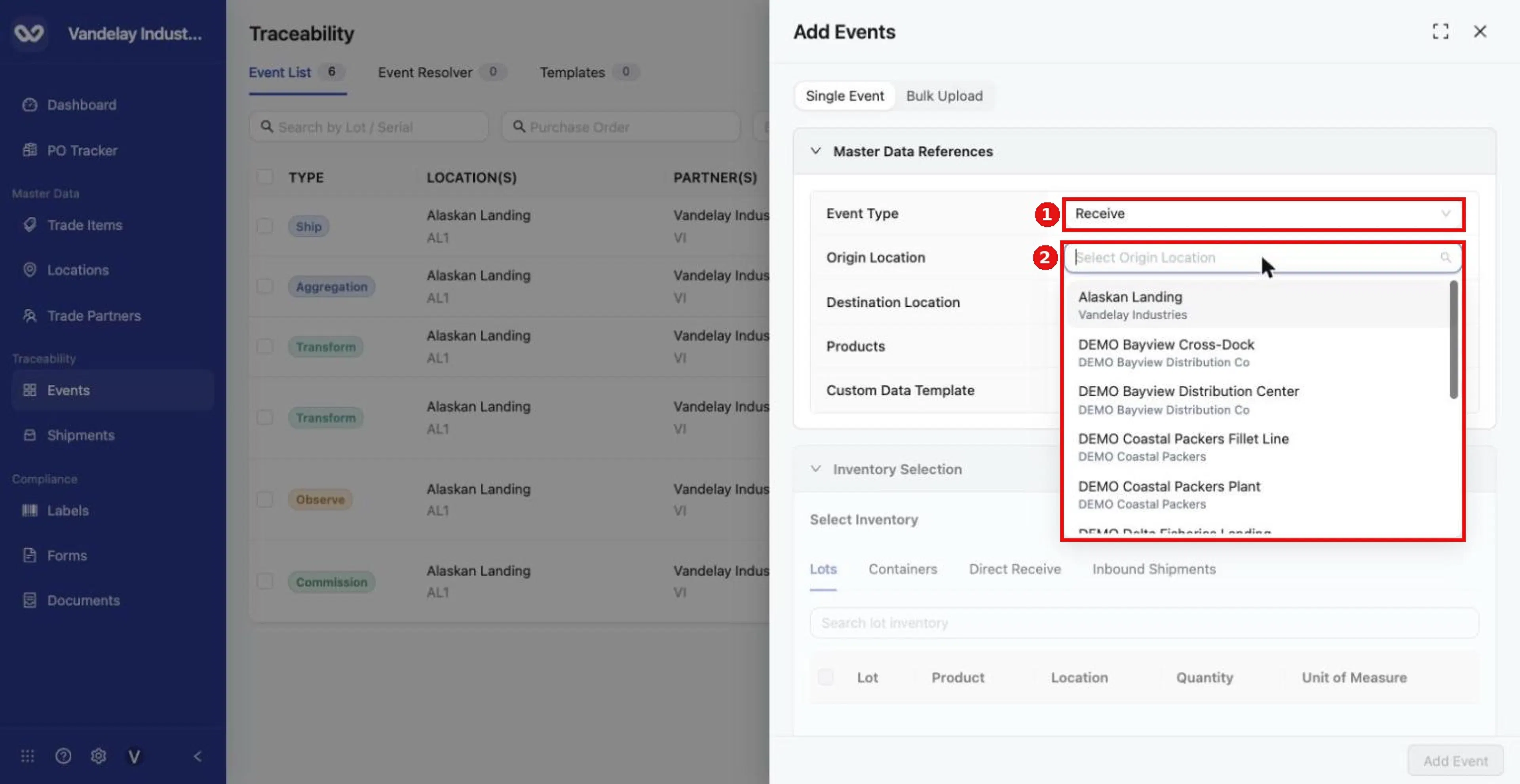
For a Receive, choose Event Type Receive and an Origin Location. The Origin Location list shows each Location with its company.
Choose the Destination Location and Products
Choose the Destination Location and Products. Choose Products first, then continue; selecting a product can clear a shipment you already ticked.
Tick the shipment on Inbound Shipments
Open the Inbound Shipments tab. Tick the shipment. Expand the row to see the container and lot.
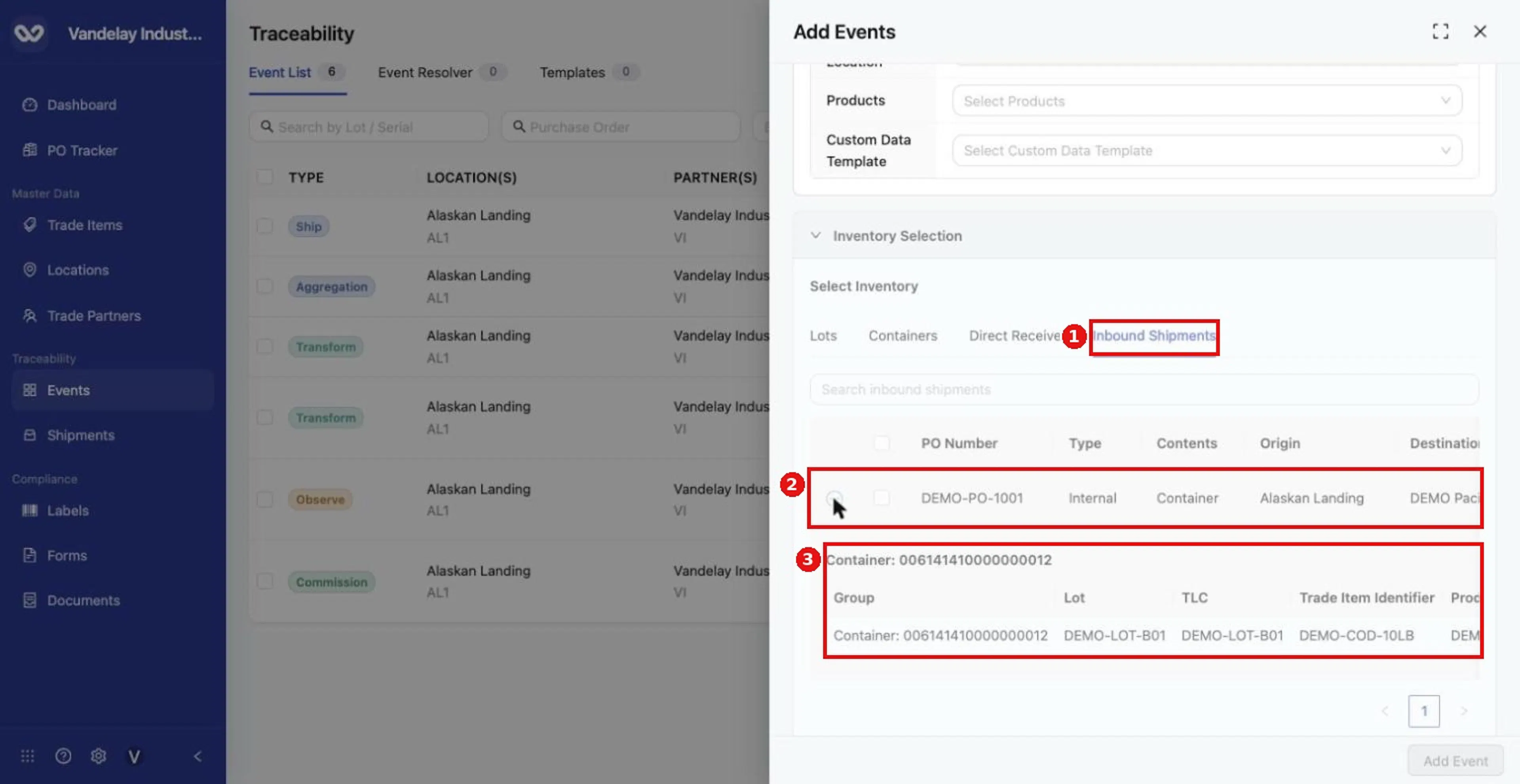
Open the Inbound Shipments tab and select the shipment to receive. The container and lot appear in the detail rows.
Complete Event Details
Complete Event Details. The form pre-fills Receiving (CBV) and In Progress (CBV). Auto disaggregation is optional.
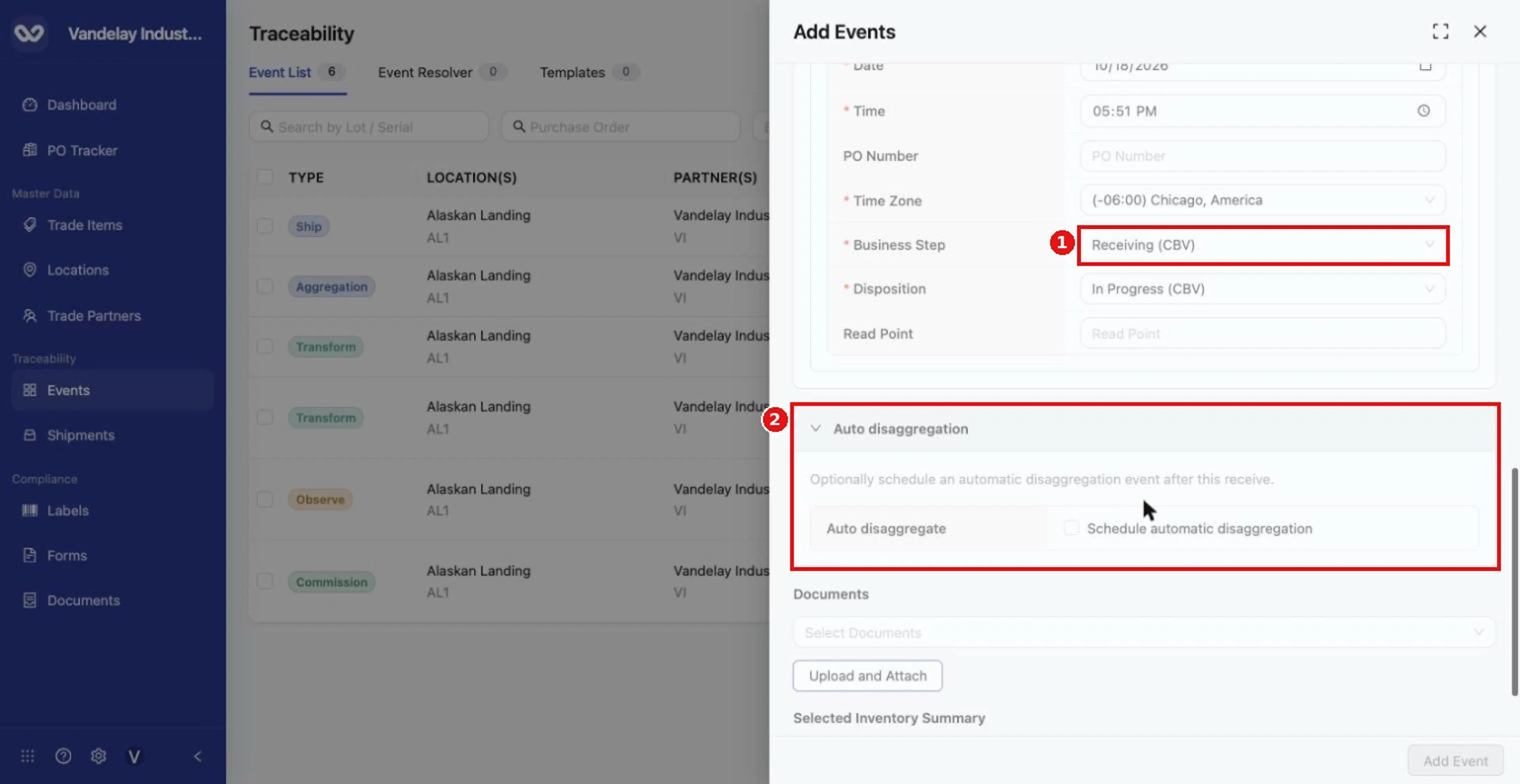
Set the event details. Auto disaggregation is optional and lets you schedule a follow-on Disaggregation.
Select Add Event
Select Add Event.
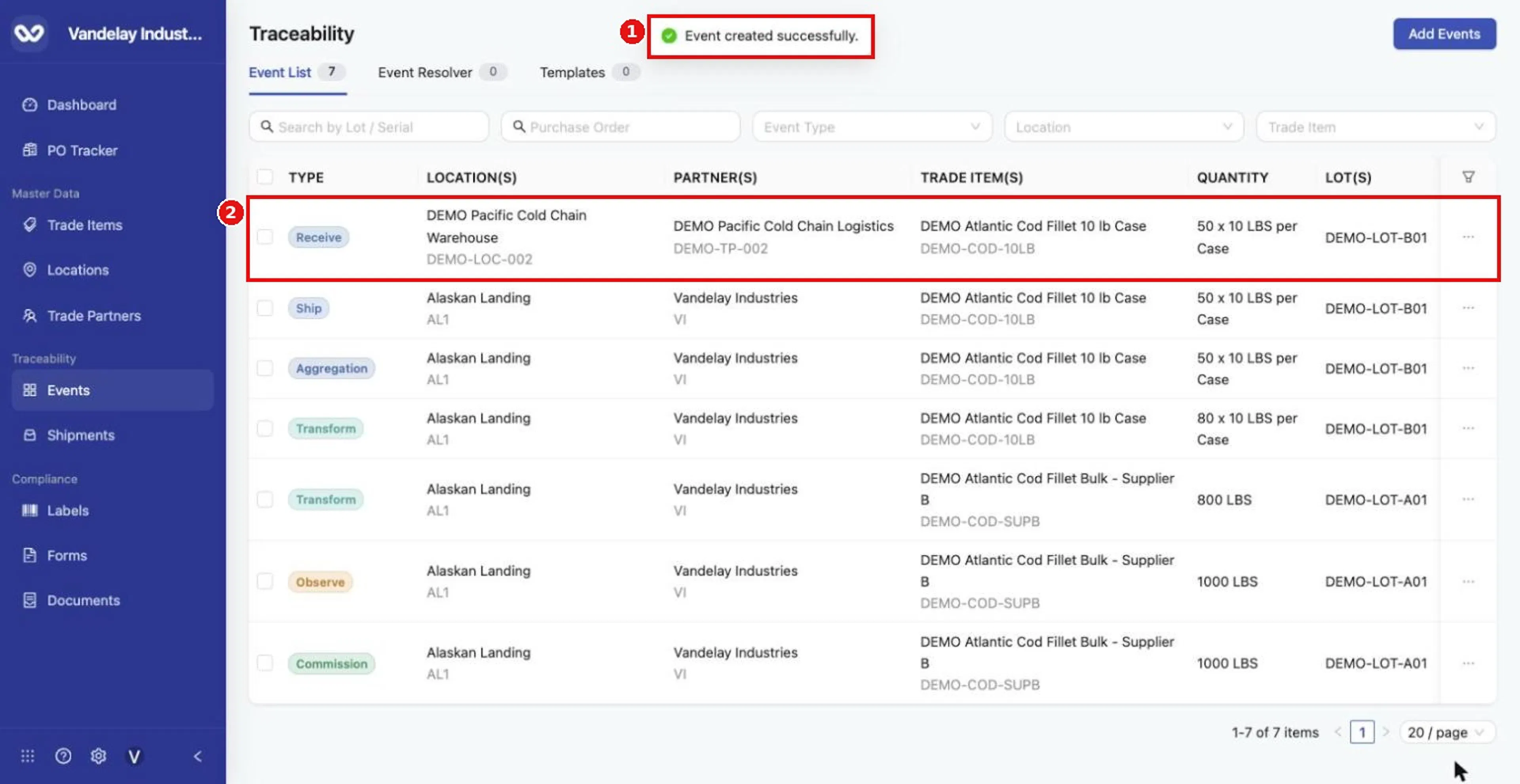
The Receive appears at the top of the Event List.
Receive without an earlier Ship
If no shipment exists for the goods yet, use the Direct Receive tab instead of Inbound Shipments. It offers Lots Only or Container + Lots and takes the same lot rows as Direct Ship. A Direct Receive appears in the Event List as a Receive row at once, and under Shipments > Inbound. The full steps are in Direct Ship and Direct Receive.
Expected result
A Receive row appears in the Event List at the destination. When a container is received through Inbound Shipments it remains a container until you disaggregate it (see Disaggregate).
Troubleshooting
- Add Event stays greyed out. Choose Products, then tick the shipment again.
- The shipment is not listed. Check the origin and destination Locations. If no shipment was posted for these goods, use Direct Receive.
- I received the wrong shipment. Use Undo Receive in the Inbound row menu. It removes the Receive event and returns the record to the Inbound Shipments tab to be received again.
- Receiving from the Shipments page: see Shipments overview.
Field and action reference
The fields every event shares, and the default Business Step and Disposition for each event type, are in Shared event fields. The details below apply to Receive only.
Defaults for Receive
Business Step: Receiving (CBV). Disposition: In Progress (CBV).
Locations for Receive
| Field | Req. | Description |
|---|---|---|
| Origin Location | Yes | The sender. The list shows each Location with its company. A shared Location can be used. |
| Destination Location | Yes | Where the goods arrive. |
Inventory selection
| Tab | Description |
|---|---|
| Lots | Offered on a Receive. |
| Containers | Offered on a Receive. |
| Direct Receive | Records a Receive with no earlier Ship: Lots Only or Container + Lots. See Direct Ship and Direct Receive. |
| Inbound Shipments | Shipments waiting to be received at the destination Location. Tick a shipment and expand the row to see its container and lot. |
Auto disaggregation
| Control | Description |
|---|---|
| Schedule automatic disaggregation (under Auto disaggregation) | Checkbox. Optional. |