

Managing templates
Wholechain Labels: managing templates. For label managers.
For: label managers.
Where this fits. Labels has three working levels: label designers lay out templates in the Design Editor, label managers link a Trade Item and set which inputs are editable in the Field Editor, and operators fill in and print from Label Entry.
Open Template Manager
Purpose. See the templates your account has created and their status.
Steps
Go to Compliance → Labels and click the Template Manager tab
Go to Compliance → Labels and click the Template Manager tab.
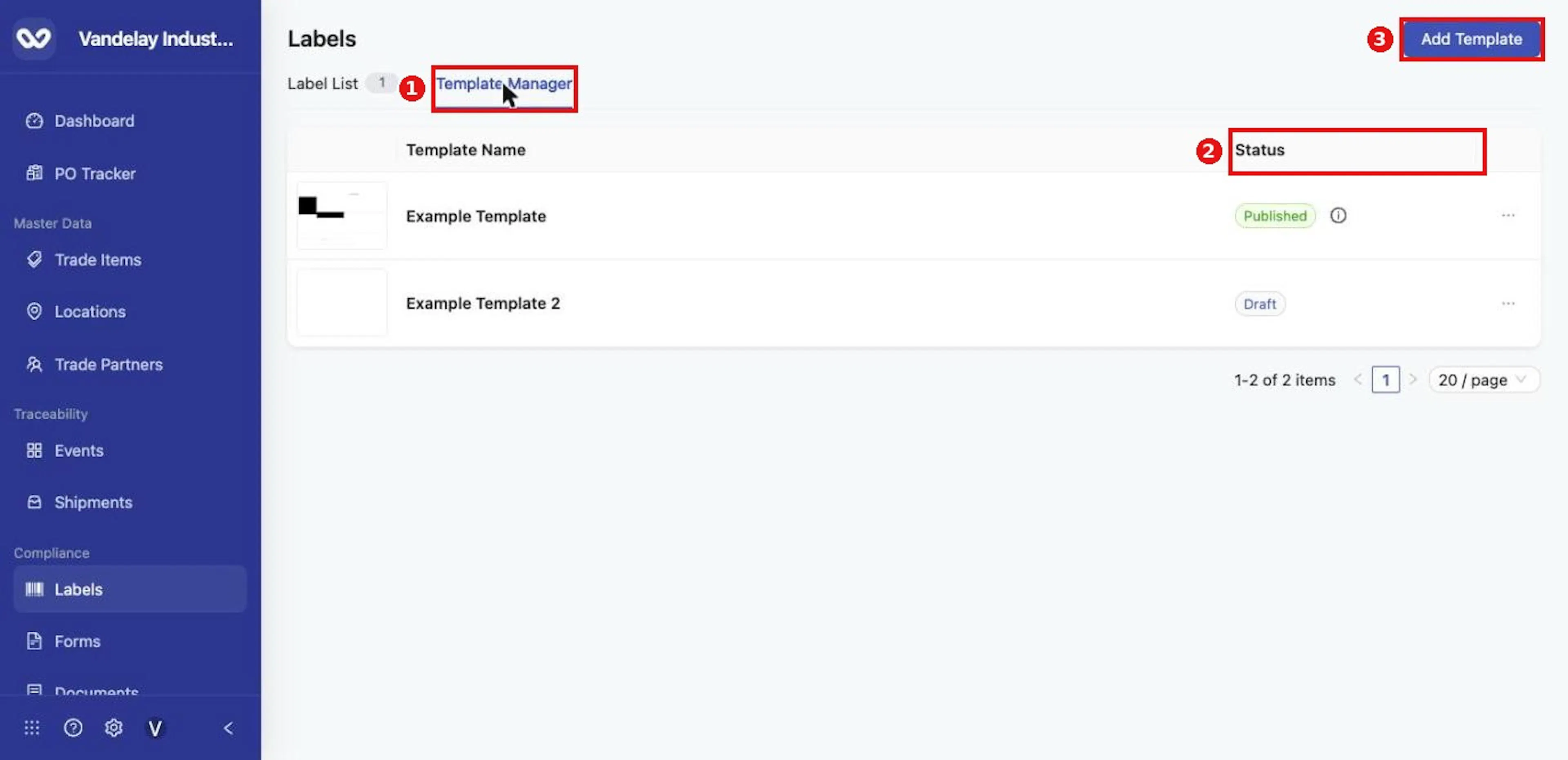
Template Manager lists your templates with their Status.
Each row shows a preview, the Template Name and the Status
Each row shows a preview, the Template Name and the Status: Draft or Published.
A published template shows an information icon when it has an unpublished edit
A published template shows an information icon when it has a newer edit that has not been published. Hover it to read There is a newer edit version that has not been published yet.
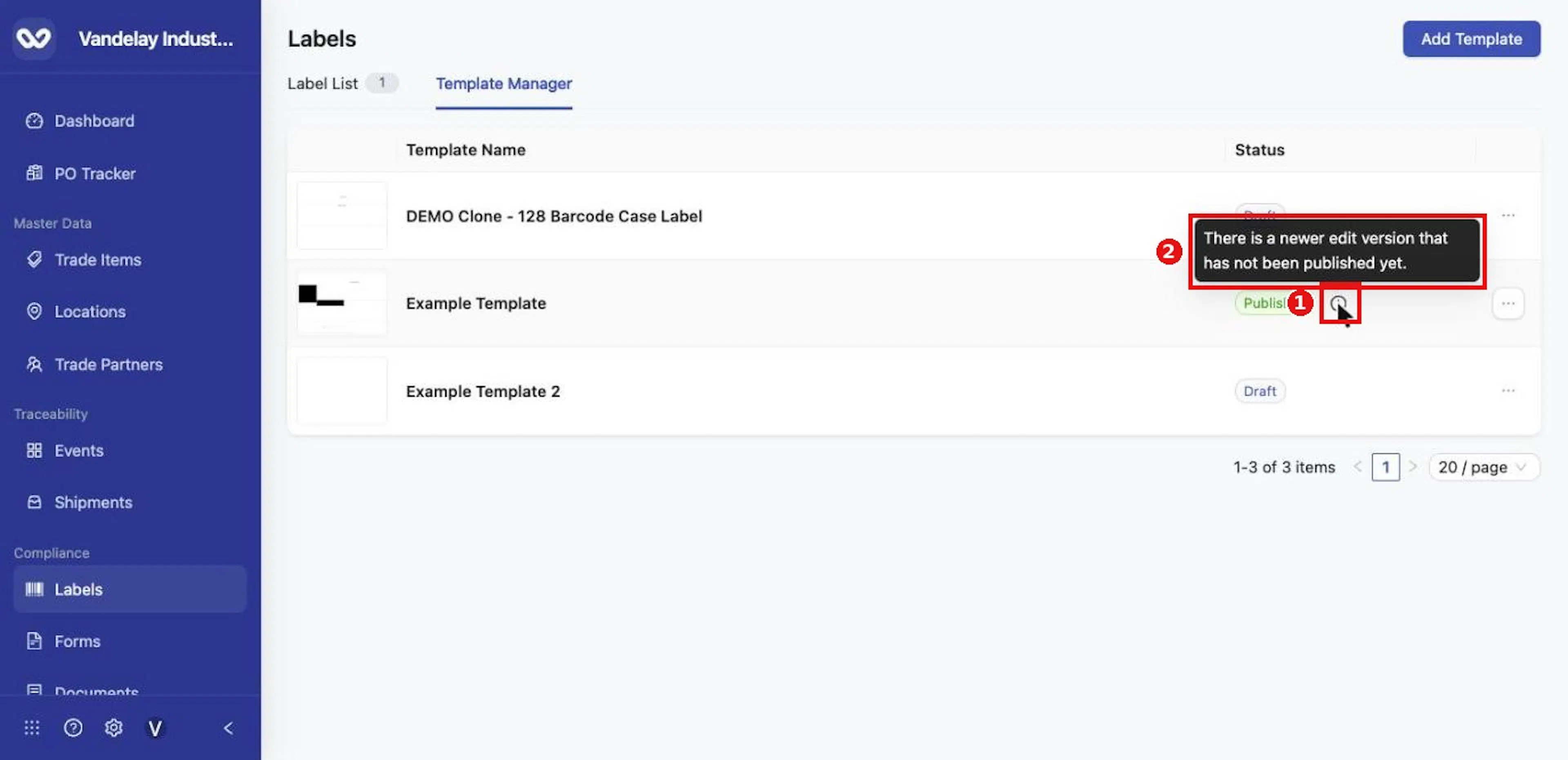
Hover the information icon to read that a newer edit has not been published yet.
Expected result. The list shows every template your account has created. Templates supplied by Wholechain are not listed here; they are offered when you add a label or clone a template.
Create a template from scratch
Purpose. Start a blank template.
Example values. Template Name: Serial Case Label.
Steps
Click Add Template at the top right
Click Add Template at the top right. The Add Template drawer opens on the Create New tab.
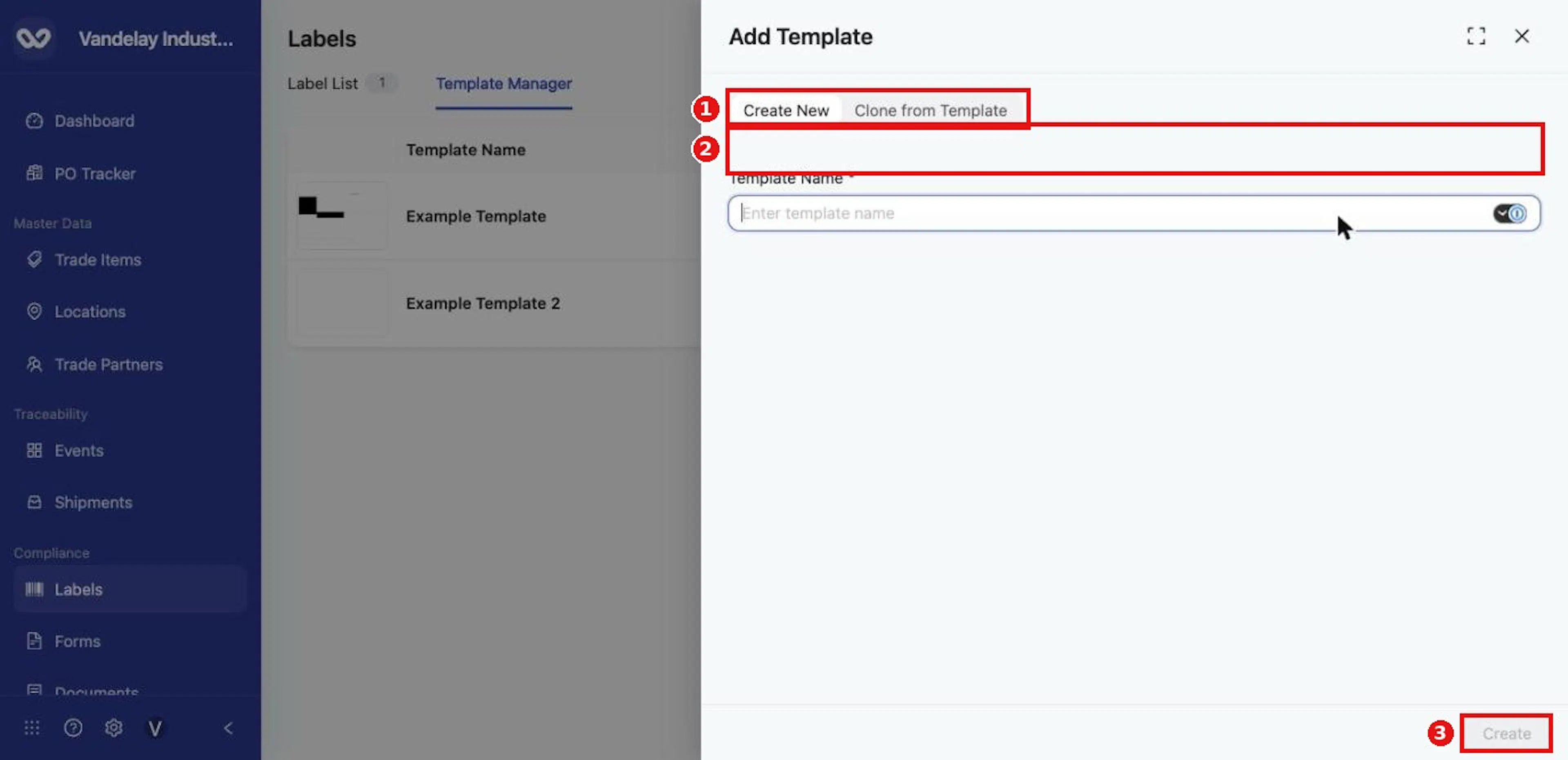
On the Create New tab, type a Template Name and click Create.
Type a Template Name
Type a Template Name.
Click Create
Click Create. The template is created as a Draft and opens in the Design Editor.
Expected result. The new template appears in Template Manager with the status Draft.
Troubleshooting
- Please enter a template name appears if you click Create with the name empty.
Clone a Wholechain template
Purpose. Start from one of Wholechain's templates and adapt it.
Example values. Template Name: 128 Barcode Case Label; System Template: 128 Barcode.
Steps
Click Add Template and open the Clone from Template tab
Click Add Template and open the Clone from Template tab.
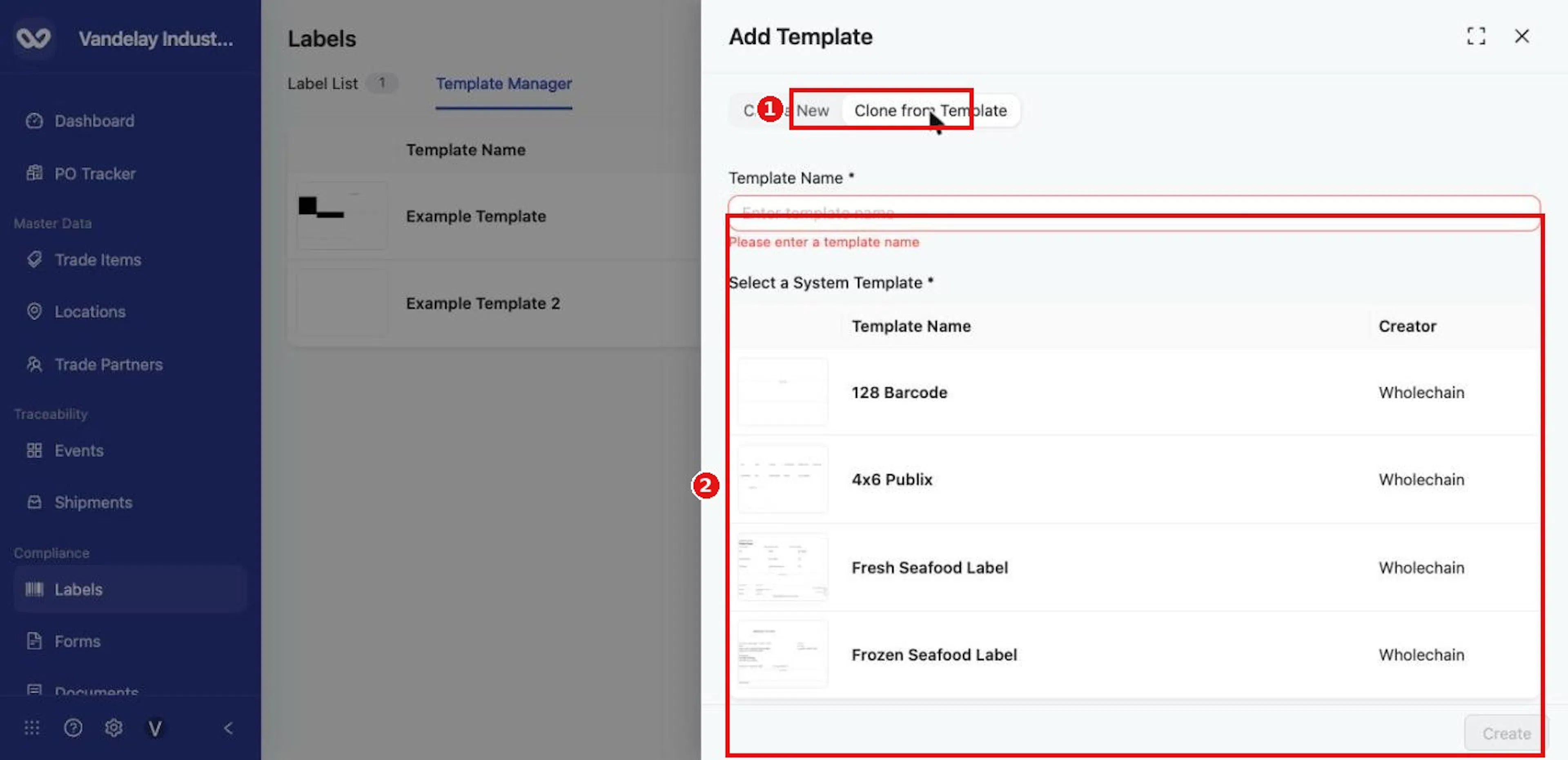
On the Clone from Template tab, choose a system template to start from.
Type a Template Name
Type a Template Name.
Under Select a System Template, click a Wholechain template
Under Select a System Template, click one of 128 Barcode, 4x6 Publix, Fresh Seafood Label or Frozen Seafood Label.
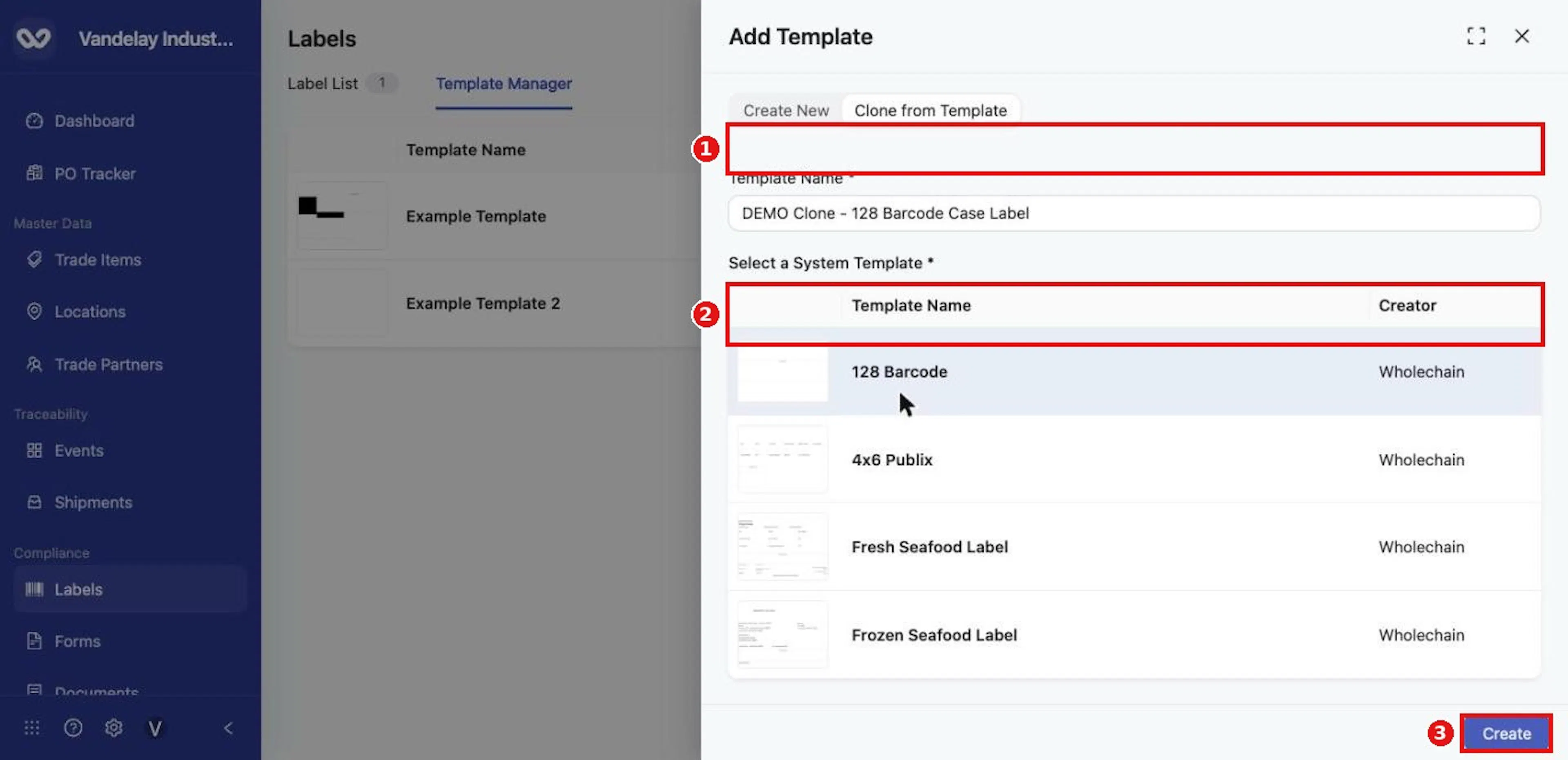
With a name and a system template chosen, click Create.
Click Create
Click Create. The clone opens in the Design Editor with the chosen layout.
Why it matters. Cloning keeps Wholechain's retailer-ready layout while letting you rename elements, change fonts and add your own details.
Expected result. The clone is listed as a Draft and is independent of the Wholechain original.
Publish a template
Purpose. Make a template available for new labels.
Steps
In Template Manager, open the row menu of a Draft template
In Template Manager, open the row menu of a Draft template. It offers Edit, Publish and Delete.
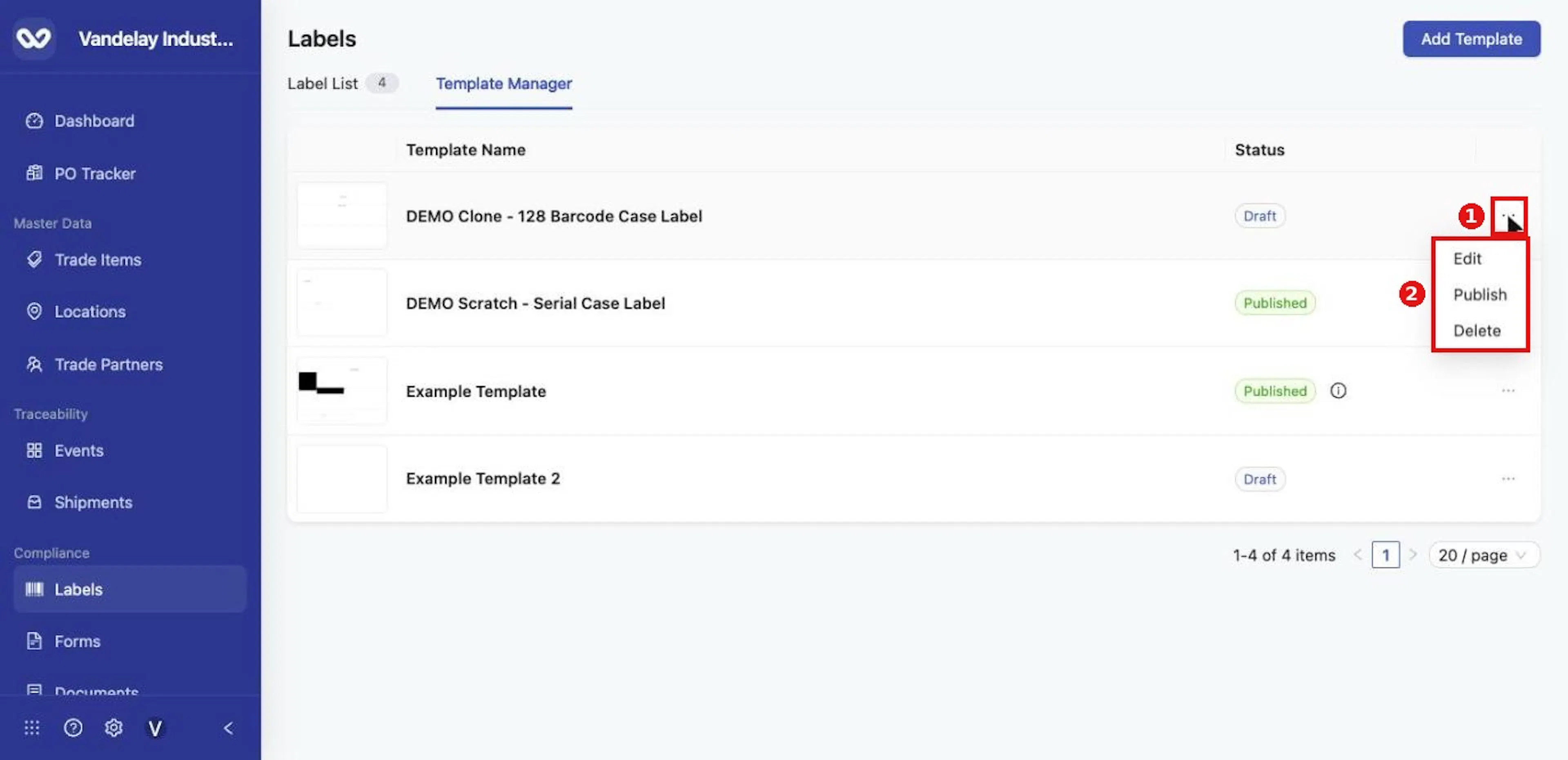
A Draft template's row menu offers Edit, Publish and Delete.
Choose Publish
Choose Publish. The message Version published successfully confirms it.
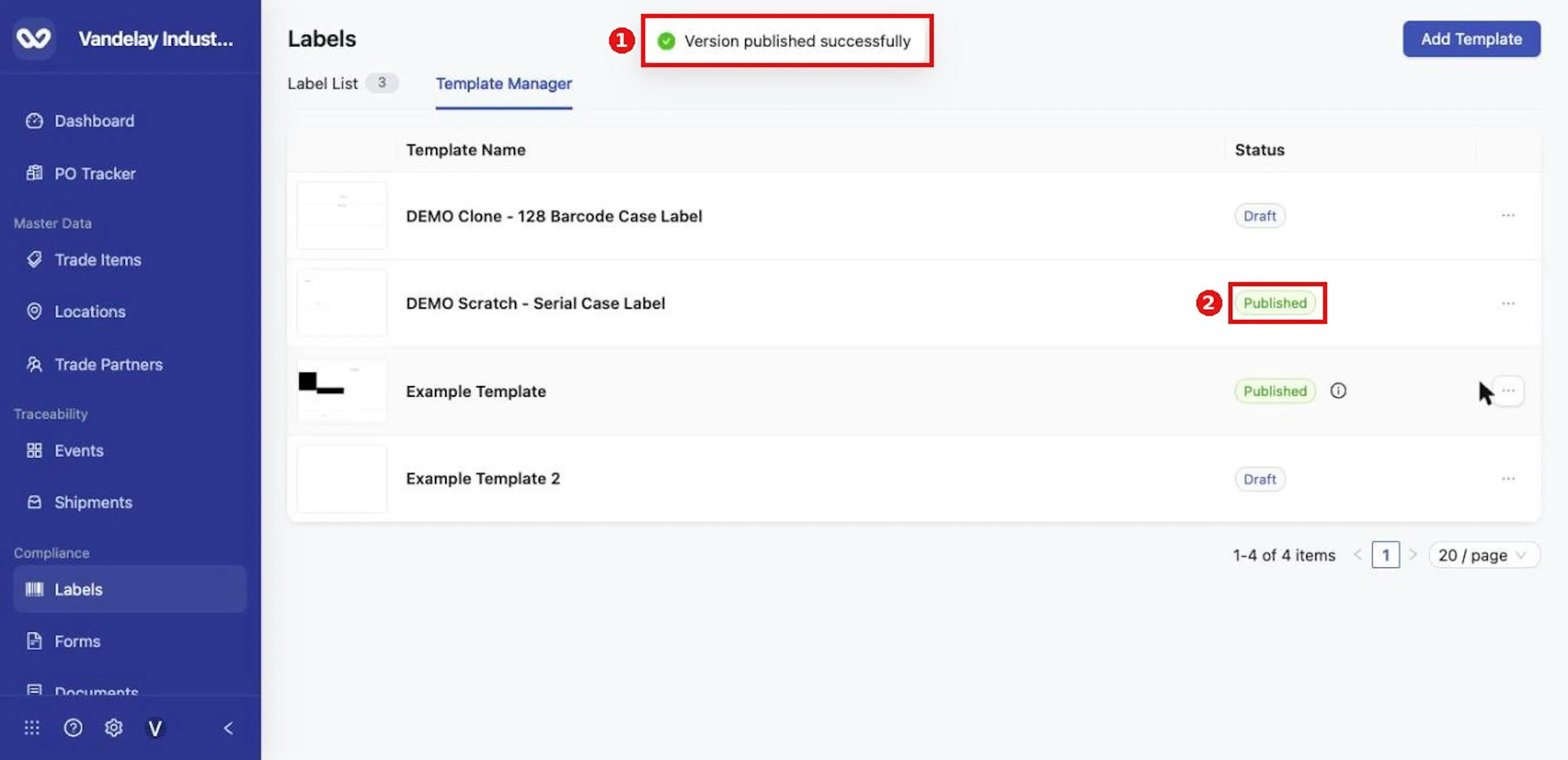
Version published successfully confirms the publish, and the Status changes to Published.
Why it matters. Only published templates appear under Select a Template when you add a label.
Expected result. The status changes to Published, and the row menu now offers Edit, View Published and Delete.
Edit a published template
Purpose. Change a template that is already in use without disturbing its published version.
Steps
Open the row menu of the published template and choose Edit
Open the row menu of the published template and choose Edit. A new edit version opens in the Design Editor.
Make your changes and close the editor
Make your changes and close the editor.
Back in Template Manager, check the information icon and the Publish option
Back in Template Manager, the row shows the information icon, and the menu offers Publish.
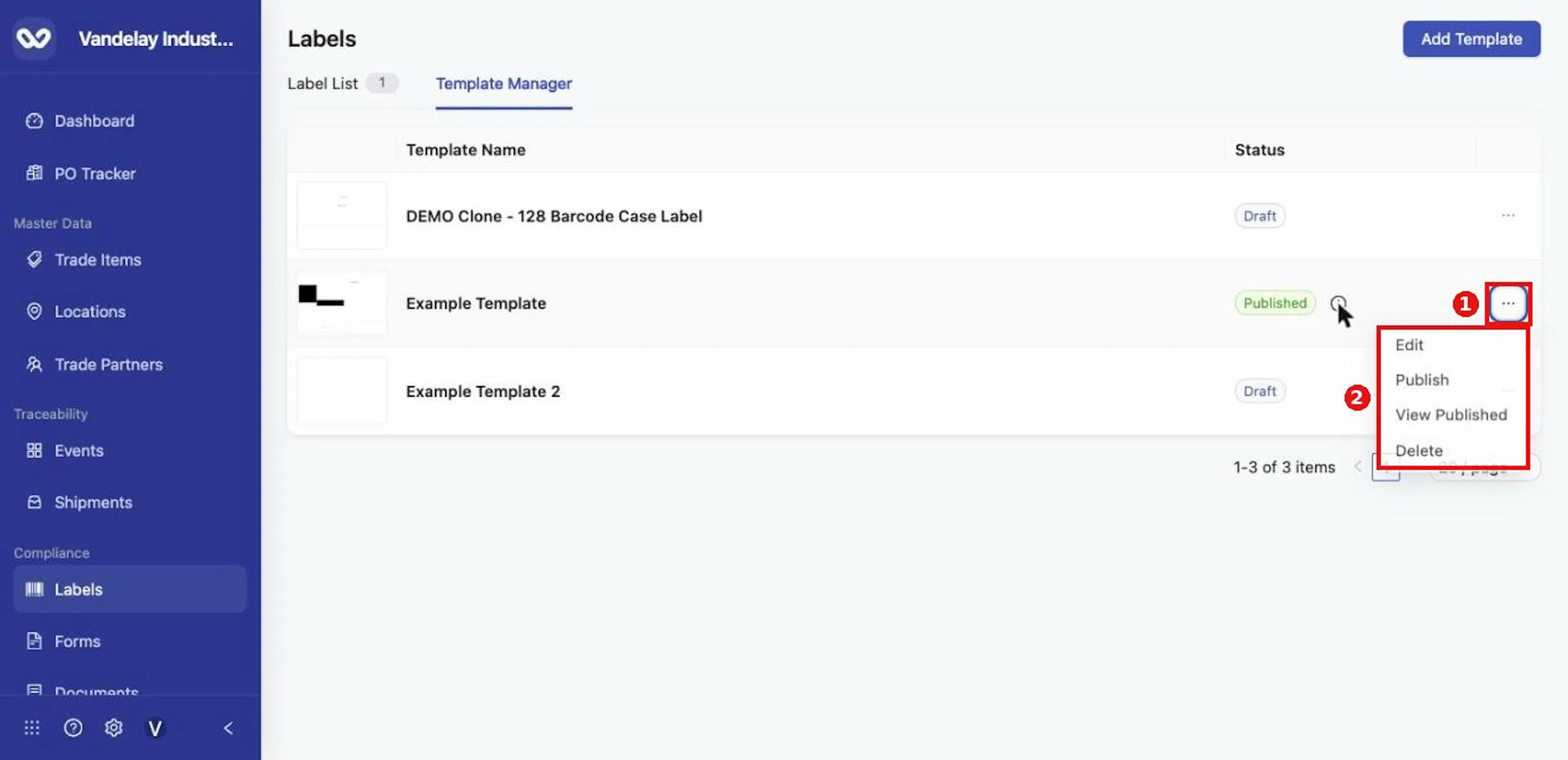
A published template with a newer edit offers Edit, Publish, View Published and Delete.
Choose Publish when the new version is ready, or View Published
Choose Publish when the new version is ready, or View Published to see the version currently in use.
Why it matters. Labels you already created from your template keep their layout; publishing a new version changes only labels created afterwards. Labels made from a Wholechain template are updated when Wholechain updates that template.
Expected result. The information icon disappears after you publish.
Delete a template
Purpose. Remove a template you no longer need.
Steps
Open the row menu and choose Delete
Open the row menu and choose Delete.
In the dialog, type the template's name to confirm
In the dialog, type the template's name under Type the template name to confirm. The Delete button stays unavailable until the name matches.
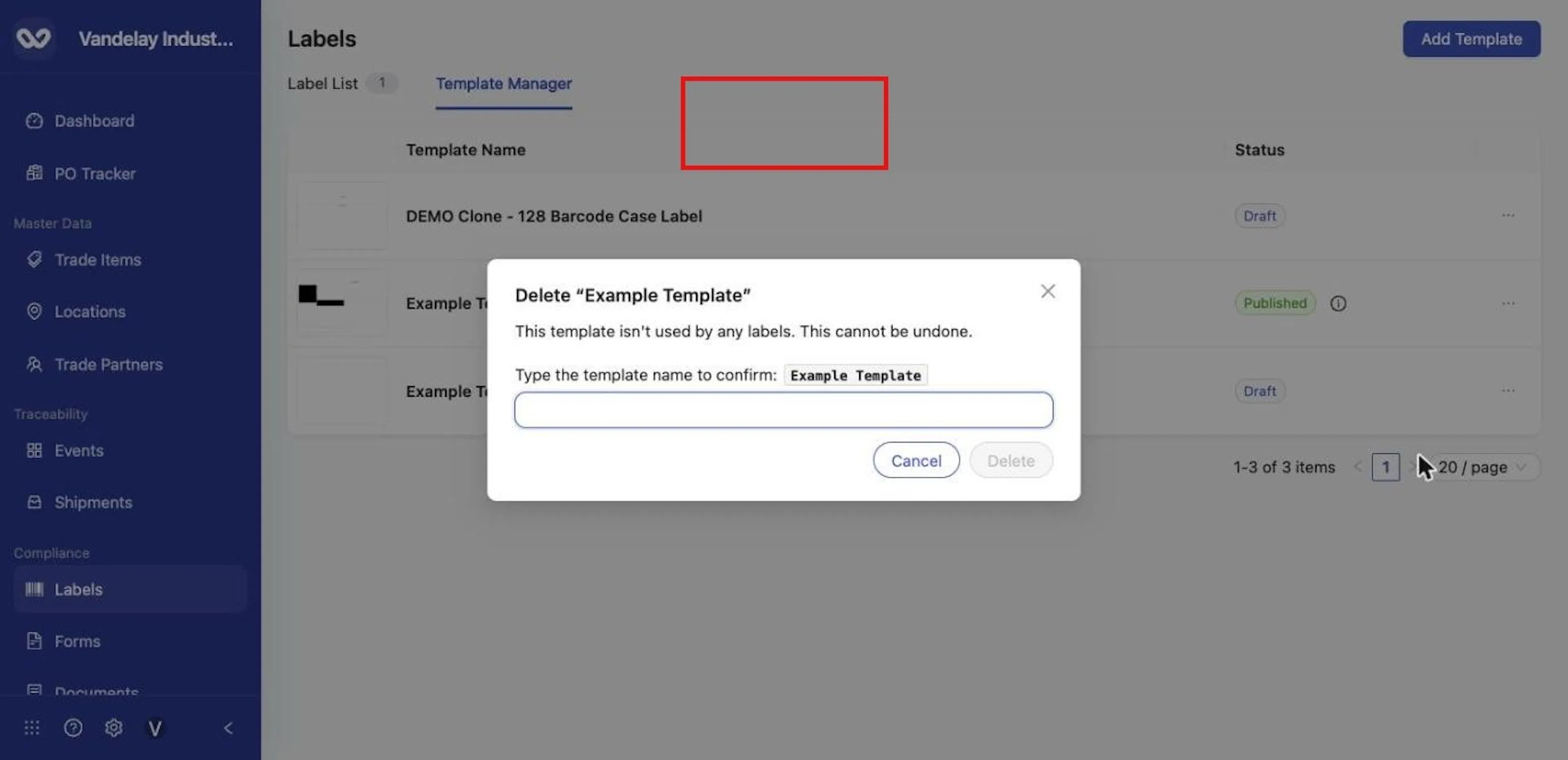
Type the template name to confirm. Delete stays unavailable until it matches.
Click Delete, or Cancel to keep the template
Click Delete, or Cancel to keep the template.
Expected result. The template is removed from Template Manager. This cannot be undone.
Field and action reference
Template Manager
Table columns
| Column | Description |
|---|---|
| Preview | Thumbnail of the template. |
| Template Name | The template name. |
| Status | Draft or Published. A Published template shows an information icon when it has a newer edit that has not been published (tooltip: There is a newer edit version that has not been published yet.). |
Row actions
| Action | Shown when | What it does |
|---|---|---|
| Edit | Always | Opens the Design Editor. For a published template this opens a new editable version. |
| Publish | Draft templates, and published templates with an unpublished edit | Publishes the current edit version. A message reads Version published successfully. |
| View Published | Published templates | Shows the published version. |
| Delete | Always | Asks you to type the template's name to confirm (see Messages). |
Only templates created in your account are listed here. Wholechain-supplied templates are available to choose when you add a label or clone a template.
Add Template drawer
Add Template at the top right opens the drawer. The expand icon enlarges it.
| Tab | Field | Req. | Values and validation |
|---|---|---|---|
| Create New | Template Name | Yes | Any name. If empty, the message Please enter a template name appears. |
| Clone from Template | Template Name | Yes | As above. |
| Clone from Template | Select a System Template | Yes | Choose one row. Columns: preview, Template Name, Creator. The Wholechain templates are 128 Barcode, 4x6 Publix, Fresh Seafood Label and Frozen Seafood Label. |
Create (button) makes the template as a Draft and opens it in the Design Editor. A cloned template starts with the chosen template's layout.
Template lifecycle
| Stage | Description |
|---|---|
| Draft | New templates start here. Draft templates cannot be chosen when adding a label. |
| Published | Published templates appear in the Select a Template table of the Add Label drawer. |
| Editing a published template | Edit opens a new editable version. The information icon in Status shows that a newer edit has not been published; Publish publishes it. Publishing changes to your own template does not change labels already created from it. |
| Wholechain templates | Labels created from a Wholechain template are updated when Wholechain updates that template. |