

Designing templates
Wholechain Labels: designing templates. For label designers.
For: label designers.
Where this fits. Labels has three working levels: label designers lay out templates in the Design Editor, label managers link a Trade Item and set which inputs are editable in the Field Editor, and operators fill in and print from Label Entry.
Open the Design Editor
Purpose. Lay out the elements of a template and decide where each element's value comes from.
Before you begin. Create the template in Template Manager (see Managing templates). A new template opens in the Design Editor straight away; for an existing one, choose Edit from its row menu.
Steps
In Template Manager, open the row menu of the template and choose Edit
In Template Manager, open the row menu of the template and choose Edit.
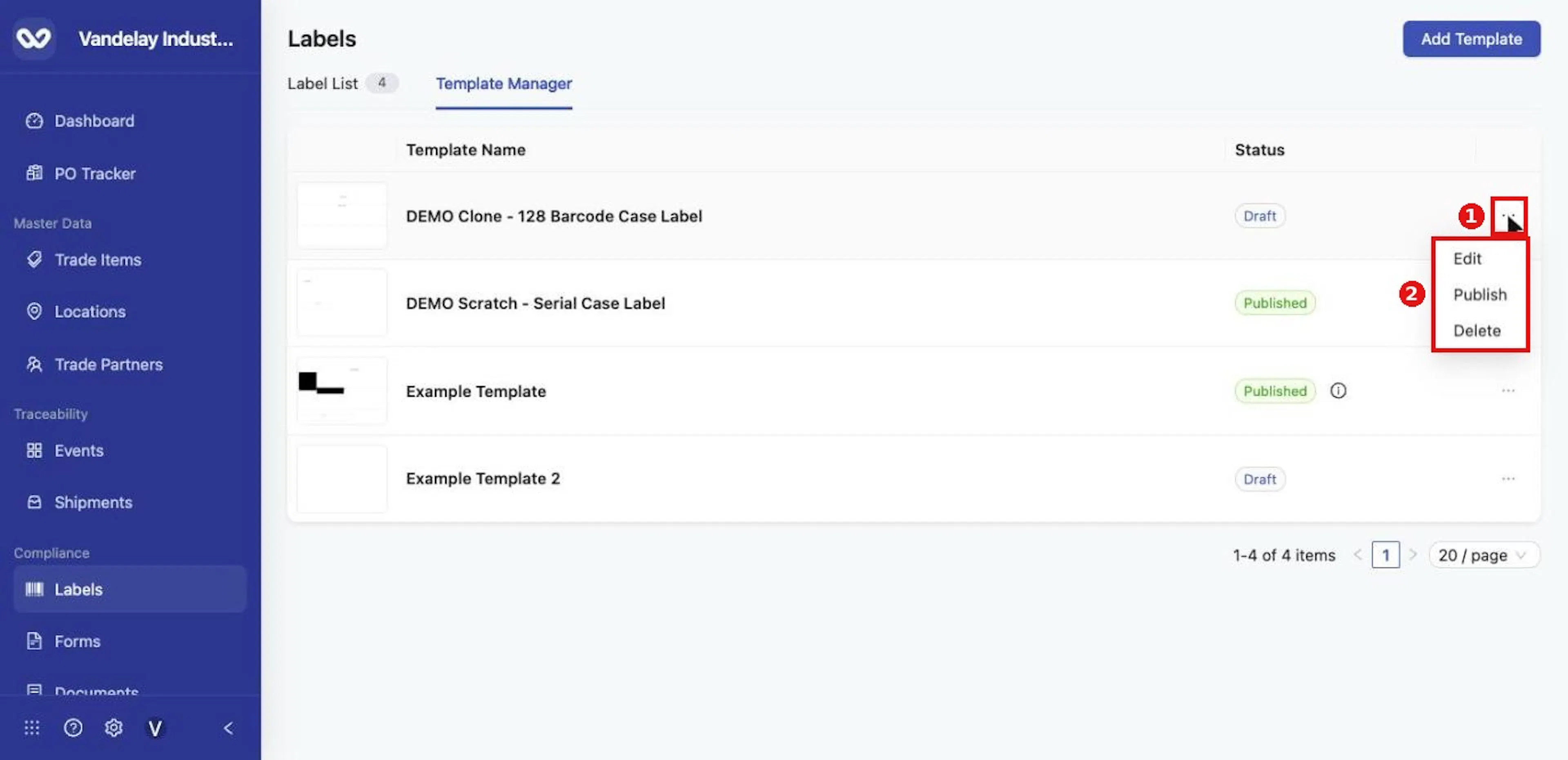
A Draft template's row menu offers Edit, Publish and Delete.
The Design Editor opens full screen
The Design Editor opens full screen. The canvas is on the left; the panel on the right holds the template settings and the element list.
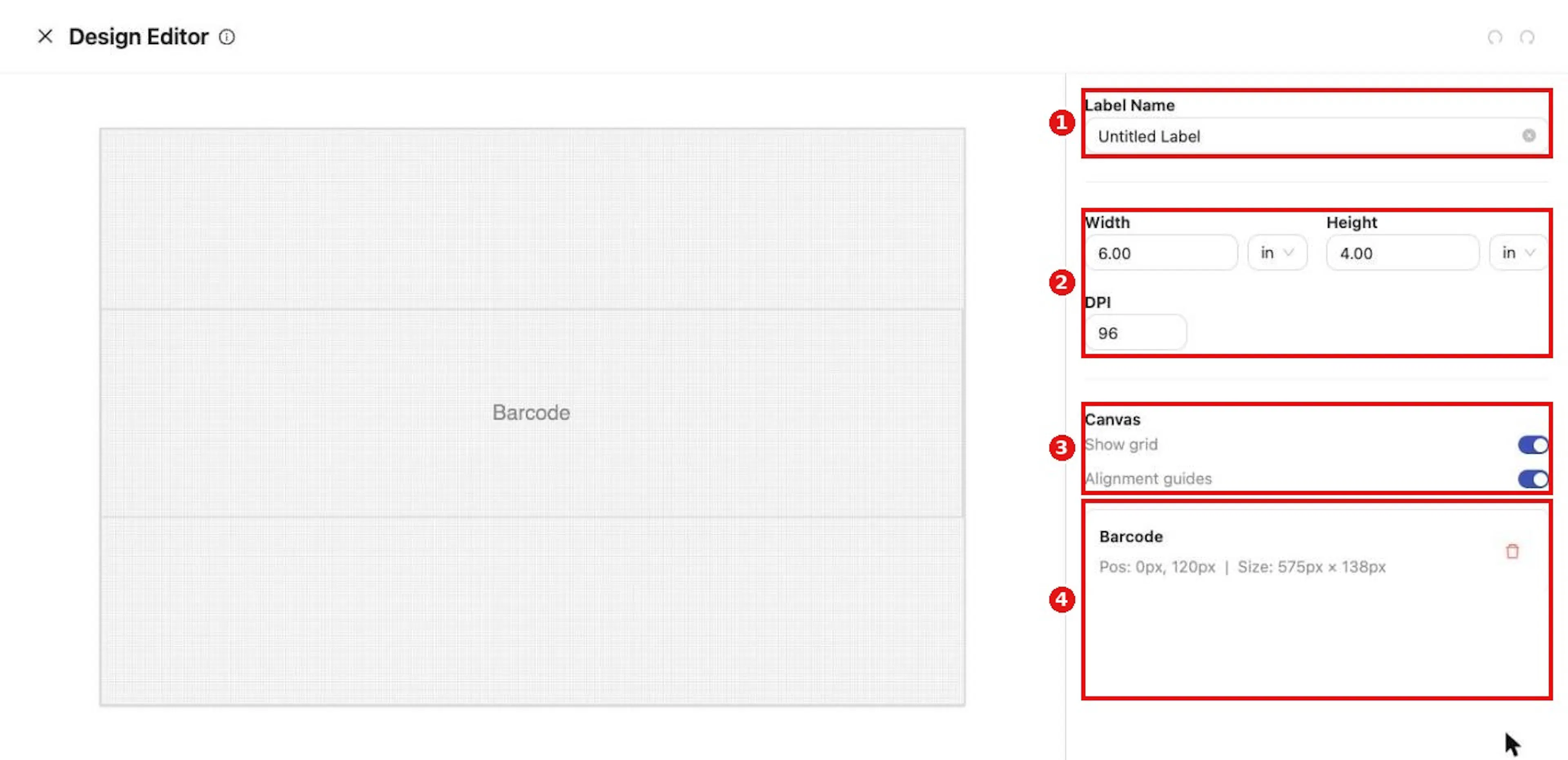
The Design Editor: canvas on the left, template settings and element list on the right.
Set the template size and the print resolution
Set the template size with Width, Height and their unit drop-downs, and the print resolution with DPI. The defaults are 6.00 in × 4.00 in at 96 DPI.
Use Show grid and Alignment guides to help you place elements
Use Show grid and Alignment guides to help you place elements. Both are on by default.
Close the editor with the X beside Design Editor
Close the editor with the X beside Design Editor. Your changes are saved as you work, and the message Label updated successfully confirms the save.
Why it matters. Size and DPI decide how the label prints; set them before placing elements so the layout matches the final label.
Expected result. The template keeps its layout and settings, and returns you to Template Manager.
Troubleshooting
- Label Name in the panel is a display name for the editor and does not rename the template. Rename a template from Template Manager.
- Undo and Redo are at the upper right.
Add elements
Purpose. Place the pieces of the label: text, images, shapes, barcodes, GS1 AI displays, voice pick codes and grids.
Steps
Right-click an empty part of the canvas
Right-click an empty part of the canvas.
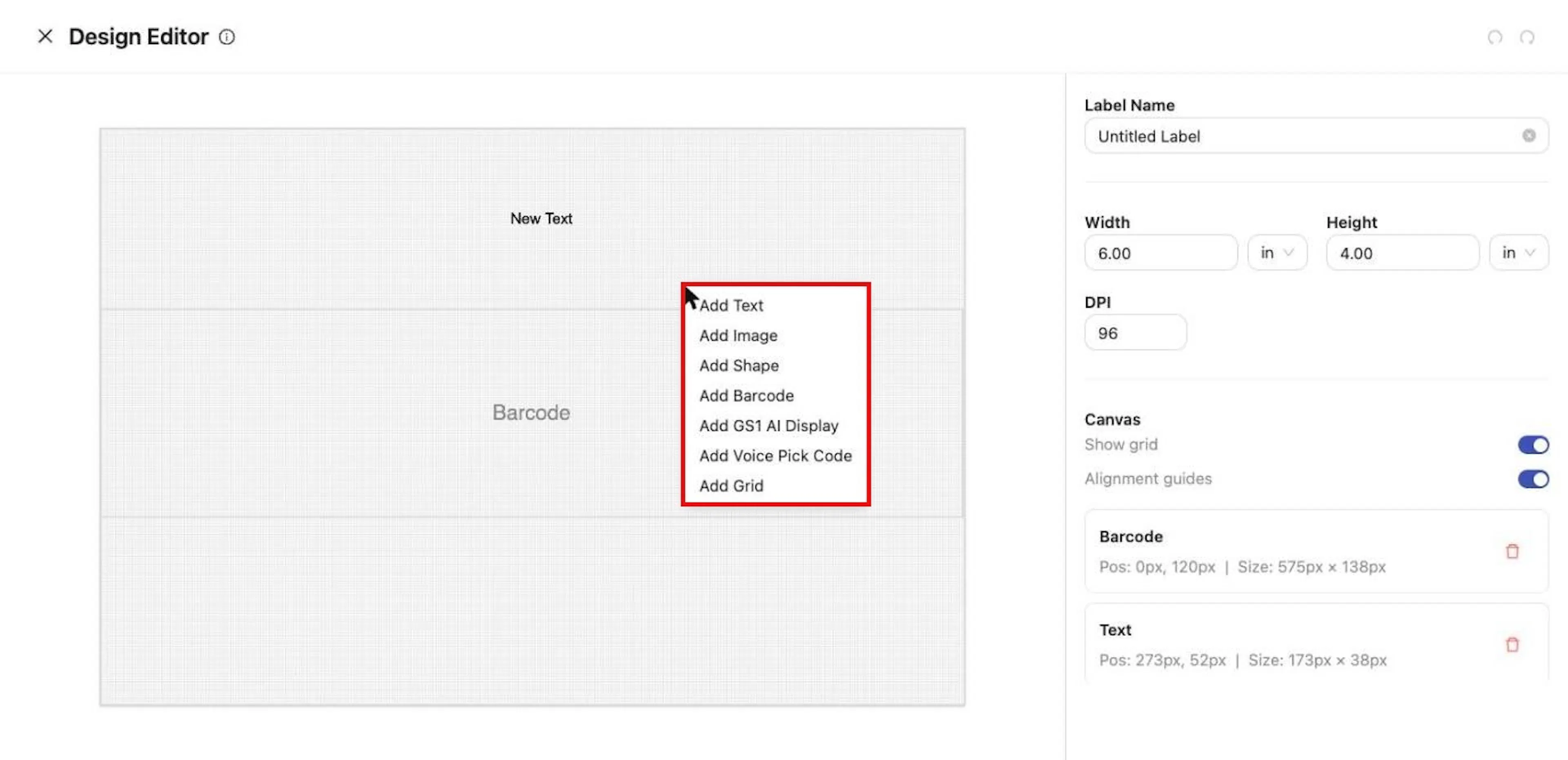
Right-click the canvas and choose an element type to add.
Choose the type of element to add
Choose one of Add Text, Add Image, Add Shape, Add Barcode, Add GS1 AI Display, Add Voice Pick Code or Add Grid. The new element appears where you clicked.
Drag the element to position it and drag its handles to resize it
Drag the element to position it, and drag its handles to resize it.
Click an element to open its panel
Click an element to open its panel. The panel starts with <- Back, Name and Rotation, then the element's own settings.
Give every element a clear Name
Give every element a clear Name, such as Lot Code or Case Barcode. The name is what label managers and operators see beside each input later.
Why it matters. Named elements make the Field Editor and Label Entry self-explanatory. Unnamed elements show only their type, such as Text Element.
Expected result. The element is listed in the panel with its name, type, position and size. Use the trash icon beside an entry to remove it.
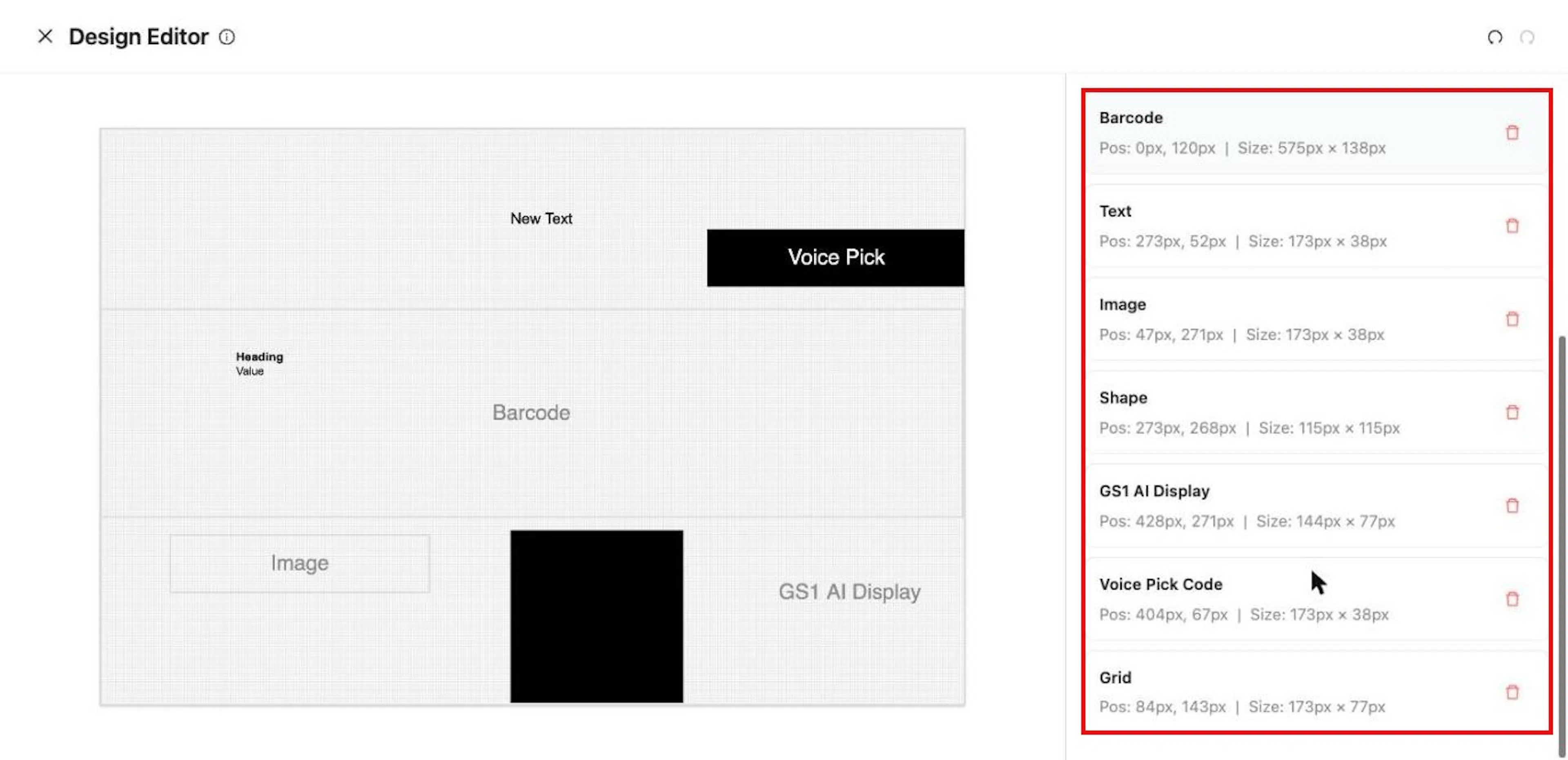
The element list shows every element's name, type, position and size, with a trash icon to remove it.
Set where a text value comes from
Purpose. Tell a text element whether to show an AI value, a Trade Item value or fixed text.
Example values. A product name line uses KDE Fallback → Product Name. A lot line uses GS1 Primary → 10 - BATCH/LOT, with the value entered later by an operator.
Steps
Click the text element
Click the text element. The Content tab opens and shows which source is in use, for example Currently using Manual Fallback.
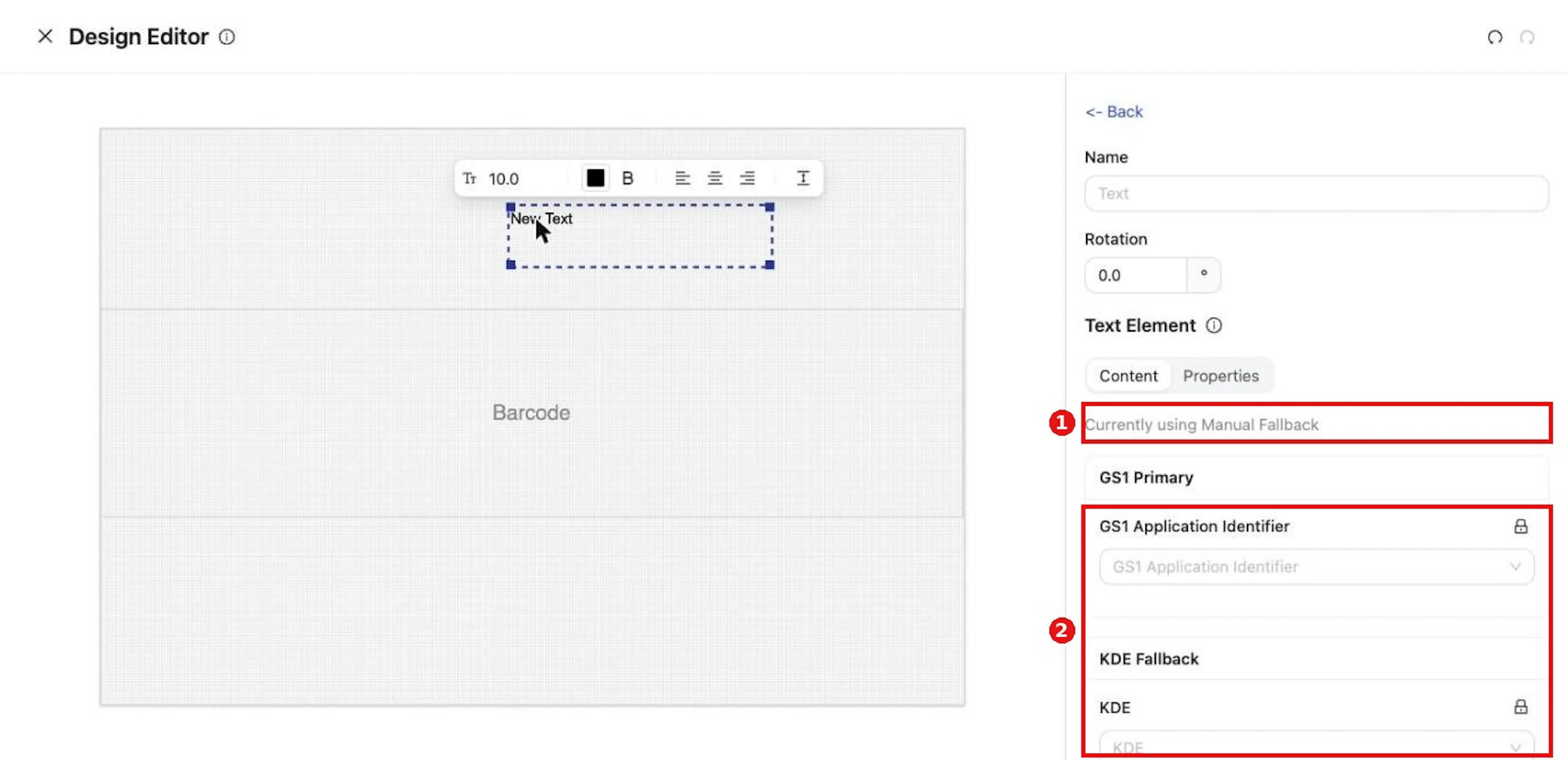
A text element's Content tab shows which source is in use and the three value sources.
For an AI value, choose a GS1 Application Identifier
For an AI value, choose the identifier under GS1 Primary → GS1 Application Identifier, for example 10 - BATCH/LOT or 21 - SERIAL. Enter a fixed value in GS1 Value Input only if it never changes; otherwise leave it for the Field Editor or Label Entry.
For a Trade Item value, choose it under KDE Fallback → KDE
For a Trade Item value, choose it under KDE Fallback → KDE: Product Name, Product Description, PLU, UPC, GTIN, Unit of Measurement, Unit Quantity, Unit Descriptor, External Identifier, Product URN, or one of your custom attributes.
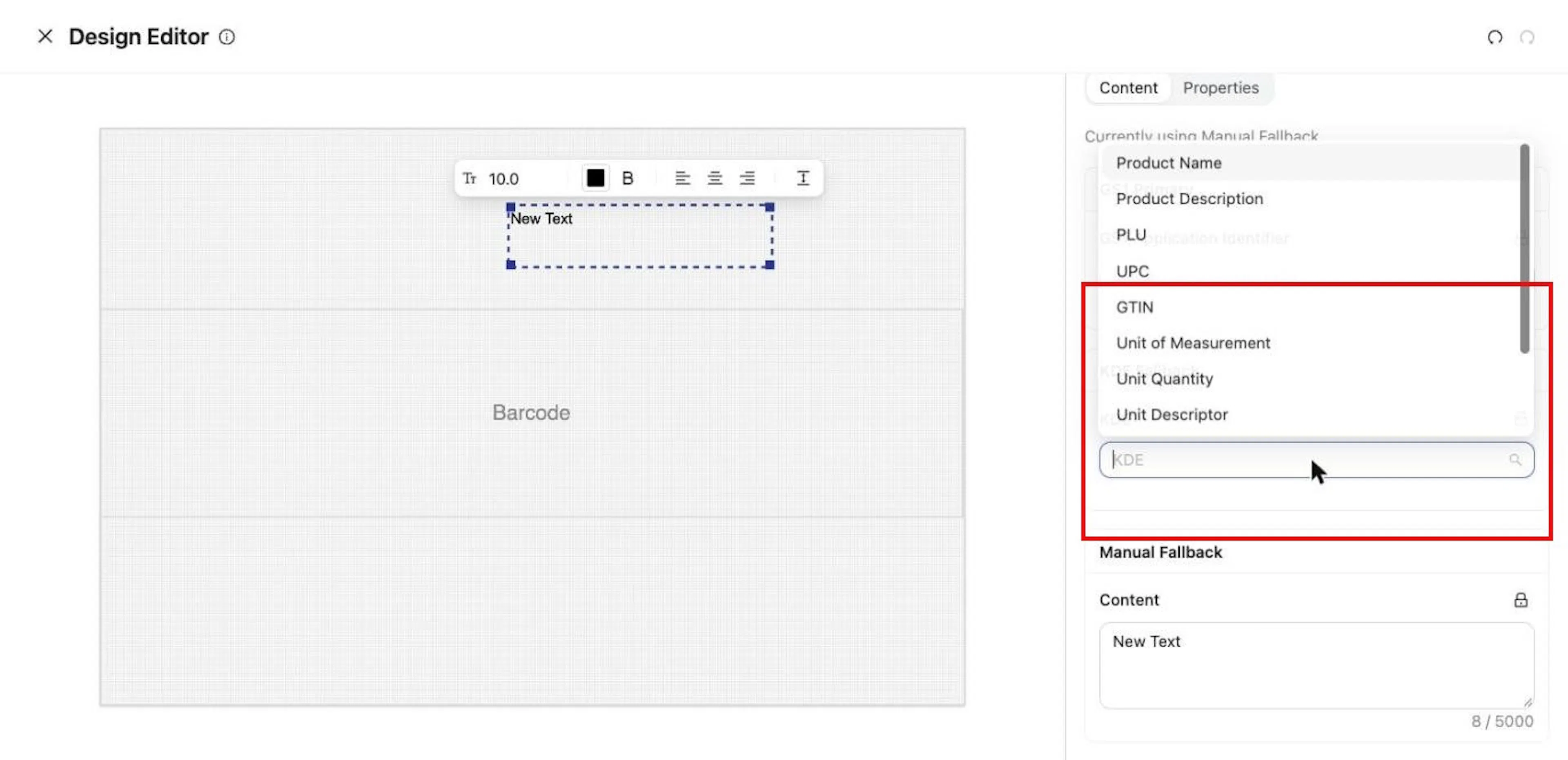
Under KDE Fallback, choose the Trade Item value to show.
For fixed text, type it under Manual Fallback → Content
For fixed text, type it under Manual Fallback → Content.
Open the Properties tab to format the text
Open the Properties tab to set Auto Height, Font Size (px), Text Color, Bold, Text Alignment and Font Family. The toolbar above the selected element offers the same options.
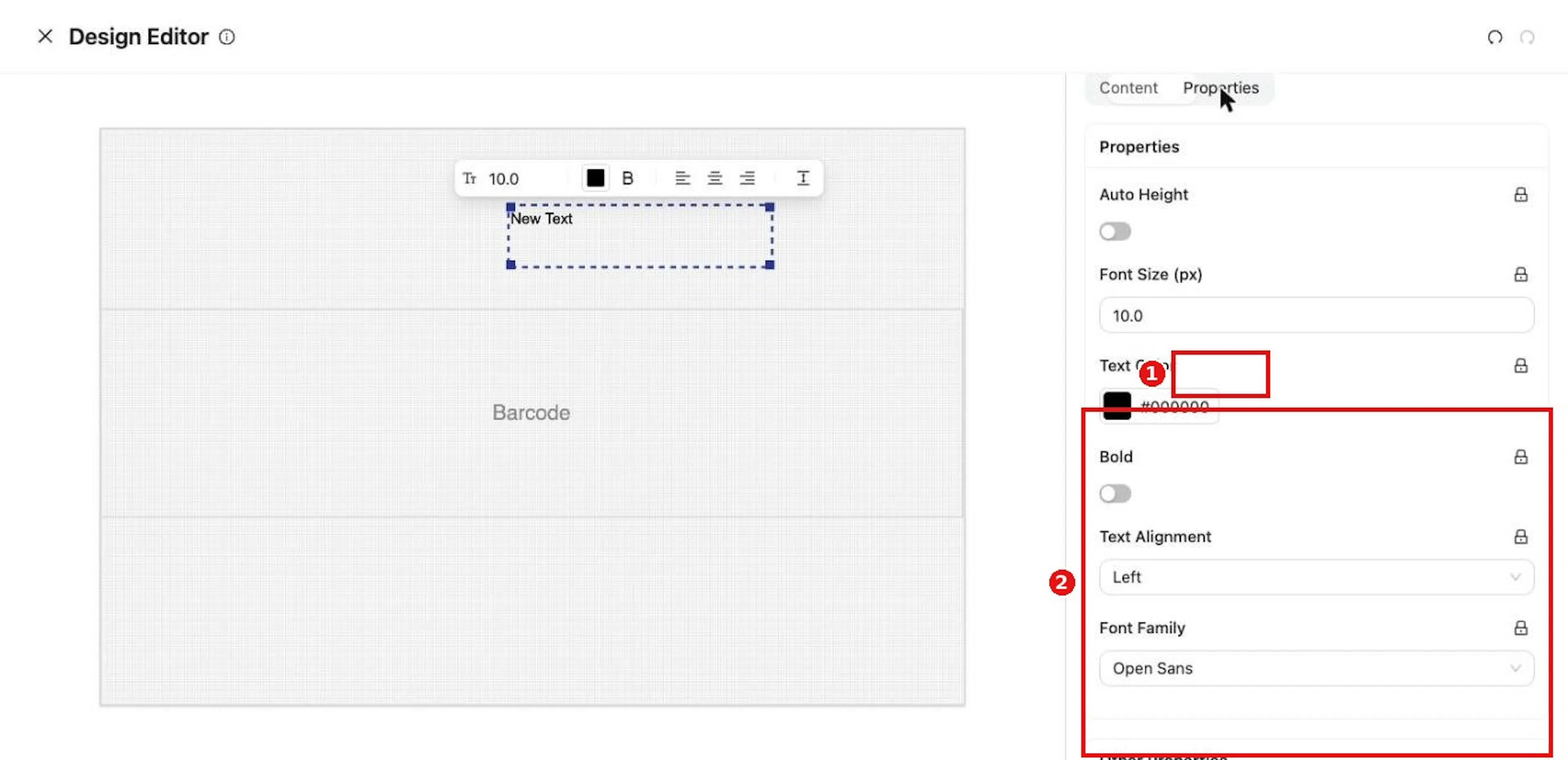
The Properties tab sets size, color, bold, alignment and font.
Why it matters. The source order (GS1 Primary, then KDE Fallback, then Manual Fallback) decides what prints. A KDE keeps the label correct for every Trade Item it is linked to.
Expected result. The canvas shows the value from the first source that has one. In the template, a KDE shows its name until a Trade Item is linked.
Troubleshooting
- No GS1 Value Input means an AI is chosen but no value exists yet. This is normal when the value will be entered later.
- Selected KDE has no value on this product means the previewed Trade Item has no value for that KDE. Check the Trade Item, or choose a different KDE.
Configure a barcode
Purpose. Encode one or more AIs in a barcode.
Example values. A case barcode in Collector mode with 01 - GTIN (KDE Fallback GTIN) and 21 - SERIAL (value entered at print time).
Steps
Right-click the canvas, choose Add Barcode and click the barcode
Right-click the canvas and choose Add Barcode, then click the barcode. The Properties tab opens.
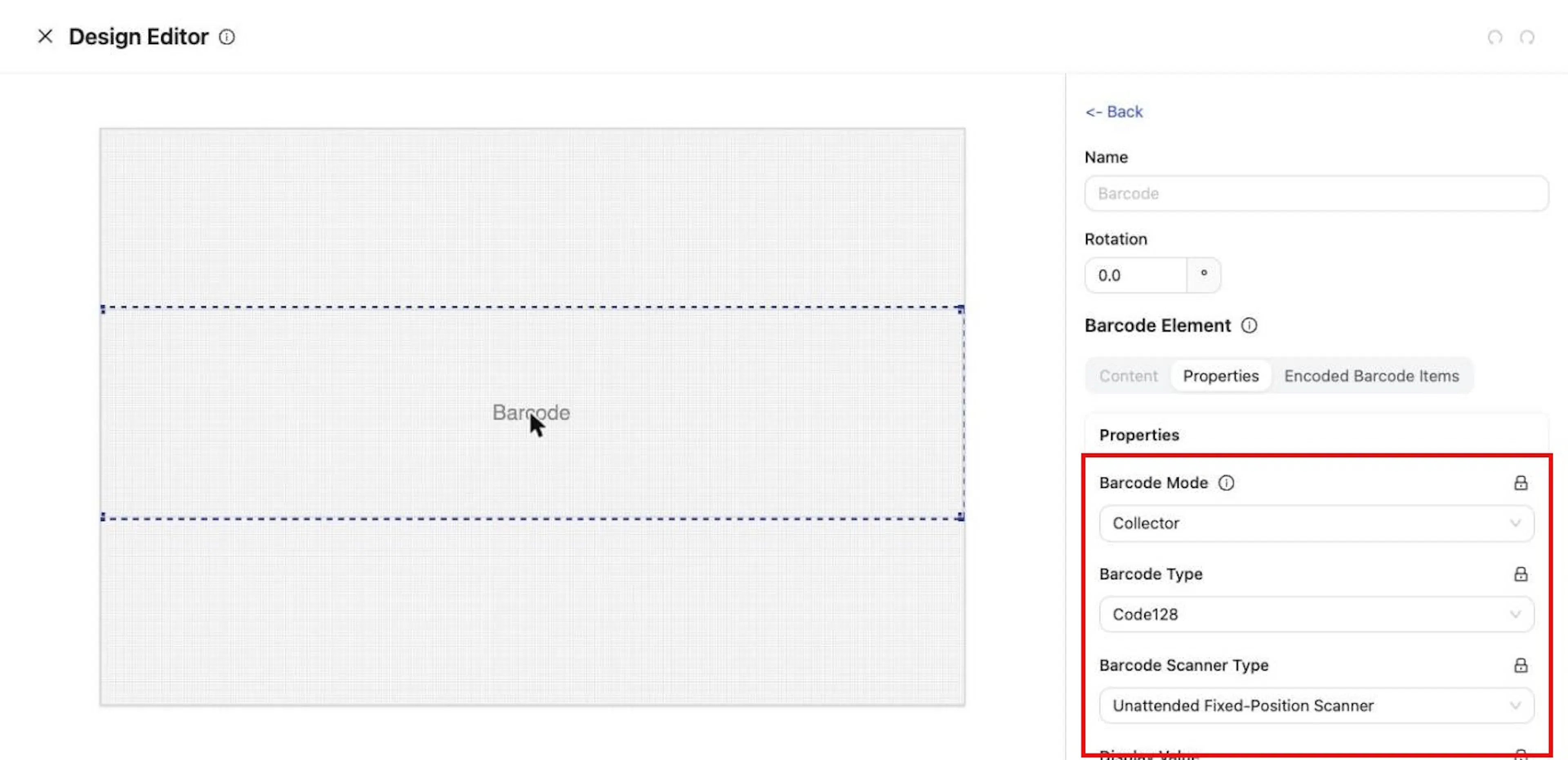
A barcode's Properties: Barcode Mode, Barcode Type, Barcode Scanner Type and Display Value.
Keep Barcode Mode on Collector to build the barcode from a list of AIs
Keep Barcode Mode on Collector to build the barcode from a list of AIs. Choose Custom only to encode fixed Content you type on the Content tab.
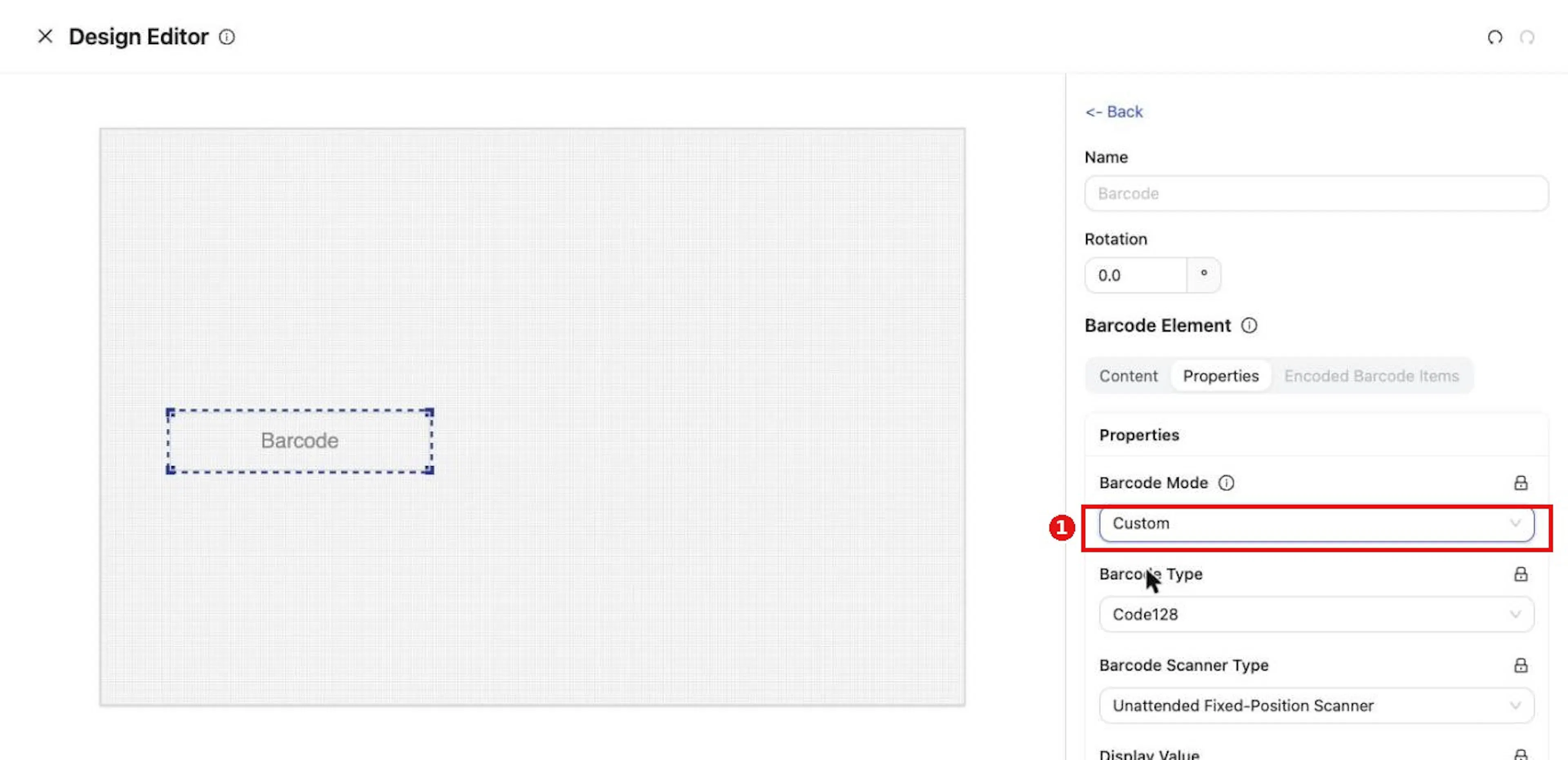
Custom mode encodes fixed Content; Collector mode builds the barcode from Encoded Barcode Items.
Choose the Barcode Type
Choose the Barcode Type: Code128, QR or DataMatrix.
Choose the Barcode Scanner Type
Choose the Barcode Scanner Type: Unattended Fixed-Position Scanner or Attended Handheld Scanner.
Leave Display Value on to print the human-readable AI line
Leave Display Value on to print the human-readable AI line under the barcode.
Open Encoded Barcode Items and click Add barcode input for each AI
Open Encoded Barcode Items and click Add barcode input for each AI to encode.
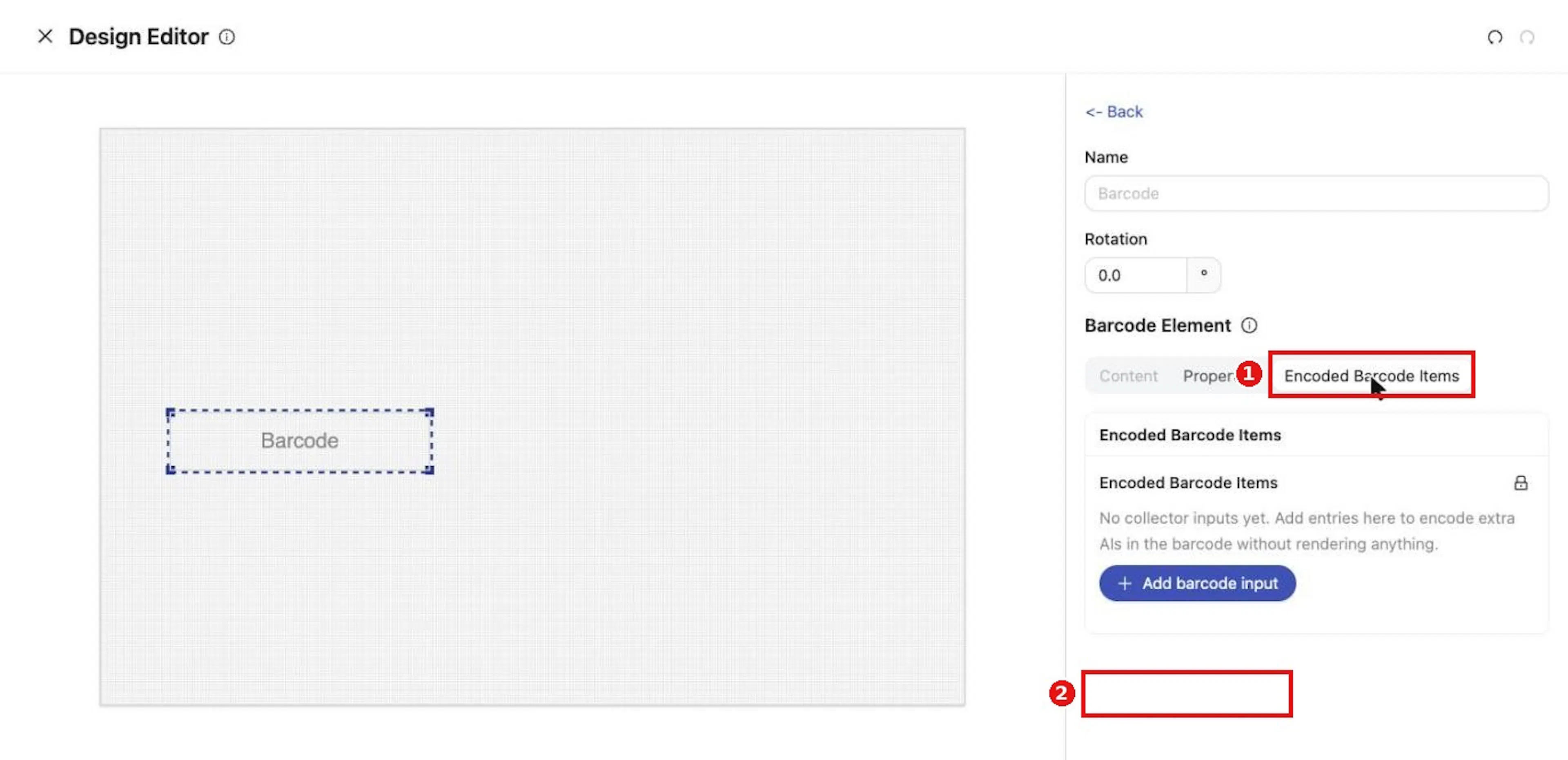
Encoded Barcode Items is empty until you click Add barcode input.
In the new item, choose the GS1 Application Identifier
In the new item, choose the GS1 Application Identifier. The item is not saved until an identifier is chosen.
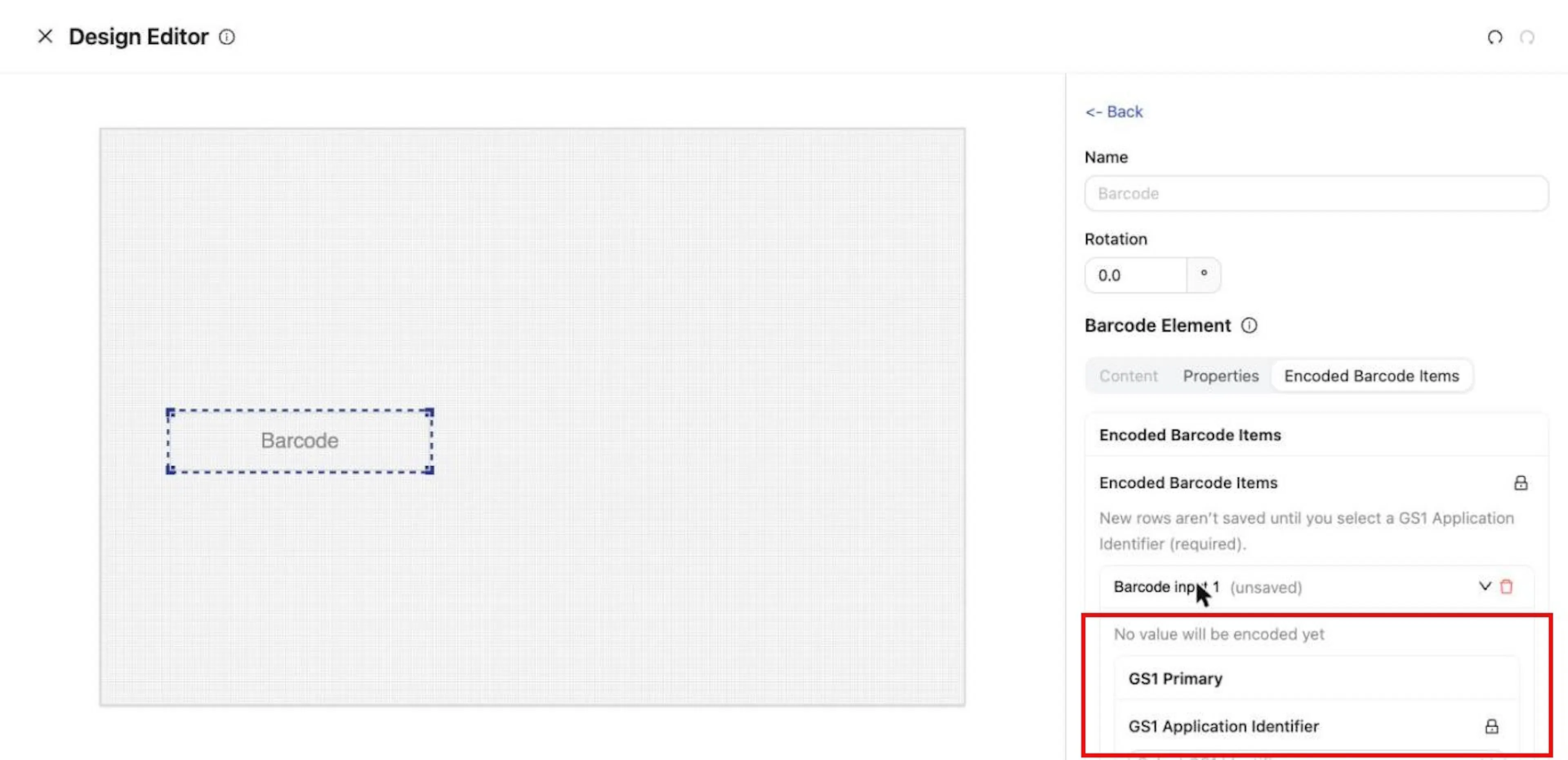
A new item is not saved until you choose its GS1 Application Identifier.
For each item, set the value source the same way as for text
For each item, set the value source the same way as for text: a GS1 Value Input, a KDE Fallback or a Manual Fallback.
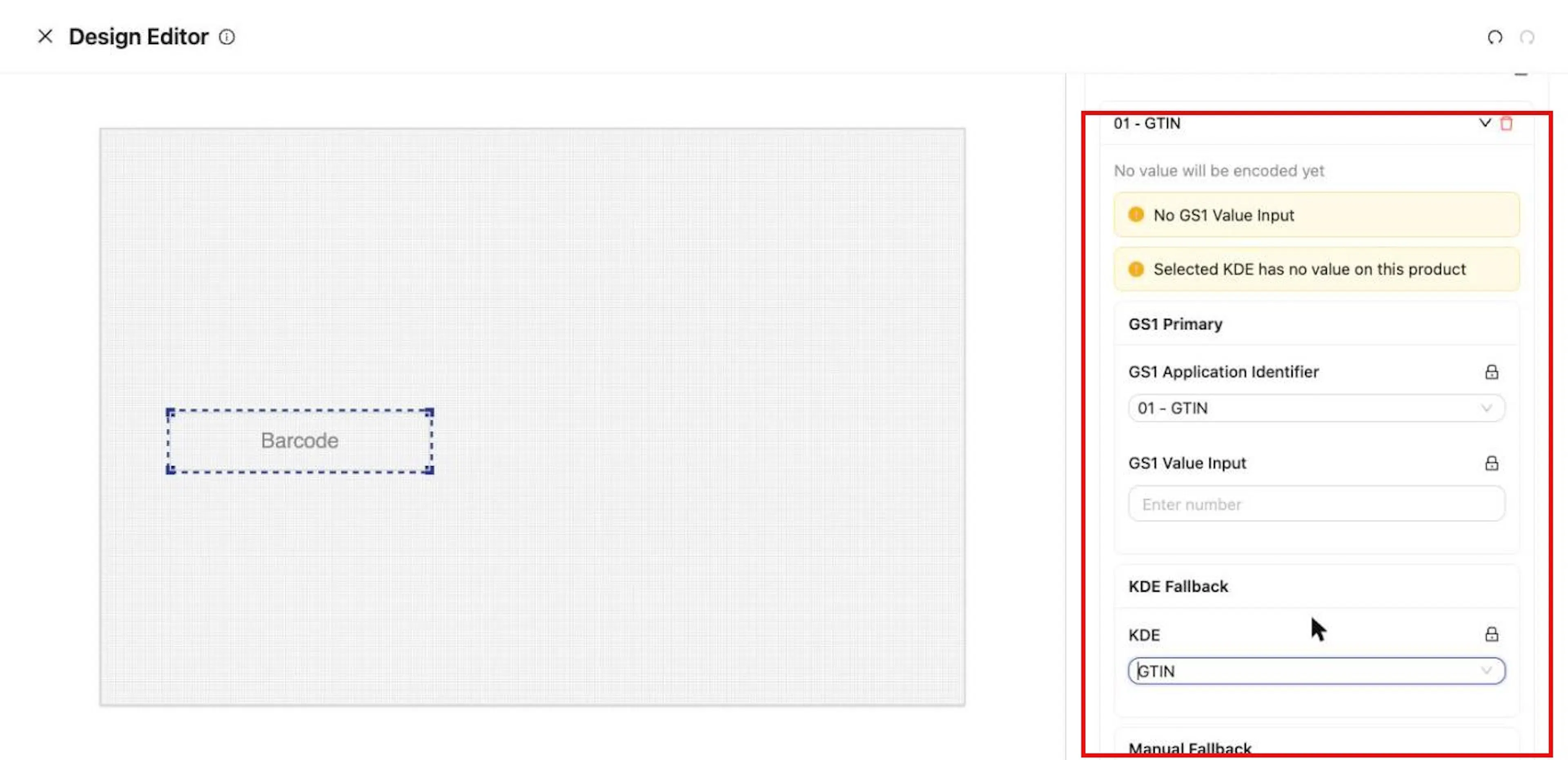
Each item has its own GS1 Primary, KDE Fallback and Manual Fallback.
Why it matters. Collector barcodes combine several AIs into one scannable code and stay in step with the text on the label.
Expected result. Each encoded item is listed with its AI, and the barcode draws on the preview once values exist.
Troubleshooting
- Encoded Barcode Items is unavailable in Custom mode, and Content is unavailable in Collector mode. Switch Barcode Mode to reach the one you need.
- A new item shows No value will be encoded yet until a value source has a value.
Add images, shapes, GS1 AI displays, voice pick codes and grids
Purpose. Complete the layout with the remaining element types.
Steps
Image. Choose Add Image
Image. Choose Add Image. In the panel, Upload holds the picture and Object Fit sets how it fills the box. An image can also be uploaded per label in the Field Editor.
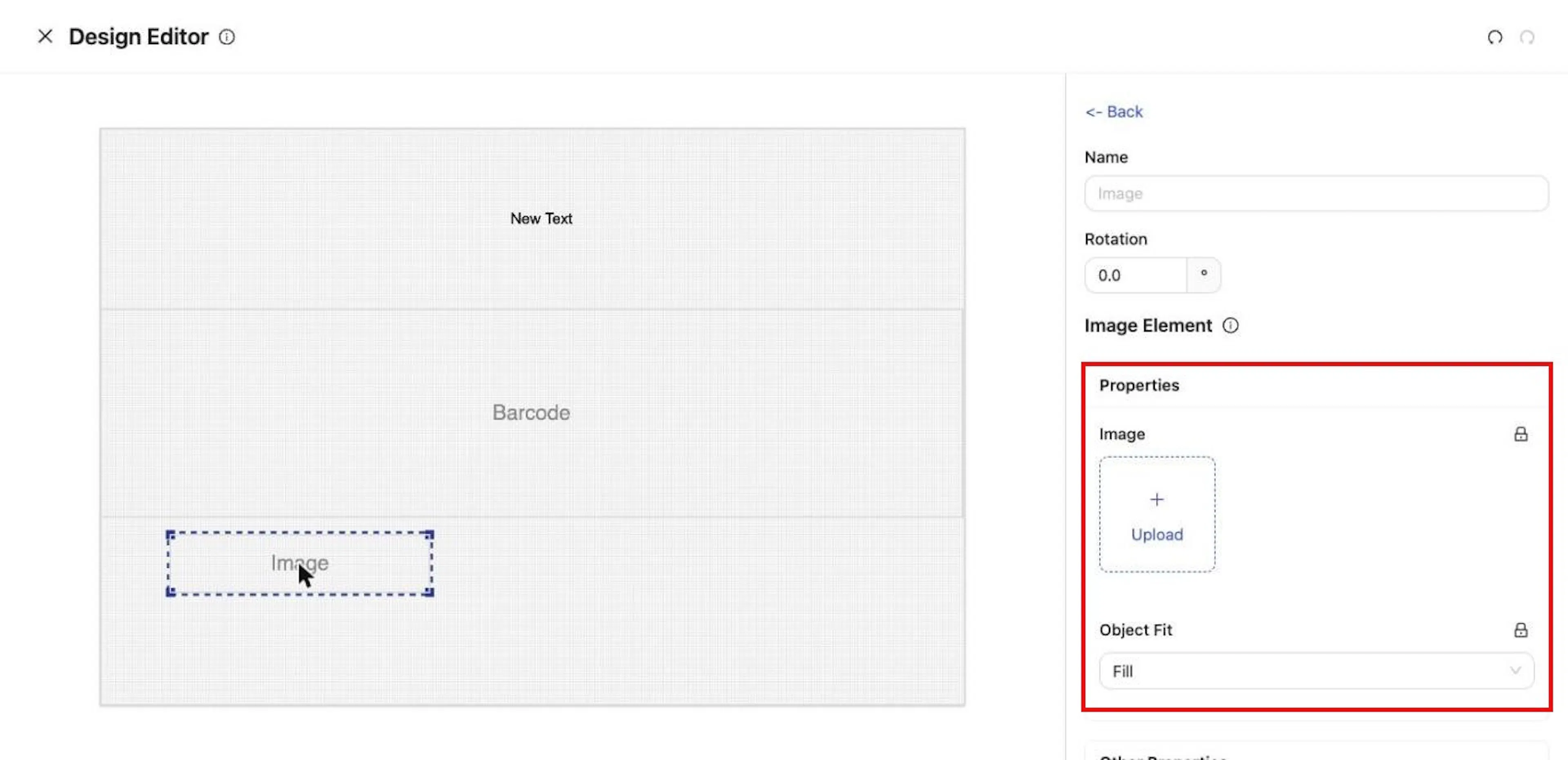
An Image element: Upload the picture and set Object Fit.
Shape. Choose Add Shape
Shape. Choose Add Shape. Set Shape, Color, Opacity and size in the panel.
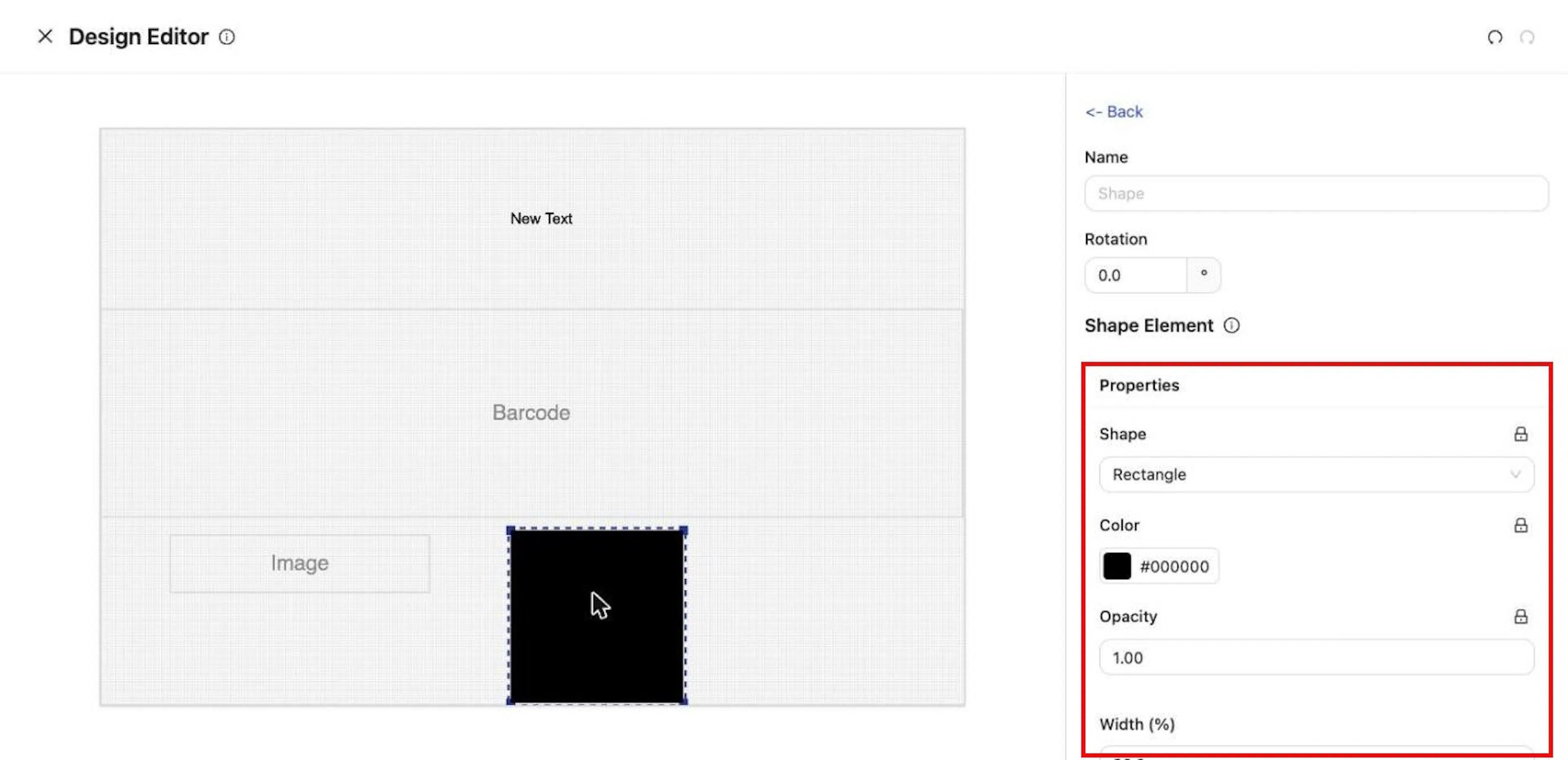
A Shape element: Shape, Color, Opacity and size.
GS1 AI Display. Choose Add GS1 AI Display
GS1 AI Display. Choose Add GS1 AI Display to print AI values in human-readable form, such as (01) followed by the GTIN. Set the text properties in the panel.
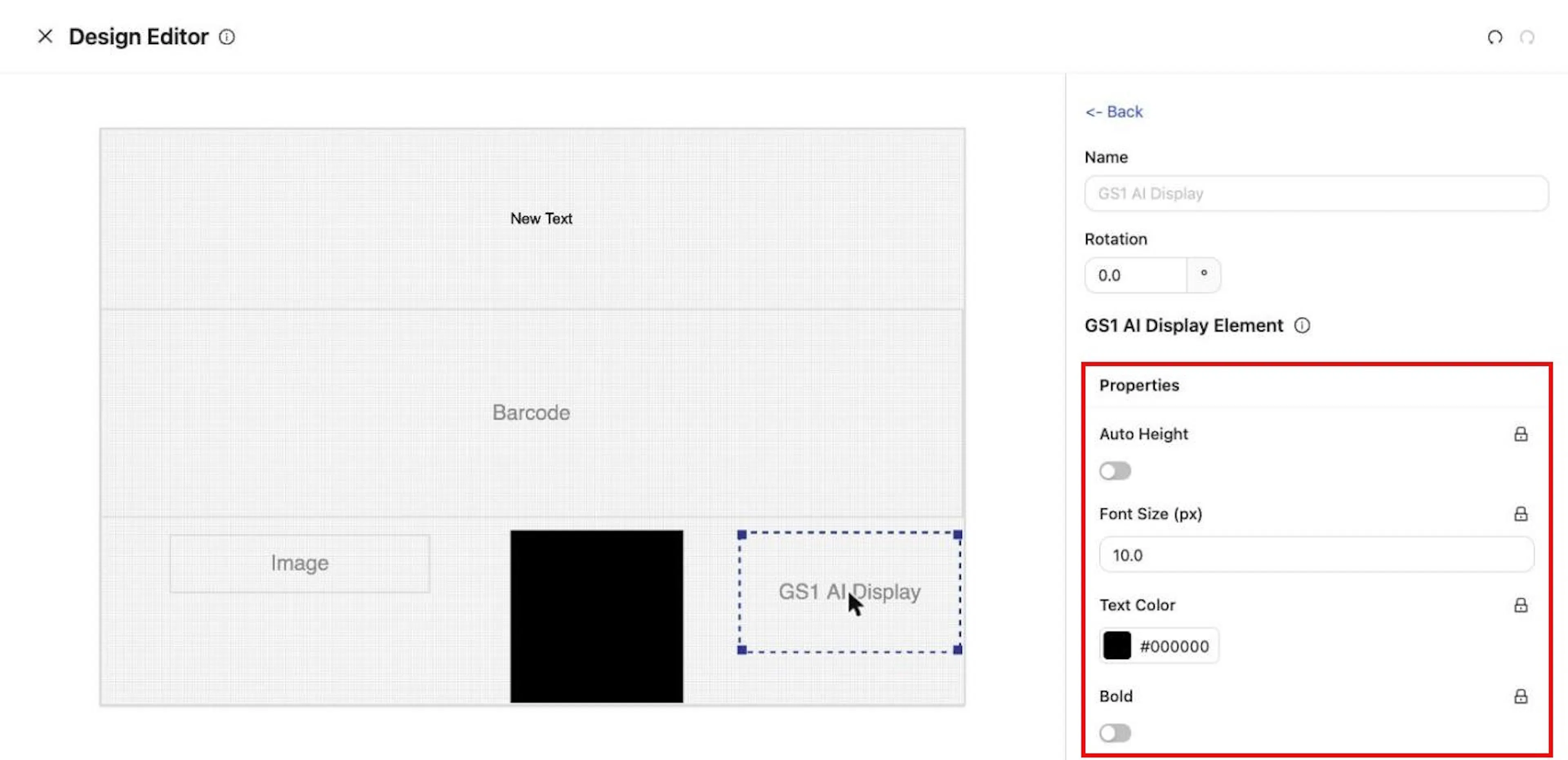
A GS1 AI Display element prints AI values in human-readable form.
Voice Pick Code. Choose Add Voice Pick Code
Voice Pick Code. Choose Add Voice Pick Code. Under Values, list the AIs that make up the code, with the same value sources as a barcode item.
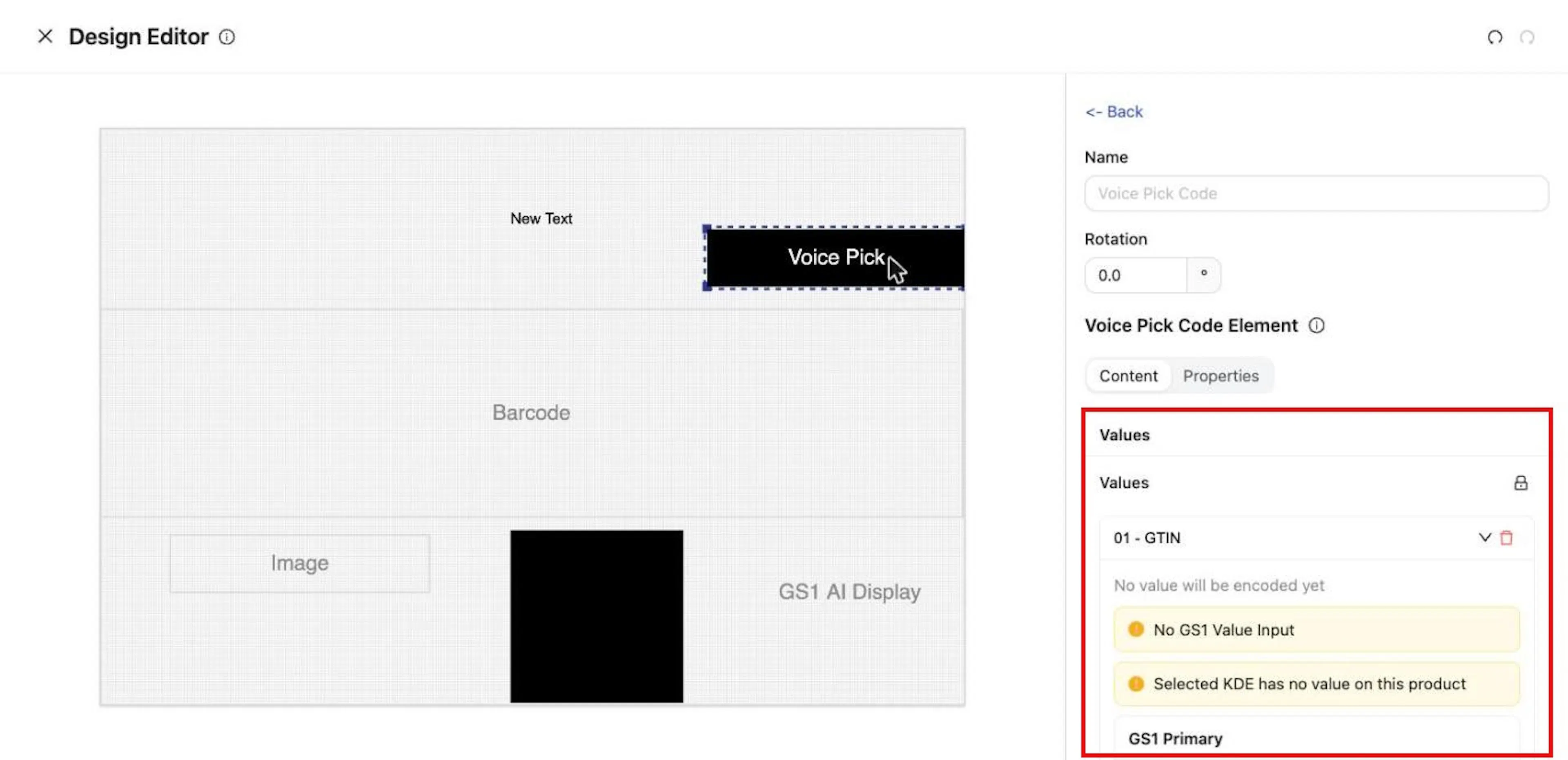
A Voice Pick Code element lists the AI Values it is built from.
Grid. Choose Add Grid
Grid. Choose Add Grid. Set Rows and Columns, then fill in the Grid Items.
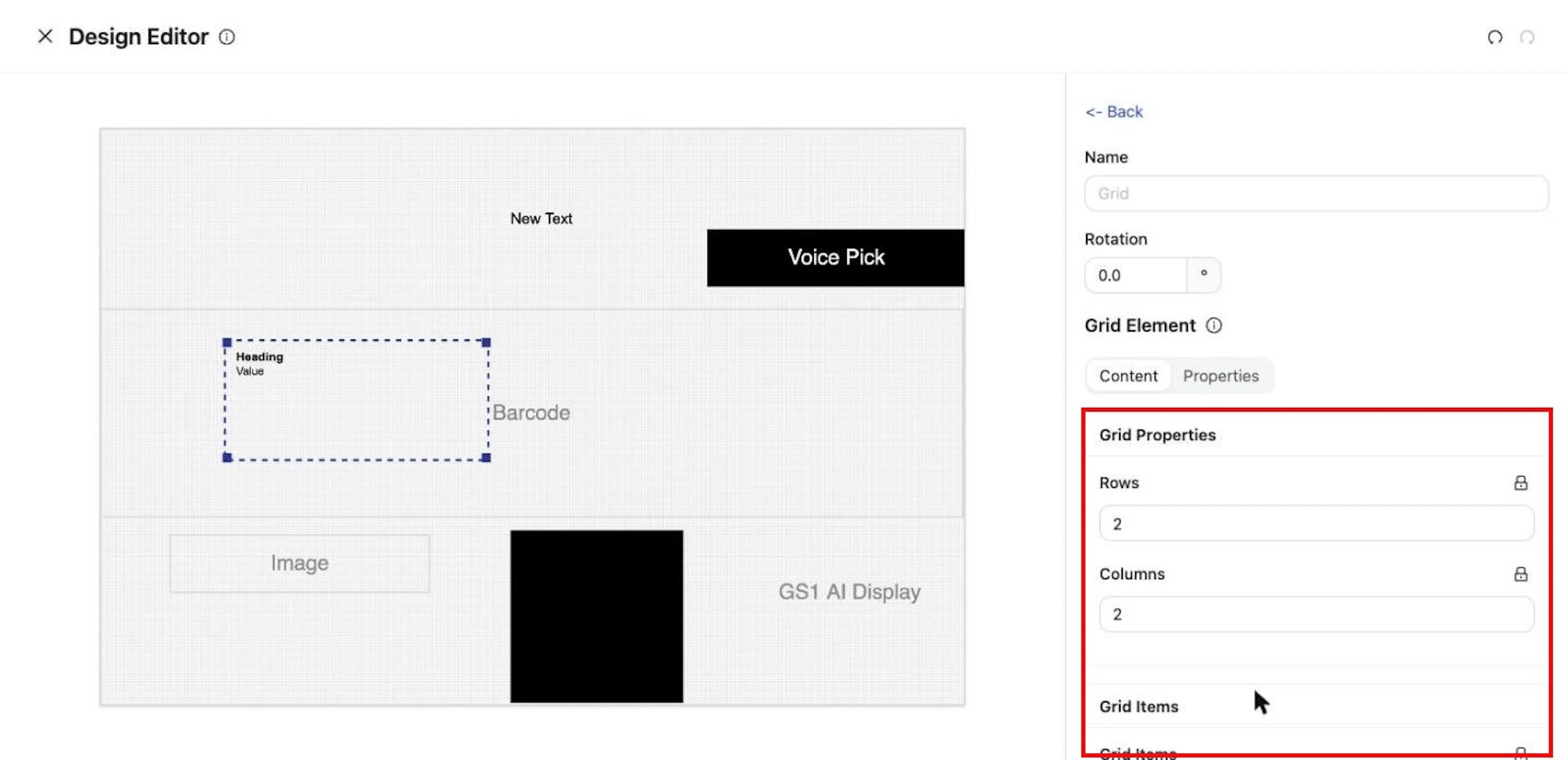
A Grid element: set Rows and Columns, then fill in the Grid Items.
Expected result. Each element is listed in the panel and shown on the canvas.
Lock settings in the template
Purpose. Fix a setting so it cannot be changed on the labels made from the template.
Steps
Hover the lock icon beside a setting
Hover the lock icon beside a setting. The tooltip reads Lock field when the setting is open and Unlock field when it is locked.
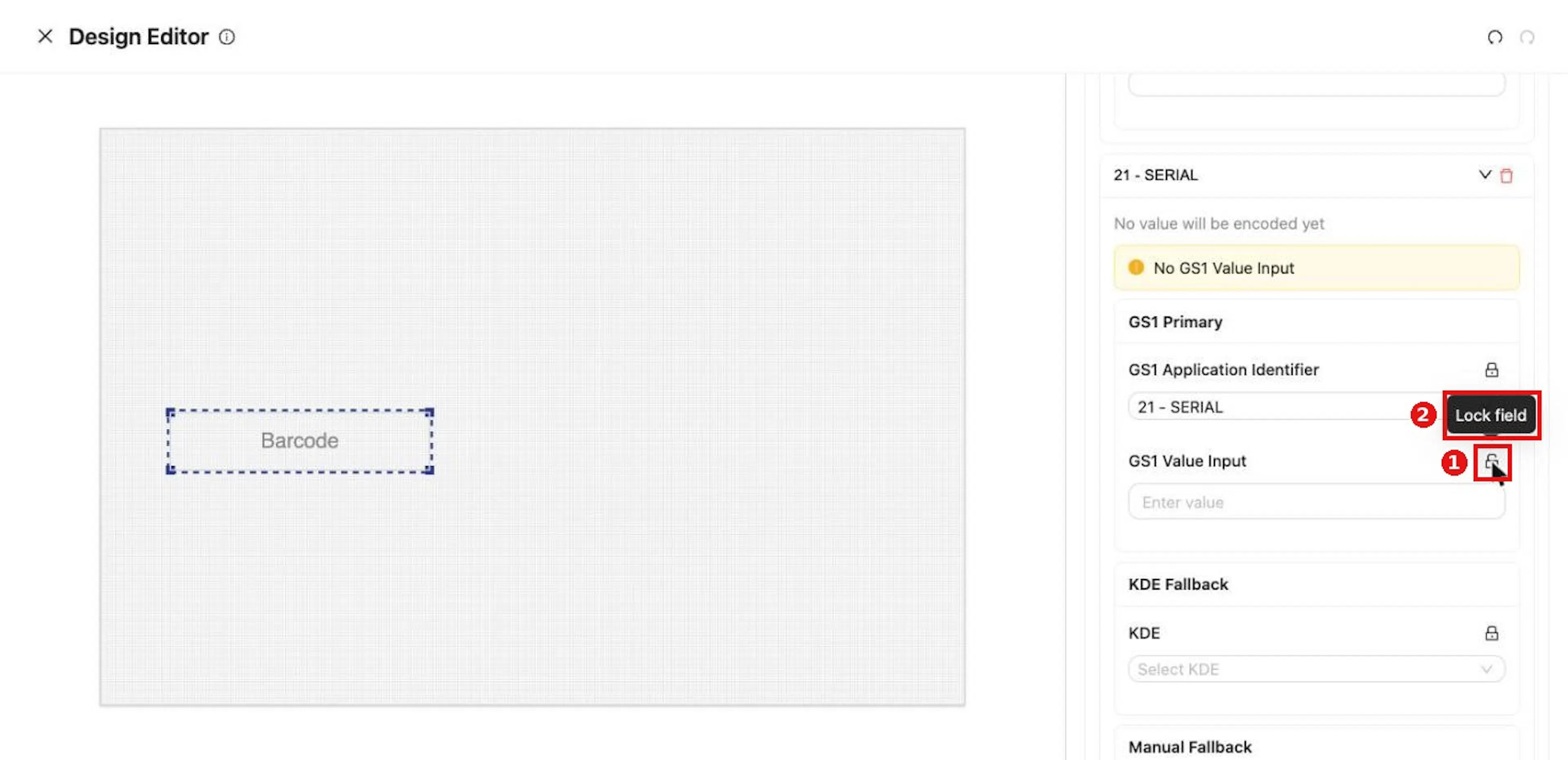
Lock icons in the Design Editor fix a setting in the template. Tooltip: Lock field or Unlock field.
Click the icon to switch
Click the icon to switch.
Why it matters. Locked settings protect brand and compliance details, such as a fixed font or a required AI, from being changed label by label.
Expected result. The setting keeps its lock when the template is published.
Field and action reference
Design Editor
The Design Editor opens full screen. The X at the upper left saves and closes it, with the message Label updated successfully. Changes save automatically. Undo and Redo are at the upper right.
Right-hand panel
| Field | Req. | Values | Default |
|---|---|---|---|
| Label Name | No | Text shown in the editor. It does not rename the template. | Untitled Label |
| Width | Yes | Number, with a unit drop-down. | 6.00 in |
| Height | Yes | Number, with a unit drop-down. | 4.00 in |
| DPI | Yes | Number. | 96 |
| Show grid | No | Switch. | On |
| Alignment guides | No | Switch. | On |
Below these is the element list. Each entry shows the element's name and type, its position and its size, with a trash icon to remove it. An empty canvas shows No elements added yet. Right-click on the canvas to add elements.
Adding and selecting elements
Right-click the canvas to open the add menu.
| Menu item | Element |
|---|---|
| Add Text | A text block. Shows Added text element. |
| Add Image | An image. In the Field Editor it takes an uploaded picture. |
| Add Shape | A shape. |
| Add Barcode | A barcode. |
| Add GS1 AI Display | Lines of AI values in human-readable form, such as (01) followed by the GTIN. |
| Add Voice Pick Code | A voice-pick code block. |
| Add Grid | A grid. |
Click an element to select it. The panel then shows <- Back, Name, Rotation (degrees) and the element's own settings.
Text element
| Setting | Tab | Description |
|---|---|---|
| GS1 Primary → GS1 Application Identifier | Content | Choose an AI. Examples: 00 - SSCC, 01 - GTIN, 10 - BATCH/LOT, 11 - PROD DATE, 15 - BEST BEFORE or BEST BY, 17 - USE BY or EXPIRY, 21 - SERIAL, 3202 - NET WEIGHT (lb). |
| GS1 Primary → GS1 Value Input | Content | A value entered ahead of time. |
| KDE Fallback → KDE | Content | Product Name, Product Description, PLU, UPC, GTIN, Unit of Measurement, Unit Quantity, Unit Descriptor, External Identifier, Product URN, plus any custom attributes defined on your Trade Items. |
| Manual Fallback → Content | Content | Fixed text. Default New Text. |
| Auto Height | Properties | Switch. |
| Font Size (px) | Properties | Number. |
| Text Color | Properties | Color. |
| Bold | Properties | Switch. |
| Text Alignment | Properties | Left, center or right. |
| Font Family | Properties | Default Open Sans. |
| Z-Index | Properties | Stacking order. |
A toolbar above a selected text element offers font size, color, bold, alignment and auto height.
Warnings: No GS1 Value Input appears when an AI is chosen without a value. Selected KDE has no value on this product appears when the chosen KDE is empty on the Trade Item in the preview.
Barcode element
| Setting | Tab | Values | Default |
|---|---|---|---|
| Barcode Mode | Properties | Collector: the barcode encodes the AIs listed on Encoded Barcode Items. Custom: the barcode encodes fixed Content you enter. | Collector |
| Barcode Type | Properties | Code128, QR, DataMatrix | Code128 |
| Barcode Scanner Type | Properties | Unattended Fixed-Position Scanner, Attended Handheld Scanner | Unattended Fixed-Position Scanner |
| Display Value | Properties | Switch. Shows the human-readable AI line under the barcode. | On |
| Z-Index | Properties | Stacking order. | 0 |
| Content | Content | Available in Custom mode only. | Empty |
Encoded Barcode Items is available in Collector mode only. Each item is one AI encoded in the barcode, with its own GS1 Application Identifier, GS1 Value Input, KDE Fallback and Manual Fallback. The empty list reads No collector inputs yet. Add entries here to encode extra AIs in the barcode without rendering anything. Add barcode input adds an item. A new item is not saved until you select a GS1 Application Identifier (required).
Locks in the Design Editor
Each setting has a lock icon. The tooltip reads Unlock field when the setting is locked and Lock field when it is unlocked.