

Transform
Record input lots being consumed and output lots being created, including how to change a lot or serial number while keeping the link to the old one.
Applies to: Transform events, recorded from Add Events on the Events page
Audience: Anyone who processes, packs, combines or splits product, or who needs to give an existing lot or serial a new number
Prerequisites: The input lot exists as inventory at the Location. The input and output Trade Items exist. Any container holding the input has been disaggregated.
Related: Wholechain Events Overview; Shared event fields; Disaggregate; Receive; Direct Ship and Direct Receive; Link Trace Info; Background: Transform Events
Purpose
Use Transform when input lots become different output lots, for example when bulk fish is packed into cases. Transform consumes the input quantity and creates the output lots, and it links the two, so an output can be traced back to what it was made from. Transform is also the way to change the lot or serial number of a product after it has been established; see Change the lot or serial number of a product.
Before you begin
- The input lot must exist at the Location where you record the Transform.
- Transform cannot use the Containers tab. If the input is inside a container, disaggregate the container first (see Disaggregate).
- You can use only part of a lot as input. The quantity you do not enter stays in inventory.
- Set up both the input and the output Trade Items first. A new product made by processing needs its own Trade Item.
- A Transform is recorded at your own Location. If a Trade Partner is connected in Wholechain, your account cannot run a Transform at that partner's Locations.
- Fields shared by every event (Date, Time, Time Zone, PO Number, Business Step, Disposition, Read Point, documents) are explained in Shared event fields.
Input and output shapes
A Transform can combine and split lots in any of these shapes. Each input and each output needs its item, lot code (or serial) and quantity.
| Shape | Example |
|---|---|
| One input to one output | One lot of whole fish becomes one lot of fillets. |
| Many inputs to one output | Several wheat lots are milled into one flour lot. |
| One input to many outputs | One fish lot becomes fillets, trim and bones, each a separate lot. |
| Many inputs to many outputs | Three fish lots become two fillet lots and one trim lot. |
Record a Transform
Choose Transform, a Location and the input Products
Select Add Events, set Event Type to Transform, then choose Location and the input Products.
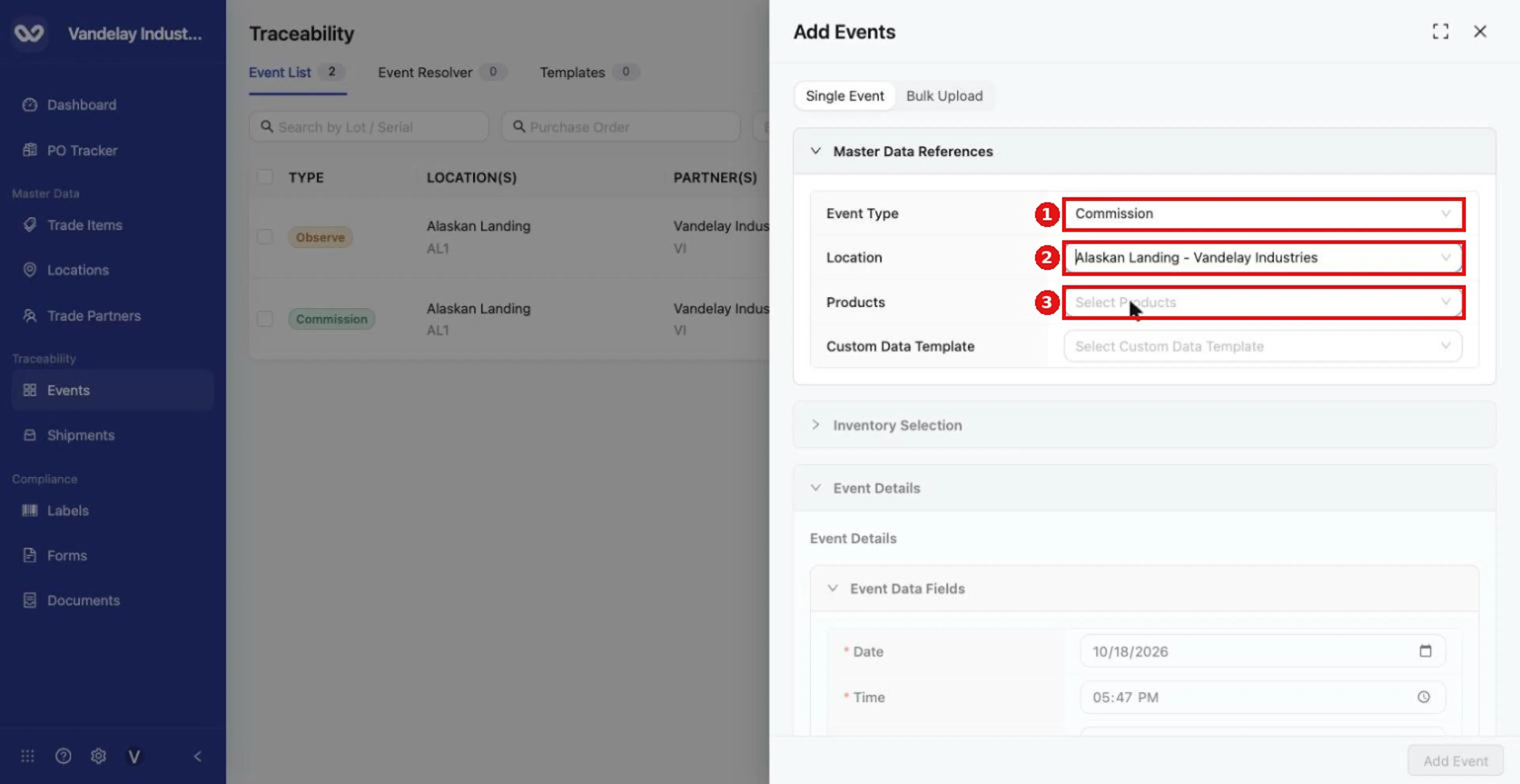
Start from the Master Data References section of the Add Events drawer, then choose Transform as the Event Type.
Tick the input lot and enter the amount to consume
In Inventory Selection, use the Lots tab. Tick the input lot and enter the amount to consume in Consume. The Available column shows how much the lot holds.
Add each output lot
Under Output Products, select Add Output Lot. Choose the output product, then enter the Output Lot Code and Quantity. Select Add Output Lot again for each further output.
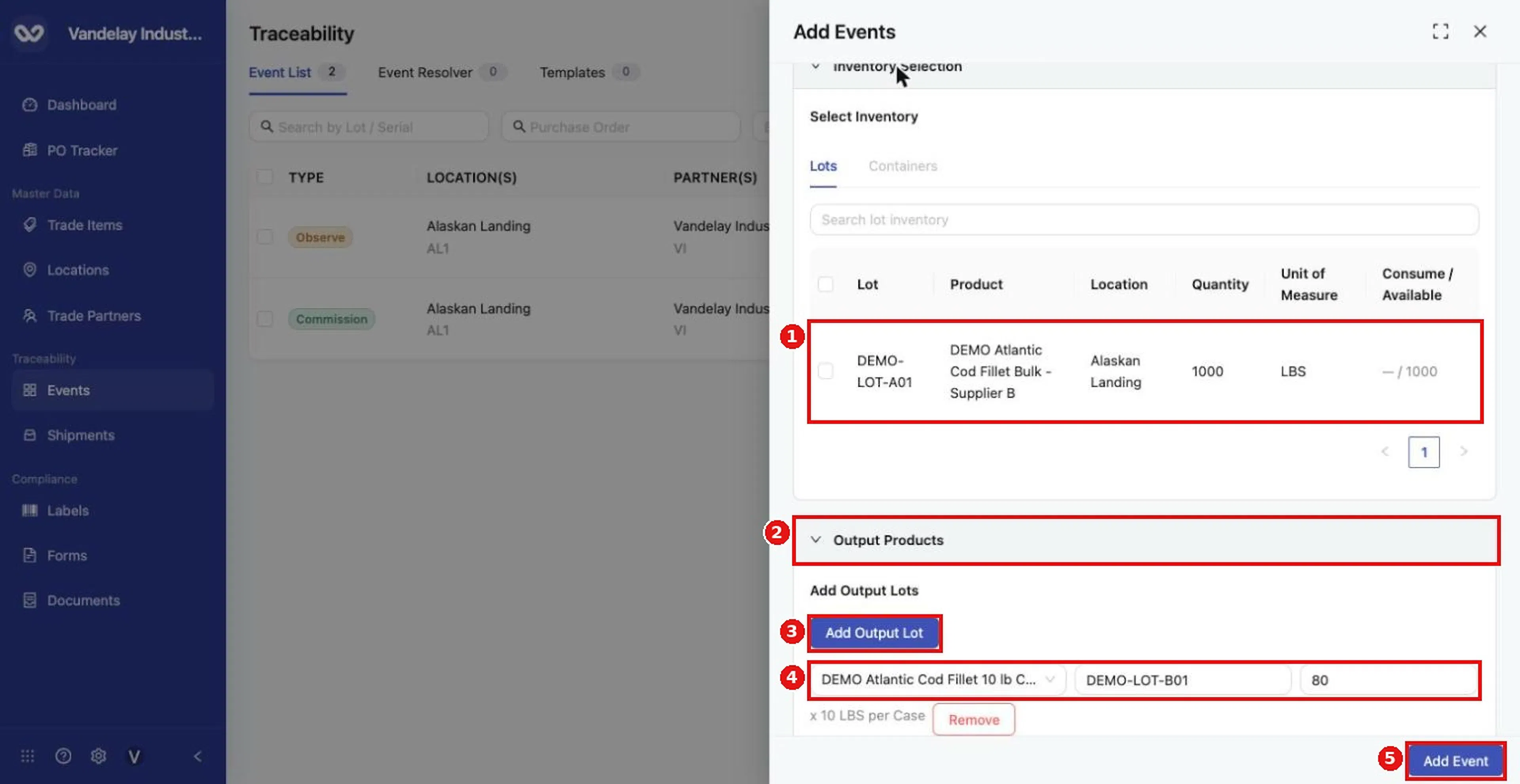
Select the input lot, then use Add Output Lot to define each output product, lot code and quantity.
Complete Event Details
Complete Event Details. Business Step is searchable; this example uses Packing (CBV). There is no Business Step named Transform, so choose the step that matches the activity.
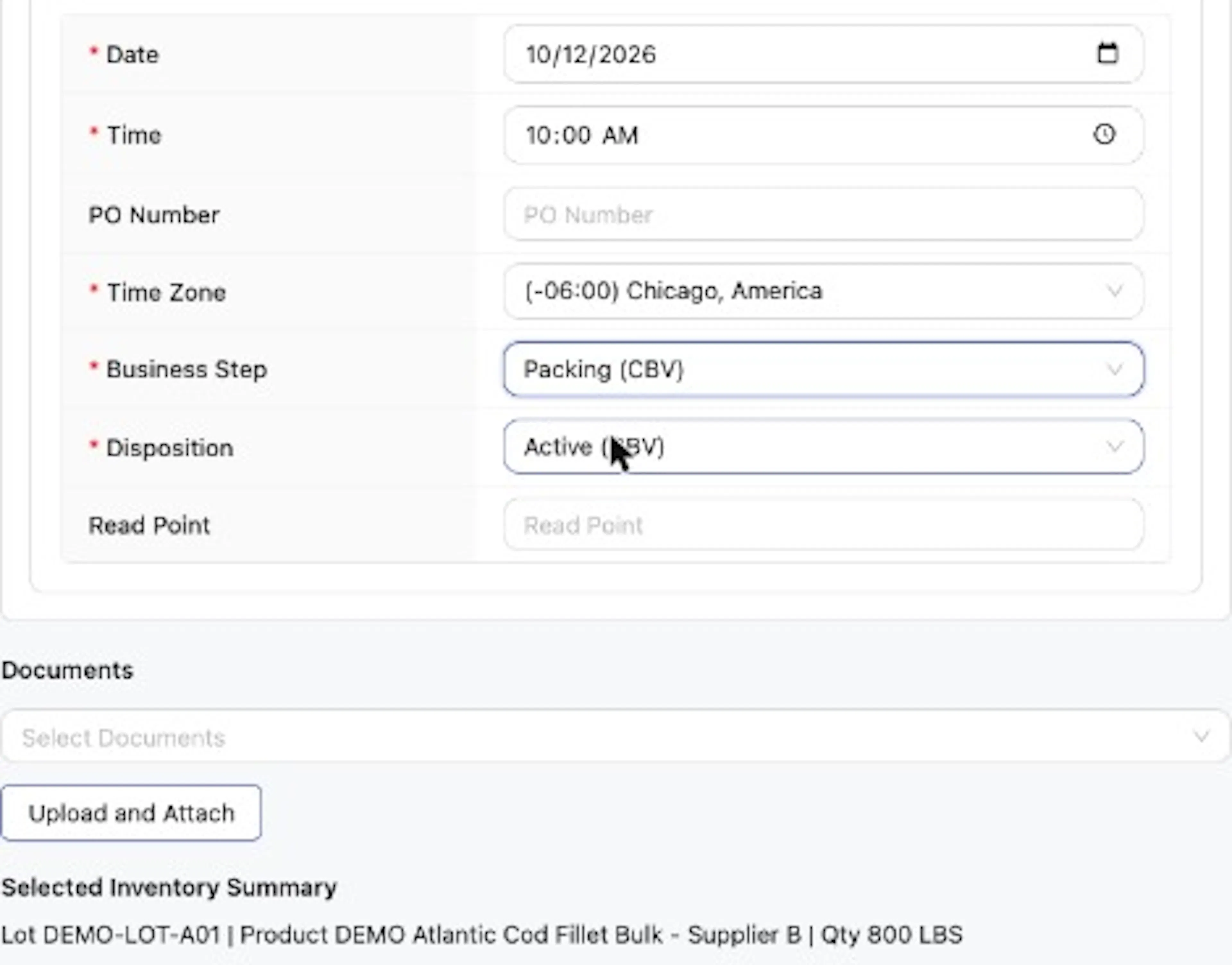
Business Step choices appear as a list; each label shows its vocabulary in parentheses, for example (CBV).
Select Add Event
Select Add Event.
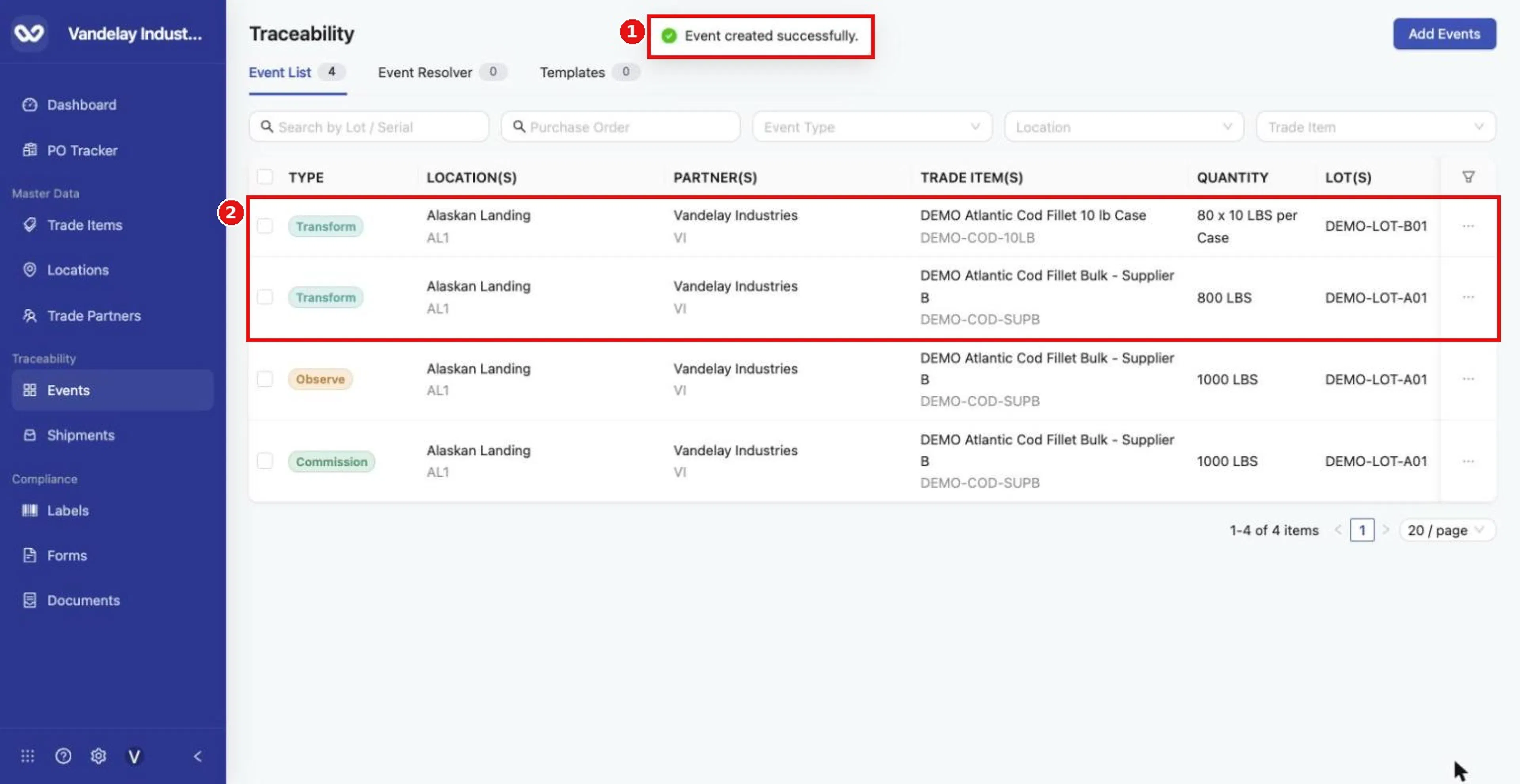
A Transform appears as two rows in the Event List: one for the input lot and one for the output lot.
Change the lot or serial number of a product
Use this recipe when your own system, for example an ERP (enterprise resource planning) system, assigns its own number to goods that arrived under a supplier's number. For example, your supplier ships lot SAL-0412, but your ERP gives every received lot its own number, ERP-77391.
Do not simply replace the supplier's number with yours: you would lose the link back to the supplier's lot and with it the ability to trace upstream. Once a lot or serial has been created, the way to change its number in Wholechain is a Transform, not an edit. A Transform keeps both numbers and the relationship between them.
Receive the goods under the number they arrived with
Record the Receive with the lot code or serial exactly as sent. See Receive. If the supplier has not posted its Ship yet, you can log the Receive first with Direct Receive; see Direct Ship and Direct Receive.
Start a Transform at the Location that holds the goods
Select Add Events, set Event Type to Transform, choose the Location and choose the product in Products.
Consume the whole received quantity
On the Lots tab, tick the received lot and enter the full quantity in Consume, so that the quantity does not change.
Add the same product as the output with your new number
Under Output Products, select Add Output Lot. Choose the same product, enter your own number in Output Lot Code (or the serial, if the item's Traceability Type is Serial) and enter the same Quantity you consumed.
Complete Event Details and add the event
Complete Event Details, choosing the Business Step that matches the activity, then select Add Event.
Both numbers now exist and the relationship between them is preserved. In the example, the Event List shows SAL-0412 as the input row and ERP-77391 as the output row, with the same item and the same quantity.
- Receive first, then Transform. Receive the goods and their lots or serials as sent, then Transform to your number without adjusting quantities.
- Not every Transform is processing. Some businesses give a new lot number at receipt with no physical change. The Transform workflow supports that.
- If the supplier records after you. The supplier's Ship can be posted later and linked to your Receive. See Link Trace Info and Direct Ship and Direct Receive.
Expected result
The Event List shows two rows for the one event: one for the input lot and one for the output lot. Example: 800 LBS of DEMO-LOT-A01 in, 80 cases of DEMO-LOT-B01 out. For a number change, the two rows show the same item and quantity under the old and the new number.
Troubleshooting
- There is no Business Step called Transform. Choose the step that matches the activity, such as Packing (CBV).
- The counter shows more than the events you made. Transform adds two rows, one for the input and one for the output.
- The contents of a container are not offered. Transform cannot use the Containers tab. Disaggregate the container first (see Disaggregate).
- The new lot code or serial is rejected. Output identifiers are unique per item, and your account rejects a duplicate for the same item. Use a number that has not been used for that item.
Field and action reference
The fields every event shares, and the default Business Step and Disposition for each event type, are in Shared event fields. The details below apply to Transform only.
Defaults for Transform
Business Step: Commissioning (CBV). Disposition: Active (CBV).
Inventory selection
| Tab or section | Description |
|---|---|
| Lots | Lists the lots at the Location with Consume / Available. A partial Consume amount is allowed. |
| Output Products | Defines the lots the Transform creates (see below). |
The Containers tab is not used for Transform.
Transform output lots
| Field | Req. | Description |
|---|---|---|
| Select Output Product | Yes | The product created. |
| Output Lot Code | Yes | Lot code for the output lot (or serial, according to the item's Traceability Type). |
| Quantity | Yes | Output quantity. For case items the field shows "x 10 LBS per Case". |
| Add Output Lot | Not an input | Adds another output row. |