

Data elements and policies
Wholechain Settings: Data elements and policies.
Applies to: The whole account.
Audience: Admins
Prerequisites: Data Policy switched on for the whole account under Organization Settings > Account (Compliance; Admin only) for Data Policy sections.
Related: Account; Master data settings; Frequently asked questions
Purpose
Define Key Data Elements (KDEs), apply them through Data Policies, and understand the legacy Template Attributes library.
Before you begin
Switch on Data Policy for the whole account under Organization Settings > Account (Compliance; Admin only; see Account) before using Data Policy sections. How policies apply at each level is described under Data Policies on the Master Data pages, later on this page. For new configuration, use KDEs and Data Policies instead of Template Attributes.
Steps
Data Element Library
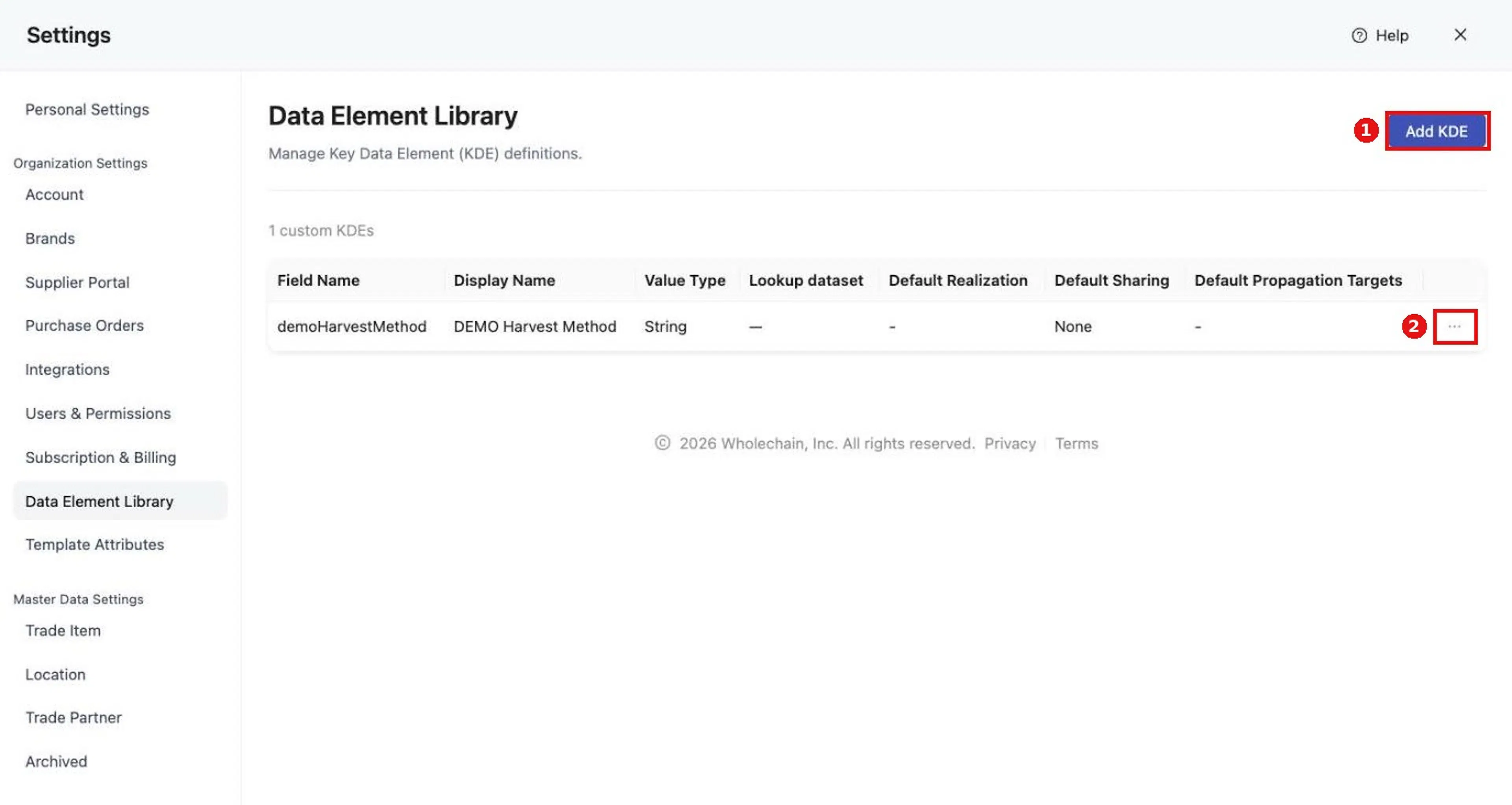
Find it at Organization Settings > Data Element Library. It manages Key Data Element (KDE) definitions used by Data Policies.
The table shows Field Name, Display Name, Value Type, Lookup dataset, Default Realization, Default Sharing, and Default Propagation Targets, with a count of custom KDEs above it.
Add a KDE
Select Add KDE
Select Add KDE.
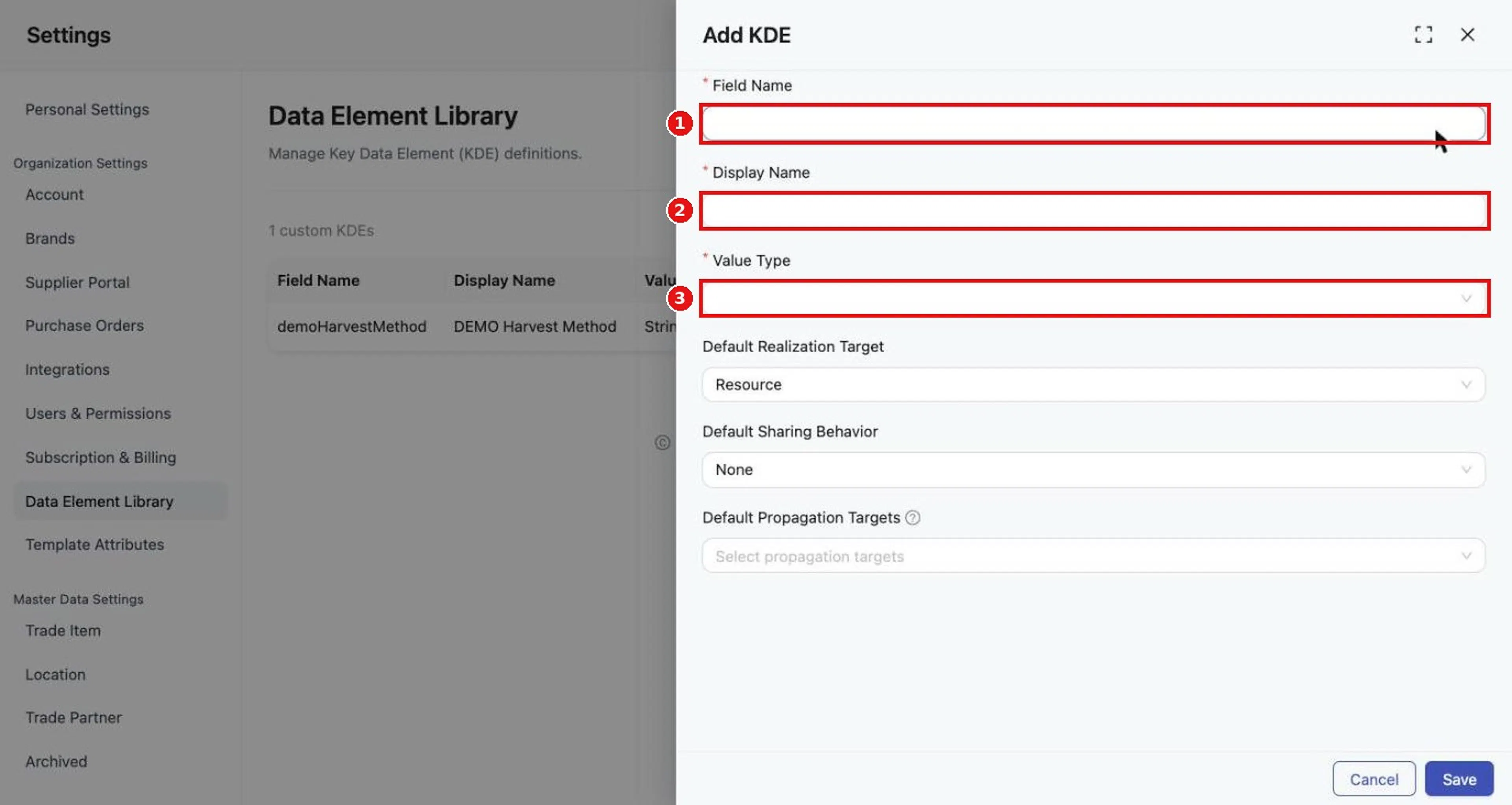
Enter Field Name, Display Name, and Value Type
Enter Field Name, Display Name, and Value Type (all required).
Choose a Value Type
Choose a Value Type: String, Number, Date & Time, Boolean, or Lookup.
Review the optional defaults below
Review the optional defaults below.
Select Save, or Cancel to discard
Select Save, or Cancel to discard.
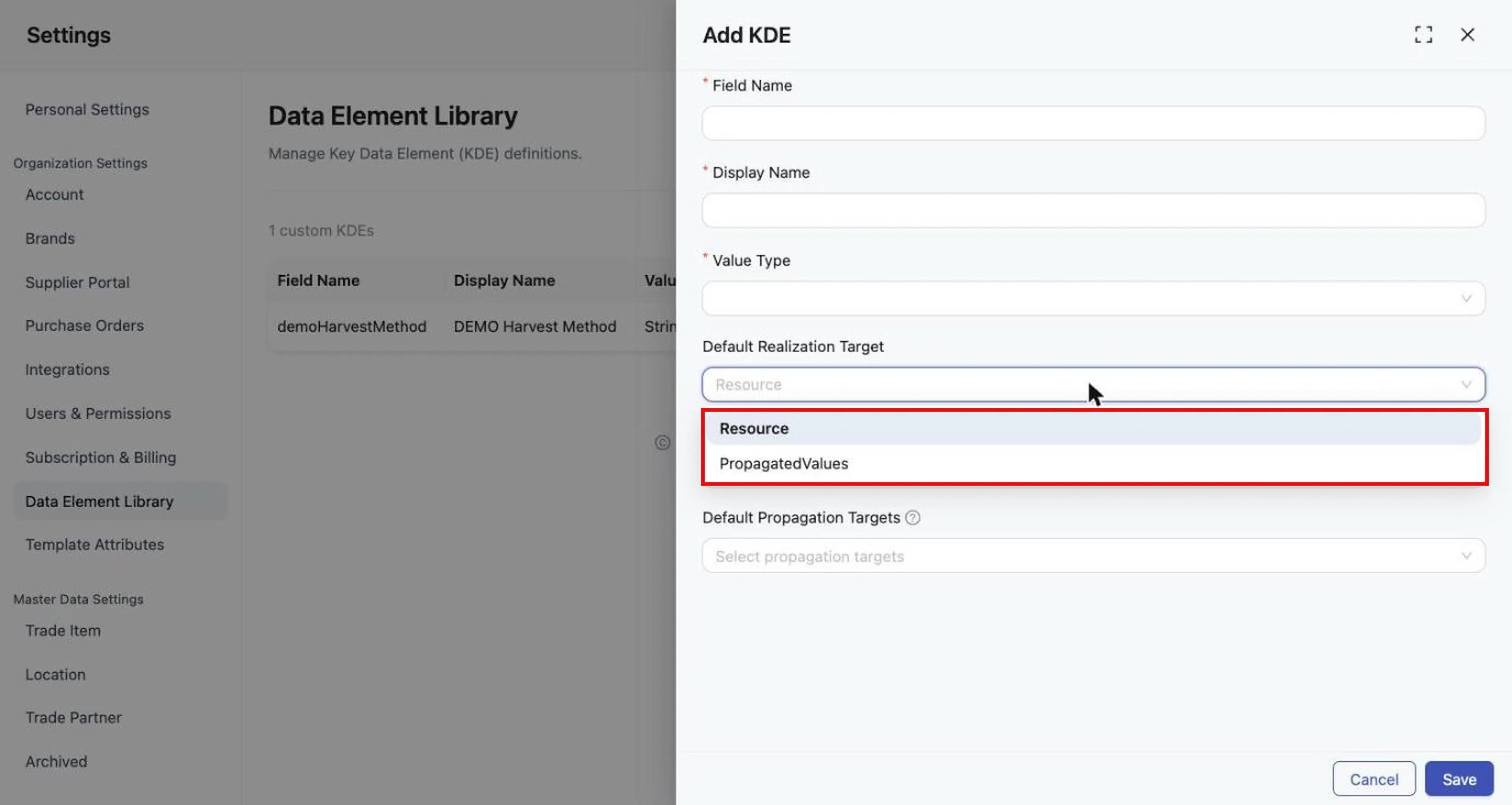
| Default | Starting value |
|---|---|
| Default Realization Target | Resource (other option: PropagatedValues) |
| Default Sharing Behavior | None (other options: Read, Write) |
| Default Propagation Targets | No targets selected (options: Event, Label, PurchaseOrder, ProductInstance) |
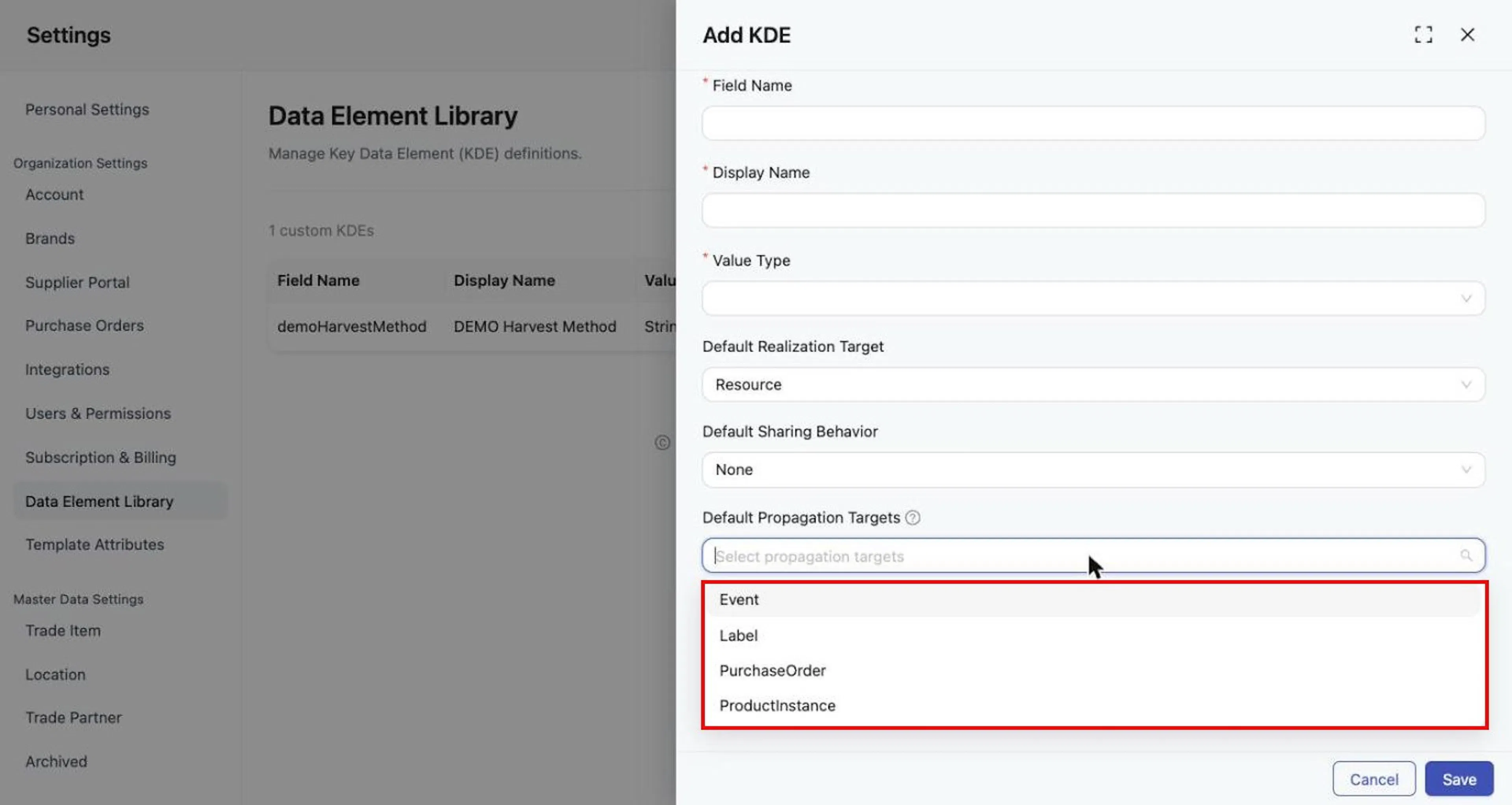
The information icon next to propagation targets explains that propagation targets are the operational resources that receive a KDE value when a policy does not override the targets.
Edit or delete a KDE
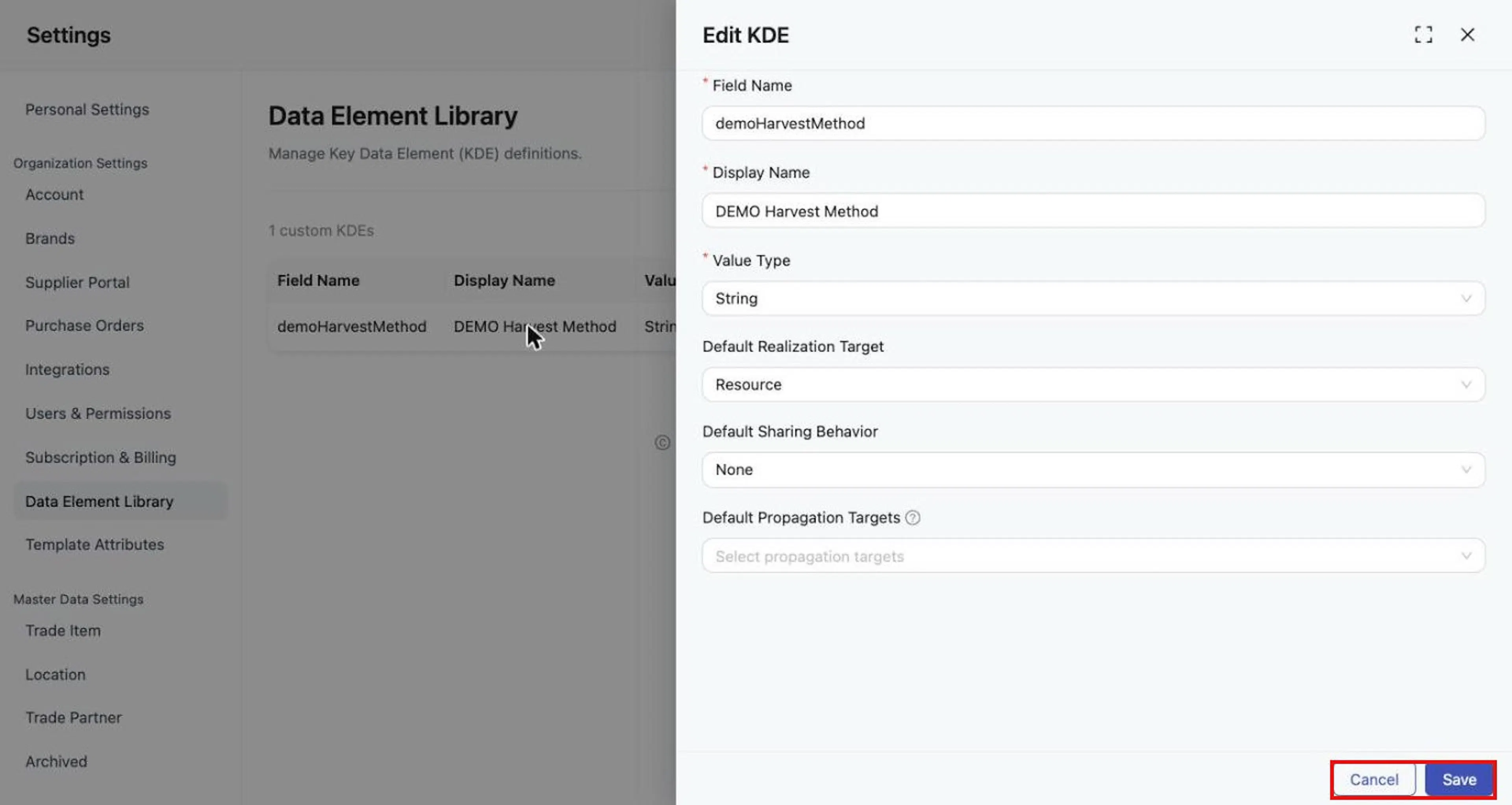
Select a row to open Edit KDE
Select a row to open Edit KDE. Fields: Field Name, Display Name, Value Type, Default Realization Target, Default Sharing Behavior, Default Propagation Targets.
Select Save or Cancel
Select Save or Cancel.
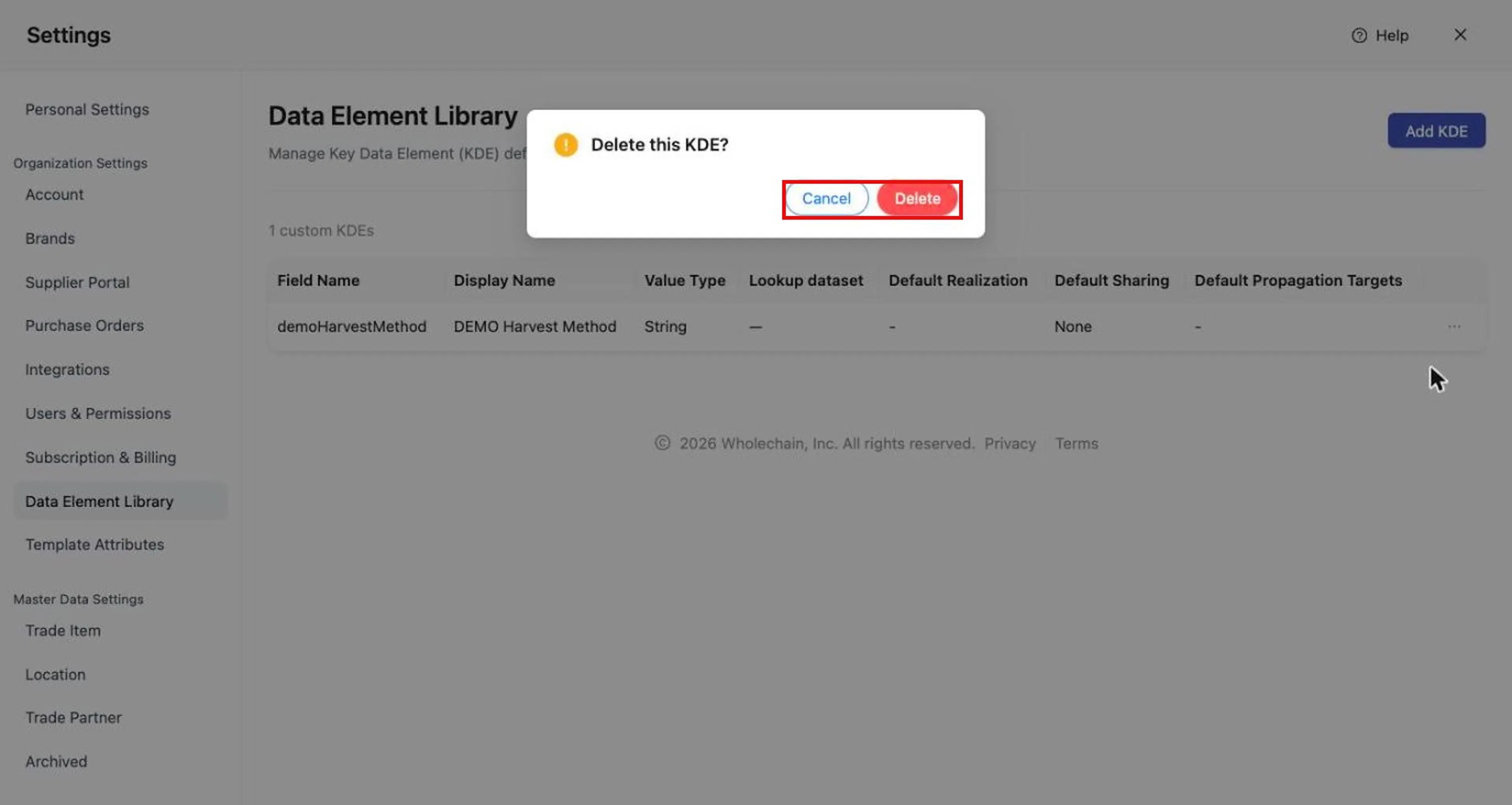
To delete, open the row's three-dot menu and select Delete
To delete, open the row's three-dot menu and select Delete. The dialog asks "Delete this KDE?" with Cancel and Delete choices.
Template Attributes (legacy)
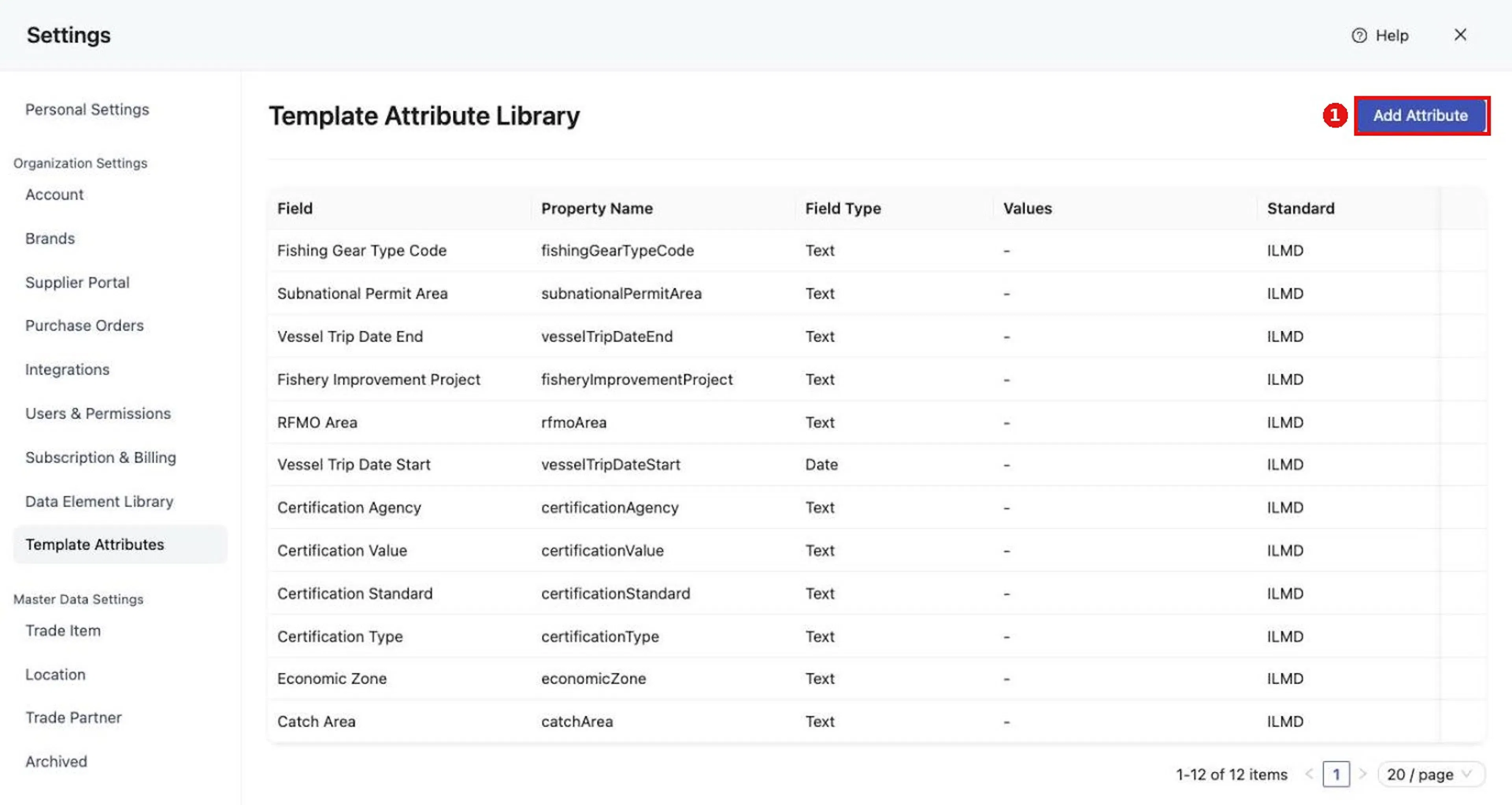
Find it at Organization Settings > Template Attributes (the page is titled Template Attribute Library).
This is a legacy feature, planned for replacement by Data Policies. Some existing customers still use it. For new configuration, use KDEs and Data Policies instead.
The table shows Field, Property Name, Field Type, Values, Standard, and Namespace. The library includes built-in optional attributes, mainly supporting fishing-event data and GDST requirements (for example Fishing Gear Type Code, Subnational Permit Area, Vessel Trip Date Start and End, Fishery Improvement Project, RFMO Area, certification attributes, Economic Zone, and Catch Area).
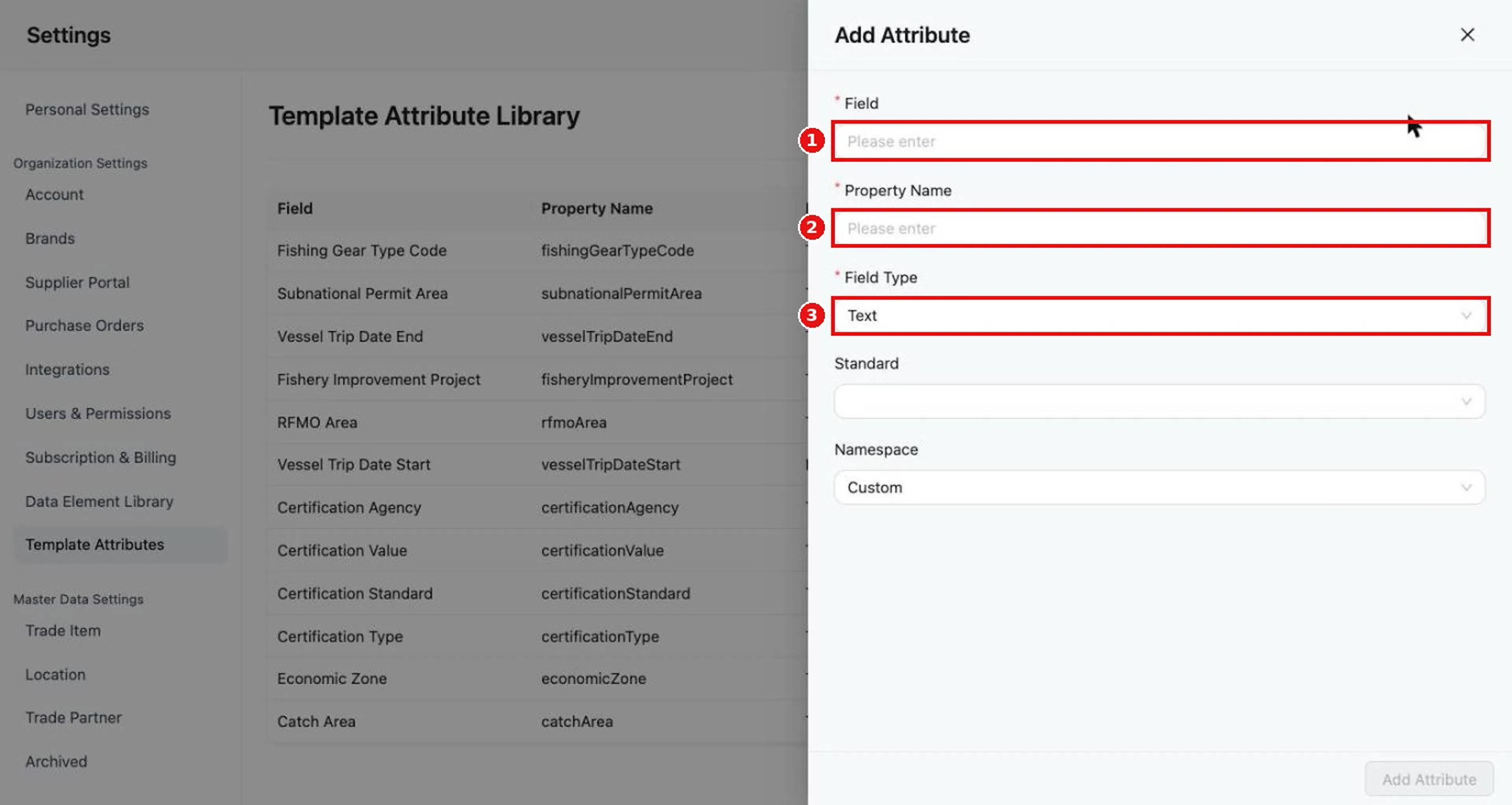
Add Attribute opens a drawer with required fields Field, Property Name, and Field Type (Text, Number, Dropdown, Radio Button, or Date), plus Standard (ILMD or Extension) and Namespace (Custom, GDST, or CBV). Field Type defaults to Text and Namespace to Custom.
If you are migrating existing attributes, contact support@wholechain.com.
Data Policies on the Master Data pages
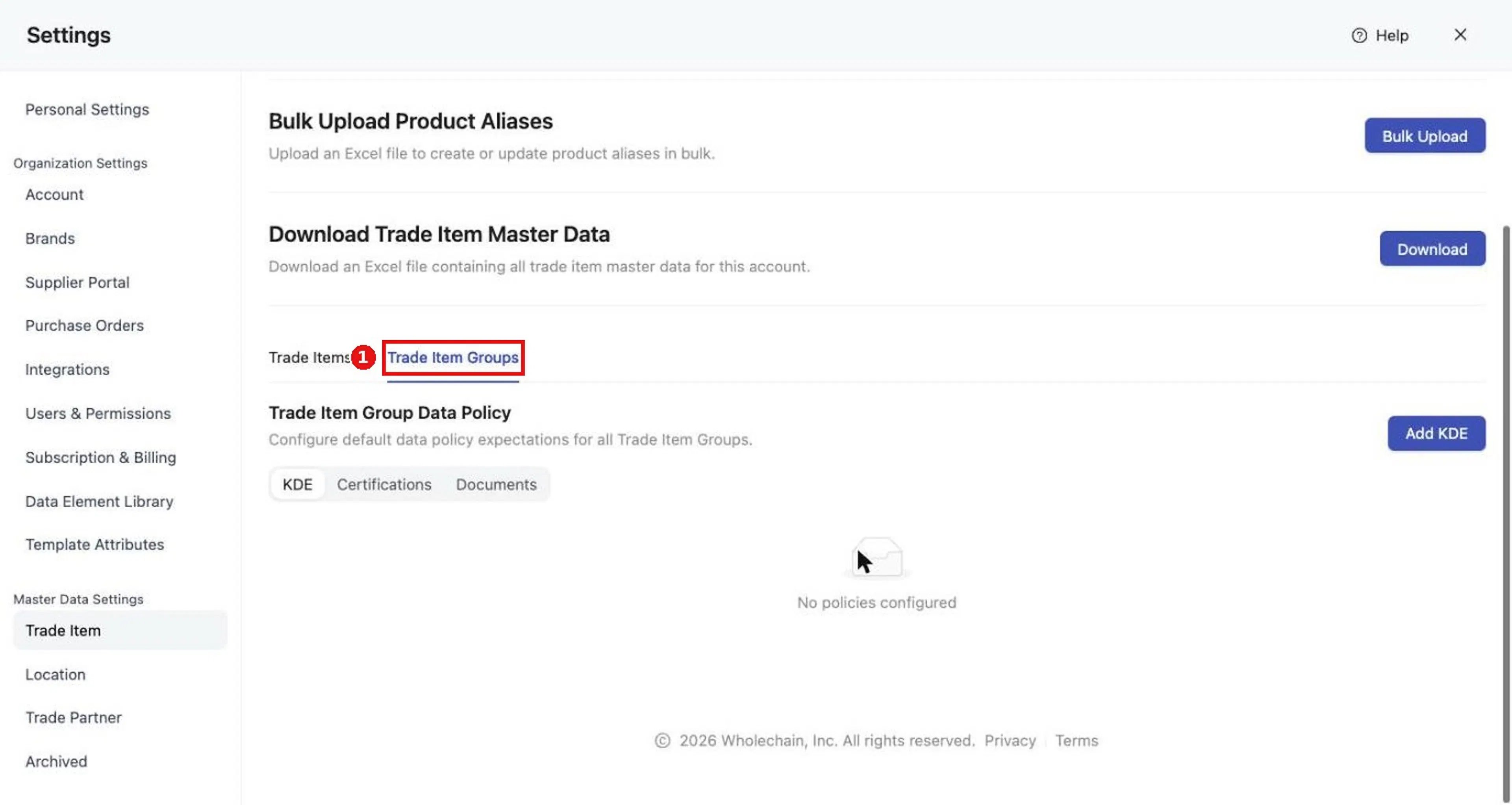
The Trade Item and Location tabs (under Master Data Settings) include a Data Policy section below the tools. To use it, first switch on Data Policy for the whole account under Organization Settings > Account (Compliance; Admin only; see Account).
The section is described as default data policy expectations for all Trade Items or Locations. A policy set here is universal. The KDE table lists Name, Enforcement, Realization, and Sharing, and shows "No policies configured" until you add one. Select Add KDE to add a policy.
| Level | Where | Covers |
|---|---|---|
| Universal | Trade Item / Location tab in Master Data Settings | All Trade Items or all Locations. |
| Group | Trade Item Groups sub-tab of the Trade Item tab / Location Groups sub-tab of the Location tab in Master Data Settings, or the Data Policy tab of the group drawer | A Trade Item Group or Location Group. A group policy is a sub-group of the universal policy. |
| Individual | The details drawer of the Trade Item or Location (not in Settings) | One Trade Item or Location: open its details drawer and add the KDE there. |
Values are always entered on the individual record.
Expected result
Saved KDEs appear in the Data Element Library table. Policies you add appear in the KDE table on the relevant Master Data page, and a KDE for a single Trade Item or Location is added in that record's details drawer.
Troubleshooting
- I do not see Data Policy sections. Switch on Data Policy under Organization Settings > Account (Admin only).
- I need to migrate existing Template Attributes. Contact support@wholechain.com.
For general questions, see Frequently asked questions.