

Settings overview
Wholechain Settings: Settings overview.
Applies to: All Settings sections
Audience: All users
Prerequisites: You are signed in to Wholechain.
Related: Personal Settings; Account; Frequently asked questions
Purpose
Use Settings to manage your own profile and notifications, configure your Wholechain account, and control how your master data (Trade Items, Locations, and Trade Partners) is identified, downloaded, and archived. This article shows how to open Settings and which article covers each section.
Before you begin
Any signed-in user can open Settings. Some account-wide settings can be changed only by an Admin; each article says which. Wholechain does not guarantee regulatory compliance through any Settings option.
Steps
Open Settings
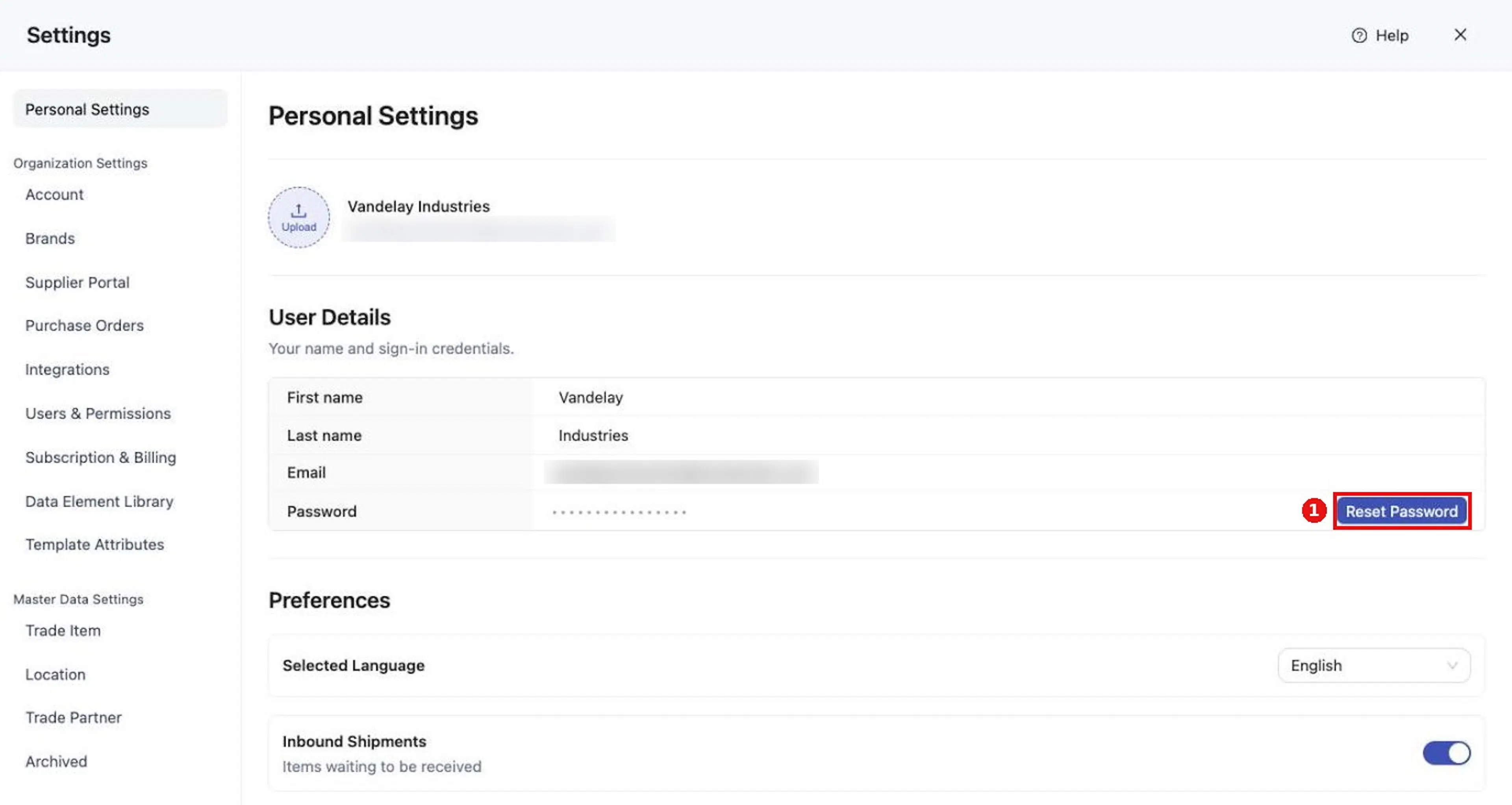
Click the gear icon at the bottom of the left-hand navigation bar
Click the gear icon at the bottom of the left-hand navigation bar, or click the Settings button on the Dashboard.
Check that the Settings window opens
The Settings window opens on Personal Settings.
Use the tabs to move between Personal Settings and the sections
Use the tabs to move between Personal Settings and the two sections, Organization Settings and Master Data Settings, each of which has its own tabs. Select the X at the top right to close Settings.
Open a module's tab of Settings
The PO Tracker, Trade Items, Locations, and Trade Partners modules each have a gear icon at the top of the page. Click it to open the matching tab of Settings.
| Module | The gear icon at the top of the page opens |
|---|---|
| PO Tracker (any tab) | Organization Settings > Purchase Orders (sharing management) |
| Trade Items | Master Data Settings > Trade Item |
| Locations | Master Data Settings > Location |
| Trade Partners | Master Data Settings > Trade Partner |
What is in Settings
Settings has three parts. Personal Settings is a tab by itself: it is the first tab, sits above the sections, and has no section title. The Organization Settings section has nine tabs: Account, Brands, Supplier Portal, Purchase Orders, Integrations, Users & Permissions, Subscription & Billing, Data Element Library, and Template Attributes. The Master Data Settings section has four tabs: Trade Item, Location, Trade Partner, and Archived.
| Section | Tab | What it is for |
|---|---|---|
| (first tab) | Personal Settings | Your own profile, password, interface language, email notifications, and saved interface layouts. Affects only you. |
| Organization Settings | Account | Account details, compliance and capability switches, and Enterprise SSO. |
| Brands | Brands you assign Trade Items to. | |
| Supplier Portal | The portal you share with customers. | |
| Purchase Orders | Turn on PO tracking and set sharing defaults. | |
| Integrations | Third-party integrations and API keys. | |
| Users & Permissions | Who can access the account and in what role. | |
| Subscription & Billing | Your plan and a link to billing. | |
| Data Element Library | Key Data Element (KDE) definitions used by Data Policies. | |
| Template Attributes | Legacy custom attributes for event templates. | |
| Master Data Settings | Trade Item, Location, Trade Partner | External identifiers, alias uploads, and master data downloads, plus Data Policy defaults for Trade Items and Locations. |
| Archived | Archived Trade Items, documents, Locations, and Trade Partners. |
Personal versus organization-wide settings
- Personal Settings apply to you only. Changing them does not affect other users.
- Everything in the Organization Settings and Master Data Settings sections applies to the whole account and can affect every user.
- Some account-wide settings can be changed only by an Admin. Employees have restricted access, including restrictions on inviting users and enabling third-party integrations.
Tip: Some dialogs close the whole Settings window if you press the Escape key. Use the dialog's own Cancel button or X instead.
Expected result
The Settings window opens on Personal Settings when you use the gear icon in the left-hand navigation bar or the Settings button on the Dashboard, and on the matching tab when you use a module's gear icon. You can move between tabs and close the window with the X.
Articles in this guide
| Article | Audience | Use it to |
|---|---|---|
| Settings overview (this article) | All users | Open Settings, understand how it is organized, and find the right article. |
| Personal Settings | All users | Manage your name, password, language, email notifications, and saved layouts. |
| Account | Admins; all users to view | Review account details, switch compliance capabilities on or off, set up Enterprise SSO, and check your plan and billing. |
| Users & Permissions | Admins | Invite, edit, and remove members and understand roles. |
| Supplier Portal | Admins | Manage your portal domain, versions, and who can see portal pages. |
| Purchase Orders | Admins | Turn on PO tracking and set supplier PO sharing defaults. |
| Integrations and API keys | Admins | Configure third-party integrations, API keys, the Digital Link URL, and EPCIS keys. |
| Data elements and policies | Admins | Define Key Data Elements, apply Data Policies, and understand legacy Template Attributes. |
| Master data settings | Admins; users managing master data | Manage brands, external identifiers, aliases, downloads, vessels, and the default invite message. |
| Archived | Admins; users managing master data | Review and restore archived records. |
| Frequently asked questions | All users | Get short answers and find the article that explains more. |
Glossary
| Term | Meaning |
|---|---|
| Alias | An additional identifier Wholechain can recognize alongside a resource's Number / ID. |
| Connect API | Wholechain's API integration. |
| Digital Link | A URL identifying your account for exchange with compatible external systems. |
| EPCIS | A traceability event exchange standard used for external-system keys. |
| External identifier | Your account's own Number / ID for a Trade Item, Location, or Trade Partner. |
| KDE | Key Data Element: a defined data field used by Data Policies. |
| Propagation target | An operational resource that receives a KDE value. |
| Self Trade Partner | The Trade Partner that represents your own account. |
| Supplier Portal | A portal for sharing information with your customers. |
Troubleshooting
- If a setting is unavailable or cannot be changed, you may not have the Admin role. See Users & Permissions.
- If the window closes unexpectedly, see the tip under "Personal versus organization-wide settings".
For general questions, see Frequently asked questions.