

Locations, attachments, and sharing
See where a Trade Item has active lots, record an event, attach files and images, share the item with Trade Partners, and choose how much event history downstream users can see.
Applies to: Trade Items, the Locations, Attachments and Sharing tabs and the Data Sharing Policy on the item details drawer.
Audience: Users who maintain Trade Items and record events for them.
Prerequisites: An existing Trade Item. At least one Location set up in Locations (the example account uses Alaskan Landing). A connected Wholechain Trade Partner to share with.
Related: Get started with Trade Items, Edit Item Details, Set a data policy for one Trade Item, Find and manage Trade Items, Wholechain Events overview
Purpose
Use this article to see where a Trade Item has active lots and record a supply-chain event for it, keep documents and images with the item, give Trade Partners access to the item's master data, and control how much of the item's event history downstream Wholechain users can see.
Before you begin
- At least one Location set up in Locations (the example account uses Alaskan Landing).
- Permission to record events. Submitting an event creates real traceability records and inventory, and active inventory locks some item settings (traceability type and units) and prevents archiving.
- For a Commission event: a lot code and quantity.
- For attachments: the file to upload. The example uses a placeholder image,
DEMO_cod_case_artwork.png. - For sharing: the partner must have a Wholechain account connected to yours. Your own company appears as your account's self Trade Partner; other partners appear only once they are connected. The example account has no connected partners, so the screenshots stop at the partner list.
Locations tab and adding an event
The Locations tab lists the item's active lots by Location. Use Add Event to record an event for the item.
Open the item and click the Locations tab
With no inventory it shows "No lots found for this trade item." When lots exist, they are listed here.
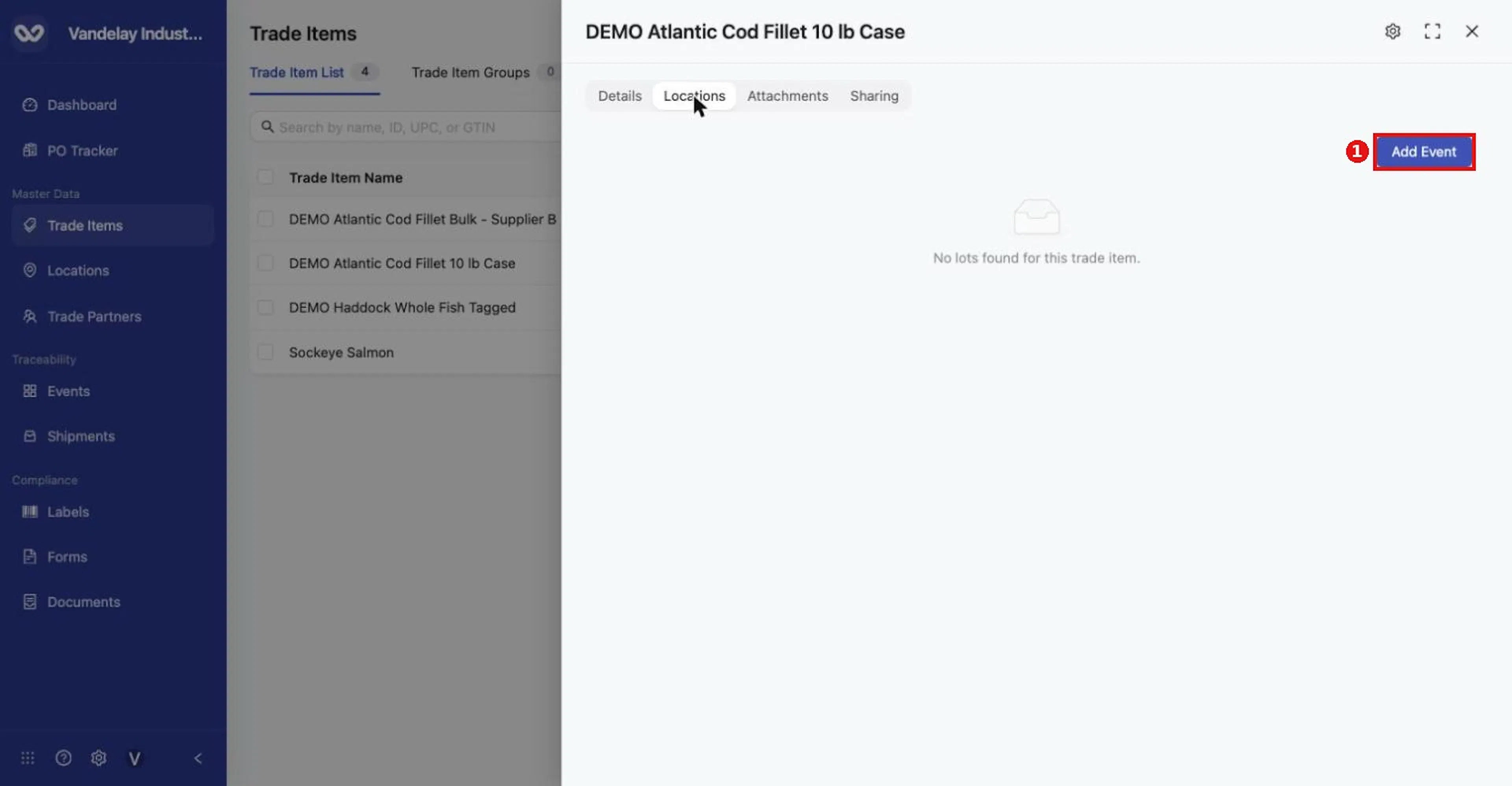
Locations tab. With no inventory it reads 'No lots found for this trade item.' Click Add Event.
Click Add Event
The Add Events drawer opens on Single Event (there is also a Bulk Upload tab for loading many events, not covered in this guide). Under Master Data References, Products is already filled in with the current item.
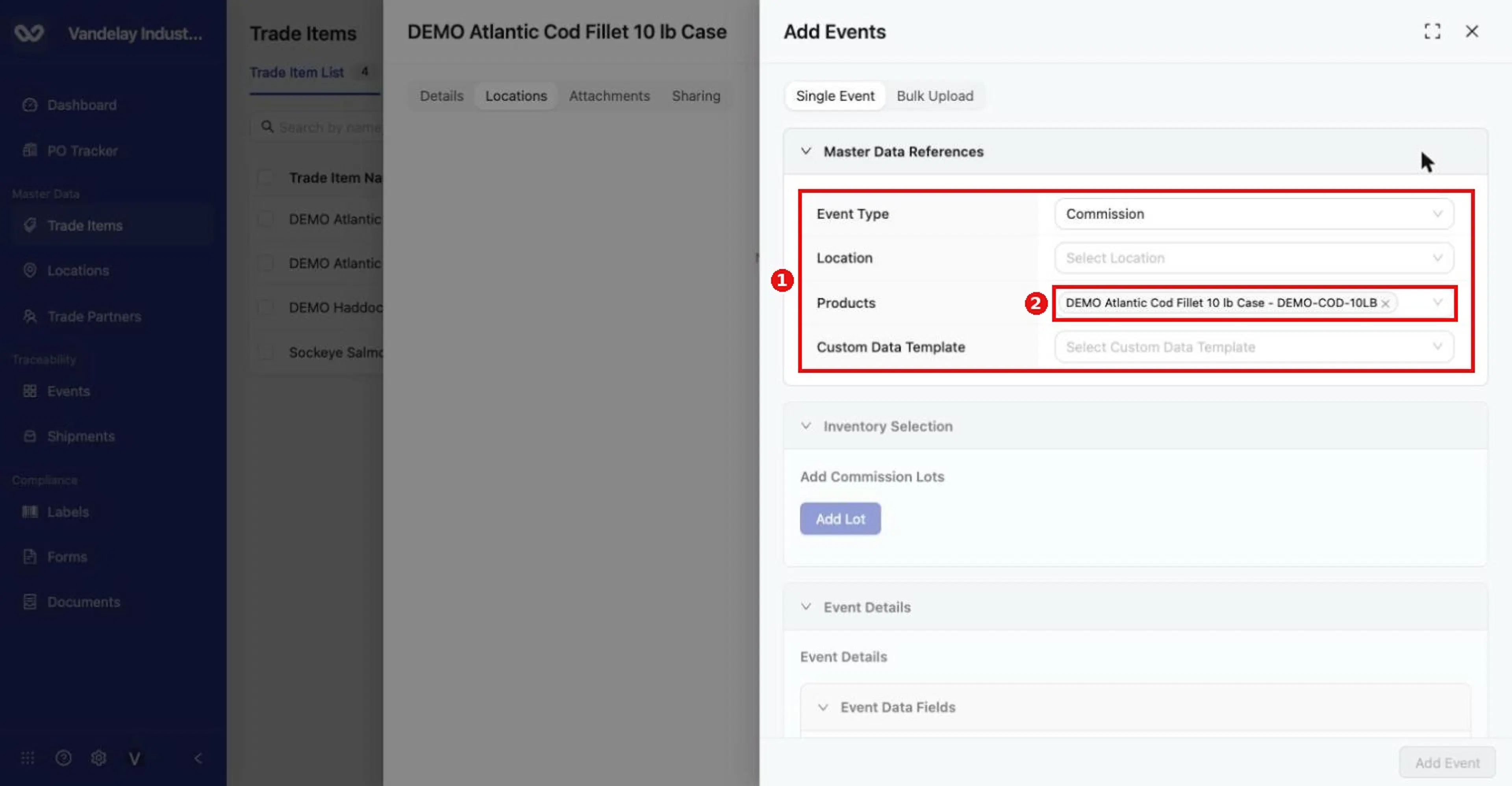
Add Events drawer (Single Event tab). Master Data References holds Event Type, Location, Products (pre-filled with this item) and Custom Data Template.
Open Event Type and choose the event
The options are Commission, Observe, Ship, Receive, Aggregation, Disaggregation, Transform and Decommission.
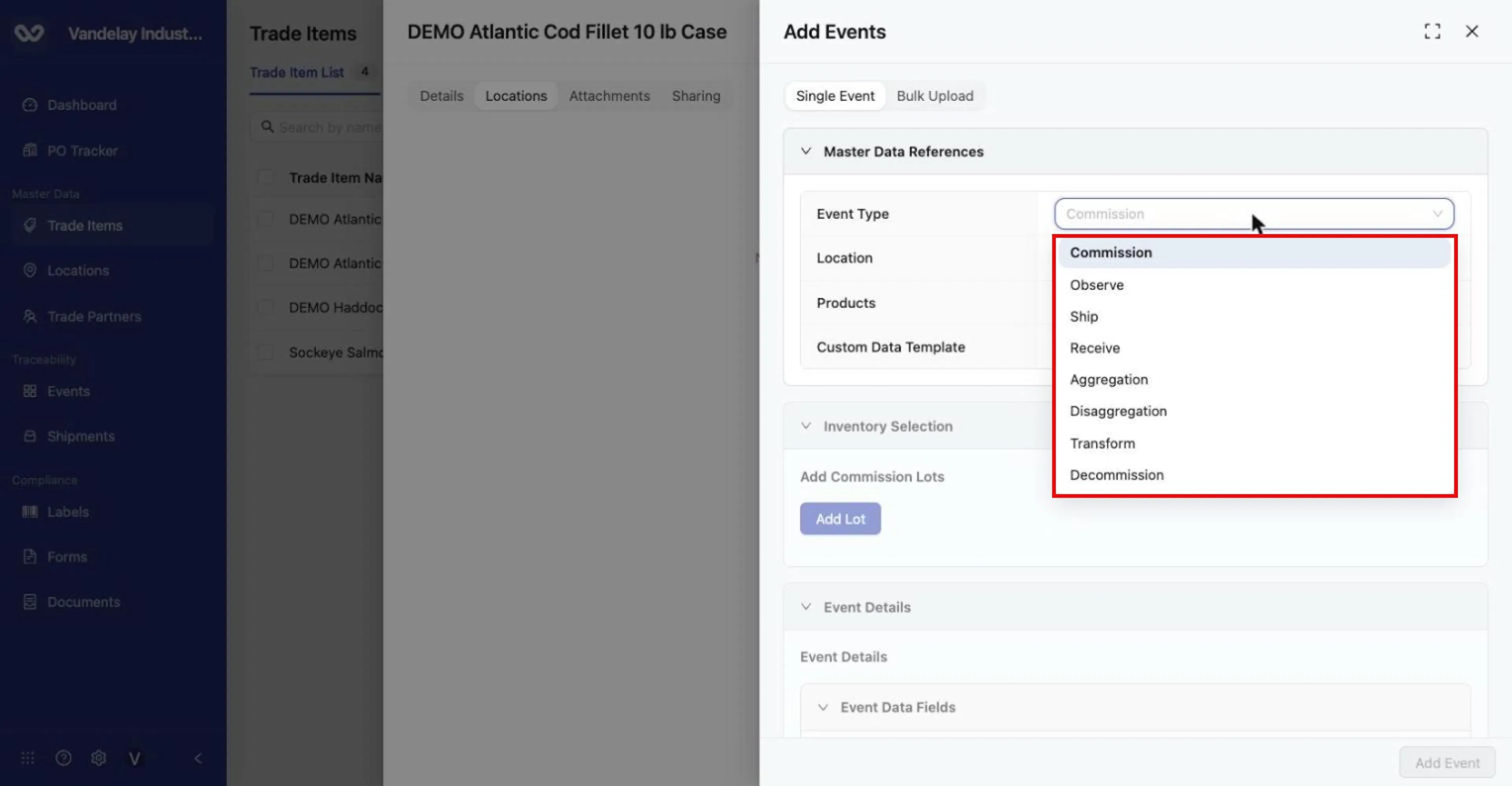
Event Type options: Commission, Observe, Ship, Receive, Aggregation, Disaggregation, Transform, Decommission.
Choose the Location where the event takes place
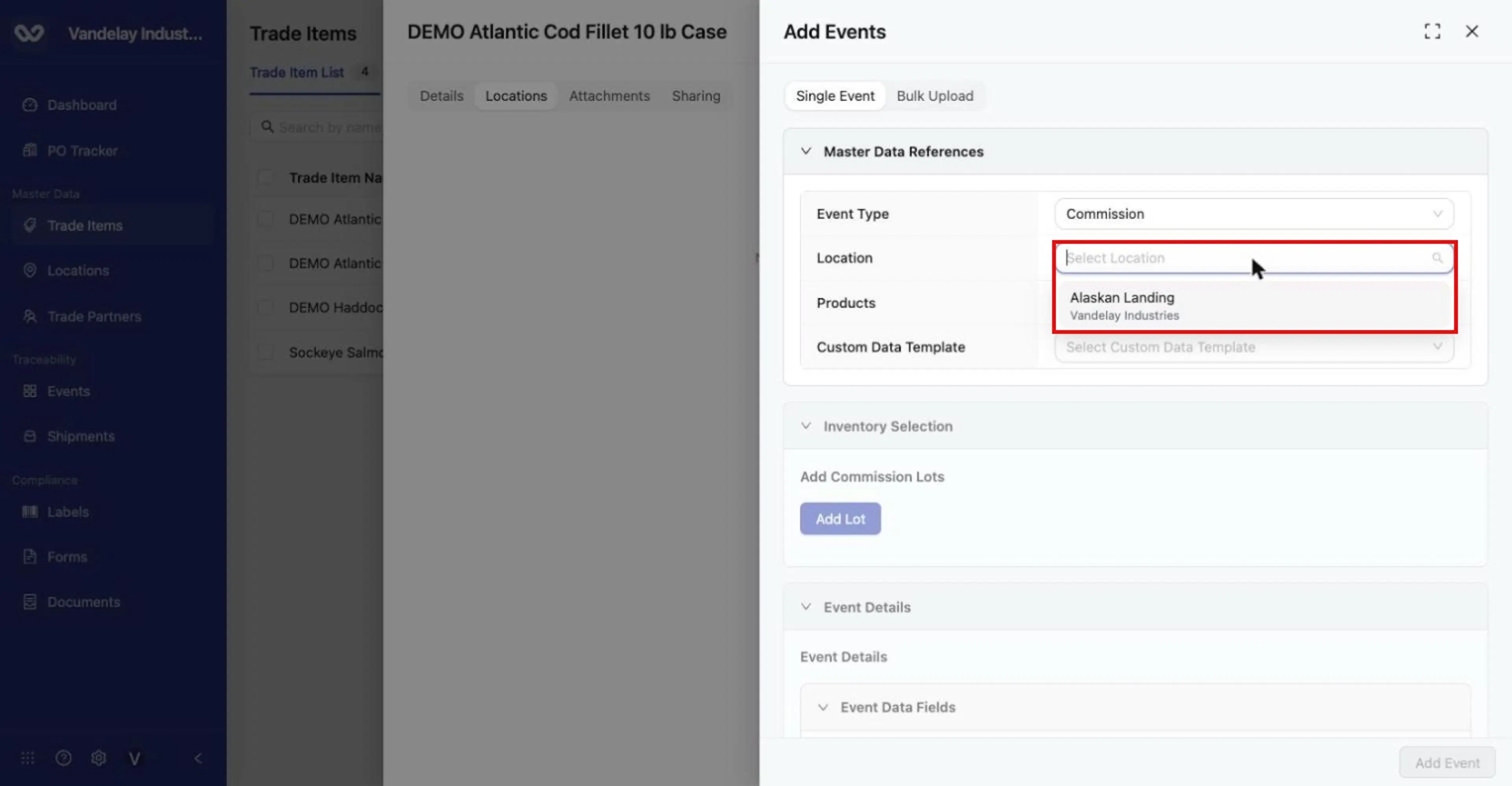
Choose the Location where the event happens.
Optional: choose a Custom Data Template
A Custom Data Template holds extra event fields defined by your account. If your account has none, the list shows No data.
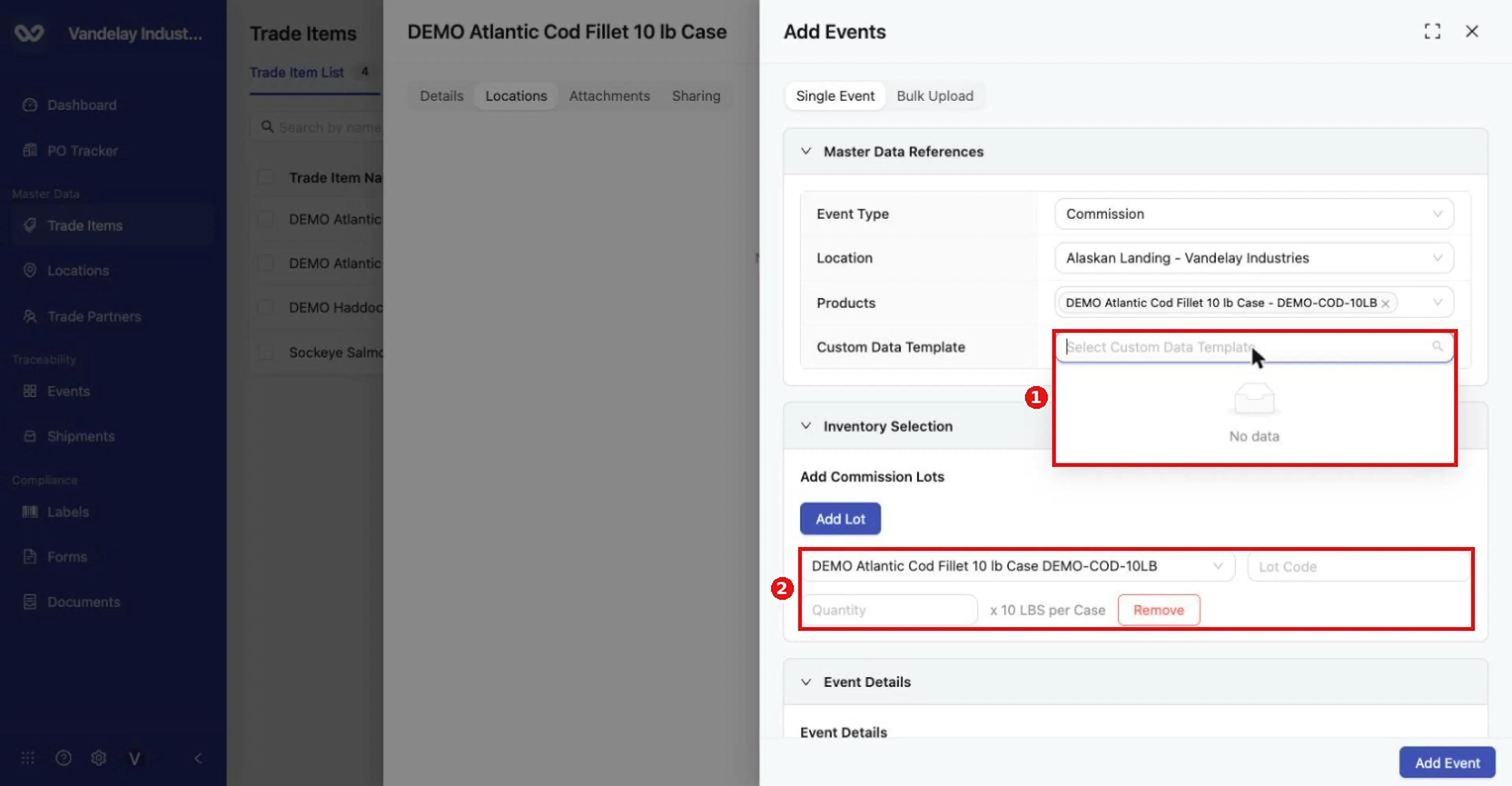
Custom Data Template shows 'No data' when no templates exist. Choosing a location adds a lot row under Inventory Selection.
Complete the lots under Inventory Selection
For Commission, a lot row appears (Add Commission Lots). Enter the Lot Code and Quantity. The quantity is in the item's unit (here "x 10 LBS per Case"). Use Add Lot for more rows or Remove to delete one.
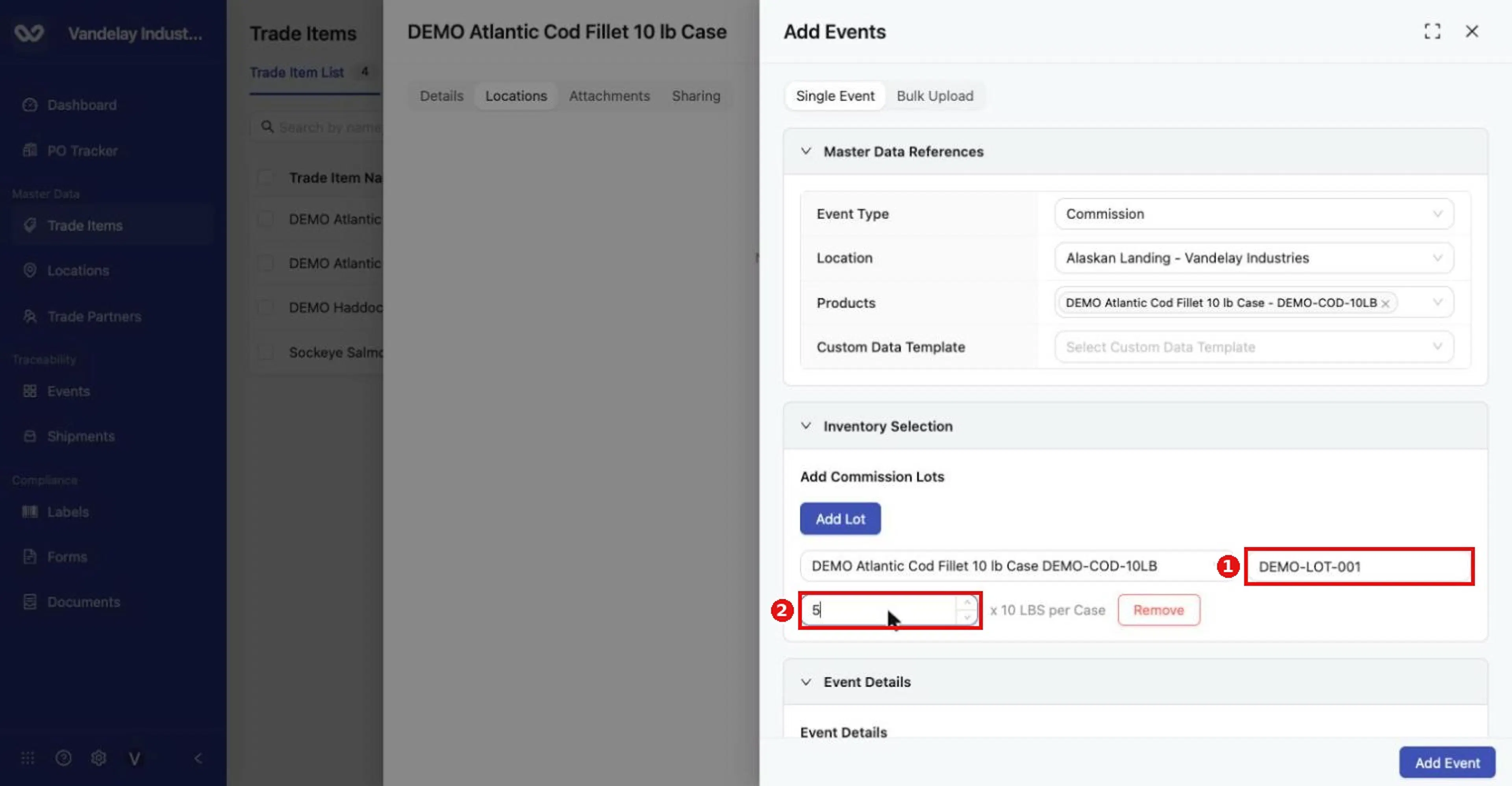
Enter a Lot Code and Quantity. The quantity is counted in the item's unit (here x 10 LBS per Case).
Complete the required Event Data Fields
Under Event Details, then Event Data Fields, fill in Date, Time, Time Zone, Business Step (pre-filled, for example Commissioning (CBV)) and Disposition (pre-filled, for example Active (CBV)). Optional fields include PO Number and Read Point.
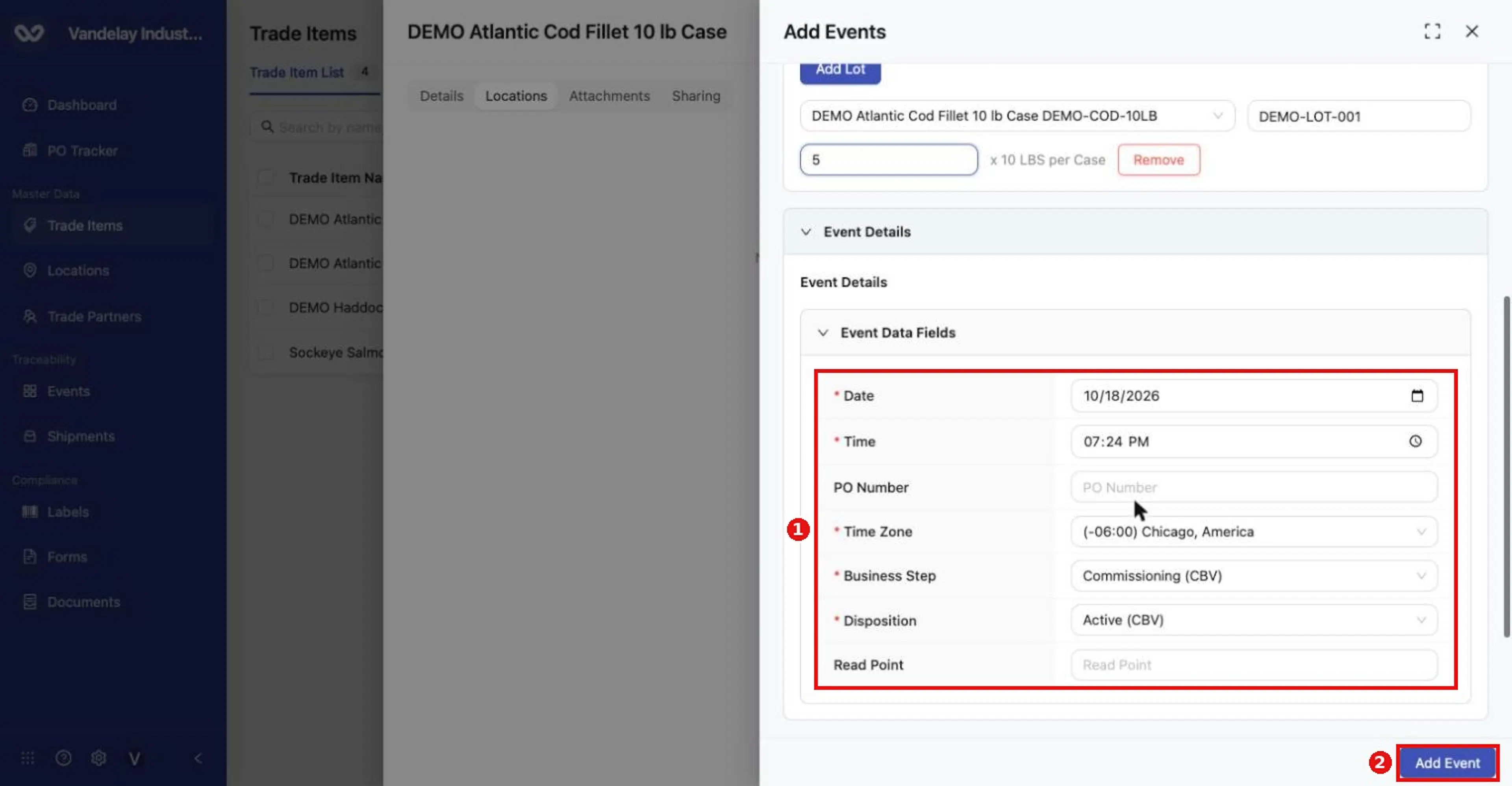
*Event Data Fields. Required fields are marked with . Check the form, then click Add Event to record the event.
Check the form and click Add Event
Add Event is enabled once the required fields are complete. The event is recorded.
Event types at a glance
The form changes with the event type; there is no single universal form. For the steps for each event type, start from the Wholechain Events overview, which lists every event type with links.
| Event Type | Typical meaning | What the form asks for | Events guide |
|---|---|---|---|
| Commission | Bring new product into the system (for example a new lot). | Location; Add Commission Lots with lot code and quantity. | Commission |
| Observe | Record an observation about existing product. | Fields specific to the type. | Observe |
| Ship | Send product from one Location to another. | Origin Location and Destination Location; Select Inventory with Lots, Containers and Direct Ship tabs listing existing inventory. | Ship |
| Receive | Receive incoming product. | Fields specific to the type. | Receive |
| Aggregation (the guide action is Aggregate) | Combine units. | Fields specific to the type. | Aggregate |
| Disaggregation (the guide action is Disaggregate) | Split units. | Fields specific to the type. | Disaggregate |
| Transform | Turn inputs into new outputs. | Fields specific to the type. | Transform |
| Decommission | Take product out of circulation. | Fields specific to the type. | Decommission |
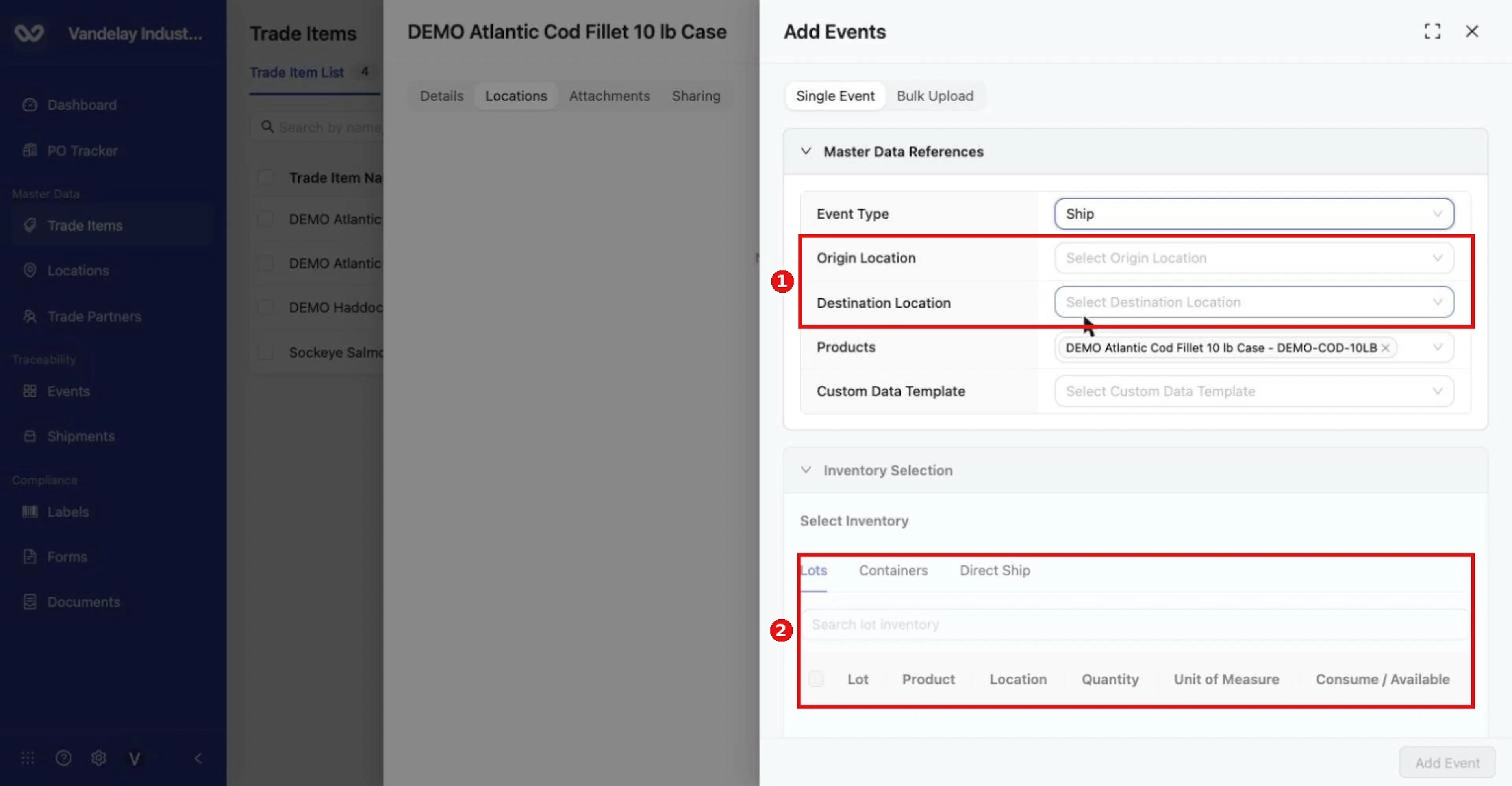
The form changes with the event type. Ship asks for Origin and Destination Location and lets you select existing inventory (Lots, Containers, Direct Ship) instead of creating new lots.
Events build the item's traceable history. Events such as Ship work from existing lots, so each step builds on the lots and history already recorded. That is how upstream history travels with the product, subject to the item's Data Sharing Policy (see below). A shared Location can be used as the destination on Ship events and as the origin on Receive events. For the full behaviour of the Add Event form and of each event type, see the Wholechain Events overview.
Attachments and the Product Images thumbnail
Keep documents and images that belong to the product with its record: case artwork, retail pack artwork, product photos, certificates and so on. Documents received through traceability can also appear here.
Open the item and click the Attachments tab
The Documents table lists existing attachments.
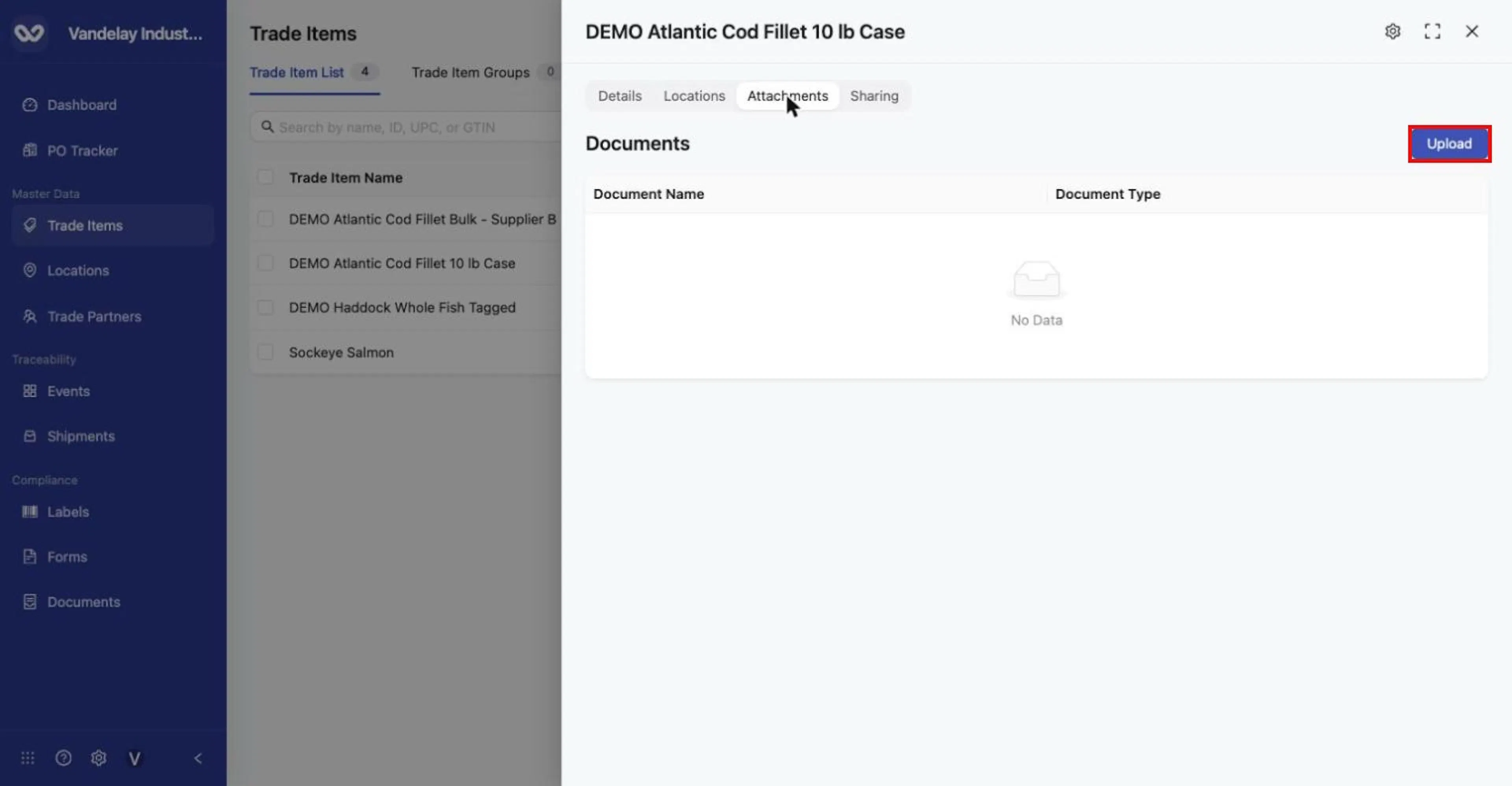
Attachments tab: the Documents table is empty ('No Data') until you upload. Click Upload.
Click Upload
The Upload Artwork dialog opens.
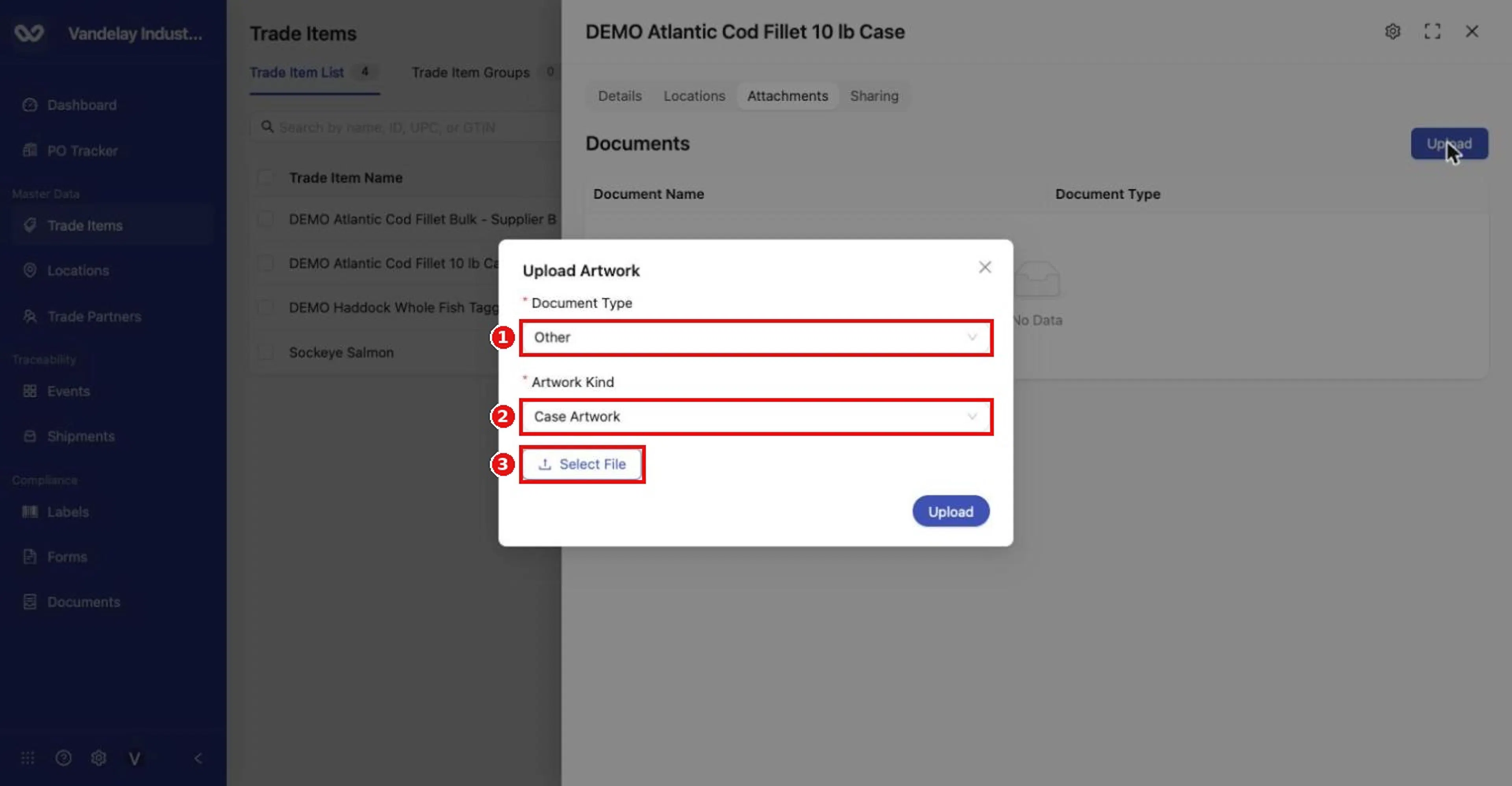
The Upload Artwork dialog asks for Document Type and Artwork Kind (both required), then a file.
Choose Document Type
The options are Other, Certification, Purchase Order and BOL (bill of lading).
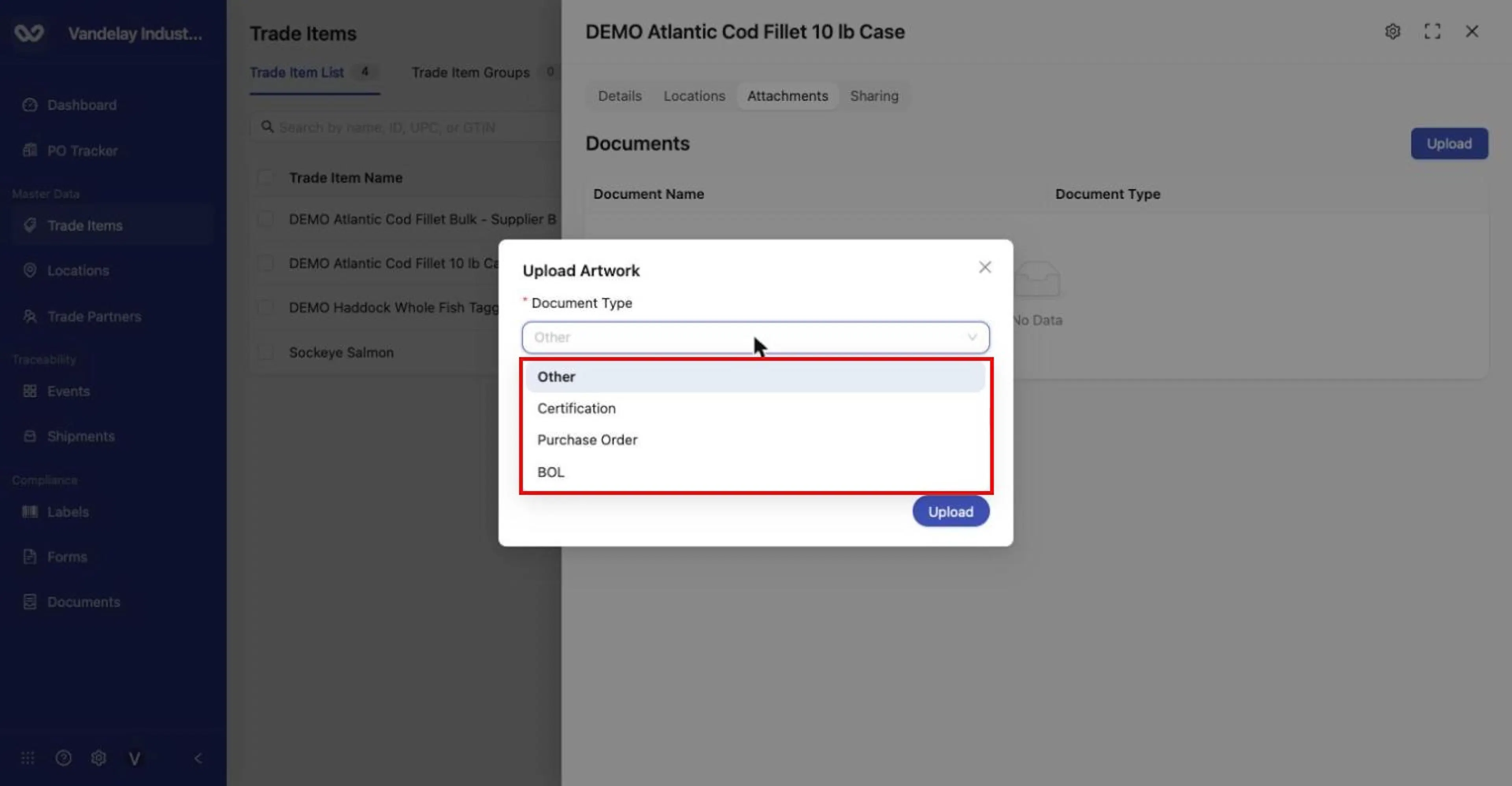
Document Type options: Other, Certification, Purchase Order, BOL.
Choose Artwork Kind
The options are Case Artwork, Case Image Attachment, Pallet Image Attachment, Retail Artwork, Retail Image Attachment and Product Images.
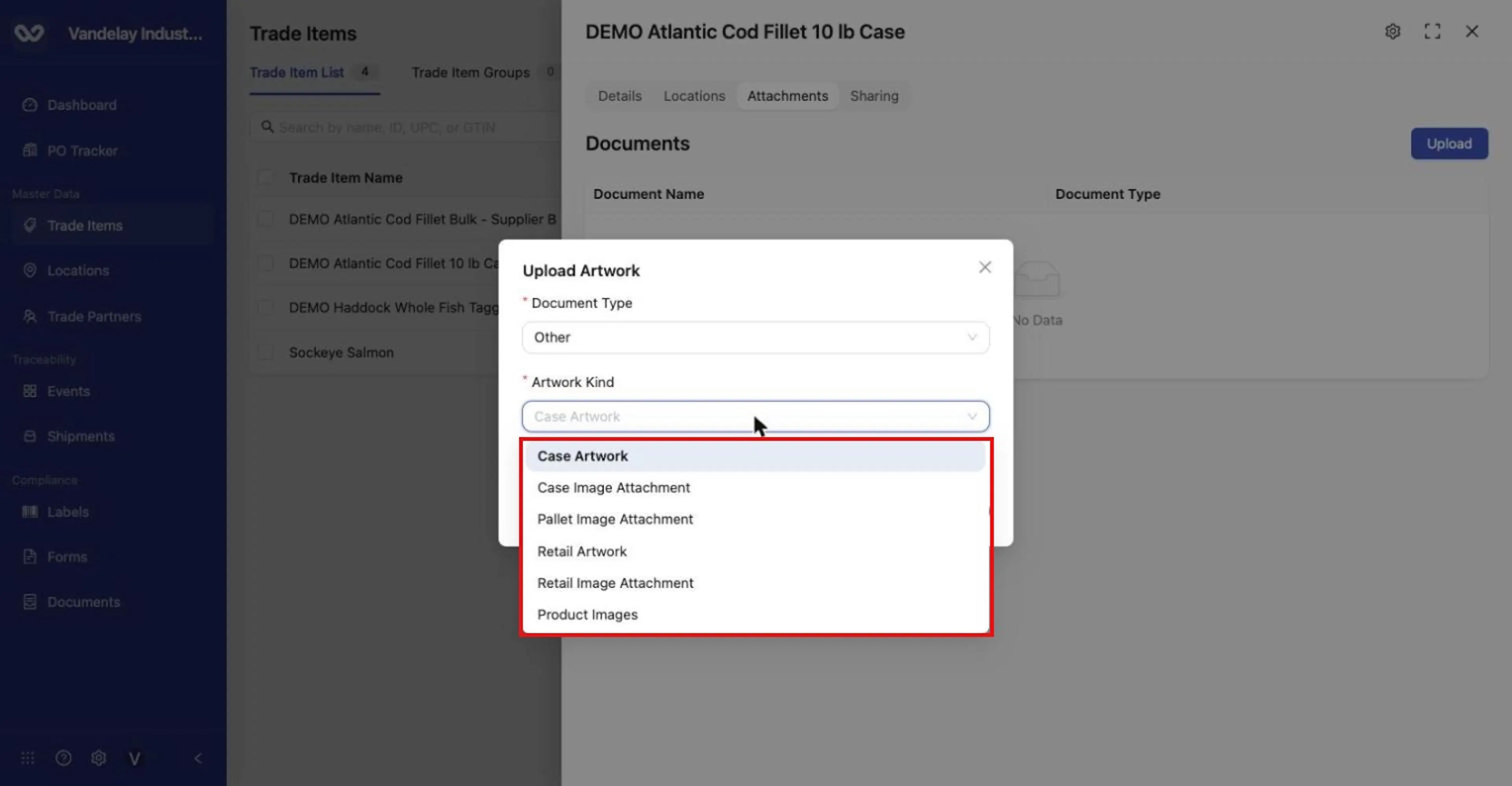
Artwork Kind options: Case Artwork, Case Image Attachment, Pallet Image Attachment, Retail Artwork, Retail Image Attachment, Product Images.
Click Select File and choose the file
Its name appears under the button.
Click Upload
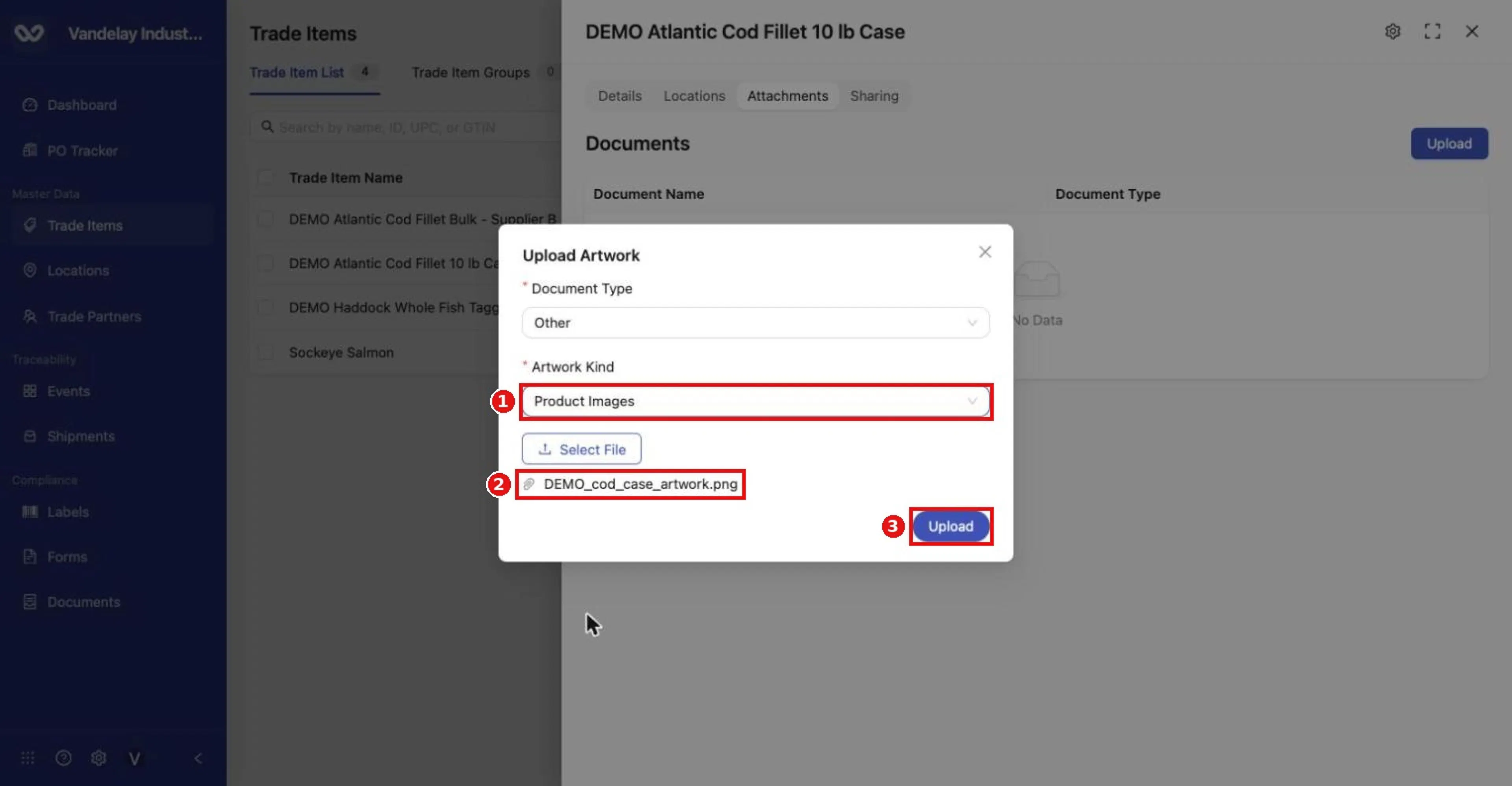
Product Images selected and the demo file attached. Click Upload.
A message such as DEMO_cod_case_artwork.png uploaded appears. Image files are shown in a preview carousel above the Documents table, which lists Document Name and Document Type.
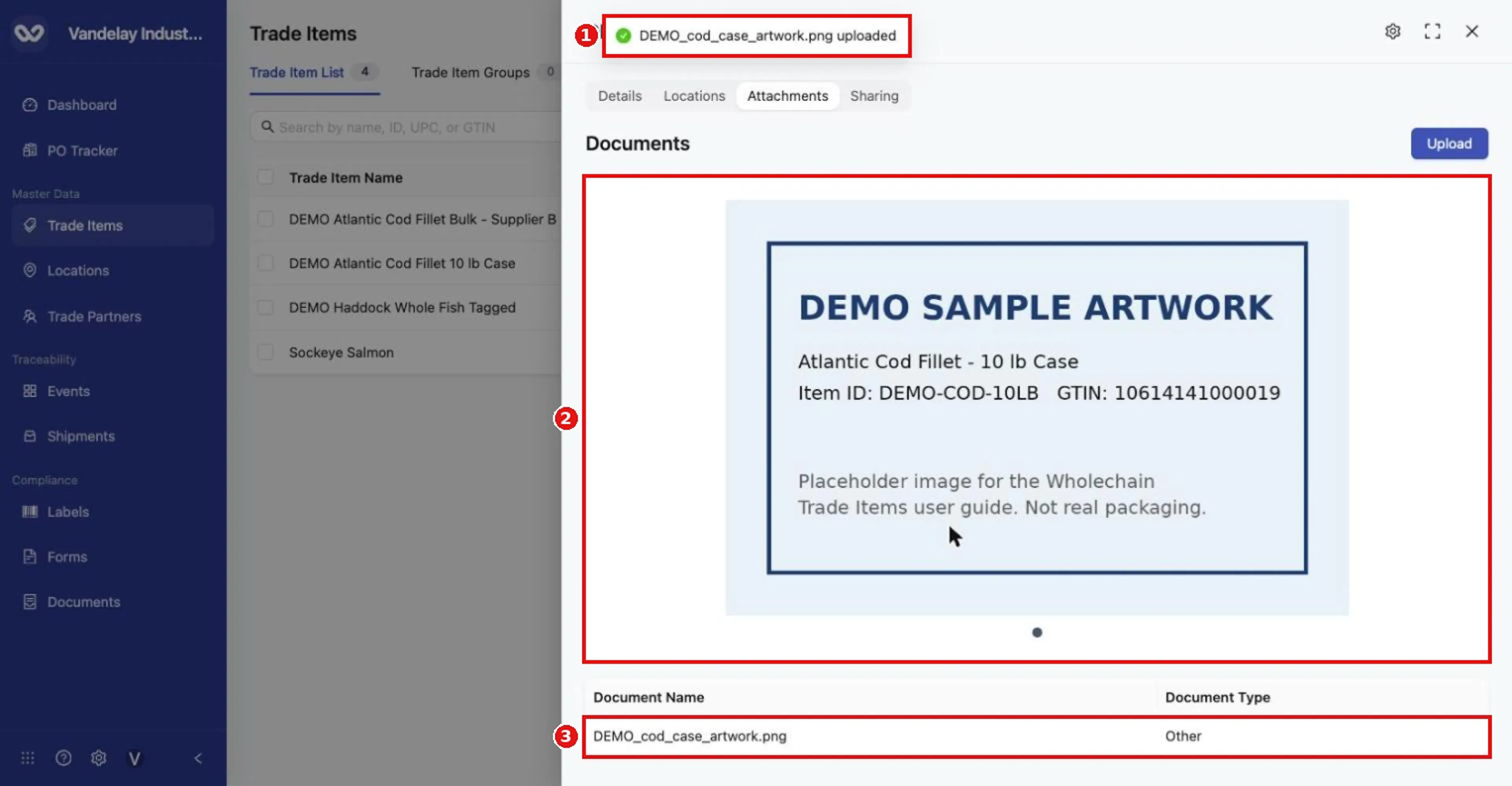
'DEMO_cod_case_artwork.png uploaded'. Image files appear in a preview carousel above the Documents table.
Show a picture in the Trade Item List
The list has an Image column (show or hide it with the column settings, see Find and manage Trade Items). An attachment uploaded with Artwork Kind Product Images is used as the item's thumbnail there. Items without one show a placeholder icon.
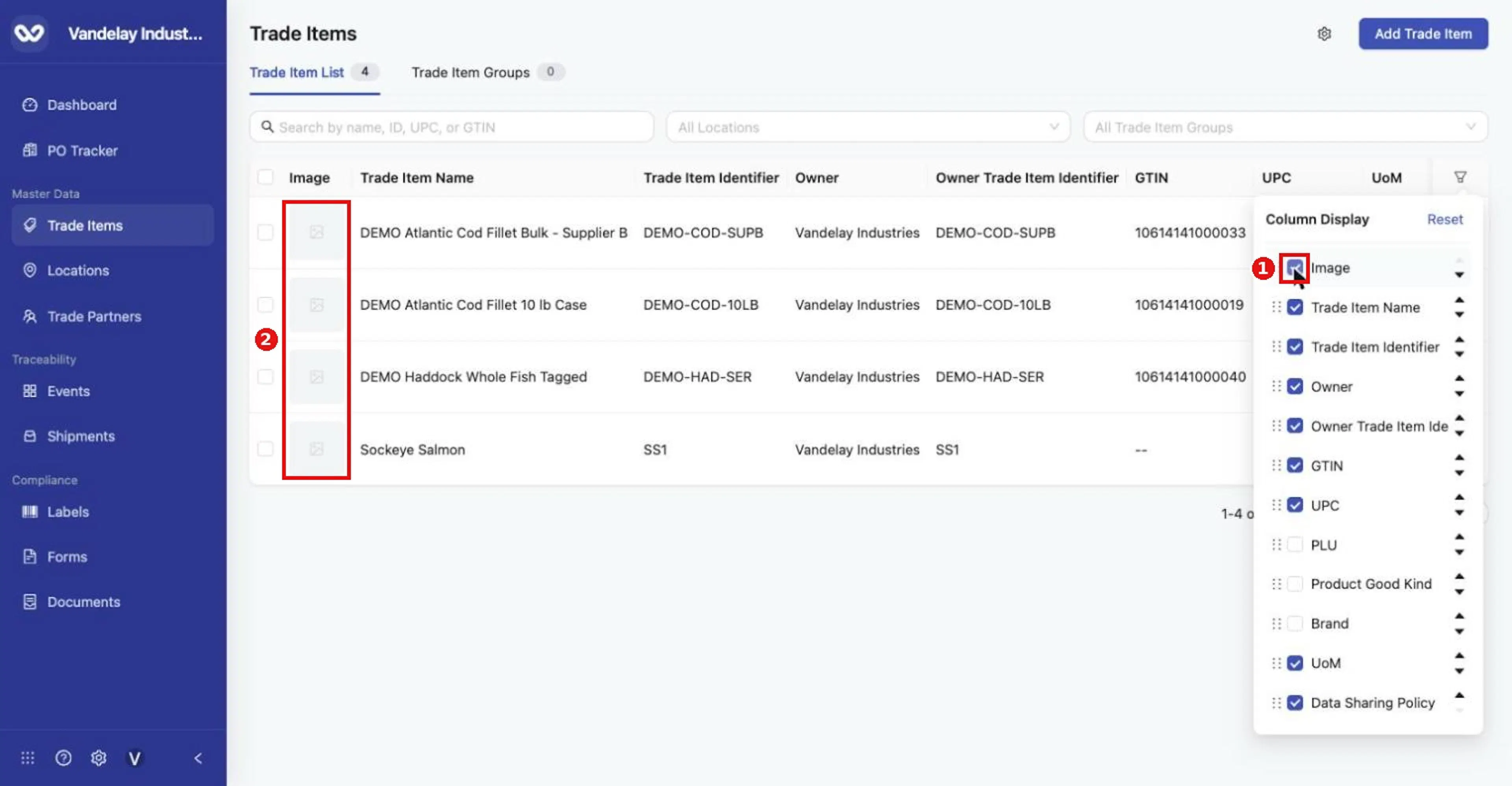
Turning on Image adds an Image column to the Trade Item List.
Share a Trade Item with Trade Partners
Give Wholechain-connected Trade Partners access to an item's master data so they can use it in their own traceability records or help maintain it.
Open the item and click the Sharing tab
Shared Trade Partners lists partners and their Permission; Owner is shown underneath. A Search box filters the list.
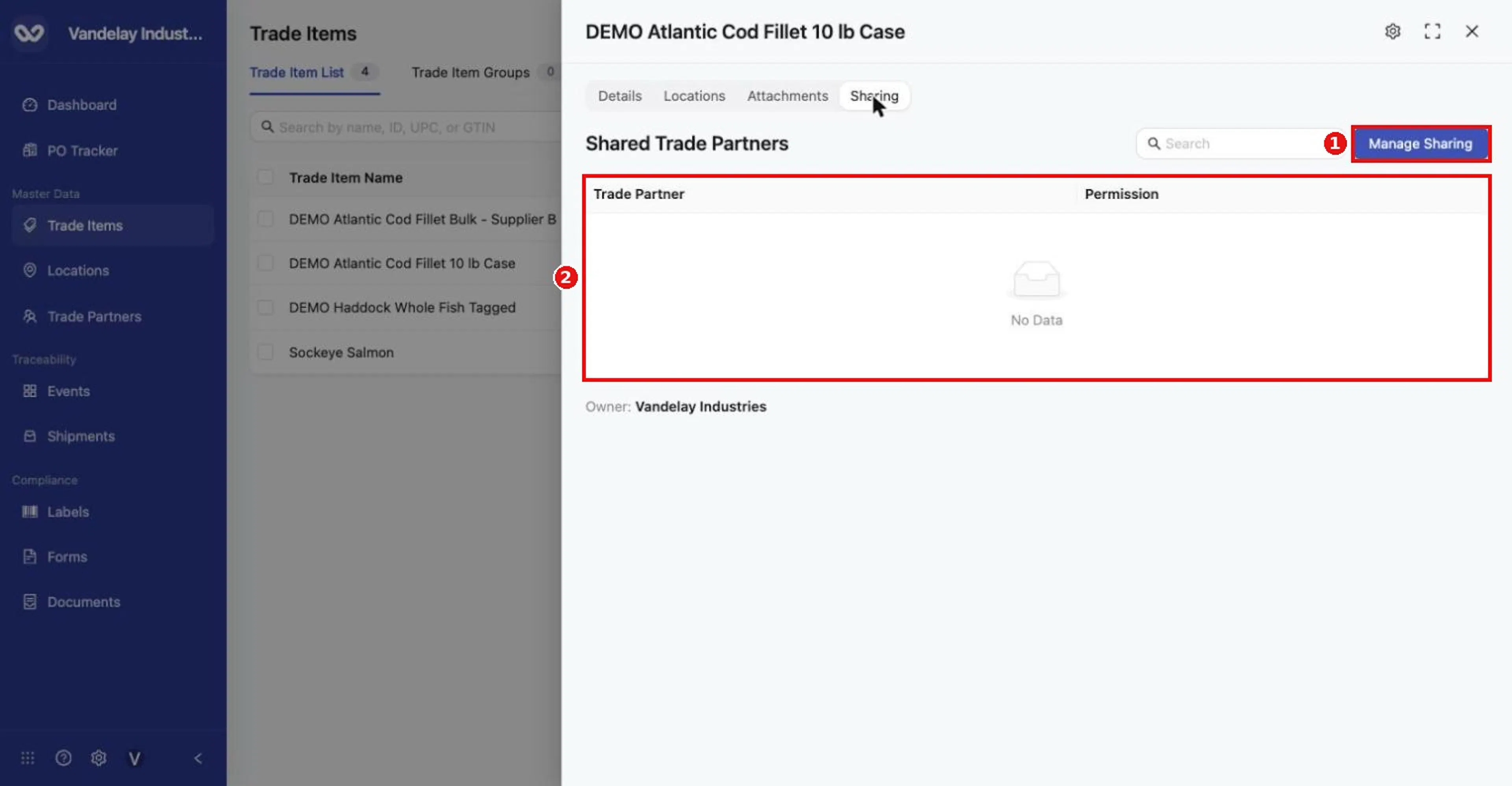
Sharing tab. 'Shared Trade Partners' lists who has access and their Permission; the Owner is shown below. Click Manage Sharing.
Click Manage Sharing
The Share Trade Item panel opens ("Select trade partners and configure access for this trade item.").
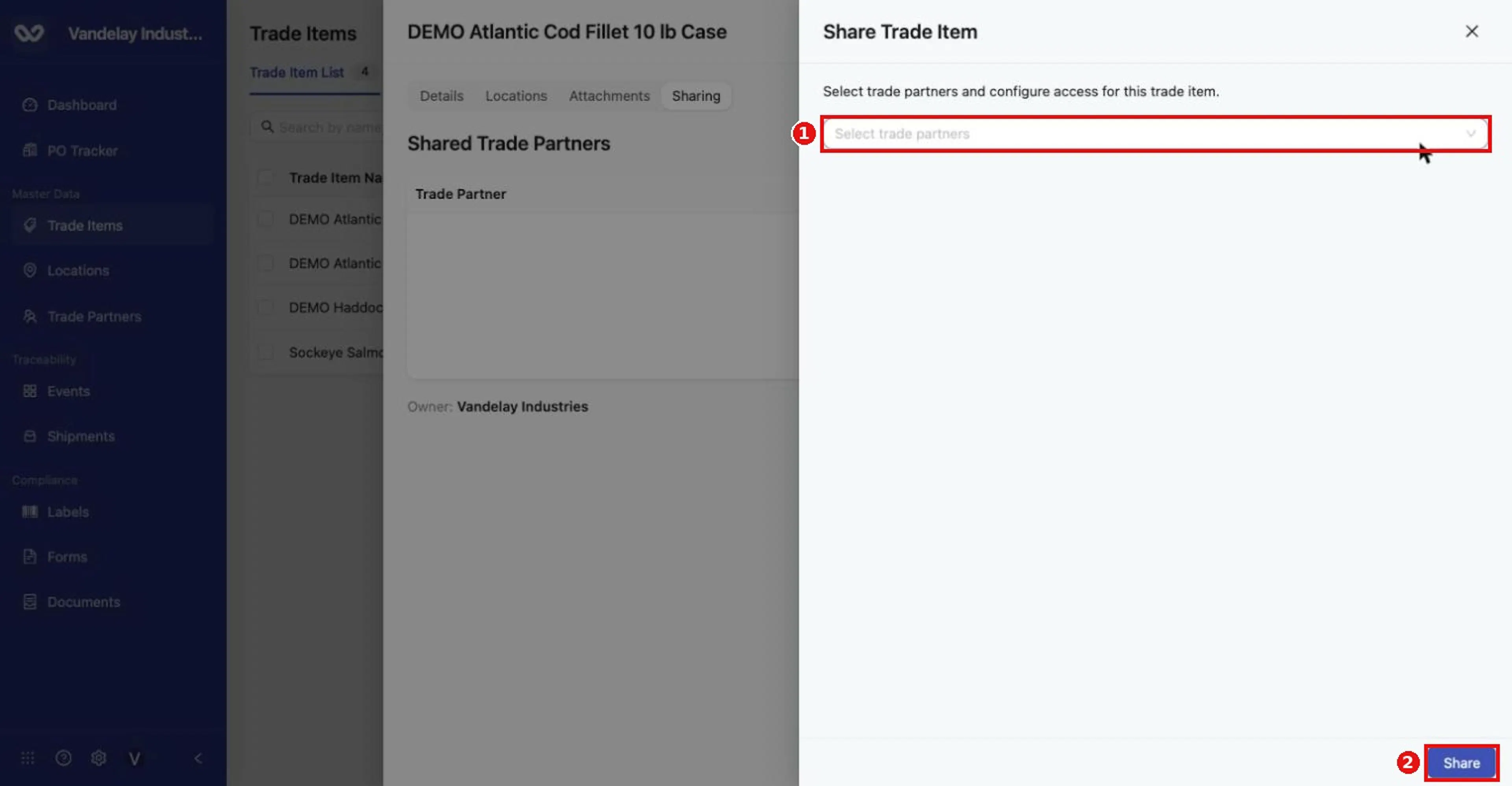
Share Trade Item panel. Search and select Wholechain-connected trade partners, then set access and click Share.
Open Select trade partners and search for partners
If none are connected, the list shows No data.
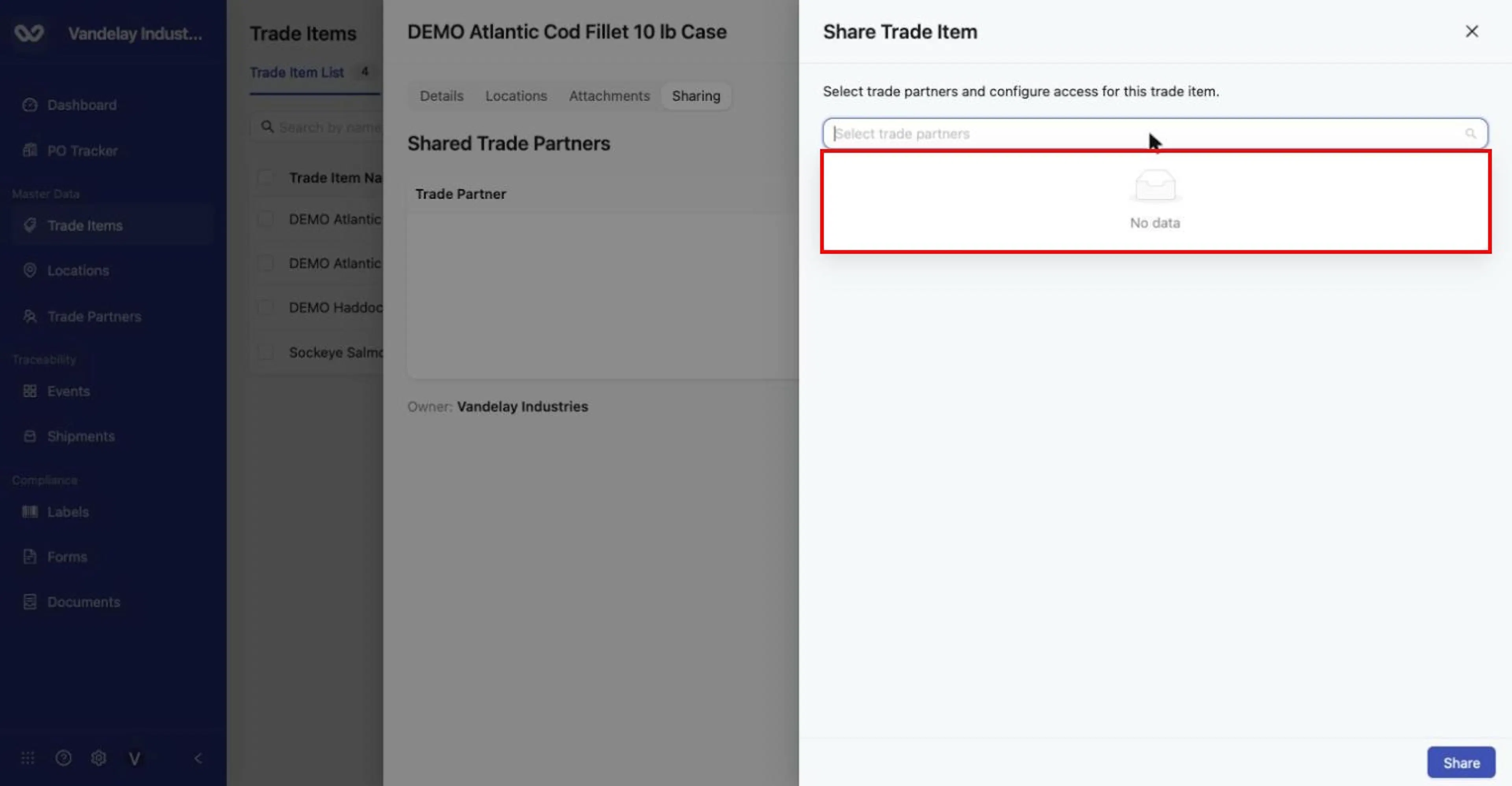
Select trade partners lists your Wholechain-connected partners. With none connected, it shows 'No data'.
Select partners and set permissions
Select one or more partners, set each partner's permission (Viewer or Editor), check any existing permissions, and click Share.
Confirm the partners appear with the right permission
The partners now appear in Shared Trade Partners with the permission you set.
- Viewer: the partner can use the item in their own traceability events but cannot change it.
- Editor: the partner can also edit the item's details in the item drawer.
Sharing master data means your partners use the same product definition, so events exchanged between you refer to the same item.
Data Sharing Policy
Control how much of the product's event history downstream Wholechain users can see.
Scroll to Data Sharing Policy
The Data Sharing Policy is on the item's details drawer.
Choose Open Data Sharing or Restricted Data Sharing
Open Data Sharing is the default. The choice saves immediately.
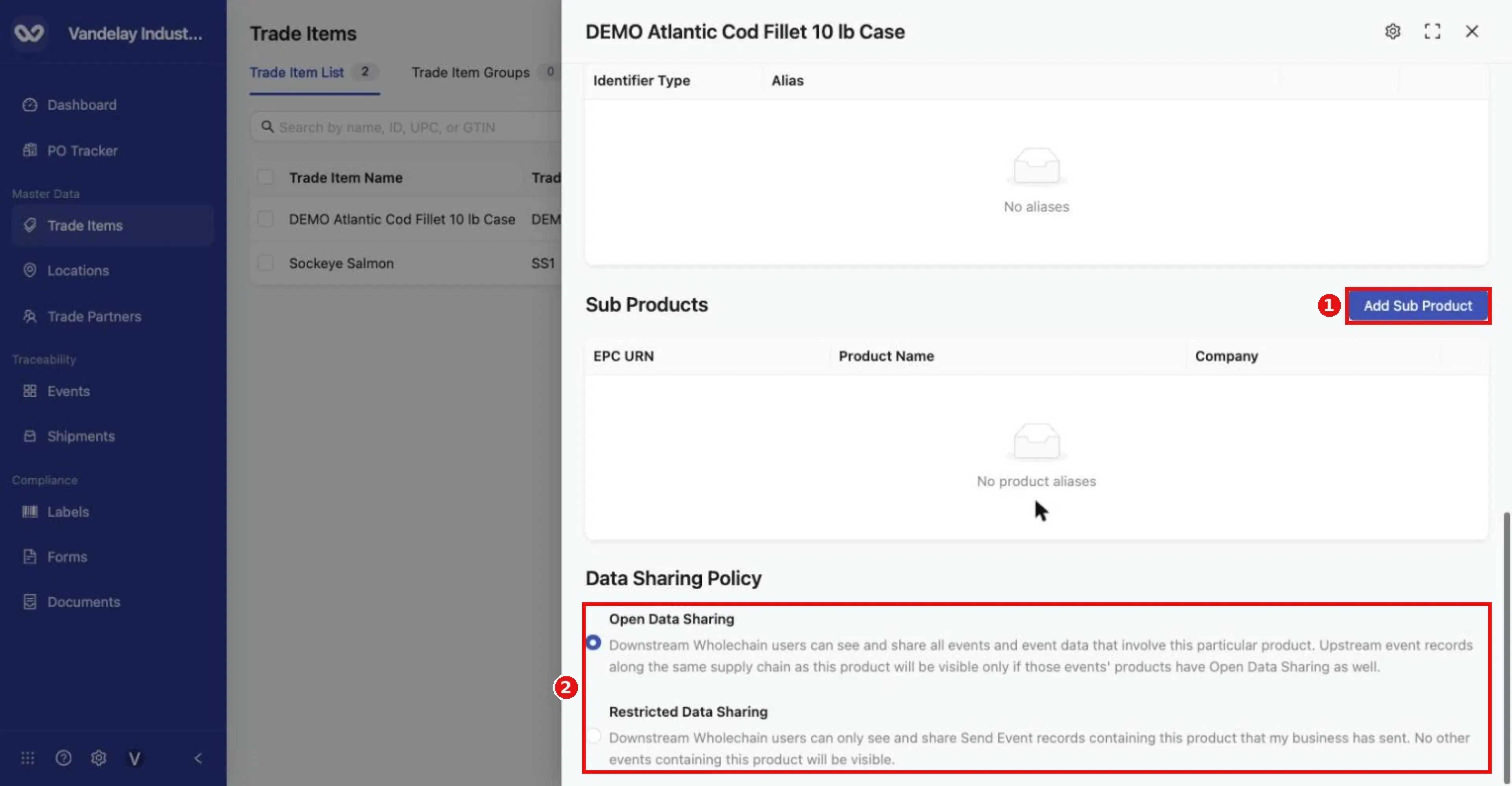
Sub Products table with Add Sub Product, and the Data Sharing Policy choices (Open Data Sharing is selected by default).
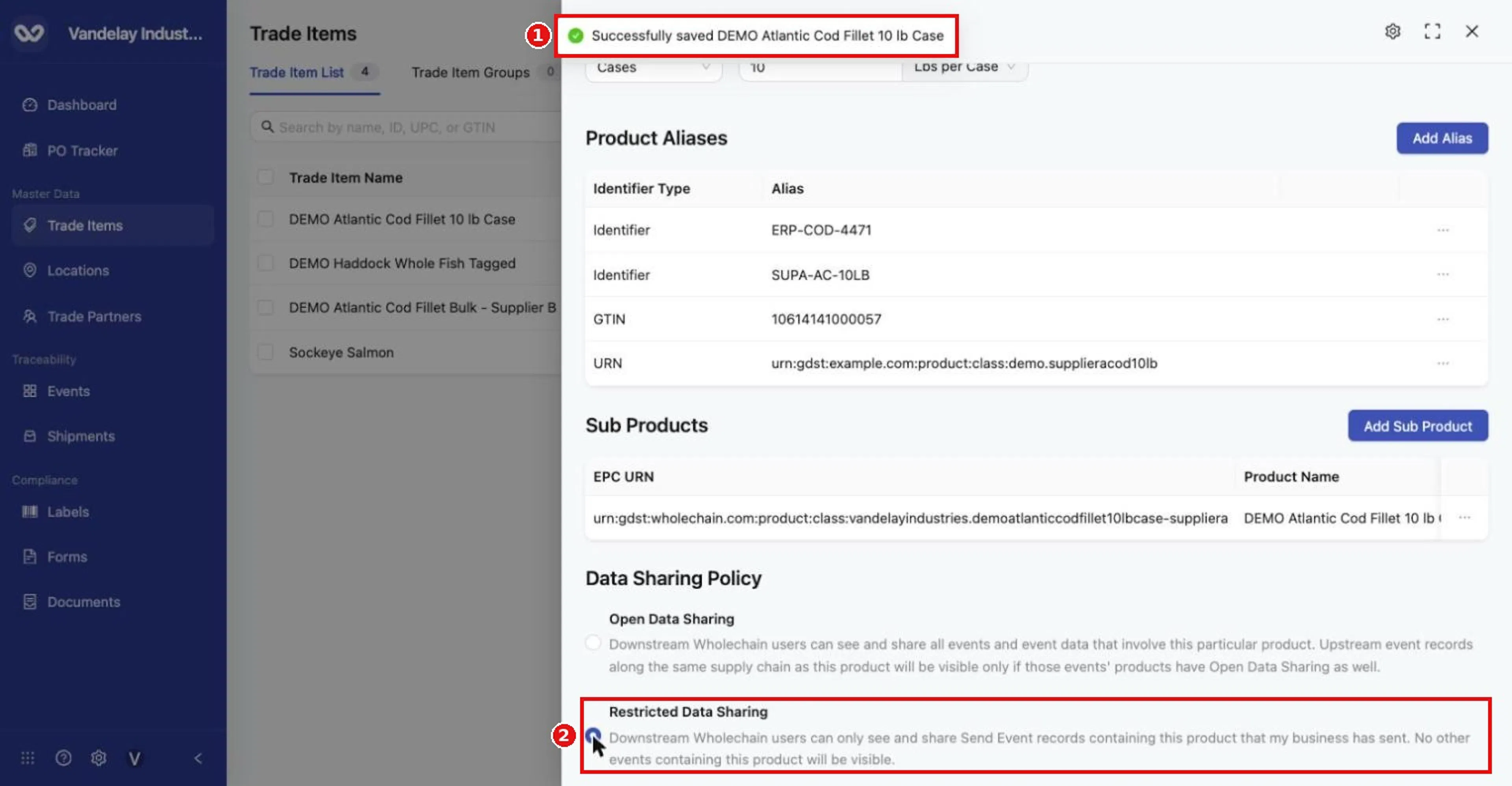
Select Restricted Data Sharing. The change saves immediately ('Successfully saved…'); there is no separate Save button.
What each option means, as described in the interface:
- Open Data Sharing: downstream Wholechain users can see and share all events and event data involving the product. Upstream event records along the same supply chain are visible only if those events' products are also Open.
- Restricted Data Sharing: downstream Wholechain users can see and share only the Ship events (shipment event records) for this product that your business sent. No other events for the product are visible.
Choose Restricted when a receiving system or integration accepts only shipment events or a limited, predefined dataset. Restricted sharing covers the shipment event plus any custom data you have configured to be shared.
Data Sharing Policy, the Sharing tab and KDE sharing compared
These three settings are separate and control different things.
| Setting | What it controls | Where to set it |
|---|---|---|
| Data Sharing Policy | The event history that travels downstream (Open or Restricted). | Item details drawer, Data Sharing Policy. |
| Sharing tab | Which Trade Partners can see or edit the item's master data (Viewer or Editor). | Item's Sharing tab. |
| KDE sharing | Whether an individual data element is shared (None, Read or Write). | See Set a data policy for one Trade Item. |
Expected result
- Event: the event is recorded. For a Commission event, the new lot then appears on the item's Locations tab.
- Attachment: the file is uploaded and listed in the Documents table; a Product Images attachment becomes the item's thumbnail in the list's Image column.
- Sharing: the selected partners appear in Shared Trade Partners with their permission.
- Data Sharing Policy: your choice is saved immediately.
Troubleshooting
- Add Event is greyed out. Required fields are missing, such as the Location or a lot row.
- Ship shows no inventory. Ship selects existing lots, so the item needs inventory at the origin Location first.
- Upload is disabled. Choose both required fields and a file first.
- A dialog title says "Artwork" for non-artwork documents. The same dialog is used for every document type.
- "No data" in the partner list. No Wholechain-connected partners are available to your account. Contact your Wholechain administrator to connect the partner.
Field and action reference
Locations tab
Lists the item's active lots by Location. With none: "No lots found for this trade item."
Add Event opens the Add Events drawer (Single Event or Bulk Upload) with the item pre-selected under Master Data References, then Products.
| Field | Req. | Values |
|---|---|---|
| Event Type | Yes | Commission, Observe, Ship, Receive, Aggregation, Disaggregation, Transform, Decommission. |
| Location | Yes | A Location from Locations. Ship uses Origin Location and Destination Location. |
| Custom Data Template | No | Extra event fields defined by your account. |
| Inventory Selection | Yes | Depends on type. Commission: Lot Code and Quantity per lot (Add Lot, Remove); quantity is in the item's unit. Ship: Select Inventory from existing Lots, Containers or Direct Ship. |
| Date | Yes | Event date. |
| Time | Yes | Event time. |
| Time Zone | Yes | Time zone of the event. |
| Business Step | Yes | Pre-filled for the event type, for example Commissioning (CBV). |
| Disposition | Yes | Pre-filled, for example Active (CBV). |
| PO Number | No | Purchase order number. |
| Read Point | No | Read point. |
Add Event is enabled once required fields are complete. Ship requires existing inventory at the origin Location.
Attachments tab
The Documents table lists Document Name and Document Type. Image files also appear in a preview carousel above the table. Documents received through traceability can also appear here.
Upload opens Upload Artwork:
| Field | Req. | Values |
|---|---|---|
| Document Type | Yes | Other, Certification, Purchase Order, BOL (bill of lading). |
| Artwork Kind | Yes | Case Artwork, Case Image Attachment, Pallet Image Attachment, Retail Artwork, Retail Image Attachment, Product Images. |
| Select File | Yes | The file to upload. |
An attachment with Artwork Kind Product Images is used as the item's thumbnail in the list's Image column. Result: "filename uploaded".
Sharing tab
| Element | Description |
|---|---|
| Shared Trade Partners | Partners the item is shared with and their Permission. Search filters the list. |
| Owner | The company that owns the item. |
| Manage Sharing | Opens Share Trade Item: select Trade Partners and set each one's permission, then Share. |
| Permission | Partner can |
|---|---|
| Viewer | Use the item in their own traceability events. Cannot change it. |
| Editor | Use the item in events and edit its details in the item drawer. |
Only partners with a Wholechain account connected to yours are listed; your own company appears as your self Trade Partner.
Data Sharing Policy
| Option | Description |
|---|---|
| Open Data Sharing (default) | Downstream Wholechain users can see and share all events and event data involving the product. Upstream event records are visible only where those events' products are also Open. |
| Restricted Data Sharing | Downstream Wholechain users see and share only the Ship events for this product that your business sent, plus custom data configured to be shared. Use for receivers that accept only shipment events or a limited dataset. |
Saves on selection.