

Browse and manage Locations
Read the Locations list, search and filter it, choose columns, then link, share, download or archive many Locations at once.
Applies to: The Locations tab of the Locations module (Master Data).
Audience: Anyone who works with Locations day to day, including admins and users managing master data.
Prerequisites: At least one Location in your account. Linking to a Location Group needs an existing group, and sharing needs at least one Wholechain-connected Trade Partner.
Related: Get started with Locations; Add Locations; View and edit a Location; Share a Location and data policy; Location Groups; Locations FAQ; Reference Guide: Module overview; Reference Guide: Locations list; Master Data Settings; Archived
Common actions
| I want to... | Where to do it |
|---|---|
| Understand the list and its columns | Read the Locations list |
| Find a Location by name or identifier | Search and filter |
| Show only the Locations of one Trade Partner or group | Search and filter |
| Show, hide or reorder columns | Choose columns |
| Open or edit one Location | View and edit a Location |
| Add one Location or many from Excel | Add Locations |
| Link many Locations to a Location Group | Work with several Locations at once |
| Create or manage Location Groups | Location Groups |
| Share many Locations with Trade Partners | Share several Locations |
| Download selected Locations to Excel | Download master data |
| Archive a Location | Archive and restore a Location |
| Restore an archived Location | In Settings: Archived |
| Manage external identifiers or upload aliases | In Settings: Master Data Settings |
Purpose
Use the Locations list to see every Location in your network, find the ones you need and act on several of them at once. This article covers reading the table, searching and filtering, choosing columns, the row menu, and the selection bar actions: link to a Location Group, share, download and archive.
Before you begin
- Open Locations under Master Data in the left menu. The page has two tabs, Locations and Location Groups, each with a count. This article covers the Locations tab; groups are in Location Groups.
- To open Settings for Locations, click the gear icon at the top of the Locations page (or open Settings with the gear icon at the bottom of the left-hand navigation bar), then go to Master Data Settings > Location. See Master Data Settings.
- Archived Locations are not listed.
Read the Locations list
The Locations tab has a count beside its name, an information icon beside the page title, a search box (Search locations...), the Location Group and Trade Partner filters, the Add Locations button, the settings gear icon, the table and the page controls. The information icon reads "Manage location details, alias ids, documents, sharing, inventory, and data policy."
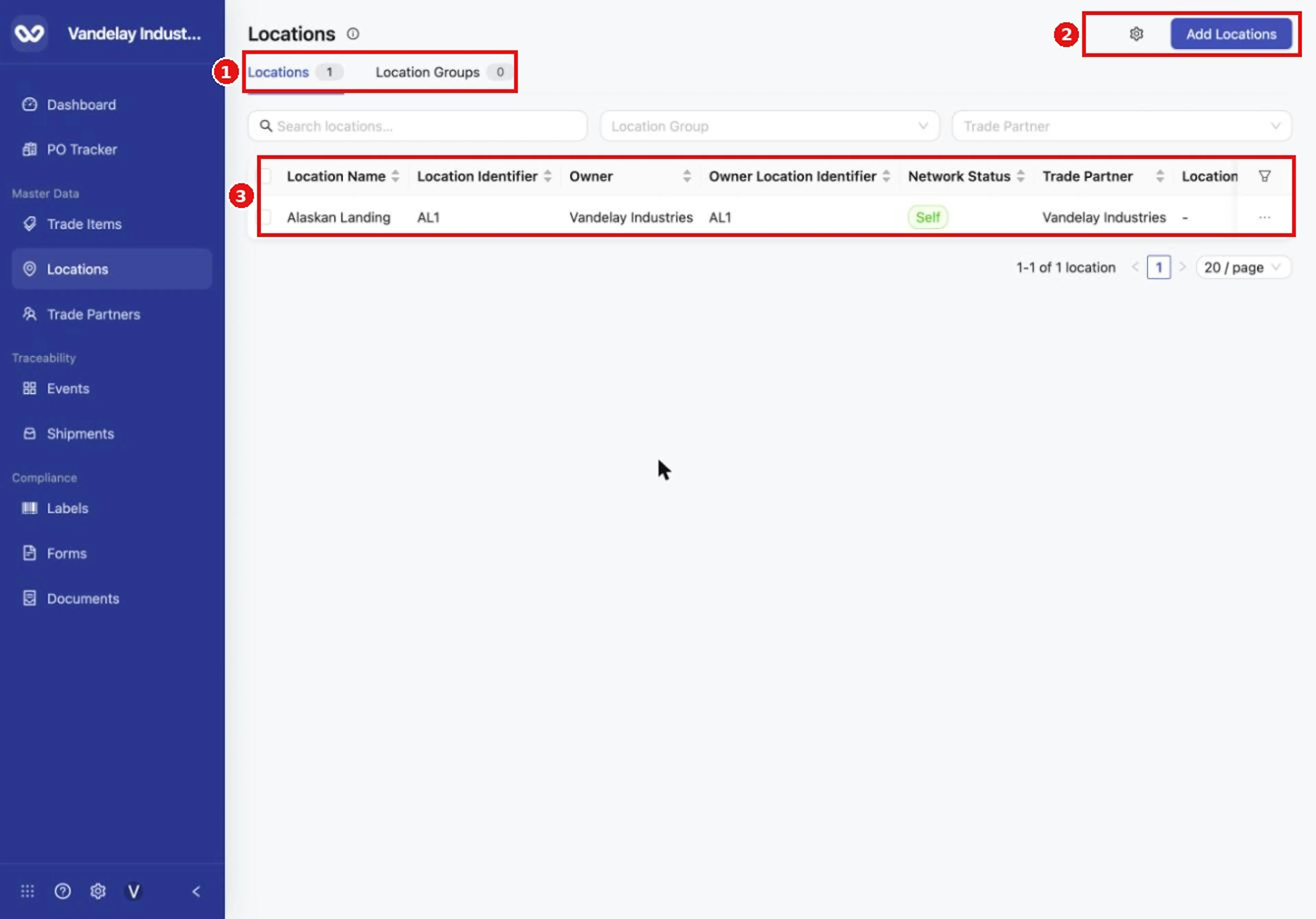
The Locations page lists every Location in your network. Locations and Location Groups are separate tabs.
The list shows your own company's Locations and every Location you have added, including Locations that belong to other Trade Partners. Network Status tells them apart: Self for your own company's Locations, External for Locations that belong to other Trade Partners. The count beside Locations matches the footer, for example 1-12 of 12 locations. The default columns have sort arrows beside their headings, and the full column list is in the Field and action reference.
A Location that was added with coordinates only, and no address, shows a blank Address in the table. Edit the address if you want one to show (see View and edit a Location).
Search and filter
Type in the search box
Type part of a Location name in Search locations....
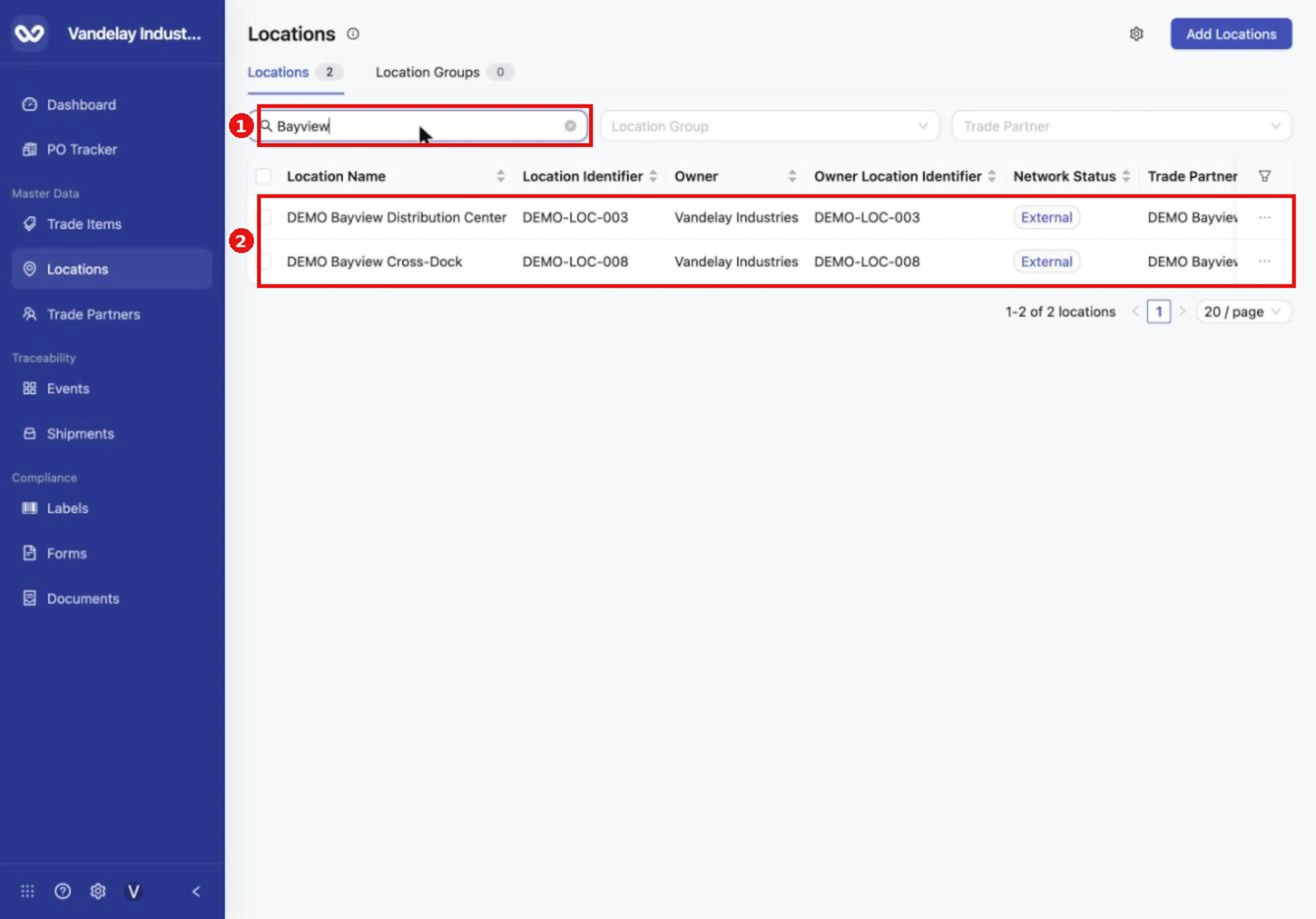
Search the Locations list by name.
Search also matches the Location Identifier.
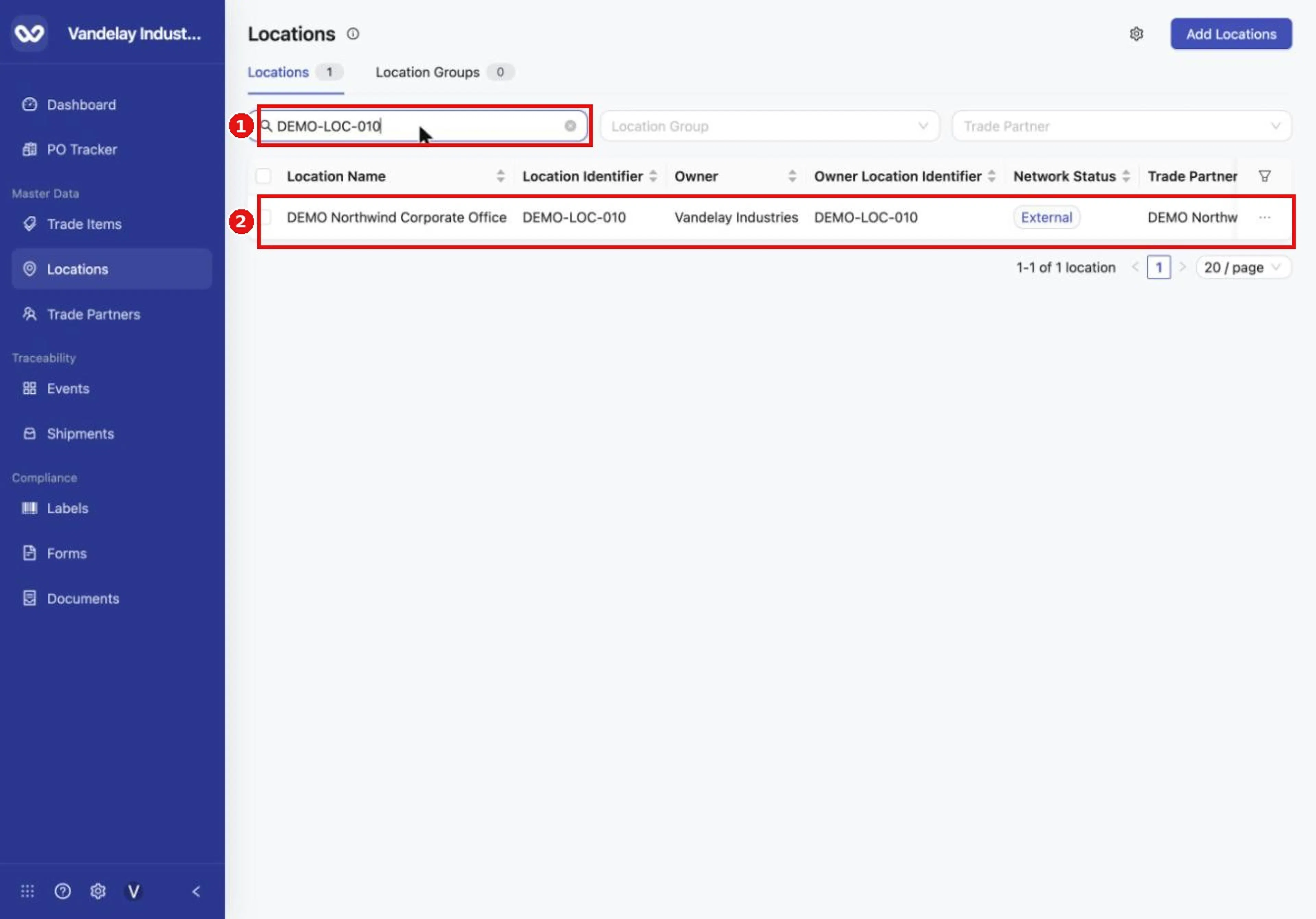
Search also matches the Location Identifier.
Select Trade Partner and choose a partner
Click Trade Partner, then choose a Trade Partner from the list.
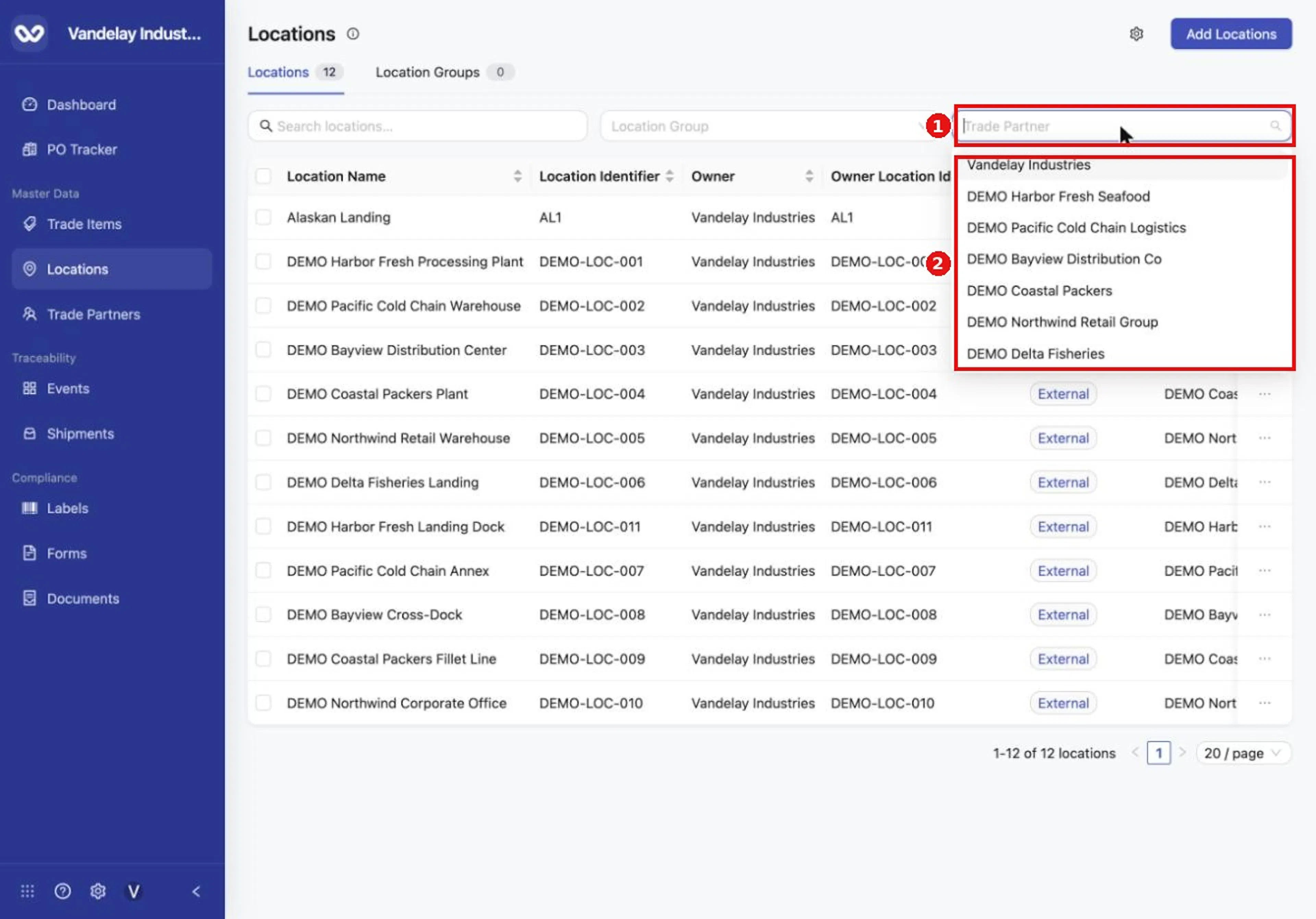
Use Trade Partner to filter Locations by the company they belong to.
The table shows only that partner's Locations.
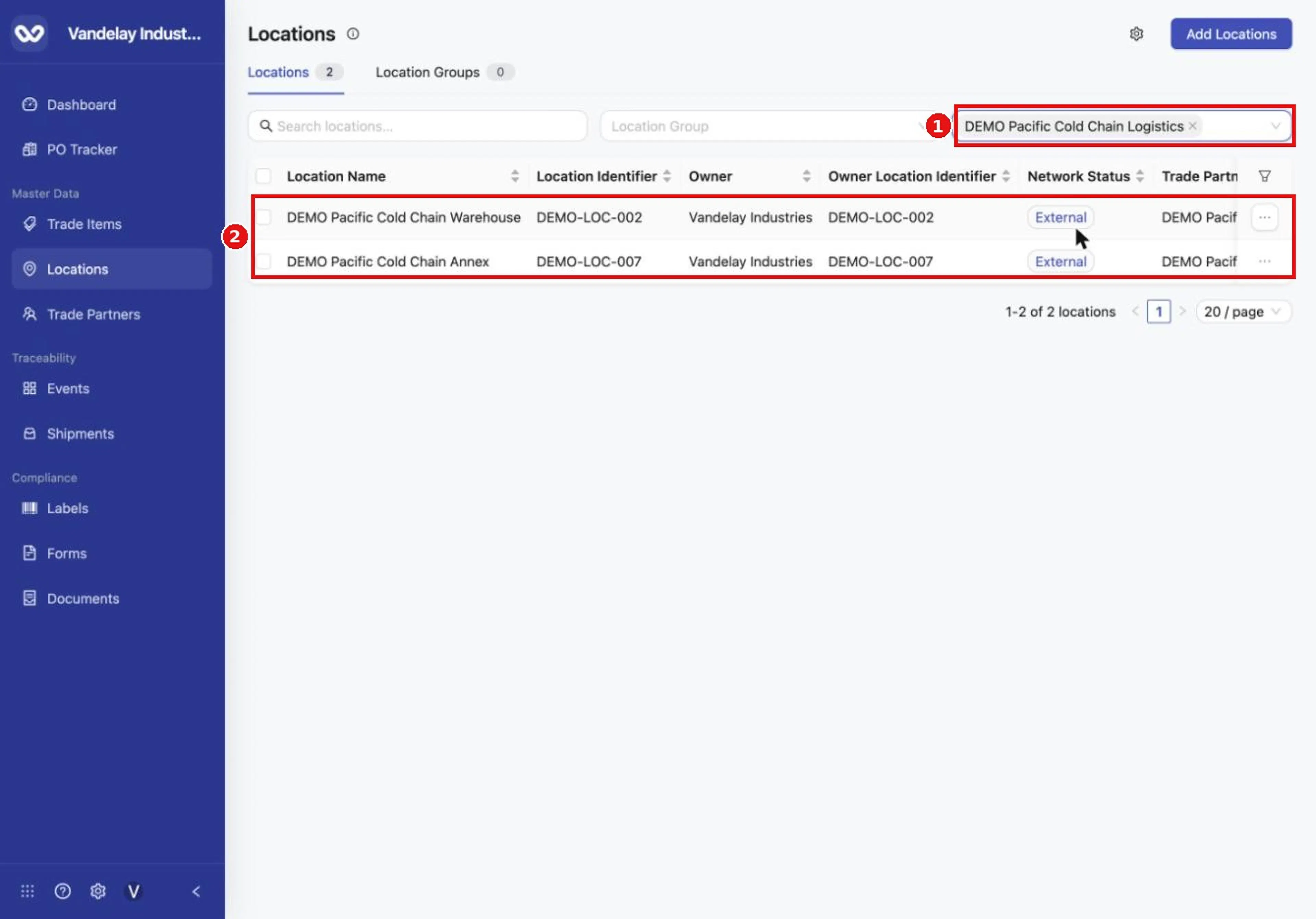
The list shows only Locations that belong to the selected Trade Partner.
Use Location Group to filter by group
The Location Group filter sits beside Trade Partner. It narrows the table to the Locations in the chosen group. Groups are described in Location Groups.
Choose columns
Show the columns you need, in the order you want. The column controls are the same check boxes, arrows or drag handles, and Reset that other Wholechain lists use.
Click the filter icon in the table header
The icon is at the right end of the table header. Column Display opens.
Tick or clear columns
Tick the check box of a column to show it, or clear it to hide it. Location Group, Location Type, GLN, DUNS, License Number and Address are hidden by default.
Reorder the columns
Drag a column by its handle, or use its arrows.
Click Reset to restore the default layout
Use Reset at any time to return to the default columns and order.
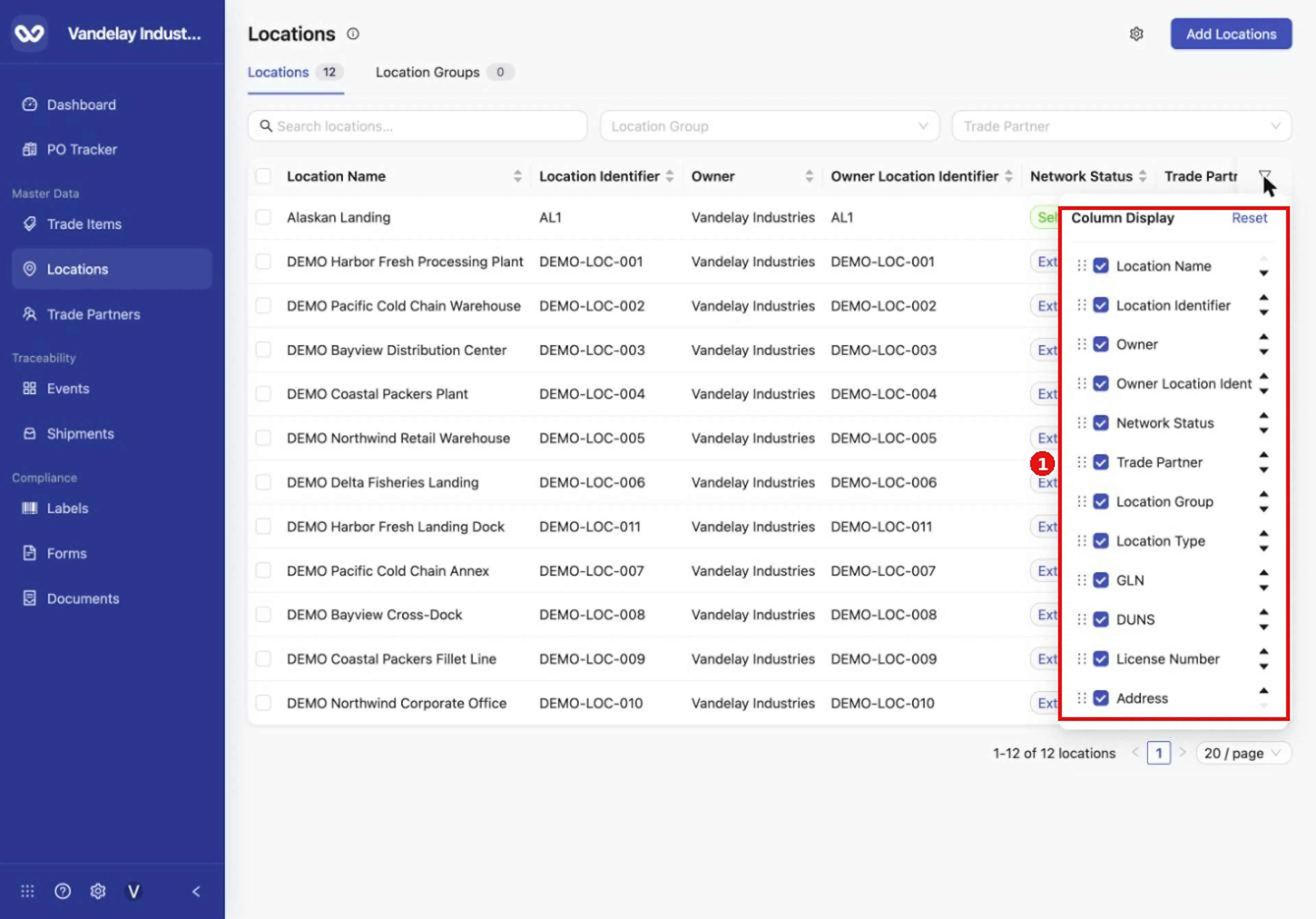
Open Column Display to choose and order the columns you see.
Use the row menu
Click ... at the end of a row. The menu offers View Location, View Settings, and Archive under Manage. Clicking a Location Name or View Location opens the Location drawer; see View and edit a Location. View Settings opens the Location's own settings page.
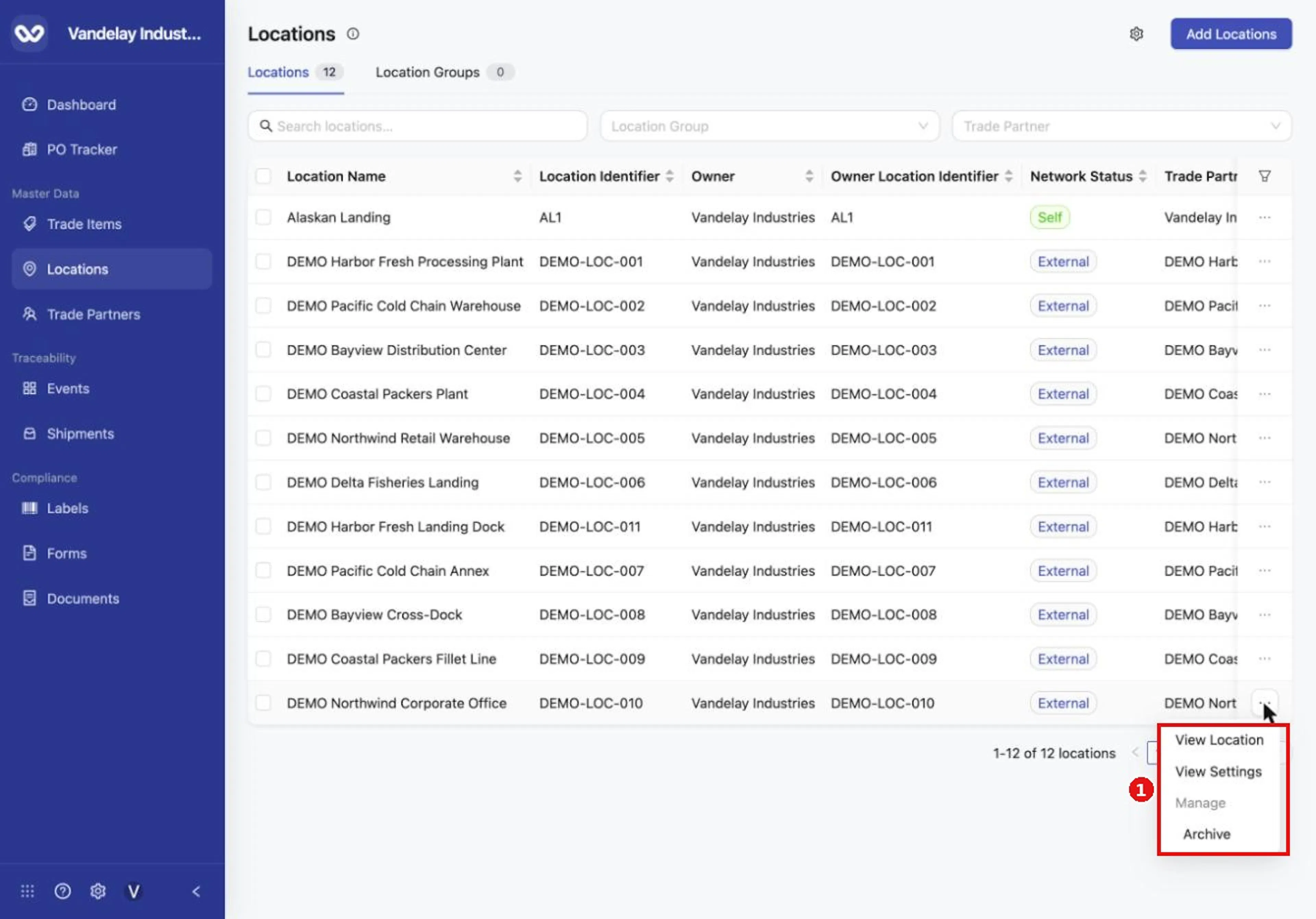
Each row has a menu with View Location, View Settings and Archive.
Work with several Locations at once
Tick the check box at the start of one or more rows. A bar appears at the bottom showing n selected, with Link, Share, Download and a ... menu. The sections below all start from this bar.
Link Locations to a Location Group
Select the Locations
Tick the rows you want to link.
Choose Link to Location Group
Click Link in the bar, then click Link to Location Group.
Choose the group and confirm
Choose the Location Group and confirm the link. For other ways to put Locations in a group, see Location Groups.
Share several Locations
Select the Locations and click Share
The Share Locations drawer opens.
Choose Trade Partners and their access
In Select trade partners to share with, choose one or more Wholechain-connected Trade Partners, then set the permission level for each: Viewer or Editor. The list is empty when no Trade Partner is connected. The Selected Locations table lists the chosen Locations for review.
Click Share
Share stays greyed out until a Trade Partner is chosen. It shares the selected Locations with each partner at the permission level you set.
For what each permission level allows, how to share one Location, and how data policies work, see Share a Location and data policy.
Download master data
Select the Locations and click Download
Use the bar at the bottom of the list.
Save the export
The browser saves an Excel file with the master data of the selected Locations, showing all fields found on the Details tab of a Location. The file columns are listed in Export files.
To export every Location in the account instead, use the Download option in Settings; see Master Data Settings.
Archive and restore a Location
Archiving removes a Location you no longer use from the active list without deleting it.
Before you begin. A Location with active inventory cannot be archived. For one Location, the Archive item appears greyed out in the row menu. For several, archiving works only when none of the selected Locations has active inventory.
Choose Archive
Either click ... at the end of the row and choose Manage > Archive, or tick one or more rows, click the ... menu in the bar at the bottom, and choose Archive.
Confirm if asked
Follow the on-screen prompt to complete the archive. The Location leaves the list.
Restoring. Archived Locations are listed in Master Data Settings > Archived, under the Location tab. Select the row, then choose Actions > Manage > Move to Locations to bring it back. See Archived for the steps. Archiving a Trade Partner also archives its Locations; see Archive and restore (Reference Guide) for the full table of what archiving does.
Expected result
The table shows the columns you chose, in your order. Searches and filters narrow the list and the count updates. Linking, sharing and downloading confirm on screen, and archived Locations leave the list.
Troubleshooting
- A Location is not in the list. A search term or filter may still be applied. Clear the search box and the Trade Partner and Location Group filters. Archived Locations are not listed; restore them in Master Data Settings > Archived (see Archived).
- Archive is greyed out or archiving fails. The Location has active inventory and cannot be archived. See Rules and restrictions.
- The Trade Partner list in Share is empty. Only Wholechain-connected Trade Partners can be chosen. The Share button stays greyed out until you choose one.
- The Address column is blank. The Location was added with coordinates only. Edit the address in the Location drawer if you want one to show.
- A column is missing. Some columns are hidden by default. Tick them in Column Display, or click Reset.
- There is no Location Type in the download. The master data download has no location type column. To see types on screen, turn on Location Type in Column Display.
- I cannot find my Trade Partner when I add a Location. The Trade Partner must exist first. See Add Locations.
- A message appears that I do not understand. See Messages, or the FAQ.
- Need more help? Contact support@wholechain.com.
Field and action reference
Table columns
Turn columns on or off and reorder them in Column Display (filter icon at the right end of the table header). Reset restores the default layout. The default columns have sort arrows beside their headings.
| Column | Shown by default | Description |
|---|---|---|
| Location Name | Yes | Name of the Location. Click it to open the Location drawer. |
| Location Identifier | Yes | Your identifier for the Location, for example a site code from your ERP. |
| Owner | Yes | The Wholechain account that owns the Location record. |
| Owner Location Identifier | Yes | The Location Number or ID used in the Wholechain account of the Trade Partner that owns the Location. Listed for reference when the Location came from a connected Trade Partner. |
| Network Status | Yes | Self for your own company's Locations; External for Locations that belong to other Trade Partners. |
| Trade Partner | Yes | The Trade Partner (company) the Location belongs to. |
| Location Group | No | The group the Location belongs to. |
| Location Type | No | The type of Location. |
| GLN | No | Global Location Number. |
| DUNS | No | DUNS number. |
| License Number | No | License number. |
| Address | No | Full address. Blank when the Location was added with coordinates only. |
Search and filters
| Control | Behavior |
|---|---|
| Search locations... | Matches the Location name and the Location Identifier. |
| Location Group filter | Narrows the table to the Locations in the chosen group. |
| Trade Partner filter | Narrows the table to the Locations of the chosen Trade Partner. |
Column Display
The filter icon at the right end of the table header opens Column Display: check boxes to show or hide columns, arrows or drag handles to reorder them, and Reset to restore the defaults.
Row and selection actions
| Action | Where | What it does |
|---|---|---|
| Select a name | Location Name cell | Opens the Location drawer (see View and edit a Location). |
| View Location | ... menu | Opens the Location drawer. |
| View Settings | ... menu | Opens the Location's own settings page. |
| Manage > Archive | ... menu | Archives the Location. A Location with active inventory cannot be archived, and the item appears greyed out. |
| Selection bar | Appears at the bottom after one or more rows are ticked; shows n selected | Offers Link, Share, Download and a ... menu. |
| Link > Link to Location Group | Selection bar | Links the selected Locations to a Location Group. |
| Share | Selection bar | Opens Share Locations (see below). |
| Download | Selection bar | Downloads an Excel file with the master data of the selected Locations, showing all fields found on the Details tab. |
| ... > Archive | Selection bar | Archives the selected Locations, provided none has active inventory. |
Share Locations drawer
| Item | Description | Req. |
|---|---|---|
| Select trade partners to share with | Choose one or more Wholechain-connected Trade Partners, then set the permission level for each: Viewer or Editor (the list is empty when no Trade Partner is connected). | Yes |
| Selected Locations table | Columns Location Name, Location Identifier, Trade Partner, Current Location Group. | Read only |
| Share button | Greyed out until a Trade Partner is chosen; shares the selected Locations with the chosen partners at the permission level set for each. | n/a |