

Get started with Trade Items
What Trade Items are, how they support traceability, the terms used in this guide, and how to open the Trade Items module.
Applies to: the Trade Items module (Trade Item List and Trade Item Groups tabs)
Audience: People who have never used Trade Items in Wholechain
Prerequisites: a Wholechain login with access to master data
Related: Add Trade Items; Edit Item Details; Find and manage Trade Items; Trade Item Groups; Master Data settings
Purpose
This guide explains what Trade Items are, how to create and maintain them, how to organize them into Trade Item Groups, and where the account-wide settings that affect them live. The screens come from a Wholechain demonstration workspace called "Vandelay Industries", so your account's names and counts will differ. Words in bold are the exact labels shown in Wholechain, such as Add Trade Item or Trade Item List. Where a label in the interface is unusual (for example Add KDE (Modal)), it is reproduced exactly as shown.
What is a Trade Item?
A Trade Item is a product your business buys, makes, handles or sells, described once in Wholechain so it can be used again and again. Think of it as the product's record card: name, codes, unit of measure and other descriptive facts. This descriptive information is called master data: reference data that changes rarely and is reused by day-to-day activity. A Trade Item is not a quantity of stock. It is the definition that stock and activity refer to.
Example used throughout this guide. Vandelay Industries buys and sells frozen Atlantic cod. The guide creates a Trade Item called DEMO Atlantic Cod Fillet 10 lb Case, two supplier versions of it, and a haddock item. Every record created for the guide begins with "DEMO" so it is easy to recognize.
How Trade Items support traceability
Traceability is the ability to follow a product forward and backward through the supply chain: where it came from, what happened to it, and where it went. Wholechain records this history as events (for example Commission, Ship, Receive or Transform). Each event names the Trade Item involved, so every event, lot and shipment depends on a correct Trade Item record.
- Lot traceability tracks a quantity of product produced or handled together under one lot code (for example DEMO-LOT-001, 5 cases). Every unit in the lot shares the same history.
- Serialized traceability tracks each individual unit with its own serial number (for example, each tagged whole fish). Use it when units must be followed one by one.
How master data relates to everything else
| Concept | What it is | How it connects to the Trade Item |
|---|---|---|
| Inventory and lots | Quantities of product at a Location, identified by lot code (or serial number). | Created by events that reference the Trade Item. Once an item has inventory, some settings lock (for example Traceability Type). |
| Events | Recorded supply-chain activities (Commission, Observe, Ship, Receive, Aggregation, Disaggregation, Transform, Decommission). | Started from the item's Locations tab with Add Event, with the item pre-selected. See Locations, attachments, and sharing. |
| Identifiers | Codes that identify the product: your Trade Item Identifier, GTIN, UPC, PLU, aliases, and Wholechain's own Wholechain Product ID and EPC URN. | Let people and systems find and match the right item. See Edit Item Details. |
| Groups | Trade Item Groups organize Trade Items by a business category such as commodity. | Shown on the item as Commodity. See Trade Item Groups. |
| Brands | Brand names created in Organization Settings > Brands. | Each item can have one brand. See Master Data settings. |
| Sharing | Access you give Wholechain-connected Trade Partners to an item's master data. | Managed on the item's Sharing tab or in bulk from the list. |
| Data policies | Rules about which extra data elements (KDEs) are expected, and how they are shared. | Switched on for the account by an Admin in Organization Settings > Account (Compliance section; see Account settings). A policy set in Settings is universal for all Trade Items. A Trade Item Group's policy is a sub-group of the universal policy and is managed on the Trade Item Groups sub-tab of Master Data Settings > Trade Item, and also in the Data Policy tab of the Trade Item Group drawer. A policy for one Trade Item is set on that item's details drawer (Set a data policy for one Trade Item). The values themselves are entered on each item. |
Terms used in this guide
- Master data: reference information about things (products, locations, partners) that is reused by daily activity.
- KDE (Key Data Element): a named piece of data that must or should be captured, such as species name or harvest method. Wholechain keeps an account-wide Data Element Library, described in Data elements and policies.
- GTIN (Global Trade Item Number): a product number issued under the GS1 standards system. GTIN-14 is a 14-digit format often used on cases. In Wholechain the GTIN field accepts 8, 12, 13 or 14 digits, and Wholechain checks the final check digit when you save.
- UPC (Universal Product Code): the 12-digit retail barcode number common in North America. Wholechain requires exactly 12 digits.
- PLU (Price Look-Up code): a short code used mainly for loose produce at checkout. PLUs are 4 or 5 digits.
- URN (Uniform Resource Name): a structured, globally unique text identifier, for example
urn:gdst:wholechain.com:product:class:…. - EPC URN: the URN Wholechain generates for the item's class record (EPC stands for Electronic Product Code).
- ERP (Enterprise Resource Planning) system: a company's main business system for products, orders and inventory. Many companies use their ERP product name and item number in Wholechain.
- Trade Item Identifier: your own unique item number for a Trade Item. It is the Item Number/ID column in bulk files, and Settings calls it Trade Item Number / ID. Items shared with you also show the Owner Trade Item Identifier.
- Trade Partner: another company you exchange product or data with. Sharing master data requires the partner to be connected to Wholechain.
Open the Trade Items module
Open Trade Items from the left sidebar
In the left sidebar, under Master Data, click Trade Items.
Check the Trade Item List tab
Check that the Trade Item List tab is selected (it is underlined). The number beside it is how many items are listed.
Open the Trade Item Groups tab to see groups
To see groups, click the Trade Item Groups tab.
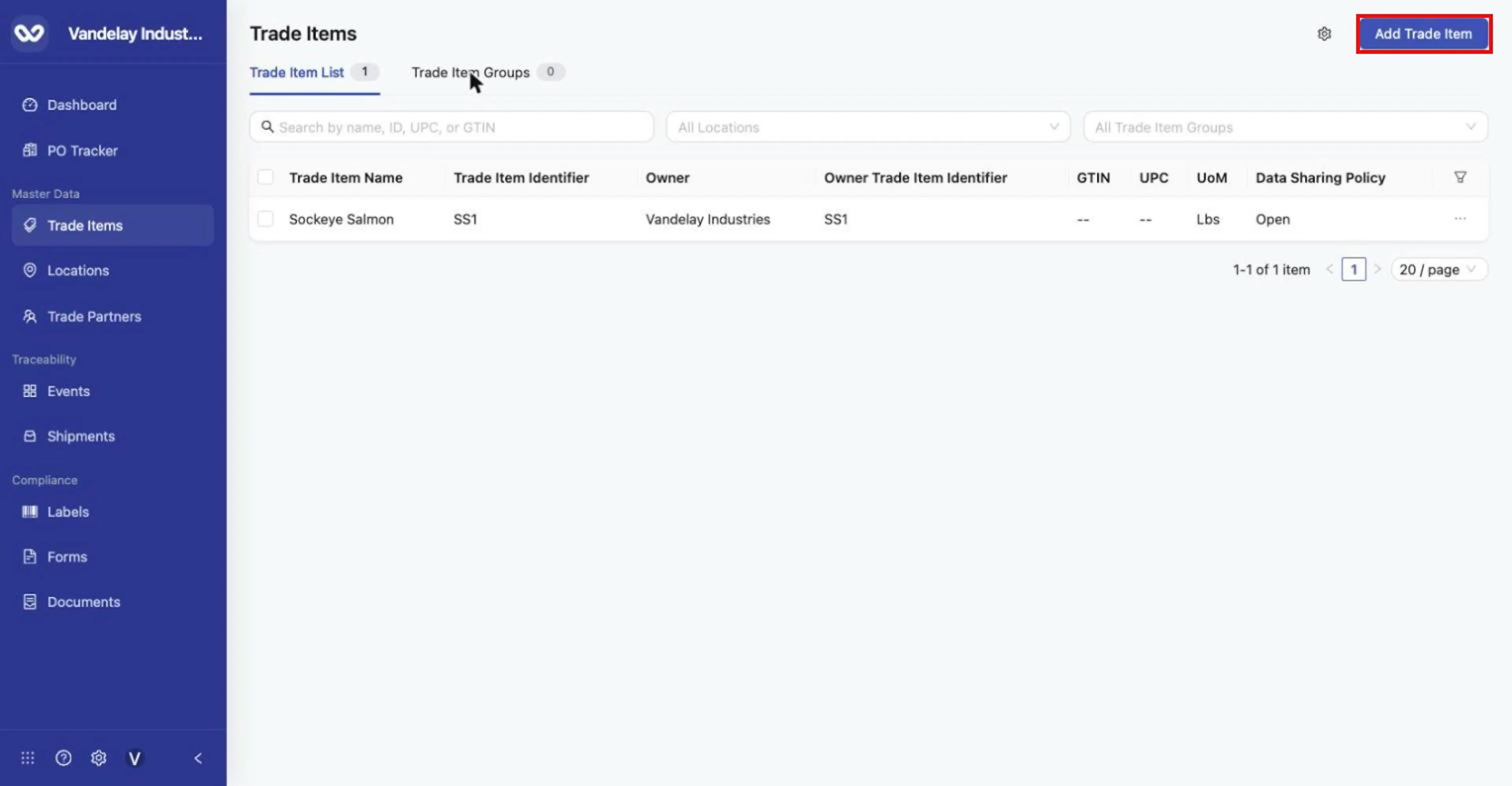
Trade Items list. Click Add Trade Item (top right).
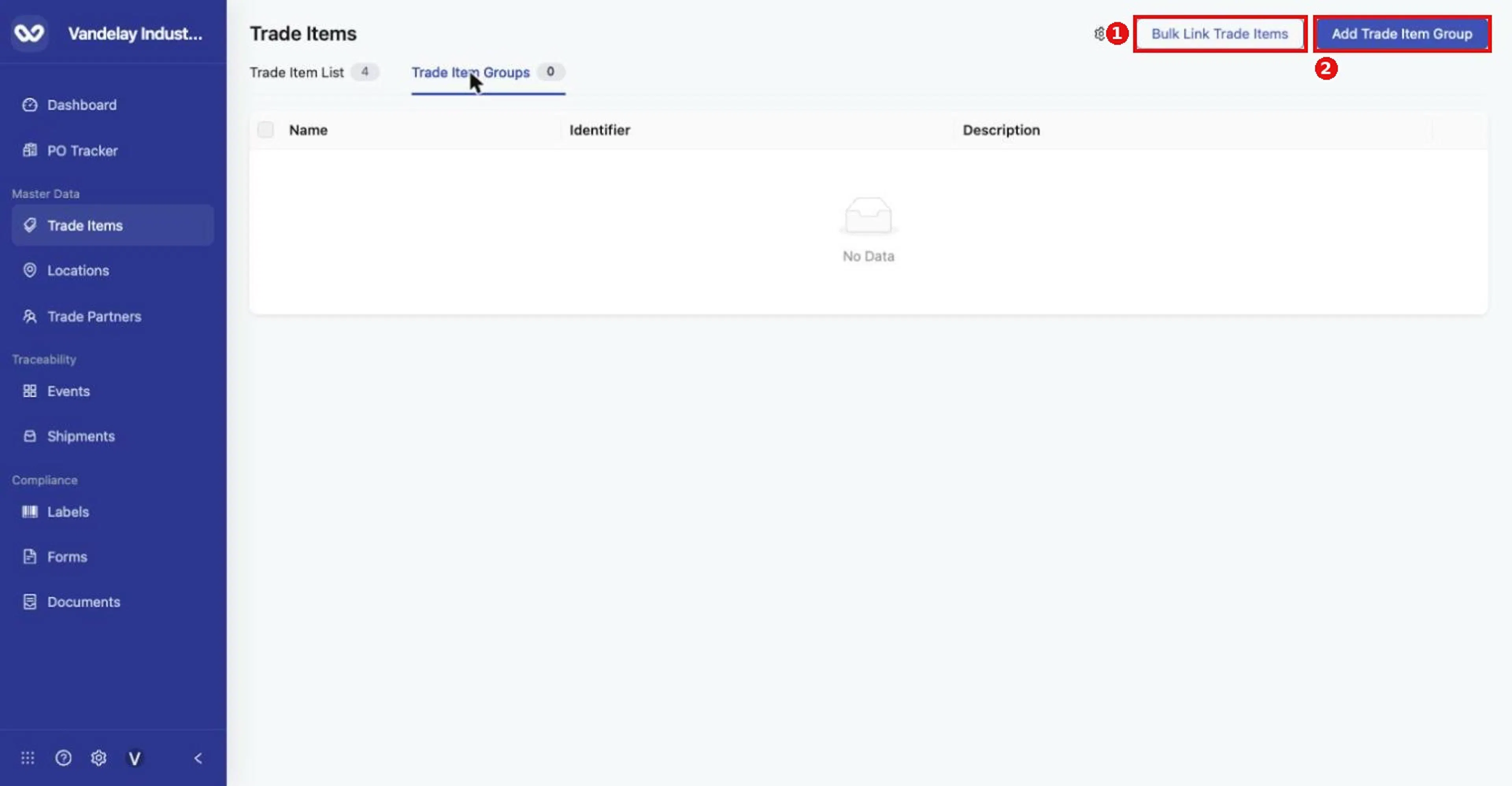
Trade Item Groups tab before any groups exist. Bulk Link Trade Items and Add Trade Item Group sit at the top right.
Use the list when you are working with individual products. Use groups when you want to organize many products by category and apply shared data requirements to them.
Account-wide settings that affect Trade Items, such as Brands, external identifiers, alias bulk upload, master data download, archived items and data policies, are in Settings. Click the gear icon at the top of the Trade Items page (or open Settings with the gear icon at the bottom of the left-hand navigation bar), which opens Master Data Settings > Trade Item. Archived items are restored from Master Data Settings > Archived. These topics are described in the Settings help documents: Master Data settings, Account settings, Data elements and policies and Archived.
Expected result
The Trade Item List table shows columns such as Trade Item Name, Trade Item Identifier, Owner, Owner Trade Item Identifier, GTIN, UPC, UoM (unit of measure) and Data Sharing Policy. The groups tab shows Name, Identifier and Description.
Troubleshooting
- The list shows fewer items than you expect. Search terms and filters stay applied until you clear them. Items set up as sub-products of another item (see Edit Item Details) do not appear as their own rows. Archived items are restored from Master Data Settings > Archived (Archived).
- Grey placeholder bars instead of rows. The list is still loading. Wait a moment.
Field and action reference
Location and tabs
Master Data > Trade Items in the left sidebar. Account-wide settings are in Settings (see above).
| Tab | Contents |
|---|---|
| Trade Item List | All active Trade Items in the account, with search, filters, column settings and bulk actions. The number beside the tab is the count of items listed. |
| Trade Item Groups | The groups used to categorize Trade Items, with group creation, bulk linking and deletion. |
Records in this module
| Record | What it is | Relationship to a Trade Item |
|---|---|---|
| Trade Item | One product's master-data record. | — |
| Trade Item Group | A category of Trade Items, such as a commodity. | Each item belongs to at most one group, shown on the item as Commodity. |
| Brand | A brand name, created in Organization Settings > Brands. | Each item has at most one brand. |
| Custom attribute | A named value (KDE) stored on one item. | Many per item. |
| Product alias | An alternative identifier for the same item (External Identifier, URN or GTIN). | Many per item. |
| Sub-product | Another Trade Item record grouped under a parent item. | Many per parent; a sub-product is not listed as its own row. |
| Attachment | A document or image stored with the item. | Many per item. |
| Share | Access granted to a connected Trade Partner. | Many per item, each with a permission. |
Key concepts
| Concept | Description |
|---|---|
| Traceability Type | Lot: inventory is tracked by lot code; every unit in a lot shares one history. Serial: each unit is tracked individually by serial number. |
| Unit of measure | How quantities of the item are counted in events. Either a general unit or a defined unit (a pack of a set quantity, such as 10 Lbs per Case). |
| KDE | Key Data Element: a named data field captured for items or events. Values are stored on each item as custom attributes. |
| Active inventory | Lots or units of the item currently held at a location. Active inventory locks some item settings (see Rules and restrictions). |
| Owner | The company that owns the Trade Item record. Items shared with you show the owner's company and identifier. |
For the complete rules, messages and glossary, see Rules and restrictions, Messages and Glossary.