

Labels overview
Wholechain Labels: labels overview. For everyone who designs, manages, fills in or prints labels.
For: everyone who designs, manages, fills in or prints labels.
Where this fits. Labels has three working levels: label designers lay out templates in the Design Editor, label managers link a Trade Item and set which inputs are editable in the Field Editor, and operators fill in and print from Label Entry.
What the Labels module does
The Labels module creates GS1-aware shipping labels for the Trade Items you record in Wholechain. A label pulls the Trade Item's own data, such as its name, identifier and GTIN, onto a printable design, encodes GS1 Application Identifiers (AIs) into barcodes, and lets operators print a run of labels with lot, date and serial values filled in.
Open it from the left navigation under Compliance → Labels. The page has two tabs: Label List, which shows every label with a count badge, and Template Manager, which shows the templates your account has created. A Legacy Labels link at the top right opens the earlier Labels page; the Go to New Labels link on that page brings you back.
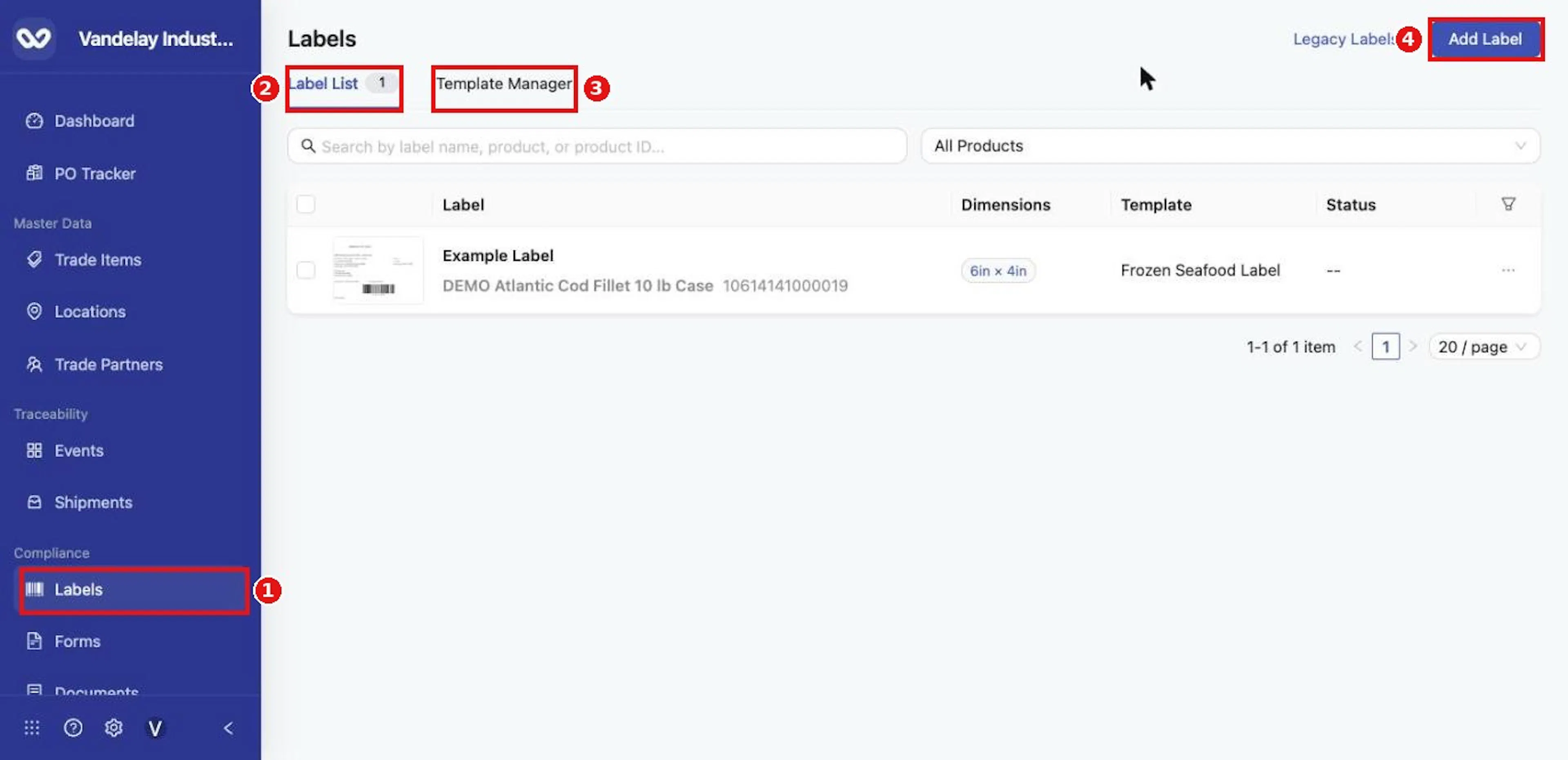
Open Compliance → Labels. The Label List tab shows your labels; Template Manager is beside it.
Templates, labels and Trade Items
A template is a reusable design: its size, resolution and the elements placed on it (text, images, shapes, barcodes, GS1 AI displays, voice pick codes and grids). Wholechain supplies a set of templates, and you can create your own from scratch or by cloning one of Wholechain's. A template is a Draft until you publish it.
A label is a printable label built from one published template and linked to one Trade Item. The Trade Item's values fill the elements automatically, so one template can serve many products. Each label also remembers which of its inputs operators may change.
The three working levels
| Level | Screen | Who | What you do |
|---|---|---|---|
| Design | Design Editor | Label designers | Place elements and decide where each element's value comes from. |
| Field | Field Editor | Label managers | Link a Trade Item, fill in fixed values and unlock the inputs operators need. |
| Entry | Label Entry | Operators | Fill in the unlocked inputs, check the preview and print. |
Where an element's value comes from
Every element can take its value from up to three sources. Wholechain tries them in order and uses the first one that has a value:
- GS1 Primary: a GS1 Application Identifier with a GS1 Value Input.
- KDE Fallback: a Key Data Element (KDE) from the linked Trade Item, such as Product Name or GTIN.
- Manual Fallback: fixed text typed into the template.
The element panel in the Design Editor tells you which source is in use, for example Currently using Manual Fallback. Enter values in plain form; Wholechain converts them to the correct AI format automatically.
Locks
Locks control who can change a value:
- In the Design Editor, a lock on a setting fixes it in the template.
- In the Field Editor, a lock on an input hides it from operators. Inputs start locked; unlock the ones operators must fill in, such as lot codes, dates and serial numbers.
Lock choices are saved with the label and carried over when you duplicate it.
Terms
| Term | Meaning |
|---|---|
| AI | GS1 Application Identifier: a number that says what a value means, for example 10 is batch or lot and 21 is serial. |
| GTIN | Global Trade Item Number. |
| KDE | Key Data Element: a value Wholechain stores on a Trade Item or event. |
| Collector | A barcode mode that builds the barcode from a list of AIs. |
| Serialization | Printing a run of labels with an increasing AI 21 serial value. |
Field and action reference
Module overview
Purpose and location
The Labels module designs, fills in and prints GS1-aware shipping labels for your Trade Items. Open it from the left navigation under Compliance → Labels. The module opens on the new Labels experience; a Legacy Labels link at the top right opens the earlier Labels page, and Go to New Labels on that page returns you.
Tabs
| Tab | What it shows |
|---|---|
| Label List | Every label in your account, with a count badge. Add, open, duplicate, print, share and delete labels here. |
| Template Manager | The label templates your account has created, with their status. Add, edit, publish, view and delete templates here. |
Records and how they relate
| Record | Description |
|---|---|
| Template | A reusable label design: its size, resolution and elements (text, images, barcodes and more). A template is either a Draft or Published. |
| Label | A printable label built from one published template and linked to one Trade Item. A label stores which of its inputs are editable by operators. |
| Trade Item | The product a label is linked to. Its values (name, identifier, GTIN and other KDEs) fill the label's elements automatically. |
Three working levels
| Level | Screen | Who uses it | What you do |
|---|---|---|---|
| Design | Design Editor | Label designers | Lay out elements and decide where each element's value comes from. |
| Field | Field Editor | Label managers | Link a Trade Item, fill in the label's inputs and choose which inputs operators may change. |
| Entry | Label Entry | Operators | Fill in the unlocked inputs and print. |
Where a value comes from
Each element can take its value from up to three sources, tried in this order:
| Priority | Source | Meaning |
|---|---|---|
| 1 | GS1 Primary | A GS1 Application Identifier plus a GS1 Value Input. |
| 2 | KDE Fallback | A Trade Item value (for example Product Name or GTIN). |
| 3 | Manual Fallback | Fixed text typed into the template. |
The element uses the first source that has a value. The panel shows which source is in use, for example Currently using Manual Fallback.