

Add Trade Items
Create one Trade Item with its name, traceability type, codes and unit of measure, or create many at once from the Excel bulk upload template.
Applies to: the Trade Item List tab, Add Trade Item drawer (Single Trade Item and Bulk Upload tabs)
Audience: Anyone creating Trade Item master data
Prerequisites: permission to create master data in your account; for bulk upload, Microsoft Excel or another program that saves .xlsx files
Related: Get started with Trade Items; Edit Item Details; Find and manage Trade Items; Field and action reference
Purpose
Create the Trade Items Wholechain needs before a product can be used in events, either one at a time or many at once from a spreadsheet.
Before you begin
- The product name you use internally (often the ERP name).
- Whether the product is tracked by lot or by individual serial number.
- How you count it: pounds, kilograms, cases or units, or a defined pack such as "10 lb case".
- Optional: GTIN, UPC, PLU, product type and a description.
- For bulk upload: your product list, including a unique Item Number/ID for each product (this becomes the Trade Item Identifier), and a record of which items already exist so you do not create duplicates.
Example values used here
| Field | Example value |
|---|---|
| Trade Item Name | DEMO Atlantic Cod Fillet 10 lb Case |
| Traceability Type | Lot |
| GTIN | 10614141000019 (GTIN-14, built on GS1's example company prefix 0614141) |
| UPC | 614141000012 |
| PLU | left blank (PLUs are mainly used for loose produce) |
| Product Good Kind | Finished Goods |
| Use Defined Units | On: Unit Descriptor Cases, Unit Quantity 10, base unit Pounds |
| Description | Skinless, boneless Atlantic cod fillets, individually quick frozen, packed 10 lb per case. |
Add a single Trade Item
Click Add Trade Item
On the Trade Item List tab, click Add Trade Item (top right). The Add Trade Item drawer opens on the Single Trade Item tab. The Bulk Upload tab next to it is covered below.
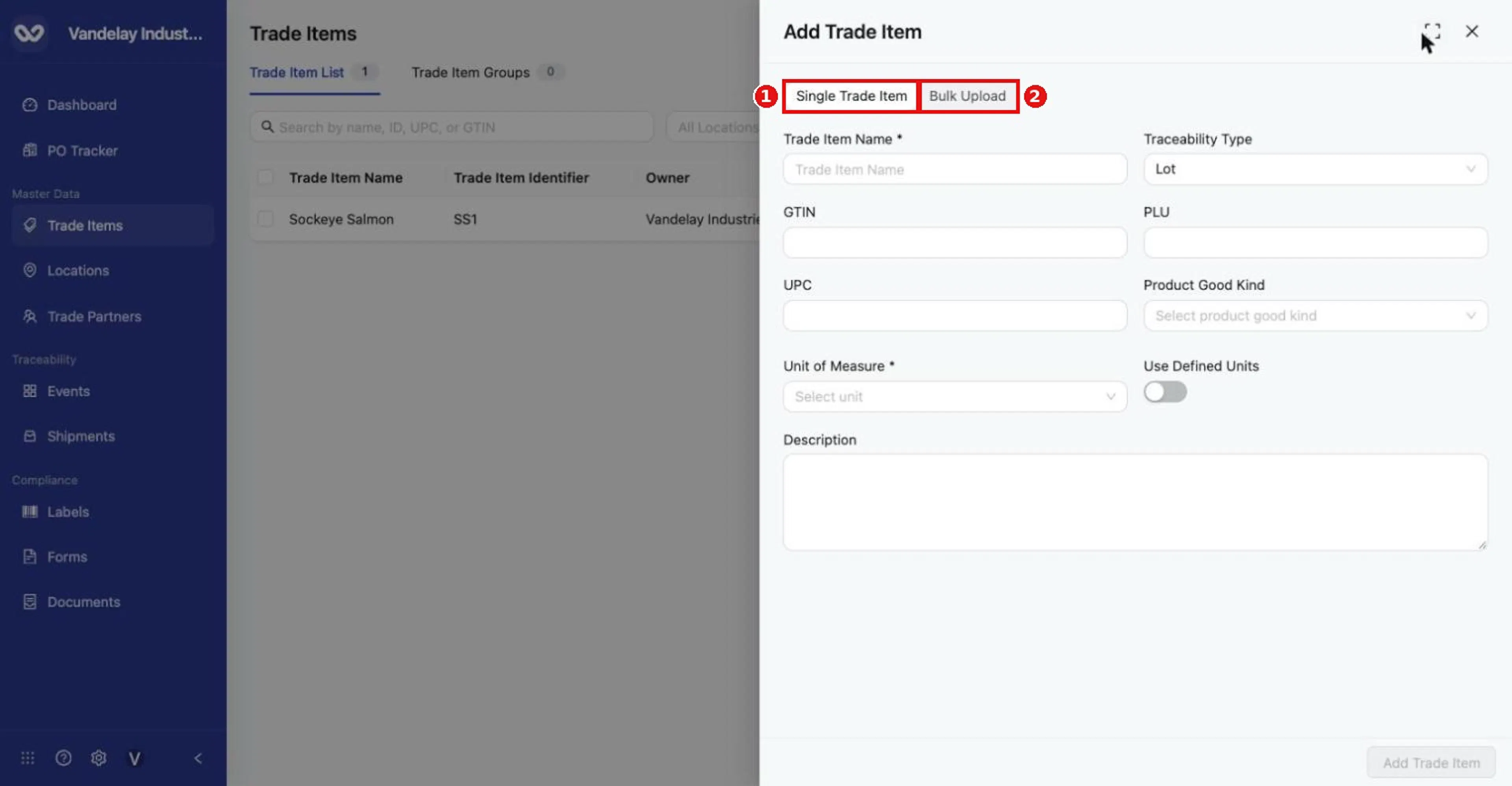
Add Trade Item drawer, Single Trade Item tab. Bulk Upload is the second tab.
Type the product name in Trade Item Name
Most teams use the name from their ERP or product catalog so people recognize it.
Choose a Traceability Type
Open Traceability Type and choose Lot (the default) or Serial.
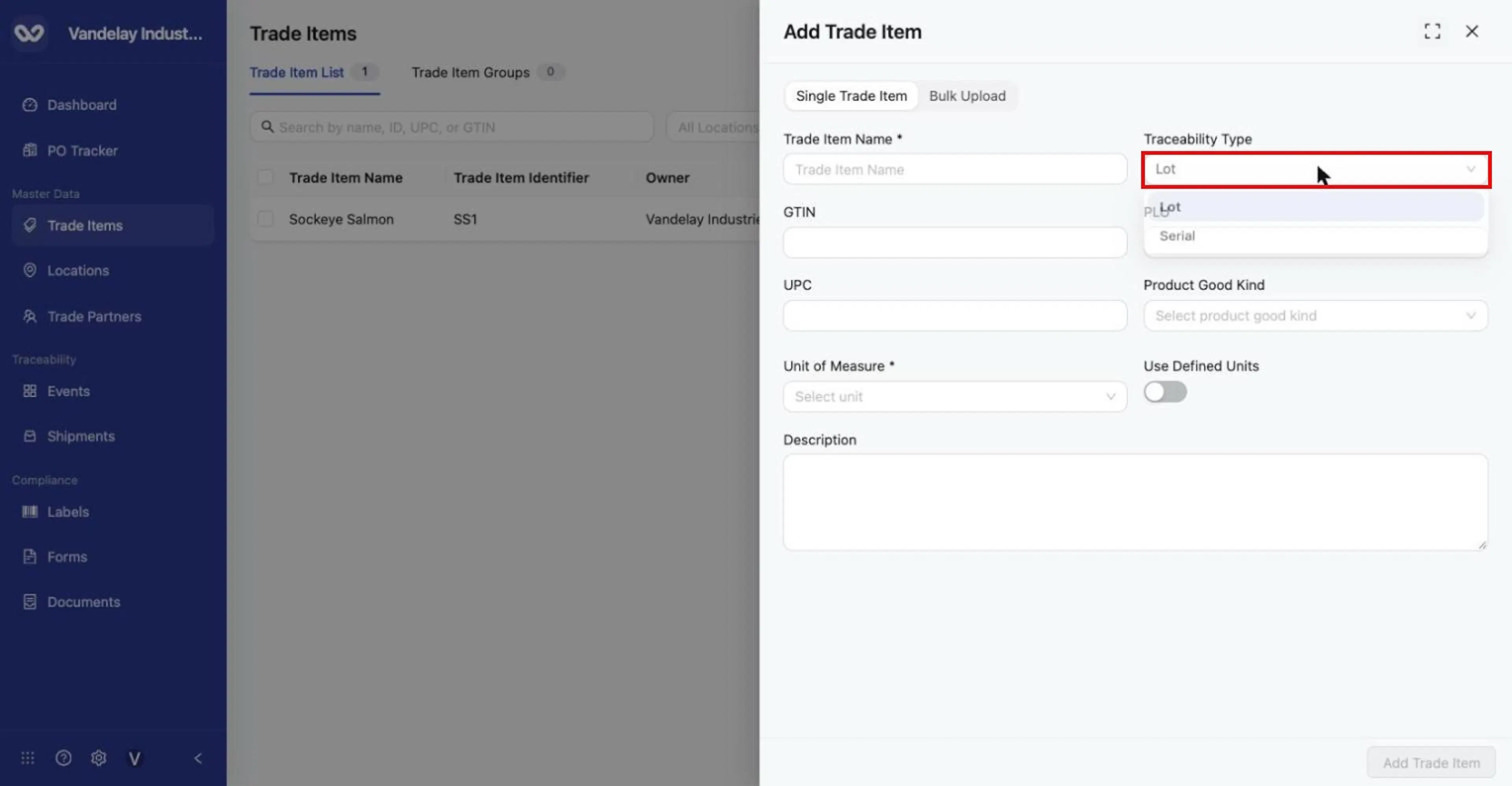
Traceability Type offers Lot (default) and Serial.
Enter GTIN, PLU and UPC if you have them
Optional: enter the GTIN (8, 12, 13 or 14 digits), PLU (4 or 5 digits) and UPC (12 digits). The form checks lengths as you type, and Wholechain checks the GTIN's check digit when the item is saved (see Troubleshooting).
Choose a Product Good Kind
Optional: open Product Good Kind and choose Finished Goods, Semi-Finished Goods or Raw Materials.
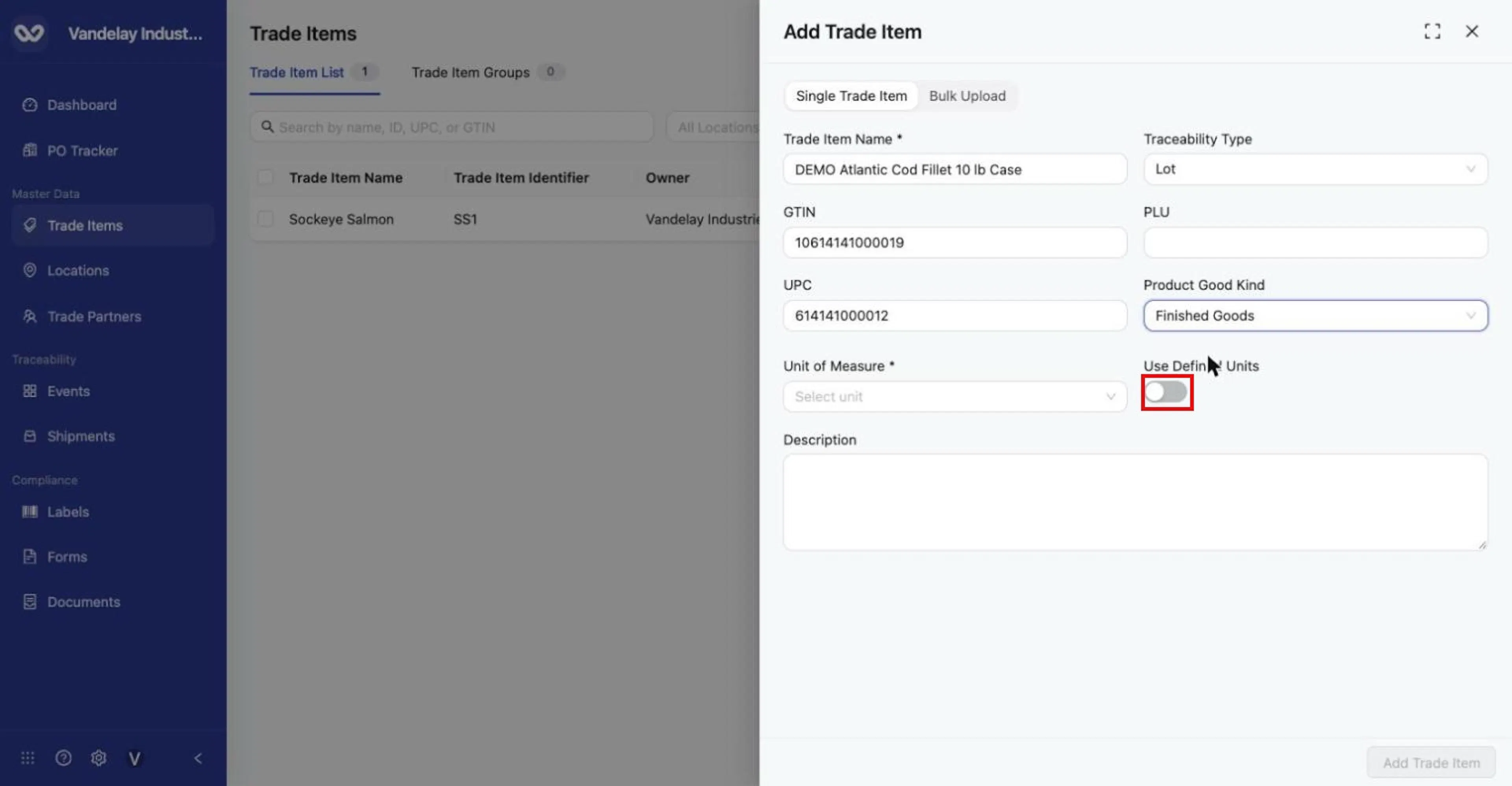
Name, GTIN and UPC entered; Product Good Kind set to Finished Goods. Next, turn on Use Defined Units.
Set the unit of measure
Set the unit in one of two ways:
-
General unit: open Unit of Measure and choose Pounds, Kilograms, Cases or Units. Use Units for items counted individually that fit none of the other choices. Serialized items are always counted one at a time.
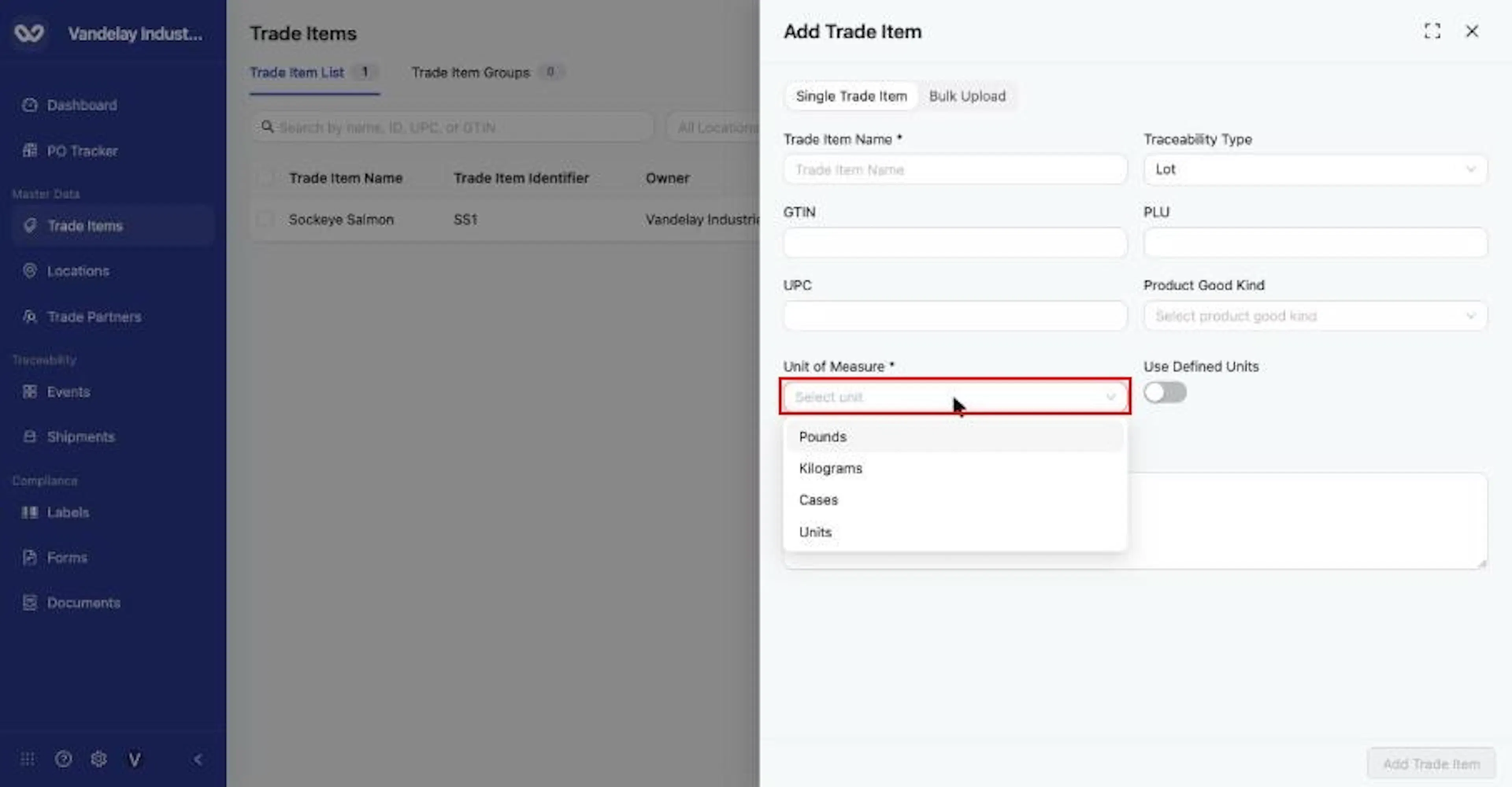
Unit of Measure options: Pounds, Kilograms, Cases, Units. Unit of Measure options: Pounds, Kilograms, Cases, Units.
-
Defined pack: turn on Use Defined Units. Unit of Measure is replaced by Unit Descriptor and Unit Quantity. Choose a descriptor (Cases, Units, Totes or Pallets), enter the quantity, then choose the base unit beside the quantity (Pounds, Kilograms, Cases or Units).
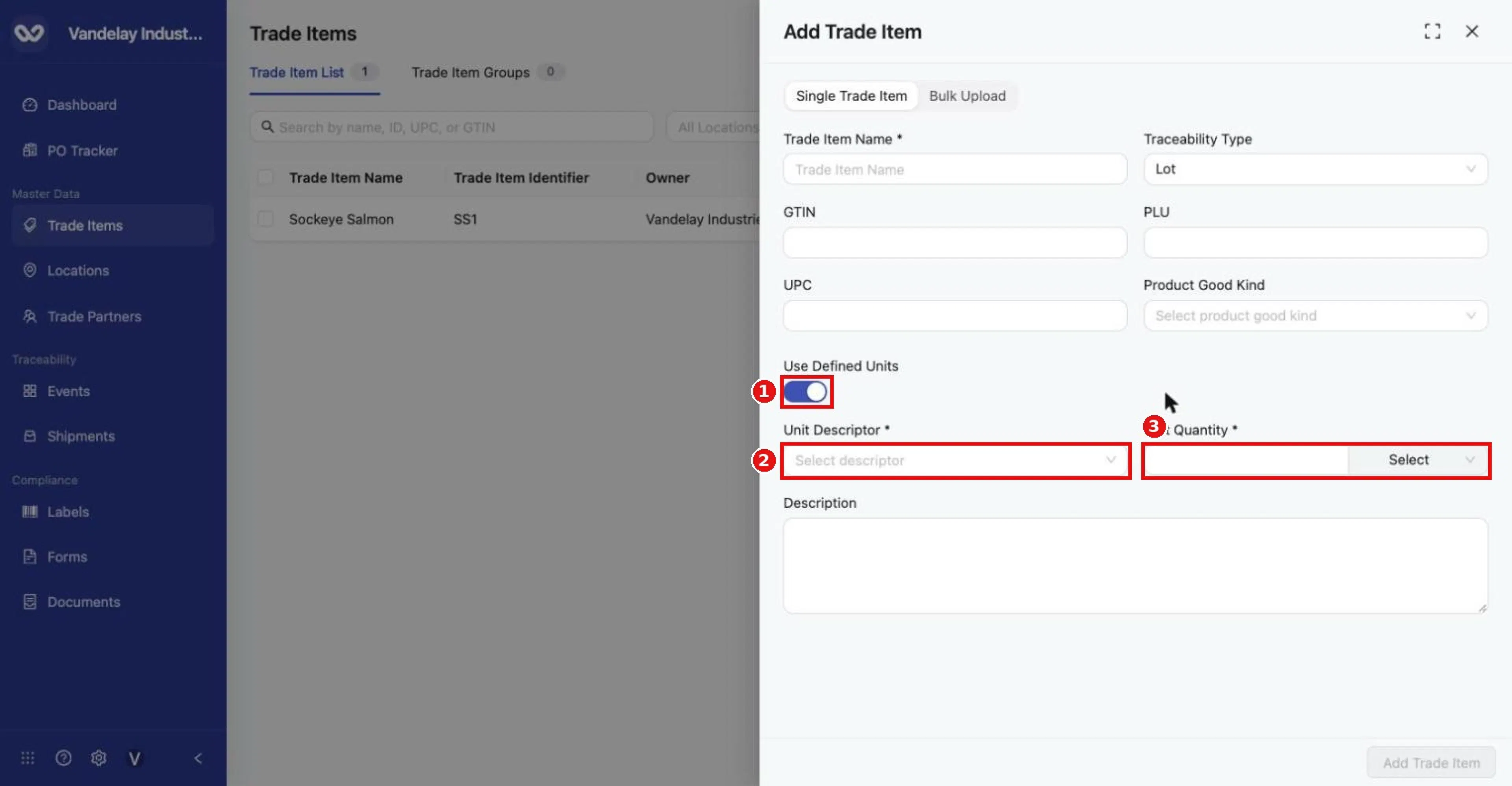
Turning on Use Defined Units replaces Unit of Measure with Unit Descriptor and Unit Quantity (with a base-unit selector). Turning on Use Defined Units replaces Unit of Measure with Unit Descriptor and Unit Quantity (with a base-unit selector).
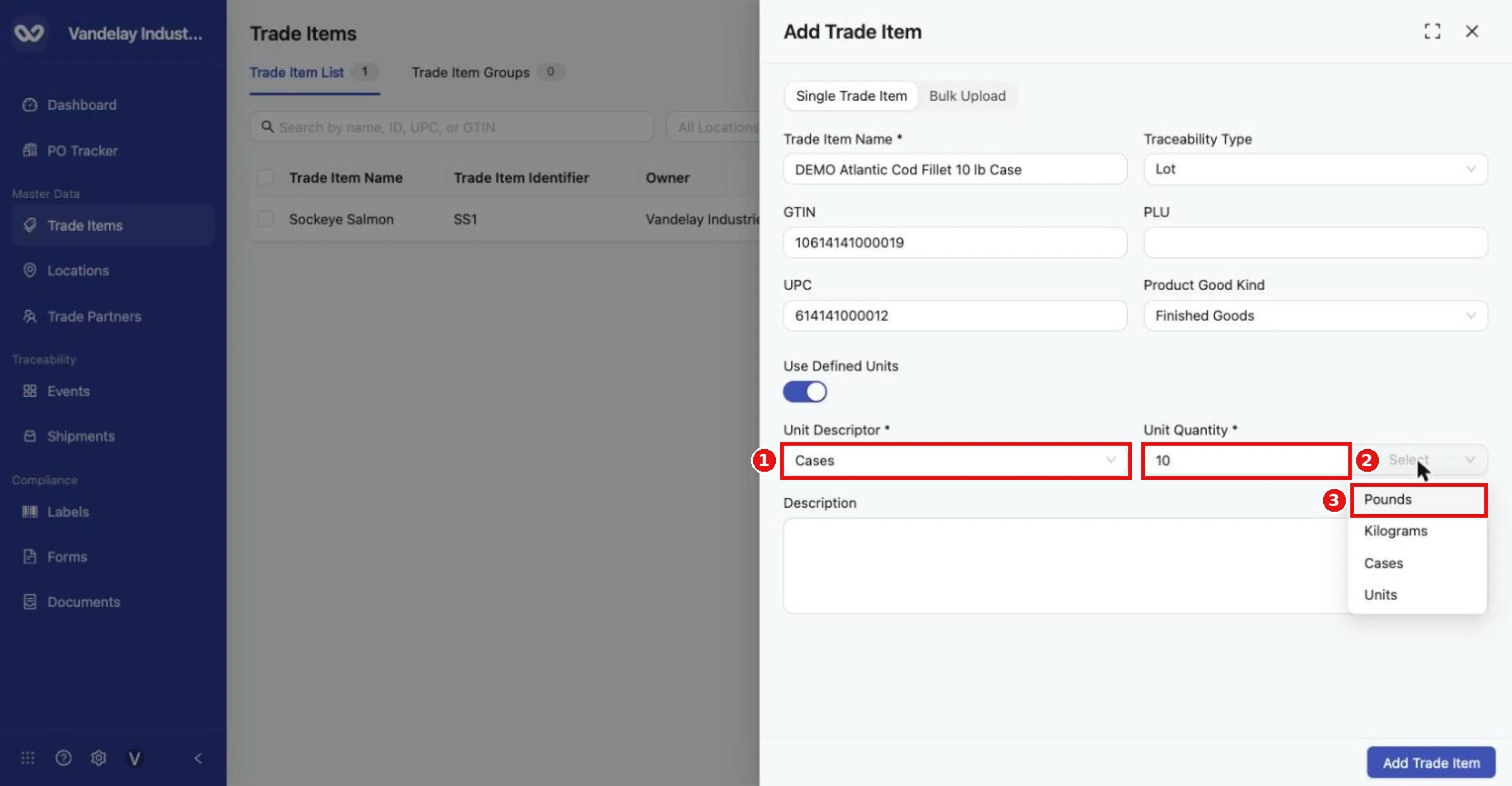
Unit Descriptor = Cases, Unit Quantity = 10, then choose the base unit (Pounds). Unit Descriptor = Cases, Unit Quantity = 10, then choose the base unit (Pounds).
Add a description
Optional: type a Description: a general, market-facing description that adds to the name.
Check the form, then click Add Trade Item
Click Add Trade Item (bottom right).
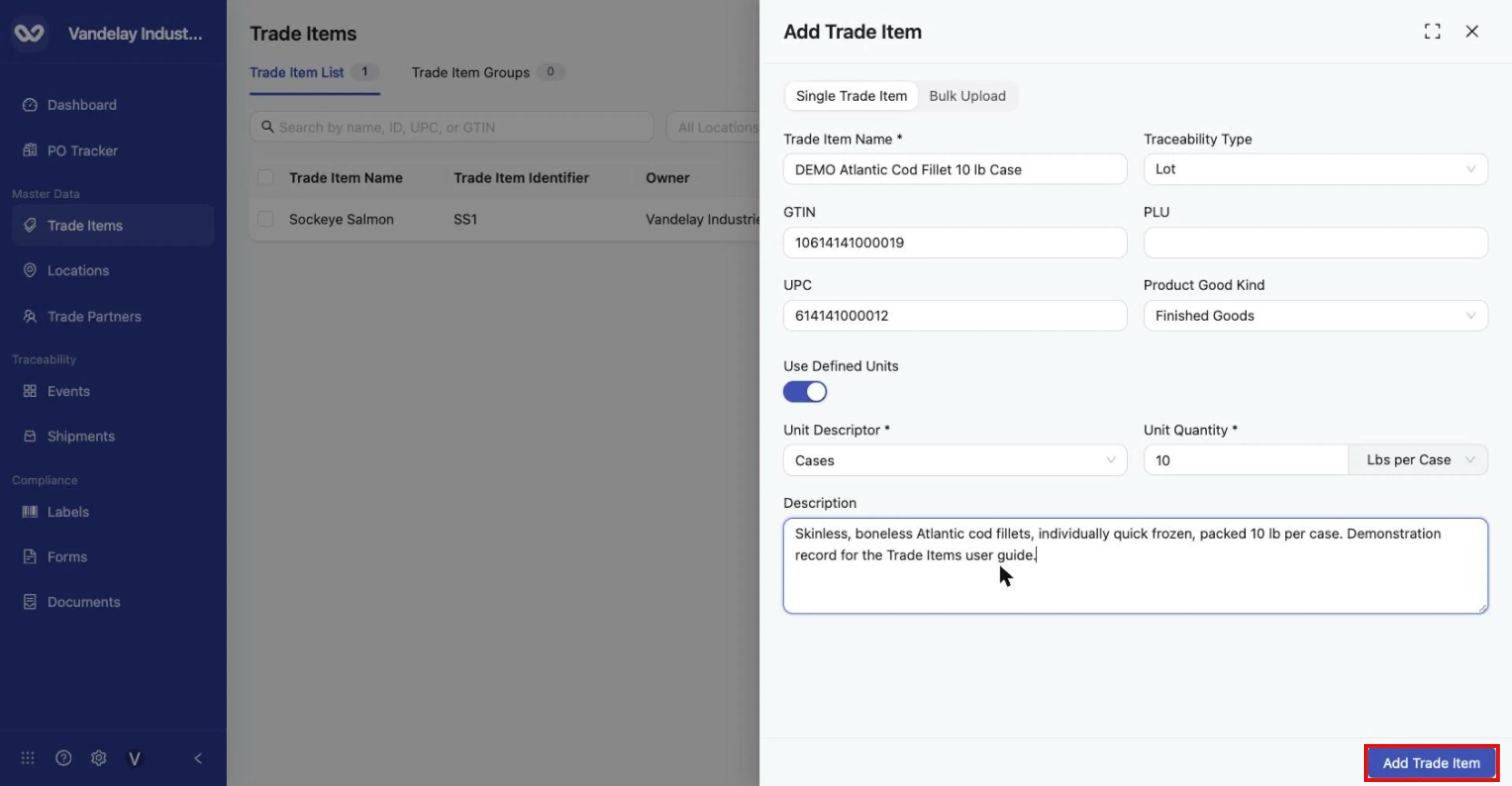
Completed form. The unit now reads 10 'Lbs per Case'. Click Add Trade Item to save.
Why it matters
- Traceability Type decides whether inventory is followed by lot or by individual unit. It cannot be changed once inventory exists, so choose carefully.
- Unit of measure decides how quantities are counted in events. A defined unit records what one "case" means. In the example, Unit Descriptor Cases, Unit Quantity 10 and base unit Pounds mean that one case = 10 lb. The form then shows the unit as Lbs per Case, and the event form shows "x 10 LBS per Case" beside the quantity. Recording 5 cases therefore represents 50 lb. On screen the base units are named Pounds and Kilograms; in the bulk template the same values are typed as
LBSandKGS. - GTIN, UPC and PLU let partners, scanners and integrations recognize the product by standard codes.
Result. A green message Trade item created appears and the new Trade Item opens in a drawer with four tabs: Details, Locations, Attachments and Sharing. The list count goes up by one.
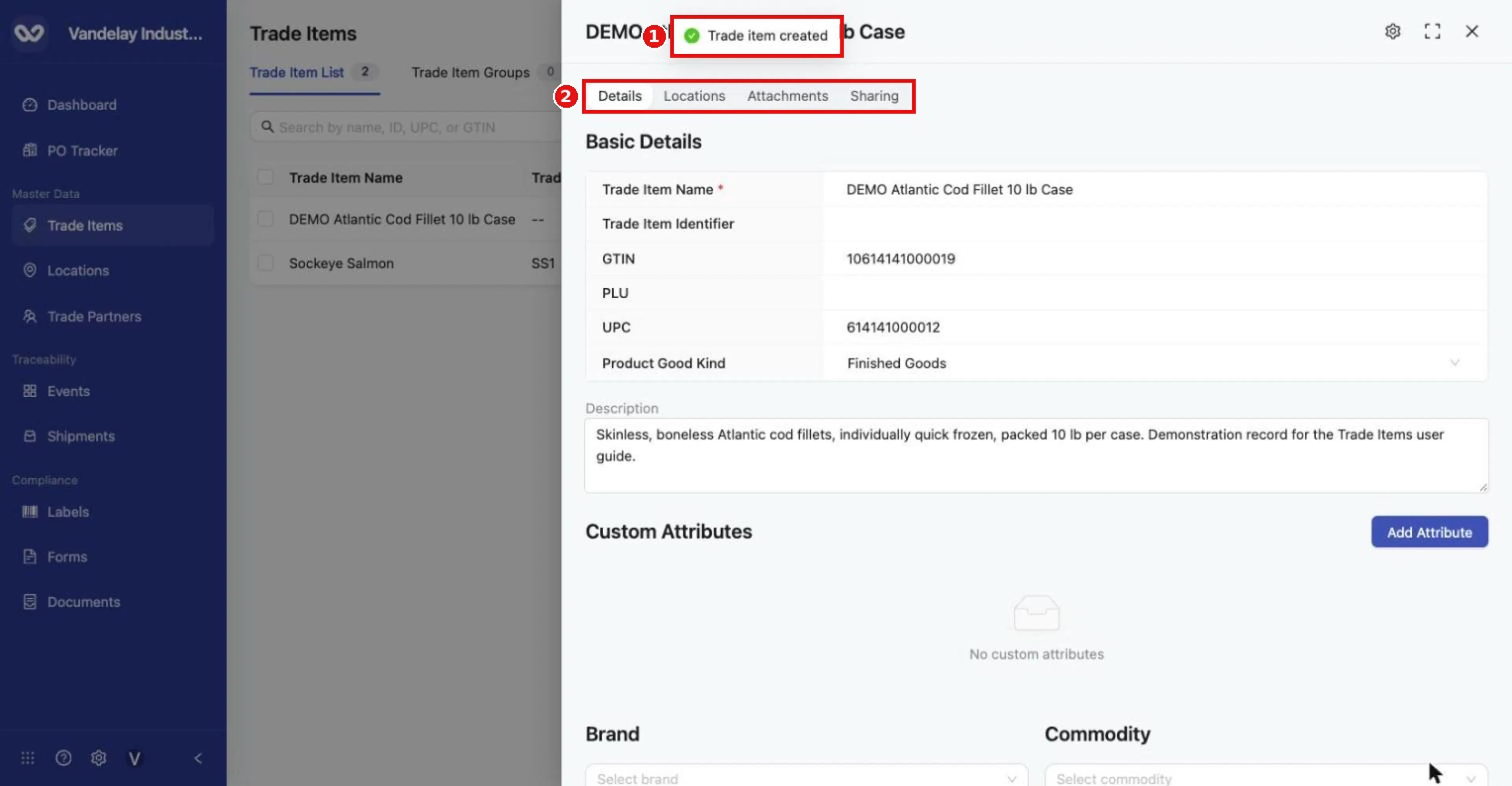
Success: 'Trade item created' appears and the new item opens with Details, Locations, Attachments and Sharing tabs.
Add many Trade Items with Excel
Open the Bulk Upload tab
On the Trade Item List tab, click Add Trade Item, then click the Bulk Upload tab.
Download the Excel template
Under Step 1: Download and fill out the Excel Template, click Excel Template. The browser downloads product_bulk_import_template.xlsx (Chrome may add a number such as "(11)" to the name).
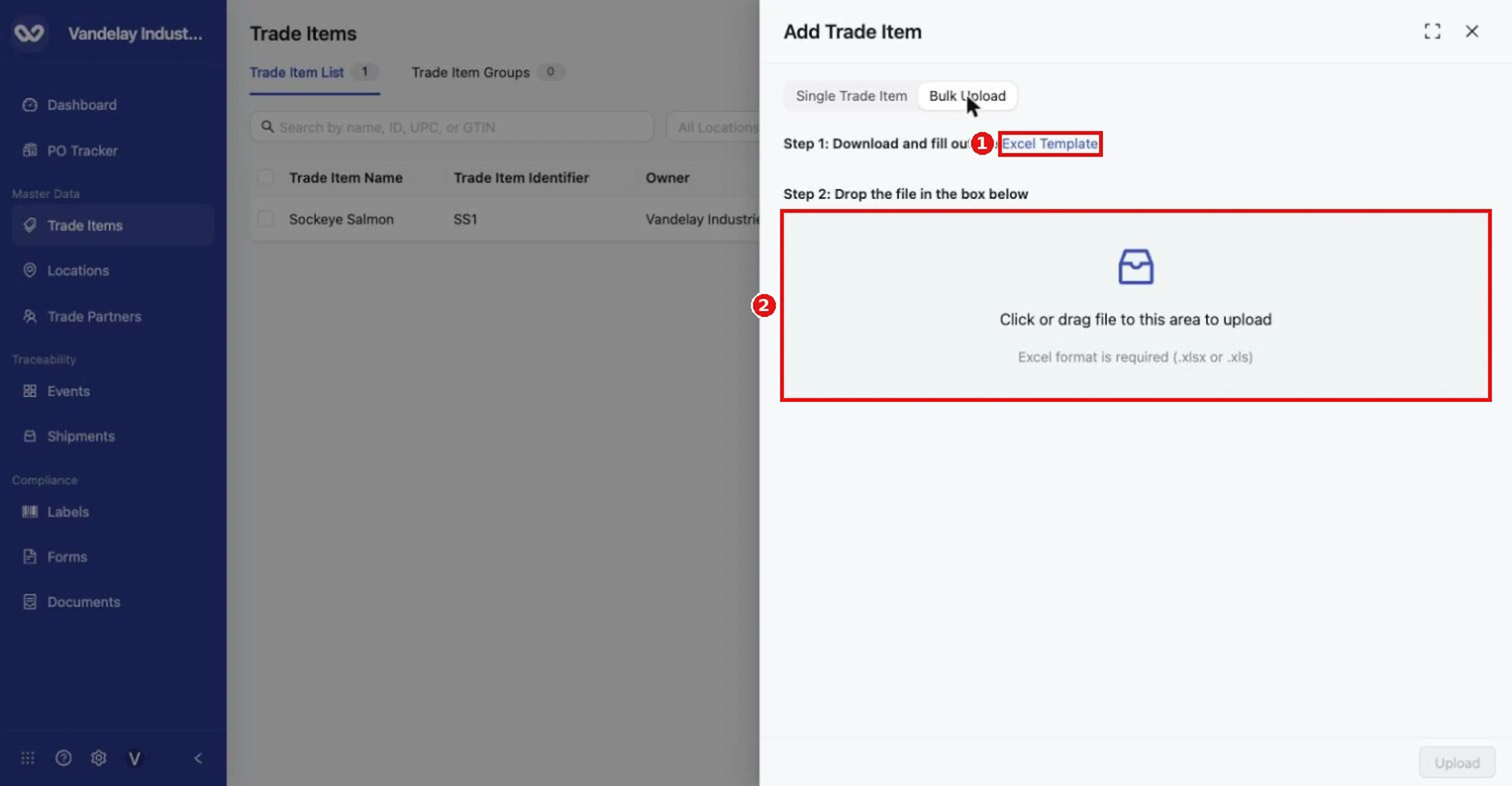
Bulk Upload tab. Step 1: download the Excel Template. Step 2: drop the completed file in the upload area.
Fill in the Products sheet
The Products sheet has two header rows: row 1 holds the column labels and row 2 holds system field keys such as prod_name. Leave both rows unchanged and enter data from row 3 onwards. The template has 17 columns, listed in the Field and action reference. The template has no built-in drop-down lists, so type the values exactly as shown there.
For a defined unit such as a 10 lb case, enter Unit Quantity 10, Defined UOM LBS and Unit Descriptor Cases. Wholechain reads this as "10 LBS per Case". Leave the three defined-unit columns blank when you use a general Unit of Measure.
If your company follows the GDST (Global Dialogue on Seafood Traceability) standards, enter your own company's Trade Partner name in the optional Information Provider and Owning Party columns.
Save the file as .xlsx
Fill in a small number of rows and save the file as .xlsx. The completed sample is DEMO_trade_item_bulk_upload.xlsx. Its three rows were:
| Item Number/ID | Product Name | Traceability Type | Unit of Measure | Unit Quantity | Defined UOM | Unit Descriptor |
|---|---|---|---|---|---|---|
| DEMO-COD-SUPA | DEMO Atlantic Cod Fillet 10 lb Case - Supplier A | Lot | LBS | 10 | LBS | Cases |
| DEMO-COD-SUPB | DEMO Atlantic Cod Fillet Bulk - Supplier B | Lot | LBS | |||
| DEMO-HAD-SER | DEMO Haddock Whole Fish Tagged | Serial | Units |
Drop the file in the upload area
Back in the drawer, under Step 2: Drop the file in the box below, drag the file onto Click or drag file to this area to upload, or click the area and choose the file. The file name appears in the box.
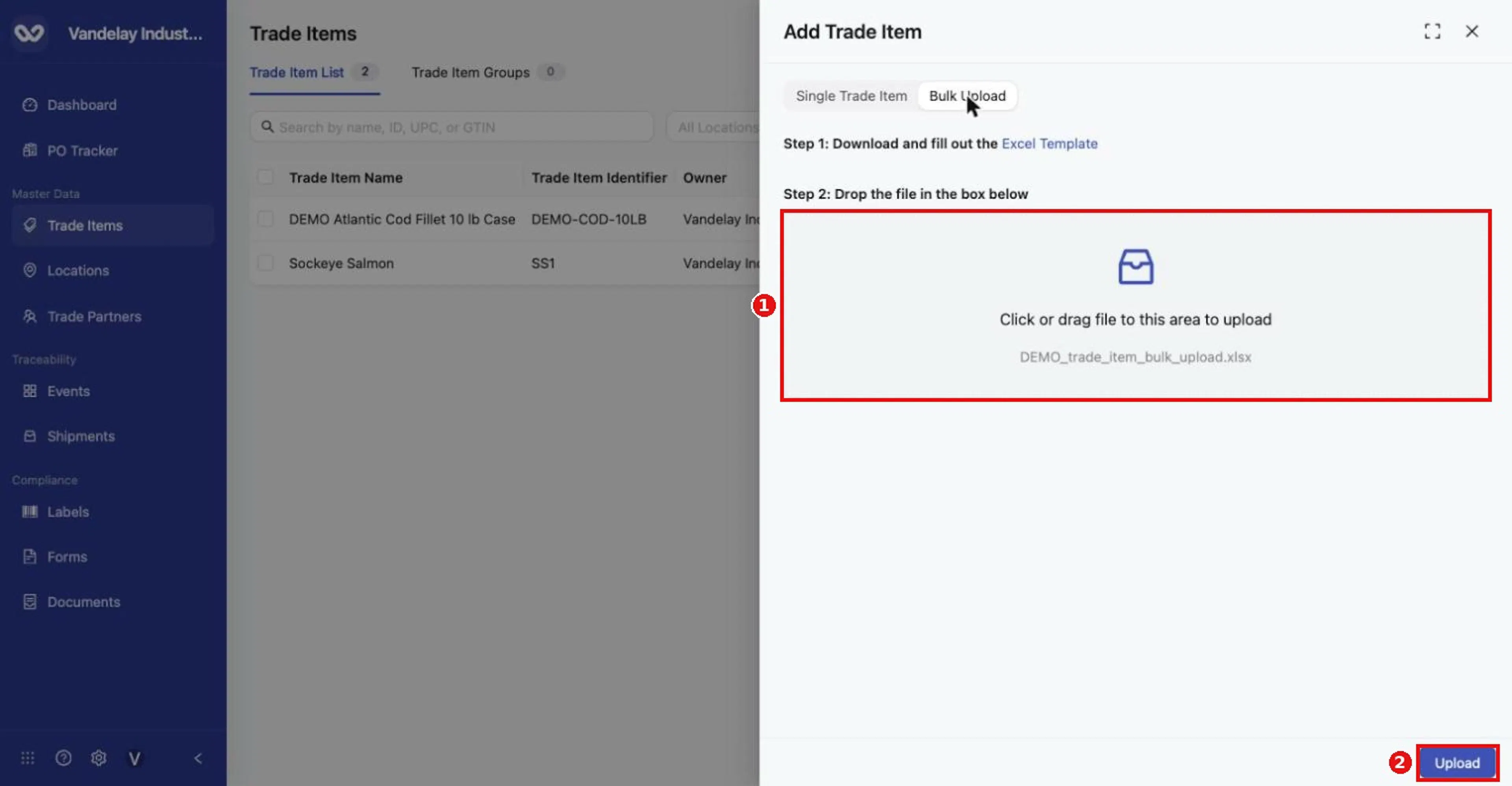
The completed spreadsheet's file name appears in the upload area. Click Upload.
Click Upload
Click Upload (bottom right). There is no preview screen, so check your values before you click.
Confirm what was created
The message Successfully uploaded file. appears, the drawer closes, and the new items appear in the list.
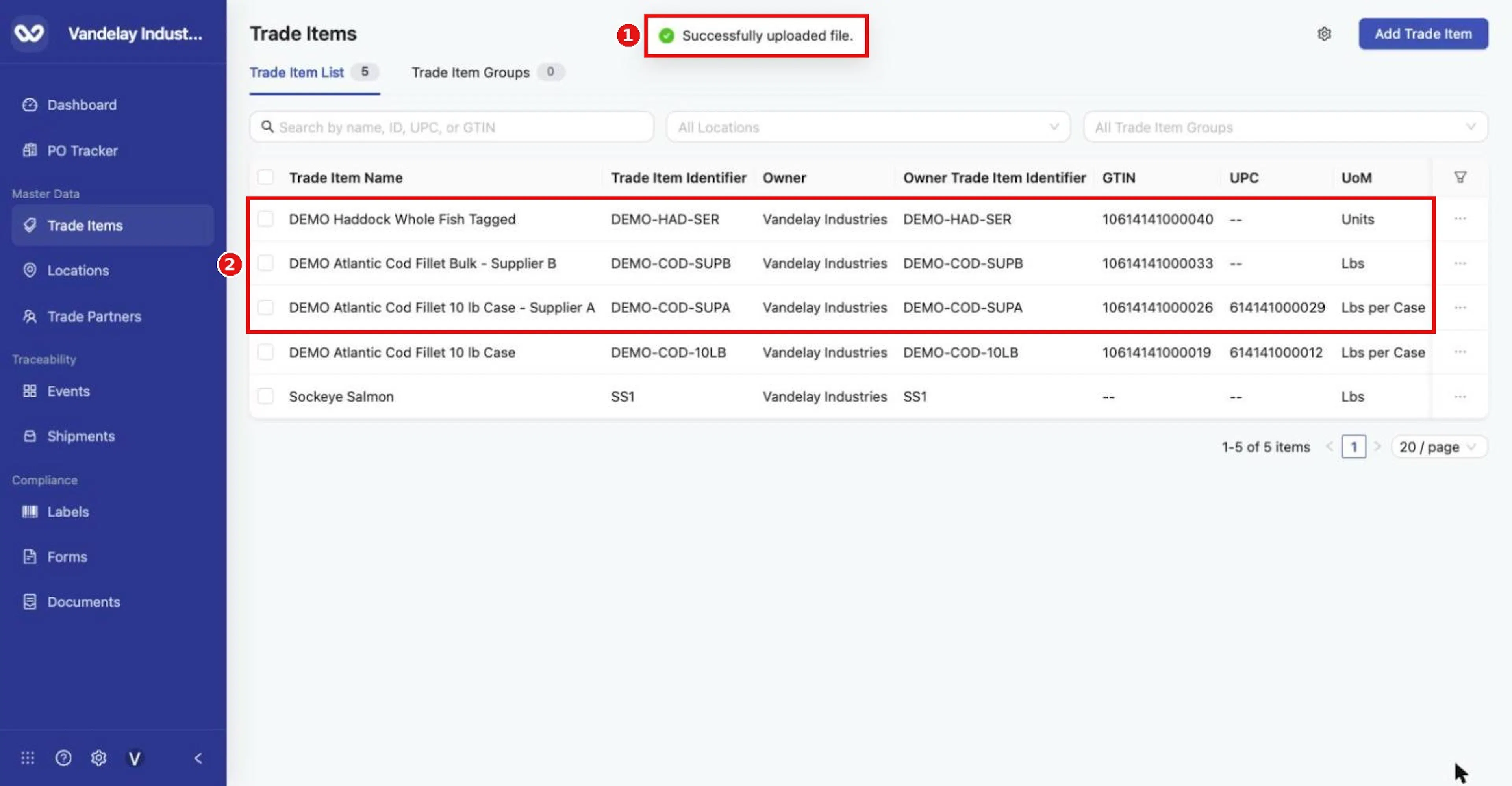
'Successfully uploaded file.' The list count rises from 2 to 5 and the three uploaded items appear.
Check each new Trade Item
Open each new item and check its details, including Traceability Type. Species and product-form columns appear in Custom Attributes with standard element IDs (for example speciesForFisheryStatisticsPurposesName).
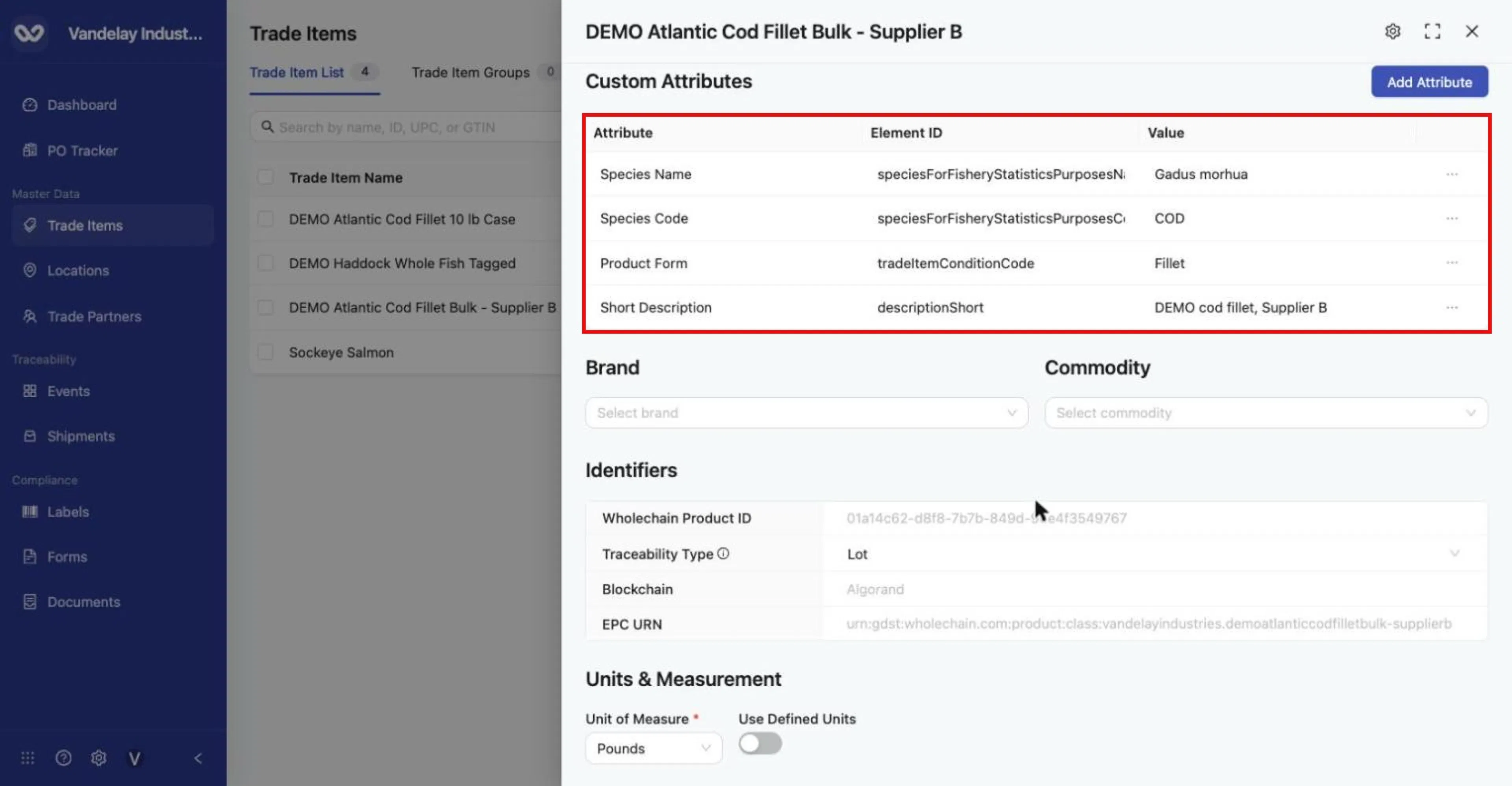
Bulk-uploaded item: the template's Species Name, Species Code, Product Form and Short Description columns become Custom Attributes with standard element IDs.
Why it matters. Bulk upload is the fastest way to load a catalog, and the Item Number/ID column also sets each item's Trade Item Identifier, which the single-item form does not offer. Because there is no preview step, check your values before you upload.
Sample files: TEMPLATE_product_bulk_import_template.xlsx (unchanged template as downloaded), DEMO_trade_item_bulk_upload.xlsx (completed sample).
Expected result
- Single: Trade item created appears, the item opens in its drawer, and the list count goes up by one.
- Bulk: the list count goes up by the number of rows uploaded, and each new item shows the name, identifier, codes and units from your file. A defined-unit row shows, for example, Lbs per Case.
Troubleshooting
-
"GTIN must be 8, 12, 13, or 14 digits" and "UPC must be 12 digits" appear while a value has the wrong length. The PLU field likewise shows an error until the value has 4 or 5 digits.
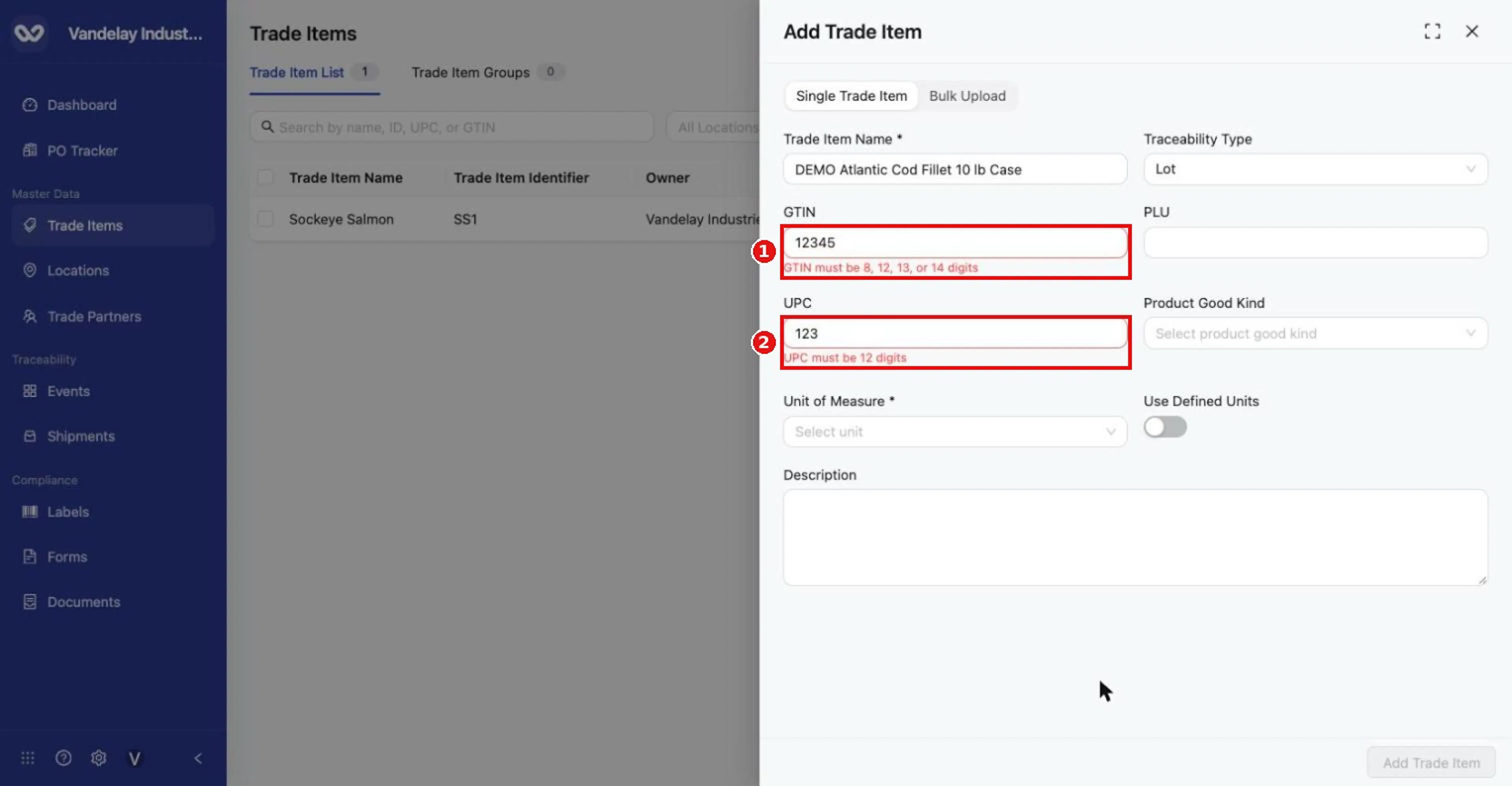
Validation appears as you type: 'GTIN must be 8, 12, 13, or 14 digits' and 'UPC must be 12 digits'. Validation appears as you type: 'GTIN must be 8, 12, 13, or 14 digits' and 'UPC must be 12 digits'.
-
"The product GTIN is invalid." The GTIN has the right length but its last digit (the GS1 check digit) does not match the rest of the number, so Wholechain did not save it. Copy the GTIN again from your GS1 records or barcode, or check it with GS1's check-digit calculator. If you corrected a GTIN on an existing item, reload the item to confirm which value was saved.
-
"Unit of measure is required" or "Unit descriptor is required" appears if you leave those fields empty. Add Trade Item stays disabled until required fields are complete.
-
There is no field for the Trade Item Identifier. The single-item form does not include it. Add it afterwards in the item's Details tab (Edit Item Details), or include it in a bulk upload. The identifier matters: it is the value Wholechain uses to match items when you add them to groups in bulk.
-
Check each new item's Traceability Type after a bulk upload. Open a few uploaded items, or download them (Find and manage Trade Items), and confirm that Traceability Type matches your file. If one is wrong, correct it on the Details tab before the item is used in any event; it cannot be changed once inventory exists.
-
Avoid duplicates when retrying. Before you upload again after an error, search the list for the Item Number/IDs in your file and remove any rows that already exist.
-
Wrong file type. Only
.xlsxor.xlsfiles are accepted.
Field and action reference
Add Trade Item: Single Trade Item
| Field | Req. | Type | Values and validation | Default |
|---|---|---|---|---|
| Trade Item Name | Yes | Text | Free text. Usually the ERP or catalog name. | — |
| Traceability Type | Yes | Select | Lot or Serial. Cannot be changed once the item has active inventory. | Lot |
| GTIN | No | Number | 8, 12, 13 or 14 digits with a valid GS1 check digit. | — |
| PLU | No | Number | 4 or 5 digits. | — |
| UPC | No | Number | Exactly 12 digits. | — |
| Product Good Kind | No | Select | Finished Goods, Semi-Finished Goods, Raw Materials. | — |
| Use Defined Units | No | Toggle | Off: use Unit of Measure. On: use Unit Descriptor and Unit Quantity. Not available for Serial items. | Off |
| Unit of Measure | Conditional | Select | Pounds, Kilograms, Cases, Units. Required when Use Defined Units is off. | — |
| Unit Descriptor | Conditional | Select | Cases, Units, Totes, Pallets. Required when Use Defined Units is on. | — |
| Unit Quantity | Conditional | Number | The quantity in one unit descriptor, with a base unit selector beside it (Pounds, Kilograms, Cases, Units). Required when Use Defined Units is on. | — |
| Description | No | Text | General, market-facing description. | — |
Add Trade Item stays disabled until the required fields are complete. The Trade Item Identifier is not part of this form; set it afterwards in Basic Details or through bulk upload.
Defined units example. Unit Descriptor Cases, Unit Quantity 10, base unit Pounds means one case = 10 lb. The unit displays as Lbs per Case, and a quantity of 5 in an event represents 50 lb.
Add Trade Item: Bulk Upload
| Element | Description |
|---|---|
| Excel Template | Downloads product_bulk_import_template.xlsx. |
| Upload area | Click or drag file to this area to upload. Accepts .xlsx or .xls only. |
| Upload | Creates one Trade Item per data row. There is no preview step. |
Template layout. Sheet Products. Row 1 holds column labels, row 2 holds system keys; both must remain unchanged. Data starts at row 3. The template has no drop-down lists.
| Column (row 1) | Key (row 2) | Req. | Values |
|---|---|---|---|
| Item Number/ID | prod_external_id | Yes | Your unique item number. Becomes the Trade Item Identifier. |
| Product Name | prod_name | Yes | Trade Item name. |
| UPC | prod_upc | No | 12 digits. |
| GTIN | prod_gtin | No | 8, 12, 13 or 14 digits with a valid check digit. |
| PLU | prod_plu | No | 4 or 5 digits. |
| Description | prod_description | No | Free text. |
| Traceability Type | prod_traceability_type | Yes | Lot or Serial. A row with no Traceability Type is not created. |
| Unit of Measure | prod_uom | Yes | LBS, KGS, Units or Cases. |
| Unit Quantity | prod_unit_quantity | Conditional | Number. Defined units only. |
| Defined UOM | prod_defined_uom | Conditional | LBS, KGS, Cases or Units. Defined units only (the base unit). |
| Unit Descriptor | prod_unit_descriptor | Conditional | Cases, Units, Totes or Pallets. Defined units only. |
| Species Name | prod_species_name | No | Stored as a custom attribute. |
| Species Code | prod_species_code | No | Stored as a custom attribute. |
| Product Form | prod_product_form | No | Stored as a custom attribute. |
| Short Description | prod_short_description | No | Stored as a custom attribute. |
| Information Provider | prod_info_provider | No | Company providing the information. GDST users enter their own Trade Partner name. |
| Owning Party | prod_owning_party | No | Company that owns the item. GDST users enter their own Trade Partner name. |
Example defined unit: Unit Quantity 10, Defined UOM LBS, Unit Descriptor Cases = 10 LBS per Case.
Result. Successfully uploaded file.; the drawer closes and the new items appear in the list.