

Location Groups
Manage a set of Locations together: create a group, add Locations manually or in bulk, set the group's data policy, and delete a group.
Applies to: The Location Groups tab of Locations.
Audience: Users who manage Locations as a set, for example every Location in one region or run by one team.
Prerequisites: The Locations you want to group already exist. A group name and a description of which Locations belong in it. To change a group's data policy in Settings, or to switch data policies on, an Admin may need to help.
Related: Get started with Locations; Browse and manage Locations; Add Locations; View and edit a Location; Share a Location and set its data policy; Locations FAQ; Reference Guide: Module overview; Reference Guide: Location Groups; Master Data Settings; Data elements and policies; Account
Purpose
A Location Group is a named set of Locations that you manage together, for example every Location in one region or run by one team. A Location describes one place; a group is a folder that holds many Locations and can carry shared data policy requirements for all of them.
Deleting a group never deletes the Locations in it.
Before you begin
- Make sure the Locations you want to group already exist. See Add Locations.
- Decide the group's Location Group Name and write a Description. A Location Identifier for the group is optional.
- To link many Locations at once, have their identifiers ready (the Location External Identifiers you will paste).
- Open Locations and select the Location Groups tab.
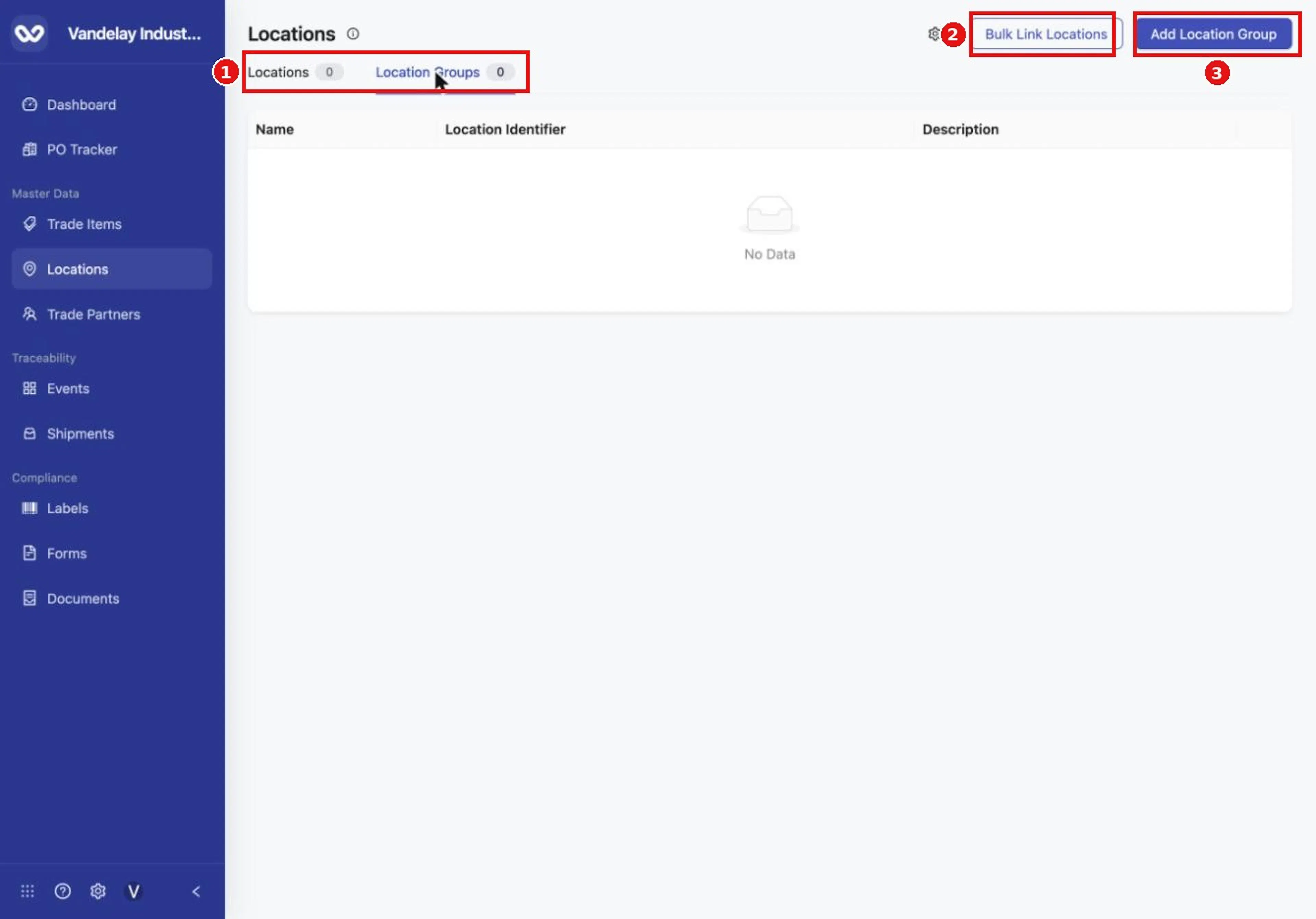
Open the Location Groups tab to see your groups and to add one.
Once you have groups, the Location Groups list shows each group's name, identifier and description.
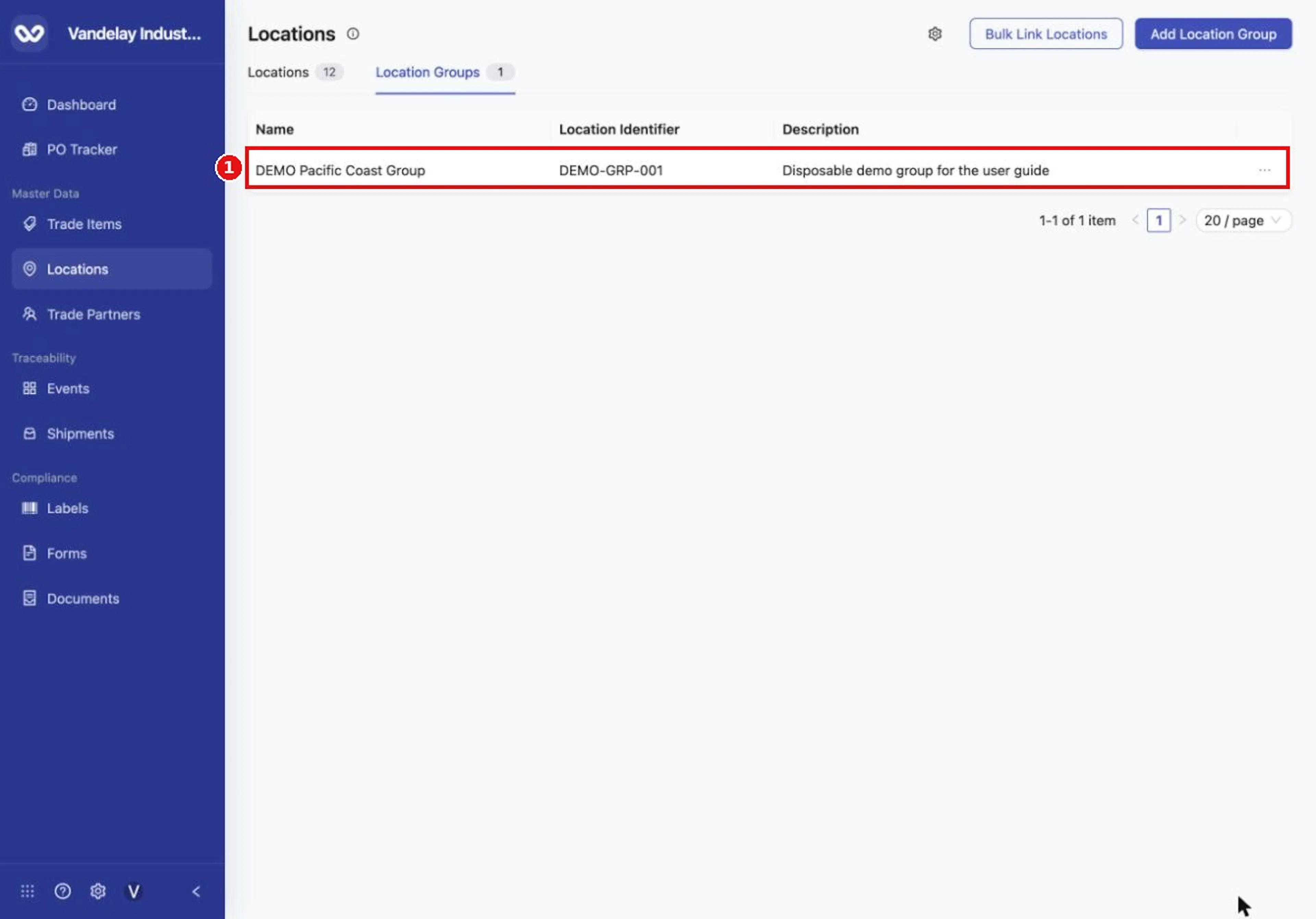
The group appears in the Location Groups list.
Create a group
Click Add Location Group
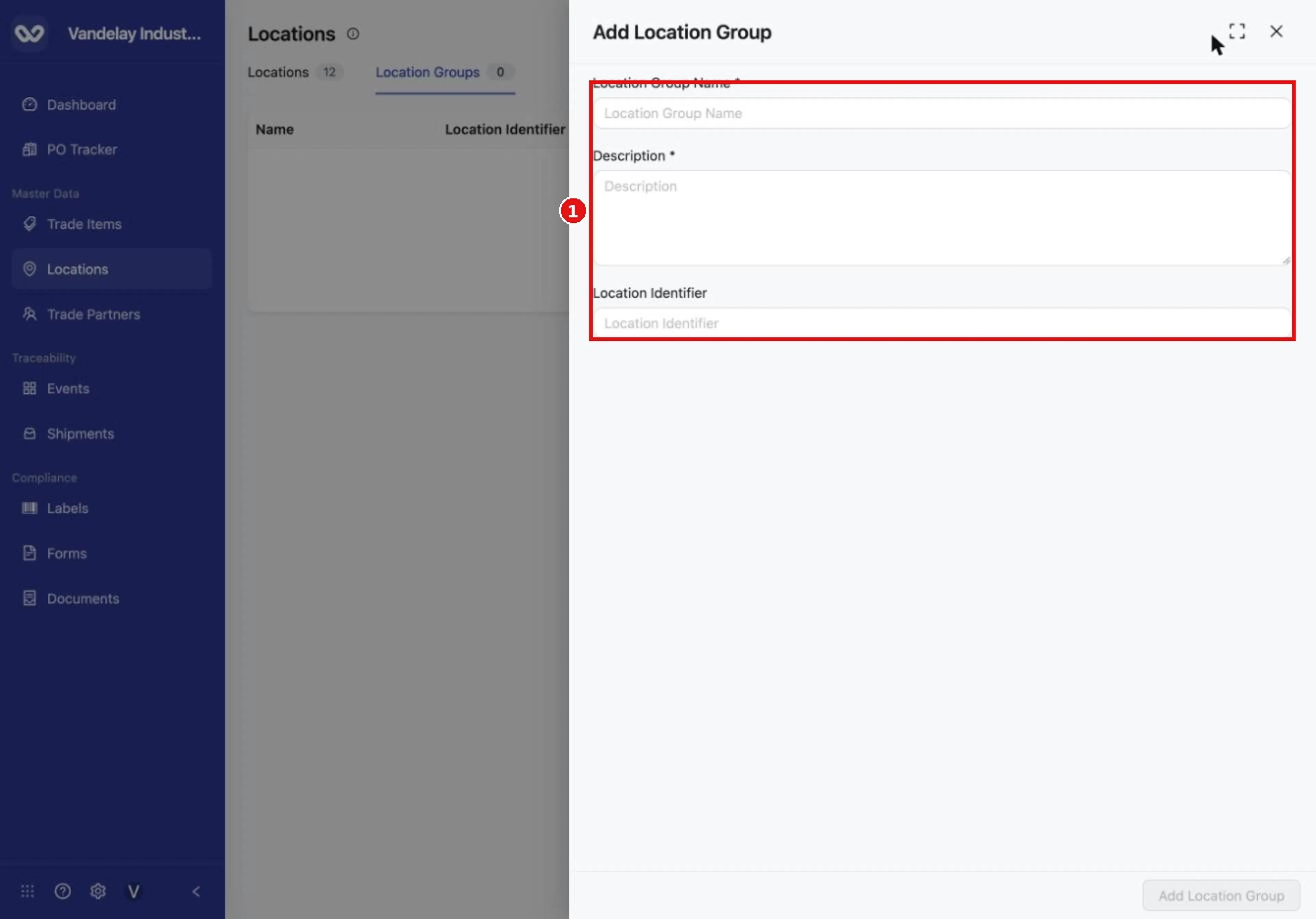
Add Location Group asks for a name, a description and an identifier.
Enter the group details
Enter the Location Group Name, a Description and, optionally, a Location Identifier. The name and description are required.
Click Add Location Group again
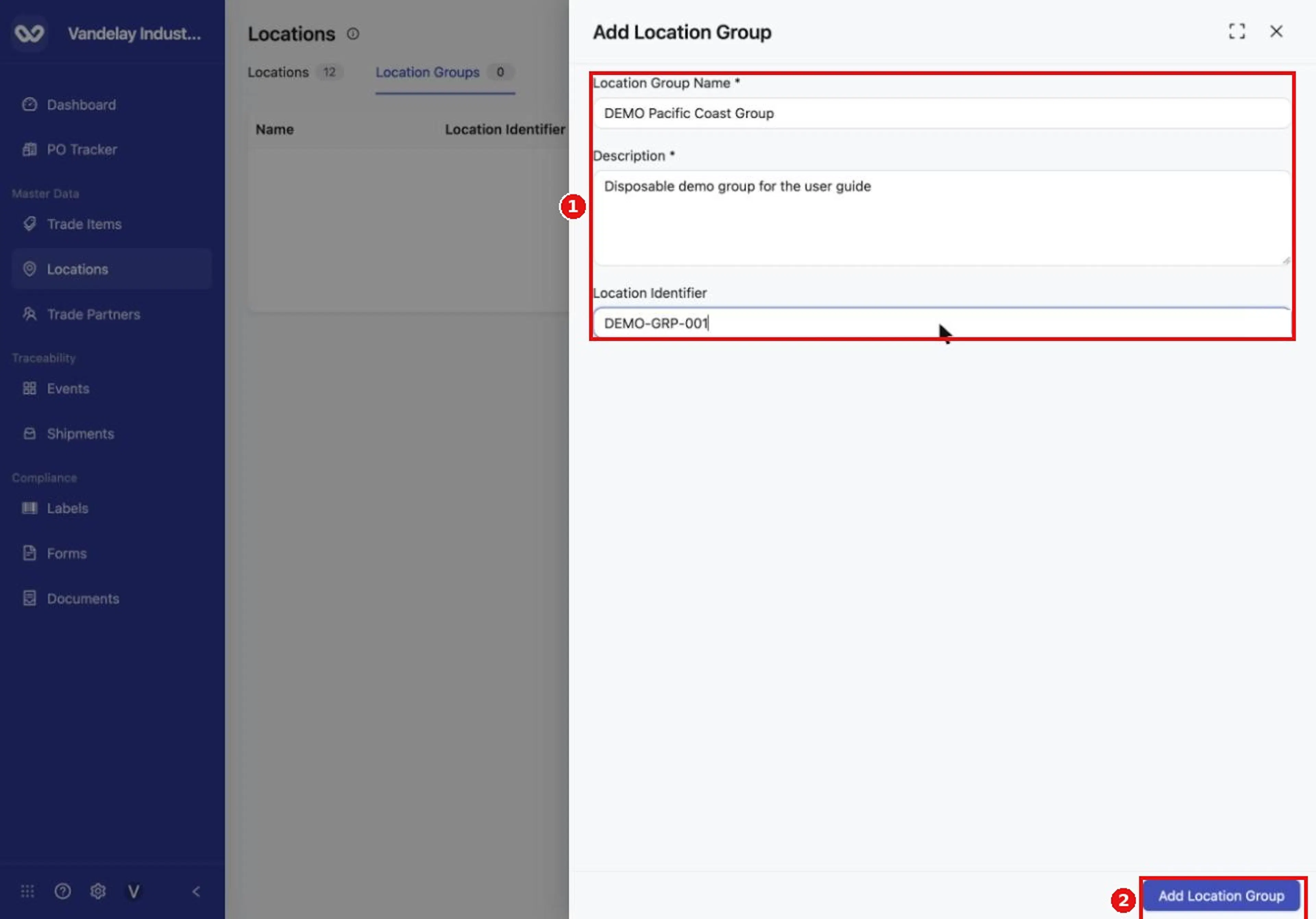
Enter the group's name, description and identifier, then select Add Location Group.
Location group created appears and the group's drawer opens with the tabs Basic Details, Locations and Data Policy. Basic Details shows the Name, Description and Location Identifier.
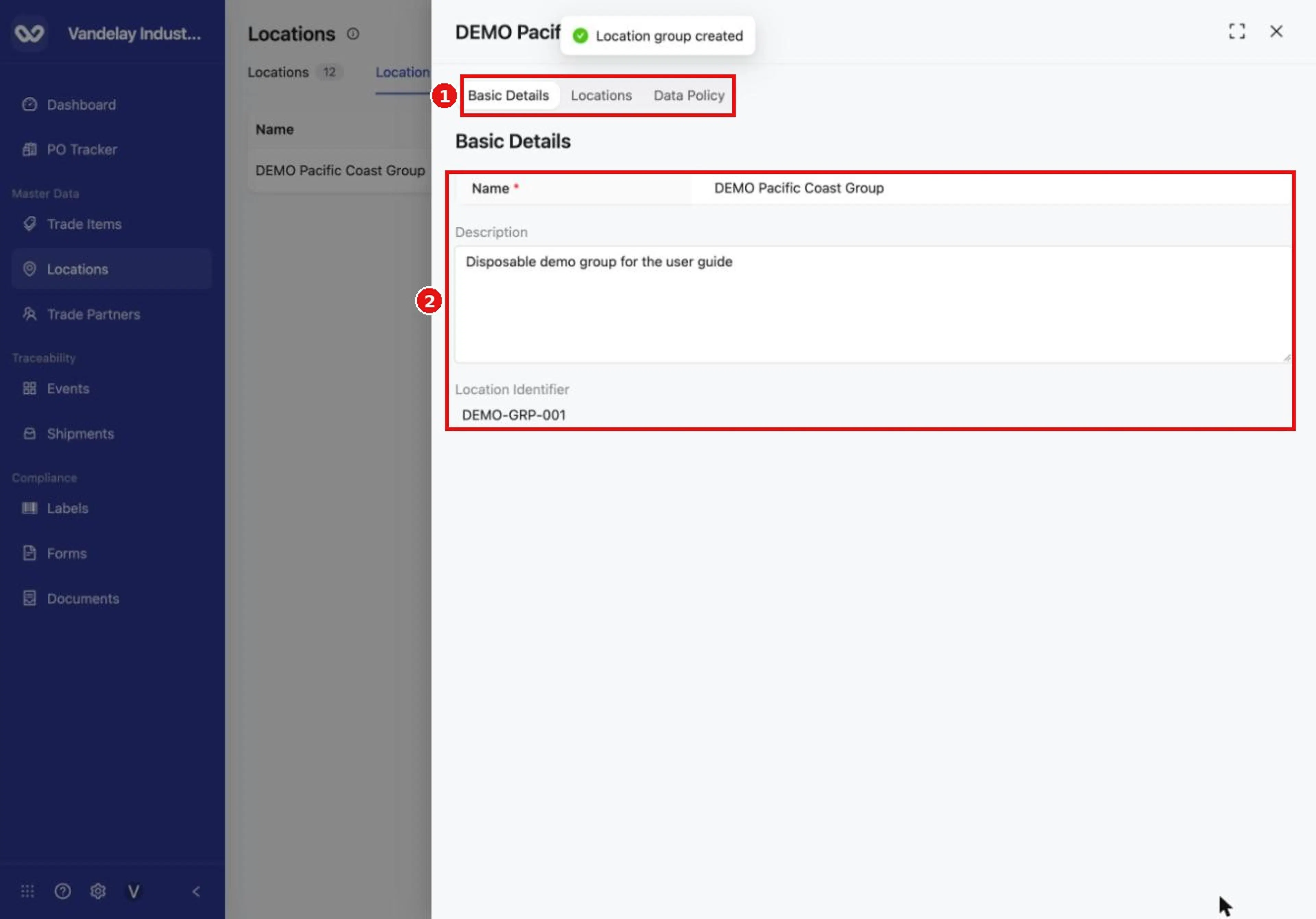
The group opens with Basic Details, Locations and Data Policy tabs.
Add Locations to a group
The group's Locations tab lists its member Locations and has a Manage Locations button.
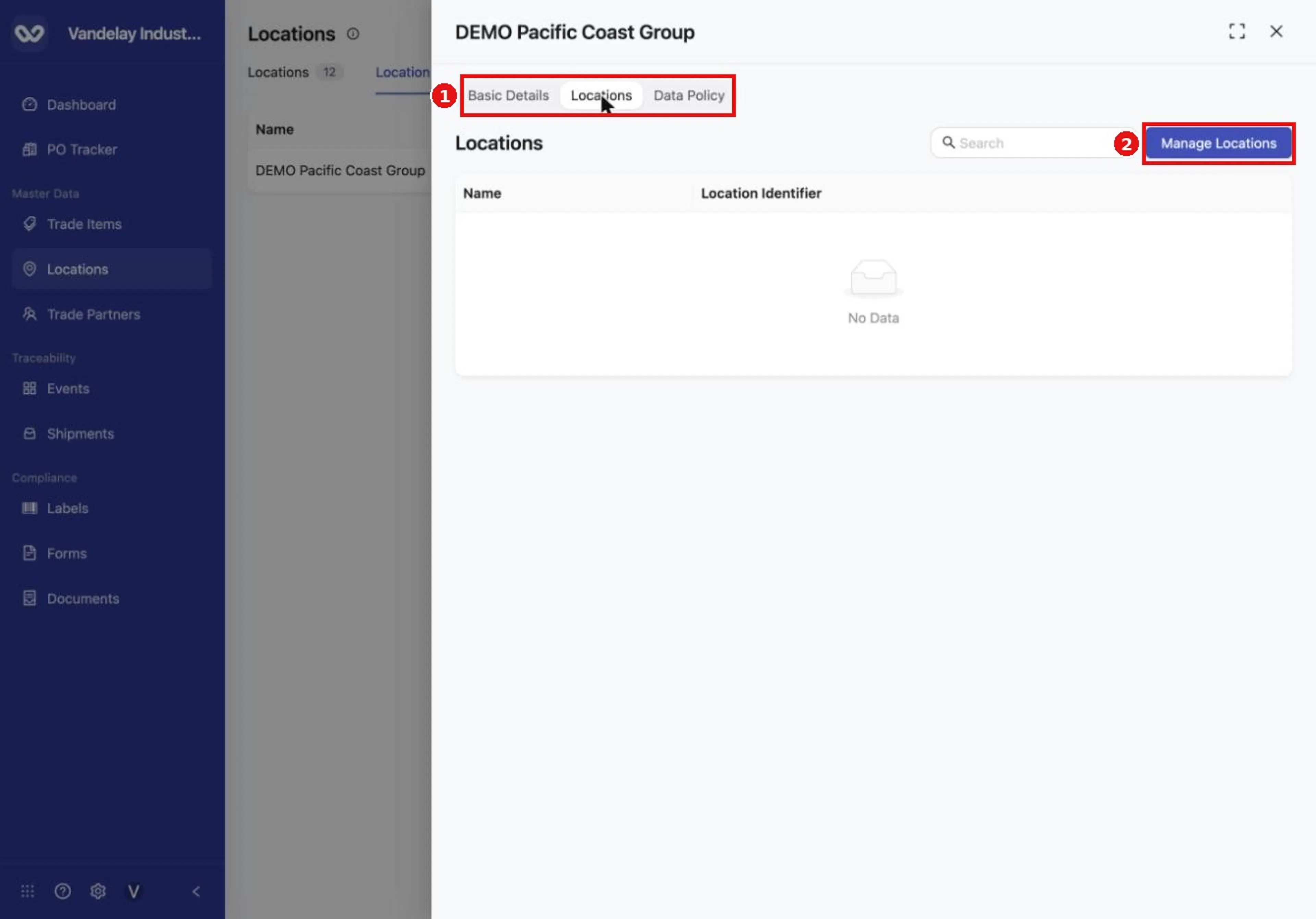
Open the Locations tab and select Manage Locations to add Locations to the group.
Add Locations manually
Click Manage Locations
Open the group's Locations tab and click Manage Locations. The drawer has Manual and Bulk tabs.
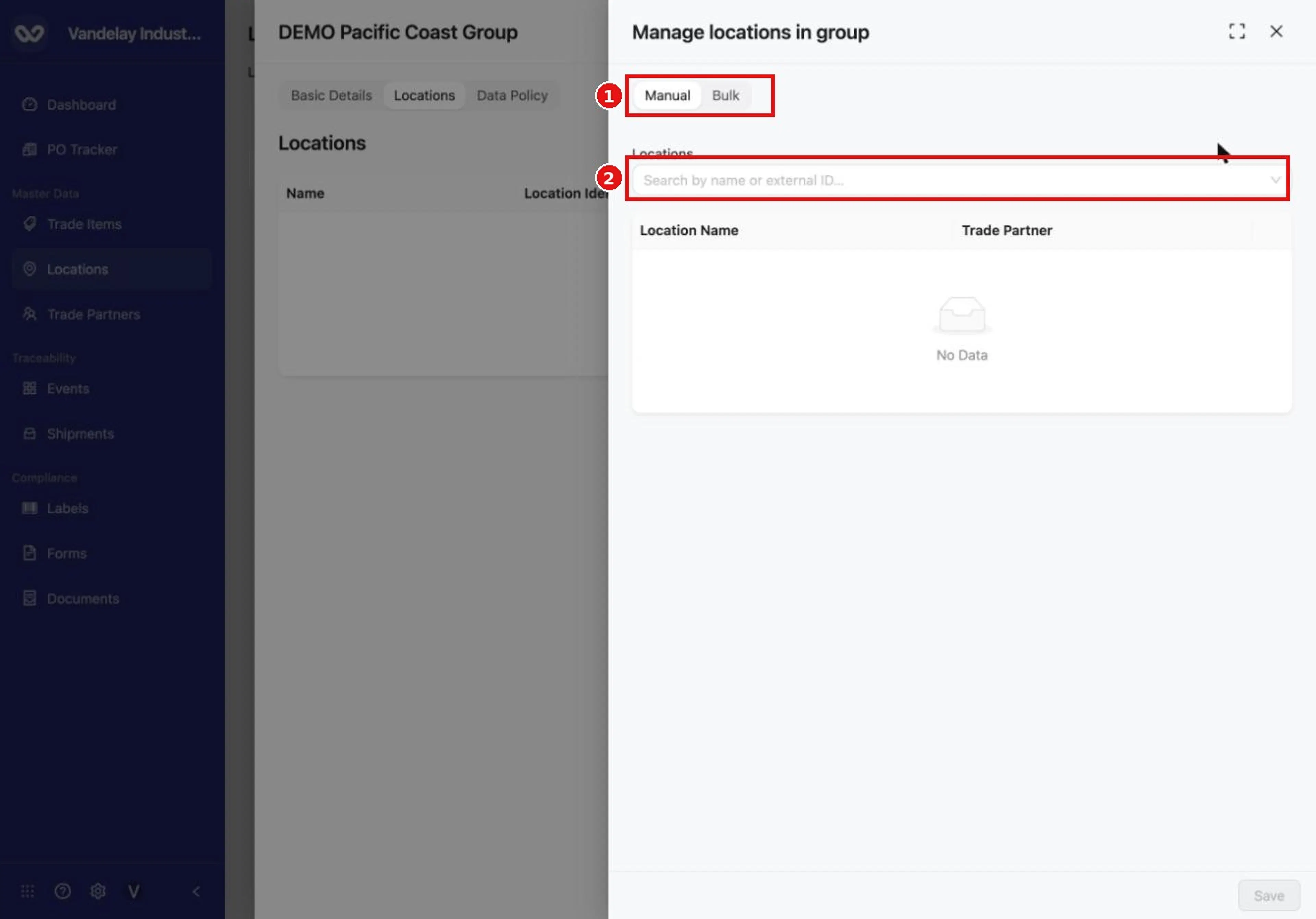
Manage Locations has Manual and Bulk tabs. On Manual, search for Locations to add.
Search for a Location
On the Manual tab, click the search box, type part of a name or an identifier, and choose from the results. Repeat to add more.
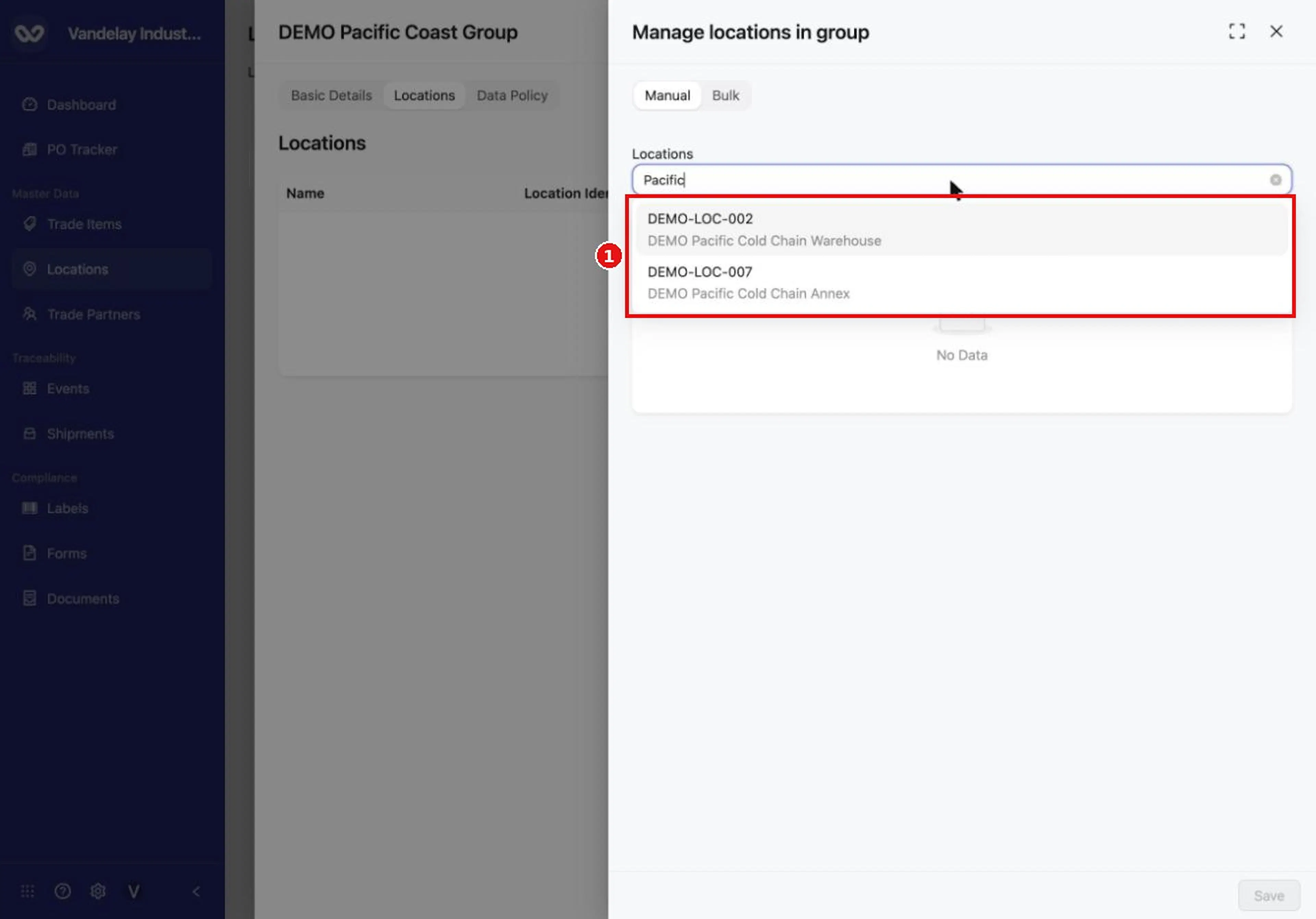
Type part of a name or identifier and choose from the results.
Review the selection
The Locations you chose are listed.
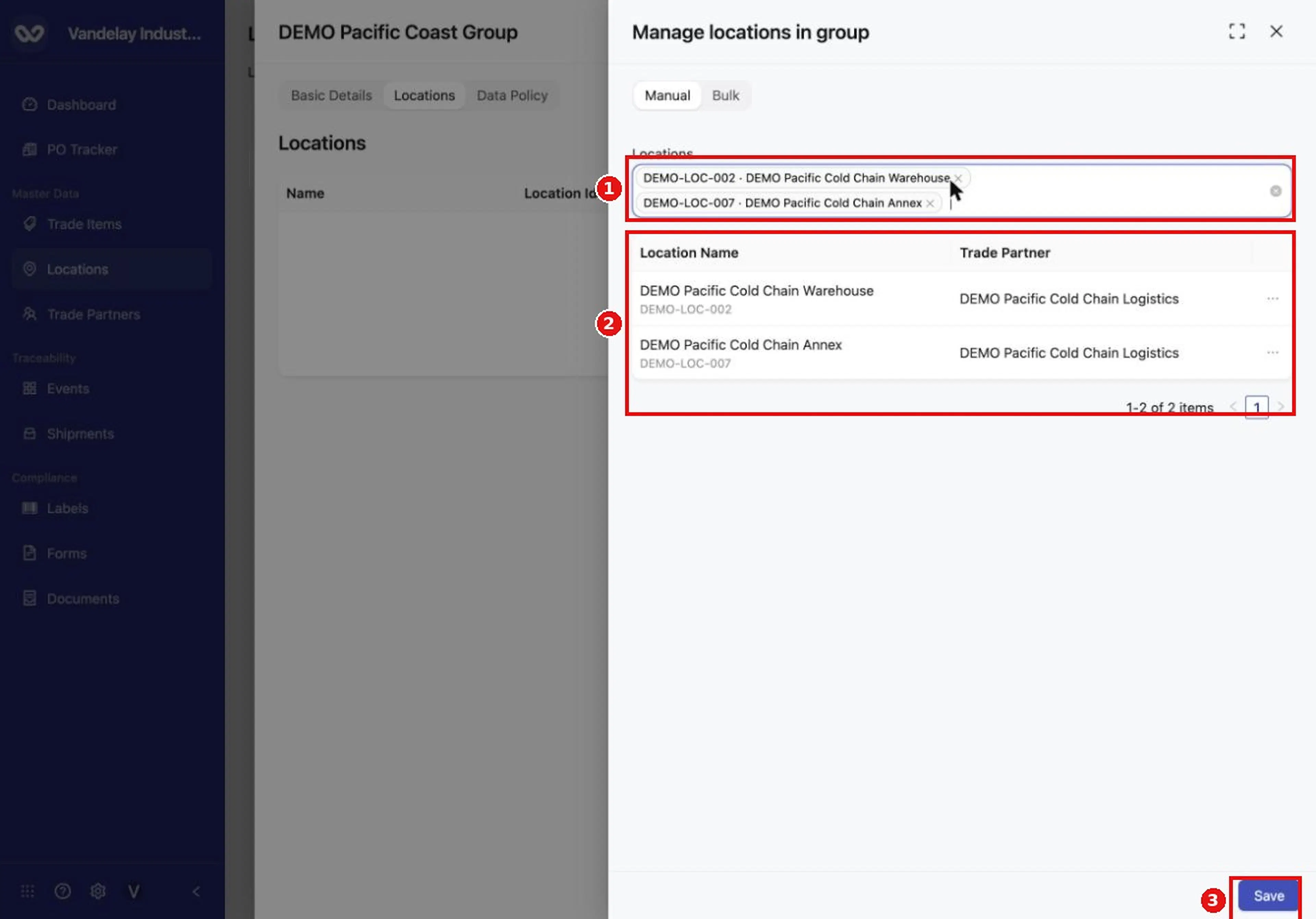
Selected Locations are listed. Select Save to add them to the group.
Remove a Location before you save (optional)
To take a Location out of the selection, open the ... menu on its row and choose Remove.
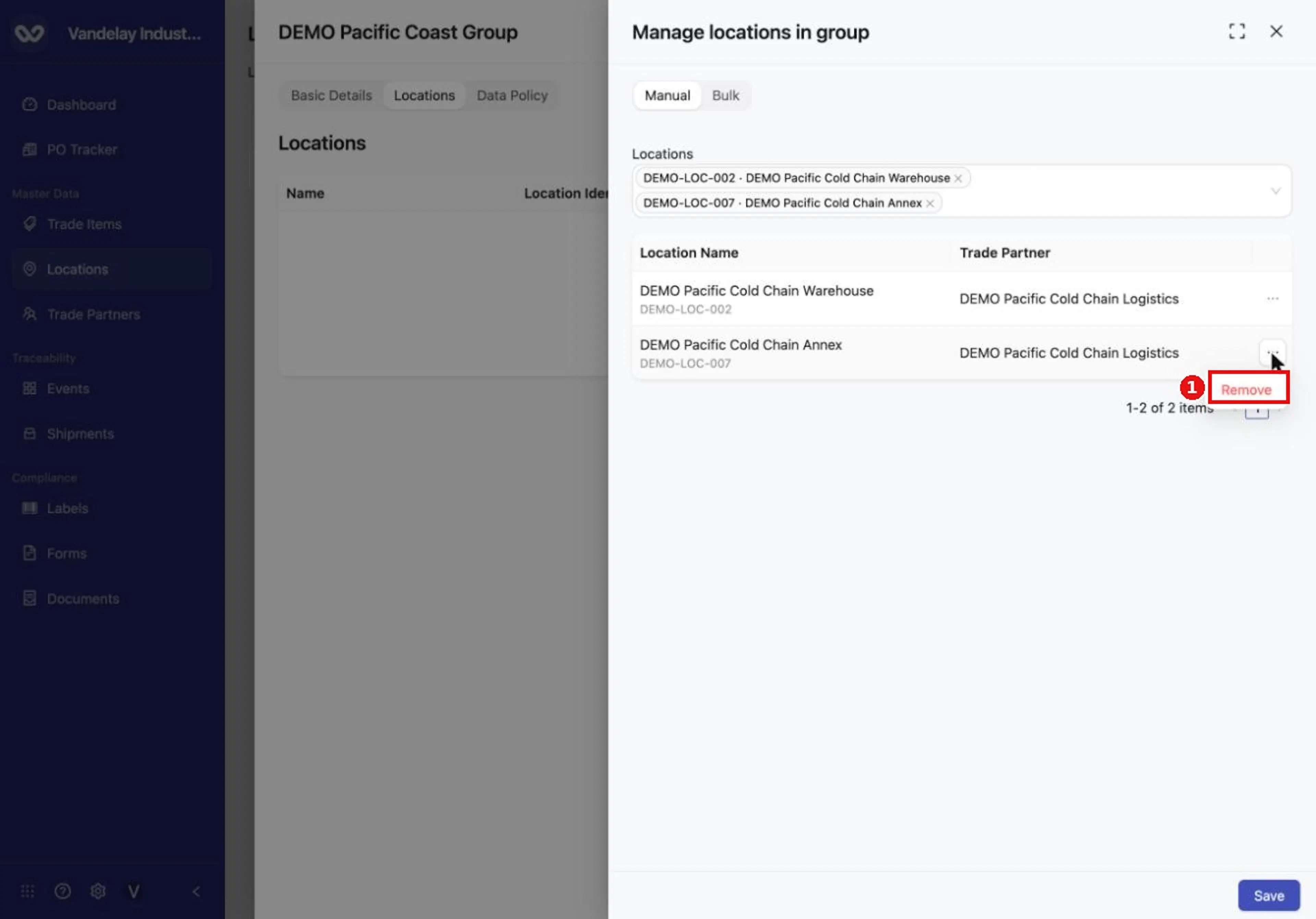
Use the row menu to remove a Location before you save.
Click Save
The Locations you chose are added to the group.
Tip. The Manage Locations drawer closes by itself a few seconds after you click Save. Wait for it to close before you continue. If you close it with the Esc key before saving, your selection is discarded. If the drawer does not accept typing, reopen it.
The group's Locations tab now lists the Locations you added.
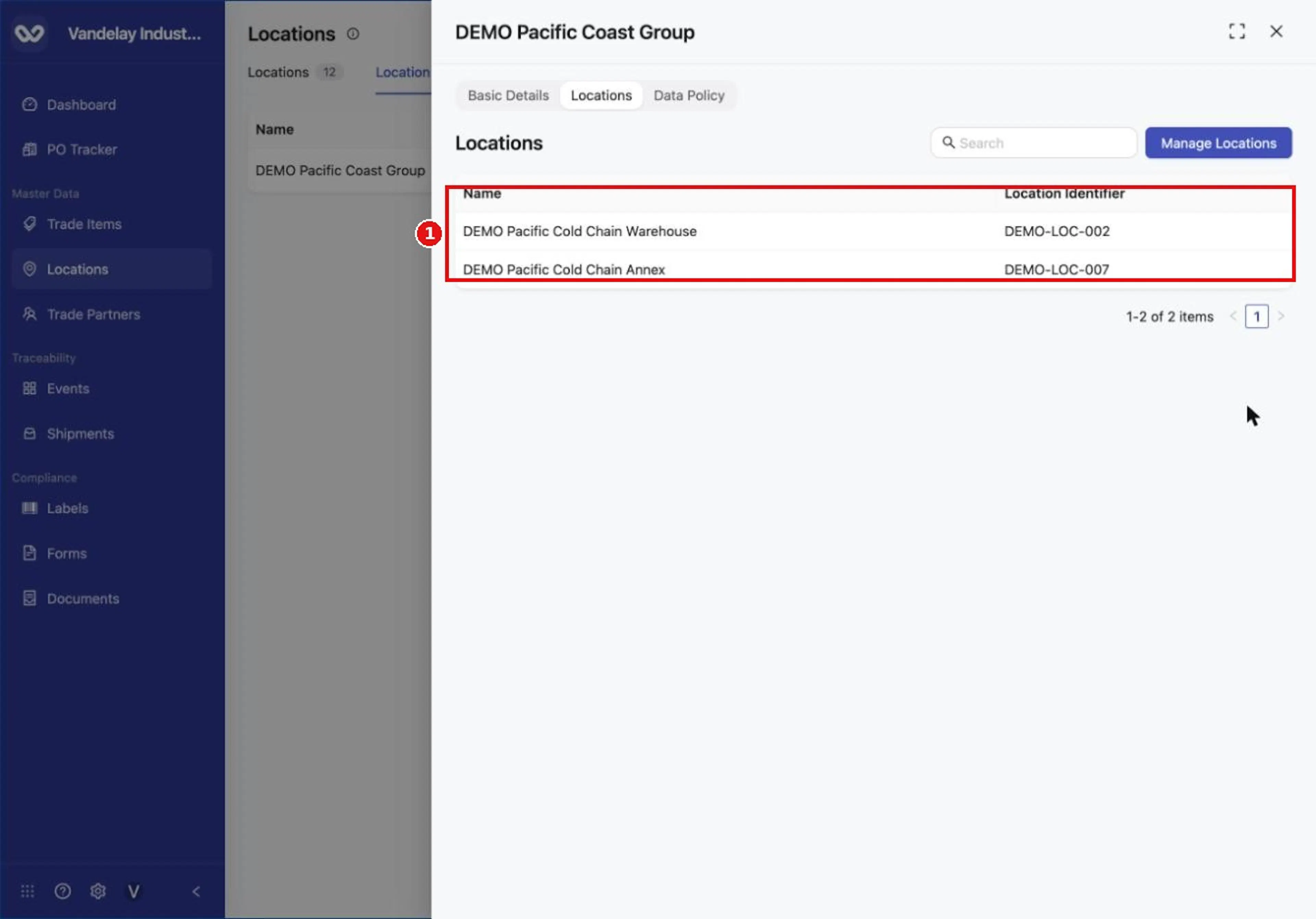
The group's Locations tab lists the Locations in the group.
Bulk link Locations from a list of identifiers
The Bulk tab on Manage Locations, and the Bulk Link Locations button at the top of the Location Groups tab, link Locations to a group from a pasted list of identifiers. Use the button when you want to choose the group in the same step, without opening the group first.
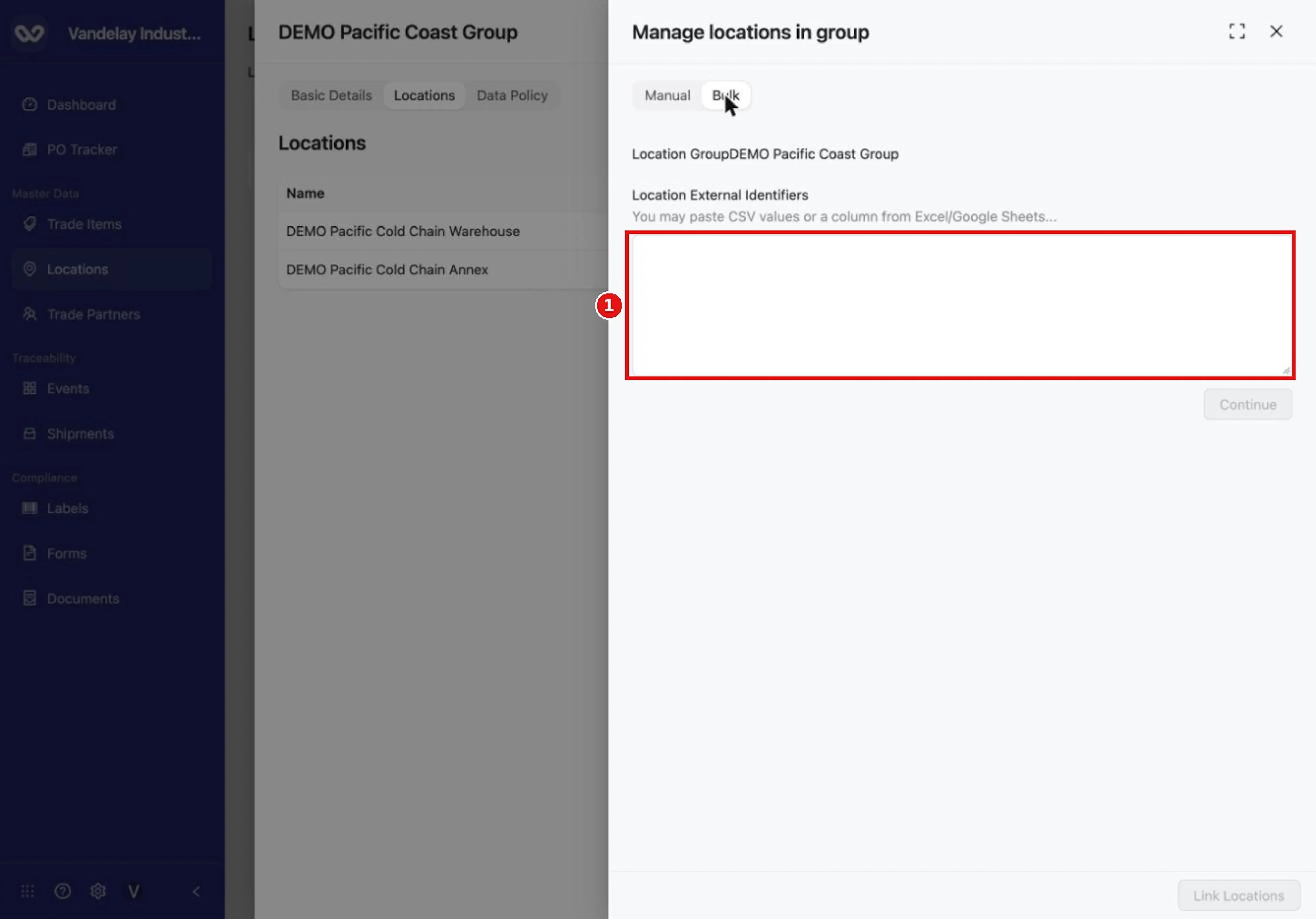
The Bulk tab accepts a list of external identifiers pasted or copied from a spreadsheet column.
Click Bulk Link Locations
Click it on the Location Groups tab.
Choose the Location Group
Select the group that will receive the Locations.
Paste the identifiers
In Location External Identifiers, paste or type the identifiers, separated by commas or one per line. You can copy a column from Excel or Google Sheets.
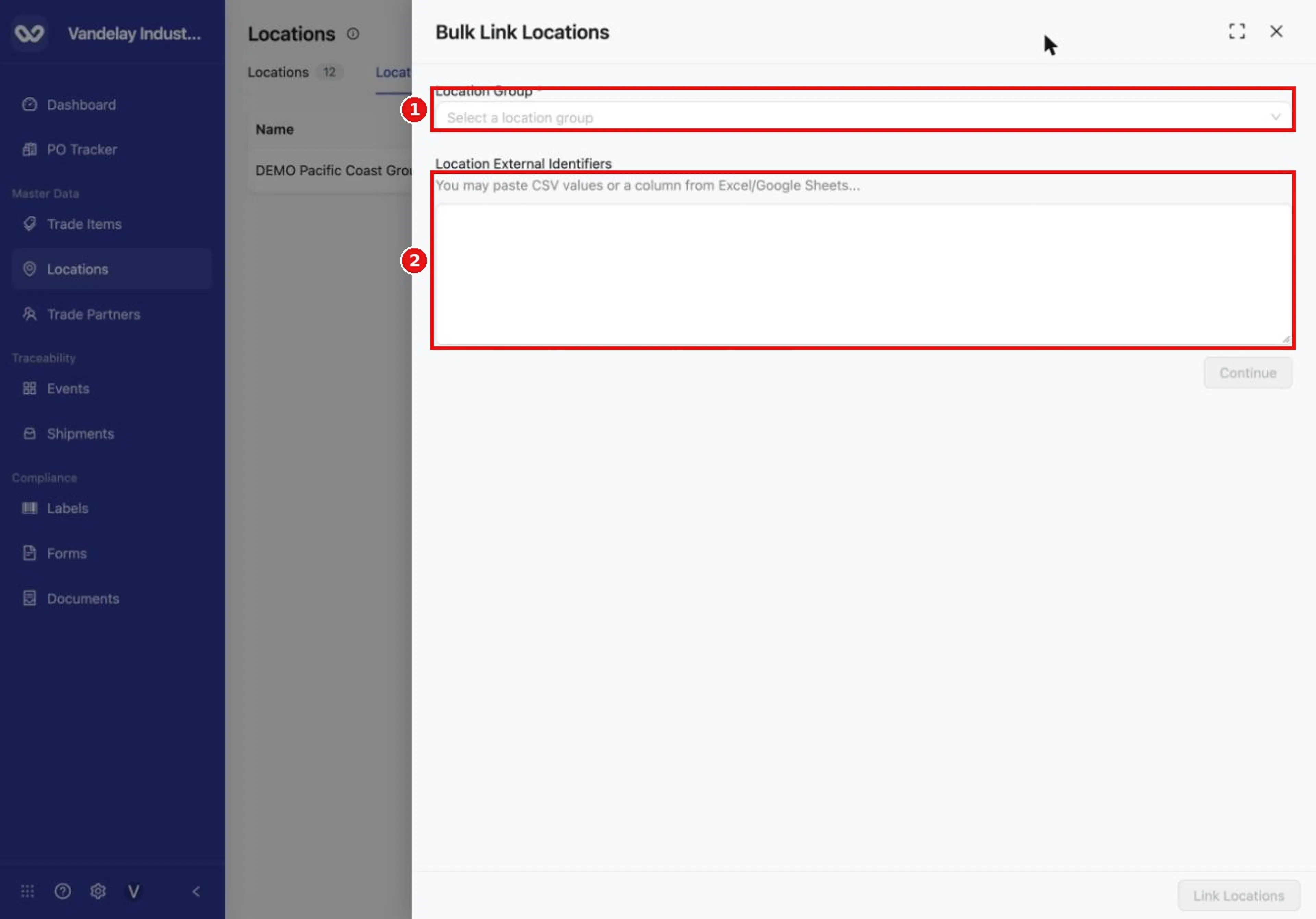
Bulk Link Locations, at the top of the Location Groups tab, links Locations to a group from a pasted list of identifiers.
Click Continue
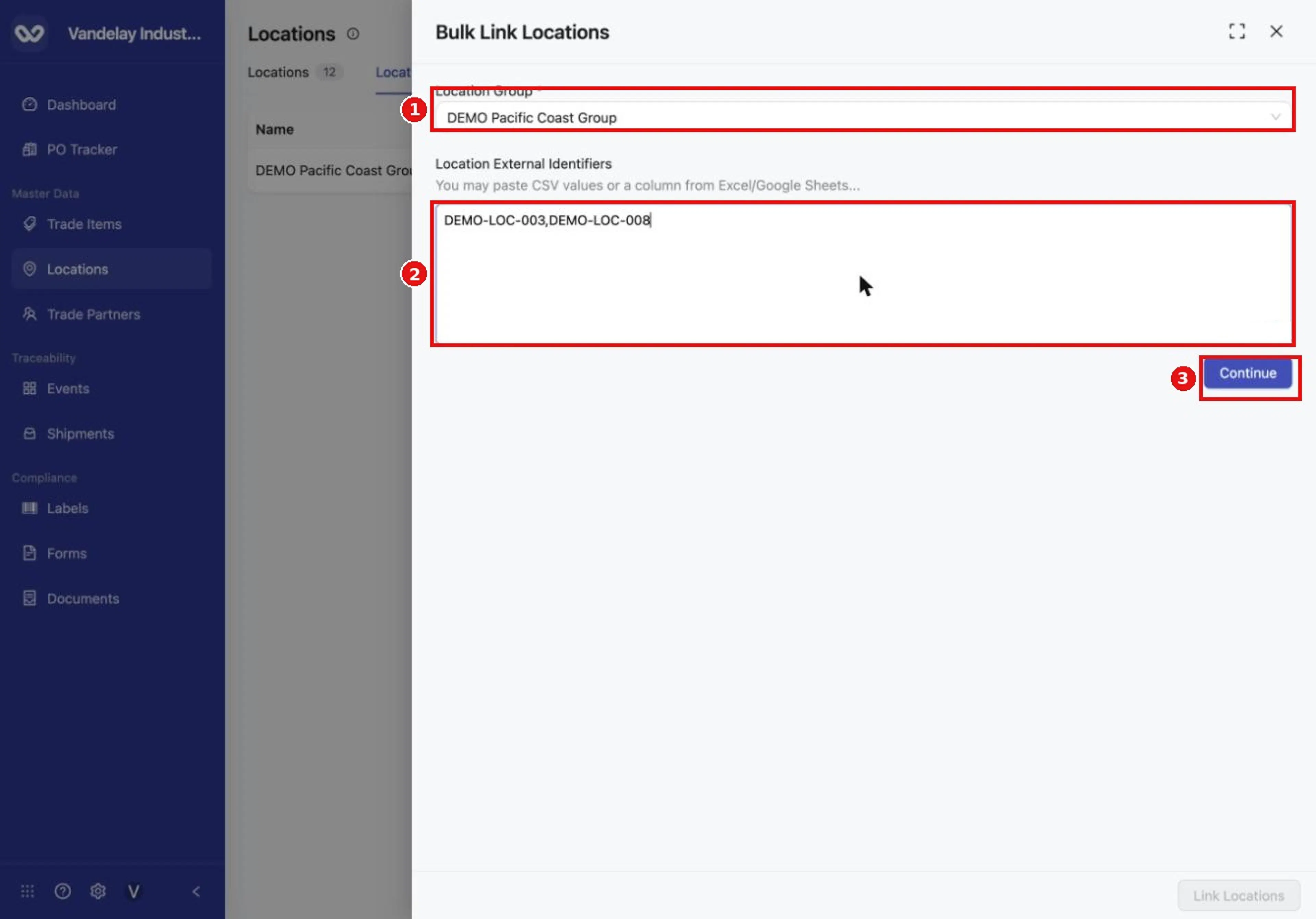
Choose the group, paste or type the identifiers, then select Continue.
Review the matches and click Link Locations
Each row shows a Status. Rows marked Ready will be linked.
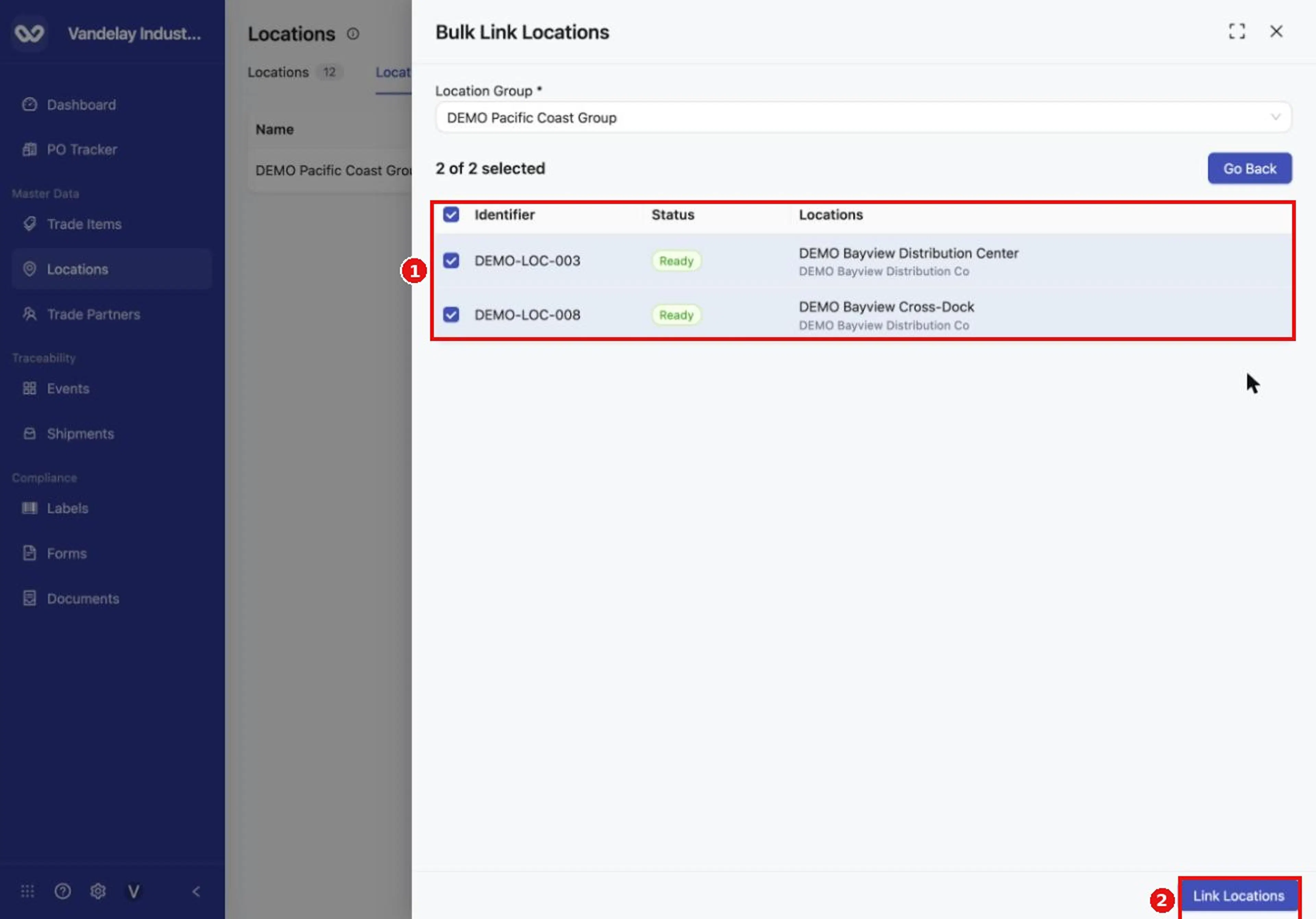
Review the matches. Locations marked Ready are linked when you select Link Locations.
Wait for the drawer to close
The drawer shows Saving and then closes.
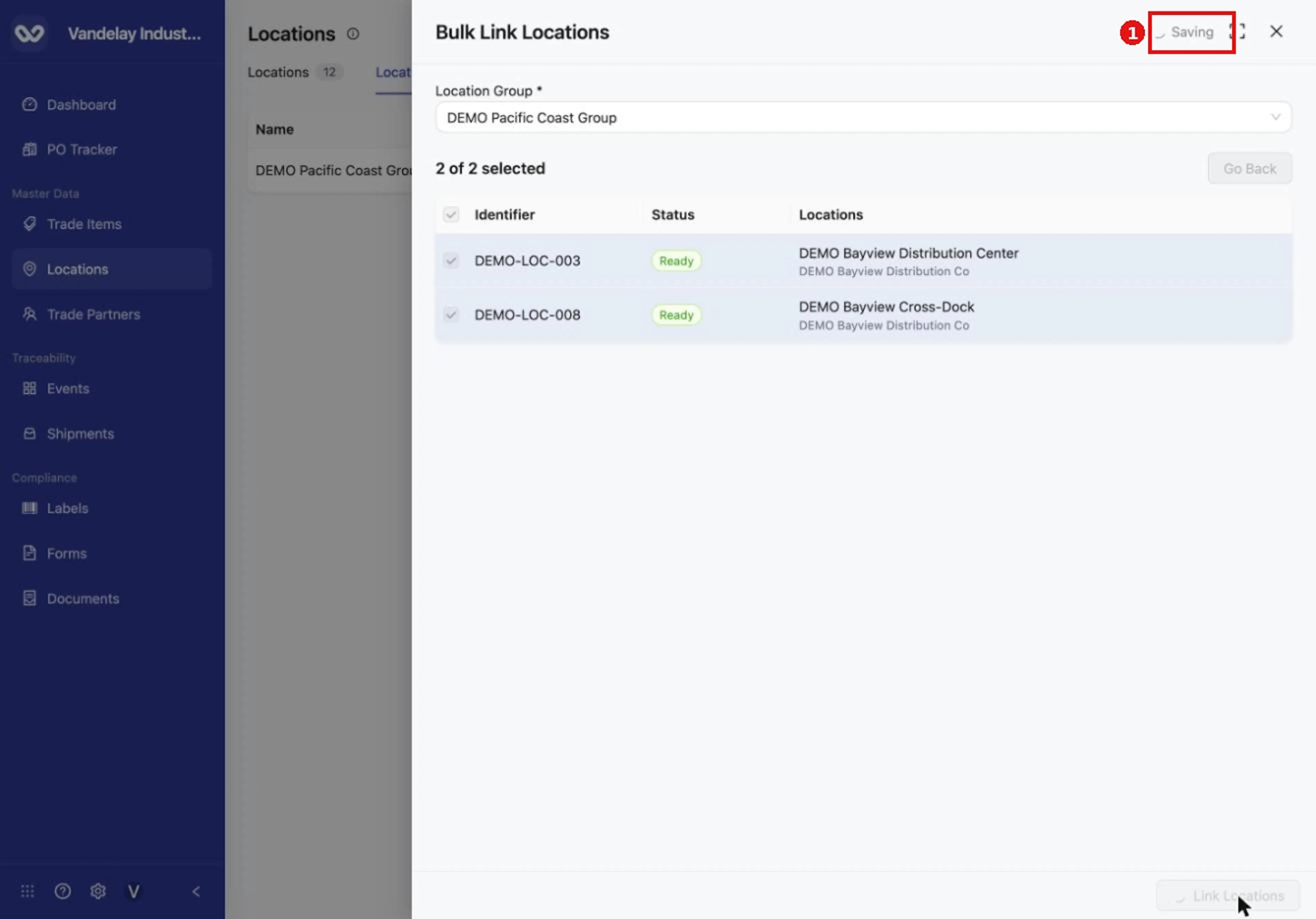
The drawer shows Saving while the links are made.
Open the group and check its Locations tab. Each linked Location is listed.
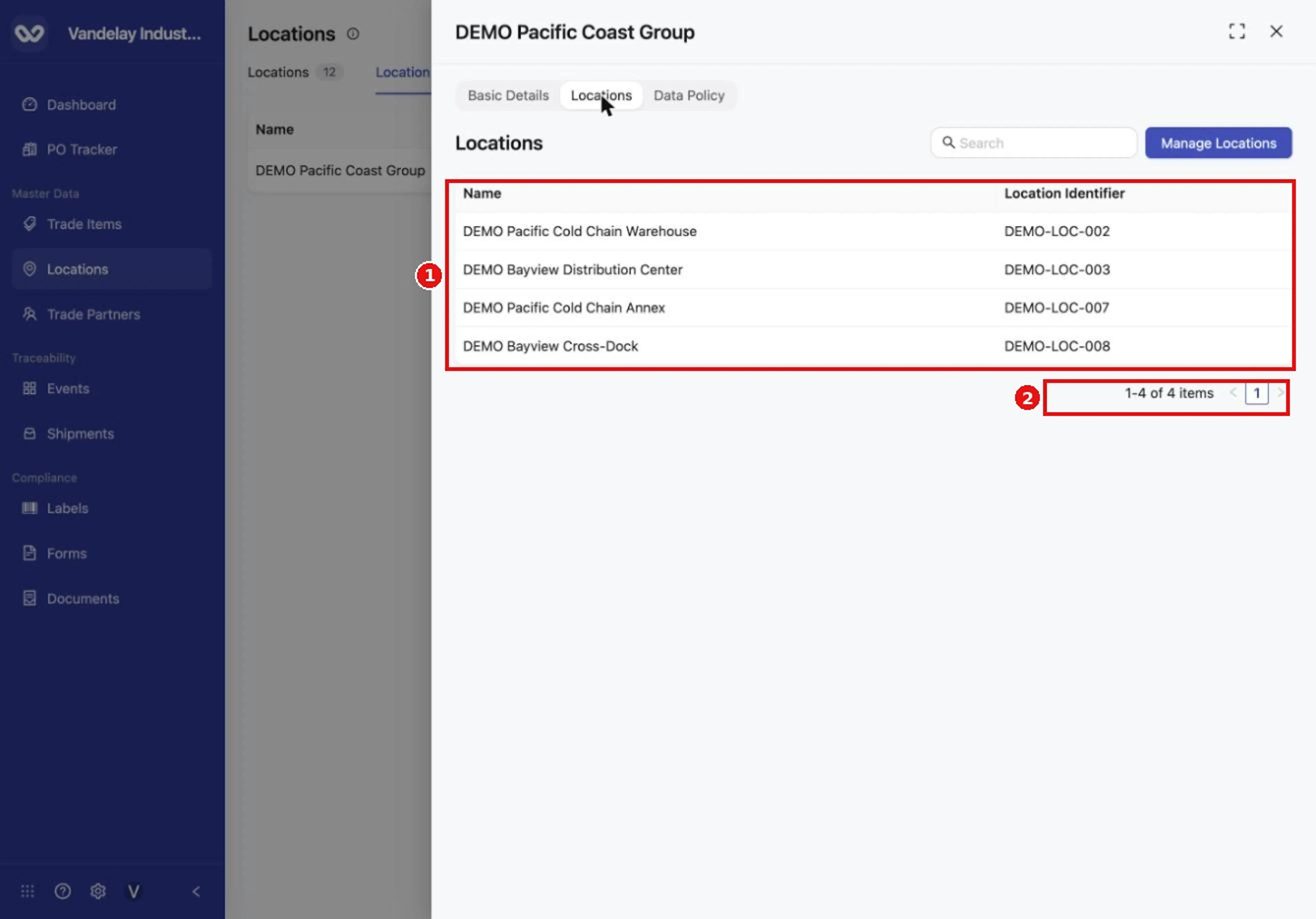
The group's Locations tab lists all linked Locations.
Set a group data policy
A group's data policy holds the key data elements (KDEs) required for the group. It is a sub-group of the universal Locations policy, which applies to all Locations. You can manage a group's policy in two places:
- In the group's Data Policy tab, as described in the steps below.
- In Settings, on the Location Groups sub-tab of Master Data Settings > Location. Click the gear icon at the top of the Locations page (or open Settings with the gear icon at the bottom of the left-hand navigation bar), then go to Master Data Settings > Location and open the Location Groups sub-tab. See Master Data Settings and Data elements and policies.
Data policies must be switched on for the whole account first. An Admin does this in Organization Settings > Account, in the Compliance section. See Account.
The values themselves are entered on each individual Location. A policy that applies to just one Location is set on that Location's own details drawer: see Share a Location and set its data policy. The same page explains the Viewer and Editor sharing roles.
Open the group and select its Data Policy tab.
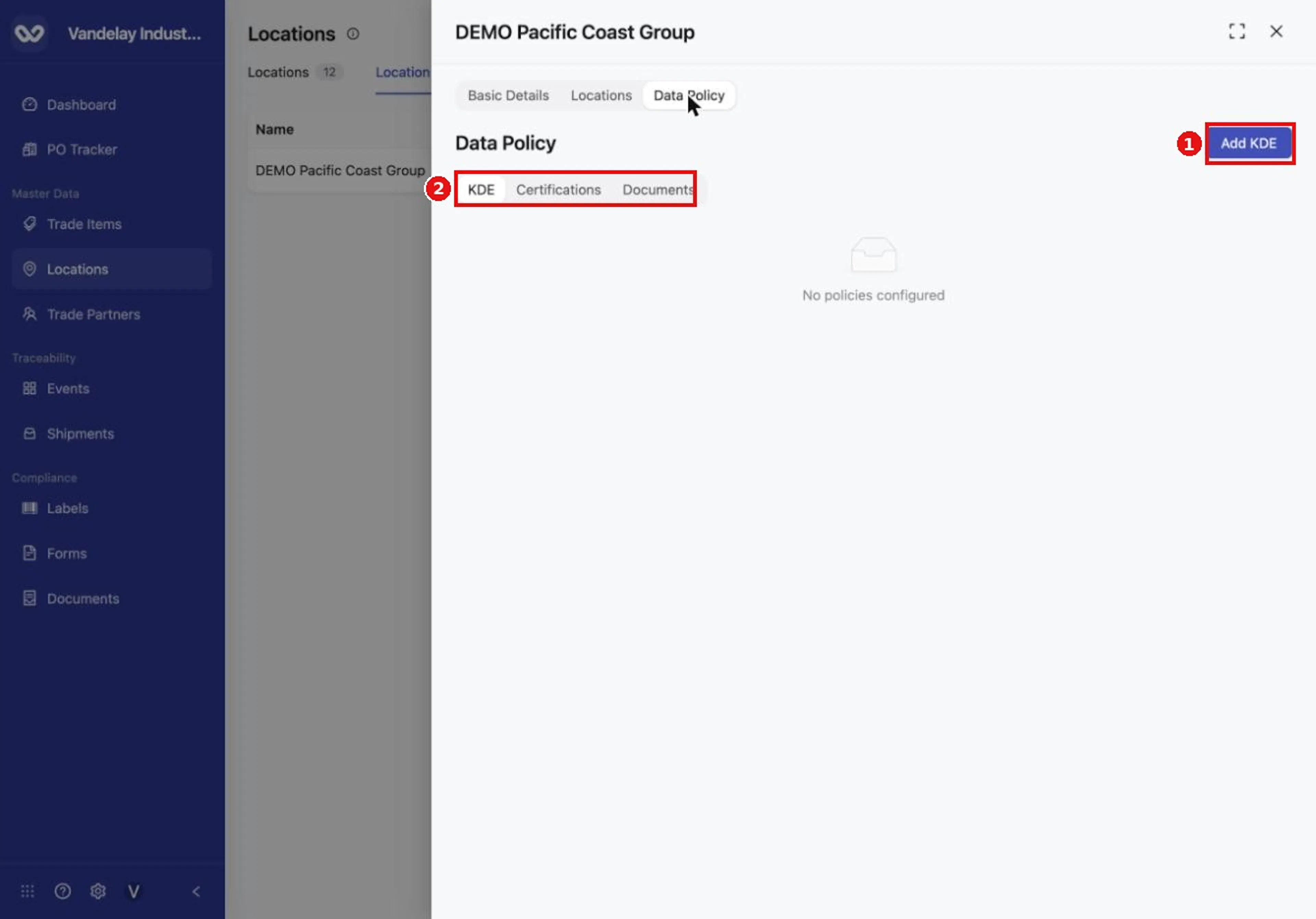
The Data Policy tab holds fields for this group. Add KDE adds one.
Click Add KDE
It is on the group's Data Policy tab.
Choose Select KDE and search for a field
Group policies also offer a default value and Propagates To.
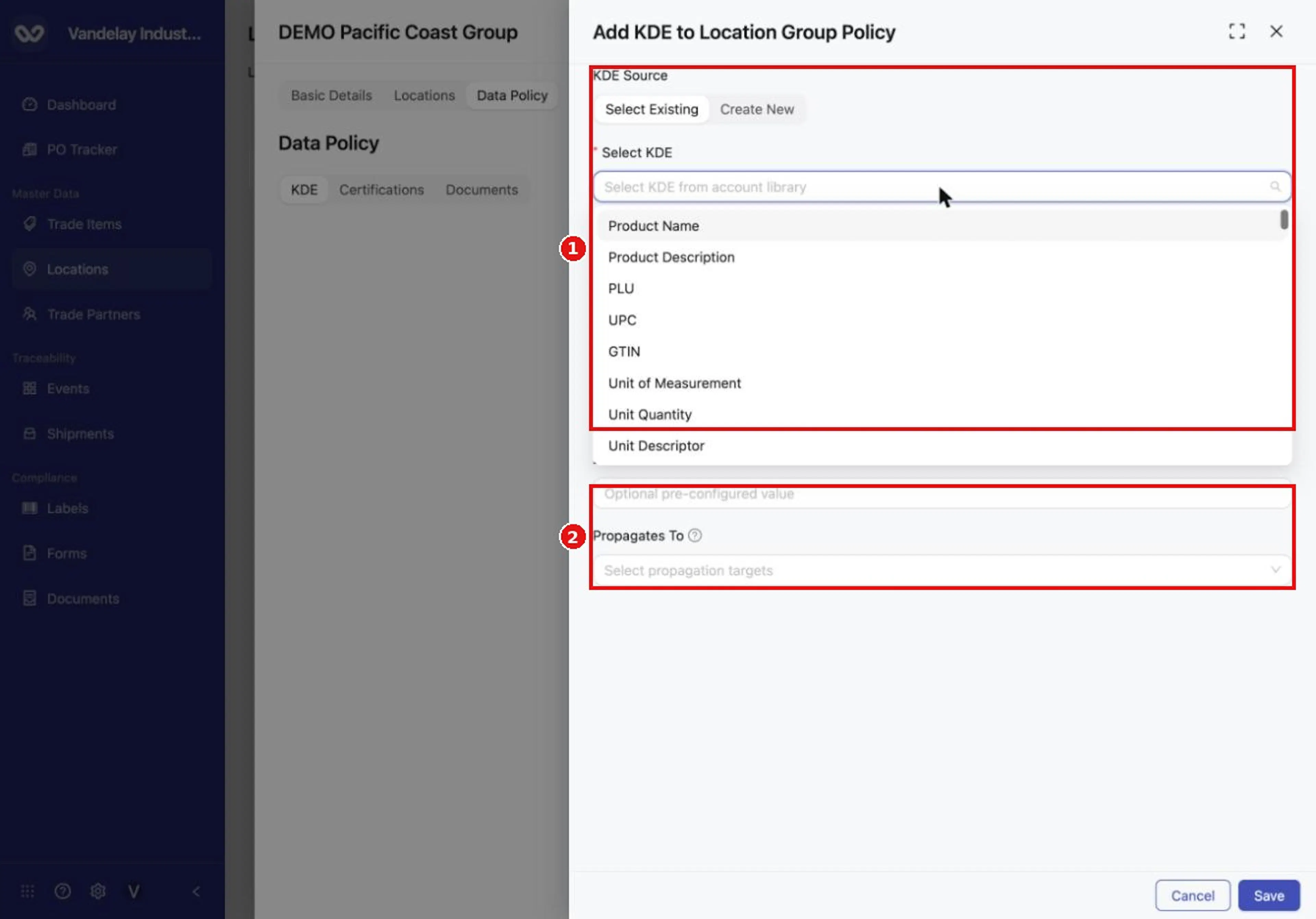
A group policy has extra settings: a default value and Propagates To.
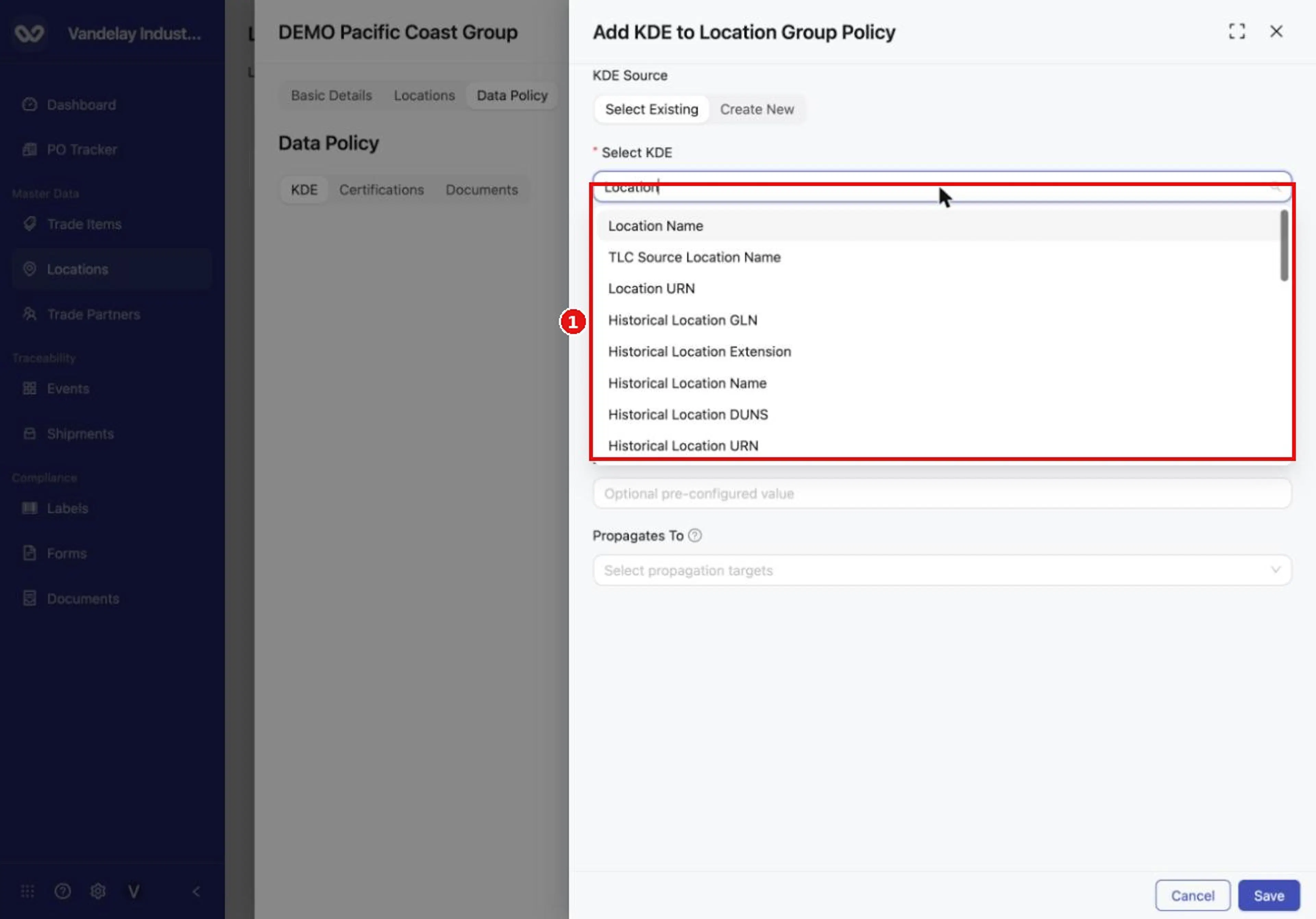
Search the library to find the field you want.
Choose the settings and click Save
Choose the field and its Enforcement, Realization and Sharing, then click Save.
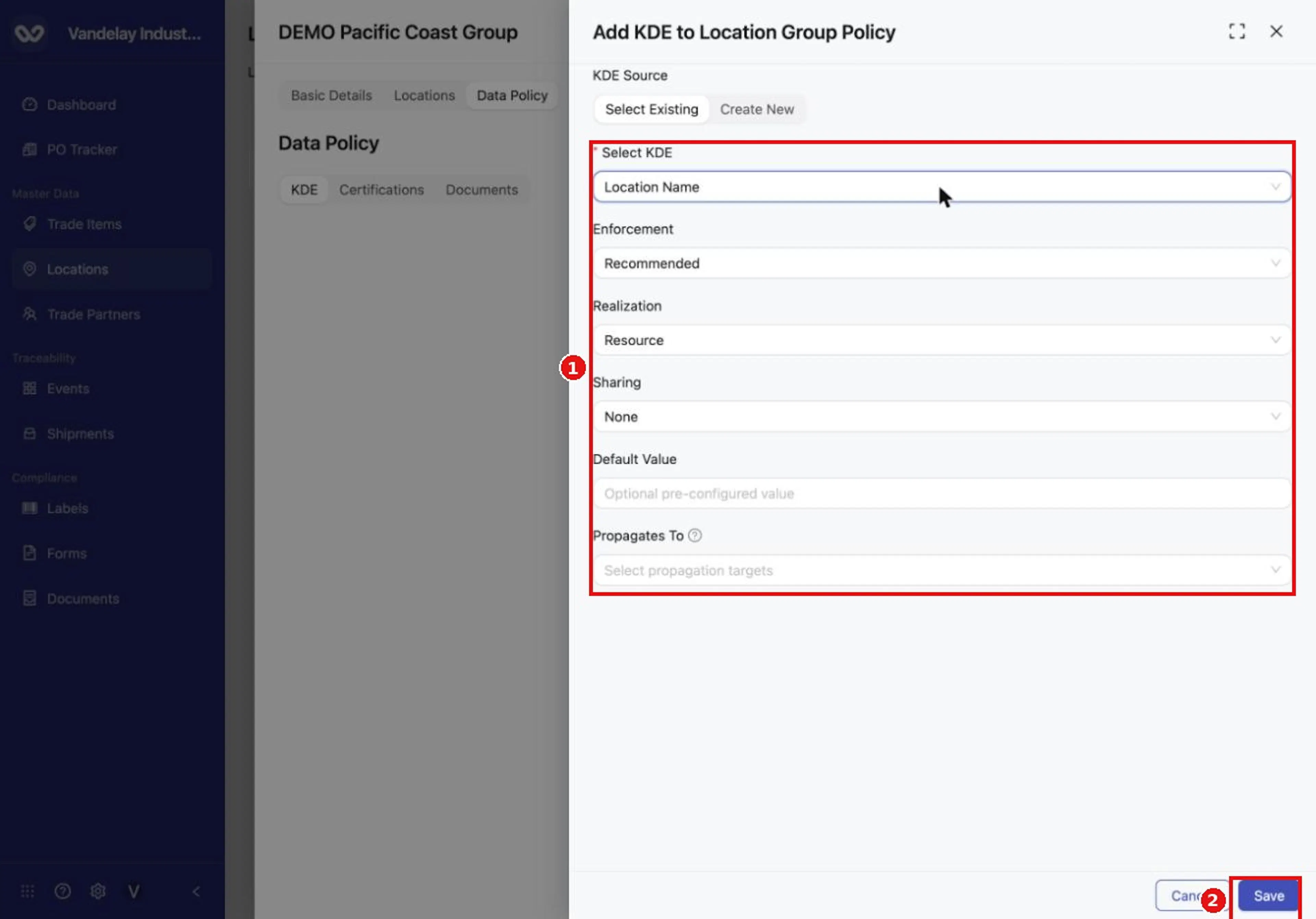
Choose the field and its settings, then select Save.
KDE saved appears and the field is listed with Edit and Delete actions.
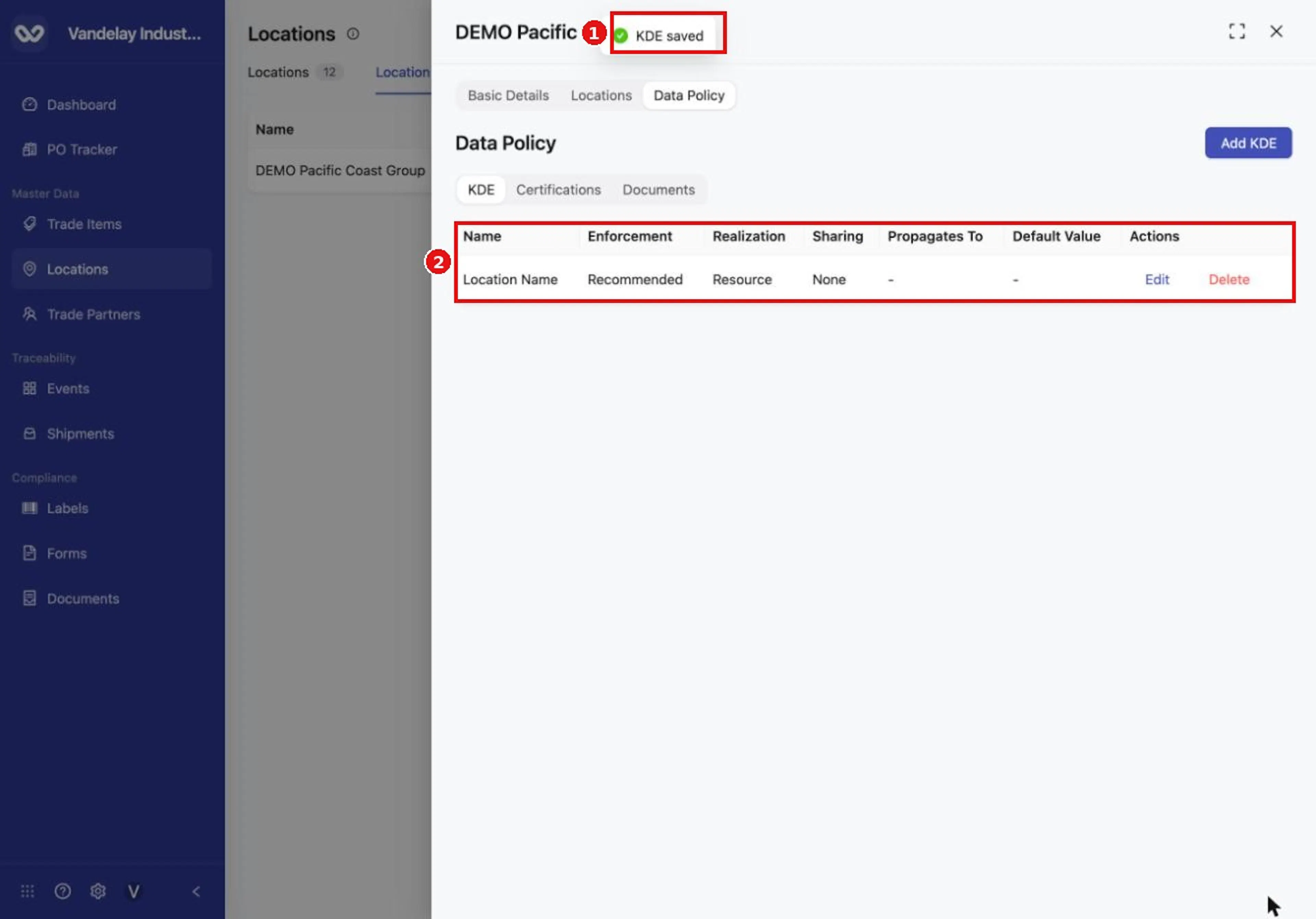
The saved field appears in the group's Data Policy table with Edit and Delete actions.
Delete a group
Deleting a group cannot be undone. Deleting a group does not delete the Locations in it. Before you delete a group, confirm that no one needs its name, its data policy or its list of Locations.
Open the group's row menu
On the Location Groups tab, click ... at the end of the group's row, then choose Delete.
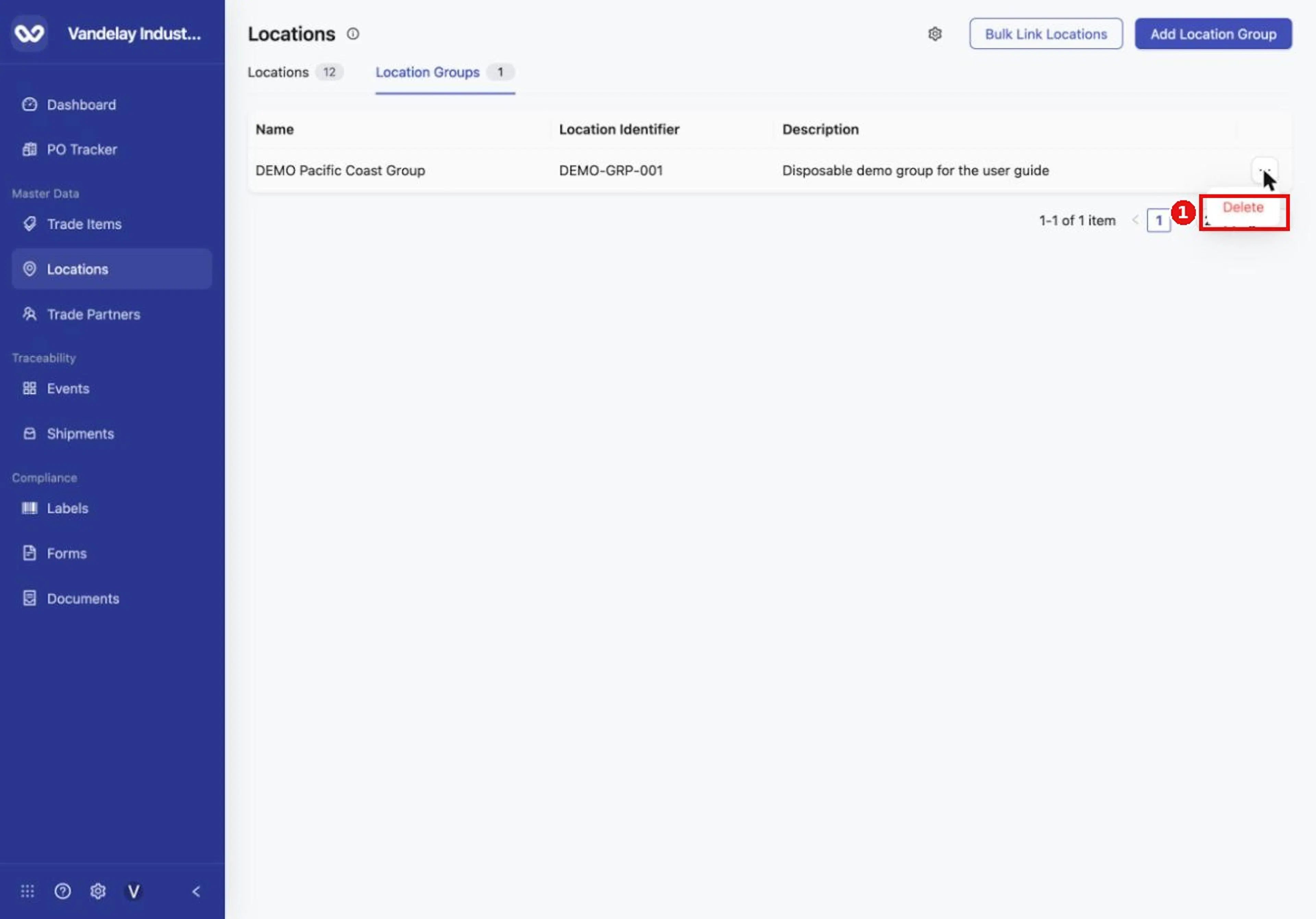
Select the row menu at the right of a group, then choose Delete.
Confirm the deletion
Read the confirmation, then click Delete.
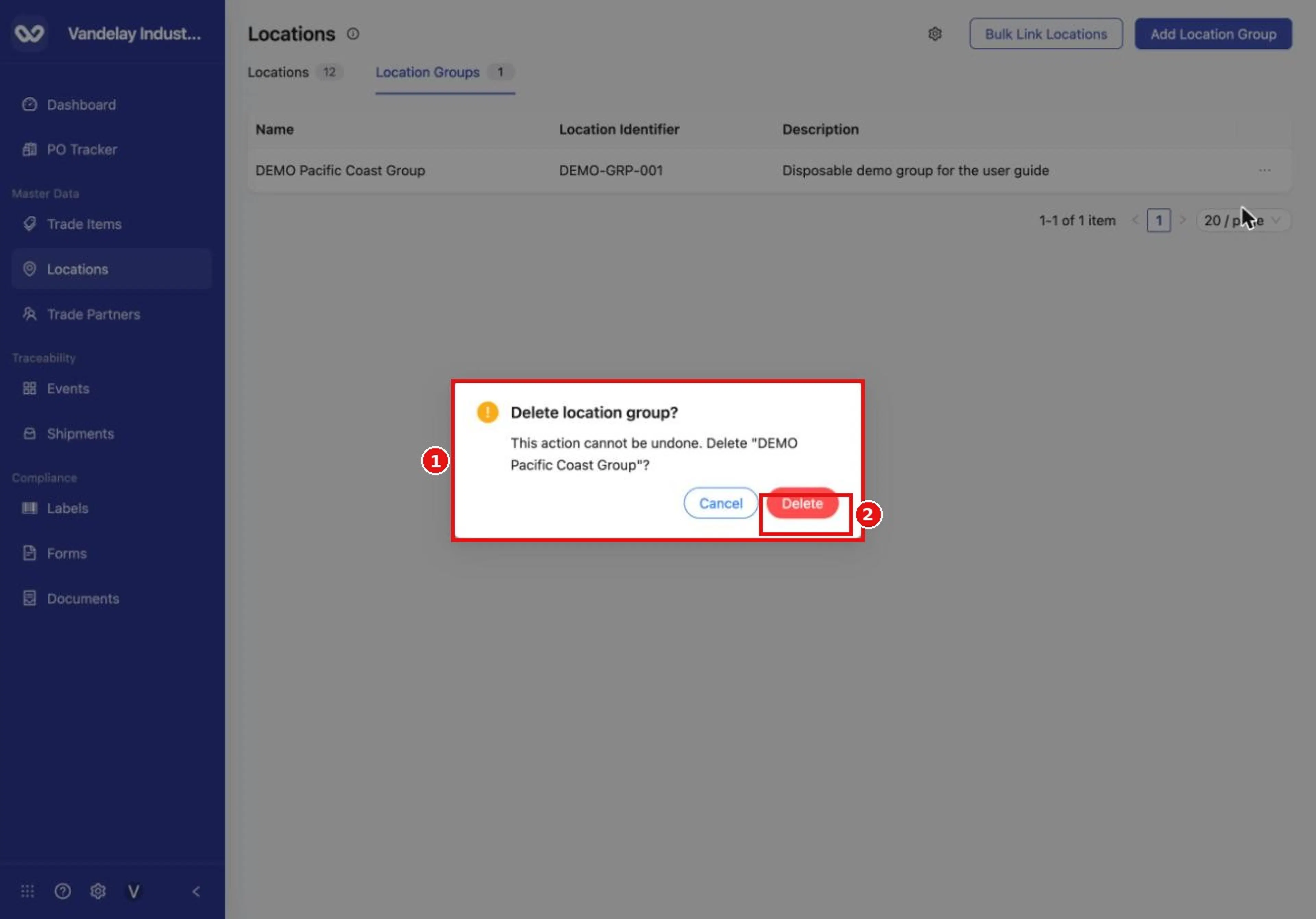
Confirm in the dialog. Deleting a group cannot be undone, and it does not delete the Locations in it.
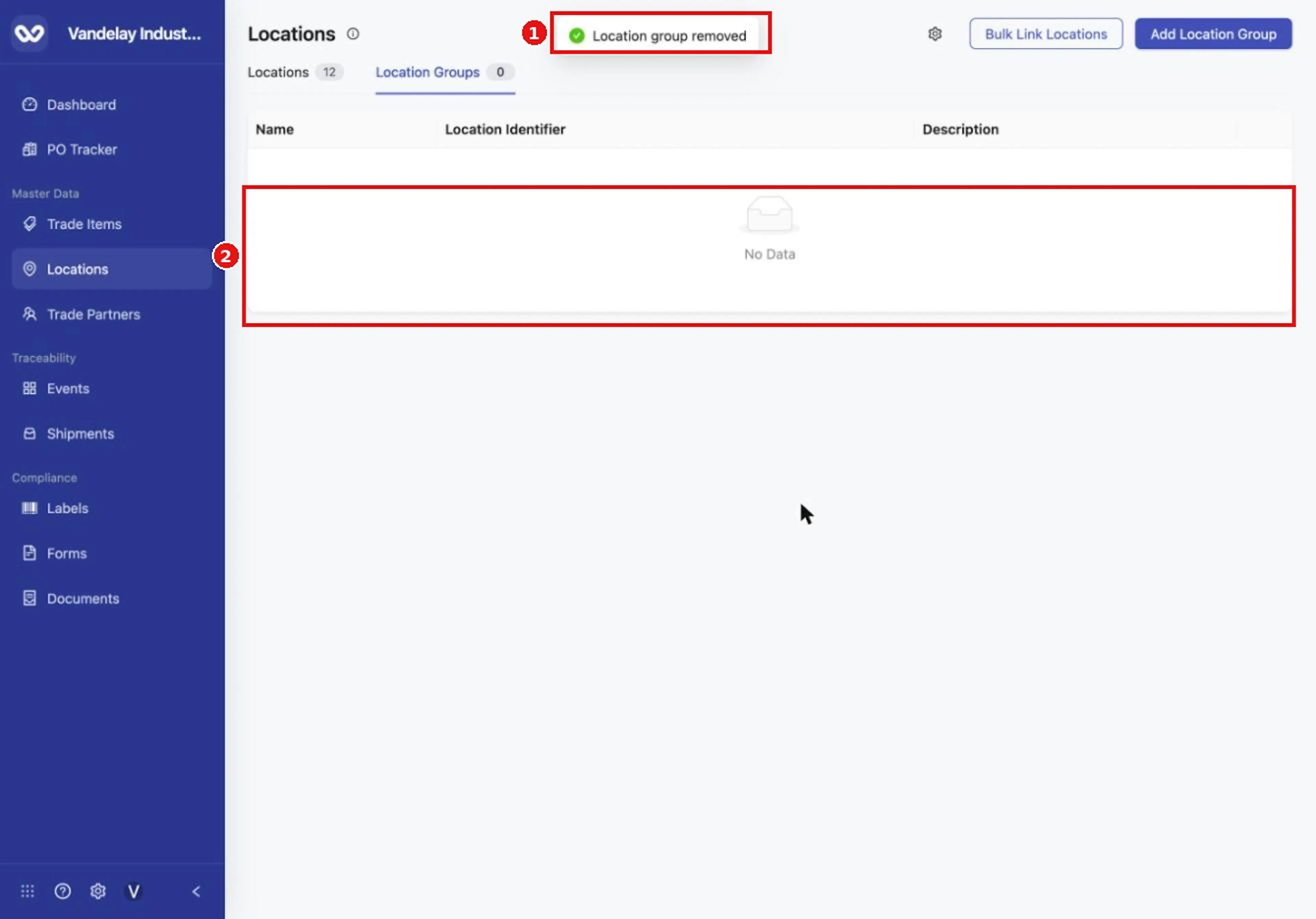
A Location group removed message appears and the list is empty.
Expected result
- After you add a group, Location group created appears and the group's drawer opens with the Basic Details, Locations and Data Policy tabs.
- After you add Locations, the group's Locations tab lists them. After a bulk link, the drawer shows Saving, closes, and each linked Location is listed on the group's Locations tab.
- After you save a group data policy field, KDE saved appears and the field is listed with Edit and Delete actions.
- After you delete a group, Location group removed appears and the group no longer shows in the list. The Locations that were in it remain on the Locations tab.
For the full list of messages, see Location Groups in the Reference Guide.
Troubleshooting
- I cannot add the group. The name and description are required. Enter both before you click Add Location Group.
- My selection did not reach the group. See the tip under Add Locations manually: click Save and wait for the drawer to close.
- A row is not marked Ready in a bulk link. Only rows marked Ready are linked. Check the identifier, edit the list and try again.
- Linked Locations are missing. Open the group and check its Locations tab. After a bulk link, the drawer shows Saving and then closes; wait for that before you check.
- I cannot find the group's data policy settings on the Location Groups tab. Open the group and use its Data Policy tab, or manage the policy on the Location Groups sub-tab of Master Data Settings > Location (see Set a group data policy above).
- Data policy changes have no effect. Data policies must be switched on for the whole account by an Admin, in Organization Settings > Account.
- I deleted a group by mistake. A deleted group cannot be restored, but its Locations are still on the Locations tab. Create the group again and re-add the Locations.
Field and action reference
Location Groups tab
| Item | Description |
|---|---|
| Table columns | Name, Location Identifier, Description, and a ... menu |
| Bulk Link Locations | Links Locations to a group from a list of identifiers |
| Add Location Group | Opens the Add Location Group drawer |
| Row menu | Delete (see Archive and restore in the Reference Guide) |
Add Location Group form
| Field | Req. | Values |
|---|---|---|
| Location Group Name | Yes | Text |
| Description | Yes | Text |
| Location Identifier | No | Your identifier for the group |
Result: Location group created. The group drawer opens with the tabs Basic Details, Locations and Data Policy.
Group drawer
| Tab | Content |
|---|---|
| Basic Details | Name, Description, Location Identifier |
| Locations | The group's Locations, with a Manage Locations button |
| Data Policy | The group's KDEs, with an Add KDE button. Each saved field has Edit and Delete actions. |
Manage Locations
| Tab | Content |
|---|---|
| Manual | A search box that matches Location names and identifiers; chosen Locations are listed; each row has a ... menu with Remove; Save keeps the selection |
| Bulk | A list of identifiers to link (see Bulk Link Locations below) |
Bulk Link Locations
| Step | Control | Description |
|---|---|---|
| 1 | Location Group | Choose the group |
| 1 | Location External Identifiers | Identifiers separated by commas or one per line |
| 1 | Continue | Moves to the review step |
| 2 | Review table | Each row shows a Status. Rows marked Ready are linked. |
| 2 | Link Locations | Links the ready rows; the drawer shows Saving and then closes |
Add KDE (group Data Policy tab)
| Control | Description |
|---|---|
| Select KDE | Search the library for the field |
| Enforcement, Realization, Sharing | Settings chosen for the field before you save. See Data elements and policies. |
| Default value, Propagates To | Extra settings that group policies offer |
| Save | Saves the field; KDE saved appears |
Delete a group
Row ... menu, then Delete, then confirm. Result: Location group removed. The Locations in the group stay on the Locations tab. Deletion cannot be undone.