

Ship
Record lots or a container leaving your Location for a destination Location, using inventory that is already in your account.
Applies to: Ship events, recorded from Add Events on the Events page
Audience: Anyone who sends goods from a Location to another Location
Prerequisites: The lot or container exists as inventory at the origin Location. The destination Location exists in your account (a shared Location can be used).
Related: Wholechain Events Overview; Shared event fields; Receive; Direct Ship and Direct Receive; Link Trace Info; Shipments overview; Background: Ship Events
Purpose
Use Ship to record lots or a container leaving your Location for a destination Location. A Ship event records the departure; a matching Receive at the destination completes the movement.
Before you begin
- The lot or container must exist at the origin Location. For a shipment with no prior inventory in your account, use Direct Ship instead; see Direct Ship and Direct Receive.
- You can ship only part of a lot.
- A Direct Ship shows as an Outbound Ship Event in the Outbound Shipments table. Adding Trace Info to it in the Outbound tab lets you post events that occurred with a date/time prior to the Direct Ship's date/time. See Link Trace Info.
- A shared Location can be used as the destination Location on a Ship event.
- Ship uses an Origin Location and a Destination Location in place of the single Location other events use.
- Fields shared by every event (Date, Time, Time Zone, PO Number, Business Step, Disposition, Read Point, documents) are explained in Shared event fields.
Record a Ship
Choose Ship, the Locations and Products
Select Add Events, set Event Type to Ship, then choose Origin Location, Destination Location and Products.
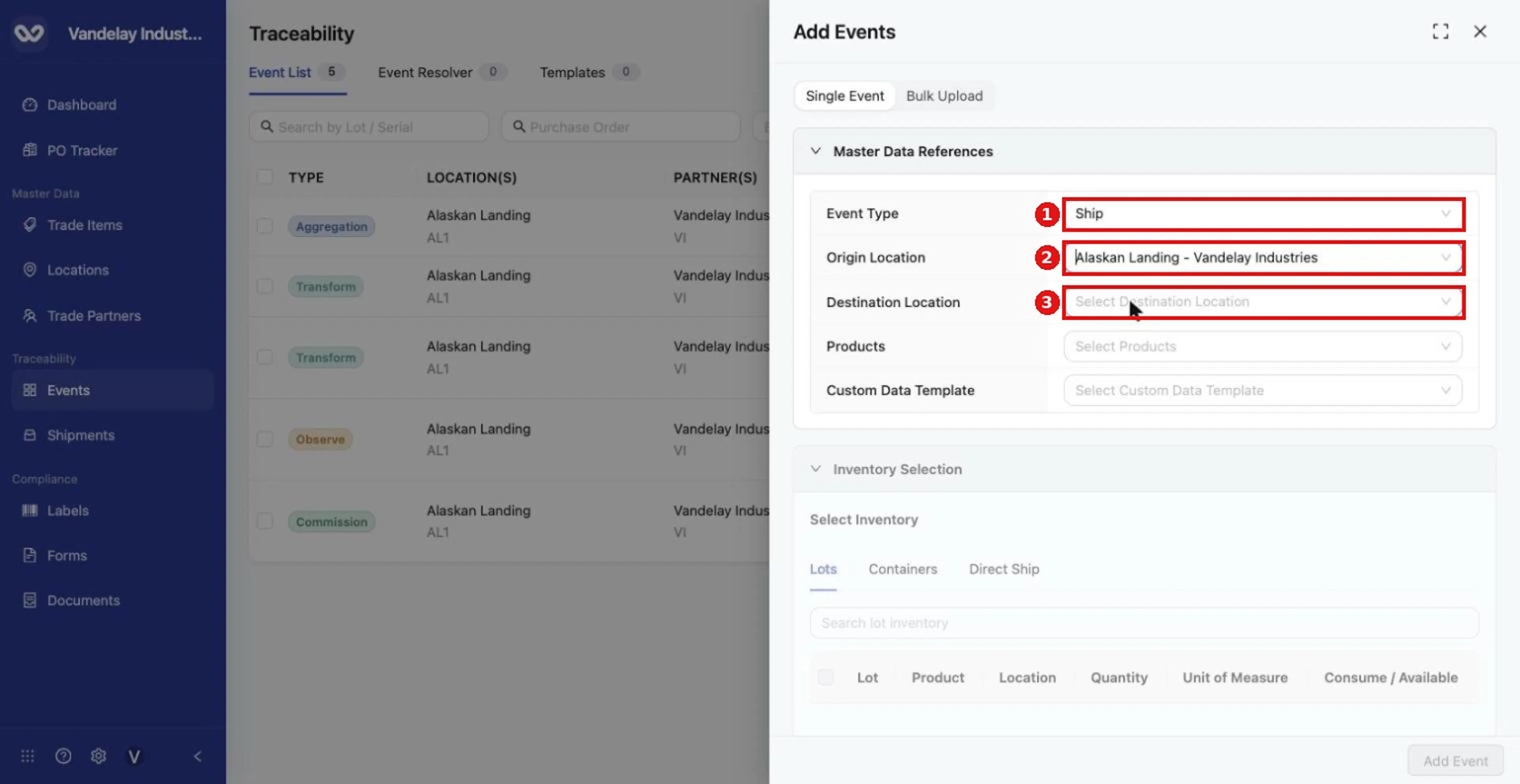
For a Ship, choose Event Type Ship, an Origin Location and a Destination Location, then Products.
Select the lots or the container to ship
In Inventory Selection, use Lots to ship loose lots, or Containers to ship a whole container. Select the row.
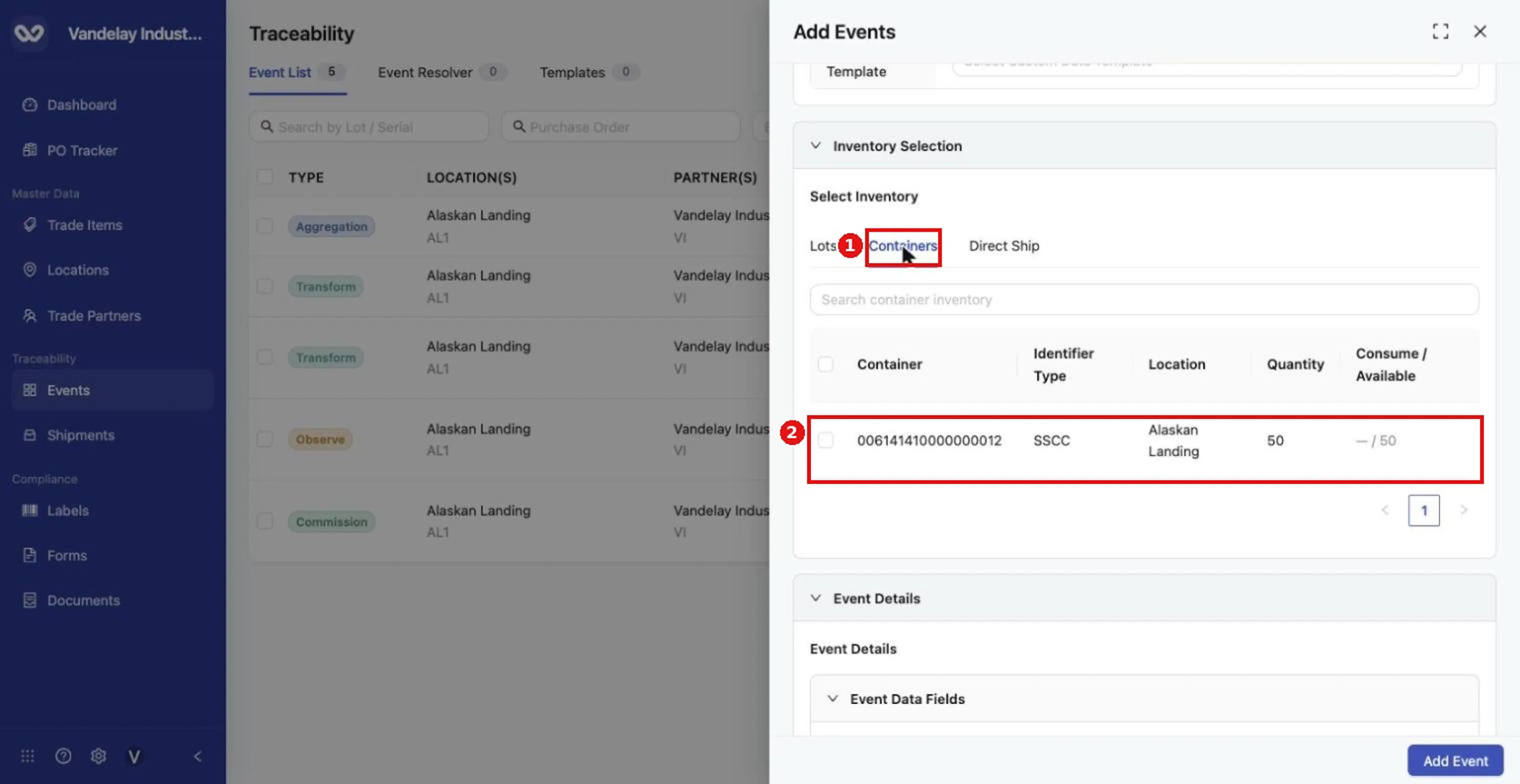
Use the Containers tab to ship a whole container. Select the container row.
Complete Event Details
Complete Event Details, including PO Number if you have one. The form pre-fills Shipping (CBV) and In Transit (CBV).
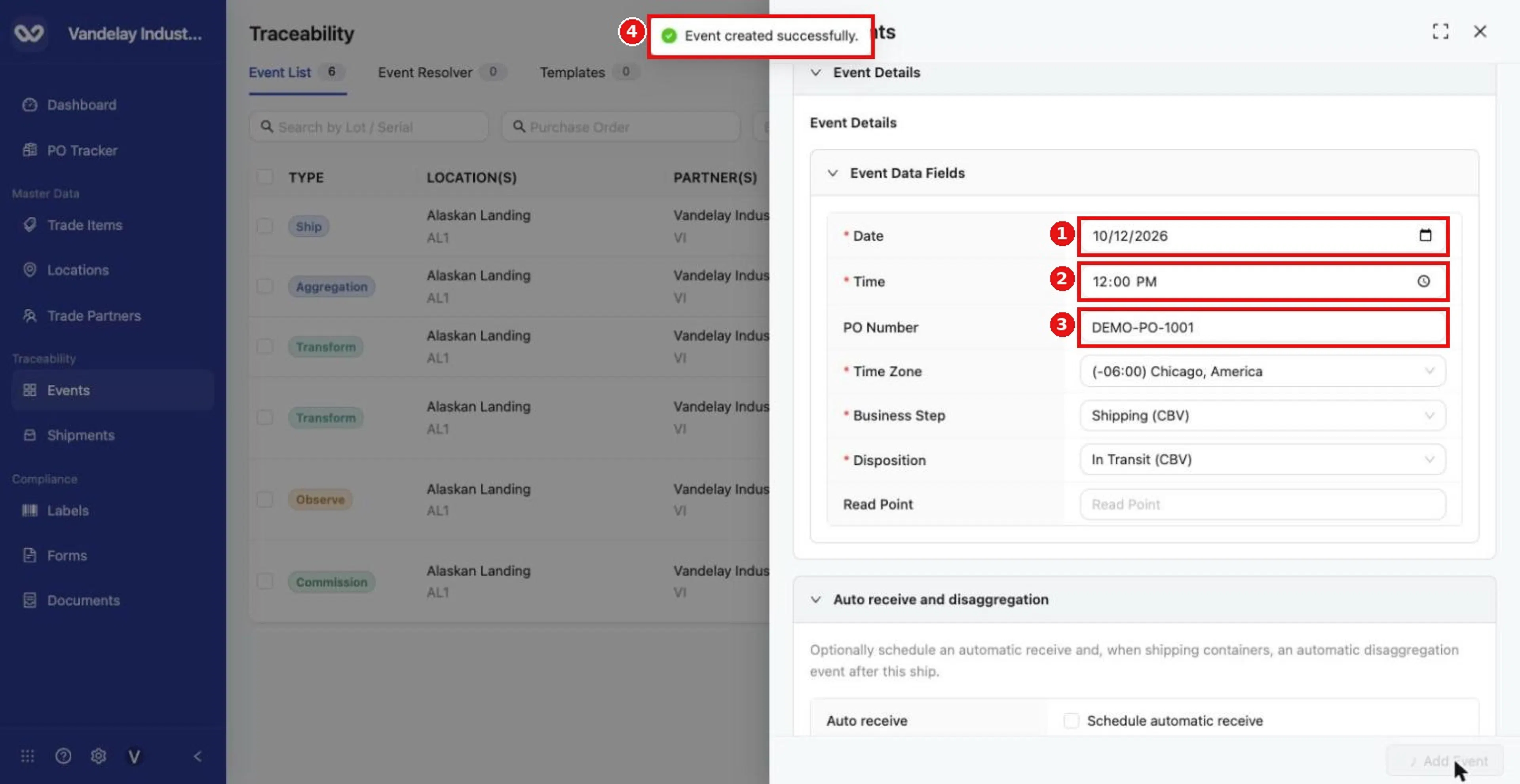
Enter the PO Number in Event Details, then add the event.
Review Auto receive and disaggregation
Review Auto receive and disaggregation. It offers Schedule automatic receive and, for containers, Schedule automatic disaggregation. Leave both unticked to record receiving separately.
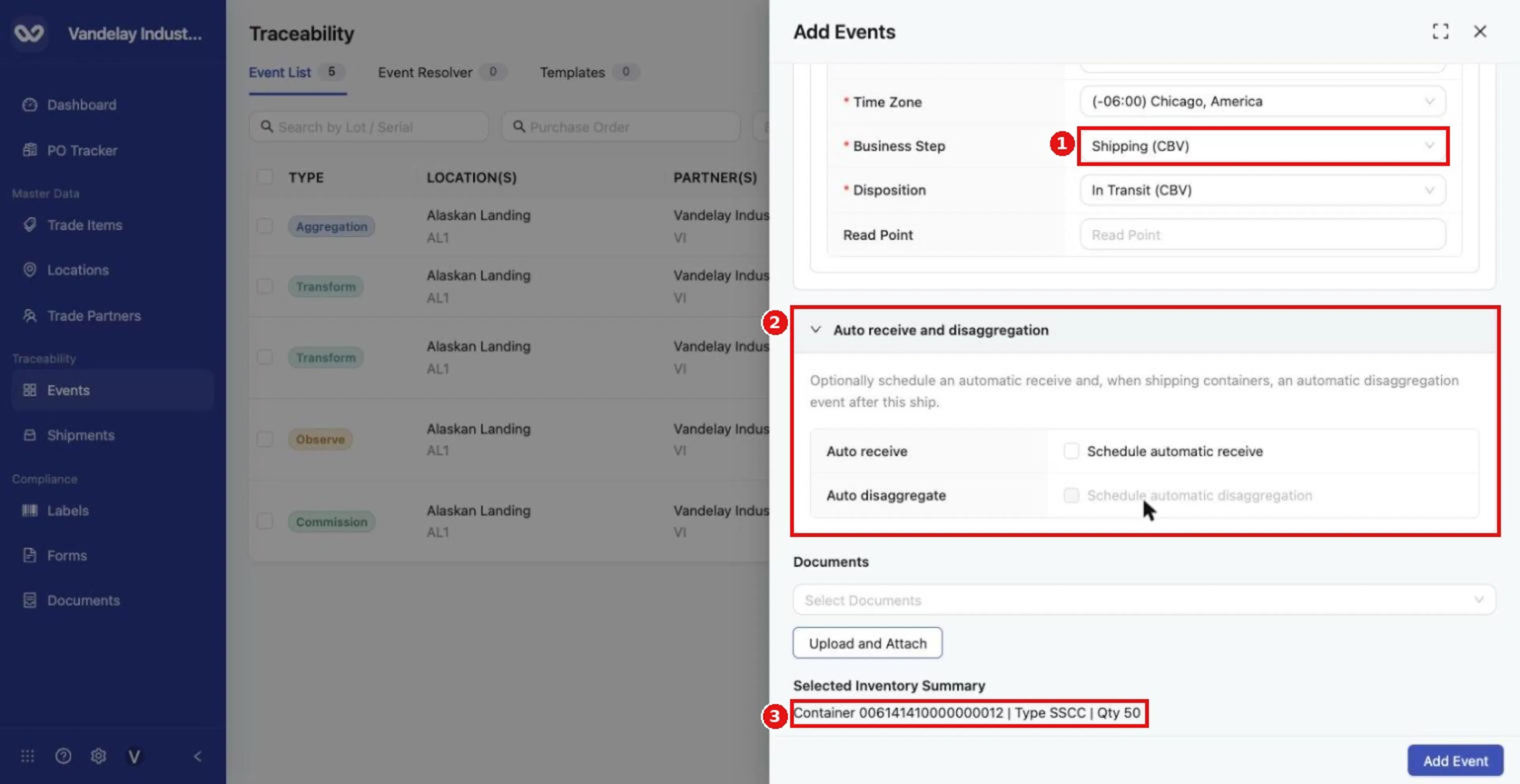
Optionally use Auto receive and disaggregation to schedule follow-on events. Review the Selected Inventory Summary.
Select Add Event
Select Add Event.
Expected result
A Ship row appears in the Event List; turn on Ship From Location and Ship To Location in the column menu to see the route. The shipment is also listed under Shipments > Outbound. Example: container 006141410000000012 from Alaskan Landing to DEMO Pacific Cold Chain Warehouse, PO DEMO-PO-1001.
The receiving side then records a Receive for the shipment; see Receive. A Receive can be linked only to a Ship event; see Link Trace Info.
Troubleshooting
- No lots appear. Check the origin Location and the products.
- After a partial Aggregation, the Lots tab shows the loose quantity that remains and the Containers tab shows the container separately.
- I have no earlier inventory for the goods. Use Direct Ship; see Direct Ship and Direct Receive.
Field and action reference
The fields every event shares, and the default Business Step and Disposition for each event type, are in Shared event fields. The details below apply to Ship only.
Defaults for Ship
Business Step: Shipping (CBV). Disposition: In Transit (CBV).
Locations for Ship
| Field | Req. | Description |
|---|---|---|
| Origin Location | Yes | The Location the goods leave. |
| Destination Location | Yes | The Location the goods go to. A shared Location can be used. |
Inventory selection
| Tab | Description |
|---|---|
| Lots | Loose lots at the origin Location. Part of a lot can be shipped. |
| Containers | A whole container. |
| Direct Ship | Records a shipment with no prior inventory; see Direct Ship and Direct Receive. |
Auto receive and auto disaggregation
| Control | Description |
|---|---|
| Schedule automatic receive | Checkbox. When ticked, shows Receive date and Receive time. Unticked by default. |
| Schedule automatic disaggregation | Checkbox, available when shipping containers or when automatic receive is scheduled. |