

Dashboard map and Location waypoints
Zoom the Dashboard map, switch views, read waypoint pop-ups, and open Location details.
Applies to: The map on the Wholechain Dashboard.
Audience: Users who view or check Locations.
Prerequisites: A signed-in Wholechain account with at least one Location that has a waypoint on the map. Zoom in on the region where your Locations are.
This section covers the Wholechain Dashboard map: zooming, map and satellite views, terrain, labels, waypoint pop-ups, and opening Location details.
The map takes up most of the Dashboard. It shows a waypoint for every Location that:
- exists in your account,
- has been shared with your account, or
- appeared in your account through traceability events received from your upstream suppliers.
Zoom in and out
Double-click the map to zoom in on that spot
Double-click the map to zoom in on that spot.
Hold ⌘ (Mac)
Hold ⌘ (Mac) while you scroll over the map to zoom in or out. If you scroll without holding the key, the map shows the reminder "Use ⌘ + scroll to zoom the map".
Drag the map to move to a different area
Drag the map to move to a different area.
Zoom in on a region to separate waypoints that sit close together. At a wider zoom nearby waypoints can overlap; as you zoom in, each one moves apart until you can select it on its own.
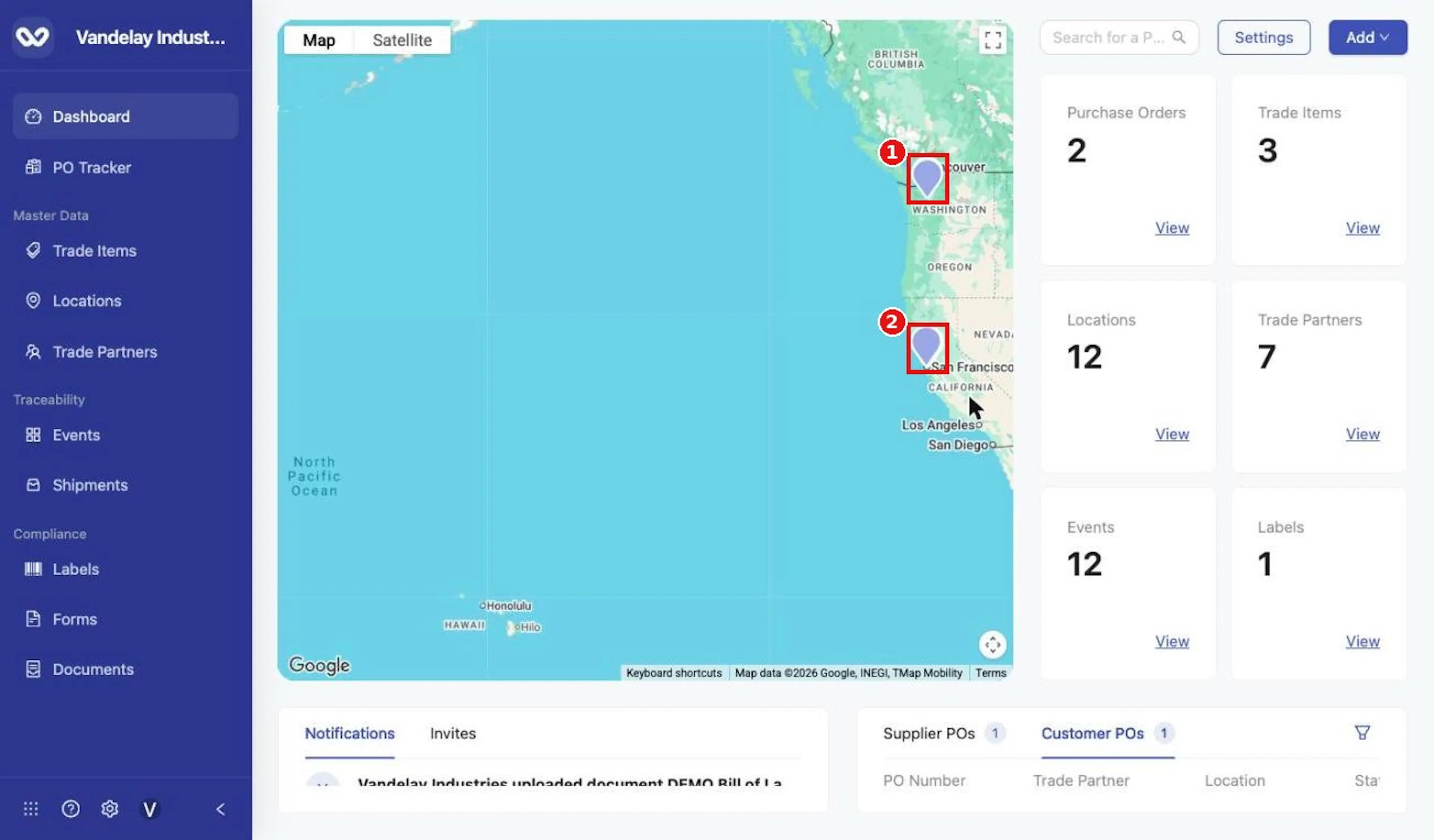
Zoomed in, waypoints appear as pins.
Switch between map and satellite views
In the top-left corner of the map
In the top-left corner of the map, select Map for the street map, or Satellite for satellite imagery.
Use the terrain view
Select Map so the street map is showing
Select Map so the street map is showing.
Select Map once more to open its options
Select Map once more to open its options.
Select the Terrain checkbox to turn the terrain view on
Select the Terrain checkbox to turn the terrain view on. Clear the checkbox to turn it off.
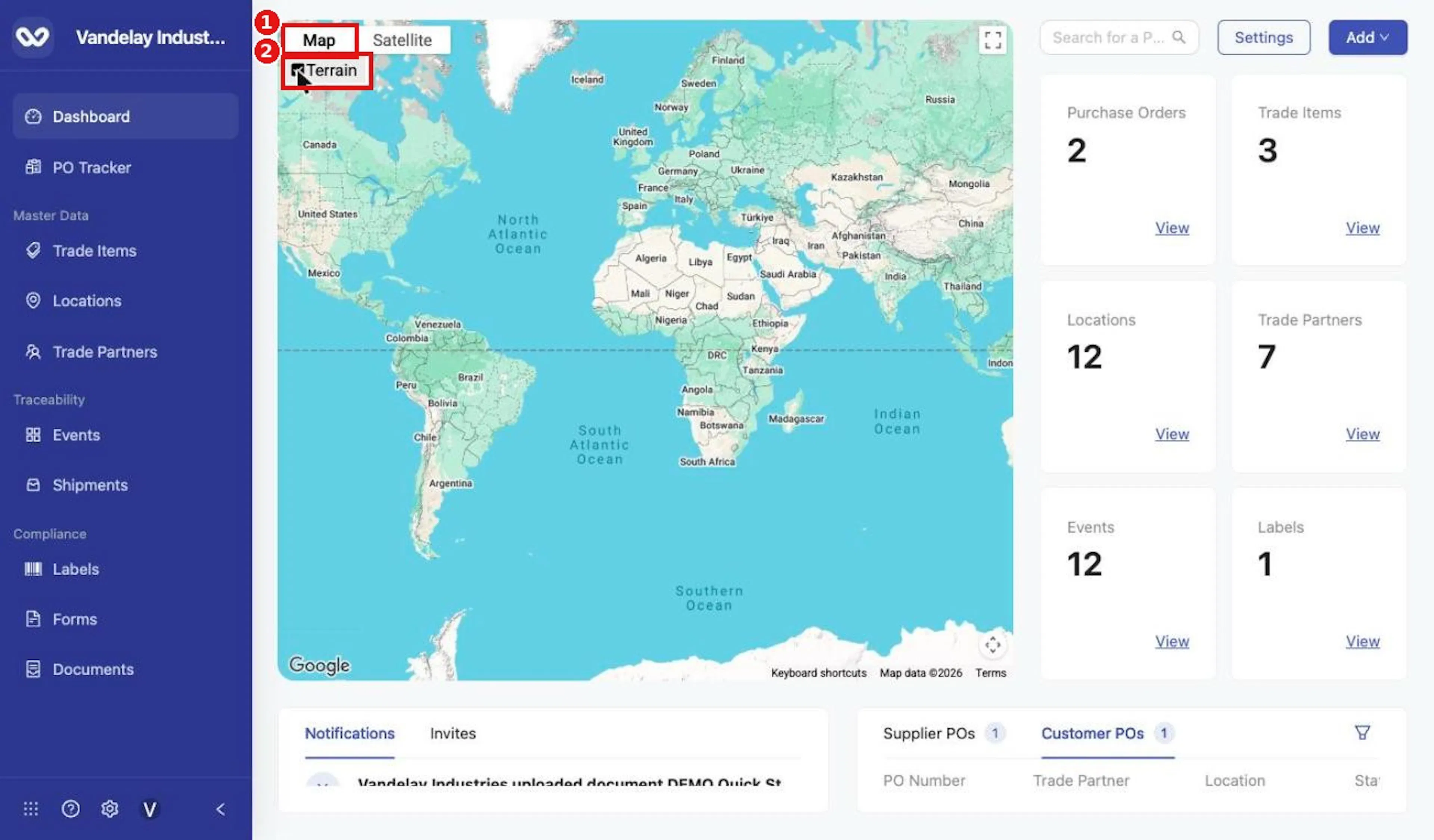
Map view with the Terrain checkbox.
Turn map labels on or off
Select Satellite
Select Satellite. A Labels checkbox appears under the view buttons.
Clear Labels
Clear Labels to hide place and country names on the imagery, or select it to show them again.
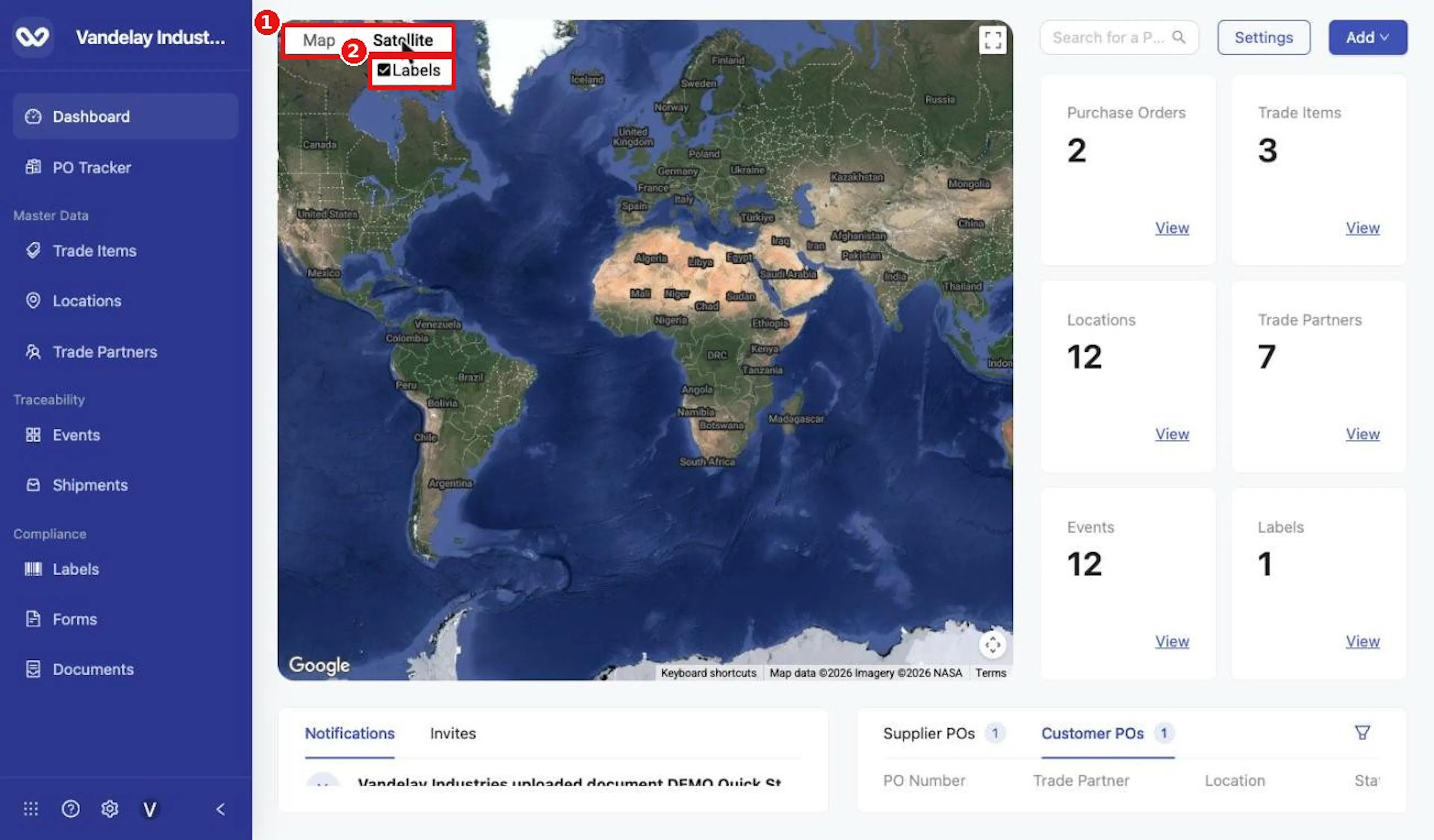
Satellite view with the Labels checkbox.
View a waypoint's details
Select a waypoint on the map
Select a waypoint on the map. A pop-up opens above it.
Read the pop-up
Read the pop-up. It shows:
- the Trade Partner name (in bold),
- the Location name, and
- any address details stored for the Location, such as street, city, state or region, and country.
To close the pop-up without opening anything else
To close the pop-up without opening anything else, select the X in its top-right corner.
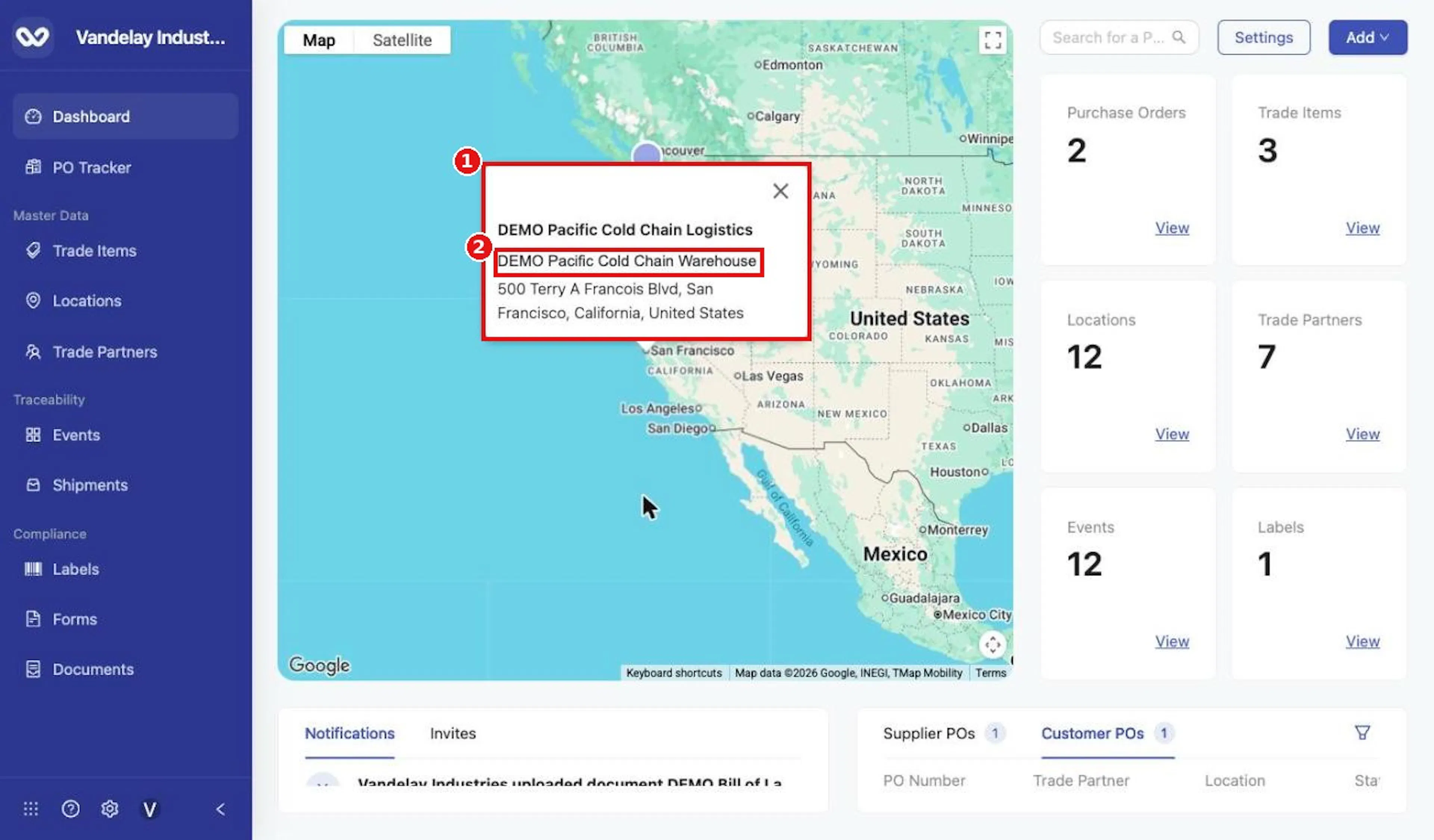
A waypoint pop-up with address details.
If a Location was saved with only latitude and longitude, it has no address details, so the pop-up shows just the Trade Partner and the Location name. This is expected.
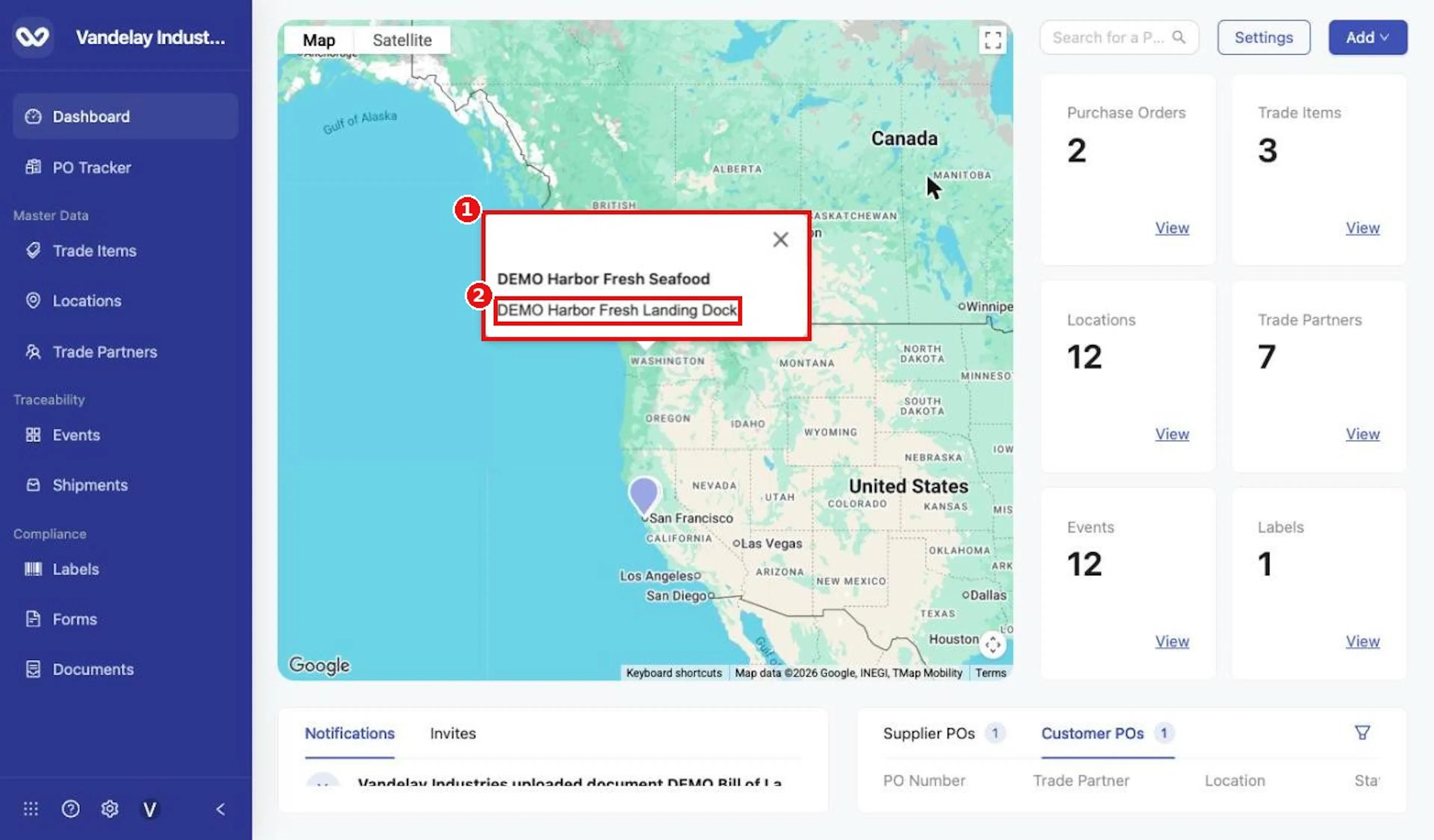
A waypoint pop-up for a Location with coordinates only.
Open Location details from a waypoint
Select the waypoint
Select the waypoint.
In the pop-up, select the Location name
In the pop-up, select the Location name. The Location details drawer opens, titled with the name of the Location.
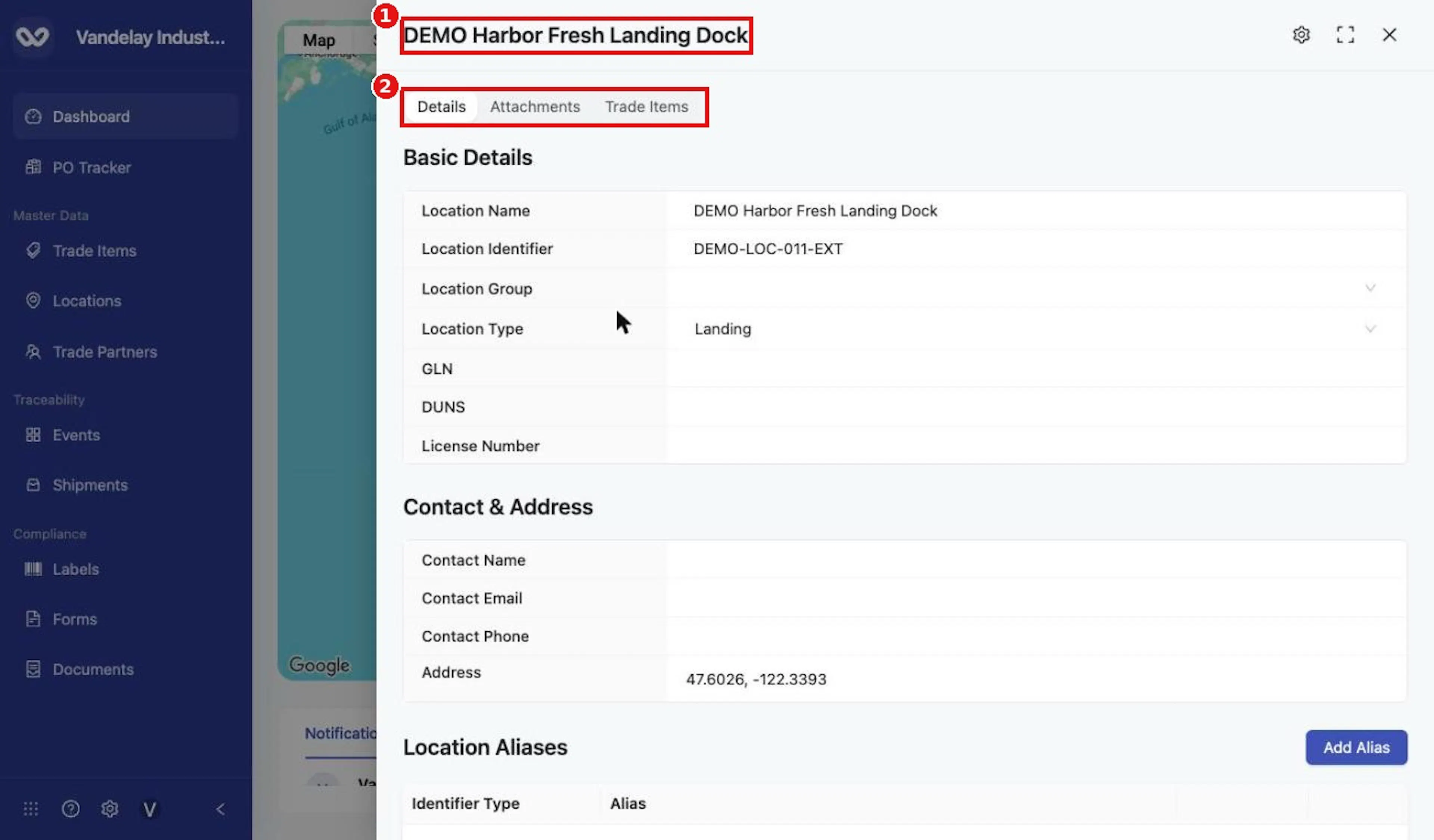
The Location details drawer opened from a waypoint.
Select the X at the top right of the drawer
Select the X at the top right of the drawer to close it and return to the Dashboard.
To learn what each tab and field in the drawer means, see the Locations documentation.
Tip: The drawer shows the Location's saved record. Close it with the X unless you intend to edit the Location.
To open the Locations module instead of a single location, use the Locations tile; see Dashboard overview and shortcuts, section Dashboard record counts and module shortcuts.
Field and action reference
Map
Waypoints
A waypoint is shown for each Location that exists in the account, has been shared with the account, or has populated the account through traceability events received from upstream suppliers.
Map controls
| Control | Location | Behavior |
|---|---|---|
| Map | Top-left of the map | Shows the street map. Selecting it again while it is showing opens its options. |
| Terrain | Option under Map; unchecked by default | Turns the terrain view on or off. Available with the map view. |
| Satellite | Top-left of the map | Shows satellite imagery. |
| Labels | Option under Satellite; checked by default | Shows or hides place and country labels on the satellite imagery. |
| Full-screen button | Top-right of the map | Toggles full-screen view of the map. |
| Zoom | Map surface | Double-click zooms in. Holding ⌘ while scrolling zooms in or out. Scrolling without the key shows "Use ⌘ + scroll to zoom the map". |
| Pan | Map surface | Drag to move the map. |
Waypoint pop-up
Selecting a waypoint opens a pop-up.
| Element | Description |
|---|---|
| Trade Partner name | Shown in bold. |
| Location name | Selecting it opens the Location details drawer. |
| Address | Shown when the Location has address components. Not shown for a Location that has only latitude and longitude. |
| X | Closes the pop-up. |
Location details drawer
Selecting the Location name in the pop-up opens a drawer titled with the Location's name. Its tabs are Details, Attachments, and Trade Items. For the fields and actions in the drawer, see the Locations documentation.
Messages
| Message | When it appears |
|---|---|
| Use ⌘ + scroll to zoom the map | When scrolling over the map without holding ⌘ |