

Direct Ship and Direct Receive
Record a Receive or a Ship for lots that have no earlier events in your account, from the Add Events form or from the Shipments module.
Applies to: Events (Add Events, Receive and Ship event types) and Shipments (Inbound and Outbound)
Audience: Logistics staff and anyone starting traceability before the earlier history is recorded
Prerequisites: Products, Locations and Trade Partners already set up; permission to add events. Know the product, lot code and quantity.
Related: Wholechain Events Overview; Shipments overview; Shared event fields; Receive; Ship; Link Trace Info; Reference: Direct Ship and Direct Receive, Shipments; Background: Starting traceability in Wholechain
Purpose
Direct Ship and Direct Receive let you record the movement of lots that have no earlier events in your account, without choosing existing inventory. Use them to start traceability when the earlier history is not yet recorded. Real supply chains rarely start with perfect records: you begin where you have information and link the earlier history later.
- Direct Receive records a Receive. A Receive posted with Direct Receive does not require an earlier Ship, so the receiving entity can log its Receive before the Ship is posted. A Direct Receive shows as an Inbound Shipment (Shipments > Inbound) in Wholechain. The Inbound row menu offers Link Trace Info, which links upstream events that occurred with a date/time prior to the Direct Receive's date/time.
- Direct Ship records a Ship without checking earlier inventory. A Direct Ship shows as an Outbound Ship Event in the Outbound Shipments table. Its trace is connected to the events that came before it afterwards, with Link Trace Info: adding Trace Info to a Direct Ship in the Outbound tab lets you post events that occurred with a date/time prior to the Direct Ship's date/time.
You can start either event from the Add Events form or from the Shipments module. The result is the same event.
Before you begin
- Know the product, lot code and quantity. Event Details fields (Date, Time, PO Number, Time Zone, Business Step, Disposition) are described in Shared event fields.
- Choose your starting point:
- Add Events: set Event Type to Receive or Ship.
- Shipments > Inbound > New Inbound Shipment: opens the same Add Events drawer with Event Type fixed to Receive.
- Shipments > Outbound > New Outbound Shipment: opens the same drawer with Event Type fixed to Ship. Inventory Selection offers only Define Lots > Direct Ship.
- To receive a shipment that already exists, use the Receive button on its row or the Inbound Shipments tab described in Receive. To ship existing inventory, use Ship.
Record a Direct Receive
Open the Receive form
Select Add Events and set Event Type to Receive. Alternatively, select Shipments, then Inbound, then New Inbound Shipment. The same Add Events drawer opens with Event Type fixed to Receive.
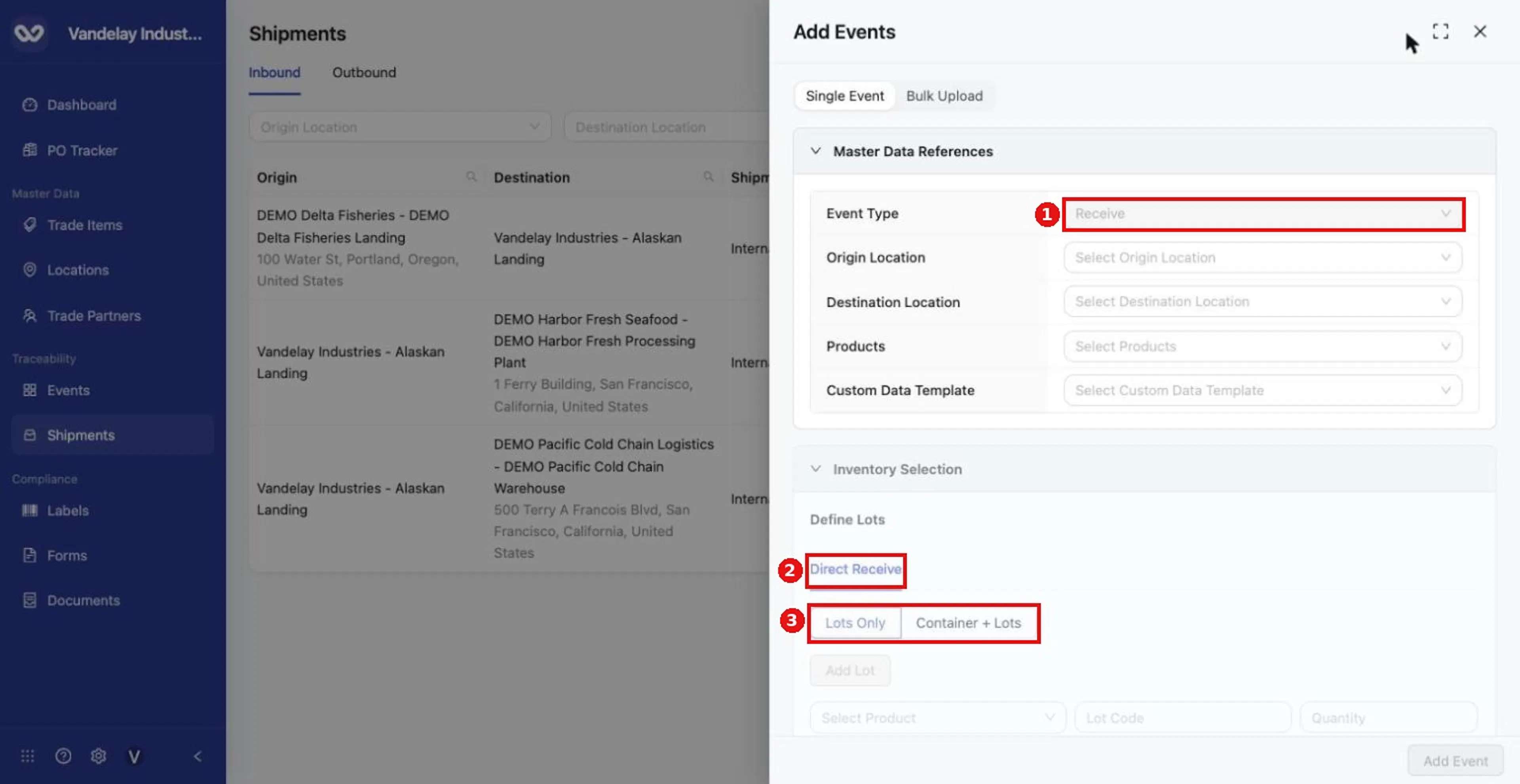
New Inbound Shipment opens the Add Events drawer with Event Type fixed to Receive and Direct Receive as the way to define lots.
Choose Origin Location, Destination Location and Products
Choose Origin Location, Destination Location and Products.
Open the Direct Receive tab
Under Define Lots, open the Direct Receive tab. Choose Lots Only or Container + Lots.
Add the lots
Select Add Lot, choose the product, and enter Lot Code and Quantity. Repeat for each lot.
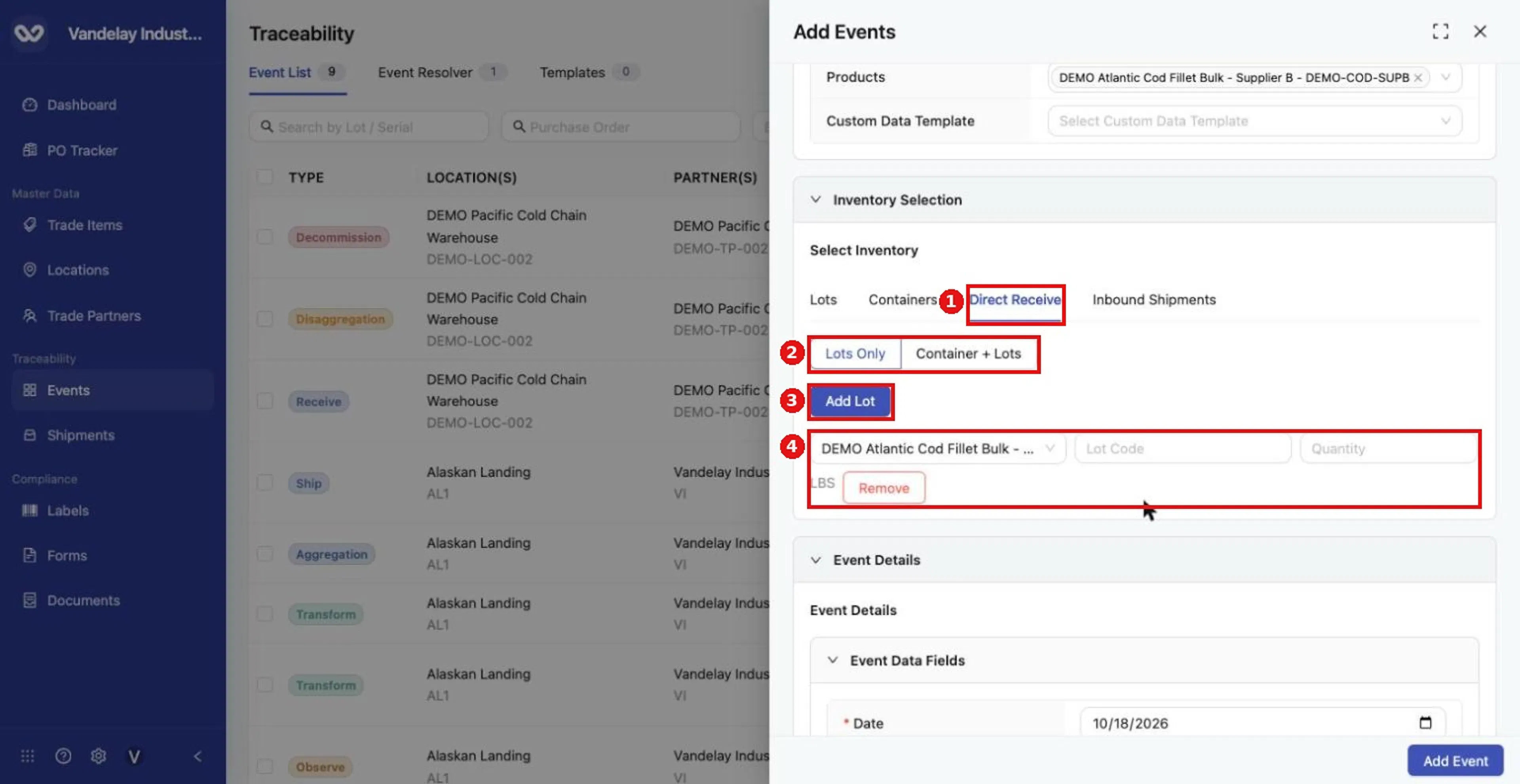
For a Direct Receive, choose Event Type Receive and open the Direct Receive tab. Select Add Lot to enter a product, Lot Code and Quantity.
Complete Event Details and select Add Event
Complete Event Details and select Add Event.
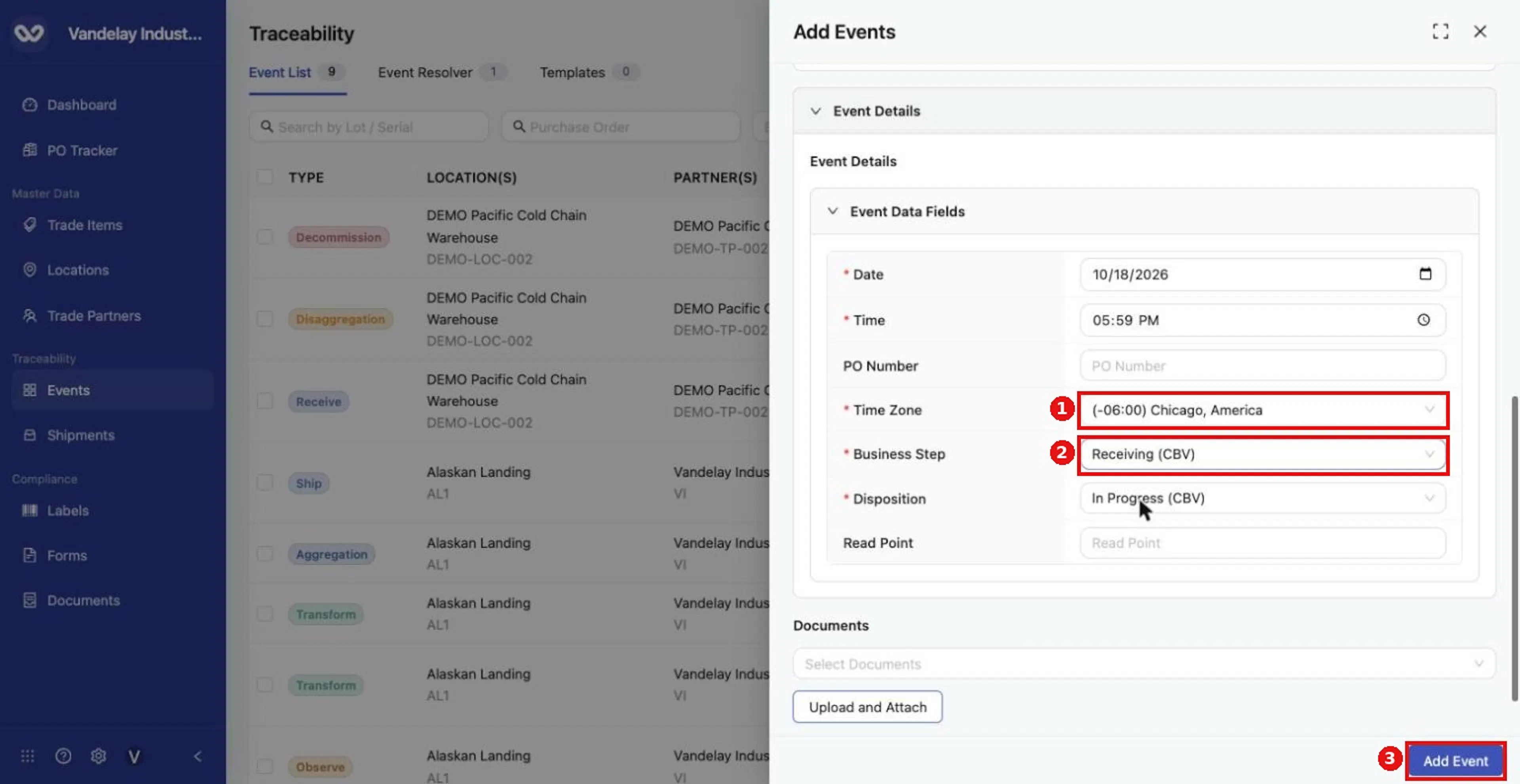
Set the event details, then select Add Event.
A Direct Receive appears in the Event List as a Receive row at once, and as a row in the Inbound table under Shipments.
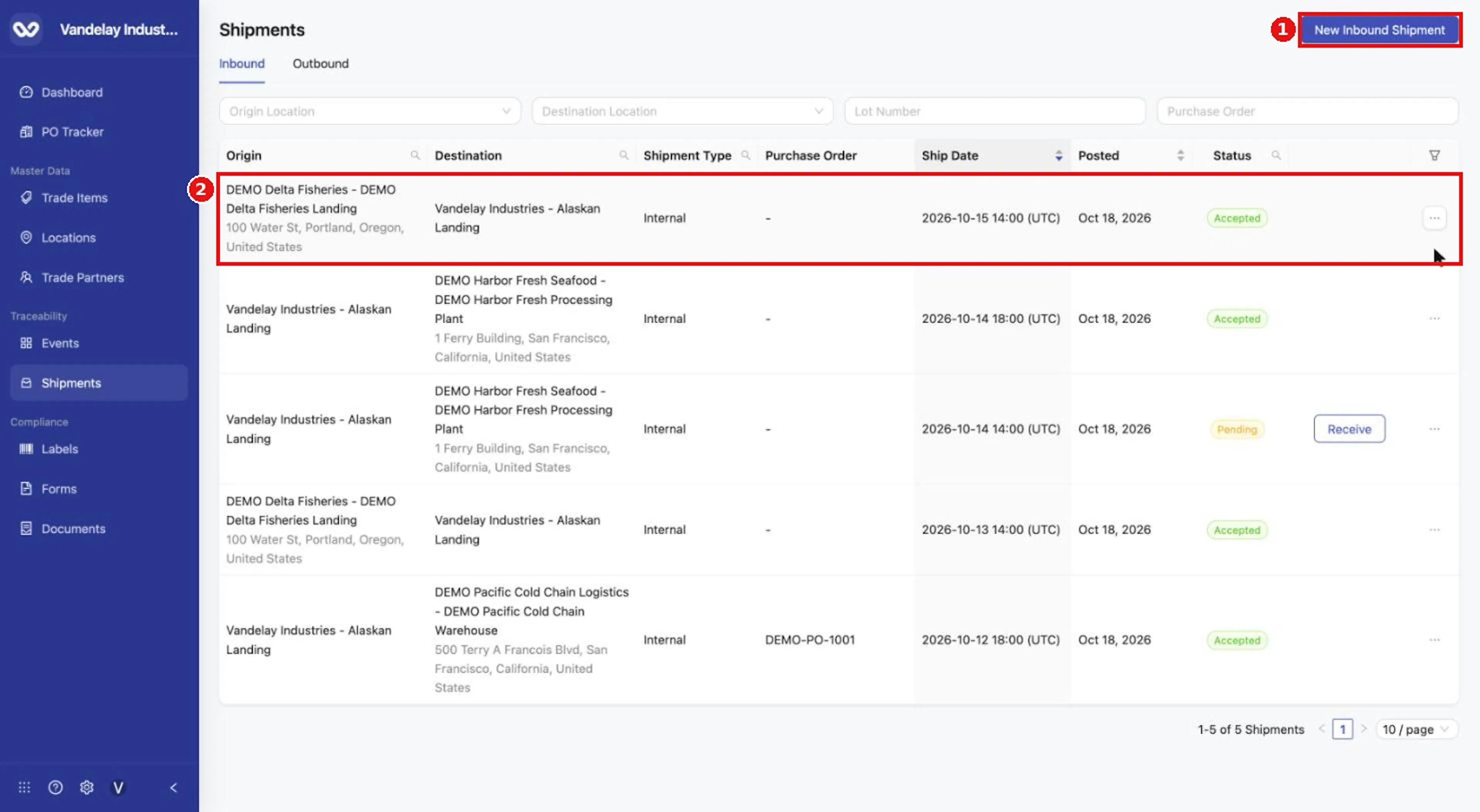
A Direct Receive also appears as a row on Shipments > Inbound.
Record a Direct Ship
Open the Ship form
Select Add Events and set Event Type to Ship. Alternatively, select Shipments, then Outbound, then New Outbound Shipment. The Add Events drawer opens with Event Type fixed to Ship.
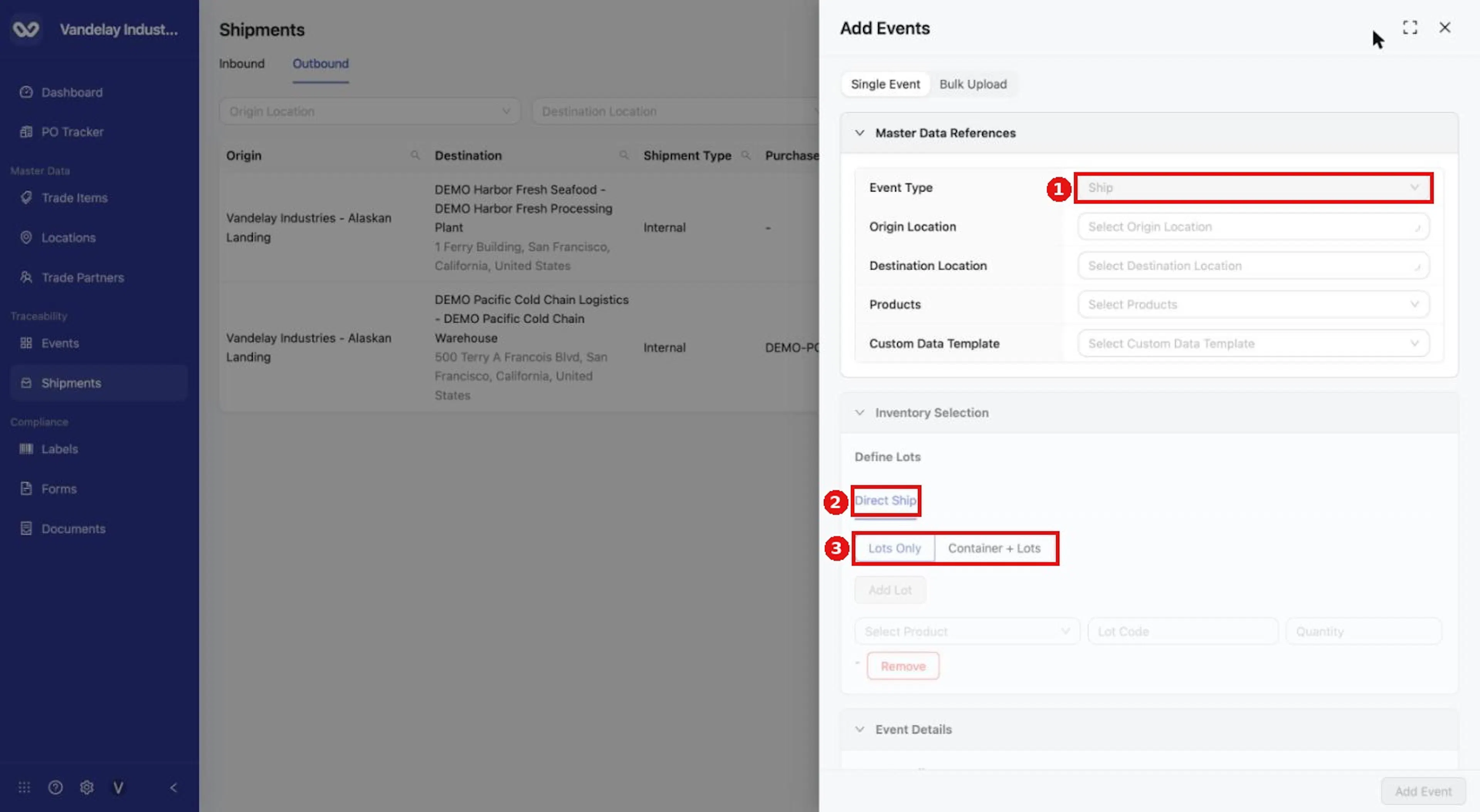
New Outbound Shipment opens the Add Events drawer with Event Type fixed to Ship and Direct Ship as the way to define lots.
Choose Origin Location, Destination Location and Products
Choose Origin Location, Destination Location and Products. A shared Location can be used as the destination Location of a Ship.
Open the Direct Ship tab
Open the Direct Ship tab (under Define Lots). Two modes appear: Lots Only and Container + Lots.
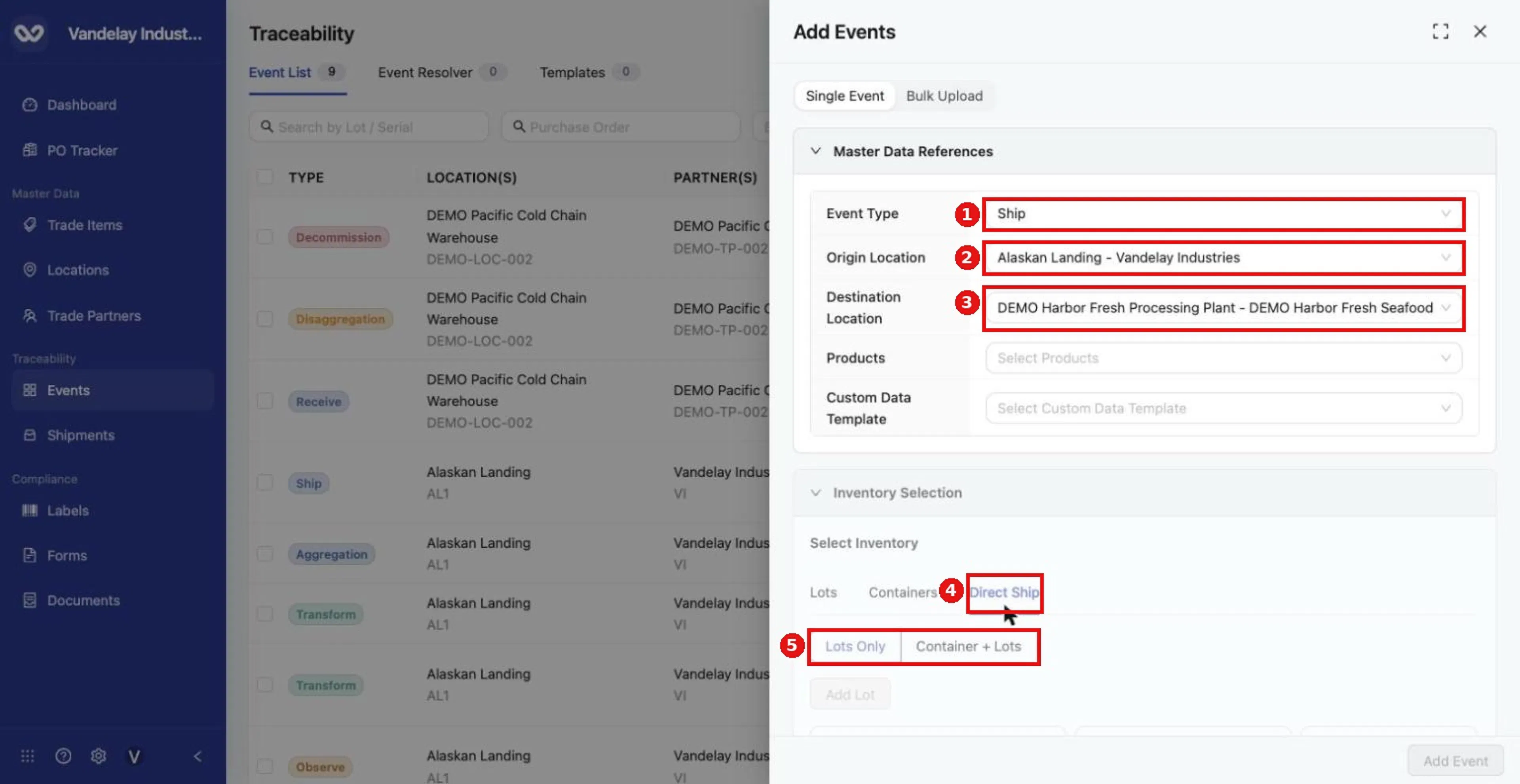
For a Direct Ship, choose Event Type Ship, Origin and Destination Locations, then open the Direct Ship tab. Lots Only and Container + Lots are the two entry modes.
Add lots in Lots Only mode
For Lots Only, select Add Lot, choose the product, and enter Lot Code and Quantity.
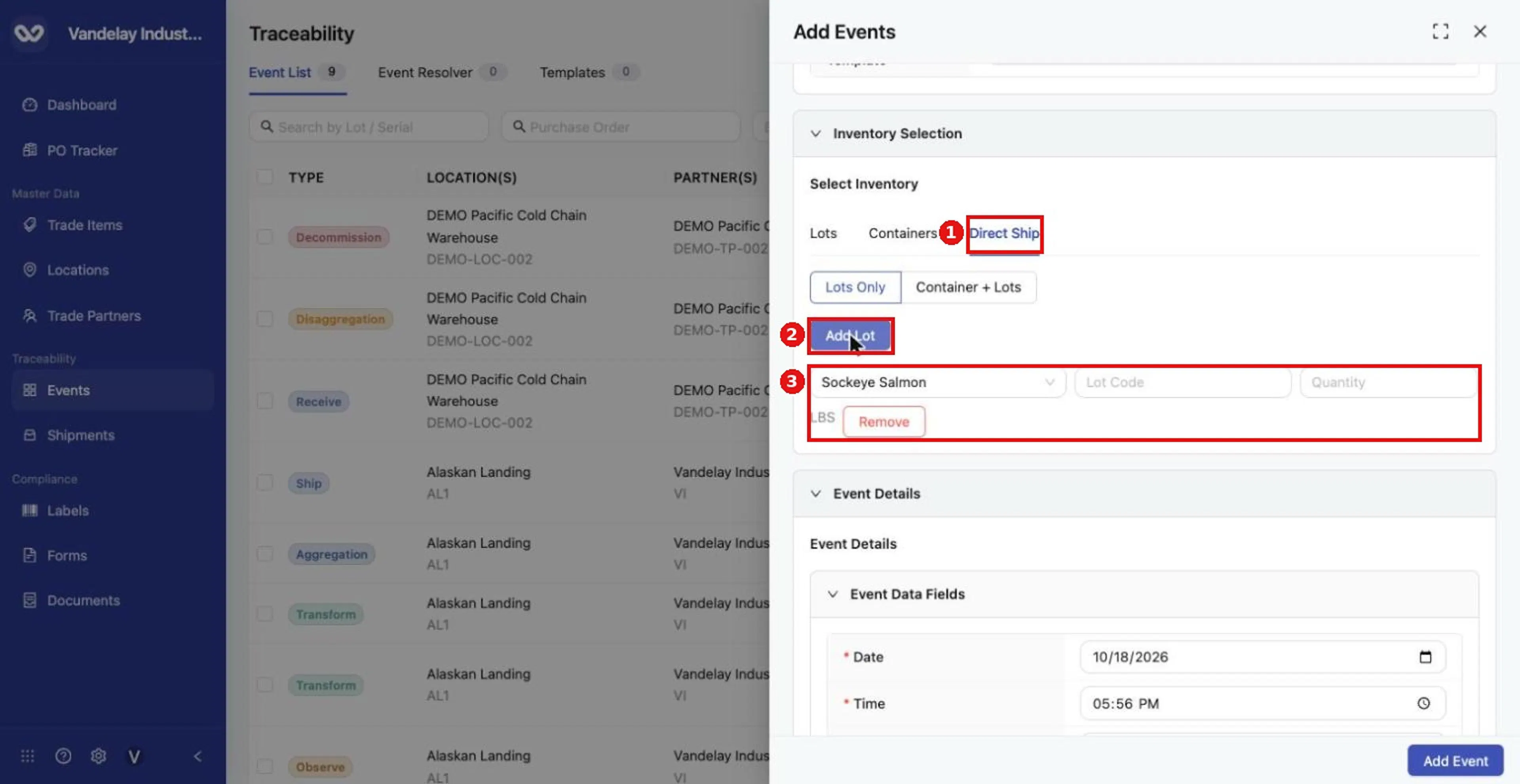
Select Add Lot, choose the product, then enter a Lot Code and Quantity.
Add lots in Container + Lots mode
For Container + Lots, choose Identifier Type (Logistic ID or SSCC), enter the Container Identifier, then add lots.
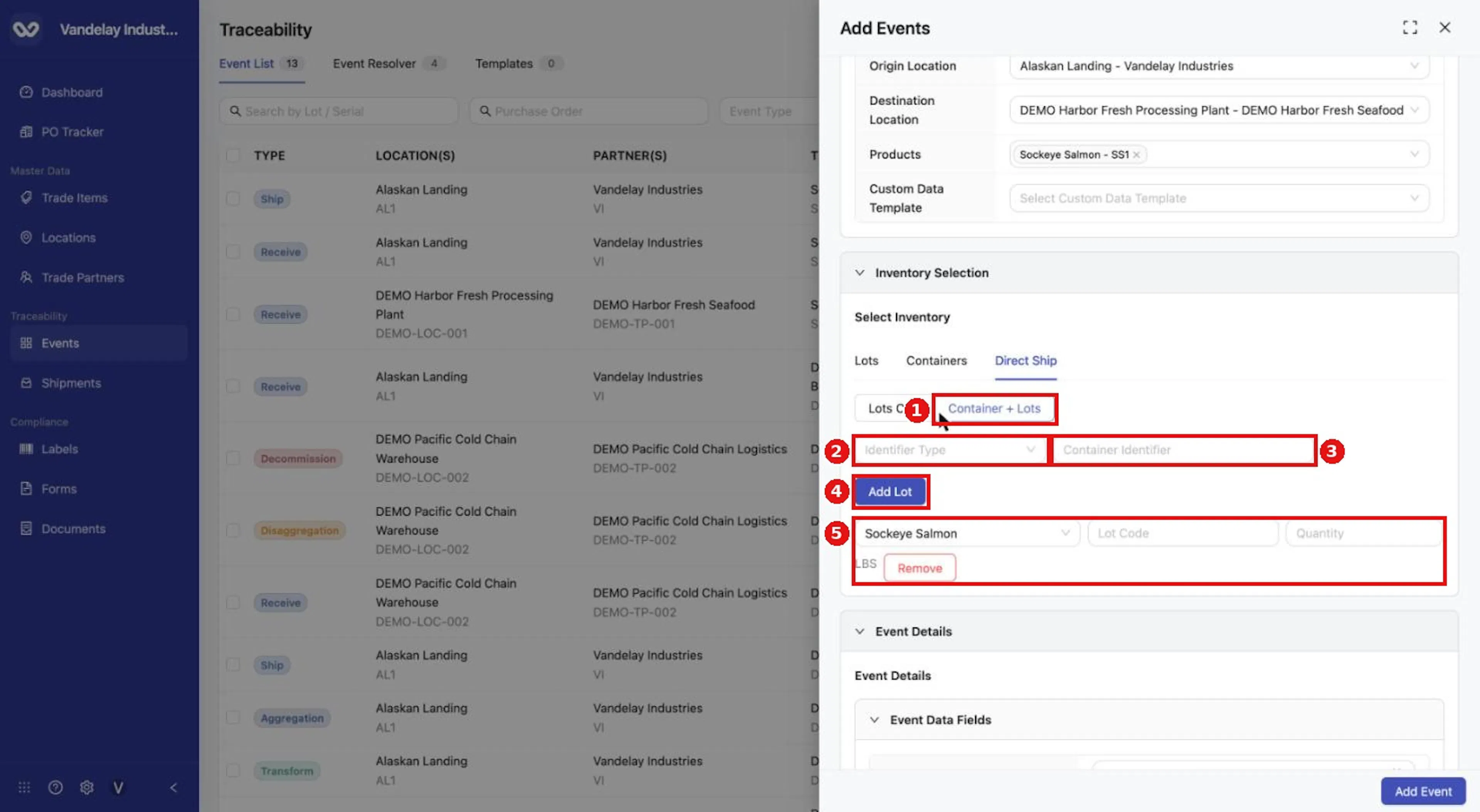
Container + Lots adds an Identifier Type and a Container Identifier above the lot rows.
Complete Event Details
Complete Event Details (Date, Time, PO Number, Time Zone, Business Step, Disposition) and check the Selected Inventory Summary.
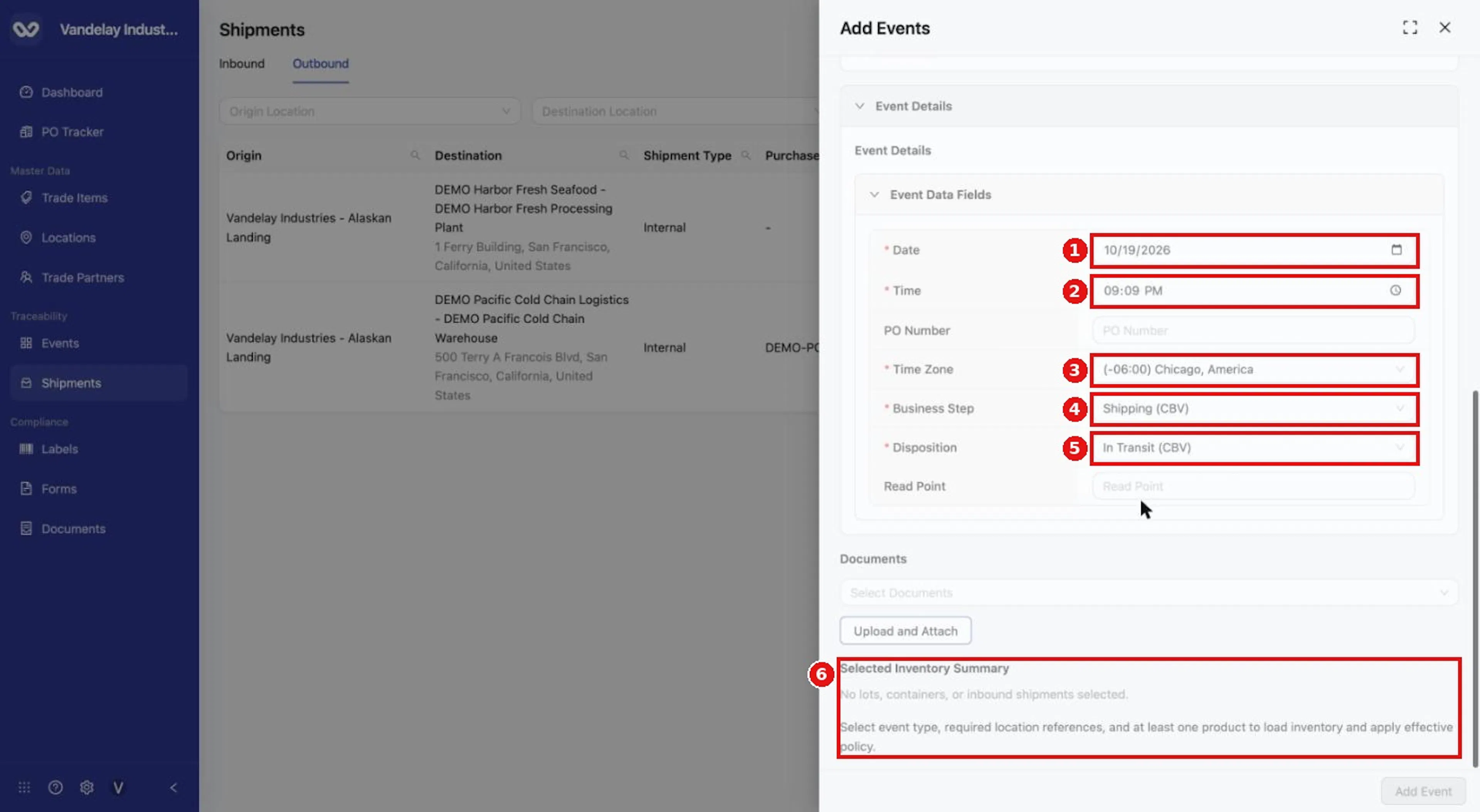
Further down, complete Event Details and check the Selected Inventory Summary.
Select Add Event
Select Add Event.
The new row appears in the Outbound table with a Link Trace Info button. See Link Trace Info.
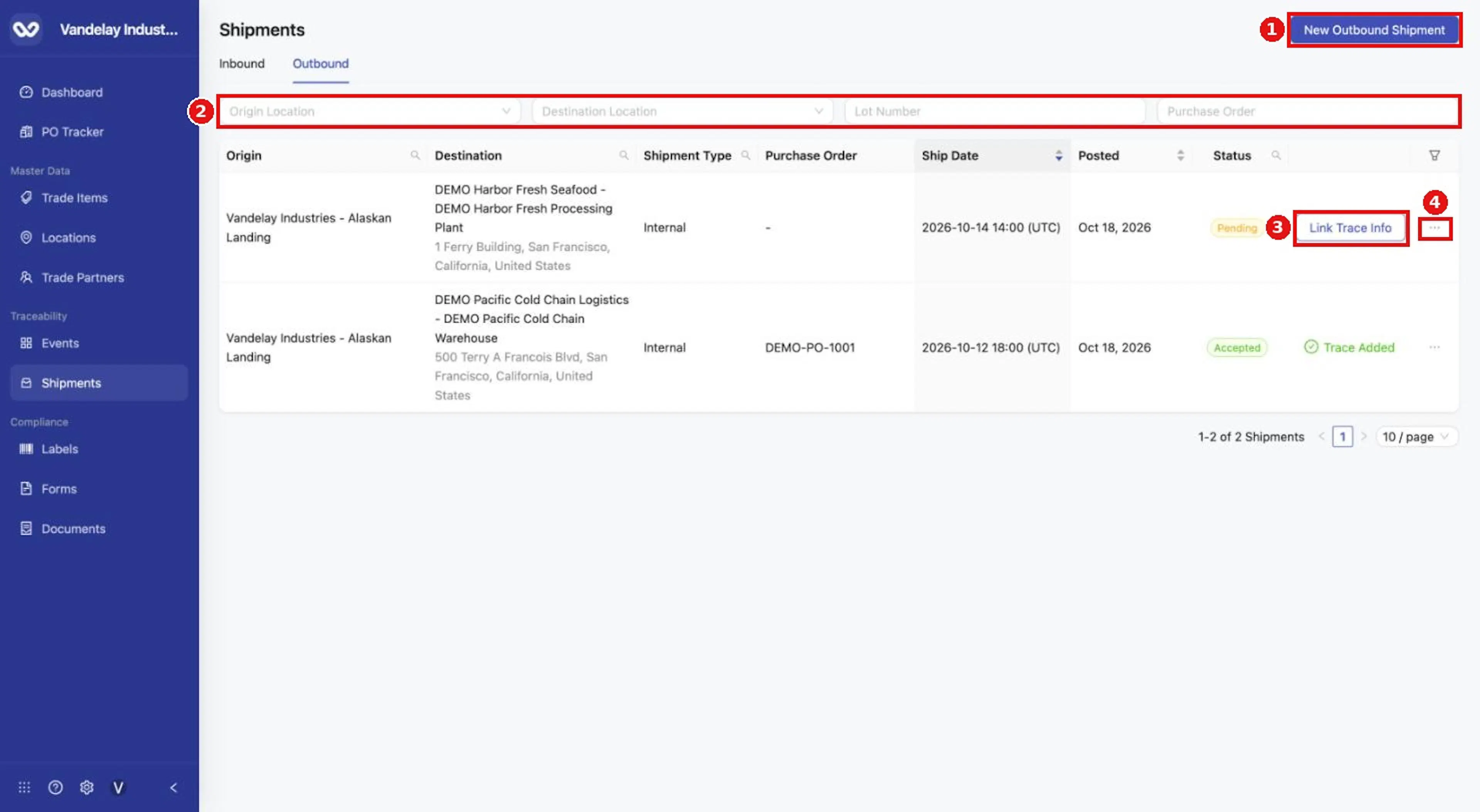
Shipments > Outbound lists outbound shipments with filters, a New Outbound Shipment button and a row menu.
View an outbound shipment
Open the row menu on the Outbound row
On Shipments > Outbound, open the row menu on the shipment.
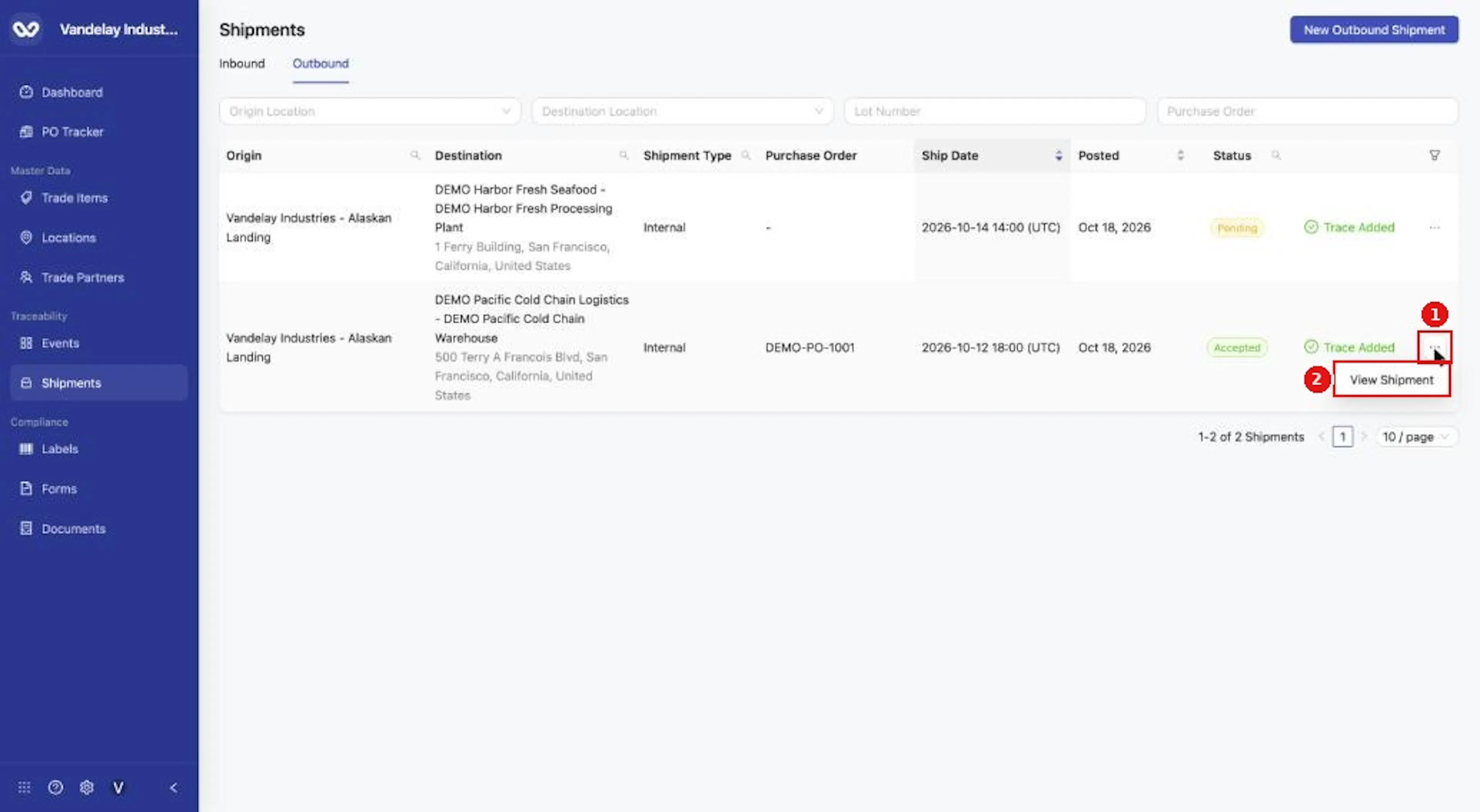
On Outbound, the row menu offers View Shipment.
Choose View Shipment
Choose View Shipment to open the Map, Diagram and List.
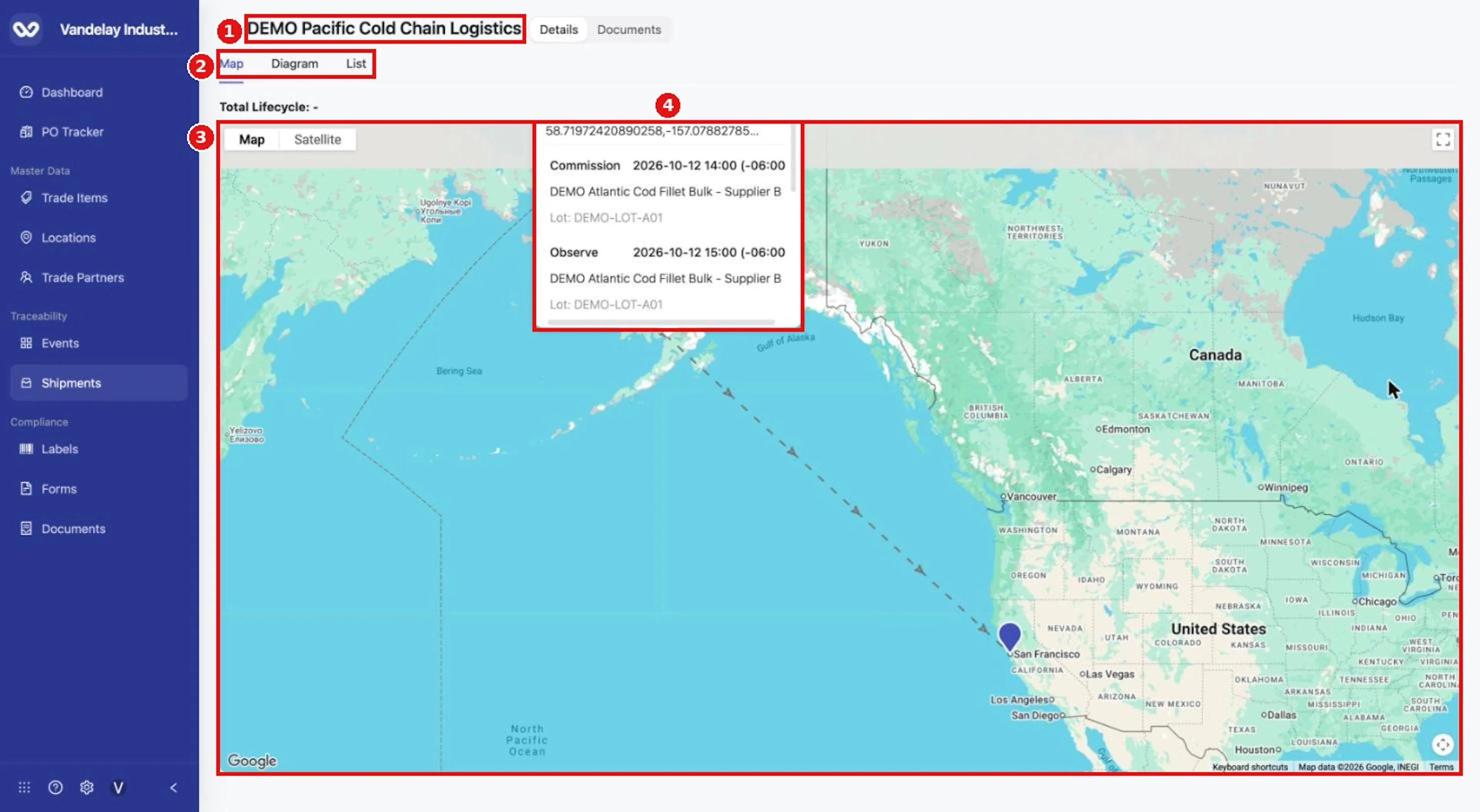
View Shipment opens the same page layout as Preview Shipment, here for an outbound shipment.
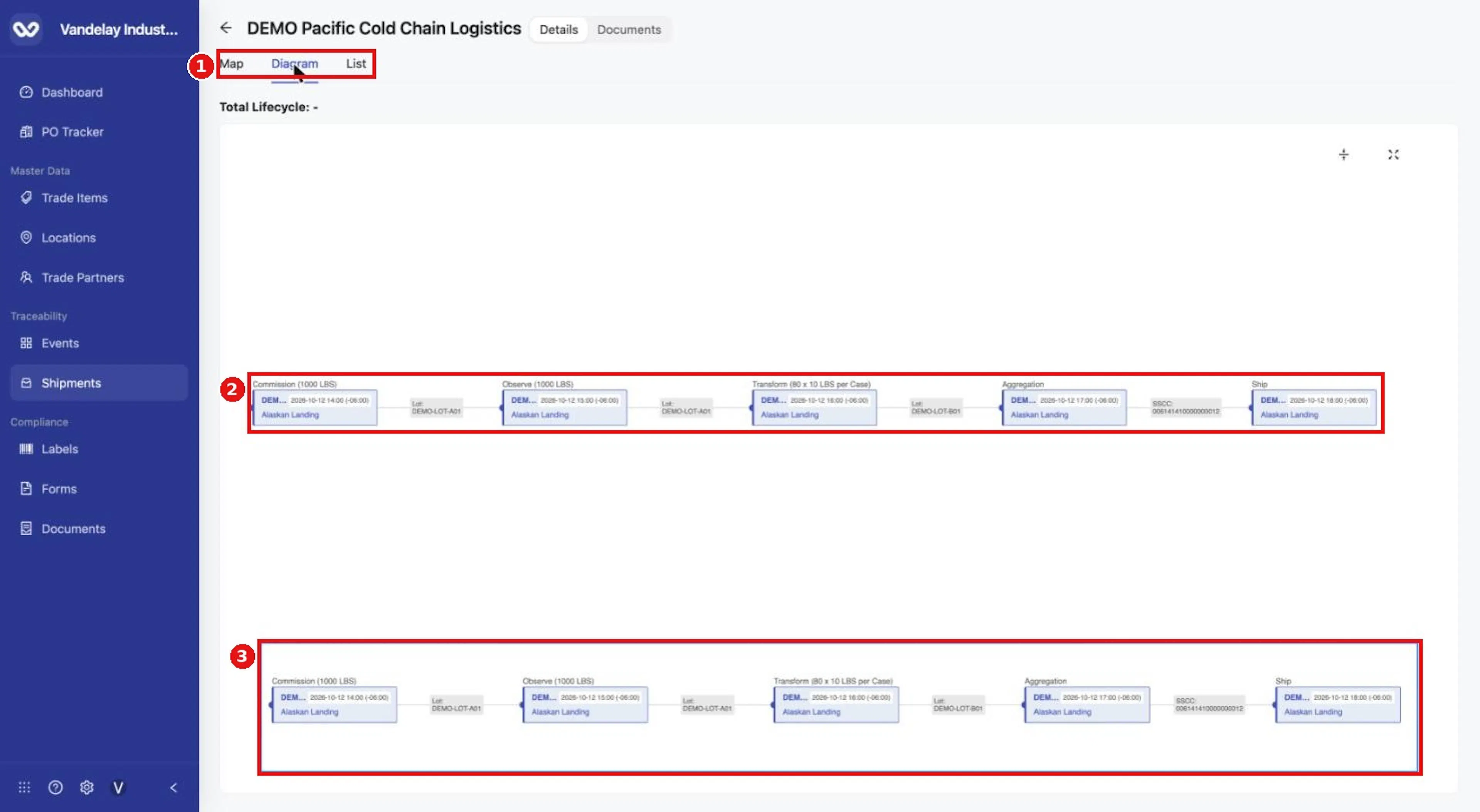
The Diagram tab shows the chain of events behind the shipment.
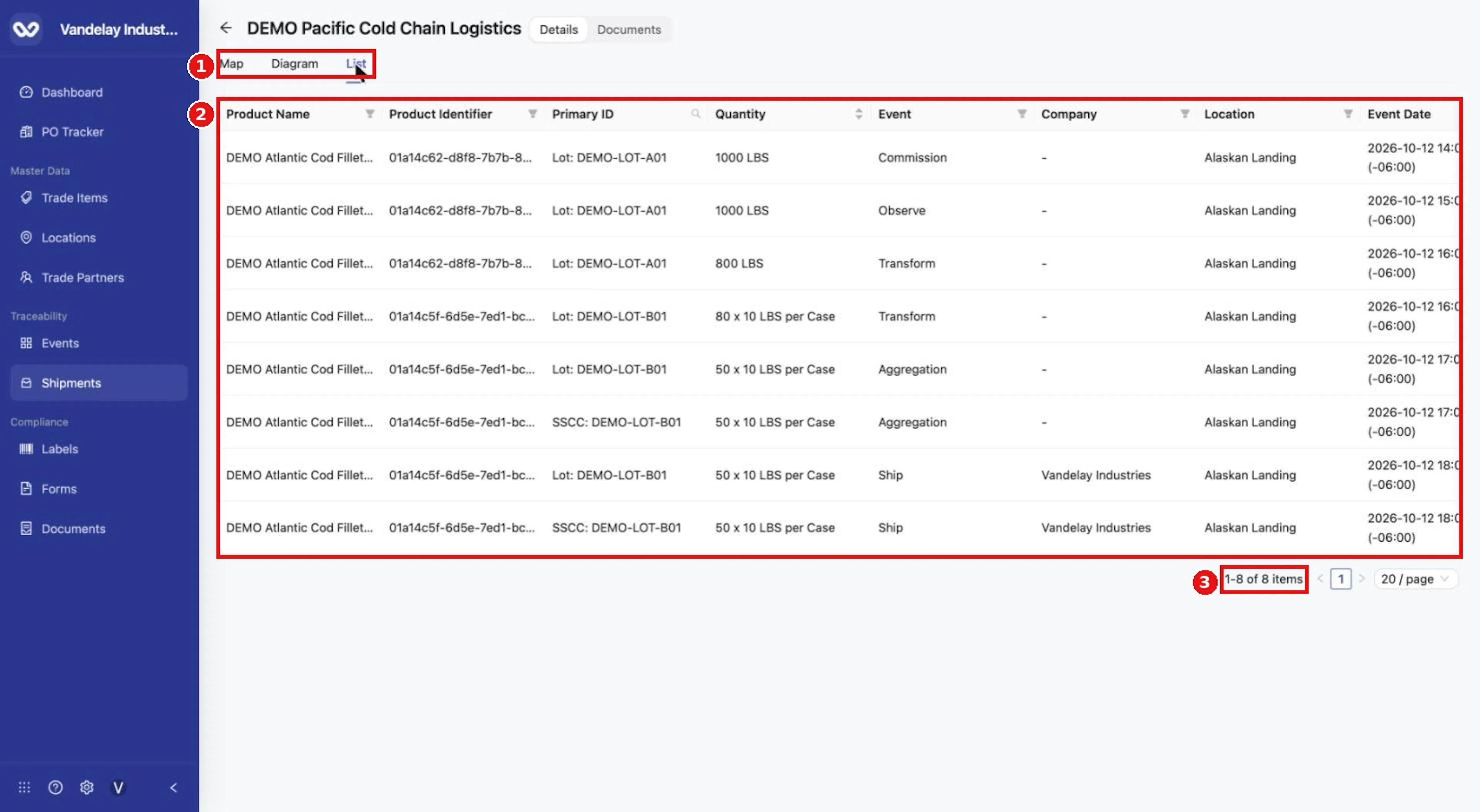
The List tab shows every lot in the chain and how it was used.
Expected result
- Direct Receive: a Receive row in the Event List and a row in the Inbound table. Open Preview Shipment to see its Map, Diagram and List. Example: 300 LBS of DEMO-LOT-R01 received at Alaskan Landing from DEMO Delta Fisheries Landing.
- Direct Ship: a row in the Outbound table with a Link Trace Info button, also listed in Event Resolver. It appears in the Event List as a Ship row after its trace is linked.
Troubleshooting
- Add Lot is greyed out. Choose Products first.
- A Direct Ship is missing from the Event List. It appears there after you link its trace. See Link Trace Info.
- Event Type cannot be changed. It is fixed when the form is opened from New Inbound Shipment (Receive) or New Outbound Shipment (Ship). Use Add Events to choose the Event Type yourself.
- I need to receive a shipment that already exists, or ship existing inventory. See Receive and Ship.
Field and action reference
Direct Ship
| Field | Req. | Values |
|---|---|---|
| Mode toggle | Yes | Lots Only or Container + Lots. |
| Add Lot | Conditional: needed in both modes | Enabled after Products are chosen. Each row has product, Lot Code (or serial, according to the item's Traceability Type), Quantity, Remove. Lot Code or serial and Quantity are required. |
| Identifier Type | Conditional: Container + Lots | Logistic ID or SSCC. |
| Container Identifier | Conditional: Container + Lots | The container's identifier. |
No inventory selection is needed. A Direct Ship appears under Shipments > Outbound and in Event Resolver. It appears in the Event List as a Ship row after its trace is linked.
Direct Receive
The Direct Receive tab offers Lots Only or Container + Lots, with the same lot rows as Direct Ship. A Direct Receive appears in the Event List as a Receive row at once, and under Shipments > Inbound.
New Inbound Shipment and New Outbound Shipment
Both buttons open the Add Events drawer. Event Type is fixed (Receive for inbound, Ship for outbound) and cannot be changed. For outbound, Inventory Selection offers only Define Lots > Direct Ship.
For the Inbound and Outbound table columns, filters and row actions, see the Shipments reference.
Watch the walkthrough
Direct Ship and Direct Receive
New Inbound Shipment
New Outbound Shipment