

Add Trade Partners
Add one company with a form, or many companies and their Locations at once from an Excel spreadsheet.
Applies to: the Trade Partner List tab, Add Trade Partners drawer (Single Trade Partner and Bulk Upload tabs)
Audience: Anyone creating Trade Partner master data
Prerequisites: permission to create master data in your account; for bulk upload, Microsoft Excel or another program that saves .xlsx or .xls files
Related: Get started with Trade Partners; Trade Partner List; Trade Partner details; Invitations; Add Locations; Trade Partners FAQ; Reference Guide: Adding Trade Partners; Reference Guide: Module overview; Field and action reference
Purpose
Add the companies you trade with to Wholechain, either one at a time with a form or many at once, together with one Location each, from a spreadsheet.
Before you begin
- The company name. An identifier from your own system, a PGLN and a DUNS number are optional but recommended.
- For the single form: whether the partner is a buyer or a supplier. The form offers only these two choices; to create a partner of type Other or Self, use the spreadsheet (see Differences between the Add form and the spreadsheet).
- For bulk upload: a spreadsheet in .xlsx or .xls format. Download the template from inside the drawer and do not rename or remove its columns.
- For bulk upload: if you want Locations linked to a Location Group, create the group first (see Location Groups).
Example values used here
| Field | Example |
|---|---|
| Trade Partner Name | DEMO Harbor Fresh Seafood |
| Trade Partner Identifier | DEMO-TP-001 |
| PGLN | 9999990000019 |
| DUNS | 999000001 |
| Buyer / Supplier | Supplier |
Differences between the Add form and the spreadsheet
The single Add form and the spreadsheet do not offer the same choices. The form offers only Buyer and Supplier (as does the Trade Partner drawer). The spreadsheet's required Connection Type column accepts Buyer, Supplier, Other and Self. A partner of type Other or Self can therefore be created through the spreadsheet, but not through the Add form.
| Single Trade Partner form | Excel spreadsheet | |
|---|---|---|
| Field that says what the partner is to you | Buyer / Supplier (optional) | Connection Type (required) |
| Choices | Buyer, Supplier | Buyer, Supplier, Other, Self |
| Required fields | Trade Partner Name only | Company Name and Connection Type |
| Partners of type Other or Self | Cannot be created | Can be created |
One thing is easy to mix up:
- Connection Type is not Connection. Connection Type (or Buyer / Supplier in the form) says what the partner is to you. Connection says whether the partner is connected to Wholechain (Wholechain Connected, Externally Connected or Not Connected). Choosing a Connection Type does not connect a partner: a new partner starts as Not Connected, and connecting it is a separate step (see Invitations). The Type shown in the list and in the Details drawer, for example NonWholechain, is read-only and cannot be edited.
Add a single Trade Partner
Select Add Trade Partners
On the Trade Partner List tab, select Add Trade Partners. The Add Trade Partners drawer opens on the Single Trade Partner tab.
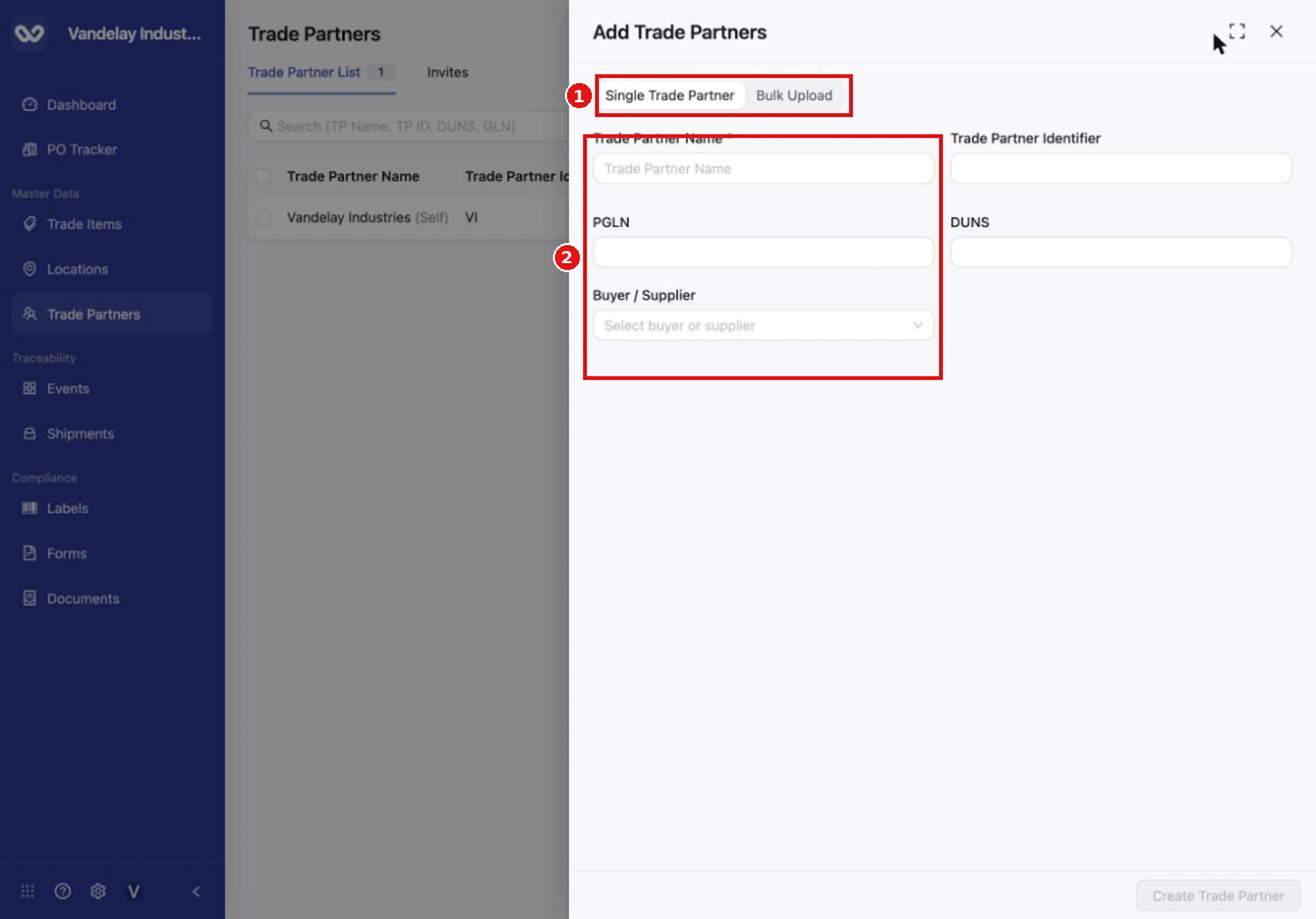
Choose Single Trade Partner to add one company with a form, or Bulk Upload to add many from a spreadsheet.
Enter the Trade Partner Name
Enter the Trade Partner Name. This is the only field marked as required in the form.
Enter the identifier, PGLN and DUNS
Enter the Trade Partner Identifier, PGLN and DUNS.
Choose Buyer or Supplier
Select Buyer / Supplier, then choose Buyer or Supplier. The form offers only these two choices; Other and Self can be set only through the spreadsheet.
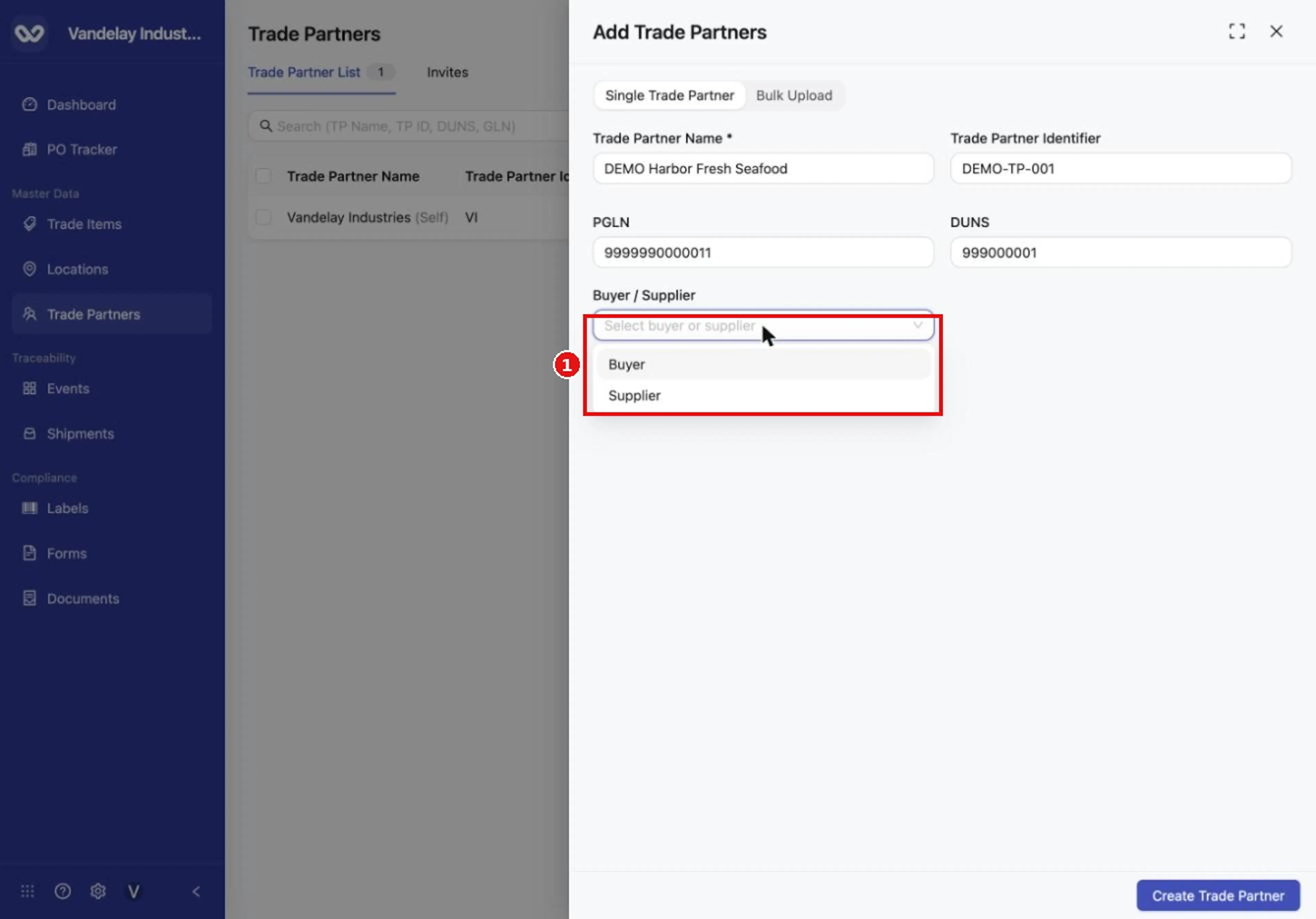
Choose whether the trade partner is a Buyer or a Supplier.
Check the form, then select Create Trade Partner
Check the form, then select Create Trade Partner.
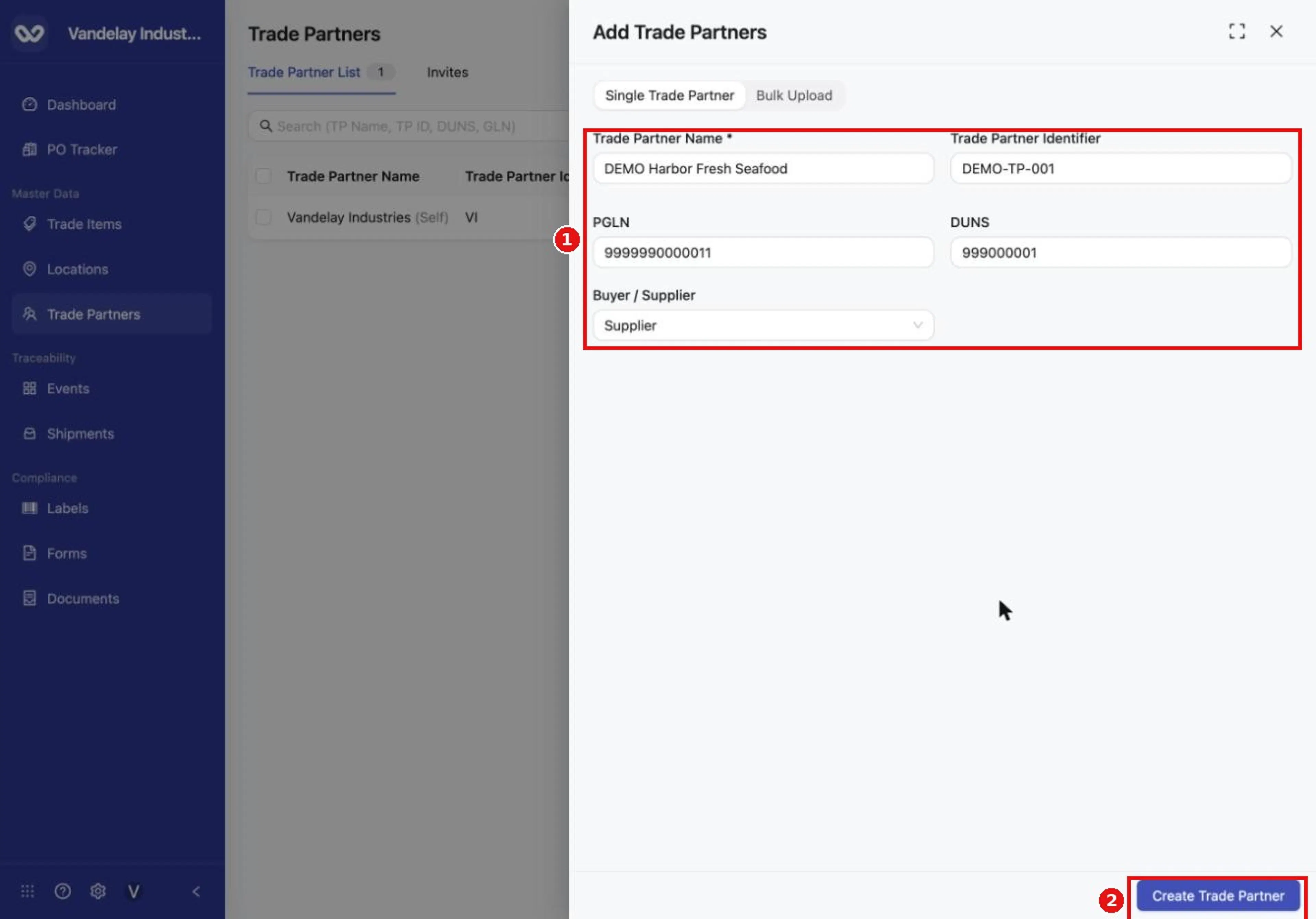
Fill in the name, identifier, PGLN, DUNS and Buyer / Supplier, then select Create Trade Partner.
Why it matters. The identifier is how you will recognise this partner in uploads and exports. The buyer or supplier setting tells Wholechain which direction product flows between you.
Result. The Trade Partner's Details drawer opens, showing its name, identifier, PGLN, DUNS, Buyer / Supplier, Type and Wholechain ID. The new row appears in the list.
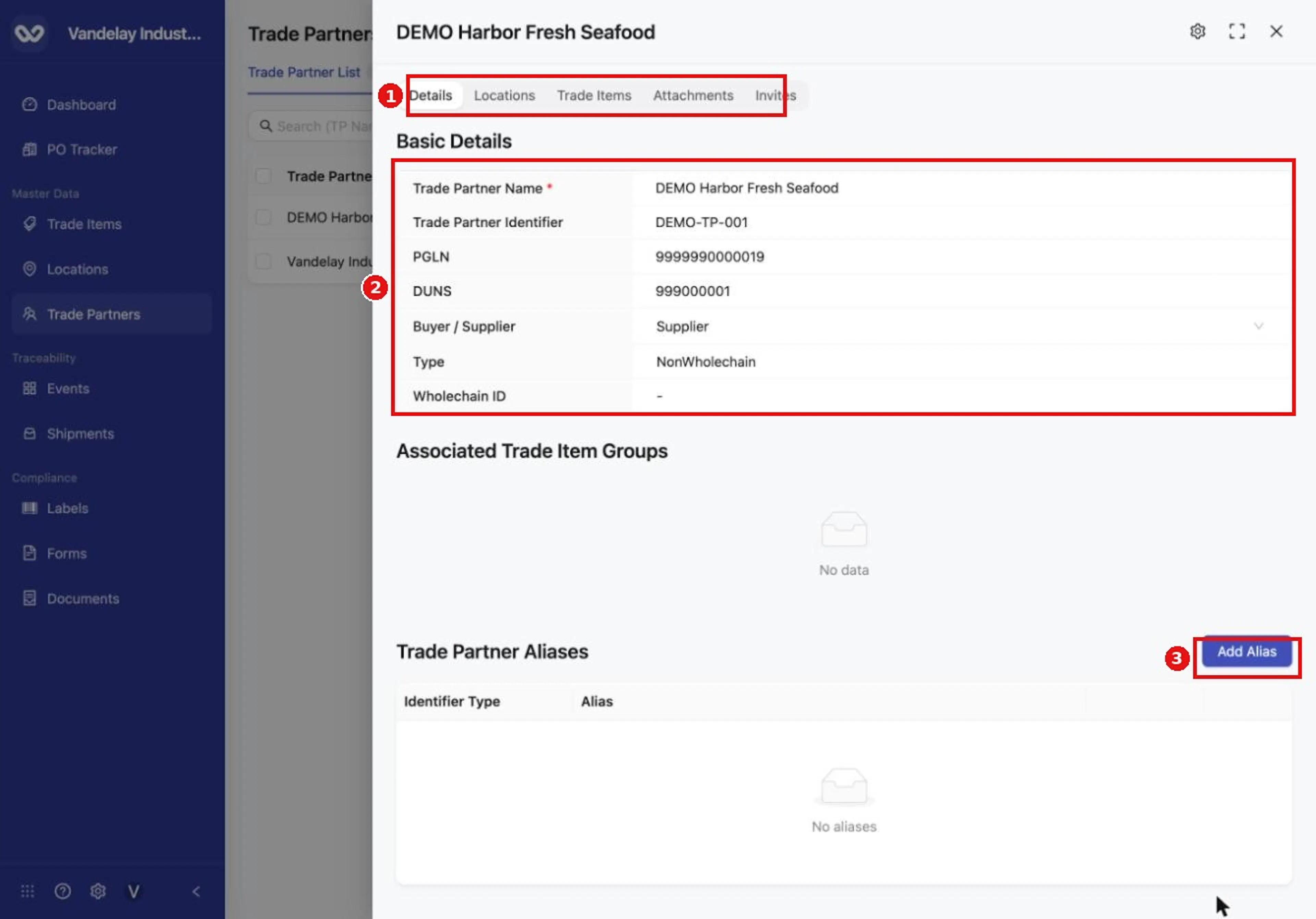
After you create a trade partner, its Details drawer opens with the Basic Details and the Trade Partner Aliases section.
Add many Trade Partners with Excel
The Trade Partners template has 22 columns. The first row holds the headings and the second row holds internal field codes (such as tp_external_id). Keep both rows. Each row describes one Trade Partner and one Location for it. At a minimum, a row needs a Company Name and a Connection Type (Buyer, Supplier, Other or Self; the single Add form offers only Buyer and Supplier). The full column list is in the Field and action reference.
Open the Bulk Upload tab
Select Add Trade Partners, then open the Bulk Upload tab.
Download the Excel template
In step 1, select Excel Template to download the template.
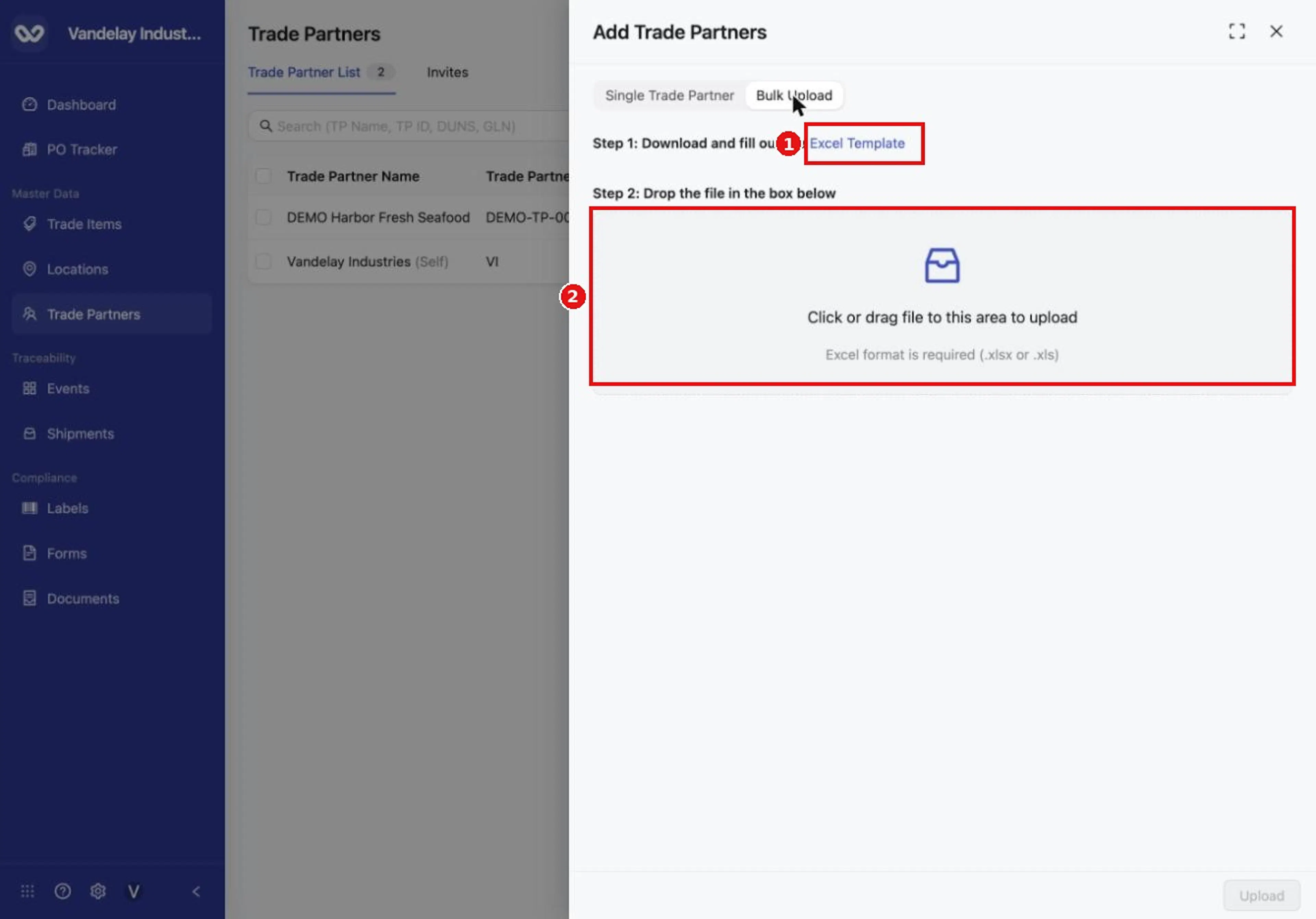
On the Bulk Upload tab, download the Excel template, then drop your completed file in the upload box.
Fill in one row per Trade Partner
Fill in one row per Trade Partner and save the file.
Add your file to the upload box
In step 2, click the upload box or drag your file onto it. The file name appears in the box.
Select Upload
Select Upload.
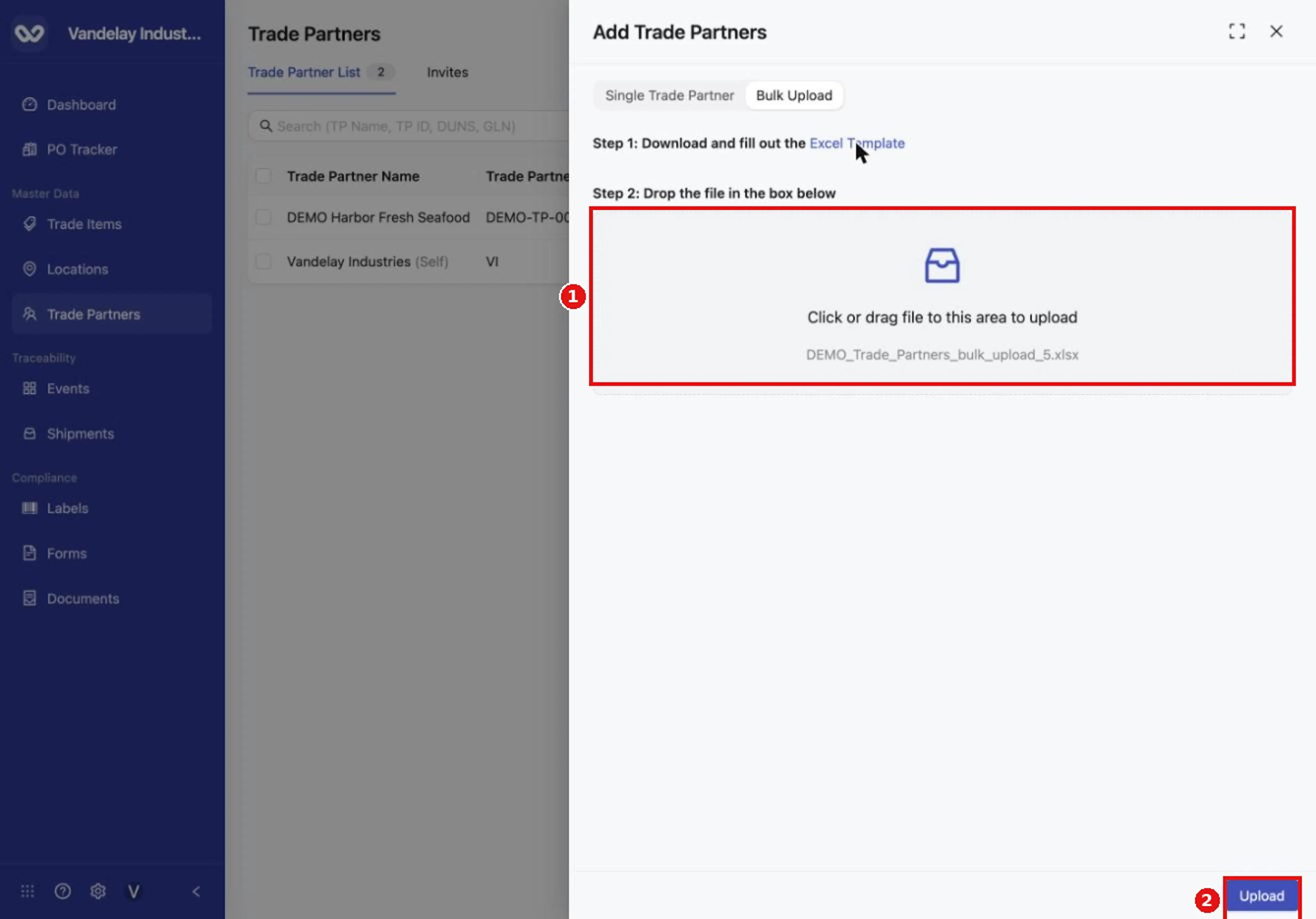
After you choose a file, its name appears in the box and the Upload button becomes available.
Check the list
Check the list after the upload. The upload has no preview and does not report how many rows it created.
Result. The new Trade Partners appear in the list, and each one shows 1 in Location(s). The count at the top of the page and the footer update.
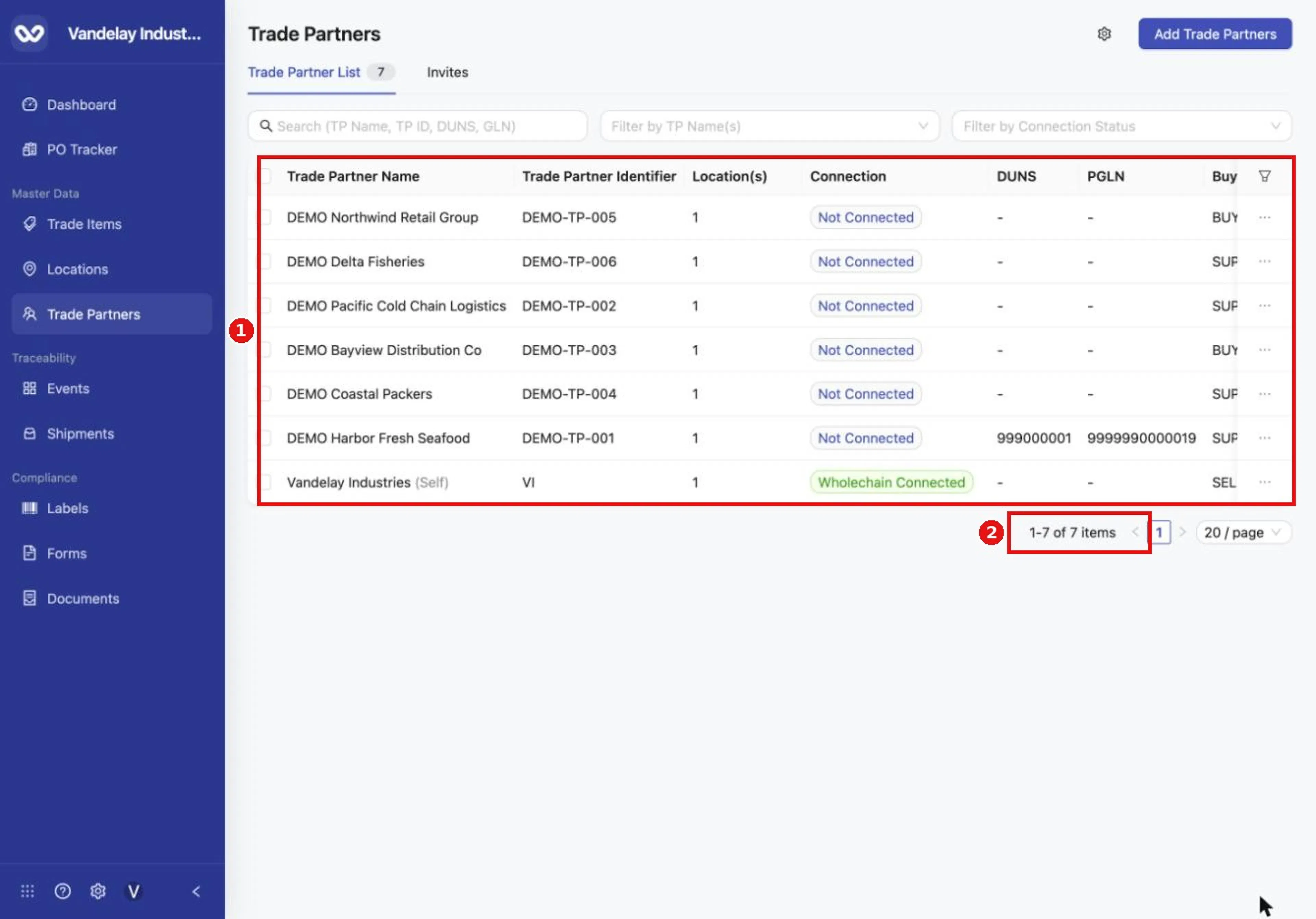
The new trade partners appear in the list. The count at the bottom shows how many trade partners you now have.
Why it matters. Bulk upload is the quickest way to bring an existing supplier list into Wholechain. The Locations created this way are listed on the Locations page and are given the type Warehouse / Distribution Center, because the Trade Partners template has no Location Type column. Change the type afterwards in each Location's details (see View and Edit a Location). To add Locations on their own in bulk, see Add Locations.
Update existing records by upload
A row that matches an existing record updates it. Records are matched by identifier, so if you use identifiers, include them in every file. If a row leaves the identifier blank for a record that was created with one, a new record is created, because a blank identifier counts as a value. To change a name through an upload, the row must carry the identifier so that Wholechain finds the right record.
Upload checklist
Download a fresh template
Download a fresh template each time.
Keep the first two rows
Keep the heading row and the field-code row.
Fill in one row per record
Fill in one row per record.
Upload and check the list
Upload, then check the list.
Fix errors from the issues file
If an error banner appears, download the issues file, read the Errors column, and upload only rows that were not added.
Tips
- Reload the page if a list looks out of date after an upload.
- Press Enter after typing an email address to add it, for example when you prepare an invitation (see Invitations).
Expected result
- Single: the new Trade Partner opens in its Details drawer and its row appears in the list.
- Bulk: the new Trade Partners appear in the list, each with 1 in Location(s).
- A new partner starts as Not Connected with Type NonWholechain. Connecting it is a separate step: see Invitations.
Troubleshooting
-
If a number is not valid, an error such as Invalid PGLN appears and nothing is created. PGLNs and GLNs end in a check digit, so a number that looks right can still be rejected. Correct the number and select Create Trade Partner again.
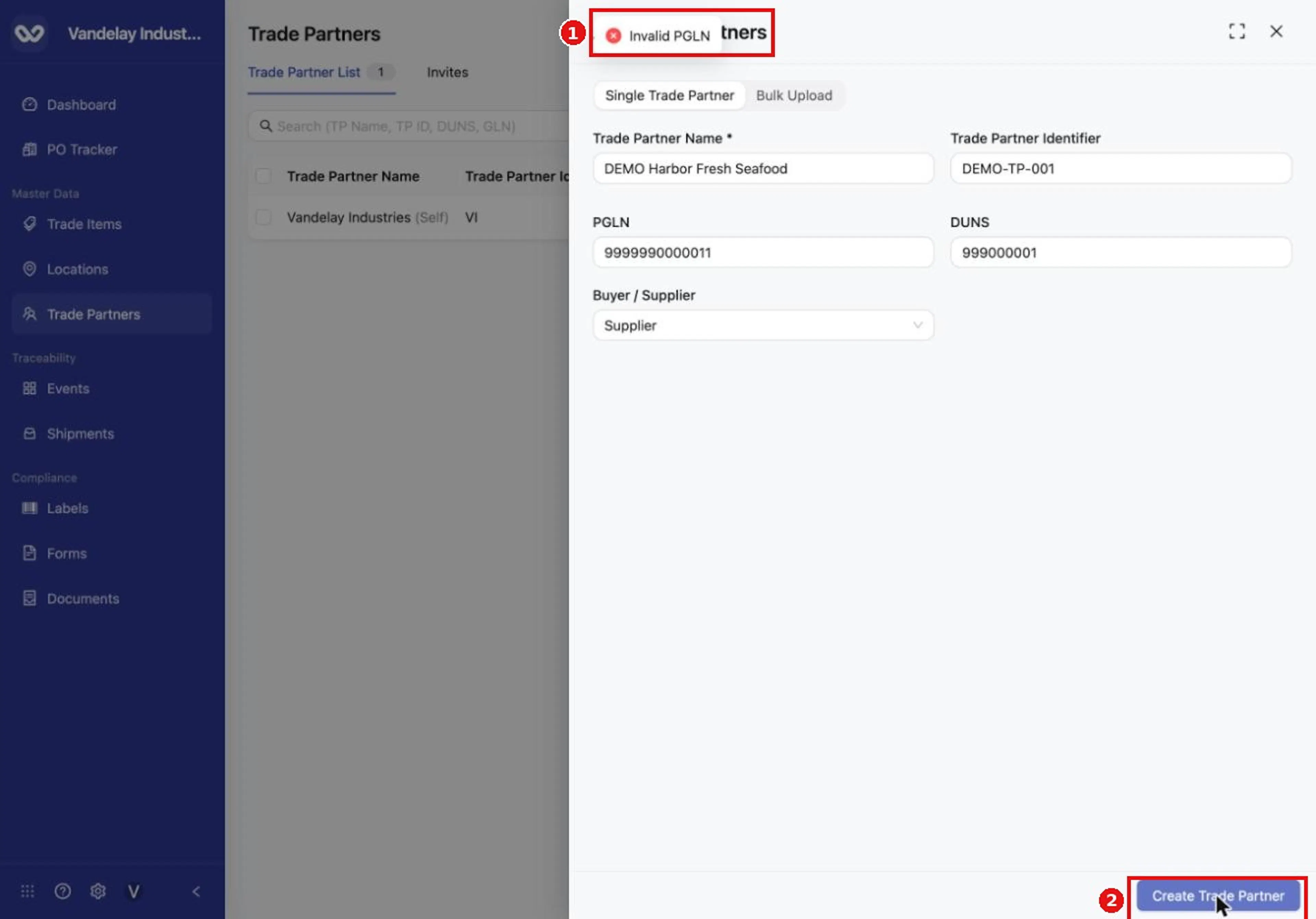
If a number is not valid, a message such as Invalid PGLN appears and nothing is created. Correct the value and try again. If a number is not valid, a message such as Invalid PGLN appears and nothing is created. Correct the value and try again.
-
The Create Trade Partner button is greyed out while the form is empty. Enter at least the Trade Partner Name.
-
If an error banner appears after a bulk upload, select Download issues file and fix what it describes. Rows without errors can already have been added, so check the list before you upload again, and upload only the rows that were not added to avoid duplicates. See Trade Partners FAQ for more help with bulk uploads.
-
Only .xlsx and .xls files are accepted. Do not remove or rename the heading row or the field-code row.
-
If a new row is not in the table after an upload, reload the page.
-
Other or Self is not offered in the Buyer / Supplier list of the Add form. The form offers only Buyer and Supplier. To create a partner with another Connection Type, use the spreadsheet (see Differences between the Add form and the spreadsheet).
Field and action reference
Single Trade Partner form
| Field | Req. | Type | Values and validation | Default |
|---|---|---|---|---|
| Trade Partner Name | Yes | Text | Any text. The name cannot be left empty. | Empty |
| Trade Partner Identifier | No | Text | Your identifier for the partner. It can be left empty. | Empty |
| PGLN | No | Number | Must be a valid PGLN. A number that fails the check-digit test shows Invalid PGLN and nothing is created. | Empty |
| DUNS | No | Number | Must be a valid DUNS number | Empty |
| Buyer / Supplier | No | Choice | Buyer or Supplier (the choice list offers these two; Other and Self are available only in the spreadsheet) | Empty (Select buyer or supplier) |
The Create Trade Partner button is greyed out while the form is empty. When the partner is created, its drawer opens on the Details tab and the new row appears in the list with Connection set to Not Connected and Type set to NonWholechain.
Bulk Upload
The Bulk Upload tab has two steps: step 1, Excel Template (downloads the template); step 2, a file box (click it or drag a file onto it) and an Upload button. Accepted file types are .xlsx and .xls.
Template layout
The template has 22 columns. Row 1 holds the headings and row 2 holds the field codes. Both rows must stay. Each row describes one Trade Partner and one Location for it.
| Column | Key | Req. | Values |
|---|---|---|---|
| Trade Partner Number/ID | tp_external_id | No | Your identifier for the partner |
| Company Name | tp_name | Yes | Partner name |
| Connection Type | tp_connection_type | Yes | Buyer, Supplier, Other or Self. Other and Self can be set only in the spreadsheet; the single Add form offers Buyer and Supplier. This column says what the partner is to you; it does not connect the partner. |
| PGLN | tp_pgln | No | Valid PGLN |
| Company DUNS | tp_company_duns | No | Valid DUNS number |
| Location Group | tp_location_group | No | Name of an existing Location Group. If the group does not exist, the Location is not linked and no group is created; create the group first. |
| Location Number/ID | tp_location_external_id | No | Your identifier for the Location |
| Location Name | tp_location_name | No | Location name |
| Address 1 | tp_address_1 | No | Street address |
| Address 2 | tp_address_2 | No | Additional address line |
| City | tp_city | No | City |
| State/Province | tp_state_province | No | State or province |
| Country | tp_country | No | Country |
| Postal Code | tp_postal_code | No | Postal code |
| Geocoordinates | tp_geocoordinates | No | latitude,longitude, with both values, for example 37.7704,-122.3894. When an address is provided, Wholechain attempts to find the coordinates; if none can be found for the address, the Location is saved with 0, 0. |
| Contact Name | tp_contact_name | No | Contact person |
| Phone Number | tp_phone_number | No | Contact phone |
| Phone Extension | tp_phone_extension | No | Contact phone extension |
| tp_email | No | Contact email | |
| GLN | tp_gln | No | Valid GLN for the Location |
| Location DUNS | tp_location_duns | No | Valid DUNS number for the Location |
| Polygon | tp_polygon | No | Location boundary in GeoJSON format |
At a minimum, a row needs a Company Name and a Connection Type. The Contact Name, Phone Number, Phone Extension and Email columns hold an optional Location contact.
Results of an upload
| Outcome | What you see |
|---|---|
| All rows accepted | The new partners appear in the list; each shows 1 in Location(s). No confirmation count is shown. |
| Row matches an existing record | The record is updated. If the record was created with an identifier and the file leaves the identifier blank, a new record is created instead, because a blank identifier counts as a value. |
| One or more rows rejected | An error banner appears with Download issues file. Rows without errors can already have been added. |
| Locations created | Each Location is listed on the Locations page with the type Warehouse / Distribution Center, because this template has no Location Type column. |
Add form compared with the spreadsheet
| Item | Single Trade Partner form | Excel spreadsheet |
|---|---|---|
| What the partner is to you | Buyer / Supplier: Buyer or Supplier (optional) | Connection Type: Buyer, Supplier, Other or Self (required) |
| Partners of type Other or Self | Cannot be created | Can be created |
| Required fields | Trade Partner Name | Company Name and Connection Type |
| Connection status of a new partner | Not Connected | Not Connected (the template has no connection column) |
| Type (for example NonWholechain) | Read-only | Read-only |
For the full list of rules and messages, see the Reference Guide: Adding Trade Partners, Rules and restrictions and Messages.