

Forms module overview
What Wholechain Forms is, where to find it, the difference between Forms List and Forms Manager, and which article to read.
Wholechain Forms lets a buyer give suppliers a structured form to fill in, so shipment information reaches the buyer in a consistent format. Today the supported form type is the Ship Event form. A supplier uses a shared Ship Event form to send shipment information to the Trade Partner that owns and shared it. This supports supplier onboarding and traceability workflows, including FSMA 204 use cases. Using a form is one part of a traceability program; it does not by itself guarantee regulatory compliance.
Where to find Forms
In the left sidebar, open Compliance → Forms. Forms is the second module under Compliance, below Labels and above Documents.
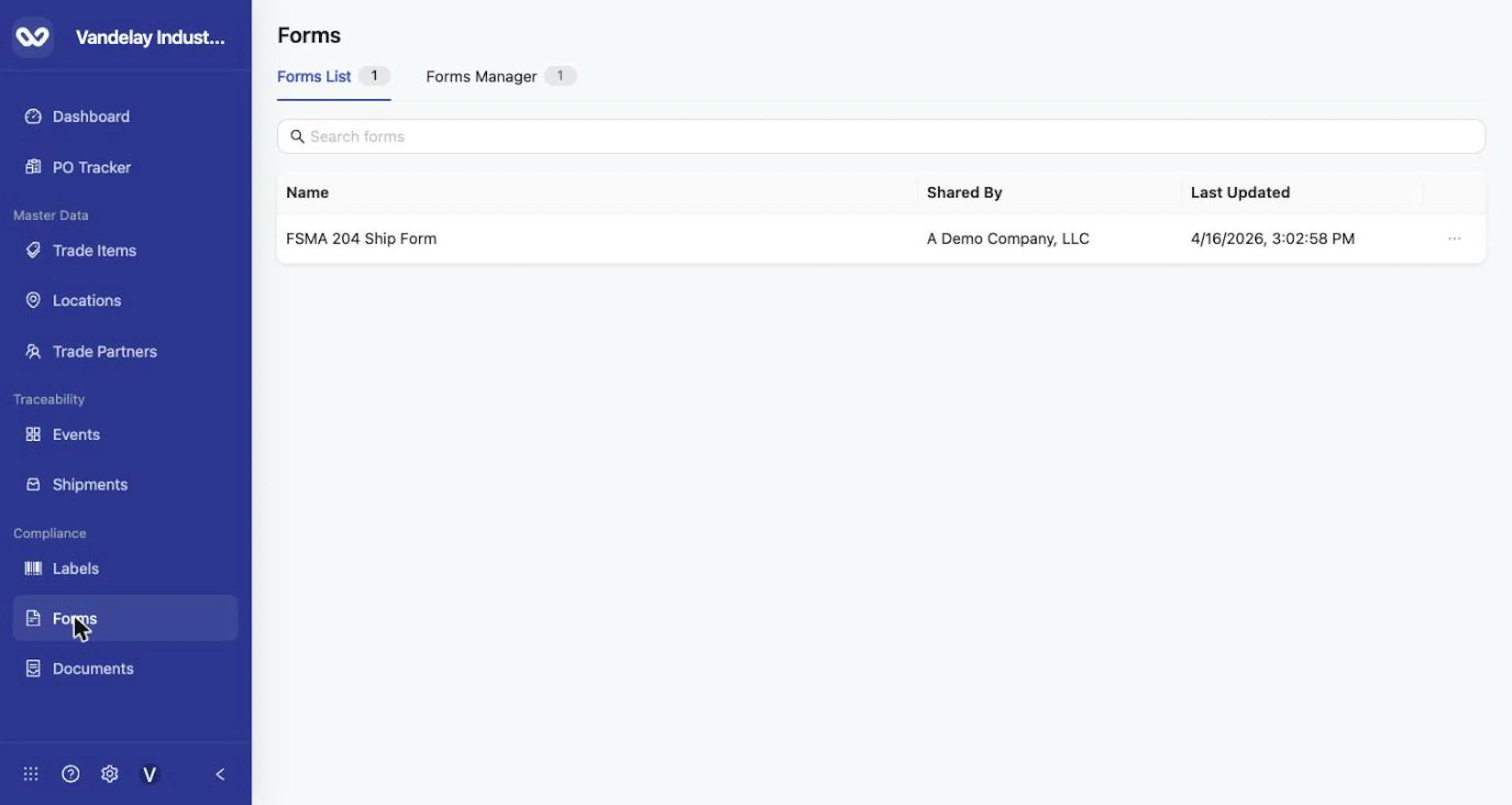
Forms List: forms that connected Trade Partners shared with your account.
The Forms page has two tabs. They look similar but serve opposite roles, so keep them distinct throughout this guide:
| Tab | What it shows | Who uses it |
|---|---|---|
| Forms List | Forms that connected Trade Partners have shared with your account. Columns: Name, Shared By, Last Updated. | Suppliers completing a form a buyer shared. |
| Forms Manager | Forms owned and managed by your account. Columns: Name, Status, Sharing, Last Updated. The Create Form button appears here. | Account owners who create, configure, publish, and share forms. |
The number beside each tab name is the count of forms in that tab.
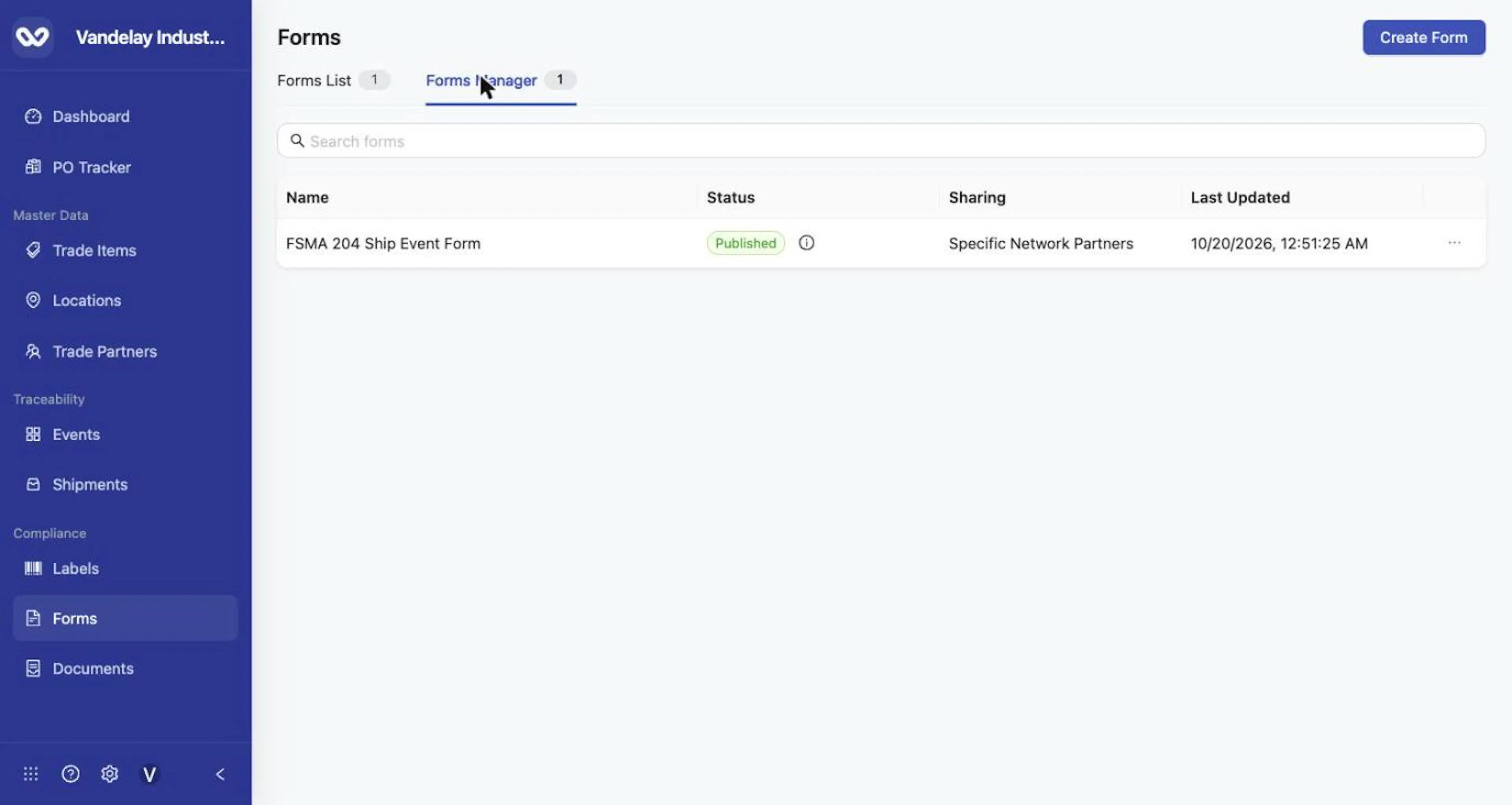
Forms Manager: forms your account owns, with Status and Sharing columns and the Create Form button.
Two audiences, two workflows
- Suppliers follow Open and complete a shared Ship Event form and Add products and submit a Ship Event form. You work in Forms List.
- Account owners follow Create and configure a form and Publish, share, and manage a form. You work in Forms Manager.
An account can be both. For example, a company that buys from its own suppliers owns forms in Forms Manager and also completes forms shared by its customers in Forms List.
Articles in this guide
| Article | Audience | Use it to |
|---|---|---|
| Open and complete a shared Ship Event form | Supplier | Find a shared form and fill in vendor, origin, destination and shipment details. |
| Add products and submit a Ship Event form | Supplier | Add or import products, clear, and submit. |
| Create and configure a form | Account owner | Create a form and set its instructions, labels, attributes and columns. |
| Publish, share, and manage a form | Account owner | Publish, rename, share, copy a link, or delete. |
| Field and settings reference | Both | Look up any field, setting, status or message. |
| Troubleshooting and FAQ | Both | Resolve problems and find quick answers. |
Glossary
| Term | Meaning |
|---|---|
| Ship Event form | The form type Wholechain currently supports. A supplier completes it to report a shipment. |
| Forms List | Tab of forms shared with your account. |
| Forms Manager | Tab of forms your account owns. |
| Draft / Published | Draft means never published; Published means a version is available to recipients. Later edits stay unpublished until you publish again. |
| Sharing | Who receives the published form: Don't Share, All Network Partners or Specific Network Partners. |
| SSCC | Serial Shipping Container Code, the container identifier. |
| TLC | Traceability lot code, used in FSMA 204 traceability records. |
| TLC Source | The source the TLC is assigned from; follow the buyer's instructions. |
| Trade Partner | A company connected to your Wholechain account. |
Your form may look different
Form owners can rename most sections and fields and can hide optional columns. The labels in this guide are the Wholechain defaults or the labels on the example form. If your form uses different names, follow the same steps using the labels you see, and rely on the buyer's instructions and tooltips for their specific requirements.
Plans
Which plan you need to create your own forms, or to complete forms for several buyers, depends on your account's plan and your buyers' requirements. See the plan comparison at wholechain.com/pricing, or contact support@wholechain.com.
Related documentation
This guide refers to these Wholechain topics by name: Add Location, Documents, Trade Items and item identifiers, and Shipments.
Field and action reference
Purpose
Forms lets an account owner (usually a buyer) give Trade Partners a structured form to complete so that shipment information reaches the owner in a consistent format. The supported form type is the Ship Event form. Using a form supports traceability programs, including FSMA 204 use cases. It does not by itself guarantee regulatory compliance.
Location
In the left sidebar, open Compliance → Forms. Forms is the second module under Compliance, between Labels and Documents.
Tabs
| Tab | Shows | Used by |
|---|---|---|
| Forms List | Forms that connected Trade Partners shared with your account. | Suppliers completing a form. |
| Forms Manager | Forms your account owns. Contains the Create Form button. | Account owners creating, configuring, publishing and sharing forms. |
The number beside each tab name is the count of forms in that tab. An account can use both tabs.
Records and relationships
| Record | Description |
|---|---|
| Form | A Ship Event form definition owned by one account. It has a name, a configuration, a status and a sharing setting. |
| Published version | The configuration recipients see. It changes only when the owner publishes. |
| Draft configuration | The configuration the owner is editing. Changes save automatically but stay unpublished until published. |
| Submission | A completed Ship Event form sent by a supplier to the owner. |
Key concepts
| Concept | Meaning |
|---|---|
| Creating, saving, publishing, sharing | Four separate stages. Creating or configuring a form does not publish it, and publishing does not share it. |
| Sharing scope | Sharing a form does not share the destination Locations or Trade Items a supplier needs to complete it. |