

Decommission
Record that a quantity of a lot is no longer in inventory, for example because it was damaged or disposed of.
Applies to: Decommission events, recorded from Add Events on the Events page
Audience: Anyone who removes goods from inventory without shipping them
Prerequisites: The lot exists as inventory at the Location. If the goods are inside a container, the container has been disaggregated.
Related: Wholechain Events Overview; Shared event fields; Disaggregate; Background: Decommission Events
Purpose
Use Decommission to record that a quantity of a lot is no longer in inventory, for example because it was damaged or disposed of. Decommission removes the quantity from your records, and the Disposition you choose records the state of the goods and why they were decommissioned.
Before you begin
- The lot must exist at the Location.
- Decommission cannot use the Containers tab. If the goods are inside a container, disaggregate the container first (see Disaggregate).
- You can decommission part of a lot. Enter less than the available quantity.
- A Decommission needs a Disposition and no other reason: the Disposition records why.
- Fields shared by every event (Date, Time, Time Zone, PO Number, Business Step, Disposition, Read Point, documents) are explained in Shared event fields.
Record a Decommission
Choose Decommission, a Location and Products
Select Add Events, set Event Type to Decommission, then choose Location and Products.
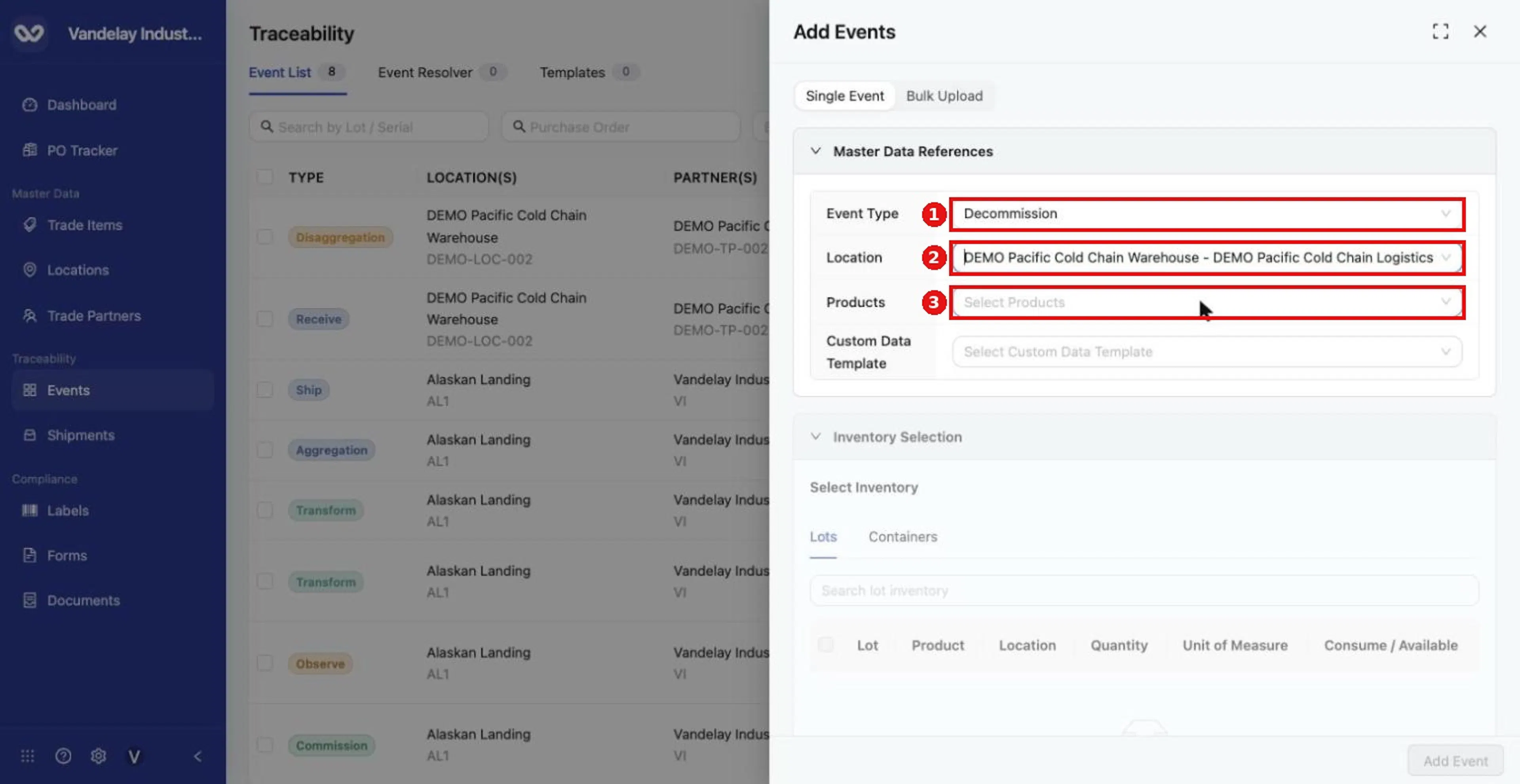
For a Decommission, choose Event Type Decommission and a Location, then Products.
Tick the lot and enter the quantity to decommission
On the Lots tab, tick the lot and enter the quantity to decommission. You can decommission part of a lot.
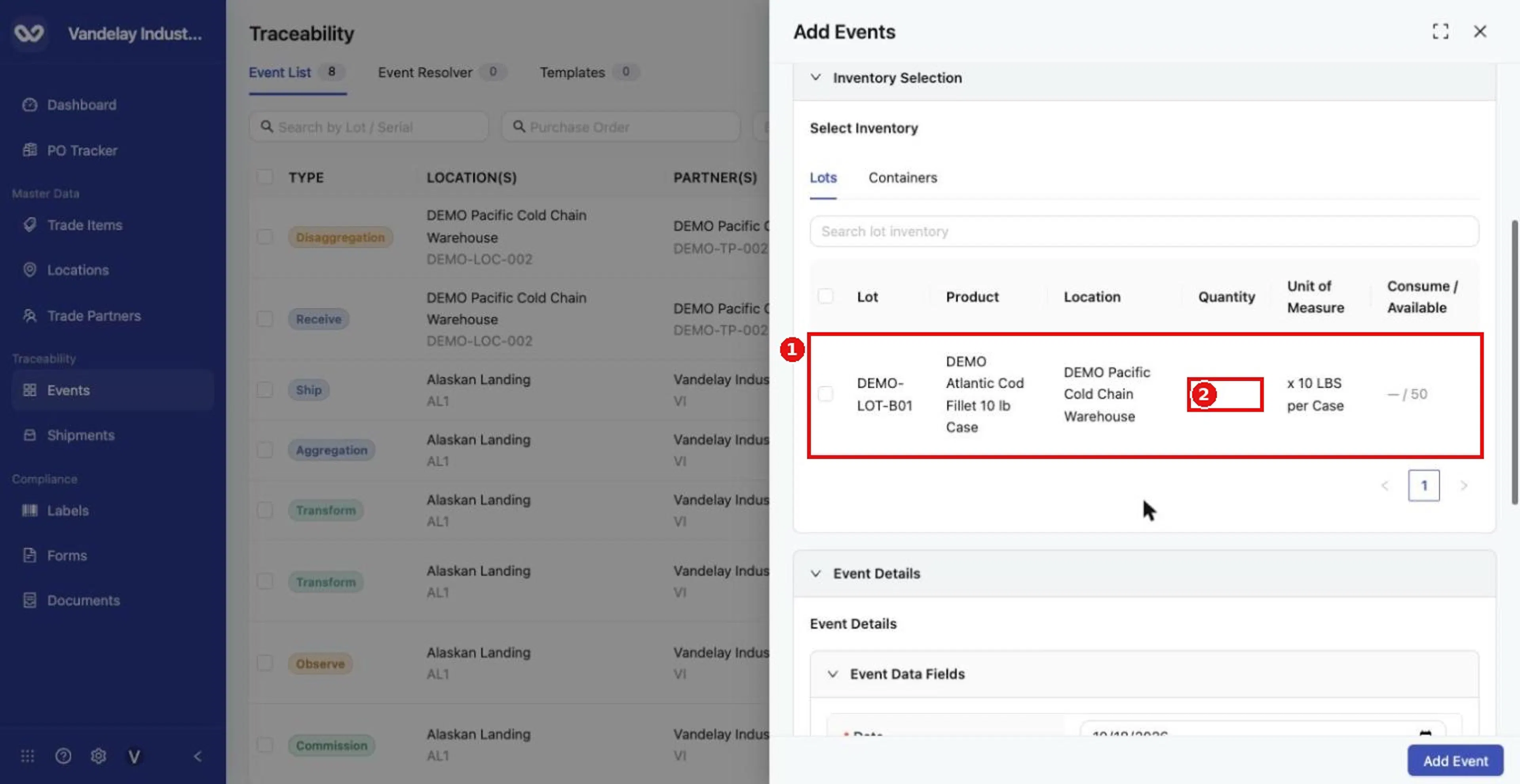
Select the lot and enter the quantity to decommission.
Choose a Business Step and Disposition
Choose a Business Step and Disposition. The form pre-fills Decommissioning (CBV) and Inactive (CBV); the Disposition list also includes Damaged (CBV), Destroyed (CBV), Dispensed (CBV) and Disposed (CBV). Choose the Disposition that explains why the goods are leaving inventory.
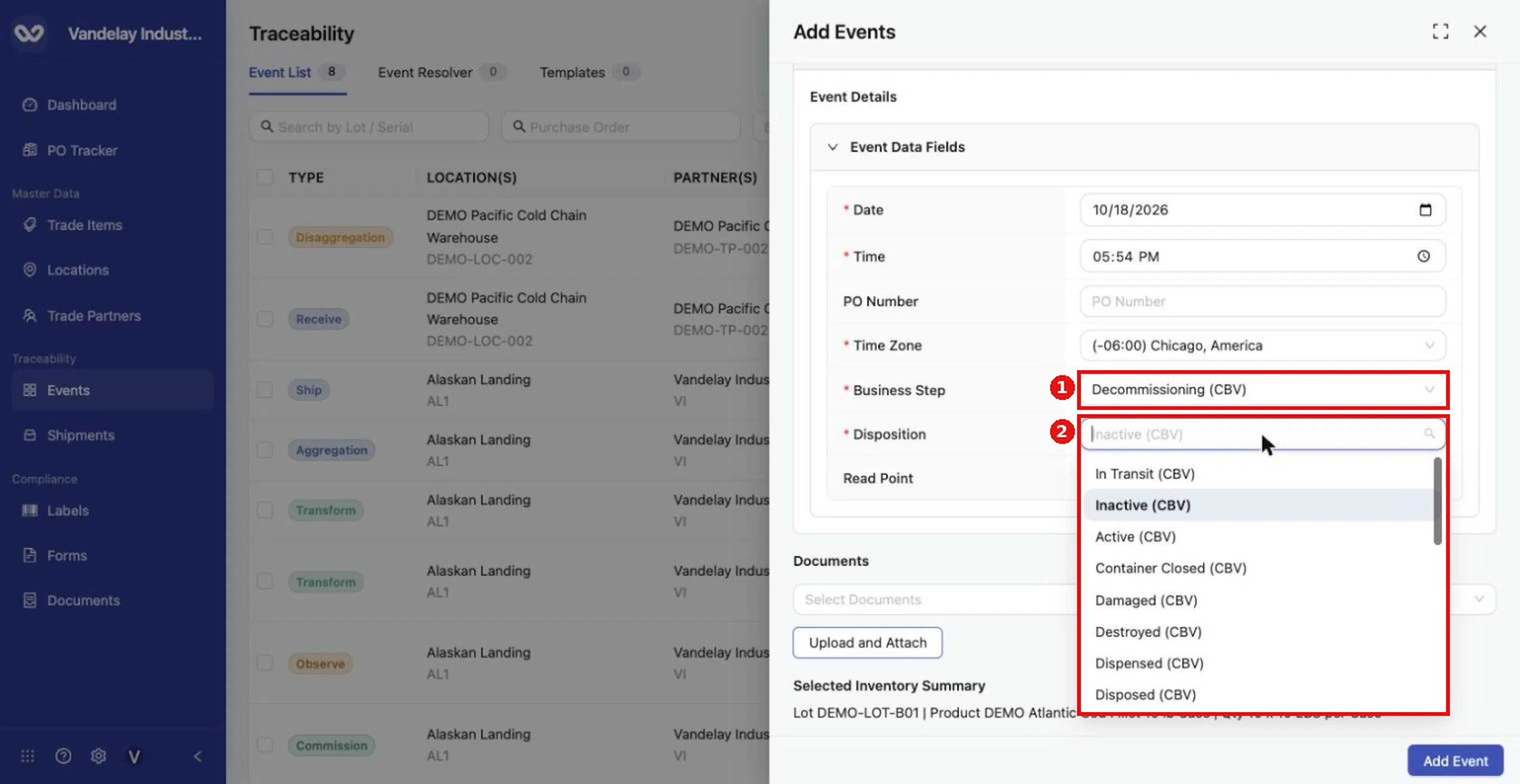
Choose the Business Step and a Disposition from the list.
Select Add Event
Select Add Event.
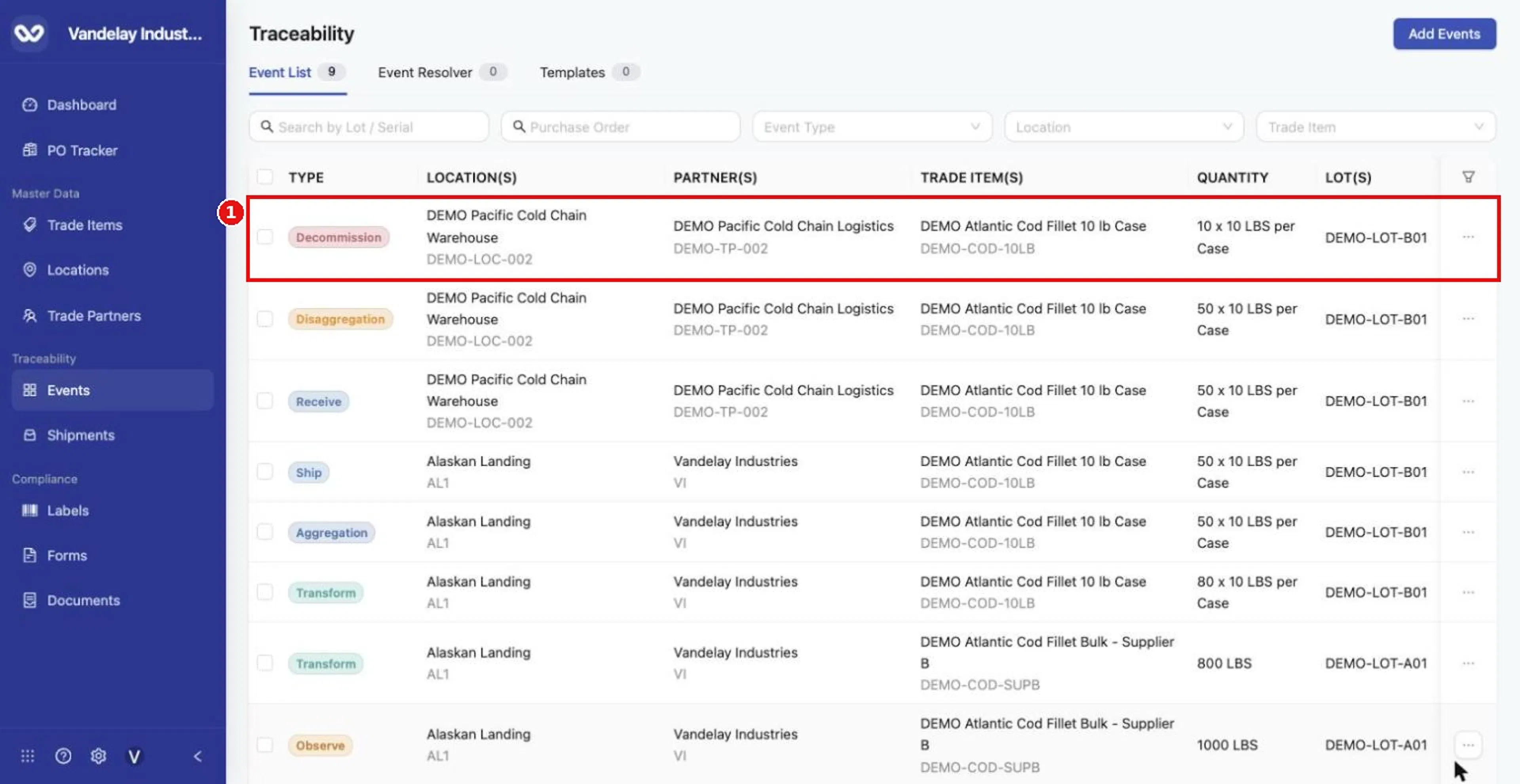
The Decommission appears at the top of the Event List.
Expected result
A Decommission row appears in the Event List with the quantity. Example: 10 of 50 cases of DEMO-LOT-B01, Disposition Damaged (CBV).
Troubleshooting
- I cannot find a field for the reason. A Decommission has no Reason field. Use Disposition, which records why the lot was decommissioned.
- The goods are inside a container and are not offered. Decommission cannot use the Containers tab. Disaggregate the container first (see Disaggregate).
Field and action reference
The fields every event shares, the full Business Step and Disposition lists, and the default values for each event type are in Shared event fields. The details below apply to Decommission only.
Defaults for Decommission
Business Step: Decommissioning (CBV). Disposition: Inactive (CBV).
Inventory selection
| Tab | Description |
|---|---|
| Lots | Lists the lots at the Location with Consume / Available. A partial Consume amount is allowed. |
The Containers tab is not used for Decommission.
Dispositions that suit a Decommission
Disposition is required and is the only field that records why a lot was decommissioned. The form pre-fills Inactive (CBV). The list also includes Damaged (CBV), Destroyed (CBV), Dispensed (CBV) and Disposed (CBV); the complete Disposition list is in Shared event fields.