

Share a Location and set its data policy
Share your own Locations with Trade Partners as Viewer or Editor, and set the data policy (KDEs) for a single Location from its details drawer.
Applies to: Locations that belong to your own company (sharing), and any single Location (its data policy, set with the gear icon on the Location drawer).
Audience: Users who manage Locations and share them with Wholechain-connected Trade Partners; an Admin switches Data Policy on for the account.
Prerequisites: The Location already exists and belongs to your own company (for sharing); the Trade Partner is connected in Wholechain (for sharing); Data Policy is switched on in Organization Settings > Account by an Admin (for the data policy); you know which data element you need and how strict the rule should be.
Related: Locations overview; Browse and manage Locations; View and edit a Location; Location Groups; Locations FAQ; Reference Guide: Module overview; Location details (Reference); Rules and restrictions (Reference); Account (Settings); Master Data Settings (Settings); Data elements and policies (Settings)
Purpose
This article covers two things you do with a Location.
- Share it. Give Wholechain-connected Trade Partners access to a Location that belongs to your company, as a Viewer or an Editor, so they can use it on their Ship and Receive events.
- Set its data policy. List the KDEs (Key Data Elements) that should be captured for one specific Location, and set how strictly each is enforced, where its value is supplied and whether it is shared.
Share a Location
Sharing is managed in two places: the Sharing tab of one Location's drawer, and the Share Locations drawer, which shares several Locations at once from the list.
What Viewer and Editor mean
When you share a Location you choose a permission level for each Trade Partner. The level decides what that partner can do with your Location.
| Level | What the Trade Partner can do with the shared Location |
|---|---|
| Viewer | Use the Location in its traceability events. Cannot edit custom data (KDEs) on the Location. |
| Editor | Use the Location in its traceability events, and also edit custom data (KDEs) on the Location. |
As the sharer, you choose the level for each partner and you can change it, or stop sharing, at any time. Changing who can see a Location changes what your partners can see, so check with your administrator first.
Where a shared Location can be used
A shared Location can be used only in Ship and Receive events:
- as a destination on a Ship event, and
- as an origin on a Receive event.
For the event types and how to record them, see the Wholechain Events overview.
Before you begin
- Confirm that the Location belongs to your own company. The Sharing tab appears only for those Locations.
- Confirm that the Trade Partner you want to share with is connected in Wholechain. The Share Locations drawer lists only Wholechain-connected Trade Partners, and the list is empty when none is connected.
- Decide which level each partner needs. Editor lets a partner change KDE values on your Location.
Manage sharing on one Location
Open the Location's drawer
On the Locations tab, select the Location's name. See Browse and manage Locations if you need help finding it.
Select the Sharing tab
The tab lists the Trade Partners the Location is shared with and shows the Owner. A Manage Sharing button is at the top right.
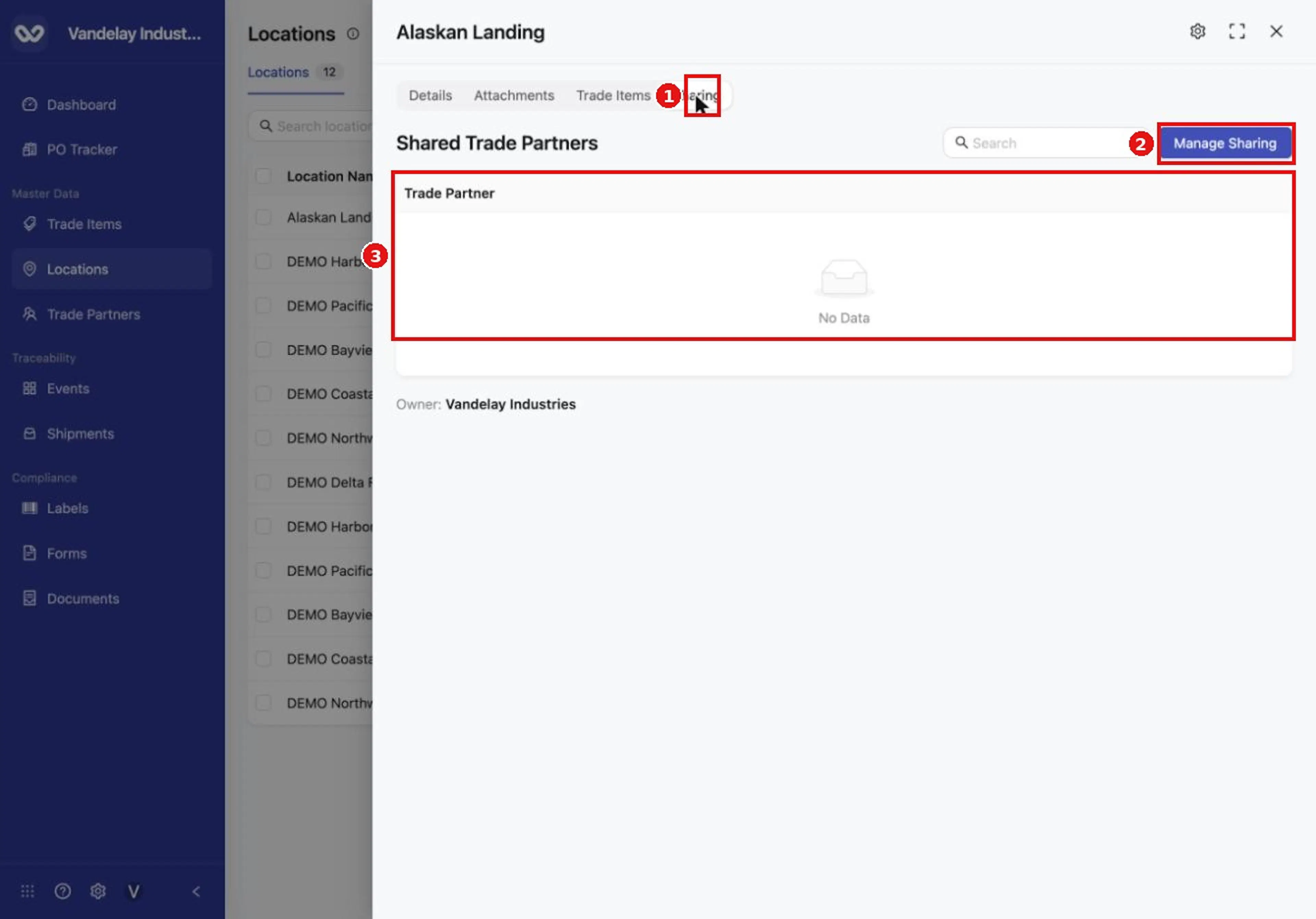
The Sharing tab shows which Trade Partners can see this Location. The Manage Sharing button is at the top right of the tab.
Select Manage Sharing
Use it to share the Location with Trade Partners, to stop sharing it with partners it is already shared with, and to change each partner's permission level.
Set each partner's permission level
Choose Viewer or Editor for each partner you share with, change a level that is already set, or stop sharing with a partner. The Shared Trade Partners table on the Sharing tab lists the partners the Location is shared with.
Share several Locations at once
You can share Locations from the Locations list without opening each drawer.
Tick the Locations to share
Tick the box at the start of each row. A selection bar appears at the bottom and shows n selected.
Select Share
The Share Locations drawer opens.
Select Trade Partners to share with
Choose one or more Wholechain-connected Trade Partners. The Selected Locations table lists your selection (Location Name, Location Identifier, Trade Partner, Current Location Group) for checking only.
Set the permission level for each partner
Choose Viewer or Editor beside each partner you selected.
Select Share
The button stays greyed out until a Trade Partner is chosen. Selecting it shares the selected Locations with the chosen partners at the level set for each.
The selection bar and the other list actions are described in Browse and manage Locations.
You can also choose which of your own Locations to share when you invite a Trade Partner. See Invitations.
What a partner who receives a shared Location can do
A Location shared with you belongs to another account, so its details cannot be edited by you. What you can do depends on the level the owner gave you:
- Viewer: use the Location on your Ship events (as a destination) and Receive events (as an origin). You cannot edit custom data (KDEs) on it.
- Editor: do the same, and also edit custom data (KDEs) on the Location.
Where data policies are set
A data policy can be set at three levels:
- Universal, for all Locations. Set in Master Data Settings > Location. A policy set there is universal.
- For Location Groups. A group policy is a sub-group of the universal policy. It is managed on the Location Groups sub-tab of Master Data Settings > Location, and also in the Data Policy tab of the group's drawer. See Location Groups.
- One Location. Set only on that Location's details drawer, with the gear icon. The steps below cover this level.
Data Policy must first be switched on for the whole account. An Admin does this with the Data Policy switch in Organization Settings > Account, in the Compliance section. See Account.
To reach the universal and group policies, click the gear icon at the top of the Locations page (or open Settings with the gear icon at the bottom of the left-hand navigation bar), then go to Master Data Settings > Location. See Master Data Settings. The Data Element Library and KDE definitions are described in Data elements and policies.
Defining a KDE versus entering its value. These are two separate steps. A data policy defines which KDEs apply and how strictly, at any of the three levels. Values are always entered on the individual Location record.
Set a data policy for one Location
Open the Location's settings
Open the Location's drawer and click the gear icon, or choose View Settings from the row's ... menu in the Locations list. The Location Settings page opens with a Data Policy section. It explains that inherited policies come from the module-level data policy.
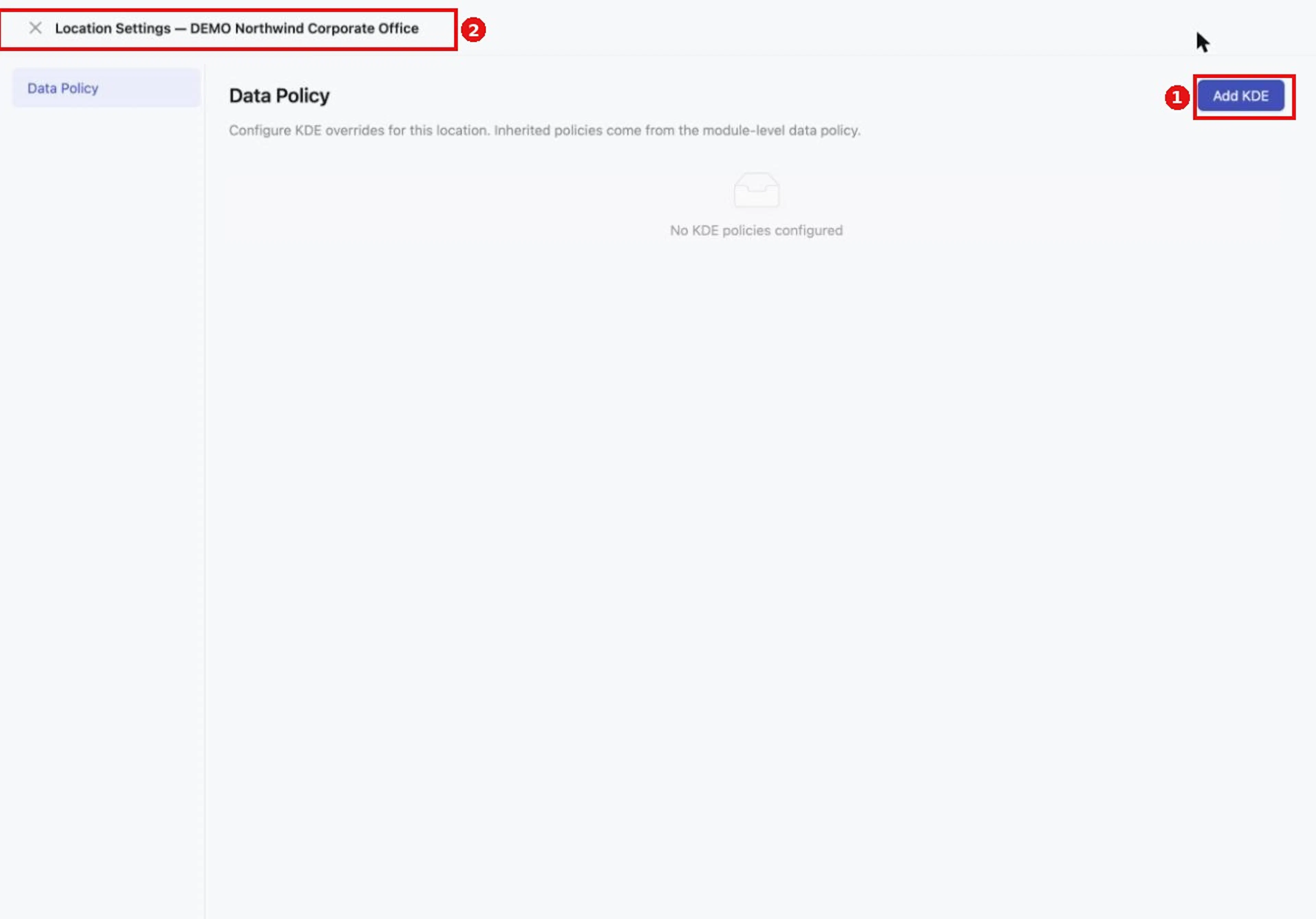
The Location's Data Policy page shows policy fields for this one Location. Add KDE adds a field.
Click Add KDE
The Add KDE drawer opens with the fields KDE Source, Select KDE, Enforcement, Realization and Sharing.
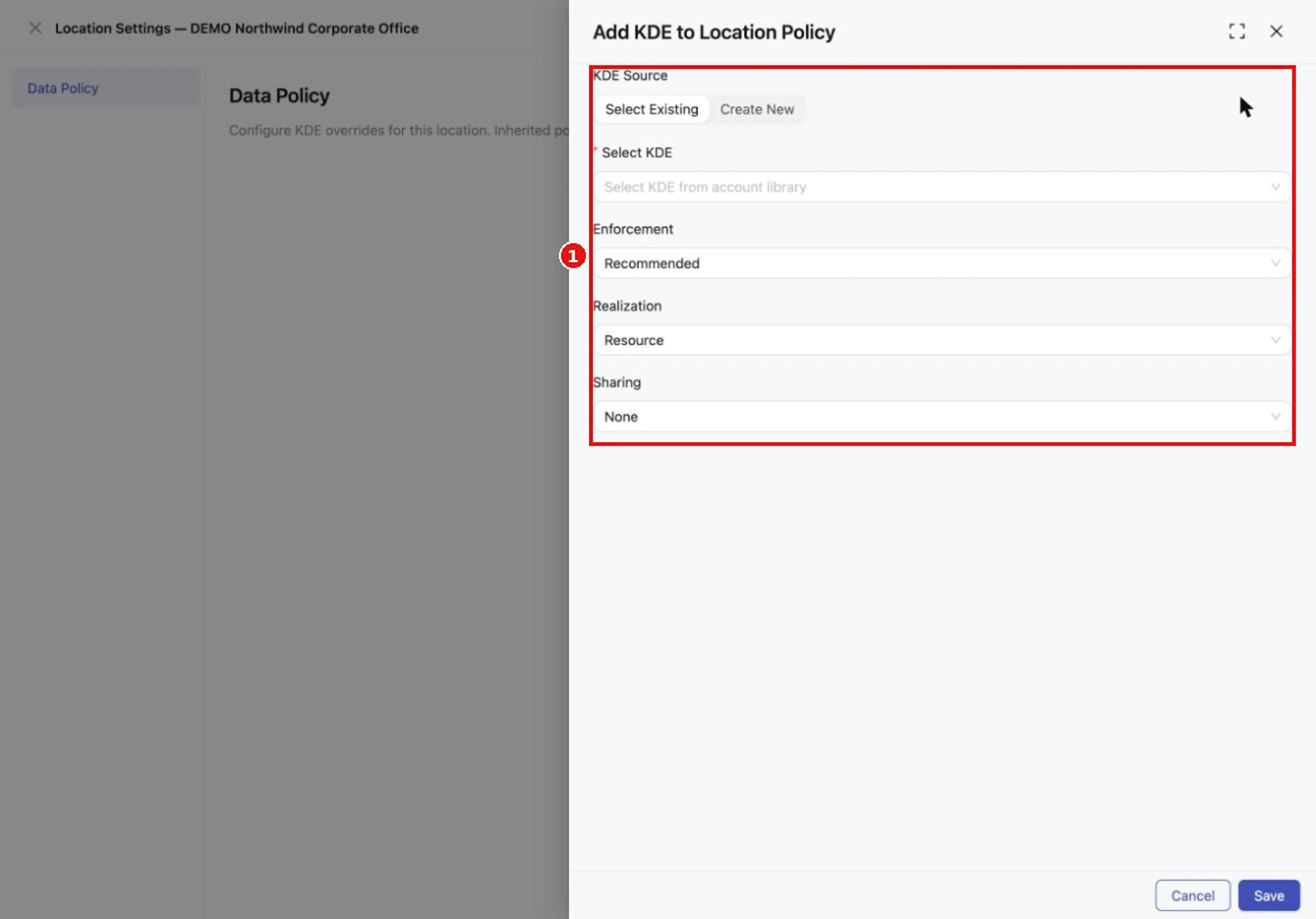
The Add KDE drawer. Select Cancel to leave without saving.
Choose a KDE Source
Leave Select Existing selected to pick a KDE from your account library, or choose Create New to define a new KDE (see the note after these steps).
Open Select KDE and choose a KDE
Type to search the library.
Set Enforcement
Choose Optional, Recommended, Expected or Required.
Set Realization
Choose Resource or PropagatedValues.
Set Sharing
Choose None, Read or Write.
Click Save
Click Save to keep the policy, or Cancel to leave without saving.
What the settings mean
- Enforcement. How strongly the KDE is expected. Only Required prevents an event from being logged when the value is missing. The weaker levels (Optional, Recommended, Expected) signal importance without blocking.
- Realization. Where the value is supplied. Resource: the value belongs to master-data resources (such as the Location) and to related features such as PO Tracker and Labels. PropagatedValues: the value is supplied during events.
- Sharing. None keeps the value inside your account. Read makes it visible to those it is shared with. Write lets recipients edit it within their sharing permissions. This setting belongs to the KDE; it is separate from sharing the Location itself, described earlier in this article.
Creating a new KDE. Choosing Create New asks for a Field Name, a Display Name and a Value Type (String, Number, Date & Time, Boolean or Lookup), plus the same Enforcement, Realization and Sharing choices. A new KDE is added to your account's Data Element Library, so create one only when no existing KDE fits. Lookup adds a required Lookup dataset field: the list of allowed values.
Expected result
Sharing. The Sharing tab lists the partners the Location is shared with. Partners can use the Location on their Ship events as a destination and on their Receive events as an origin.
Data policy. A KDE saved message appears and the KDE is listed in the Location's policy table with its value type, enforcement, realization, sharing and source.
Troubleshooting
- There is no Sharing tab on a Location. The Sharing tab is shown only for Locations that belong to your own company.
- The Share button is greyed out. Choose at least one Trade Partner first. If the list of Trade Partners is empty, none of your partners is connected in Wholechain yet.
- I cannot edit a Location's details. A Location that is shared with you, or that belongs to another Wholechain account, cannot be edited because the details belong to another account. See Rules and restrictions.
- A shared Location is not offered on an event. A shared Location can be used only as a destination on Ship events and as an origin on Receive events.
- The Data Policy is not available. An Admin must first switch on Data Policy in Organization Settings > Account (Account).
- My entries disappeared when I closed the drawer. The Esc key closes a drawer and discards entries that are not saved. Select Save first.
- For anything else, contact Wholechain support at support@wholechain.com.
Field and action reference
Sharing tab and Share Locations drawer
| Item | Description |
|---|---|
| Sharing tab | Shown only for Locations that belong to your own company. Lists the Trade Partners the Location is shared with (Shared Trade Partners table) and shows the Owner. |
| Manage Sharing | Top right of the Sharing tab. Shares the Location with Trade Partners, stops sharing it with partners it is already shared with, and changes the permission level for each partner. |
| Share (selection bar) | Appears at the bottom of the Locations list after one or more rows are ticked. Opens Share Locations. |
| Select trade partners to share with | Required. One or more Wholechain-connected Trade Partners, each with a permission level of Viewer or Editor. The list is empty when no Trade Partner is connected. |
| Selected Locations table | Read only. Columns Location Name, Location Identifier, Trade Partner, Current Location Group. |
| Share (drawer button) | Greyed out until a Trade Partner is chosen. Shares the selected Locations with the chosen partners at the level set for each. |
Permission levels
| Level | What the Trade Partner can do with the shared Location |
|---|---|
| Viewer | Use the Location in its traceability events. Cannot edit custom data (KDEs) on the Location. |
| Editor | Use the Location in its traceability events, and edit custom data (KDEs) on the Location. |
A shared Location can be used as a destination on Ship events and as an origin on Receive events.
Location data policy: Add KDE
| Field or action | Options | Notes |
|---|---|---|
| Gear icon on the Location drawer, or View Settings in the row's ... menu | Opens Location Settings, with the Data Policy section for this Location. | |
| Add KDE | Opens the Add KDE drawer. | |
| KDE Source | Select Existing, Create New | Switches between picking a KDE from the account library and defining a new one. |
| Select KDE | KDEs from the account library | Type to search. |
| Enforcement | Optional, Recommended, Expected, Required | Only Required blocks an event when the value is missing. |
| Realization | Resource, PropagatedValues | Resource: master-data resources, PO Tracker and Labels. PropagatedValues: supplied during events. |
| Sharing | None, Read, Write | None keeps the value in your account; Read makes it visible to those it is shared with; Write lets recipients edit within their sharing permissions. |
| Save | Keeps the policy and shows KDE saved. | |
| Cancel | Leaves without saving. |
Location data policy: Create New
| Field or action | Required | Options or notes |
|---|---|---|
| Field Name | Yes | The KDE's key. |
| Display Name | Yes | The readable name people see. |
| Value Type | Yes | String, Number, Date & Time, Boolean, Lookup. |
| Lookup dataset | Yes, for Lookup only | The list of allowed values. |
| Enforcement, Realization, Sharing | As in the table above. | |
| Save | Shows KDE saved and adds the KDE to the account's Data Element Library. |
Messages
| Message | Meaning |
|---|---|
| KDE saved | The KDE was added to the Location's data policy. |