

Add Locations
Add one Location with a form and an address search, or many Locations and updates at once from an Excel spreadsheet.
Applies to: the Locations page, Add Locations drawer (Single Location and Bulk Upload tabs)
Audience: Anyone creating Location master data
Prerequisites: permission to create master data in your account; the Trade Partner that owns each Location must already exist; for bulk upload, Microsoft Excel or another program that saves .xlsx or .xls files
Related: Get started with Locations; Browse and Manage Locations; View and Edit a Location; Location Groups; Add Trade Partners; Locations FAQ; Reference Guide: Adding Locations; Reference Guide: Module overview; Field and action reference
Purpose
Add the places where product is grown, handled, stored or shipped to Wholechain, either one at a time with a form (finding the address on a map) or many at once from a spreadsheet. You can also update existing Locations by uploading the spreadsheet again.
Before you begin
- The Trade Partner that the Location belongs to must already exist. If it does not, add it first (see Add Trade Partners). Your own company is always available.
- The Location's name and its address, or its coordinates.
- For bulk upload: a spreadsheet in .xlsx or .xls format. Download the template from inside the drawer and do not rename or remove its columns.
- For bulk upload: the Location type codes (see Location type codes). The spreadsheet takes a code, not the label shown in the form.
Example values used here
| Field | Example |
|---|---|
| Trade Partner | DEMO Harbor Fresh Seafood |
| Name | DEMO Harbor Fresh Processing Plant |
| External Identifier | DEMO-LOC-001 |
| Location Type | Processing Plant |
| Address | 1 Ferry Building, San Francisco, CA |
Add a single Location
Select Add Locations
On the Locations page, select Add Locations. The drawer opens on the Single Location tab.
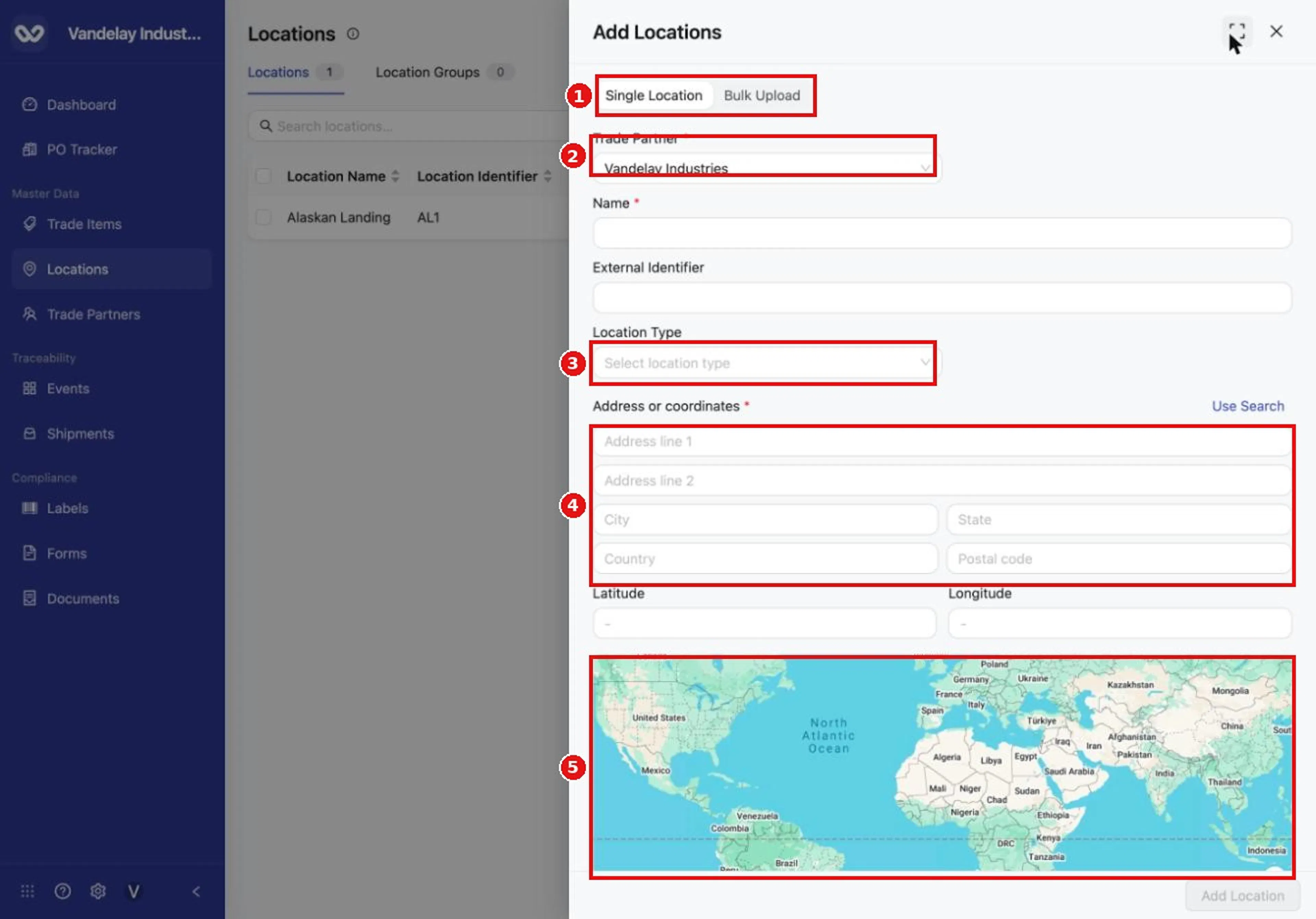
Add Locations opens on the Single Location tab. Choose the Trade Partner that the Location belongs to, then fill in the form.
Choose the Trade Partner
Open Trade Partner and choose the partner the Location belongs to. It is filled in with your own company at first. The list includes your own company and each partner you have added.
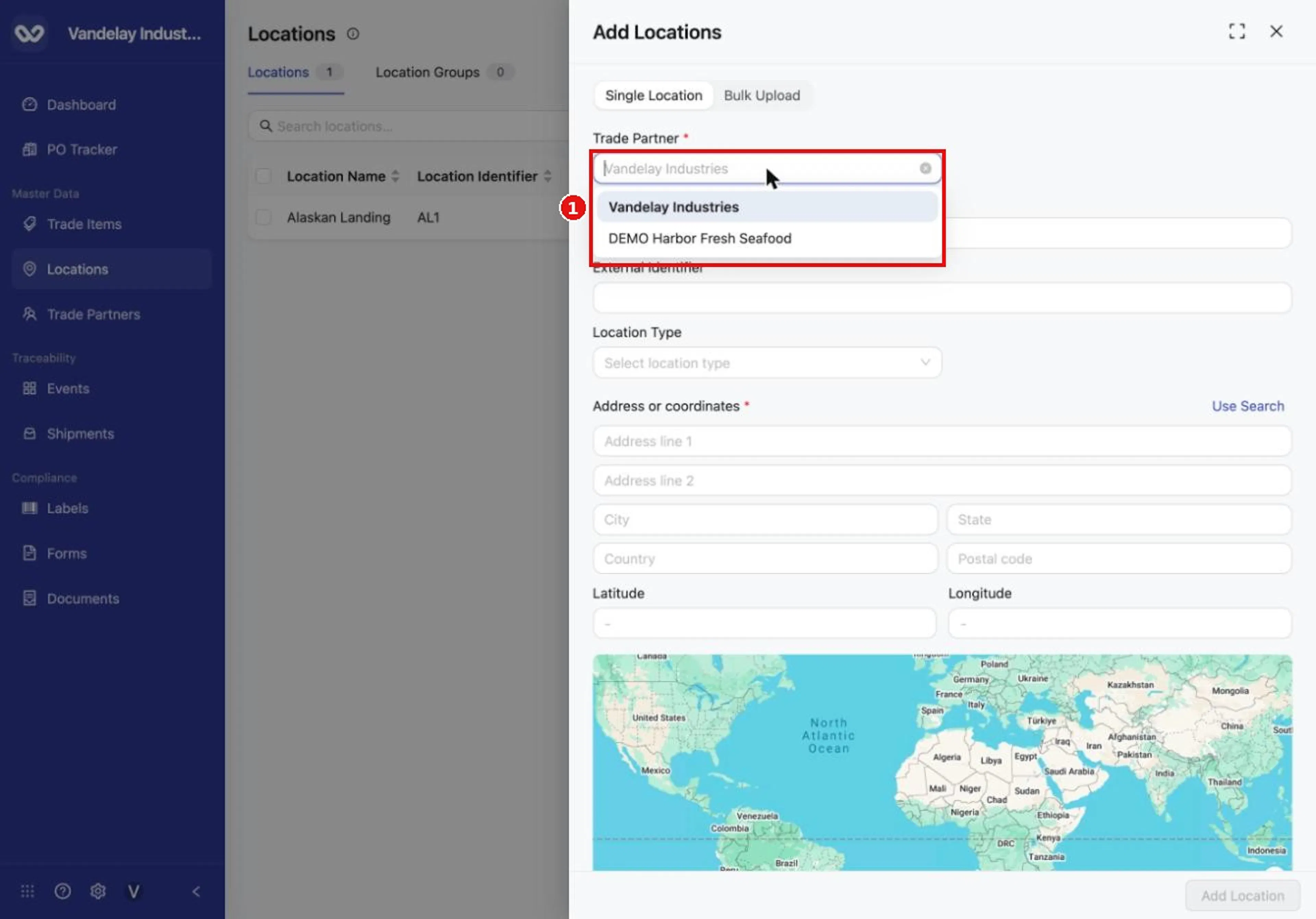
Choose which Trade Partner the Location belongs to.
Enter the Name and External Identifier
Enter the Name, which is required, and an External Identifier.
Choose a Location Type
Open Location Type and choose a type. Scroll the list to see all of them. The available types are listed in Location type codes.
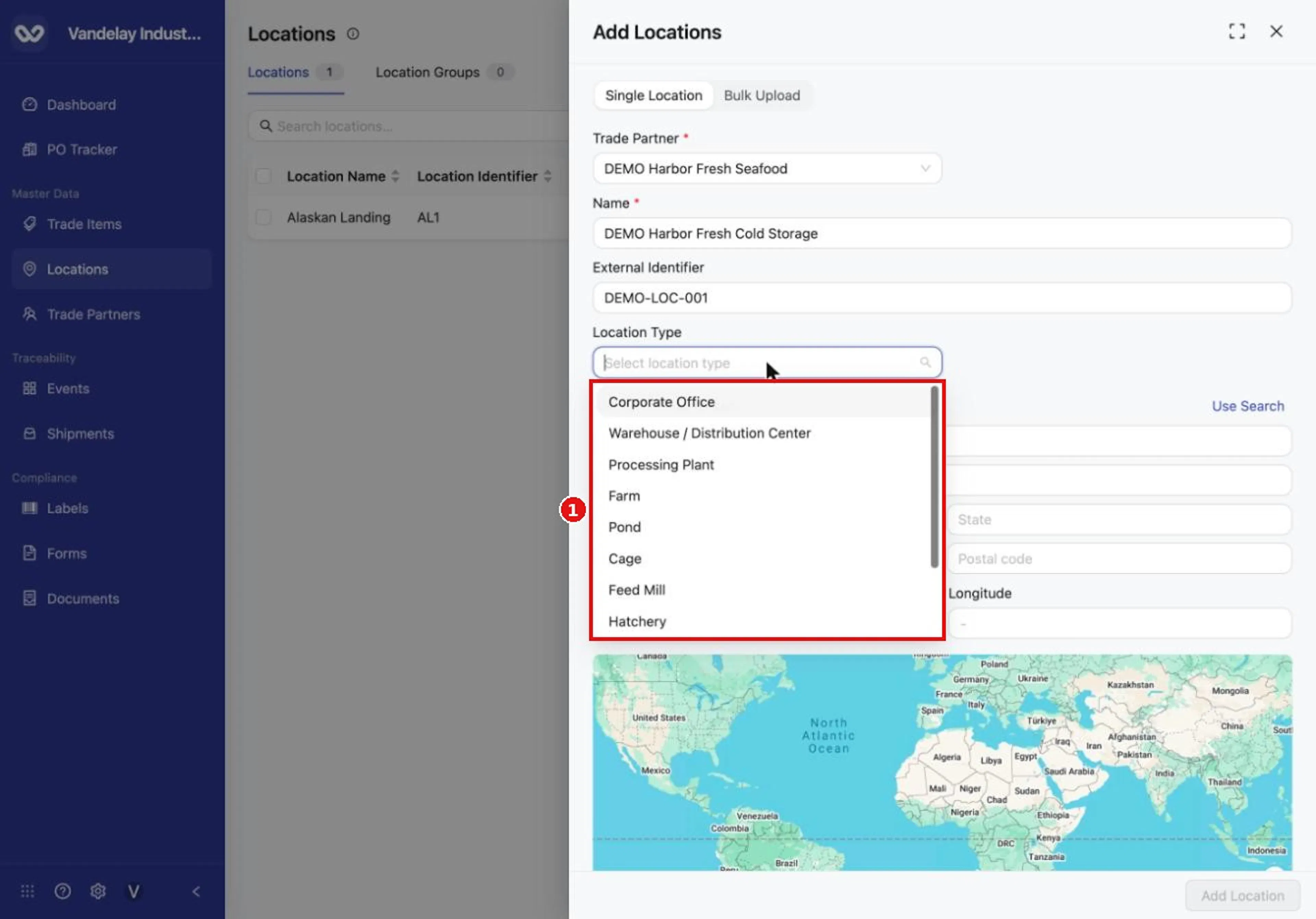
Location Type lists the kinds of Location, such as Corporate Office, Warehouse / Distribution Center and Processing Plant.
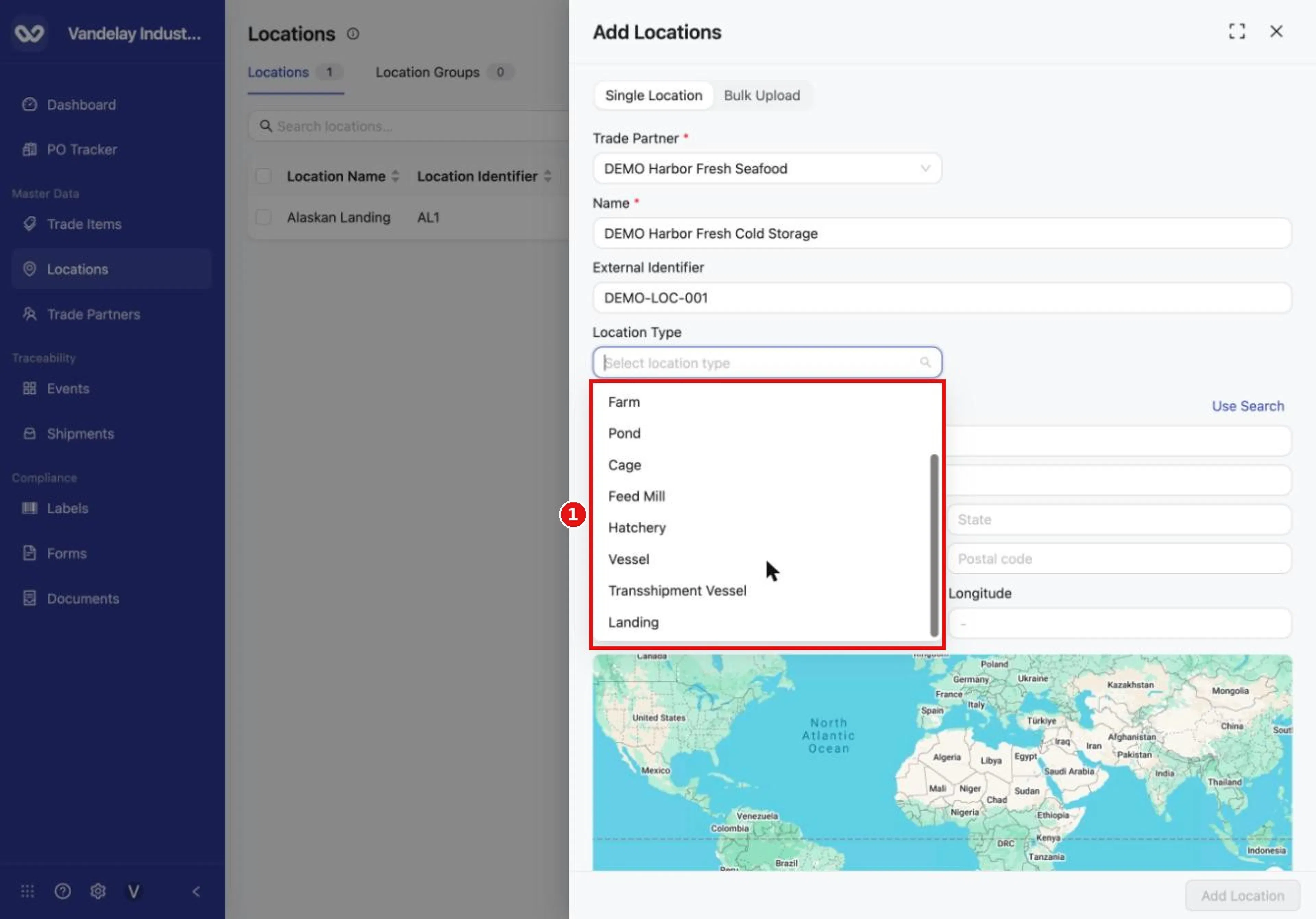
Scroll the list to see the rest, including Vessel, Transshipment Vessel and Landing.
Enter the address by hand, or use coordinates
Under Address or coordinates, the manual address fields open first. Enter Address line 1, Country and Postal code, which are required, and add Address line 2, City and State if you have them. Typing an address by hand does not fill in Latitude and Longitude. If you do not have an address, enter both Latitude and Longitude instead.
If you would rather have Wholechain look the address up, skip to the next step.
Or select Use Search to look up the address
To have Wholechain look up the address for you, select Use Search, type the address and choose a result.
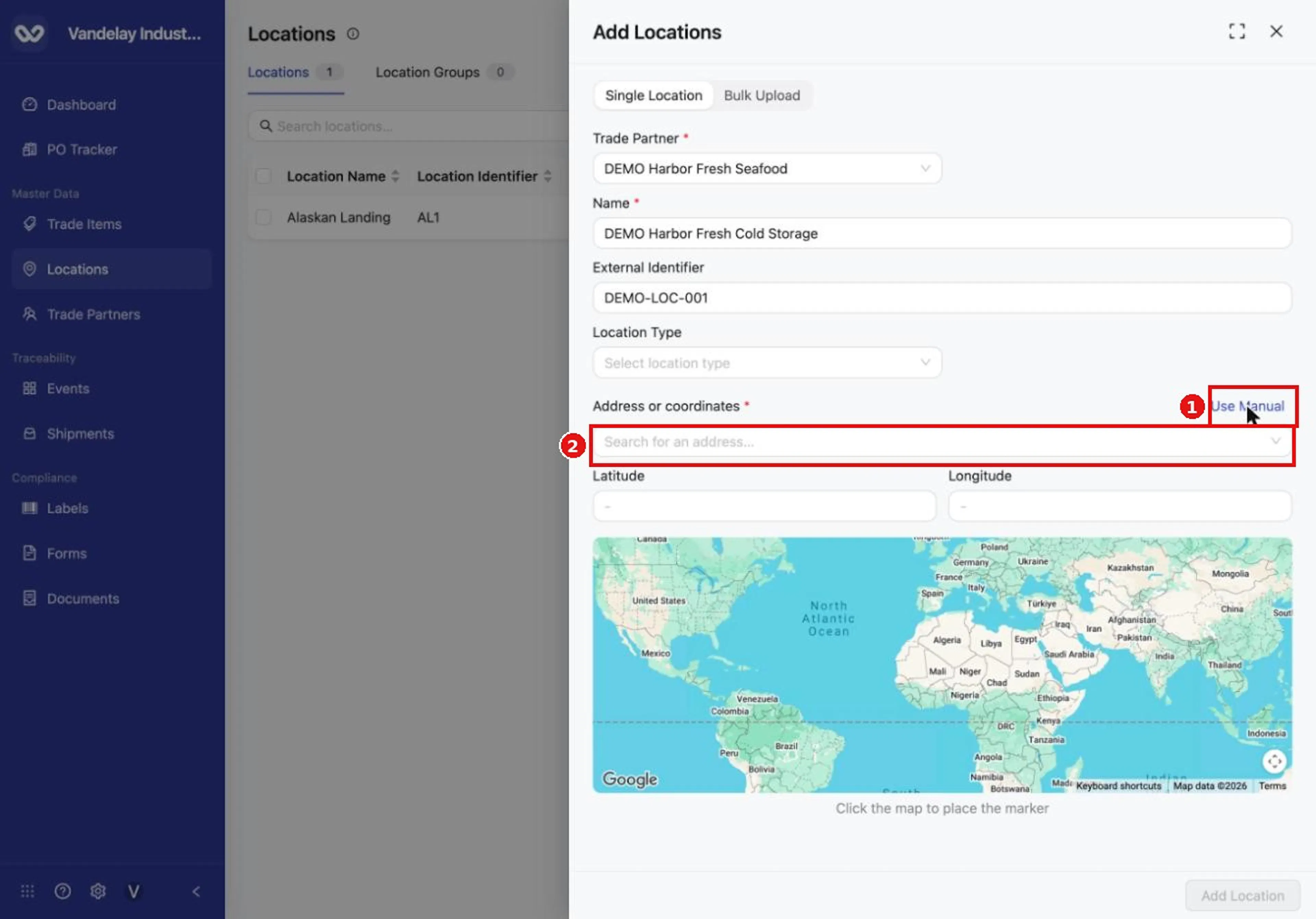
Search for an address, or select Use Manual to type the address fields yourself.
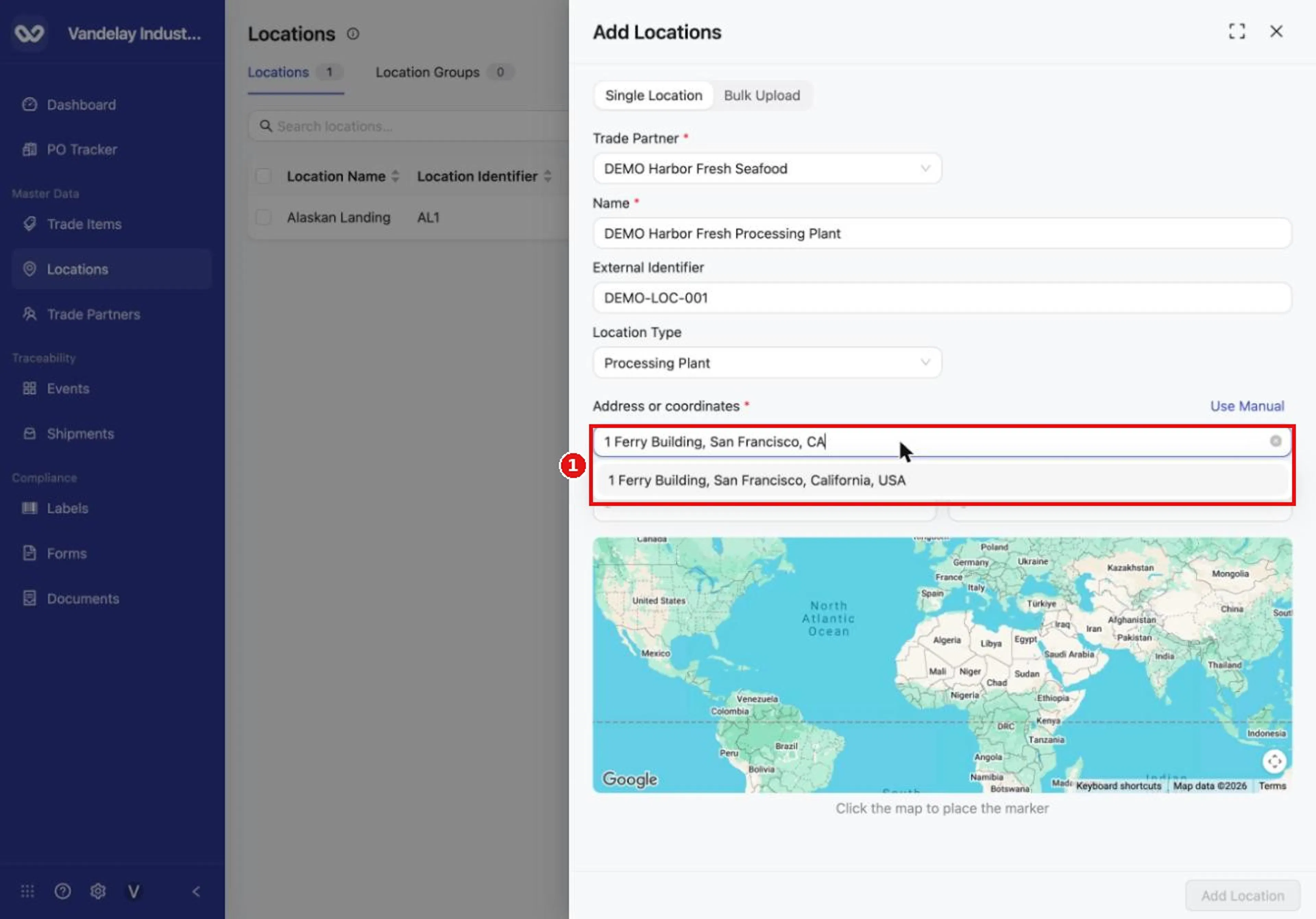
Type an address and choose a result from the list.
When the address is found, Wholechain fills in the address fields, the Latitude and Longitude, and the map waypoint.
Adjust the coordinates on the map if needed
To adjust the coordinates, drag the waypoint on the map. In manual entry, the first click on the map drops a waypoint, which you can then drag. Hold the Command key (or Ctrl key) and scroll to zoom the map.
Select Use Manual to edit the filled-in fields
To go back to the address fields, select Use Manual. After a search, the address fields and coordinates are already filled in, and you can edit them.
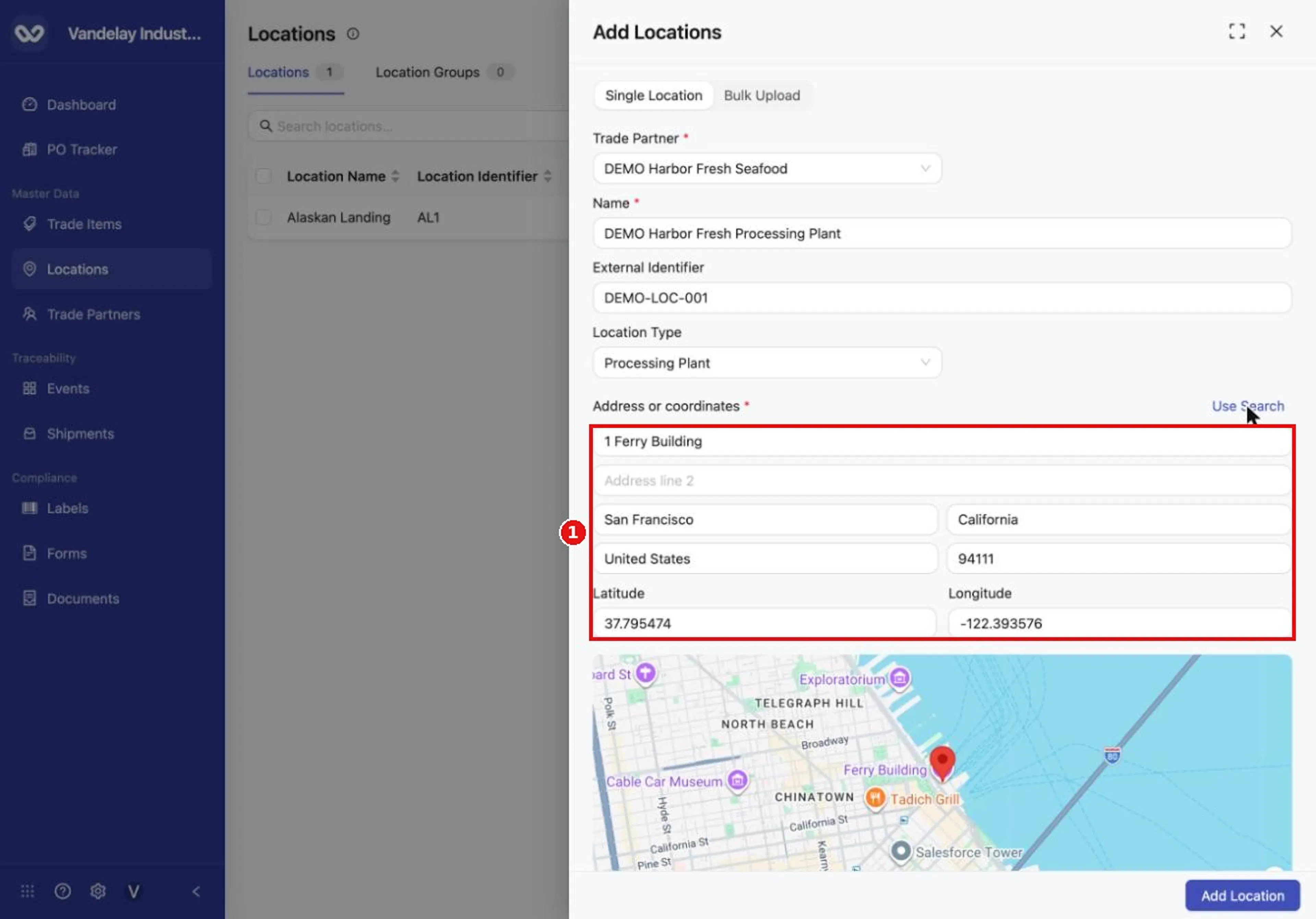
In manual mode, the address fields and coordinates are filled in for you after a search. You can edit them.
Select Add Location
Check the address, latitude, longitude and map pin, then select Add Location.
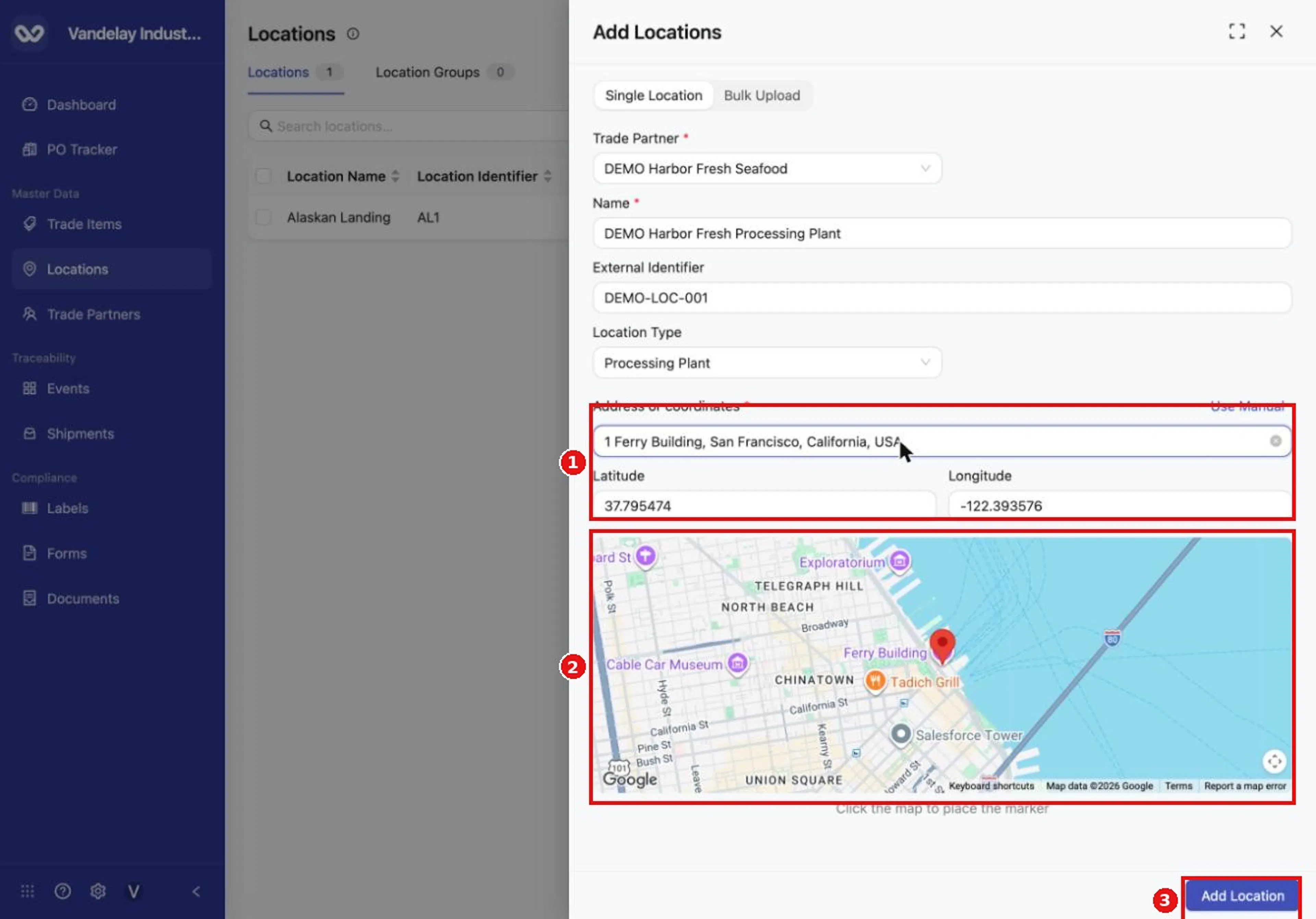
The address, latitude, longitude and map pin fill in. Select Add Location.
Why it matters. The Location type and address are what partners see when you share a Location, and the coordinates place it on maps. Choosing the address from a search result avoids spelling differences and fills in the coordinates for you.
Result. The Location's Details drawer opens, showing its name, identifier, type, and address with coordinates. The new row appears in the list.
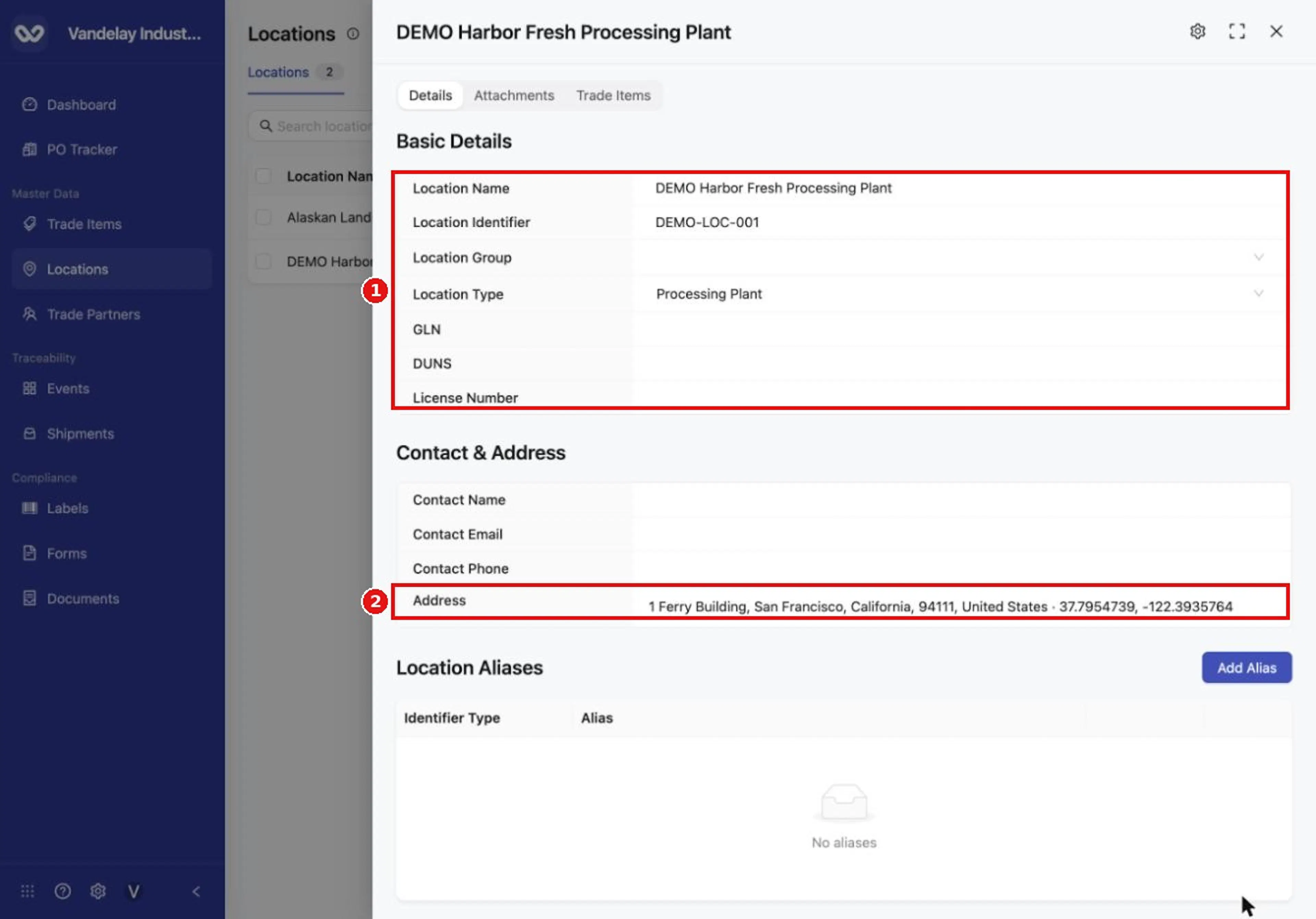
The new Location opens in its Details drawer.
Add many Locations with Excel
The Locations template has 21 columns. The first row holds the headings and the second row holds internal field codes (such as loc_name). Keep both rows. Each row describes one Location. At a minimum, a row needs a Company Name and a Location Name, plus either an address or Geocoordinates. The full column list is in the Field and action reference.
- Trade Partner columns (Trade Partner Number/ID, Company Name, PGLN) identify the Trade Partner the Location belongs to. Use the Trade Partner Identifier you gave the partner.
- Location Type takes a code such as
ProcessingPlant, not the label shown in the form. See Location type codes.
Open the Bulk Upload tab
Select Add Locations and open the Bulk Upload tab.
Download the Excel template
In step 1, select Excel Template to download the template.
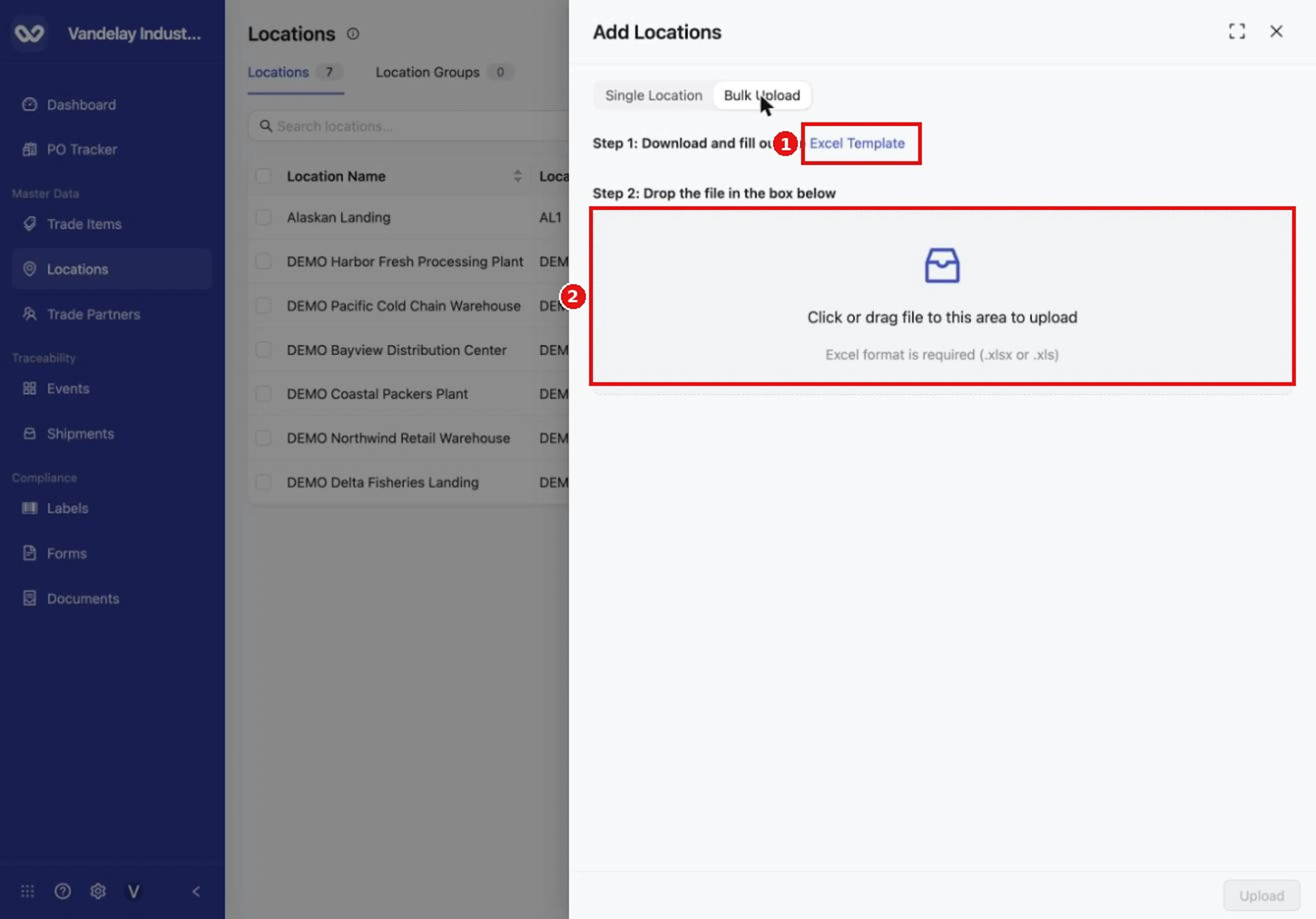
On the Bulk Upload tab, download the Locations template, then drop your completed file in the box.
Fill in one row per Location
Fill in one row per Location and save the file.
Add your file to the upload box
In step 2, click the upload box or drag your file onto it. The file name appears in the box.
Select Upload
Select Upload.
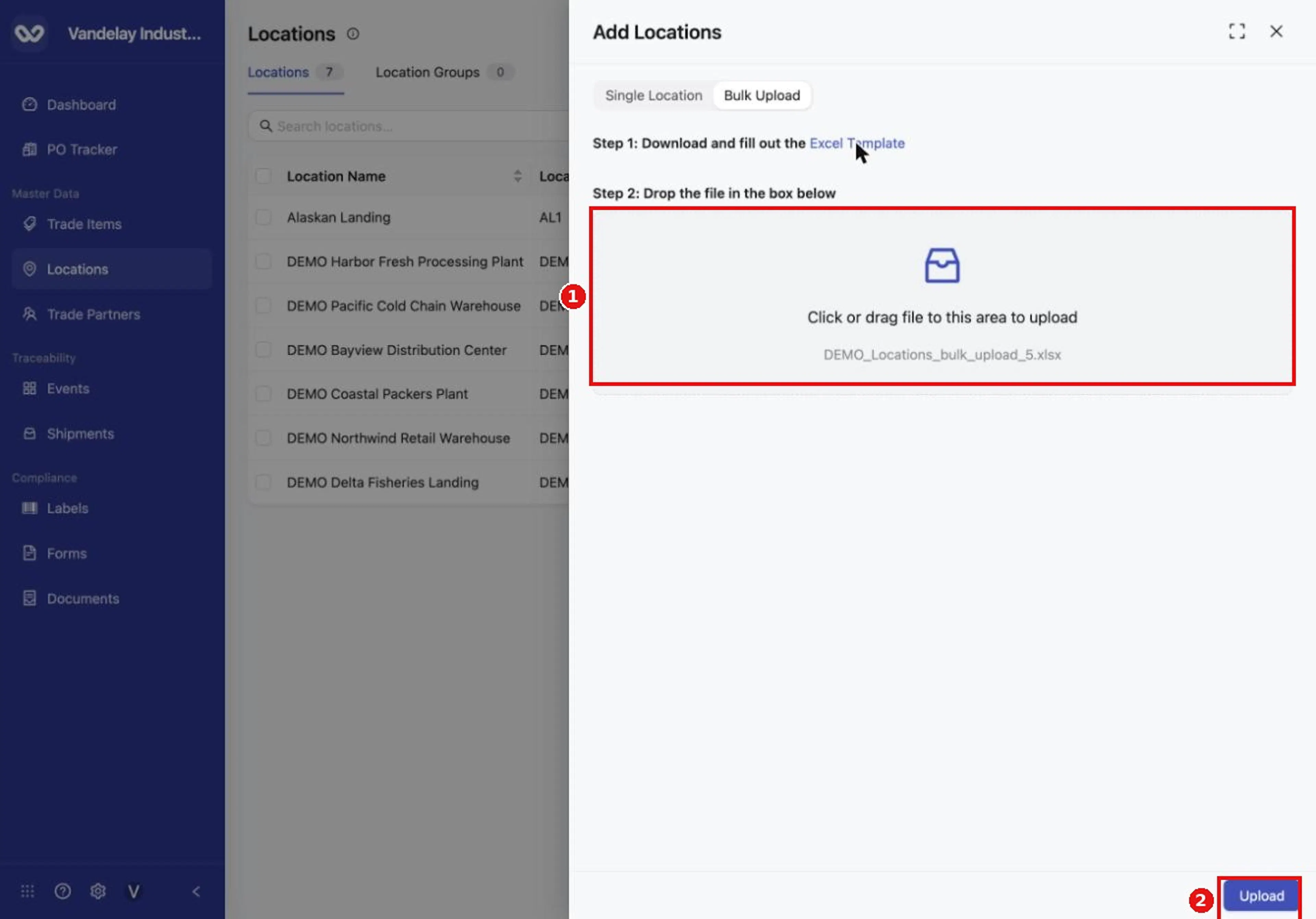
After you choose a file, select Upload.
Check the list
Check the list after the upload. The upload has no preview and does not report how many rows it created.
Result. The new locations appear in the list and the count updates.
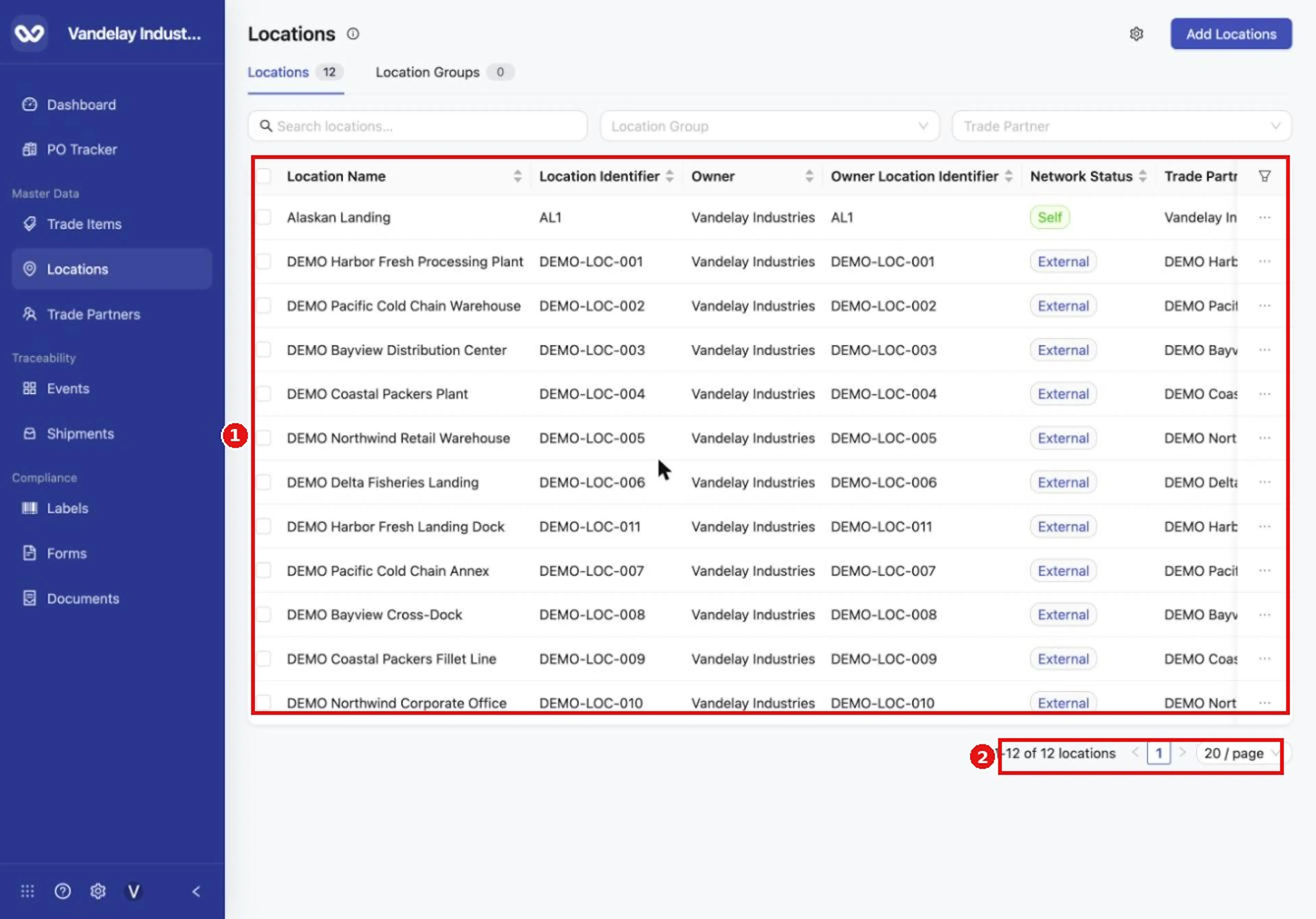
Check the list after every upload. The count shows how many Locations you have.
Update existing records by upload
A row that matches an existing record updates it. Records are matched by identifier, so if you use identifiers, include them in every file. If a row leaves the identifier blank for a record that was created with one, a new record is created, because a blank identifier counts as a value. To change a name through an upload, the row must carry the identifier so that Wholechain finds the right record.
Example files
Upload checklist
Download a fresh template
Download a fresh template each time.
Keep the first two rows
Keep the heading row and the field-code row.
Fill in one row per Location
Fill in one row per Location, with a type code in Location Type.
Upload and check the list
Upload, then check the list.
Fix errors from the issues file
If an error banner appears, download the issues file, read the Errors column, and upload only the rows that were not added.
Expected result
- Single: the new Location opens in its Details drawer and its row appears in the list.
- Bulk: the new Locations appear in the list and the count updates. No confirmation count is shown.
- Locations belong to the Trade Partner you chose (or named in the spreadsheet). To share a location with partners or manage it further, see View and Edit a Location.
Troubleshooting
-
My Trade Partner is not in the list. The Trade Partner must exist first. Add the partner, then add the Location (see Add Trade Partners). The Trade Partner list includes your own company and every partner you have added.
-
The address search returns nothing. Enter more of the address, for example the street number, city and state. A search for only a building name may return no result. You can also type the address in the manual fields, which open first, or click the map to drop a waypoint and drag it to the right spot.
-
The Location has coordinates 0, 0. Wholechain could not find coordinates for the address, for example for a Location added from a spreadsheet with an address but a blank Geocoordinates cell, so it saved the Location with 0, 0. To fix it, open the Location (see View and Edit a Location), select the Address row, use Use Search to find the address, check the coordinates and map, and select Save.
-
The Address column is blank. A Location added with coordinates only, and no address, shows a blank Address in the table. Edit the address if you want one to show.
-
A bulk upload shows an error banner. Select Download issues file, open it and read the Errors column, which says what to fix. Rows without errors may already have been added. Check the list, then upload a file that contains only the rows that still need to be added, so you do not create duplicates.
-
"Location Type must be one of ..." A Location Type was entered as a label instead of a code. Use a code from Location type codes.
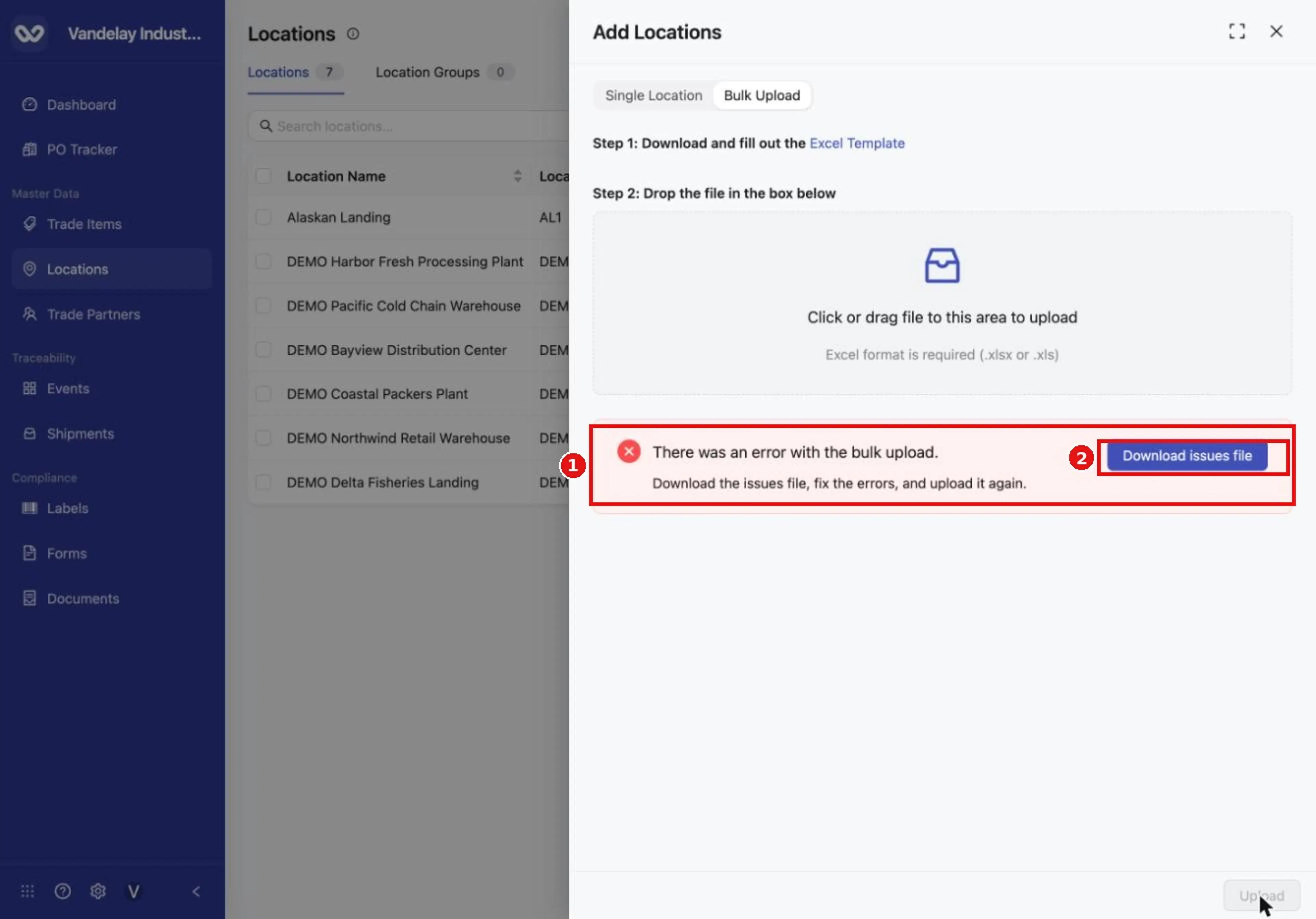
If a row has an error, a banner appears with a Download issues file button. Open it to read what to fix. If a row has an error, a banner appears with a Download issues file button. Open it to read what to fix.
-
The type shows as WarehouseDC. A type entered in a spreadsheet as
WarehouseDCmay appear in the table as WarehouseDC rather than Warehouse / Distribution Center. Open the Location to check its type. -
Locations from a Trade Partners bulk upload have the type Warehouse / Distribution Center. The Trade Partners template has no Location Type column, so each Location it creates gets that type. Open the Location and change its type if needed.
-
Add Location is greyed out. The button stays greyed out while the form is empty. Fill in the required fields: Trade Partner, Name and an address or coordinates.
-
Only .xlsx and .xls files are accepted. Do not remove or rename the heading row or the field-code row.
-
For the full list of rules and messages, see the Reference Guide: Adding Locations, Rules and restrictions and Messages. For more answers, see the Locations FAQ.
Field and action reference
Single Location form
| Field | Req. | Type | Values and validation | Default |
|---|---|---|---|---|
| Trade Partner | Yes | Choice | Your own company or any Trade Partner you have added | Your own company |
| Name | Yes | Text | Any text | Empty |
| External Identifier | No | Text | Your identifier for the Location | Empty |
| Location Type | No | Choice | One of the types in Location type codes | Empty (Select location type) |
| Address or coordinates | Yes | Address and coordinates | An address (Address line 1, Country and Postal code are required), or, when there is no address, both Latitude and Longitude | Empty |
Address or coordinates
The section has two modes, switched with Use Search and Use Manual.
| Mode | Fields |
|---|---|
| Use Search | A search box; when the address is found, choosing a result fills in the address fields, Latitude, Longitude and the map waypoint |
| Use Manual | Address line 1, Address line 2, City, State, Country, Postal code, Latitude, Longitude. The form opens in this mode. Coordinates are not filled in from the address you type. |
In Use Manual mode, the first click on the map drops a waypoint, which you can drag to adjust the coordinates. After a search has filled in the address and coordinates, you can drag the waypoint to adjust the coordinates. The map zooms with the Command key (or Ctrl key) and scroll.
The Add Location button is greyed out while the form is empty. When the location is created, its drawer opens on the Details tab and the new row appears in the list.
Bulk Upload
The Bulk Upload tab has two steps: step 1, Excel Template (downloads the template); step 2, a file box (click it or drag a file onto it) and an Upload button. Accepted file types are .xlsx and .xls.
Bulk upload template
The template has 21 columns. Row 1 holds the headings and row 2 holds the field codes. Both rows must stay. Each row describes one Location.
| Column | Key | Req. | Values |
|---|---|---|---|
| Trade Partner Number/ID | loc_trade_partner_id | Conditional | Required if an identifier was assigned to the Trade Partner; use that Trade Partner Identifier |
| Company Name | loc_company_name | Yes | Name of the Trade Partner the Location belongs to |
| PGLN | loc_pgln | No | Valid PGLN of the partner |
| Location Number/ID | loc_external_id | No | Your identifier for the Location |
| Location Name | loc_name | Yes | Location name |
| Address 1 | loc_address_1 | Conditional | Required unless Geocoordinates is provided |
| Address 2 | loc_address_2 | No | Additional address line |
| City | loc_city | No | City |
| State/Province | loc_state_province | No | State or province |
| Country | loc_country | Conditional | Required unless Geocoordinates is provided |
| Postal Code | loc_postal_code | Conditional | Required unless Geocoordinates is provided |
| Geocoordinates | loc_geocoordinates | Conditional | Required when there is no address. latitude,longitude, with both values, for example 37.7704,-122.3894. When an address is provided, Wholechain attempts to find the coordinates (see Troubleshooting if the location is saved with 0, 0). |
| Contact Name | loc_contact_name | No | Contact person |
| Phone Number | loc_phone_number | No | Contact phone |
| Phone Extension | loc_phone_extension | No | Contact phone extension |
| loc_email | No | Contact email | |
| GLN | loc_gln | No | Valid GLN |
| DUNS | loc_duns | No | Valid DUNS number |
| License Number | loc_license_number | No | License number |
| Location Type | loc_location_type | No | A type code (see Location type codes). A label such as Processing Plant is rejected. |
| Polygon | loc_polygon | No | Location boundary in GeoJSON format |
Location type codes
In the single form, choose the label. In the spreadsheet, enter the code, not the label.
| Label in the form | Code in the spreadsheet |
|---|---|
| Corporate Office | CorporateOffice |
| Warehouse / Distribution Center | WarehouseDC |
| Processing Plant | ProcessingPlant |
| Farm | Farm |
| Pond | Pond |
| Cage | Cage |
| Feed Mill | FeedMill |
| Hatchery | Hatchery |
| Vessel | Vessel |
| Transshipment Vessel | TransshipmentVessel |
| Landing | Landing |
Results of an upload
| Outcome | What you see |
|---|---|
| All rows accepted | The new locations appear in the list and the count updates. No confirmation count is shown. |
| Row matches an existing record | The record is updated. If the record was created with an identifier and the file leaves the identifier blank, a new record is created instead, because a blank identifier counts as a value. |
| One or more rows rejected | An error banner appears with Download issues file. Rows without errors can already have been added. |
| Rejected Location Type | The issues file's Errors column reads "Location Type must be one of: CorporateOffice, WarehouseDC, ProcessingPlant, Farm, Pond, Cage, FeedMill, Hatchery, Vessel, TransshipmentVessel, Landing." |