

Observe
Record an Observe event to log that you looked at, counted or checked a lot at a Location.
Applies to: the Add Events drawer, Event Type Observe
Audience: Anyone who records a check or observation of a lot or container
Prerequisites: the lot already exists at the Location, for example from a Commission
Related: Wholechain Events Overview; Shared event fields; Commission; Add Events form reference; Background: Observe Events
Purpose
Use Observe to record that you looked at, counted or checked a lot without moving it or changing what it is. An Observe adds a timestamped check to the lot's history. Observe can also adjust a Lot's quantity, for example to re-weigh Lots as they are received or during stock taking. It does not change the Lot number: Observe is not used to change a Lot number to change a quantity.
Before you begin
- The lot must already exist at the Location, for example from a Commission.
- The fields every event shares (Date, Time, Time Zone, Business Step, Disposition and so on) are explained once in Shared event fields. This article covers only what is specific to Observe.
Add an Observe
Choose the Event Type, Location and Products
Select Add Events, set Event Type to Observe, choose a Location and Products.
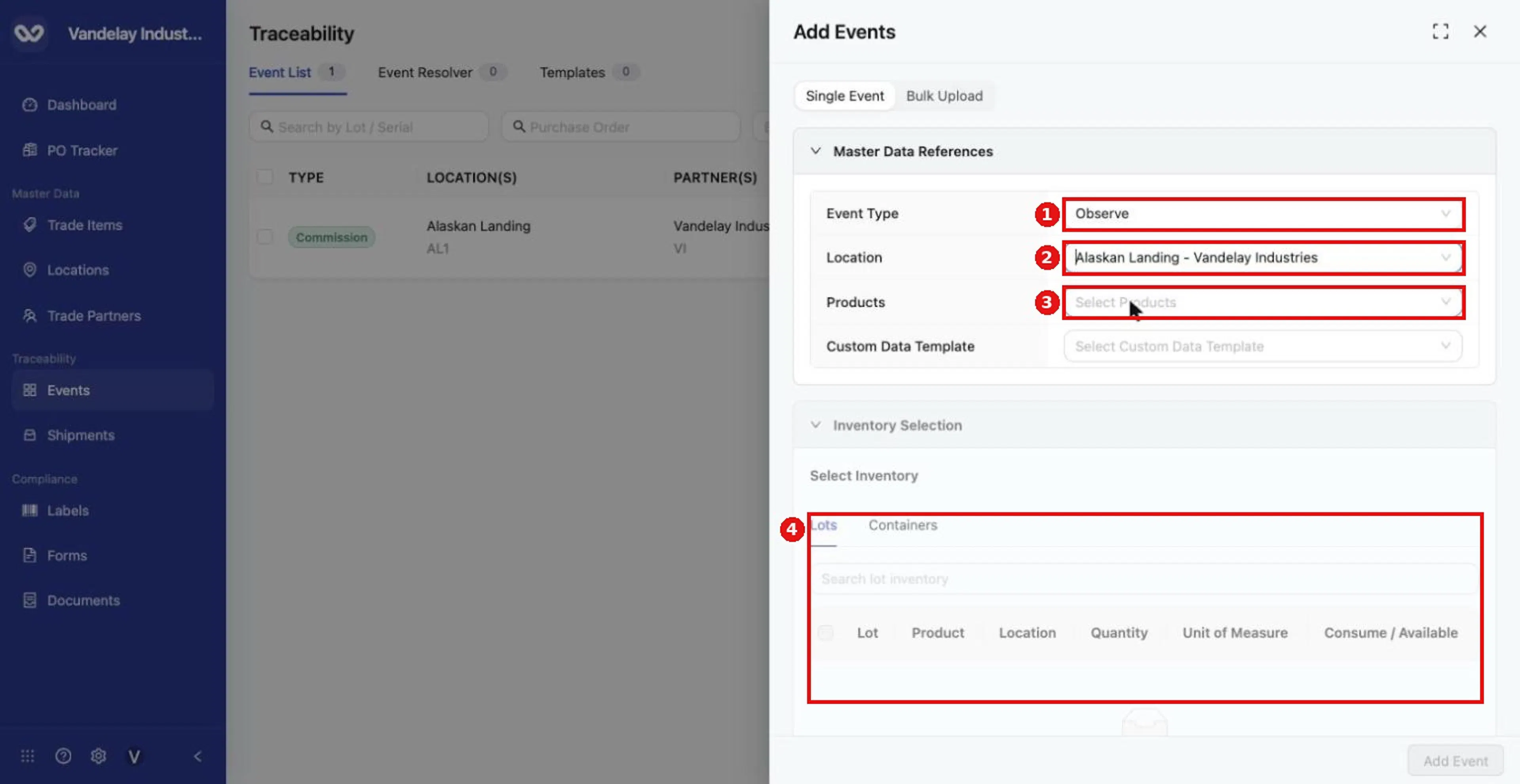
For an Observe, choose Event Type Observe and a Location. Then choose Products to load the lots at that location.
Tick the lot in Inventory Selection
In Inventory Selection, on the Lots tab, tick the lot. The Consume / Available column shows the amount selected.
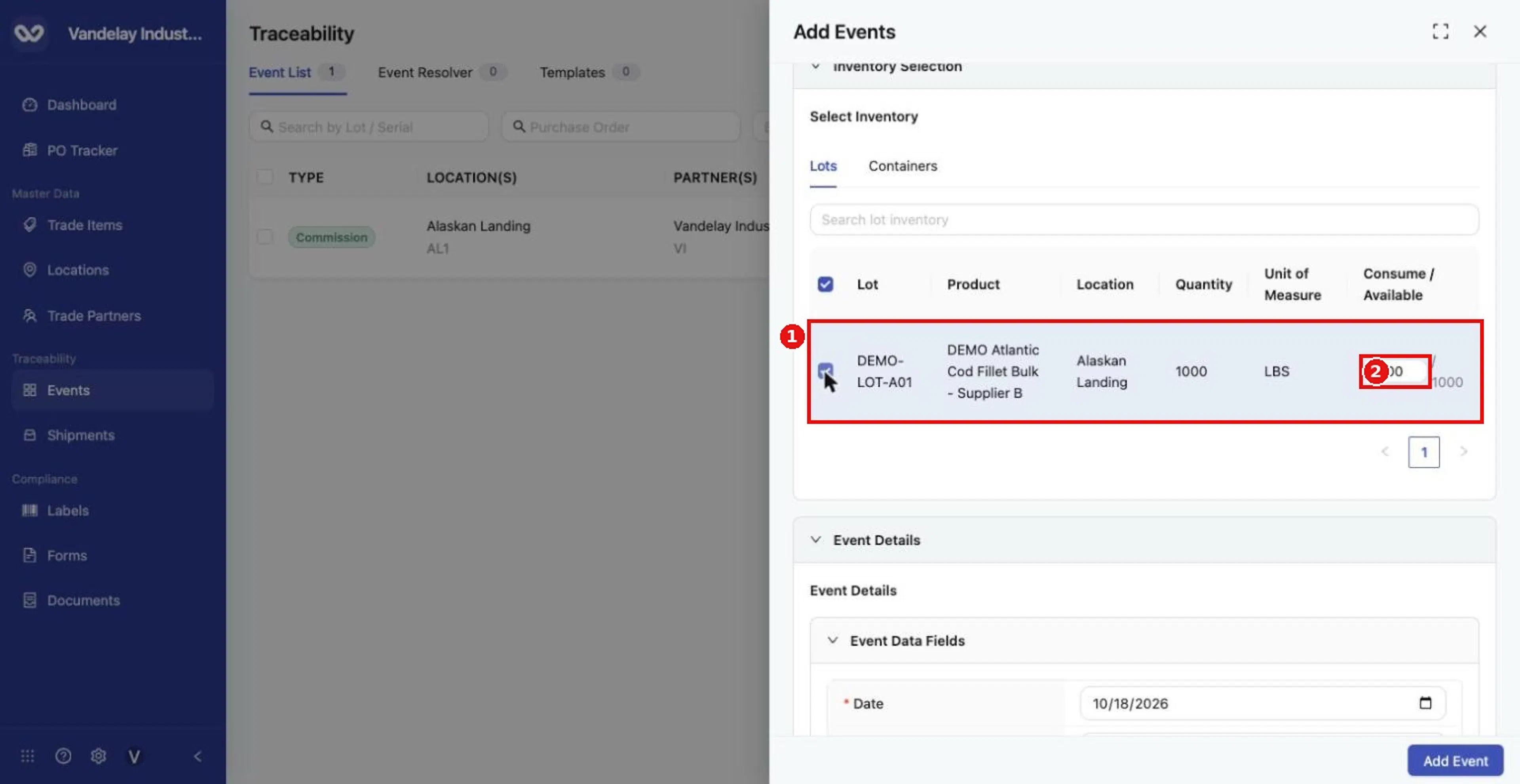
Tick the lot to observe. The Consume / Available column shows how much of the lot is selected.
Complete Event Details
Complete Event Details. The form pre-fills Packing (CBV) and In Progress (CBV). Change the Business Step to reflect why you are really using Observe, such as Stock Taking or Temperature, and change the Disposition to suit the activity. Every field is described in Shared event fields.
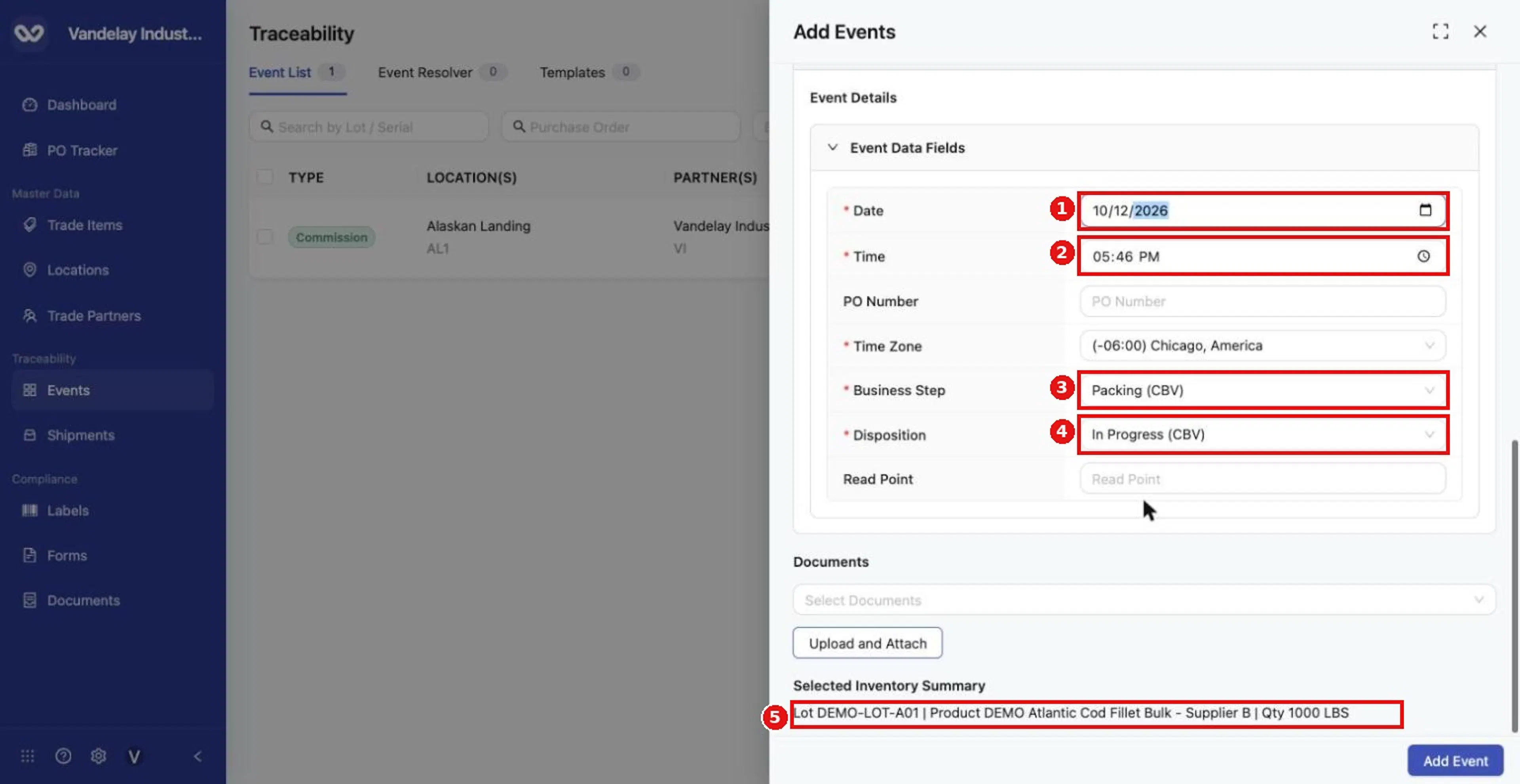
Set the Date, Time, Time Zone, Business Step and Disposition. The Selected Inventory Summary confirms the lot and quantity.
Check the summary and select Add Event
Check the Selected Inventory Summary and select Add Event.
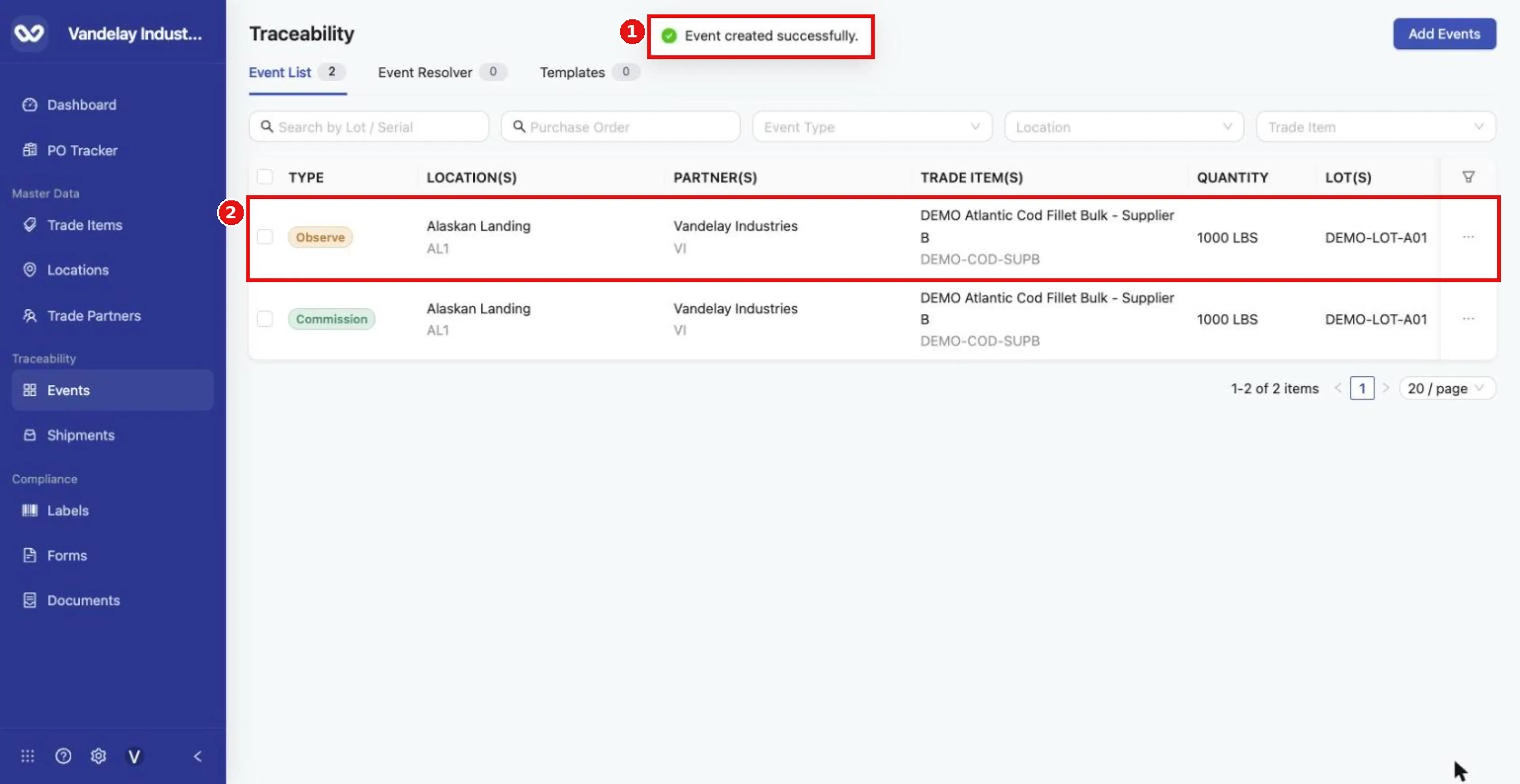
The Observe appears at the top of the Event List.
Expected result
An Observe row appears in the Event List for the lot, at the Location where you recorded it.
Troubleshooting
- The lot is not listed. It may be at a different location or not yet commissioned.
- You need to observe a container. The Containers tab lists containers.
General questions about Add Events are answered in the Events FAQ.
Field and action reference
The common Master Data References fields and the Event Details fields are in Shared event fields. The fields below are specific to Observe.
Defaults for Observe
| Field | Default |
|---|---|
| Business Step | Packing (CBV) in Wholechain. You can change it to reflect why you are using Observe, such as Stock Taking or Temperature. |
| Disposition | In Progress (CBV) |
Inventory selection
| Event Type | Inventory Selection |
|---|---|
| Observe | Lots and Containers tabs, a Search lot inventory box, and columns Lot, Product, Location, Quantity, Unit of Measure, Consume / Available. |