

Sharing labels
Wholechain Labels: sharing labels. For label managers.
For: label managers.
Where this fits. Labels has three working levels: label designers lay out templates in the Design Editor, label managers link a Trade Item and set which inputs are editable in the Field Editor, and operators fill in and print from Label Entry.
Share a label with a Trade Partner
Purpose. Let a Trade Partner view or edit one of your labels.
Before you begin. The partner must already have access to the label's Trade Item. Trade Item access is managed on the Trade Item's Sharing tab; see the Sharing documentation.
Steps
In the Label List, open the label's row menu and choose Sharing
In the Label List, open the label's row menu and choose Sharing. The Sharing panel opens: Choose label access for trade partners who already have access to this trade item.
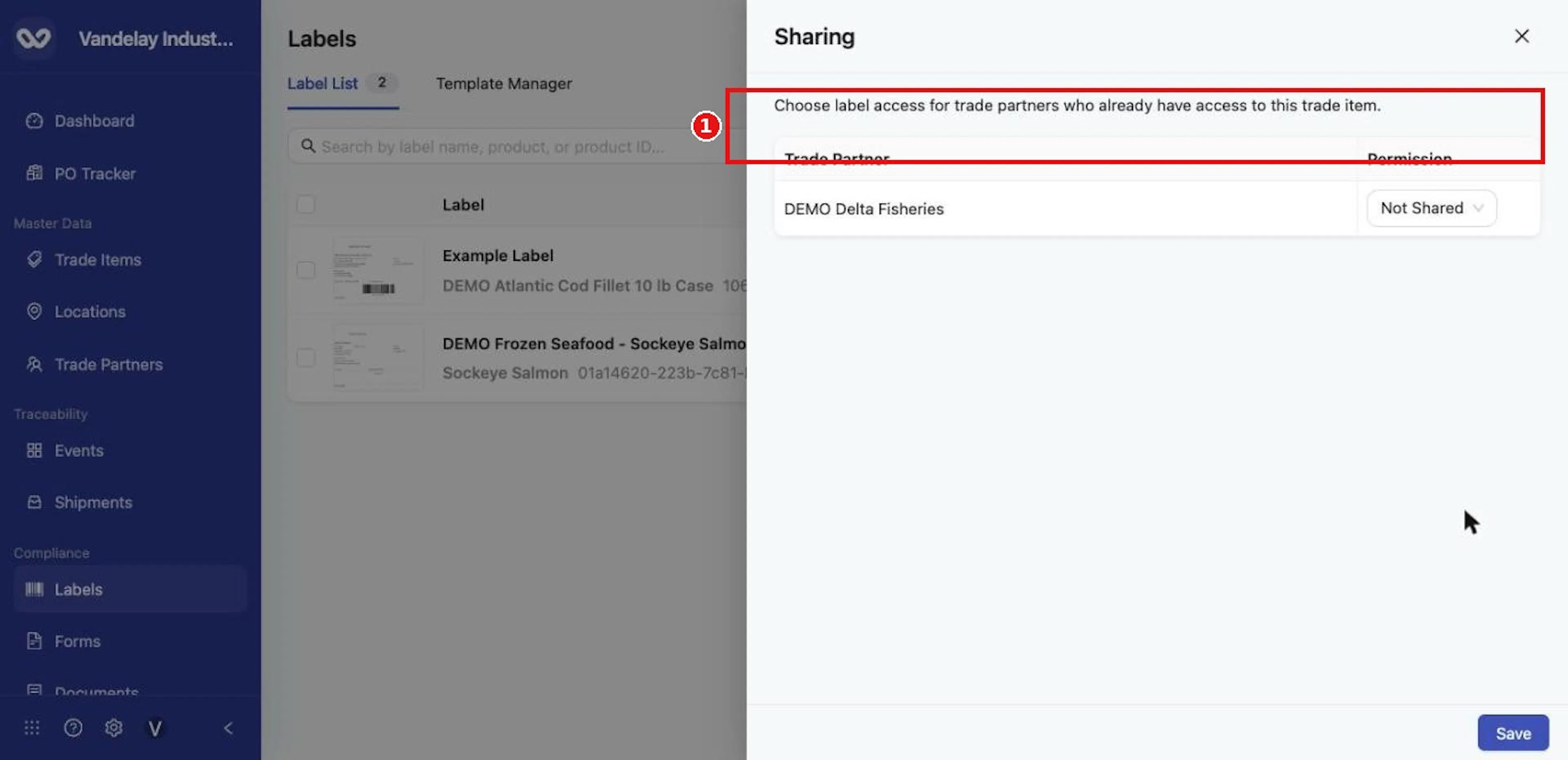
The Sharing panel lists partners who already have access to the Trade Item.
For each Trade Partner, set the Permission
For each Trade Partner, set the Permission: Not Shared, Viewer or Editor.
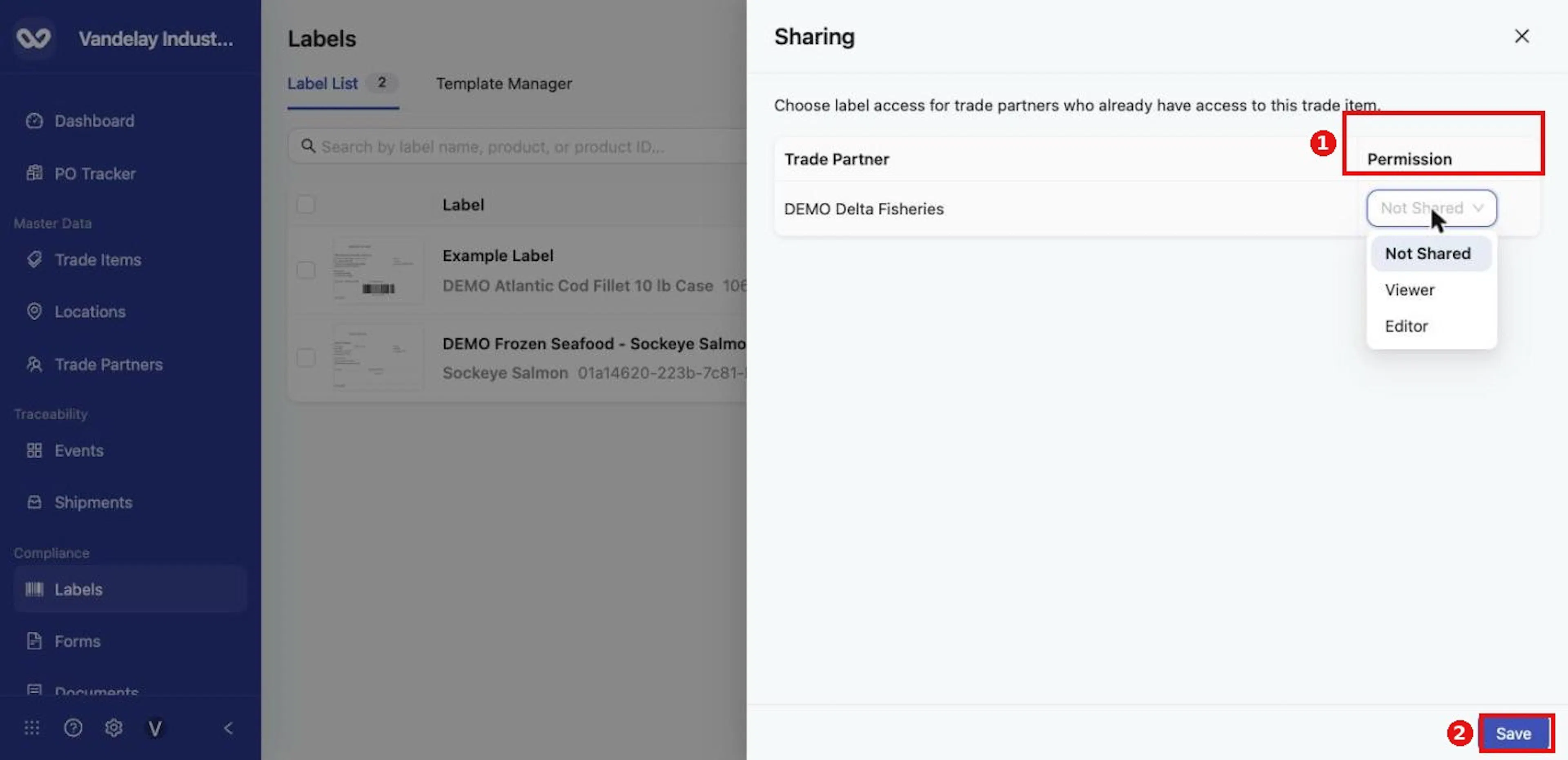
Set each partner's Permission to Not Shared, Viewer or Editor, then click Save.
Click Save
Click Save.
Why it matters. Partners receive the label in their own account and can print it, or edit it if you allow that.
Expected result. The partner sees the label in their account with the permission you chose. If you later delete the label, it is deleted from their account too.
See a Trade Item's labels
Purpose. Check which labels belong to a Trade Item.
Steps
Go to Master Data → Trade Items and click the Trade Item
Go to Master Data → Trade Items and click the Trade Item.
Open the Labels tab
Open the Labels tab. Associated Labels lists every label linked to the item, with the same columns as the Label List and a Share button.
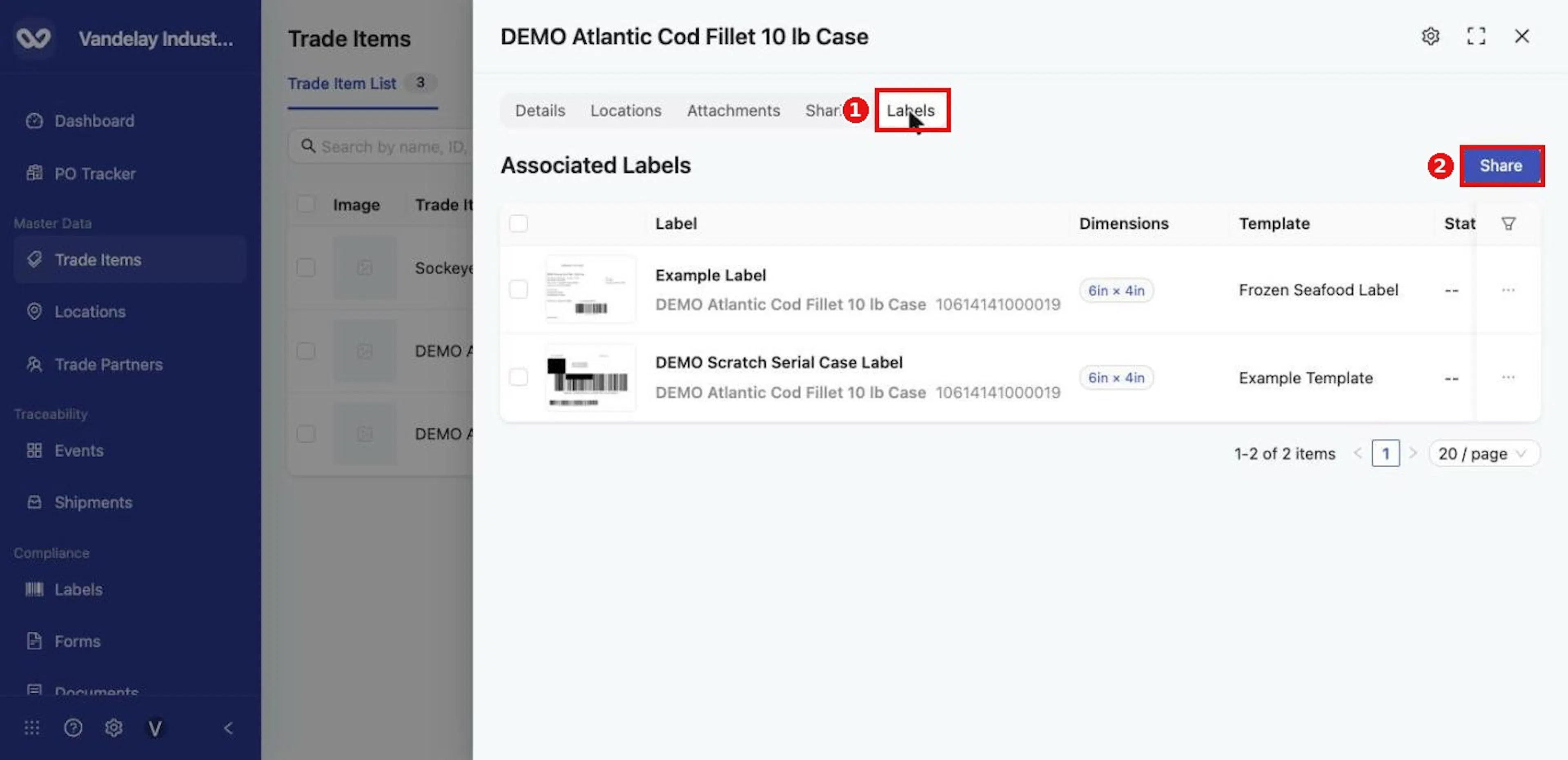
A Trade Item's Labels tab lists its Associated Labels, with a Share button.
Open the Sharing tab to see which partners have access to the Trade Item
Open the Sharing tab to see which partners have access to the Trade Item itself, and use Manage Sharing to change it.
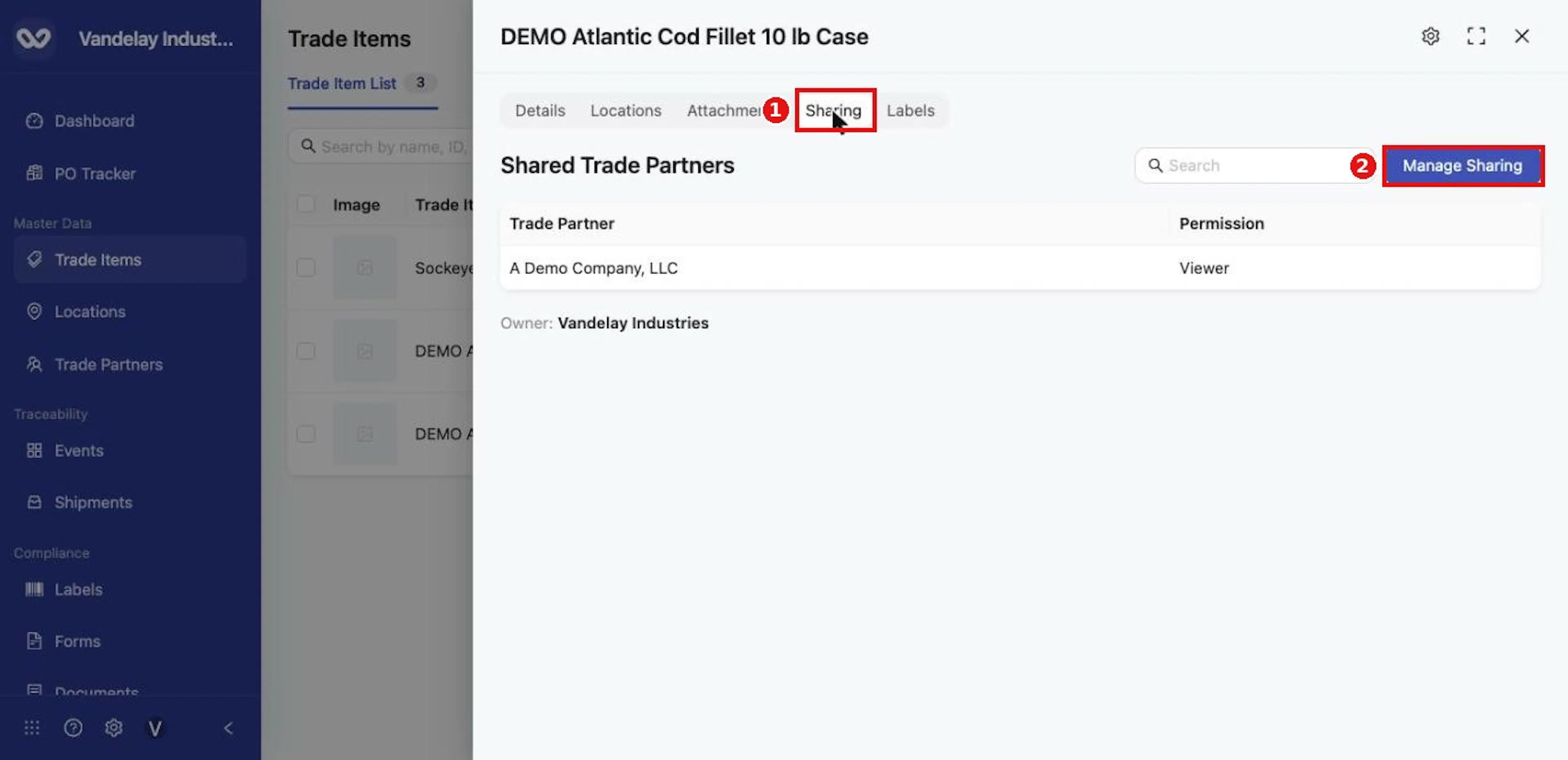
The Trade Item's Sharing tab shows partner access; Manage Sharing changes it.
Expected result. The labels and the partners for the Trade Item are shown together.
Field and action reference
Sharing labels
Choose Sharing on a label row to open the Sharing panel: Choose label access for trade partners who already have access to this trade item.
| Column | Description |
|---|---|
| Trade Partner | A partner that already has access to the label's Trade Item. |
| Permission | Not Shared, Viewer or Editor. |
Save applies the choices. The same labels also appear on the Labels tab of a Trade Item, where a Share button is available. Trade Item access itself is managed on the Trade Item's Sharing tab (see the Sharing documentation).