

Filling in and printing labels
Wholechain Labels: filling in and printing labels. For operators.
For: operators.
Where this fits. Labels has three working levels: label designers lay out templates in the Design Editor, label managers link a Trade Item and set which inputs are editable in the Field Editor, and operators fill in and print from Label Entry.
Open Label Entry
Purpose. Fill in the values for a print run.
Before you begin. Your label manager has created the label, linked its Trade Item and unlocked the inputs you need to fill in.
Steps
Go to Compliance → Labels and click the label's row
Go to Compliance → Labels and click the label's row (anywhere except the row menu).
Label Entry opens with the Preview at the top and the input form below
Label Entry opens with a Preview of the label at the top and the input form below it.
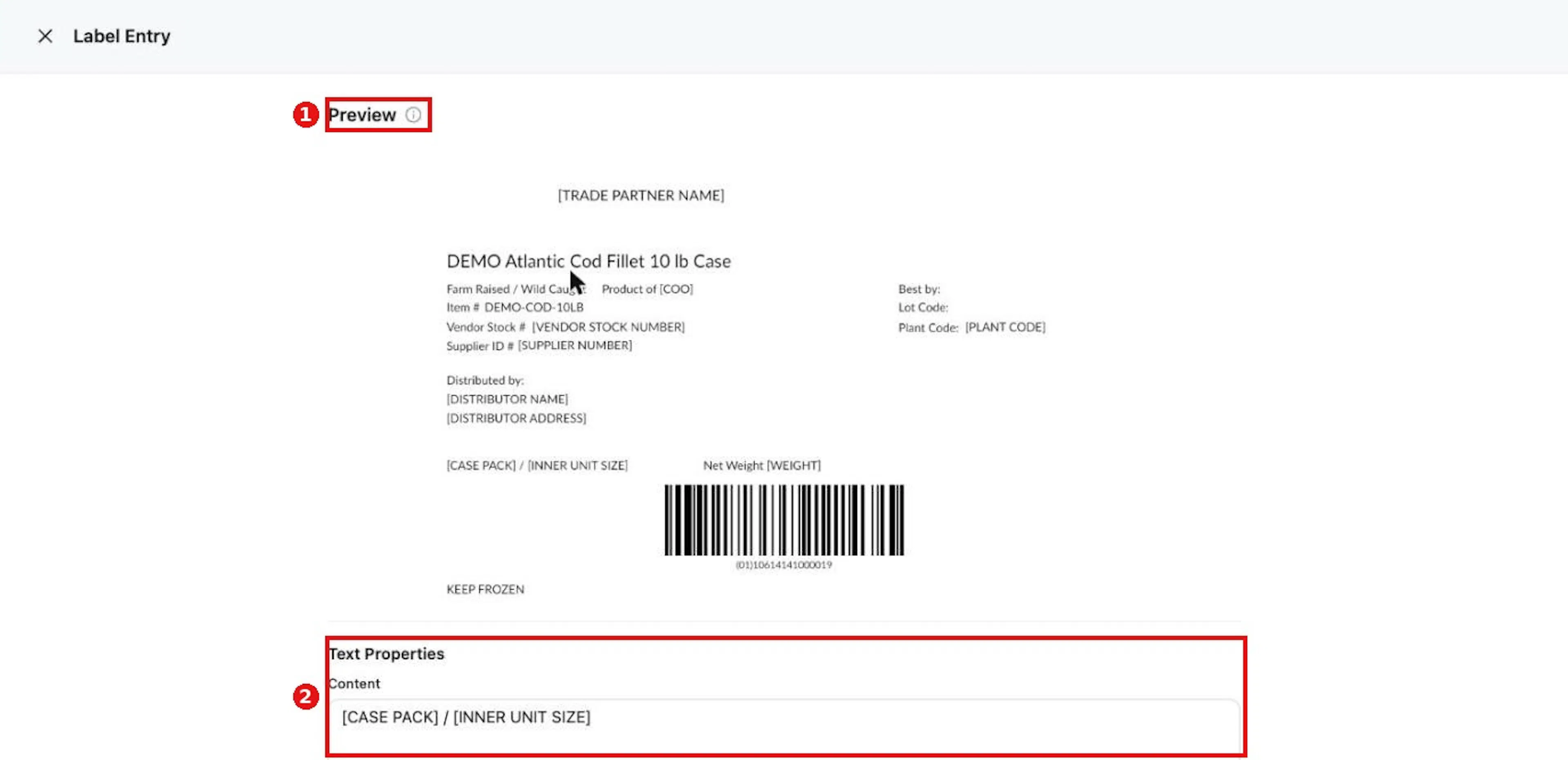
Click a label row to open Label Entry. The Preview is at the top and the form below it.
Expected result. The form lists the inputs that were unlocked for you, each titled by element type and AI, for example Text Properties (AI 10) or Barcode Properties with a GS1 Value Input.
Fill in the inputs
Purpose. Enter the lot, date, serial and other values for this run.
Example values. AI 10 (lot): LOT-2026-1020; AI 15 (best before): pick the date; AI 21 (serial): 1.
Steps
Type a value into each input you need
Type a value into each input you need. Date inputs open a date picker.
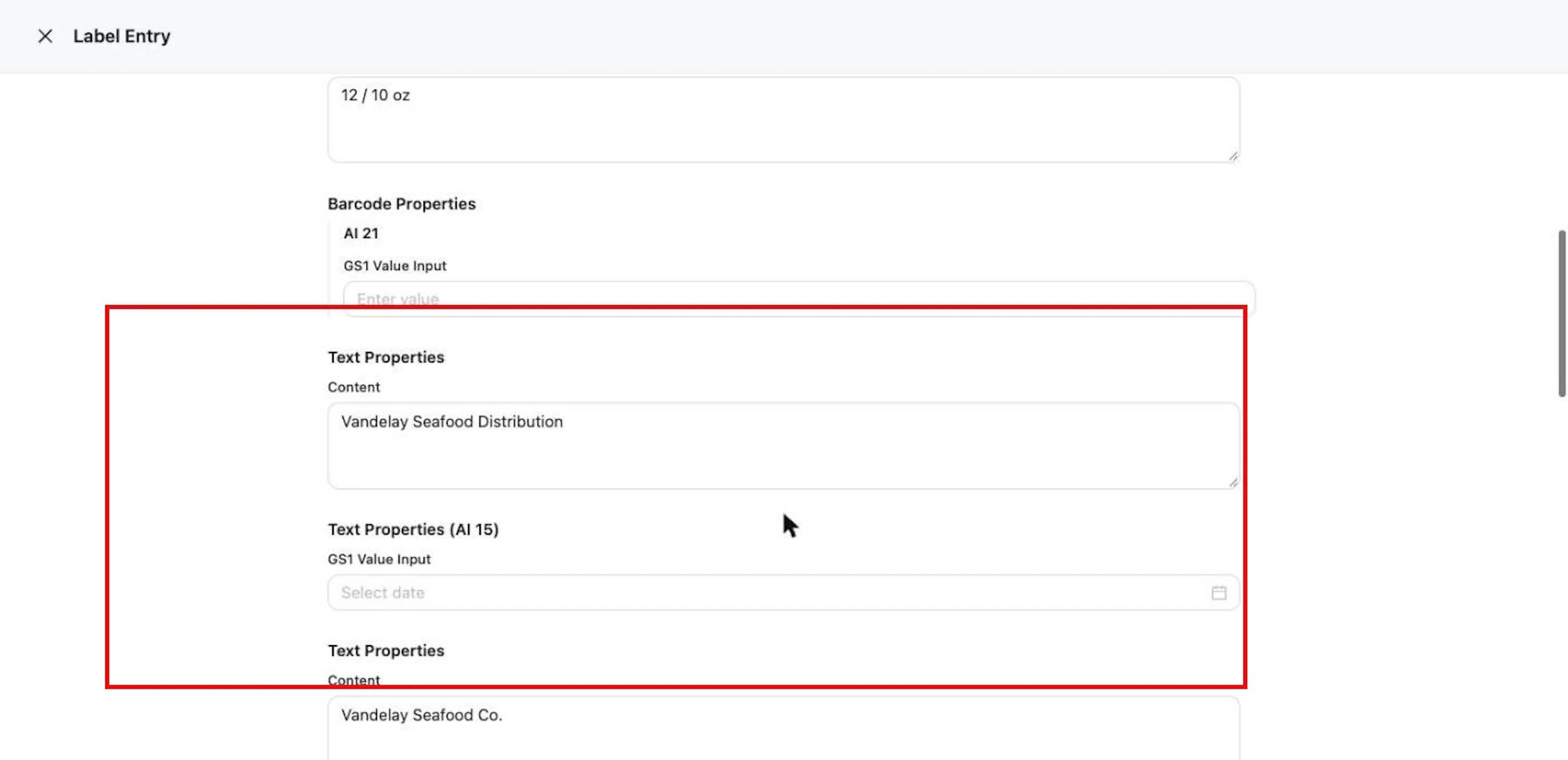
Fill in the unlocked inputs. Each is titled by element type and AI.
Click outside the field
Click outside the field. The Preview redraws after a short wait. A barcode draws once at least one of its AI values has been entered, with the human-readable AI line beneath it.
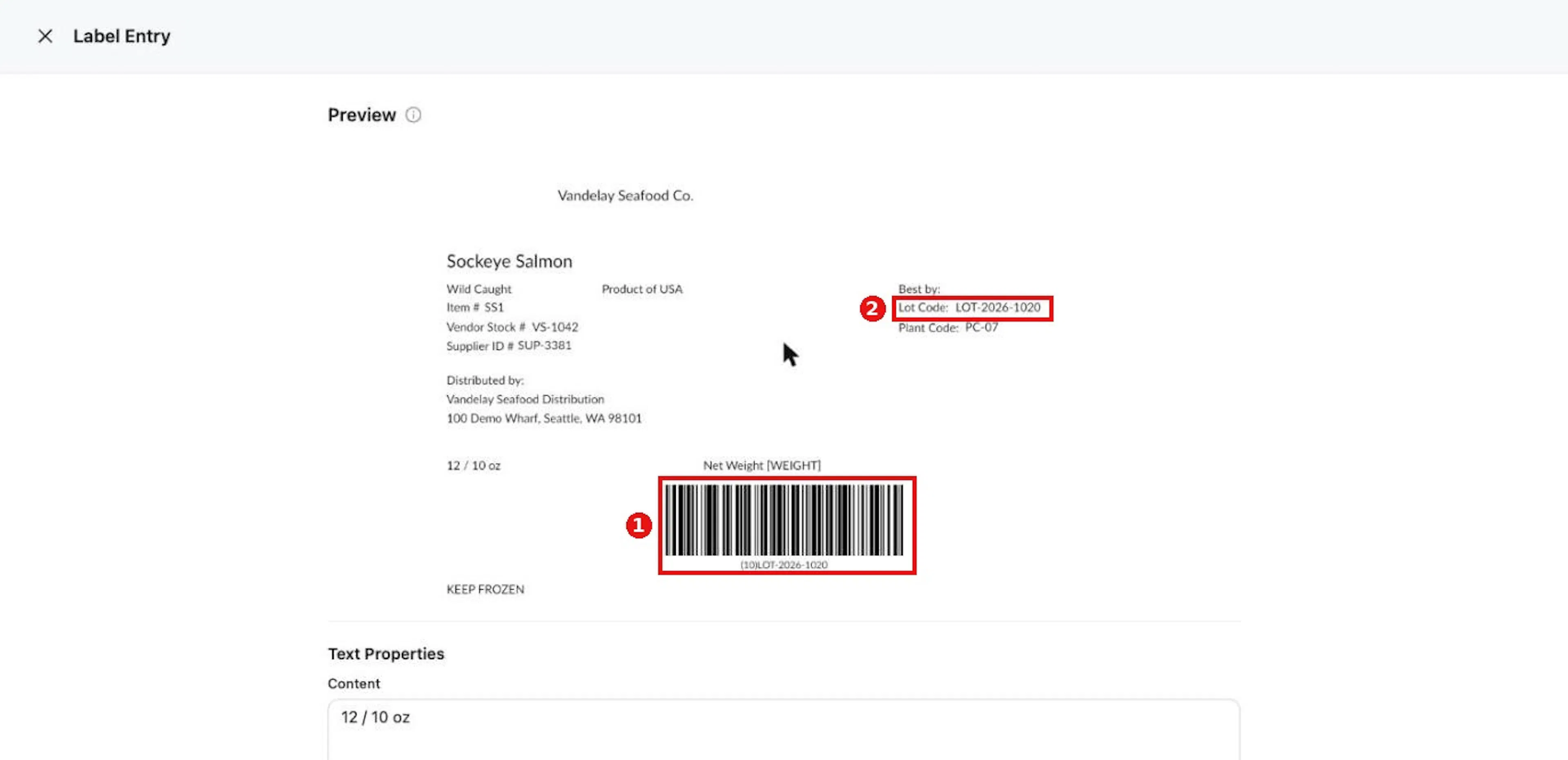
After you leave a field, the preview redraws and the barcode shows the entered AI value.
Check the preview before printing
Check the preview before printing.
Why it matters. The preview shows exactly what will print, including the encoded barcode.
Expected result. The preview shows your values in place.
Troubleshooting
- Values you enter here are used for this preview and print run. They are not stored on the label, so enter them again for the next run.
- Enter values in plain form; Wholechain converts them to the correct AI format automatically.
Print, with serialization if needed
Purpose. Produce the PDF to print, as single labels, side by side, or as a serialized run.
Steps
Click Print at the bottom of the form, or choose Print from the row menu
Click Print at the bottom of the form, or choose Print from the label's row menu in the Label List. The Print Label window opens with a PDF preview and the print options.
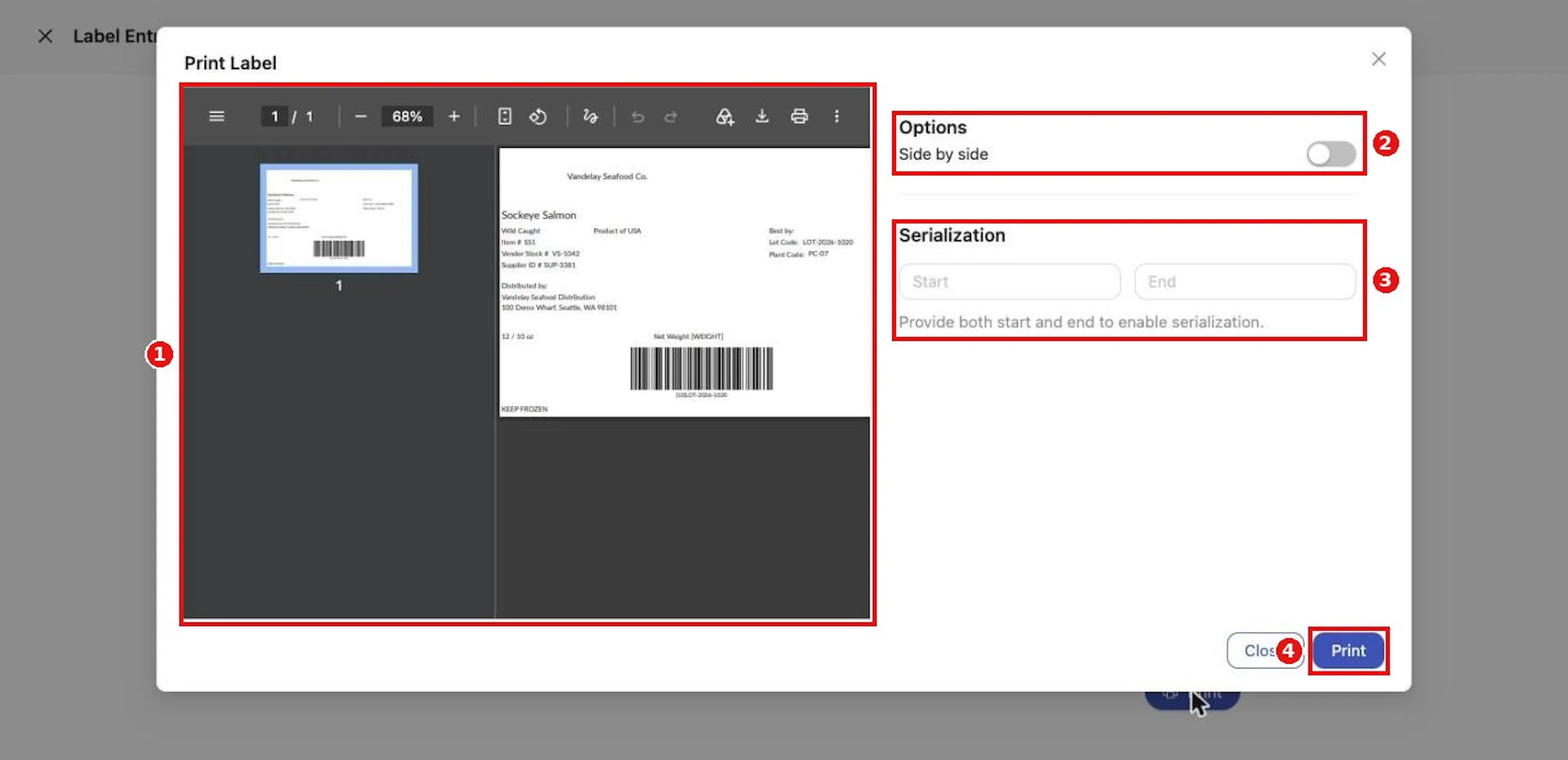
Print Label shows the PDF preview with the Side by side and Serialization options.
For a numbered run, enter the first and last number under Serialization
For a numbered run, enter the first and last number under Serialization → Start and End. One page is produced for each number, and the AI 21 serial value on each page is replaced by that number.
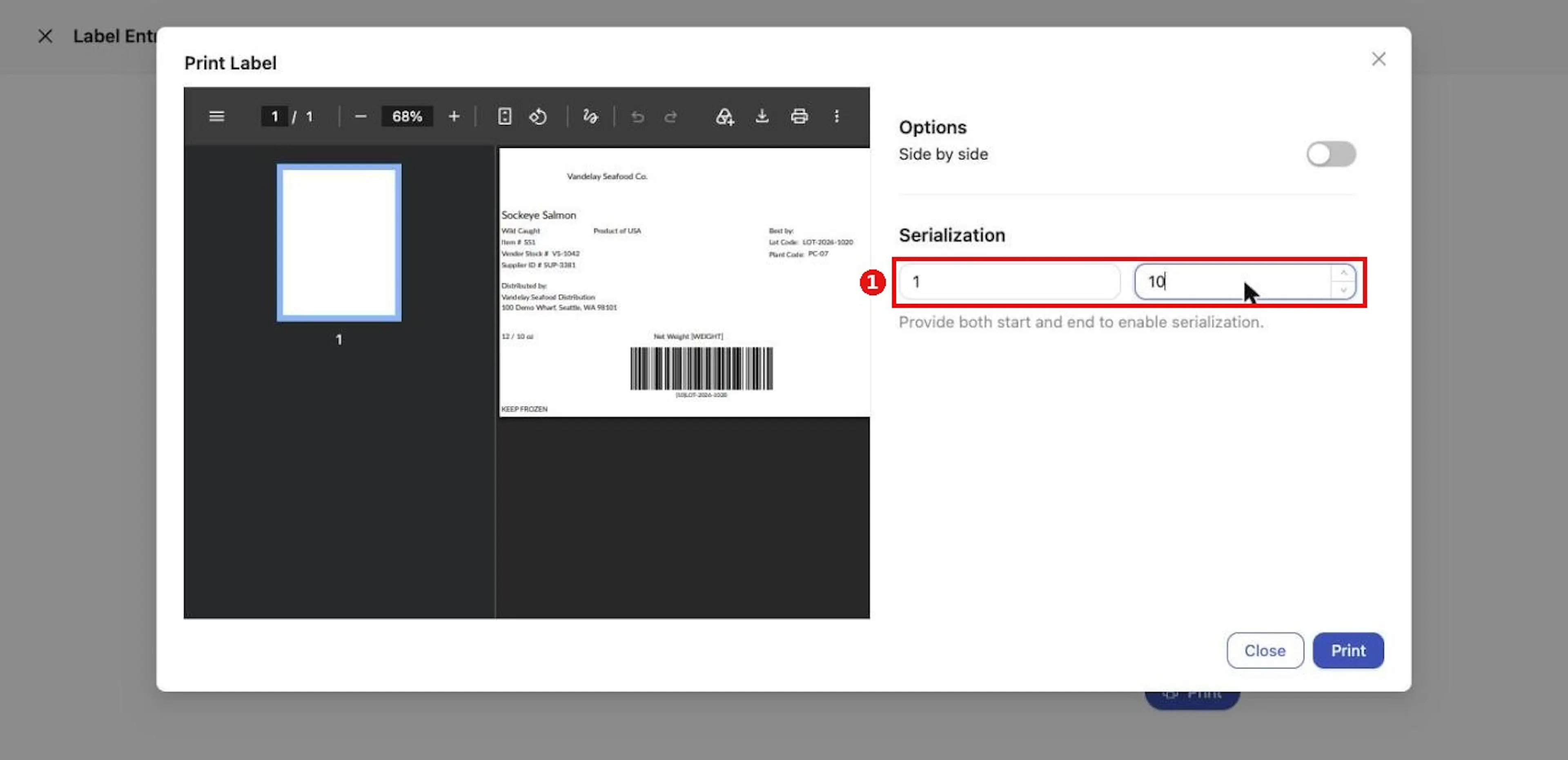
Enter Start and End to print one page per serial number.
Turn on Side by side to place two copies of each label on a page
Turn on Side by side to place two copies of each label on a page.
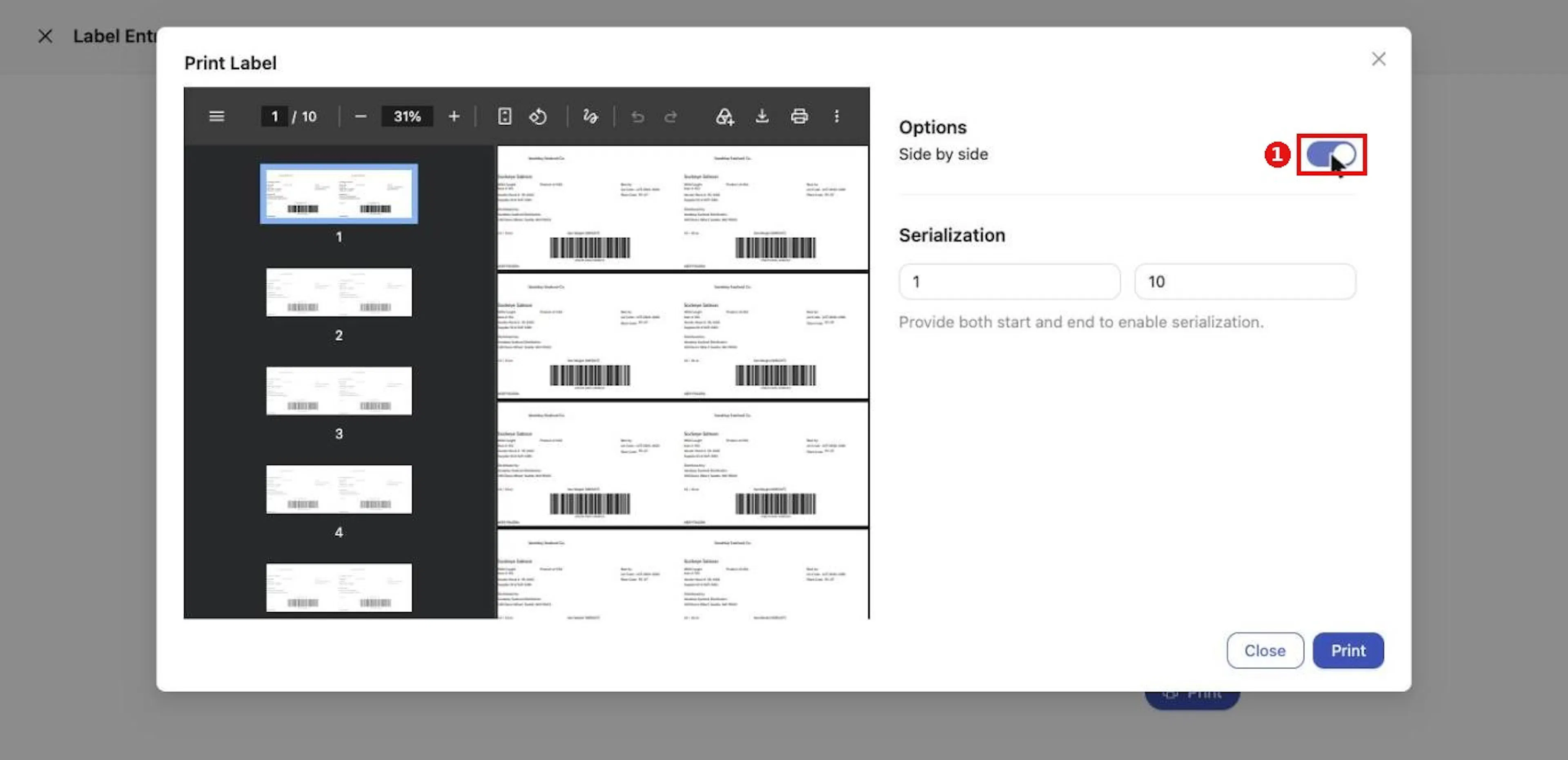
Turn on Side by side to place two copies on each page.
Page through the preview to check the run
Page through the preview to check the run.
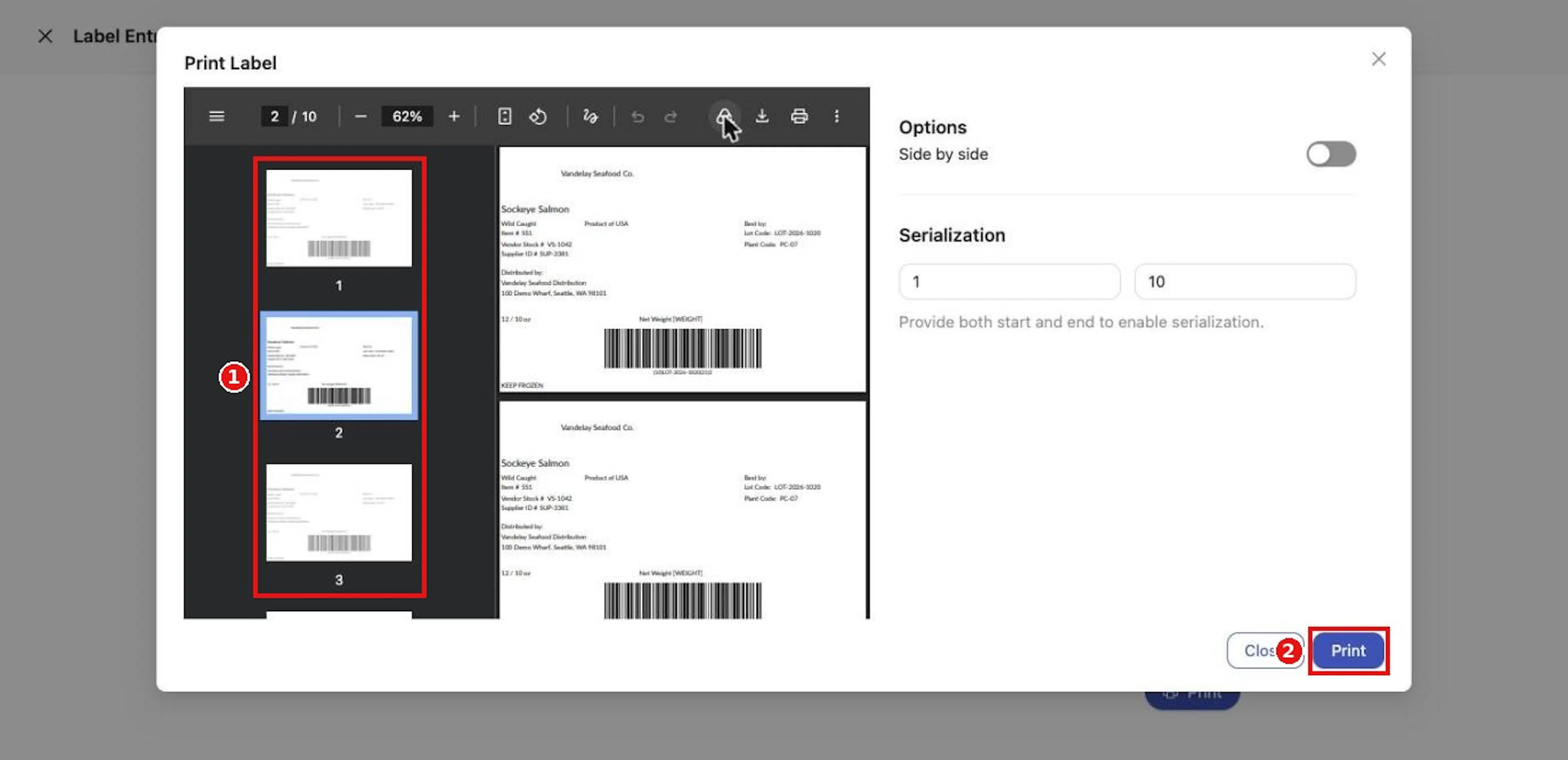
Page through the preview to check the serialized run before clicking Print.
Click Print
Click Print. The generated PDF opens in a new browser tab, where you can print it or save it. The Print Label window stays open; click Close when you are done.
Why it matters. Serialization gives every case its own serial number without retyping, and the preview lets you check the run before using label stock.
Expected result. A PDF with one page per label (or per serial number), ready to print.
Troubleshooting
- The hint Provide both start and end to enable serialization. stays until both numbers are entered.
- If the page count does not change after you enter the serialization numbers, toggle Side by side off and on to refresh the preview.
Field and action reference
Label Entry and printing
Label Entry
Click a label row to open Label Entry. A Preview of the label is at the top. Below it is a form with the inputs that were unlocked in the Field Editor, each titled by element type and AI, for example Text Properties, Text Properties (AI 15) and Barcode Properties with a GS1 Value Input.
| Behavior | Description |
|---|---|
| Preview | Redraws after a short wait whenever you change a value. |
| Barcodes | A barcode draws once at least one of its AI values has been entered. Its human-readable line shows the AIs, for example (10)LOT-2026-1020. |
| Saving | Values typed here are used for the current preview and print. They are not stored on the label. |
| Button at the bottom of the form. Opens Print Label. |
Print Label
| Control | Description |
|---|---|
| PDF preview | Shows the pages that will print, with page navigation, zoom, rotate, download and print tools. |
| Side by side (switch) | Places two copies of the label on each page. Off by default. |
| Serialization – Start / End | Number boxes. When both are filled, one label is produced for each number from Start to End, and the AI 21 serial value on each is replaced by that number. The hint reads Provide both start and end to enable serialization. |
| Close | Closes the window without printing. |
| Opens the generated PDF in a separate browser tab for printing. The window stays open. | |
| X | Closes the window. |
Toggle Side by side after changing the serialization range to refresh the preview.