

Trade Item Groups
Organize Trade Items into groups: create a group, add members manually or by Trade Item Identifier, bulk link, and delete groups.
Applies to: The Trade Item Groups tab of Trade Items.
Audience: Users who organize Trade Items by category, such as commodity.
Prerequisites: Trade Items with a Trade Item Identifier if you want to add them in bulk. A group name and a description of which items belong in it.
Related: Get started with Trade Items; Edit Item Details; Set a data policy for one Trade Item; Find and manage Trade Items; Master Data Settings; Data elements and policies; Account
Purpose
A Trade Item Group organizes Trade Items by a business category you choose, such as commodity (all Atlantic cod items) or a Location-related category. On each Trade Item, its group appears as Commodity. A Trade Item describes one product; a group is a folder or category that holds many Trade Items and can carry shared data policy requirements for all of them.
A Trade Item belongs to one group at a time. Linking a Trade Item to a group replaces its previous group, whichever way you link it (Manage Trade Items or Bulk Link Trade Items).
Before you begin
- Decide the group Name and write a Description of which Trade Items belong in it. An Identifier is optional.
- To add members in bulk, make sure each Trade Item has a Trade Item Identifier. This is your own unique item number (the Item Number/ID column in bulk files; Settings calls it Trade Item Number / ID; items shared with you also show the Owner Trade Item Identifier). See Edit Item Details.
Add a Trade Item Group
Open Trade Item Groups and click Add Trade Item Group
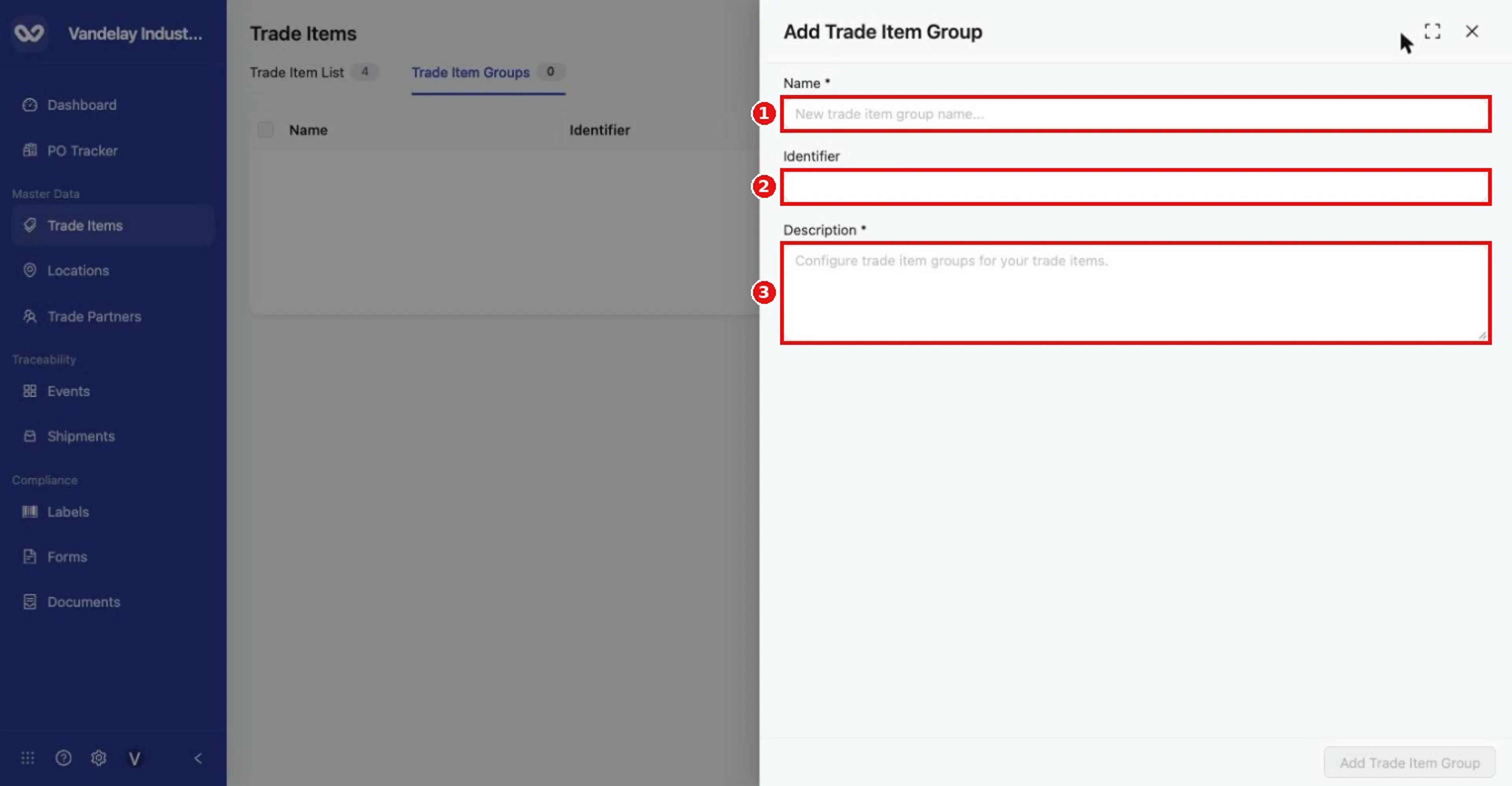
Add Trade Item Group drawer. Name and Description are required; Identifier is optional.
Enter a Name
Example: DEMO Whitefish - Atlantic Cod.
Optionally enter an Identifier
Example: DEMO-GRP-COD. Identifiers help integrations refer to the group.
Enter a Description
Enter Description * explaining which Trade Items belong (example: "Includes every Atlantic cod Trade Item (Gadus morhua), whatever the supplier or pack size.").
Click Add Trade Item Group
The button stays disabled until Name and Description are filled in.
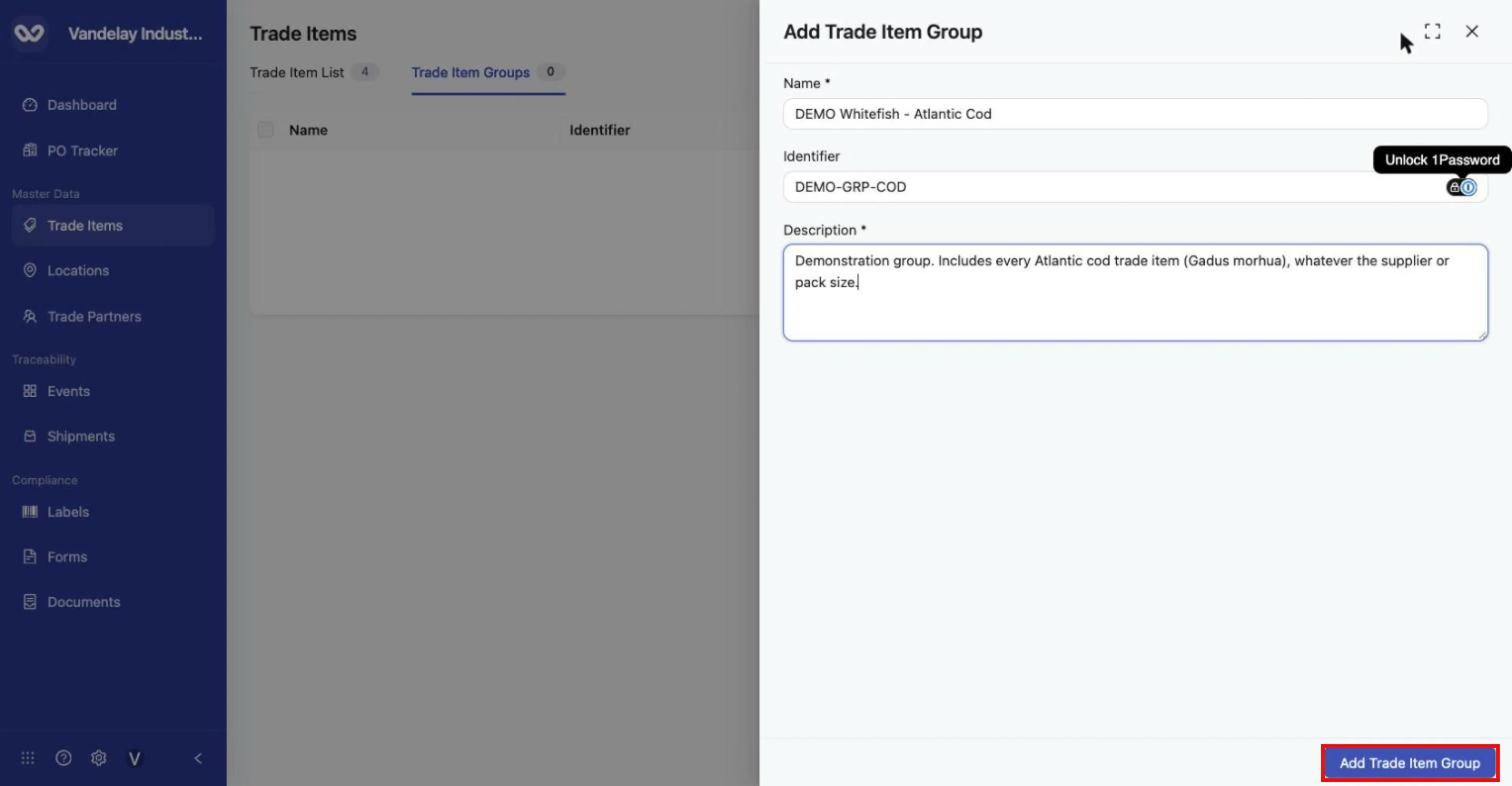
Completed example group. Click Add Trade Item Group. (The small icon in the Identifier field belongs to a browser password-manager extension, not Wholechain.)
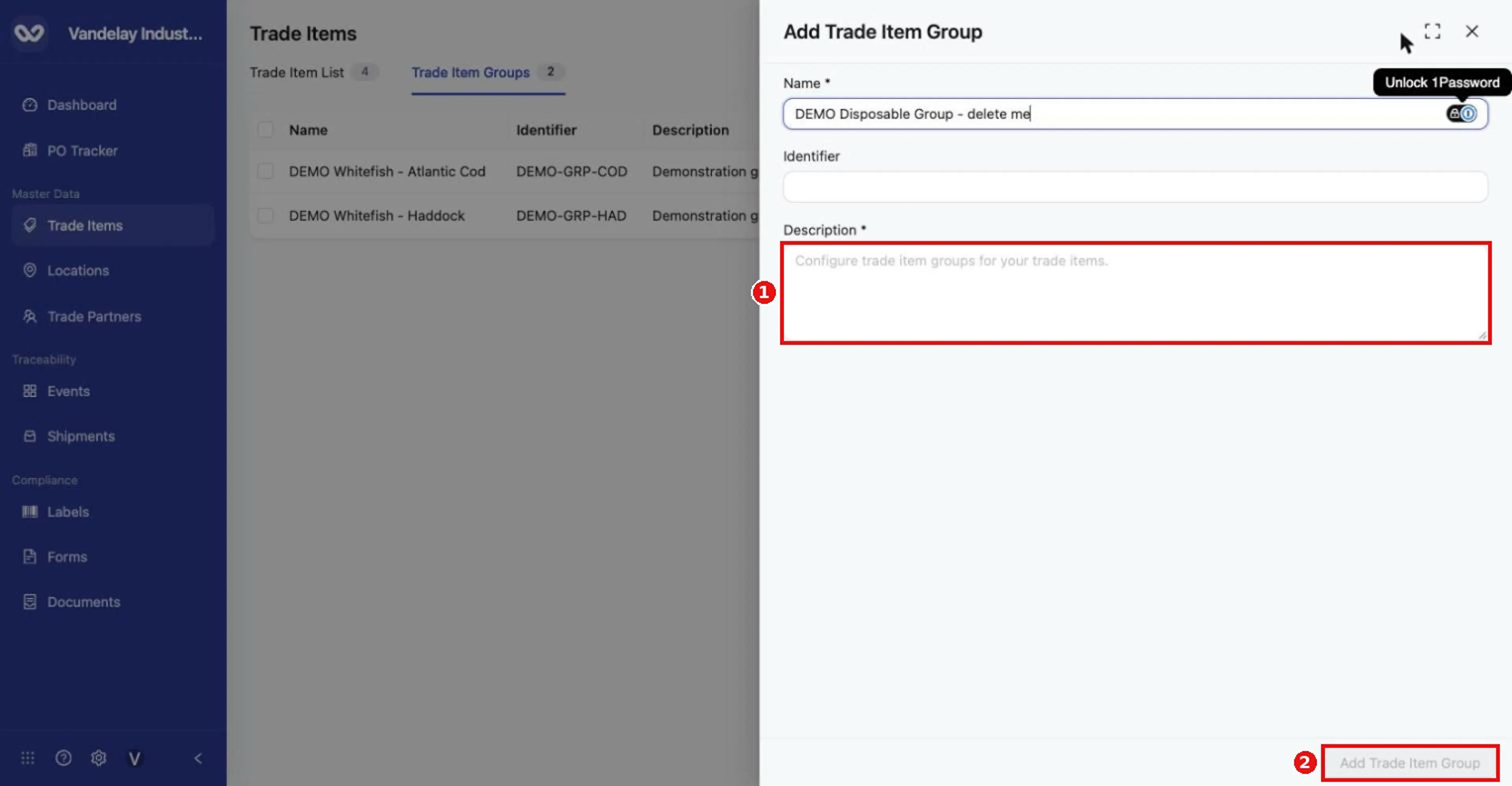
With only a Name entered, Add Trade Item Group stays disabled until the required Description is filled in.
The group opens with the tabs Basic Details, Trade Items and Data Policy. Basic Details shows Name *, Identifier and Description *, and you edit them the same way as a Trade Item's Basic Details. The Data Policy tab is where you can manage the group's data policy (see Data policies for a group below).
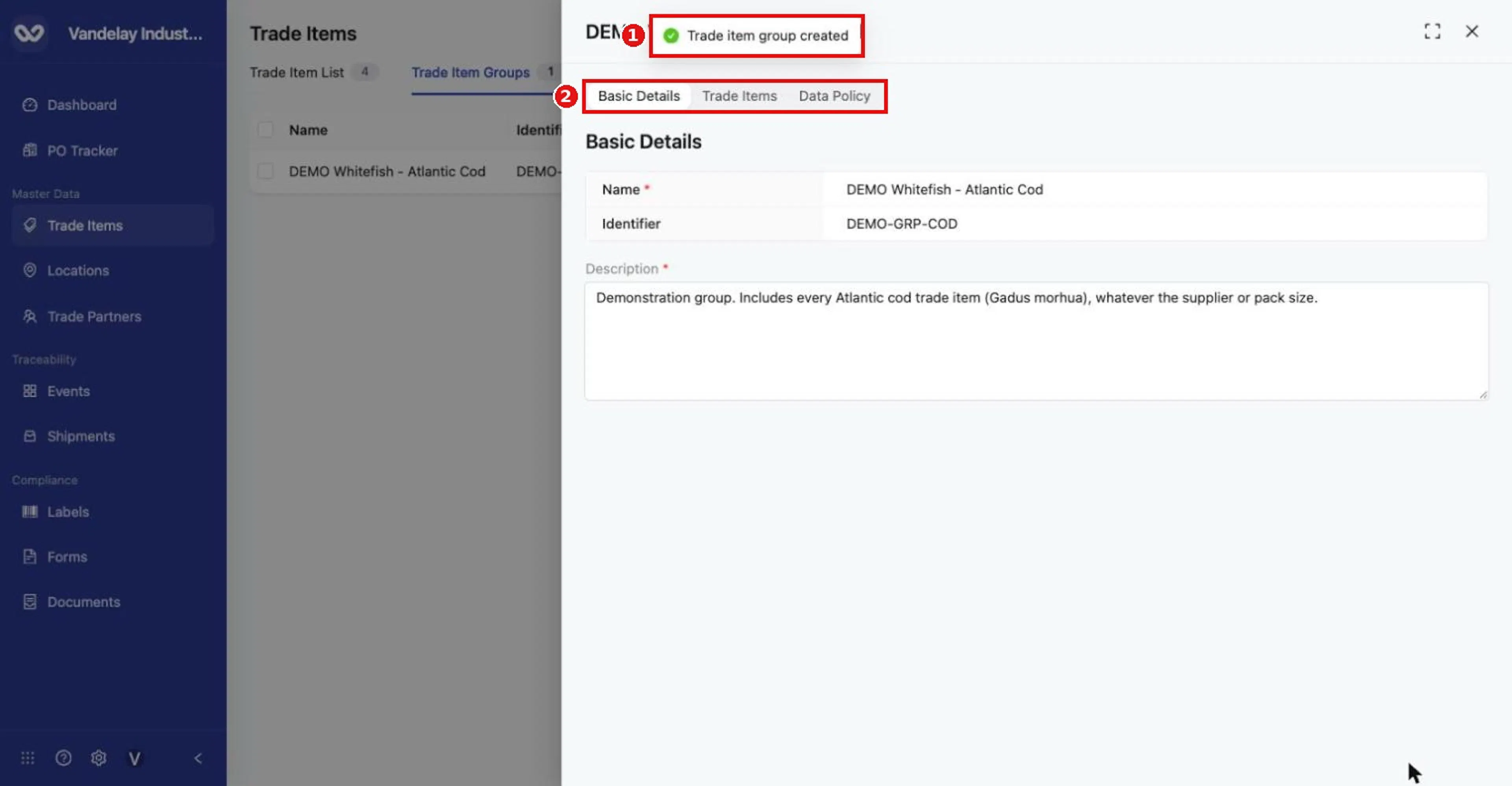
'Trade item group created'. The group opens with Basic Details, Trade Items and Data Policy tabs, and the Trade Item Groups count becomes 1.
Add members to a group
The Trade Items tab lists the member Trade Items, with Search and paging (for example "1-1 of 1 item").
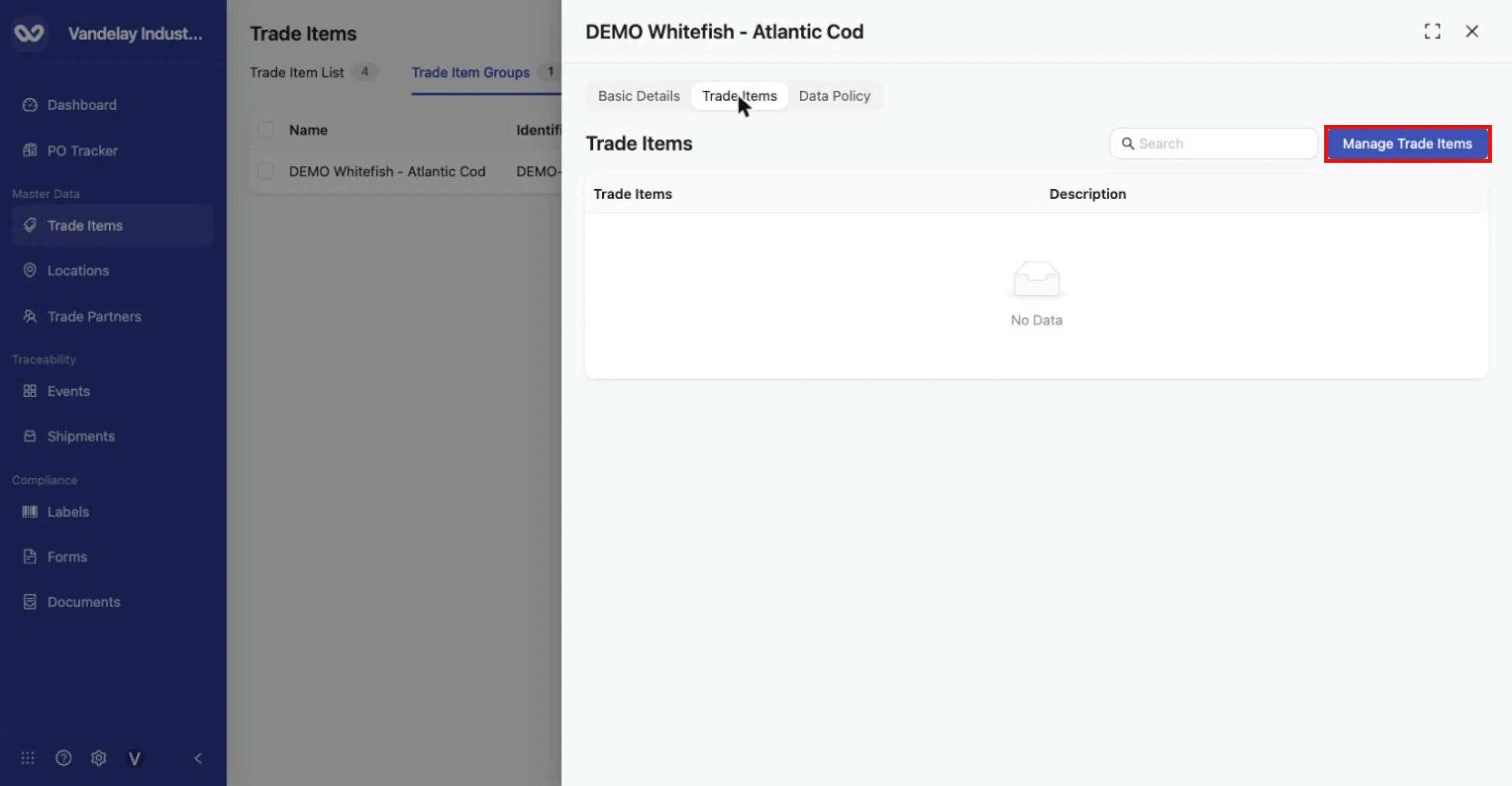
The group's Trade Items tab lists member items and has a Search box. Click Manage Trade Items.
Add members manually
Click Manage Trade Items
It opens on Manual.
Search and select Trade Items
In Trade items, search by name or external ID and select one or more Trade Items. Sub-product (child) items are not offered.
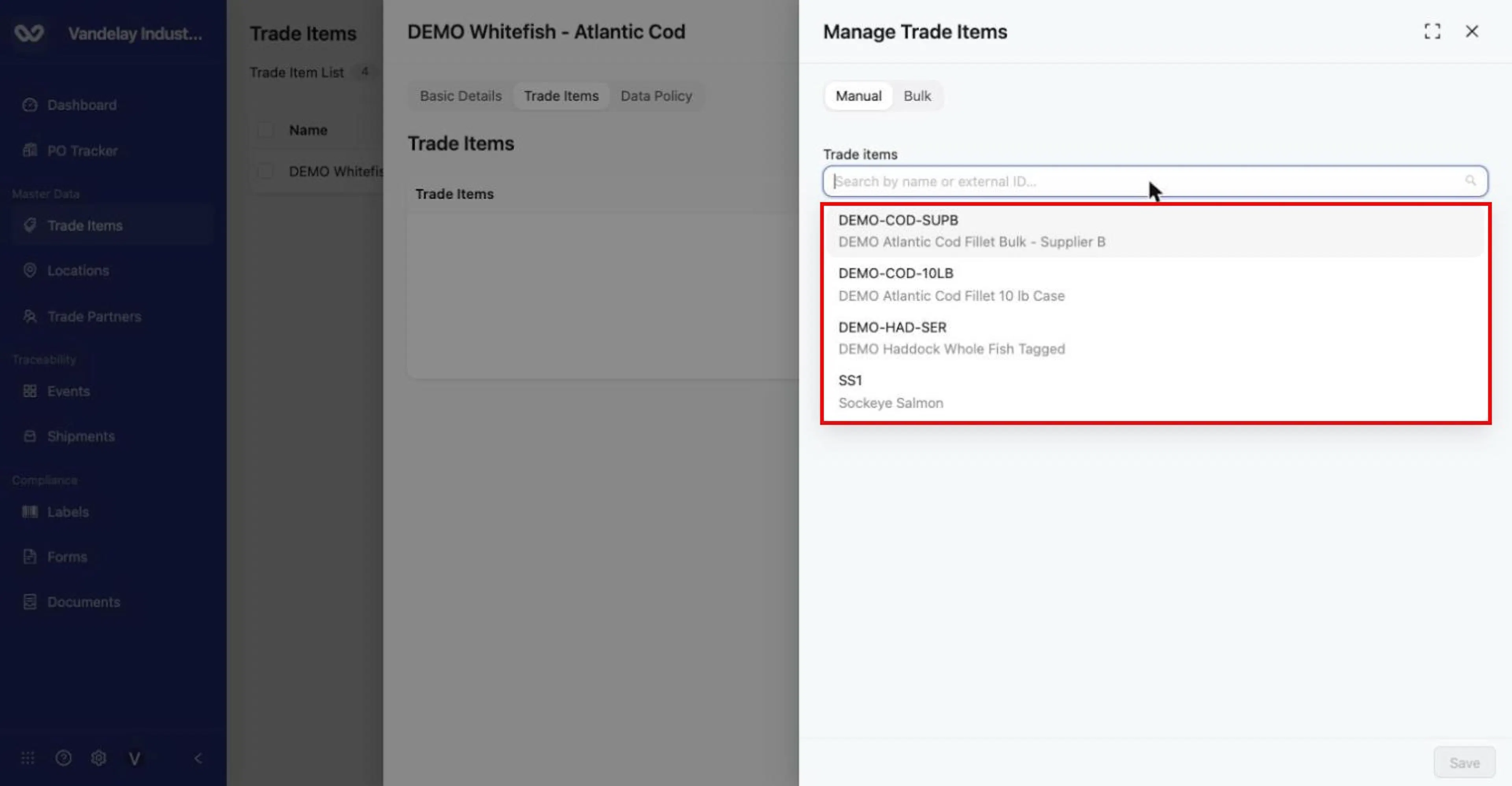
The Trade items search lists items by identifier and name. Sub-products (child items) are not listed.
Review the selection and click Save
Review the Trade Items / Description table first.
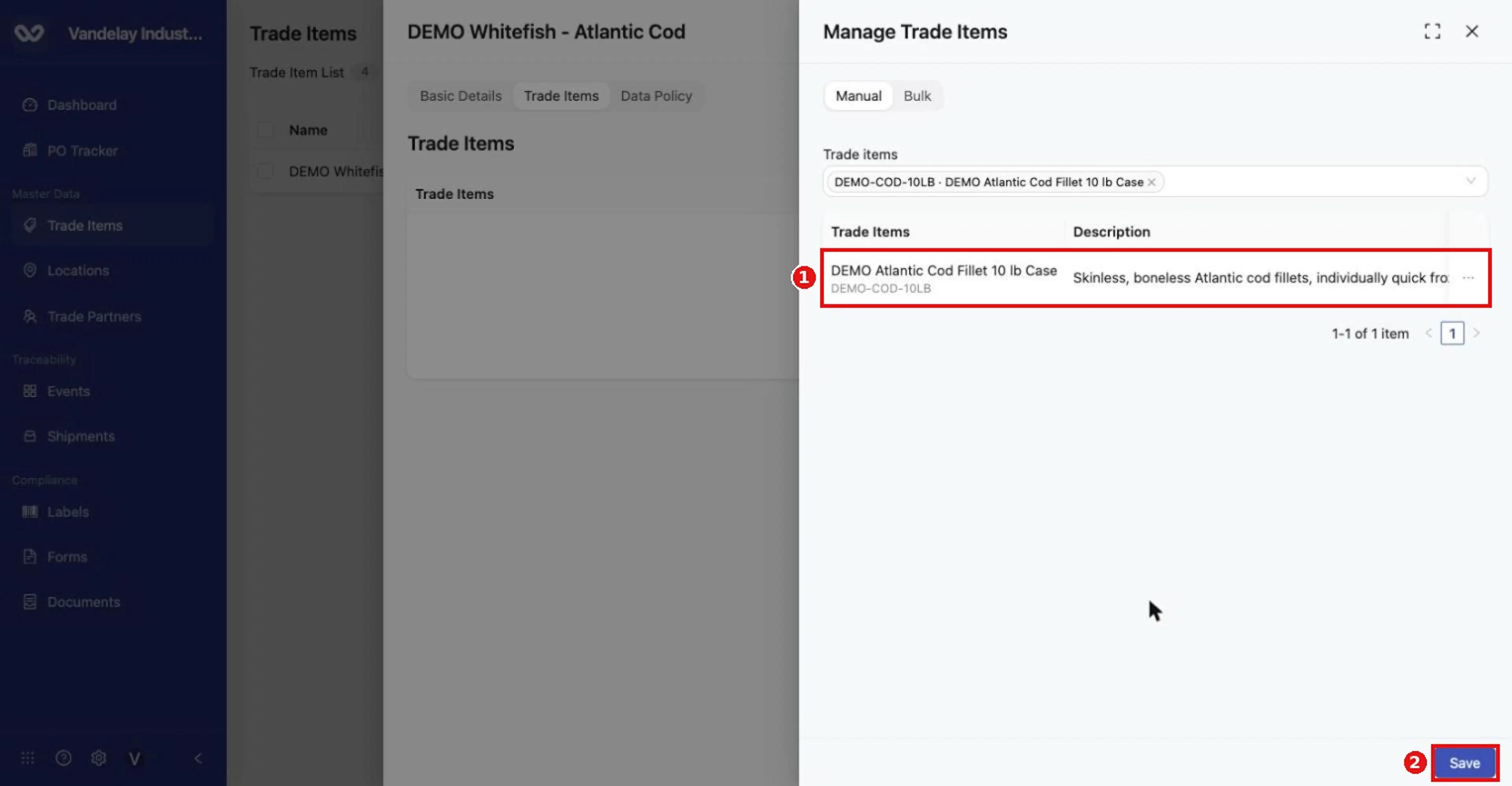
Selected items appear as tags and in the review table. Click Save.
Confirm the Trade Item appears in the group
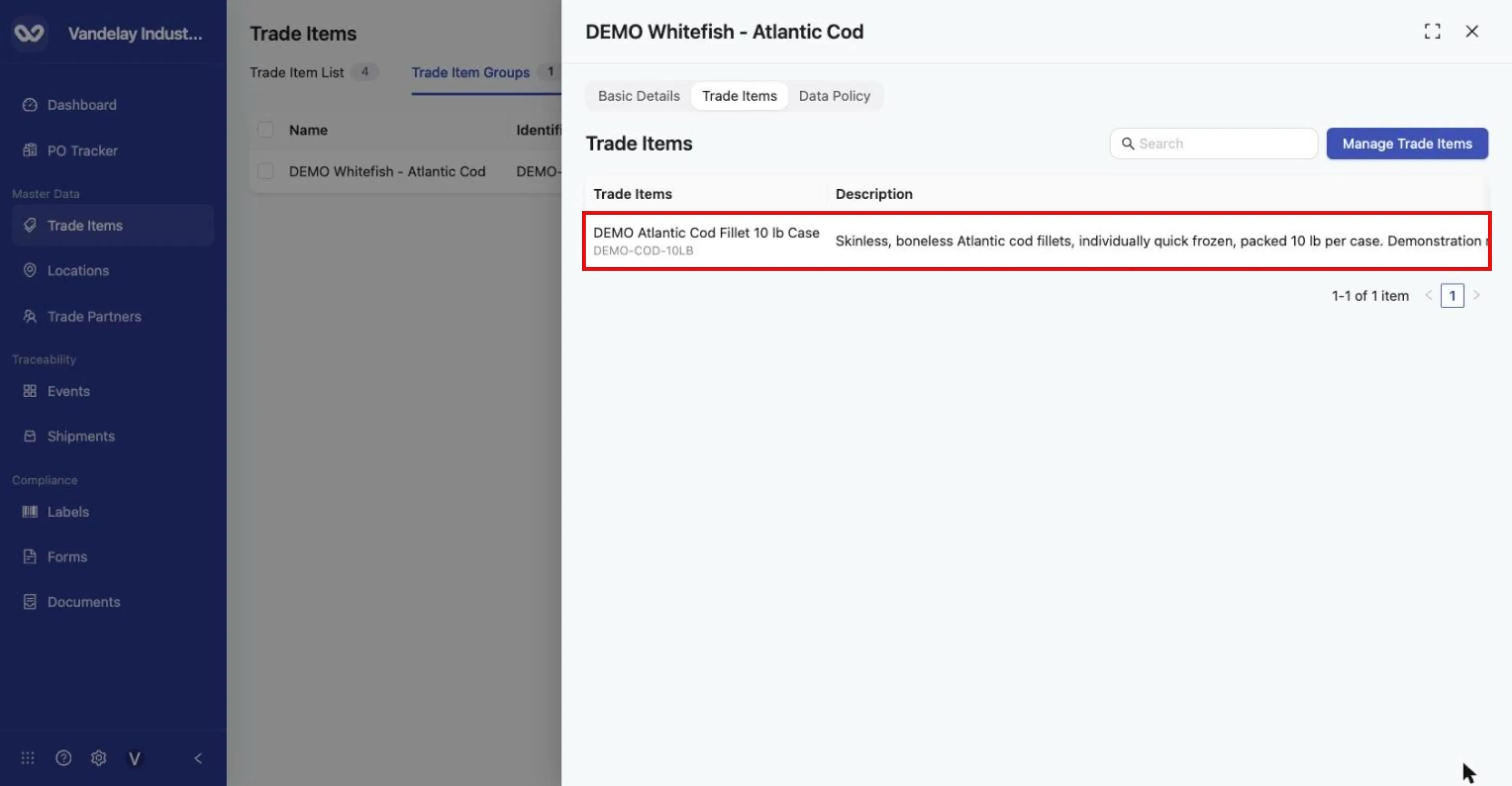
The item now appears in the group's Trade Items table.
Add members in bulk by Trade Item Identifier
Bulk matching uses the Trade Item Identifier only. Names and GTINs show No match, because several Trade Items can share a name or GTIN, while each identifier is unique.
Open the Bulk tab
Click Manage Trade Items, then the Bulk tab.
Paste the identifiers
Paste values into Trade Item External Identifiers ("You may paste CSV values or a column from Excel/Google Sheets..."). Separate values with commas or line breaks.
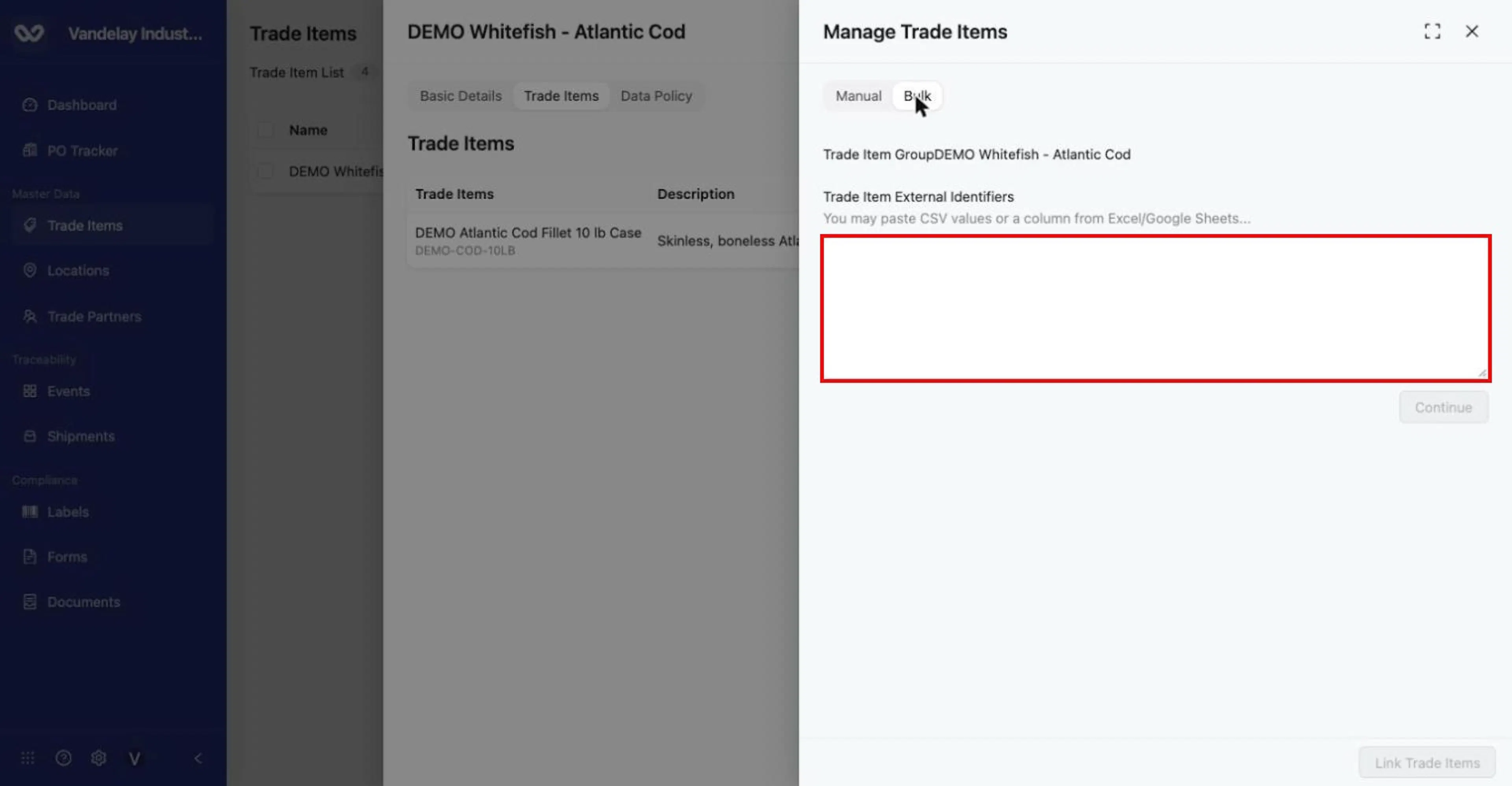
Bulk tab: paste CSV values or a column copied from Excel/Google Sheets into Trade Item External Identifiers, then click Continue.
Click Continue and review the matches
Each value is shown with a Status: Ready (matched and selected) or No match. The count of unmatched values is shown, and Go Back lets you edit the list.
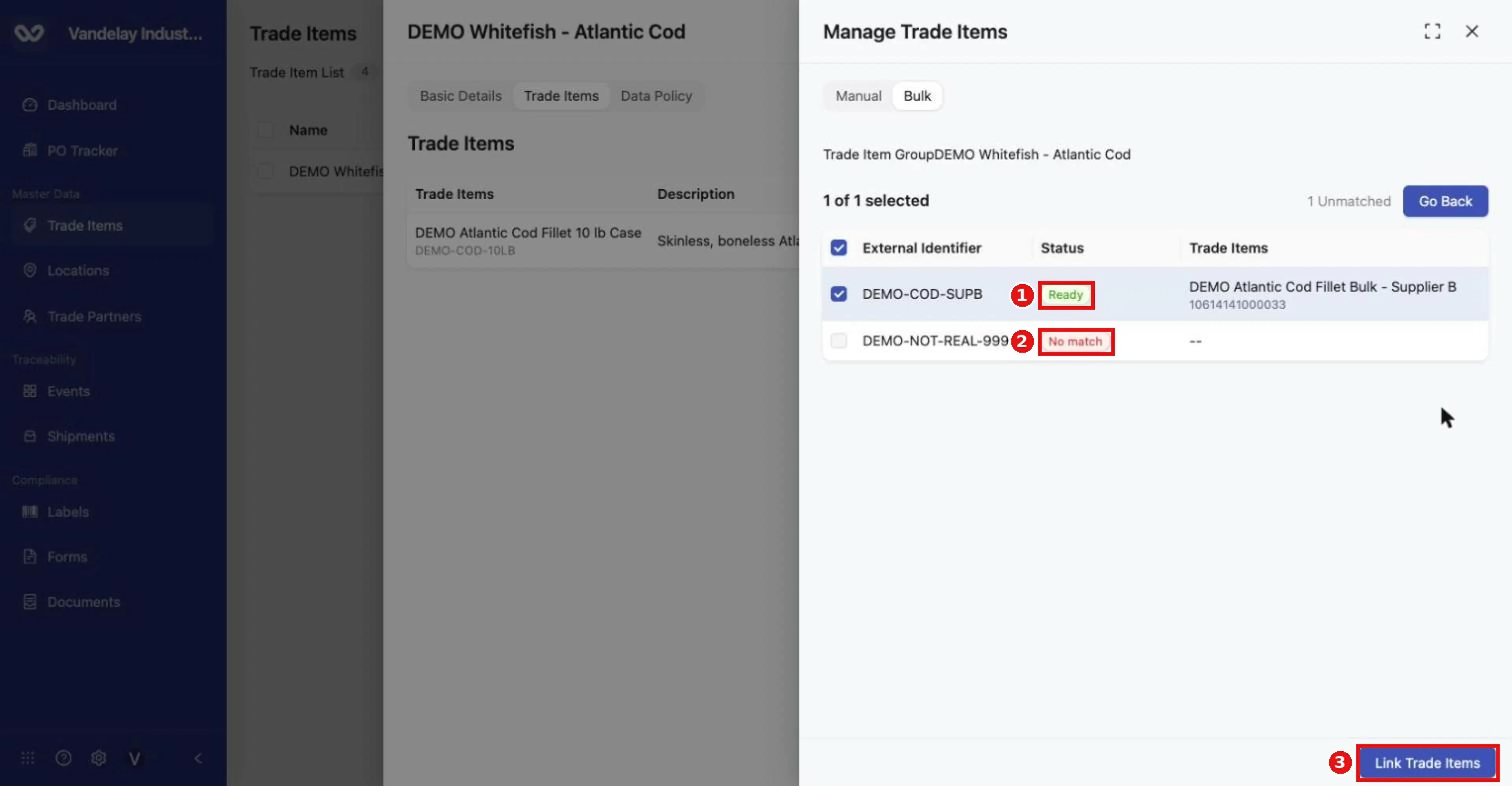
Review: matched values show 'Ready' (selected), unmatched ones show 'No match' and are counted as Unmatched. Use Go Back to edit, or Link Trade Items to continue.
Click Link Trade Items
Trade items added to trade item group appears and the matched Trade Items join the group.
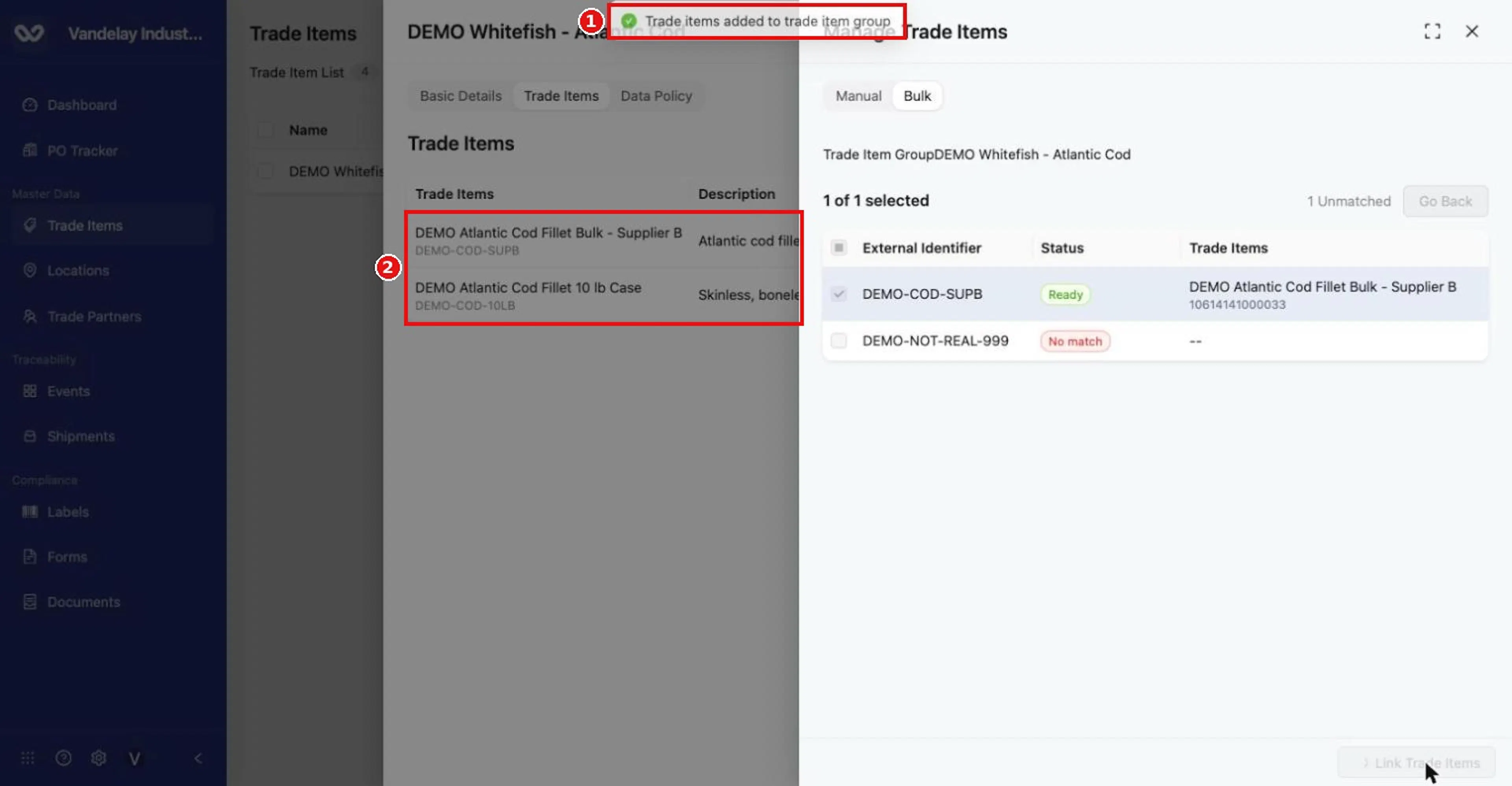
'Trade items added to trade item group'. The matched item now appears in the group.
Data policies for a group
A group can carry a data policy for its member Trade Items. A group's policy is a sub-group of the universal policy that applies to all Trade Items, and you manage it on the Trade Item Groups sub-tab of Master Data Settings > Trade Item, and also in the Data Policy tab of the group drawer (on the Trade Item Groups tab, click the group to open it). To use data policies:
- Data Policies must be switched on for the account in Organization Settings > Account (Compliance section). Only an Admin can do this. See Account settings.
- Manage the group's policy in the group drawer or in Settings. In the drawer, open the group and click its Data Policy tab. In Settings, click the gear icon at the top of the Trade Items page (or open Settings with the gear icon at the bottom of the left-hand navigation bar), which opens Master Data Settings > Trade Item, then open its Trade Item Groups sub-tab. See Master Data Settings and Data elements and policies.
- The values are entered on each Trade Item, in its Custom Attributes. A policy that applies to just one Trade Item is set on that item's details drawer: see Set a data policy for one Trade Item.
Bulk link from the Trade Item Groups tab
Use this to add Trade Items to a group you choose without opening the group first. It uses the same identifier matching described in the bulk steps above.
Click Bulk Link Trade Items
Click it on the Trade Item Groups tab.
Choose the Trade Item Group
Select the group that will receive the Trade Items.
Paste identifiers and click Continue
Paste the Trade Item Identifiers into Trade Item External Identifiers, then click Continue.
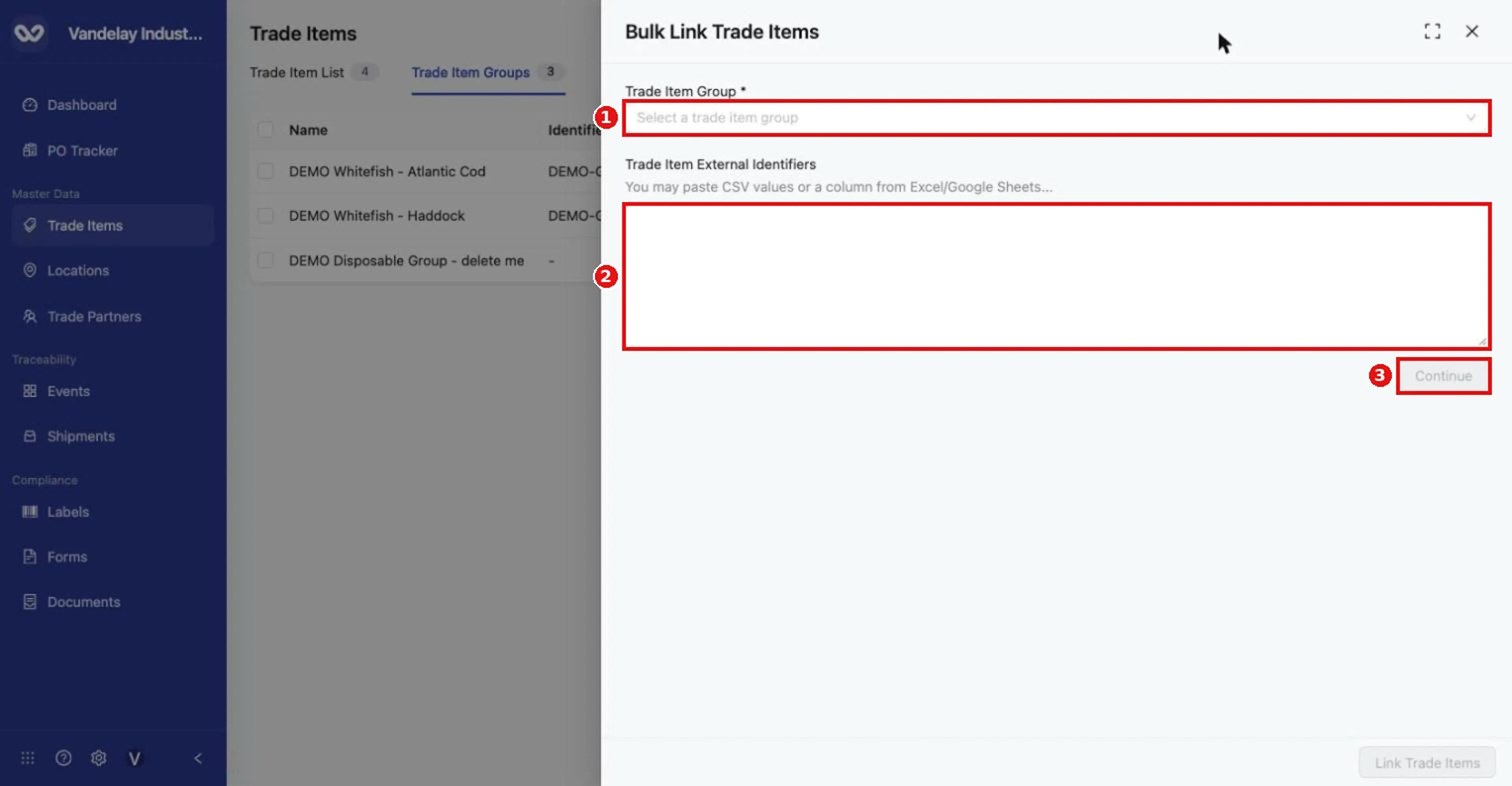
Bulk Link Trade Items (from the Trade Item Groups tab): choose a Trade Item Group, paste identifiers, then Continue.
Review the matches and click Link Trade Items
Matches show Ready or No match.
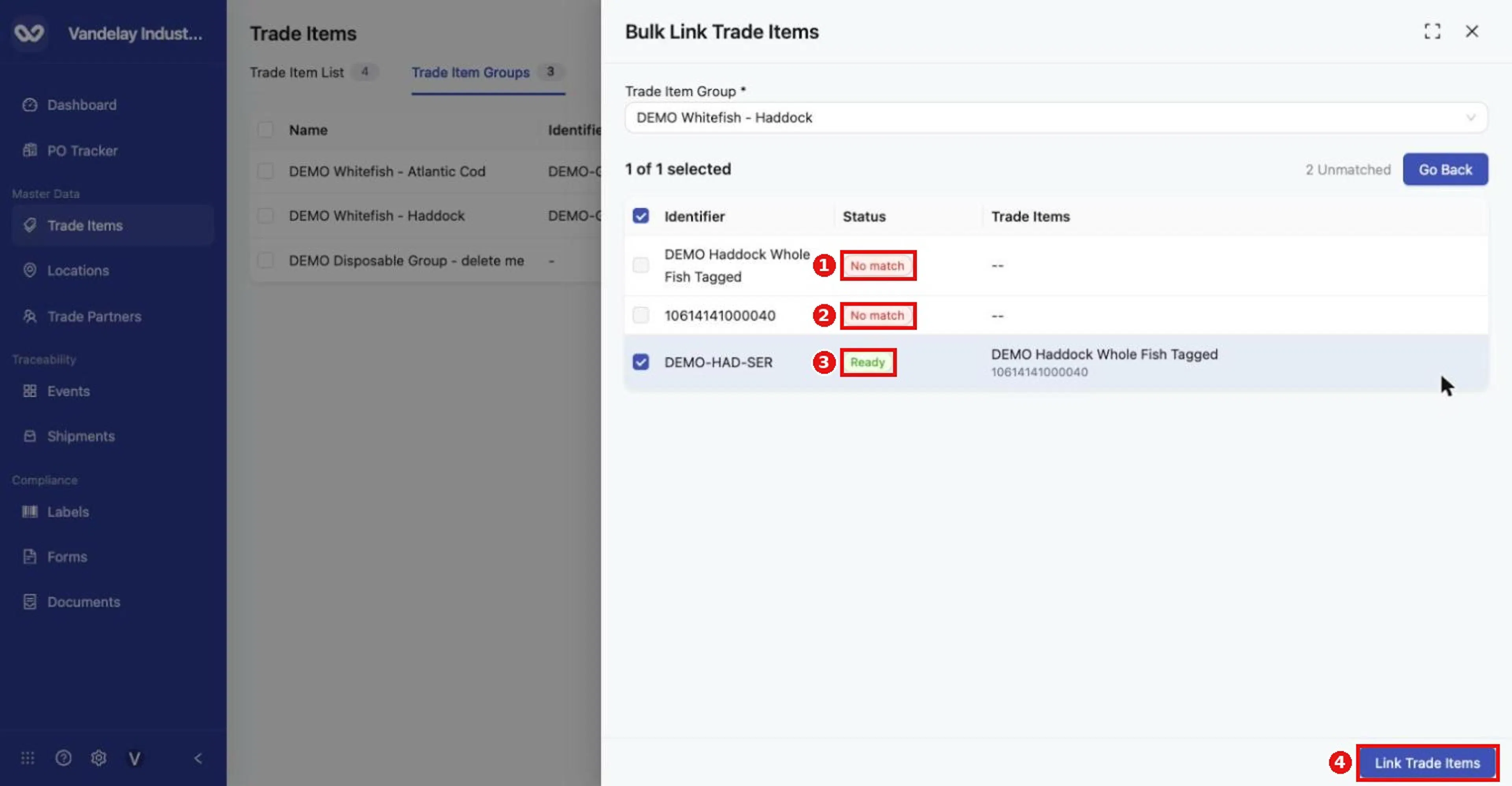
Only the Trade Item Identifier (DEMO-HAD-SER) matched. The item name and the GTIN show 'No match'.
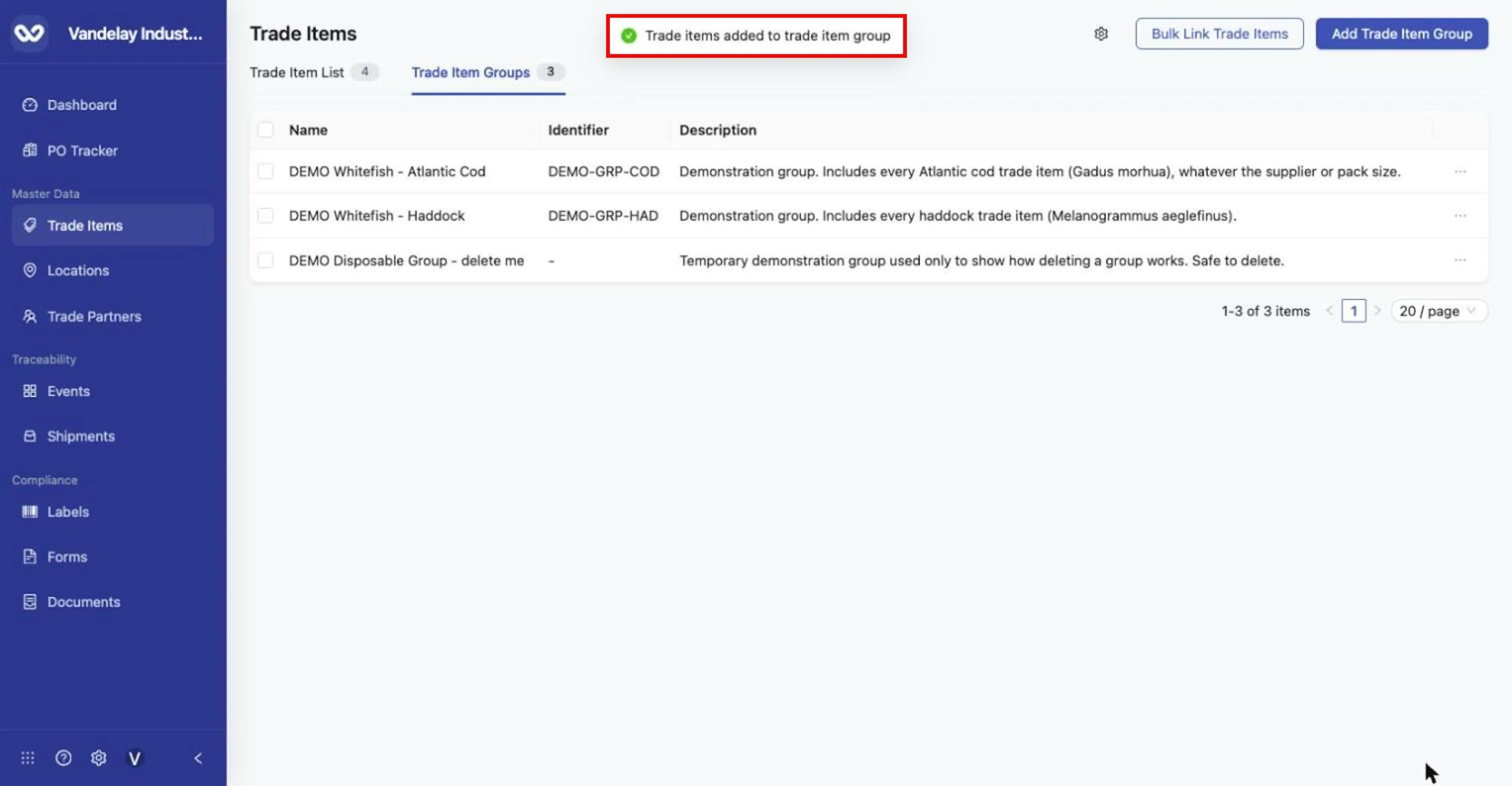
'Trade items added to trade item group'.
Delete groups
Make sure the group is not needed. Deletion cannot be undone. Wholechain does not warn you that the group still has members, so check its Trade Items tab before deleting.
Select the group
Tick the group's checkbox. 1 selected and a red Delete button appear. A single group can also be deleted from its row's ... menu.
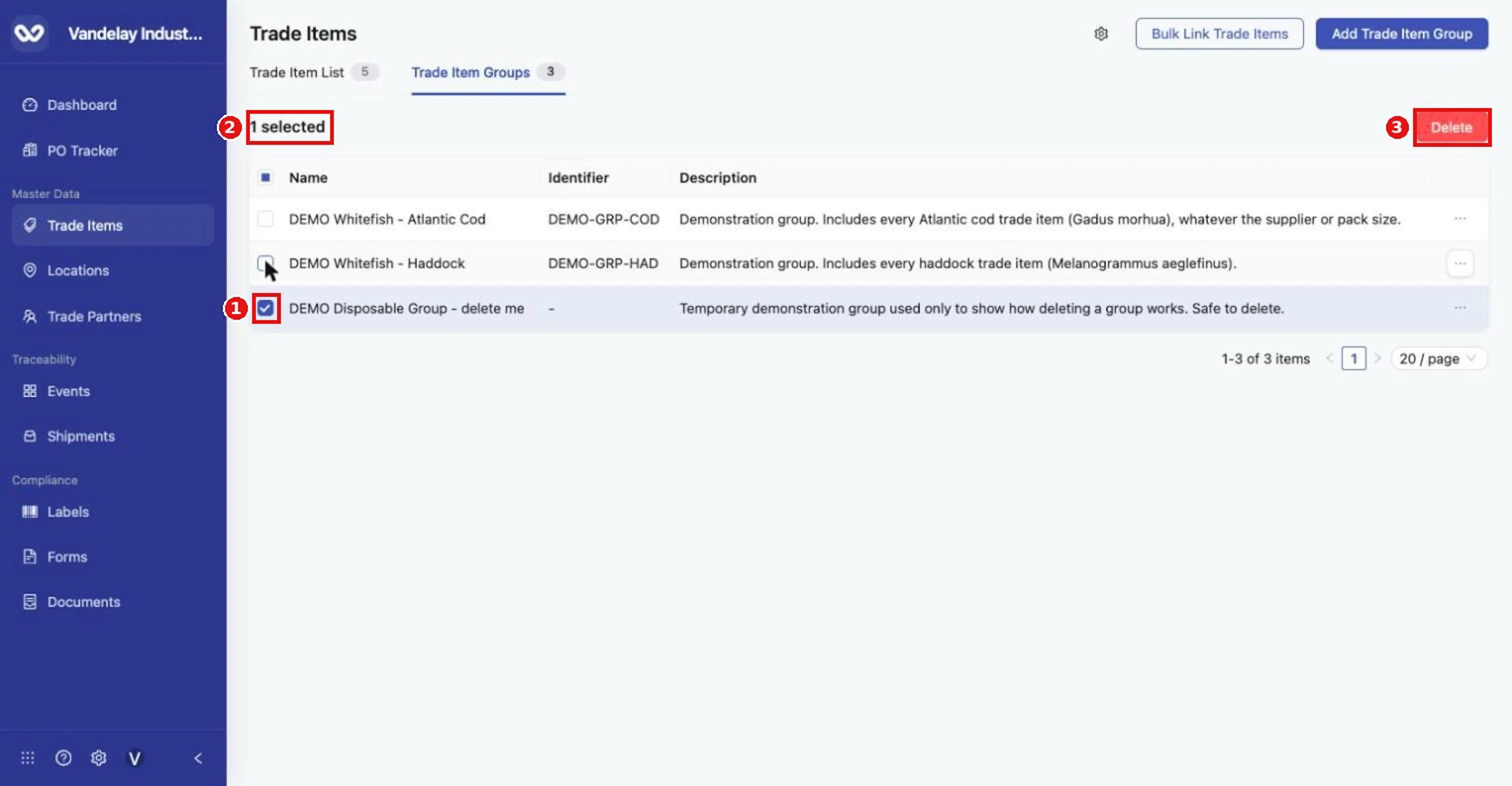
Select a group's checkbox: the bar shows '1 selected' and a Delete button.
Confirm the deletion
Click Delete, read "Delete selected trade item groups? This action cannot be undone.", and click Delete to confirm.
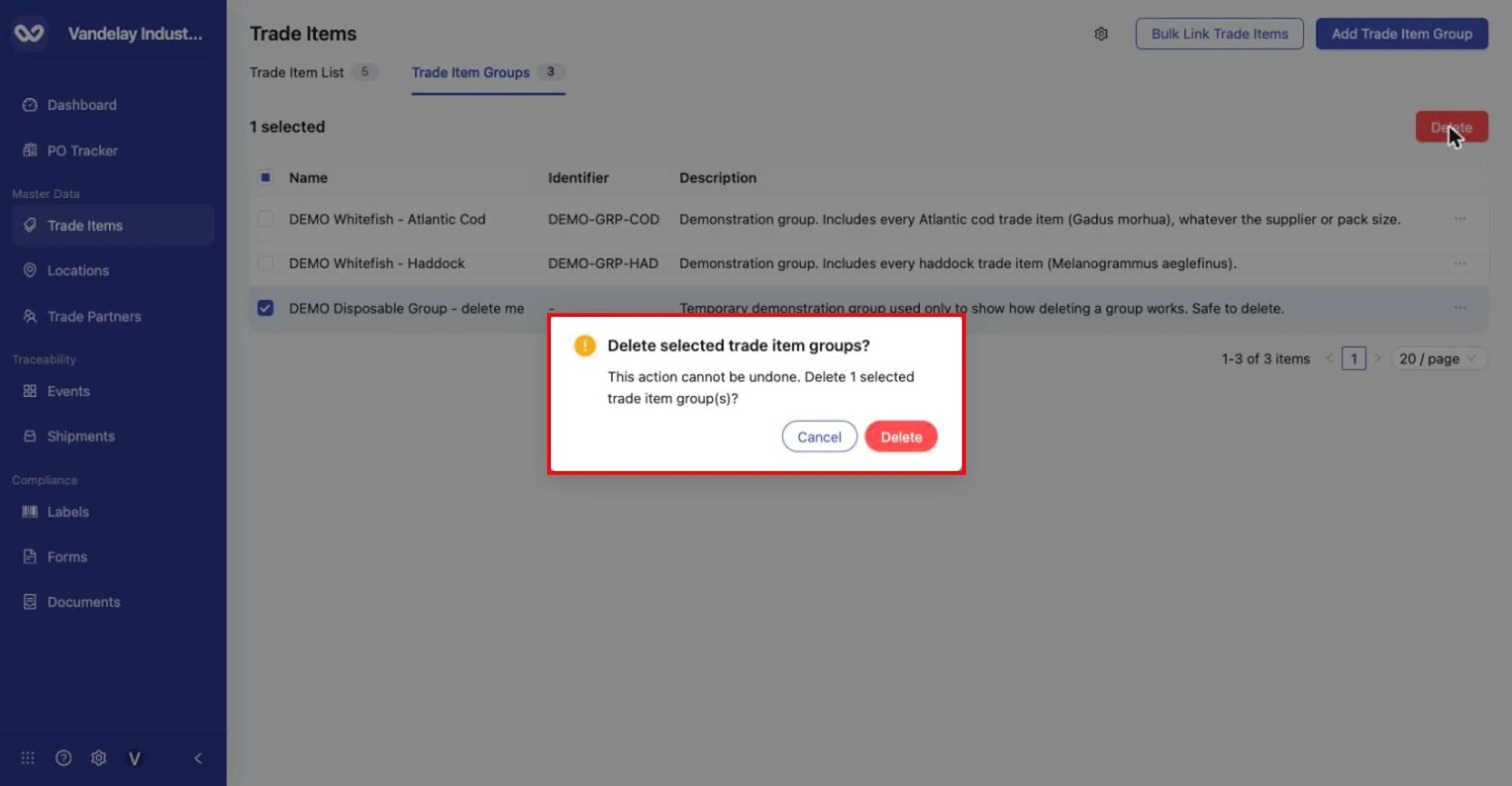
Confirmation: 'Delete selected trade item groups? This action cannot be undone.' Click Delete to confirm or Cancel.
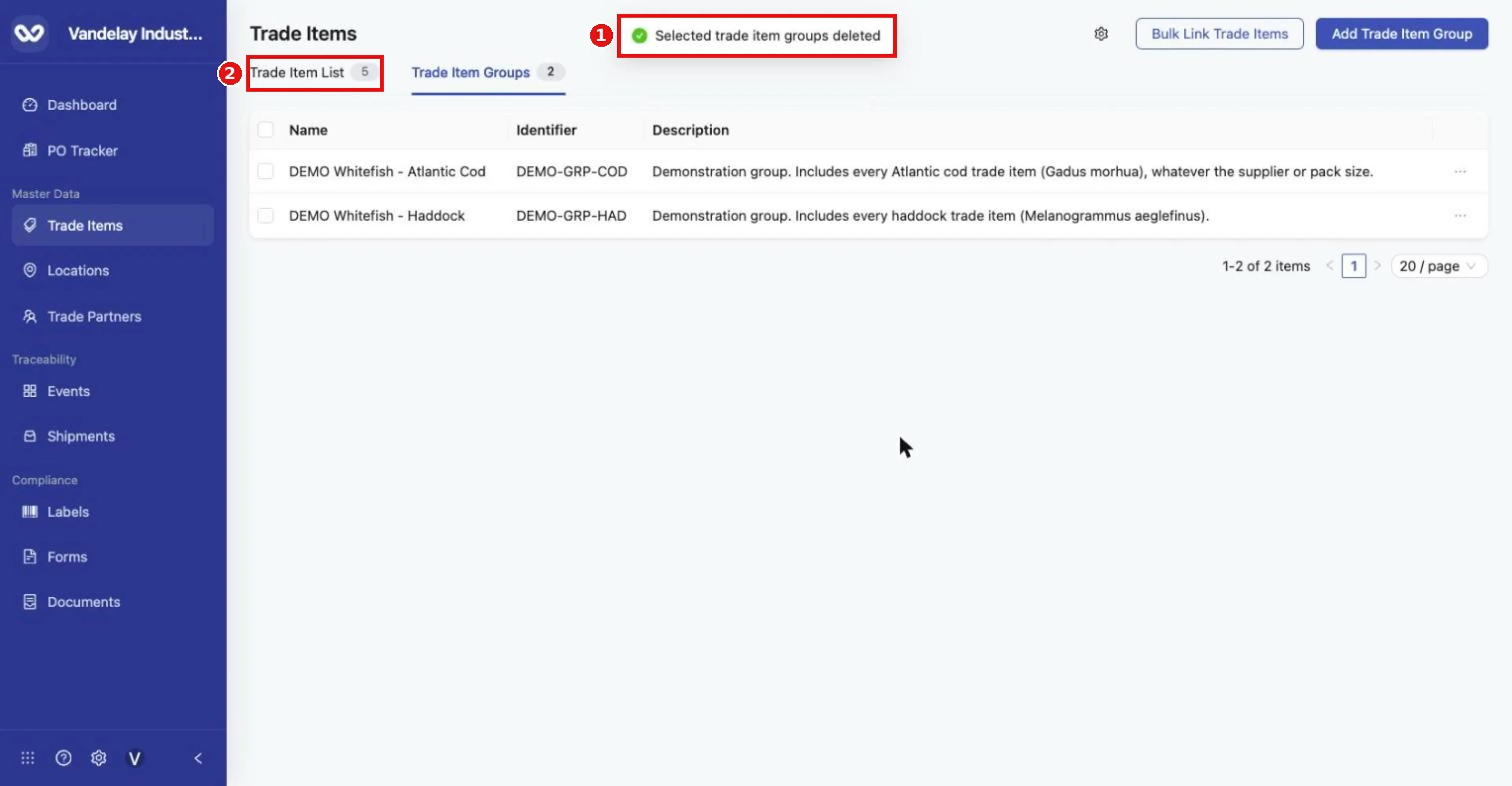
'Selected trade item groups deleted'. The Trade Item Groups count drops to 2; the Trade Item List count stays at 5.
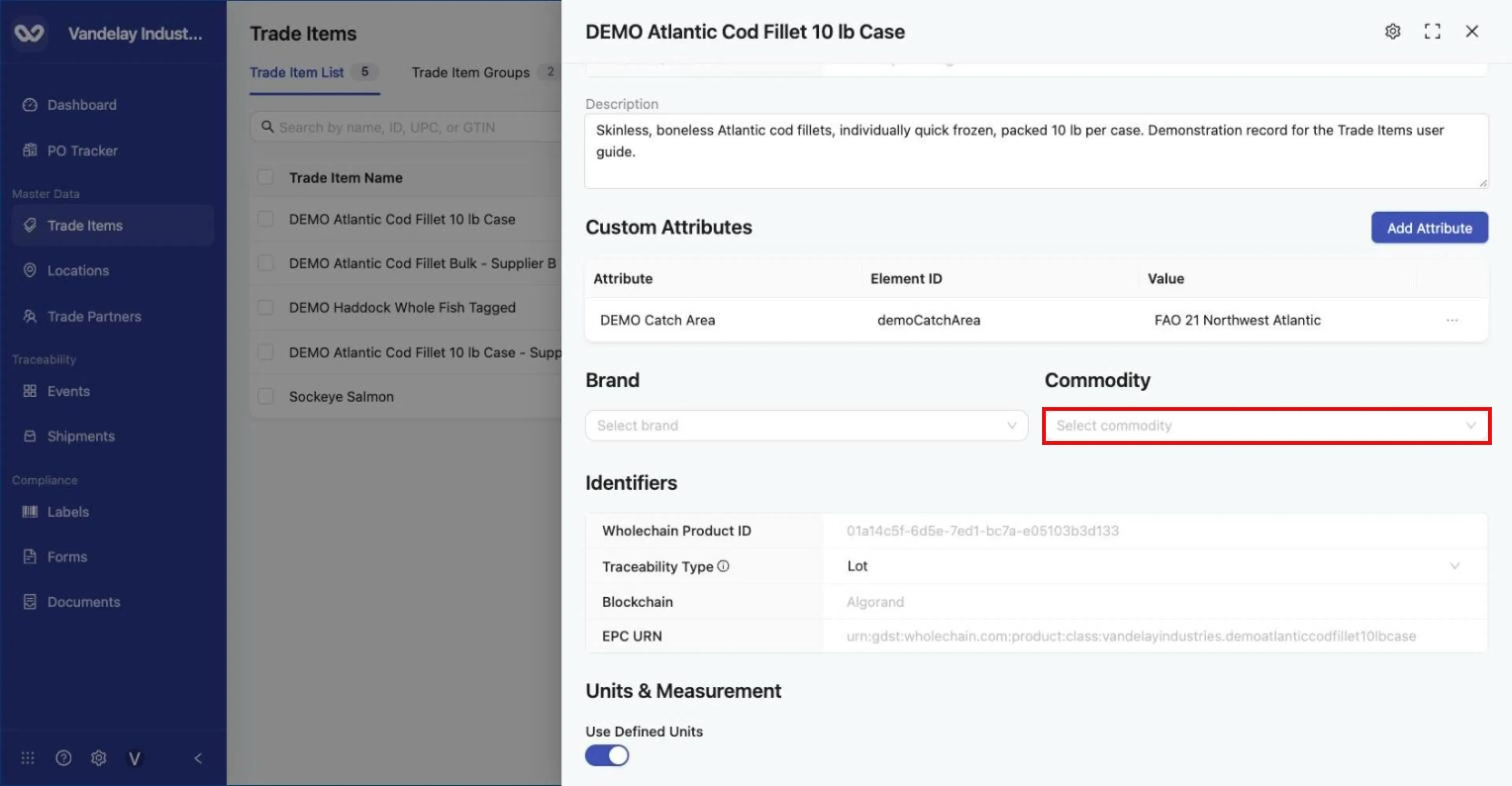
The item that was in the deleted group still exists; its Commodity is now empty.
Expected result
- After you add a group, Trade item group created appears, the group opens on Basic Details, and it is listed in the groups table.
- After you link Trade Items, Trade items added to trade item group appears and they are listed on the group's Trade Items tab.
- After you delete a group, Selected trade item groups deleted appears and the group count goes down. Member Trade Items are not deleted: they stay in the Trade Item List and their Commodity becomes empty.
Troubleshooting
- Add Trade Item Group is disabled. Name and Description are both required.
- A value shows No match in bulk. Bulk matching uses the Trade Item Identifier only, not names or GTINs. Give the Trade Item an identifier first, or use Manual selection.
- A Trade Item is missing from the Manual search. Sub-product (child) items are not offered.
- A Trade Item left its old group. A Trade Item belongs to one group, so linking it to a new group replaces the previous one.
- I cannot find the group's data policy. Open the group and click its Data Policy tab, or use the Trade Item Groups sub-tab of Master Data Settings > Trade Item. Data Policies must first be switched on for the account by an Admin. See Data policies for a group above.
Field and action reference
Table and actions
| Column | Description |
|---|---|
| Name | Group name. |
| Identifier | Optional group identifier. |
| Description | Which Trade Items belong in the group. |
| Action | What it does |
|---|---|
| Add Trade Item Group | Creates a group. |
| Bulk Link Trade Items | Adds Trade Items to a chosen group by pasted Trade Item Identifiers. |
| Settings (gear) | Opens Master Data Settings > Trade Item. |
| Delete | Deletes selected groups (checkbox selection or row ... menu). |
Group fields
| Field | Req. | Values |
|---|---|---|
| Name | Yes | Group name. |
| Identifier | No | Code used by integrations to refer to the group. |
| Description | Yes | Which Trade Items belong in the group. |
Result: Trade item group created. The group drawer opens on Basic Details; members are managed on the Trade Items tab. The group's data policy is managed on the Data Policy tab and on the Trade Item Groups sub-tab of Master Data Settings > Trade Item.
Trade Items tab (members)
Lists member Trade Items with Search and paging. Manage Trade Items has two modes:
| Mode | Input | Matching |
|---|---|---|
| Manual | Search Trade items by name or external ID and select. Sub-products are not offered. | Direct selection; Save. |
| Bulk | Paste values into Trade Item External Identifiers (CSV or one per line). | Trade Item Identifier only. Continue shows each value as Ready or No match; Go Back edits the list; Link Trade Items applies. |
Bulk Link Trade Items (groups page) adds Trade Item Group (Req.) to the same bulk input. Result: Trade items added to trade item group.
Delete group
Confirmation: "Delete selected trade item groups? This action cannot be undone." Result: Selected trade item groups deleted. Member Trade Items are kept and their Commodity becomes empty. No warning is shown for groups that still have members.