

Linked shipments: inspect, include and unlink
See which ship and receive events are connected to a purchase order, link an event manually, and remove a link.
Purpose. See which ship and receive events are connected to a PO, link an event that did not match automatically, and remove a link.
Open the drawer
Select the PO's row
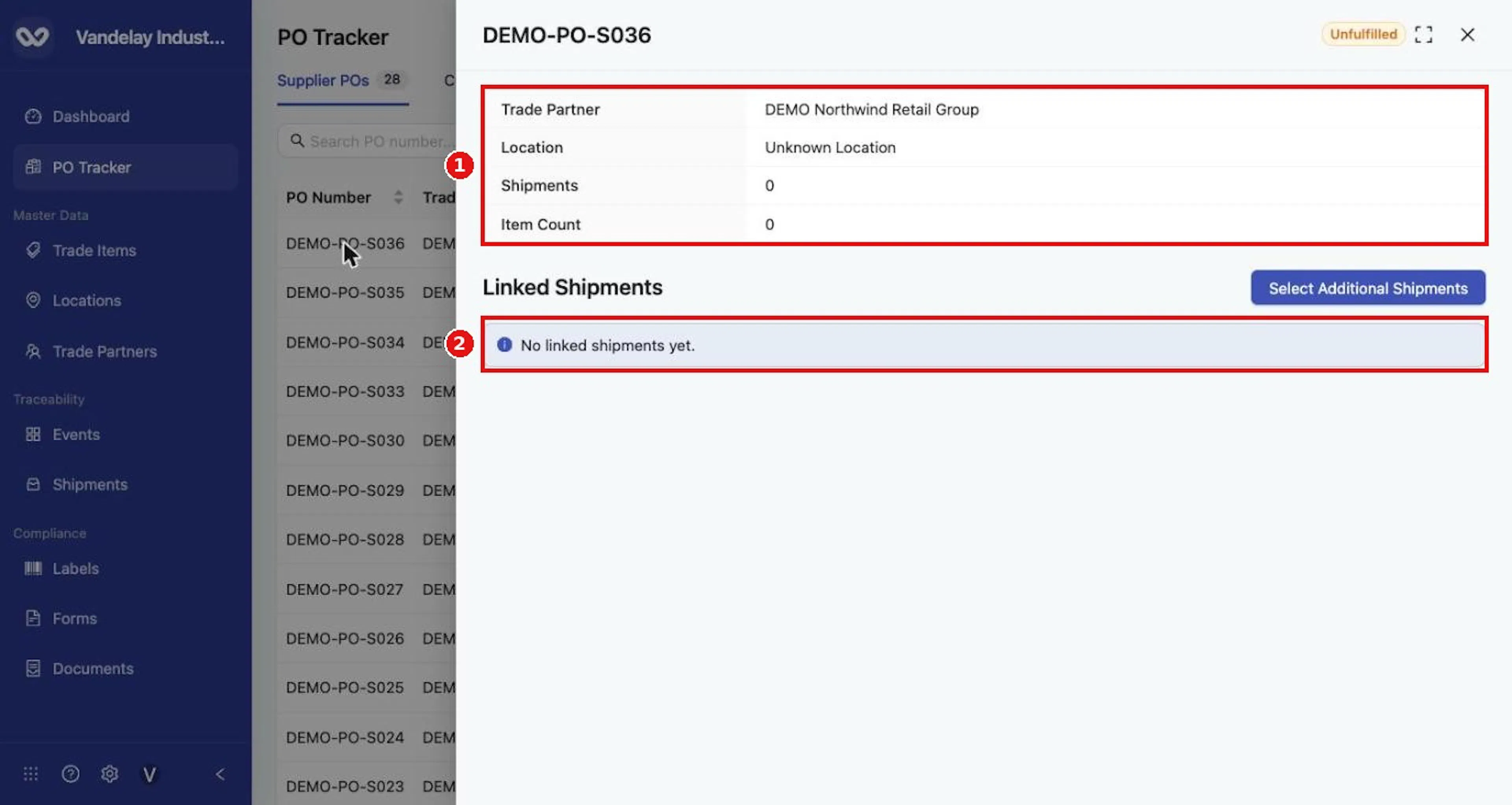
Select the PO's row. A drawer opens showing the PO number, its Status, Trade Partner, Location, Shipments, Item Count and Linked Shipments.
Read the linked shipments
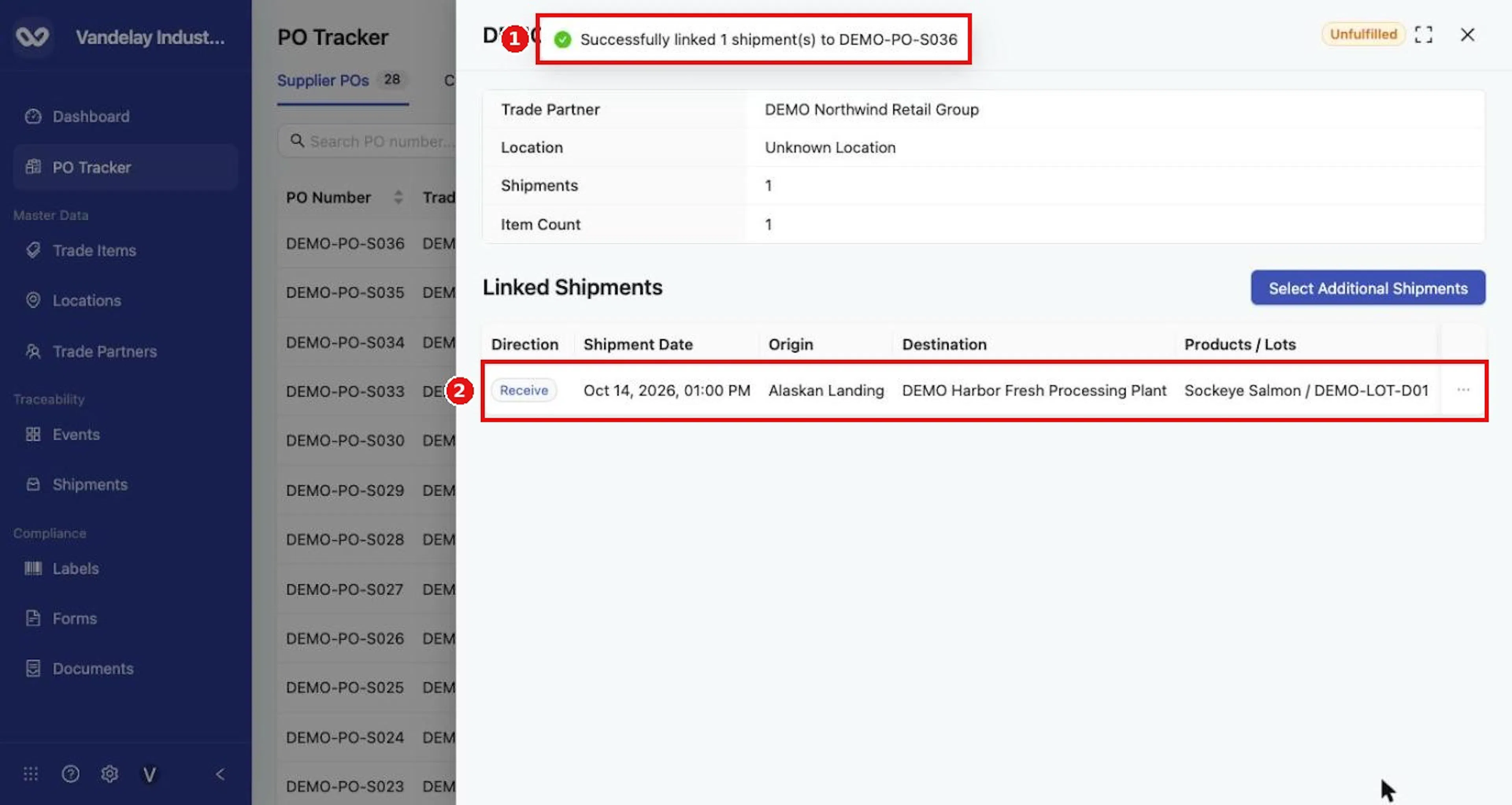
Read each linked shipment's Direction, Shipment Date, Origin, Destination and Products / Lots.
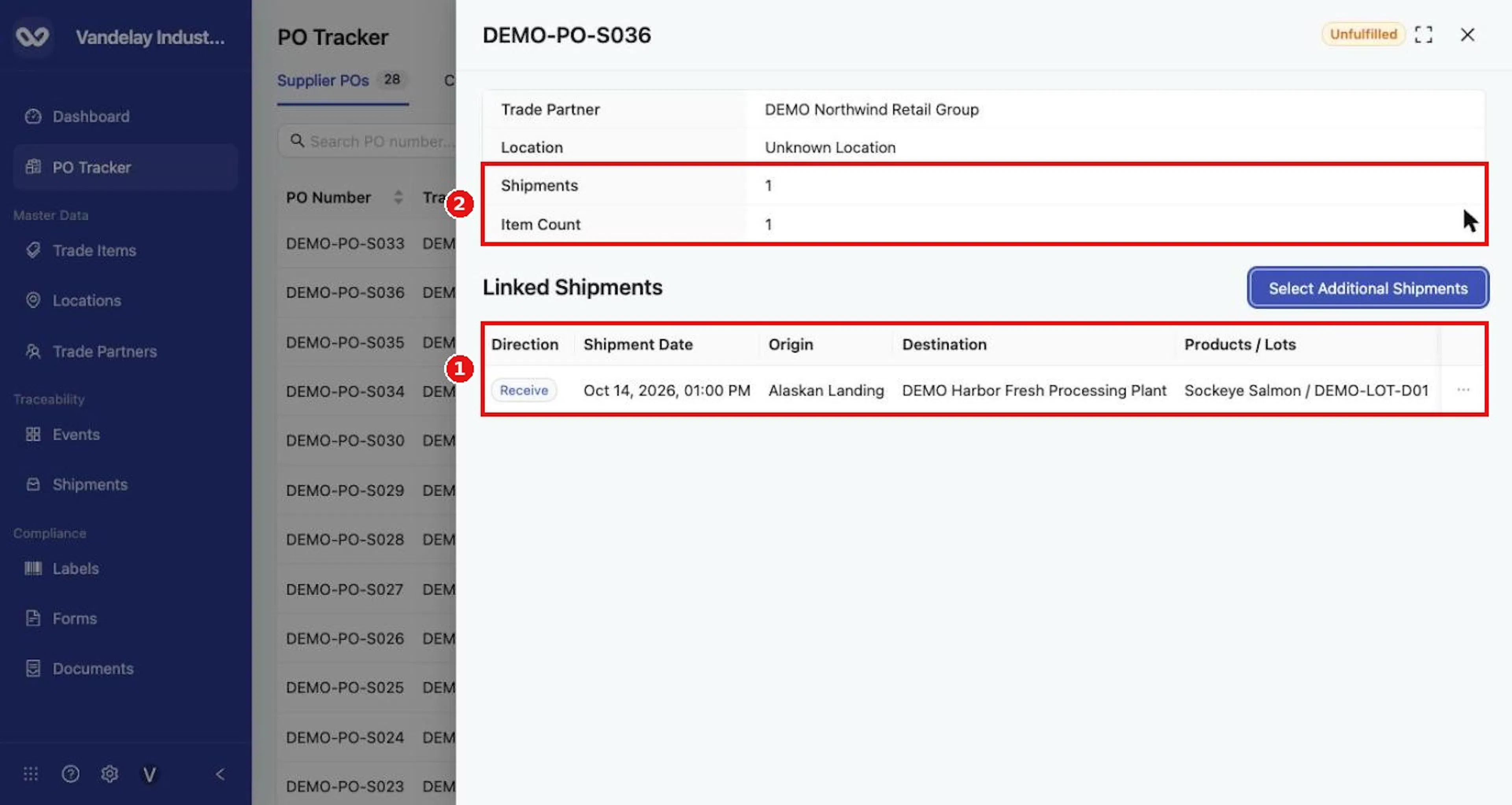
Why it matters. Ship and receive events link to a PO automatically when the event's PO number and Trade Partner match the PO details. Linked receive events can include direct receives recorded without an upstream ship event, for example receive information imported from an ERP while onboarding suppliers. Direct receives do not make the PO Fulfilled.
Expected result. With no links, the drawer shows No linked shipments yet.
Troubleshooting. This drawer is different from Edit Purchase Order, which opens from View Details (see View or edit a purchase order on the Manage a purchase order: view, edit, share, delete page).
Include additional shipments
Select Additional Shipments
In the PO's drawer, select Select Additional Shipments.
Search or filter the events
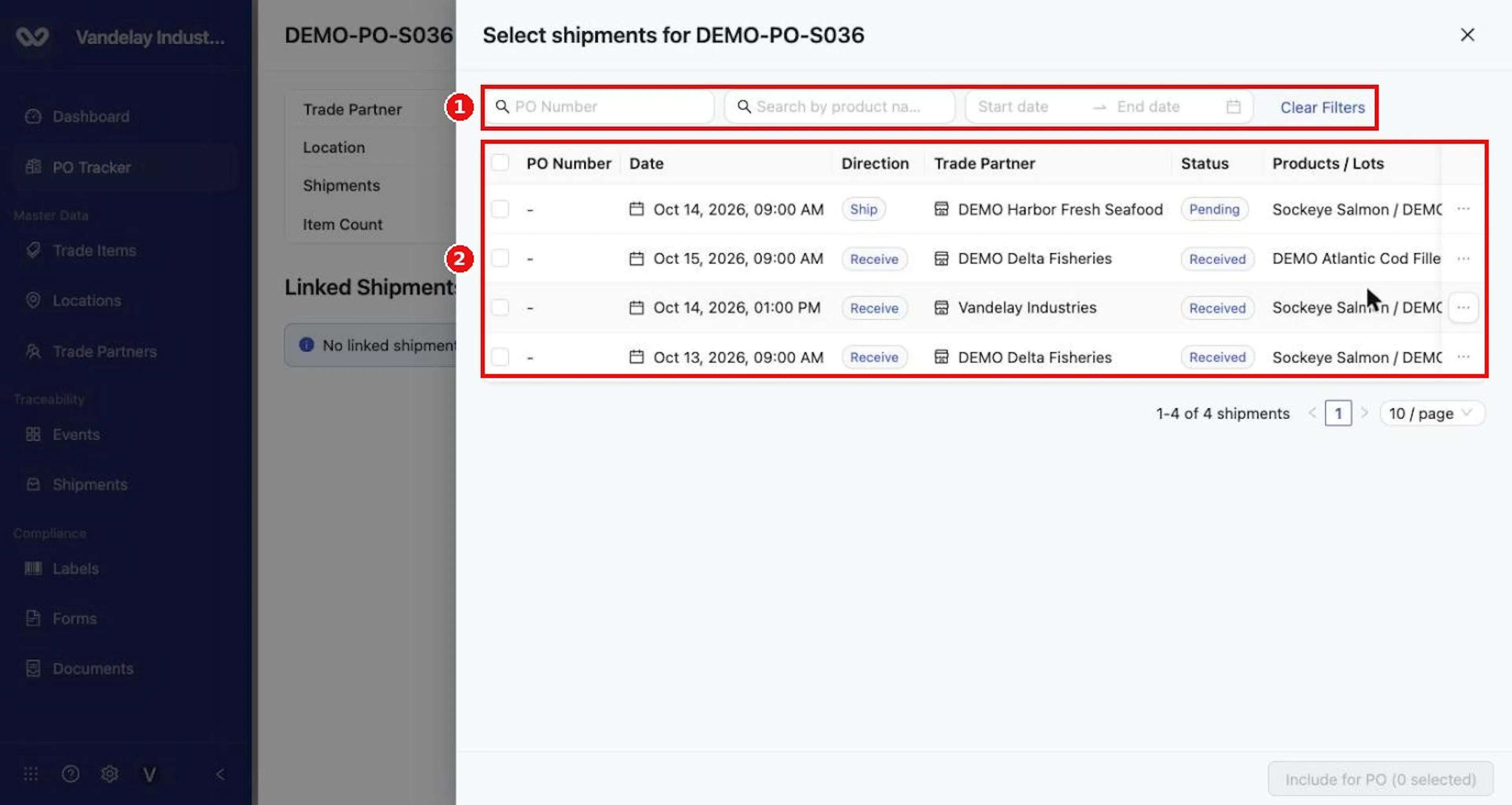
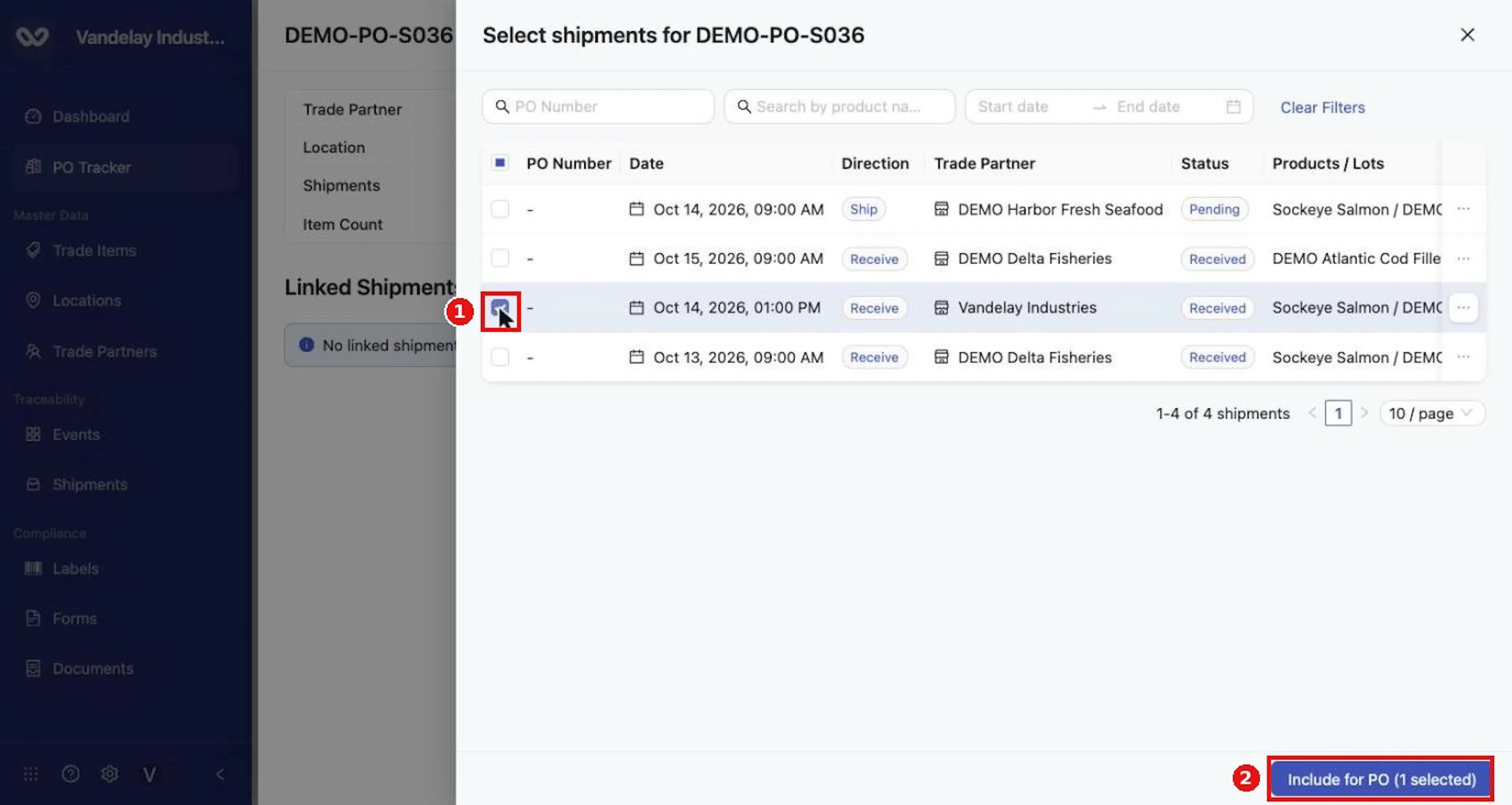
In the Select shipments drawer, search by PO Number or product name, or set a Start date and End date. Select Clear Filters to reset. The table lists ship and receive events, including events whose PO Number shows "-".
Preview an event (optional)
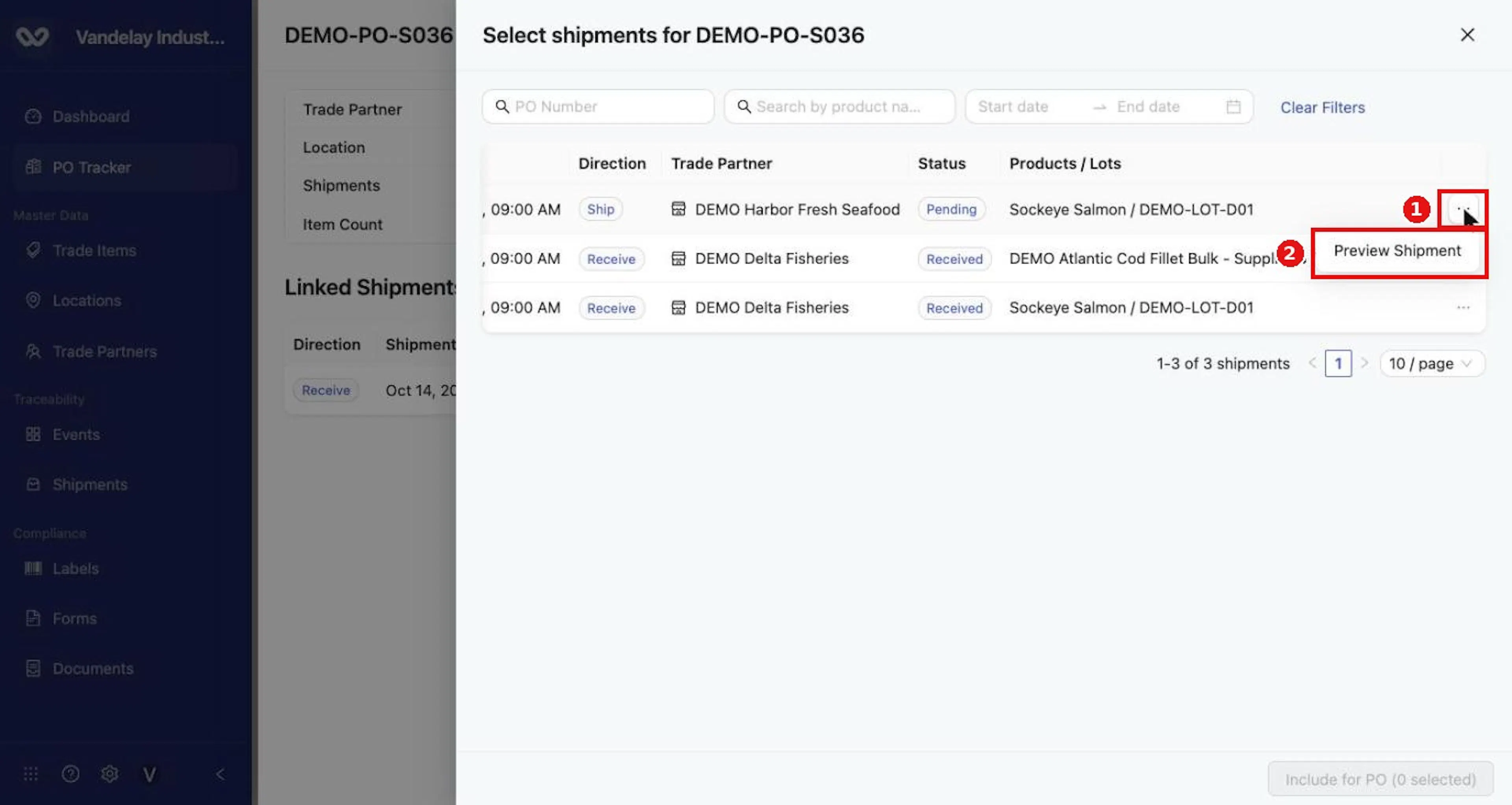
To check an event first, select its three dots and Preview Shipment. The event opens on the Shipments page with its map, diagram and list views.
Tick the checkbox of each event to link
Tick the checkbox of each event to link.
Select Include for PO
Select Include for PO. The number selected shows in parentheses.
Why it matters. Linking does not change the event itself. It connects the PO to the product movement so the tracker reflects it.
Expected result. The message Successfully linked n shipment(s) to <PO number> appears and Shipments updates.
Troubleshooting.
- An event already linked to a PO is not offered again.
- Linking a receive event does not change Status; only a qualifying ship event does (see the Understand traceability statuses page).
Unlink a shipment
Select Unlink on the linked shipment
In the PO's drawer, select the three dots on the linked shipment, then Unlink.
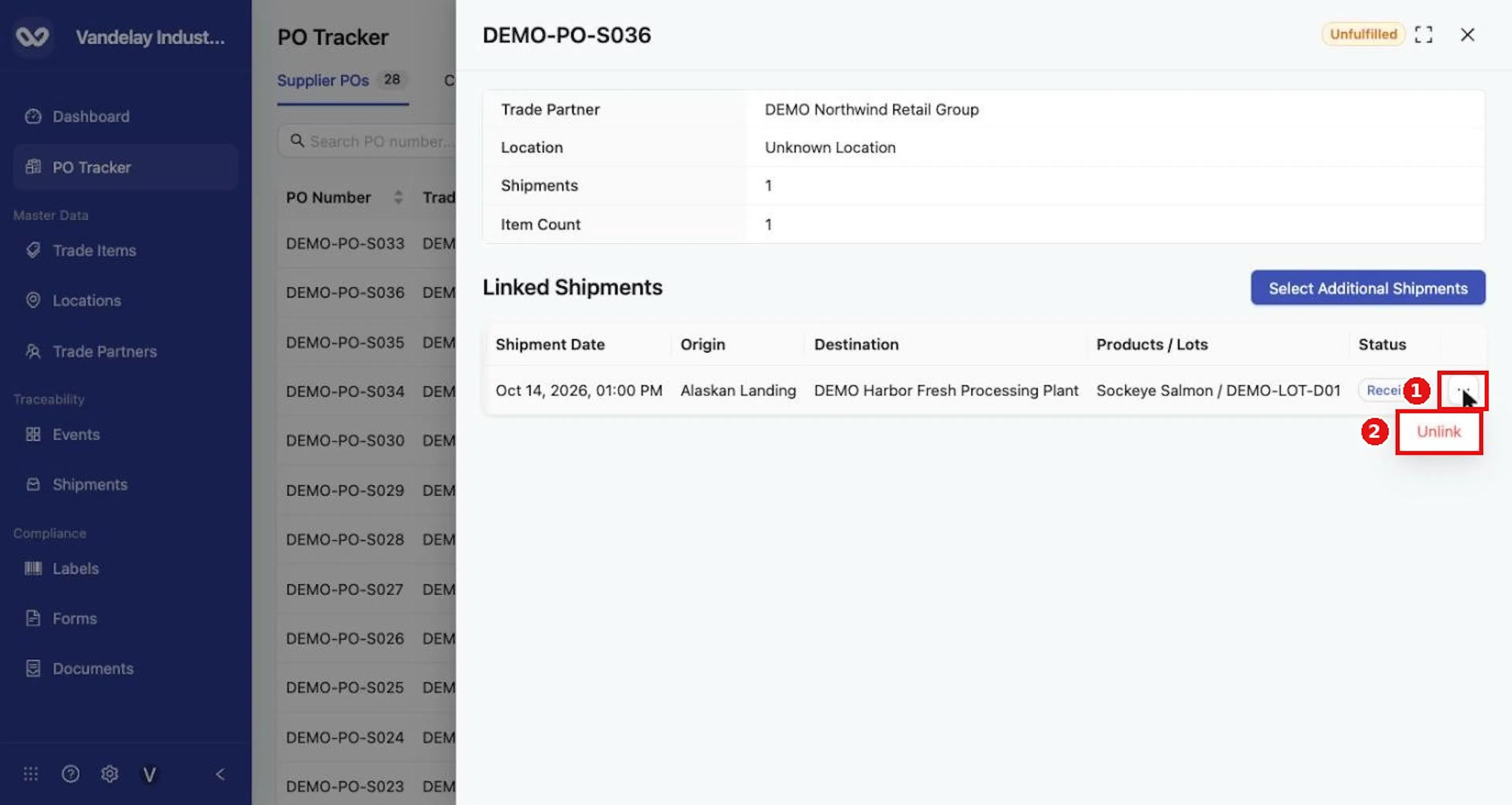
Expected result. Unlink takes effect at once, without a confirmation, and does not change the shipment. If the unlinked shipment was the only one on a Supplier PO, Status returns to Unfulfilled.
Field and action reference
Shipments drawer
Click a row to open the drawer. The URL ends in /link.
| Item | Description |
|---|---|
| Header | PO number and Status badge. |
| Trade Partner, Location | As in the table. |
| Shipments | Number of linked shipments. |
| Item Count | Number of items. |
| Linked Shipments | Linked shipments with Direction, Shipment Date, Origin, Destination, Products / Lots. Empty: No linked shipments yet. |
| Select Additional Shipments | Opens the shipment picker. |
Row menu of a linked shipment: Unlink (removes the shipment from the PO's linked shipments at once, no confirmation). If it was the only shipment linked to a Supplier PO, the Status returns to Unfulfilled.
Select shipments for the PO
| Item | Description |
|---|---|
| Filters | PO Number search, product-name search, start and end date, Clear Filters. |
| Columns | PO Number ("-" if none), Date, Direction (Ship or Receive), Trade Partner, Status (Pending or Received), Products / Lots. |
| Row menu | Preview Shipment opens the event's page under Shipments (map, diagram and list views). |
| Include for PO (n selected) | Disabled until a row is selected. On success: Successfully linked n shipment(s) to <PO number>. |
Shipments already linked to a PO are not offered again. Any shipment can be linked, whether or not it involves the PO's Trade Partner.