

Open PO Tracker and find a purchase order
Open PO Tracker, read the tracker table, search and filter, and choose which columns to show.
Purpose. Find the module, read the tracker table, and locate a PO.
Before you begin. The Purchase Orders setting must be on (see the Set sharing defaults page).
Open the module
Select PO Tracker in the left navigation
Select PO Tracker in the left navigation. The list opens on Supplier POs.
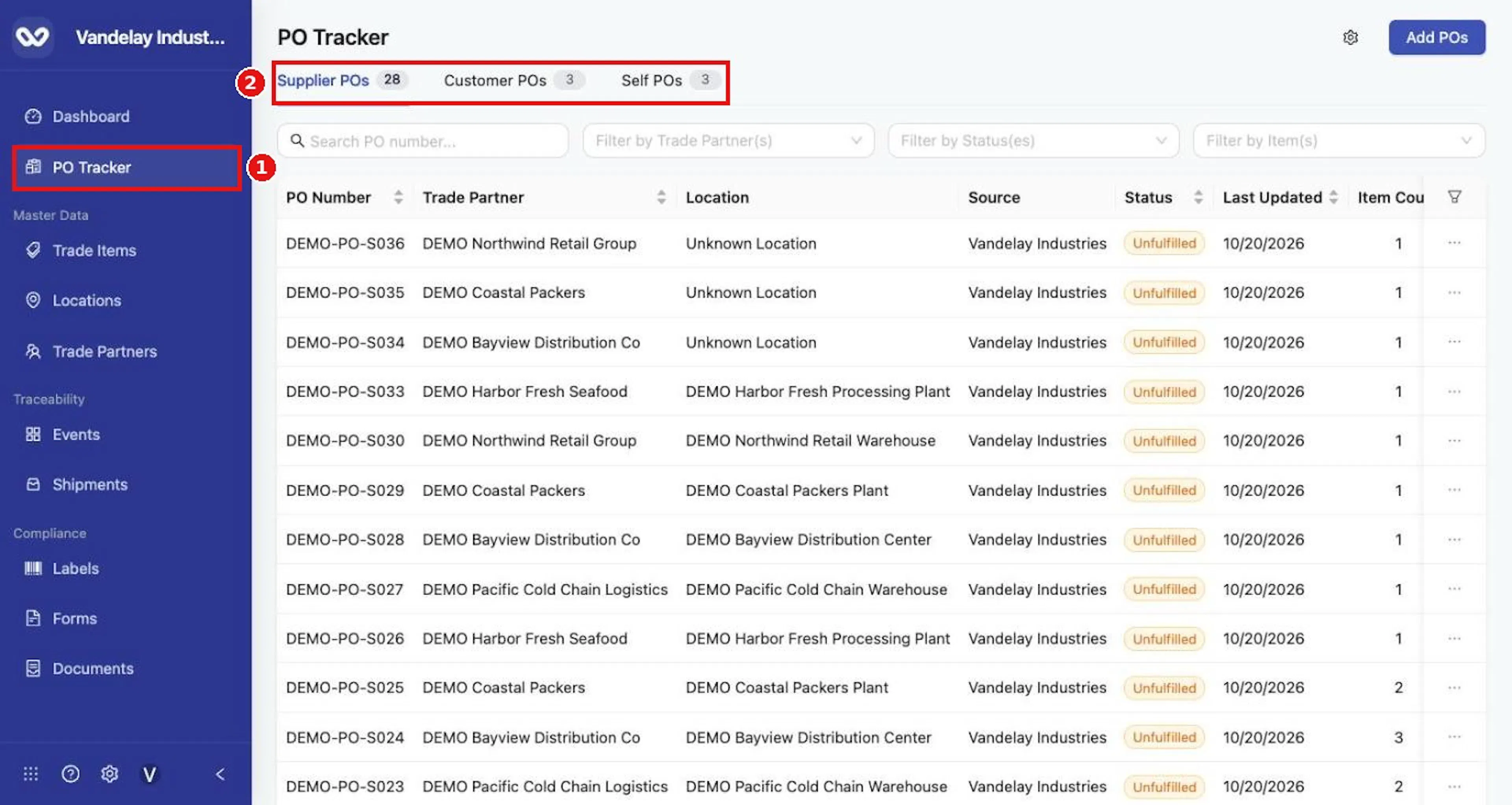
Select Customer POs or Self POs to change tab
Select Customer POs or Self POs to change tab. Each tab shows its count.
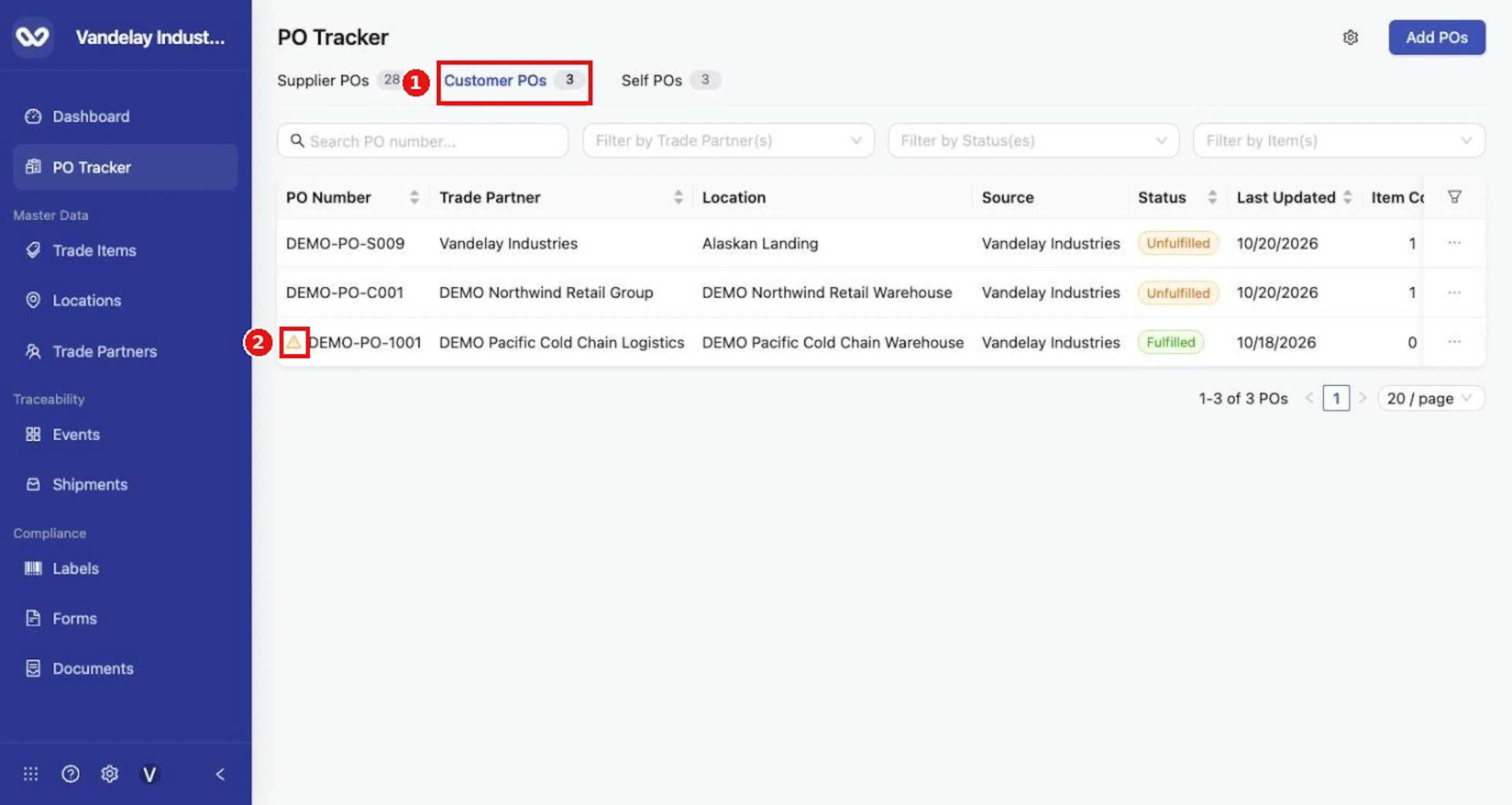
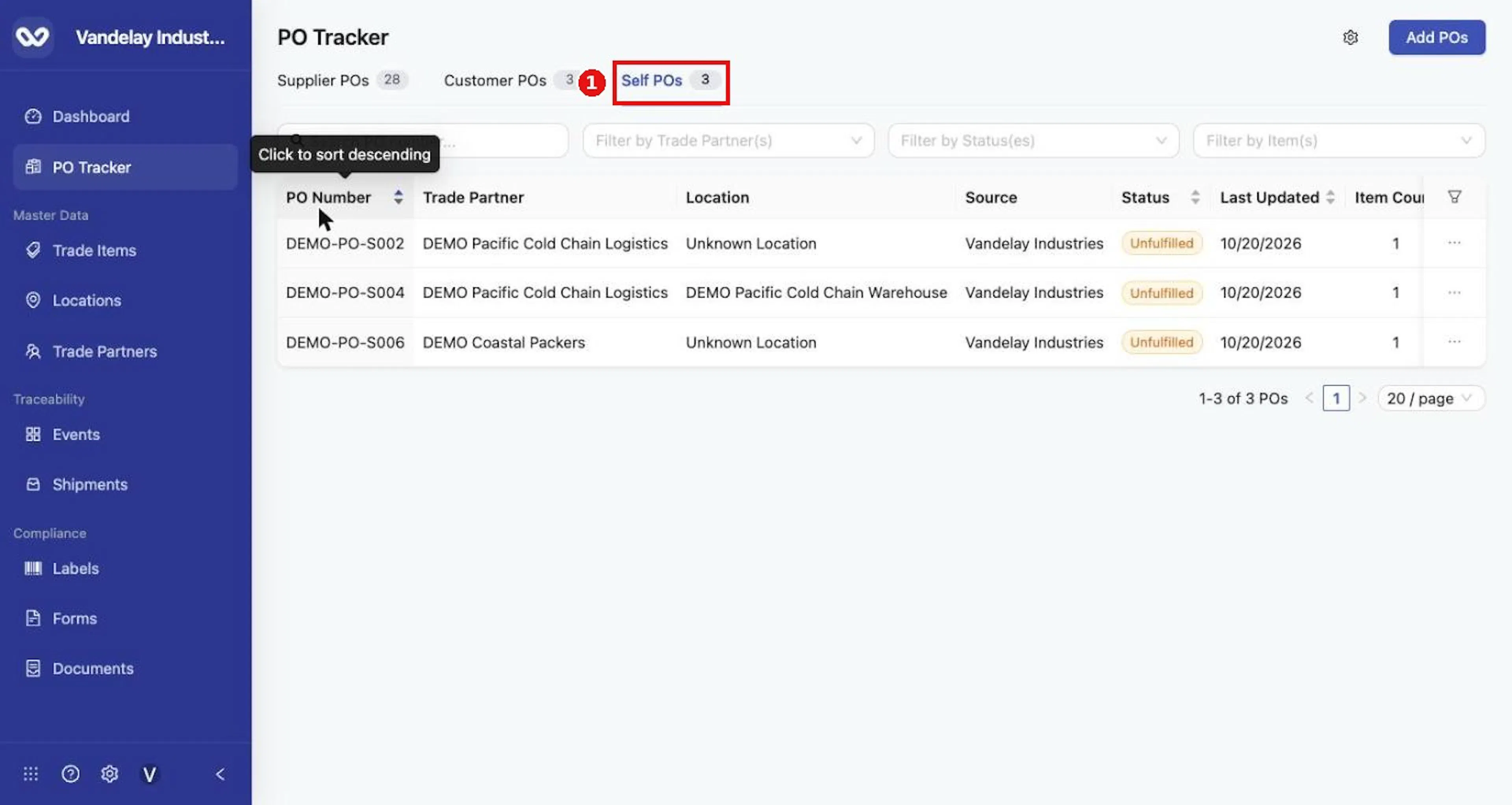
Expected result. The list shows the POs for the tab you chose.
Read the columns
| Column | Meaning |
|---|---|
| PO Number | The PO's number. A yellow warning triangle marks a PO created automatically (see the Automatically created purchase orders page). |
| Trade Partner | The Trade Partner on the PO. |
| Location | The Location on the PO. Shows Unknown Location when none was entered. On a Supplier PO, a qualifying ship event that makes the PO Fulfilled updates it to the shipment's actual origin, and it shows Multiple Locations when linked shipments come from separate Locations. |
| Source | The Trade Partner that issued the PO, usually your self Trade Partner. |
| Status | Unfulfilled, Fulfilled, Other or Cancelled (see the Understand traceability statuses page). |
| Last Updated | Date of the last update. |
| Item Count | Starts from the PO details. When a qualifying ship event makes the PO Fulfilled, it counts the unique items across all linked ship events. |
| Shipments | Number of linked shipments. |
Select PO Number, Trade Partner, Status or Last Updated to sort.
Search and filter
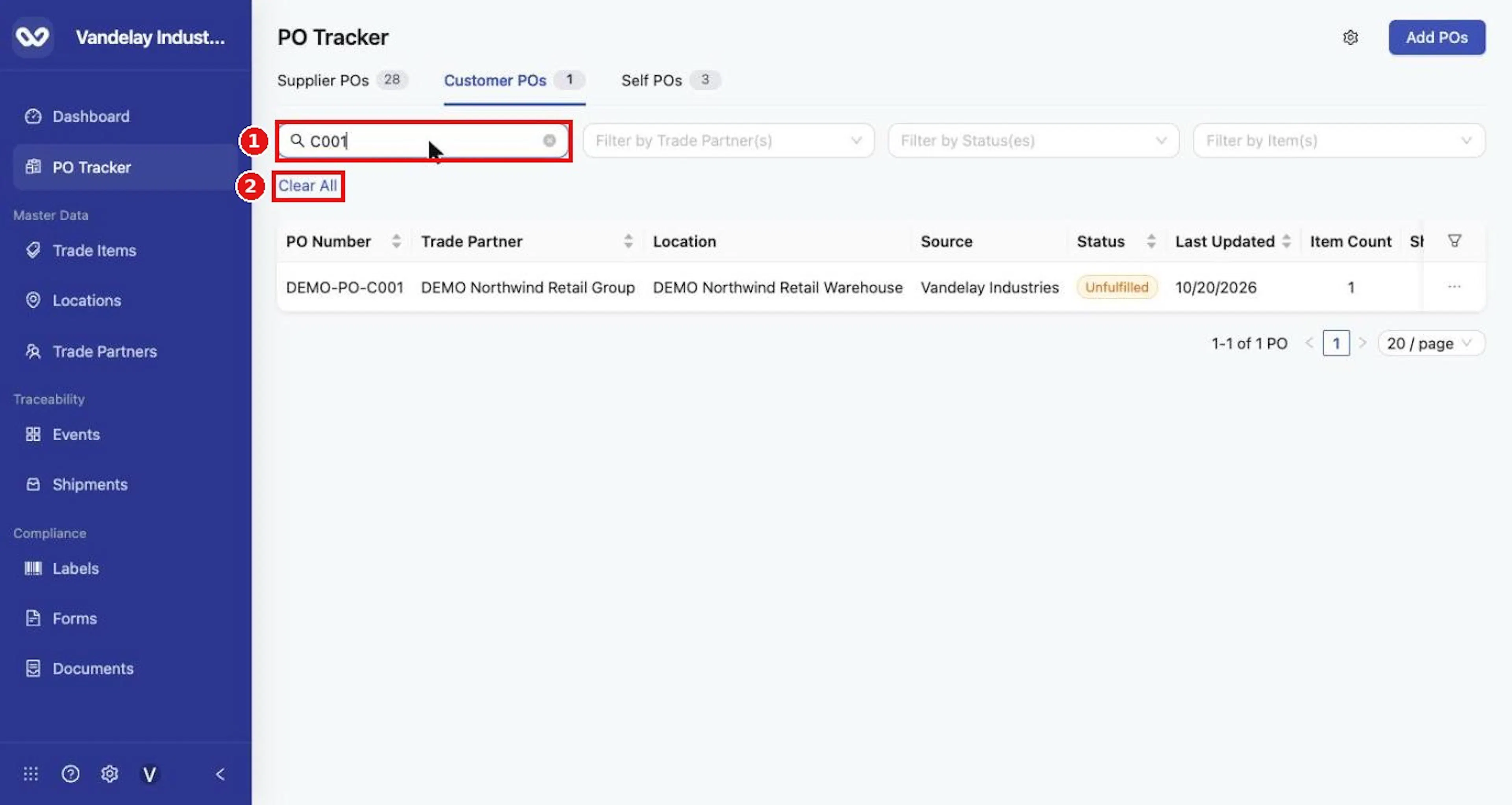
Search by PO number
Type part of a PO number in Search PO number....
Filter by Trade Partner
Open Filter by Trade Partner(s) and choose one or more Trade Partners. The list is searchable and shows each Trade Partner's identifier.
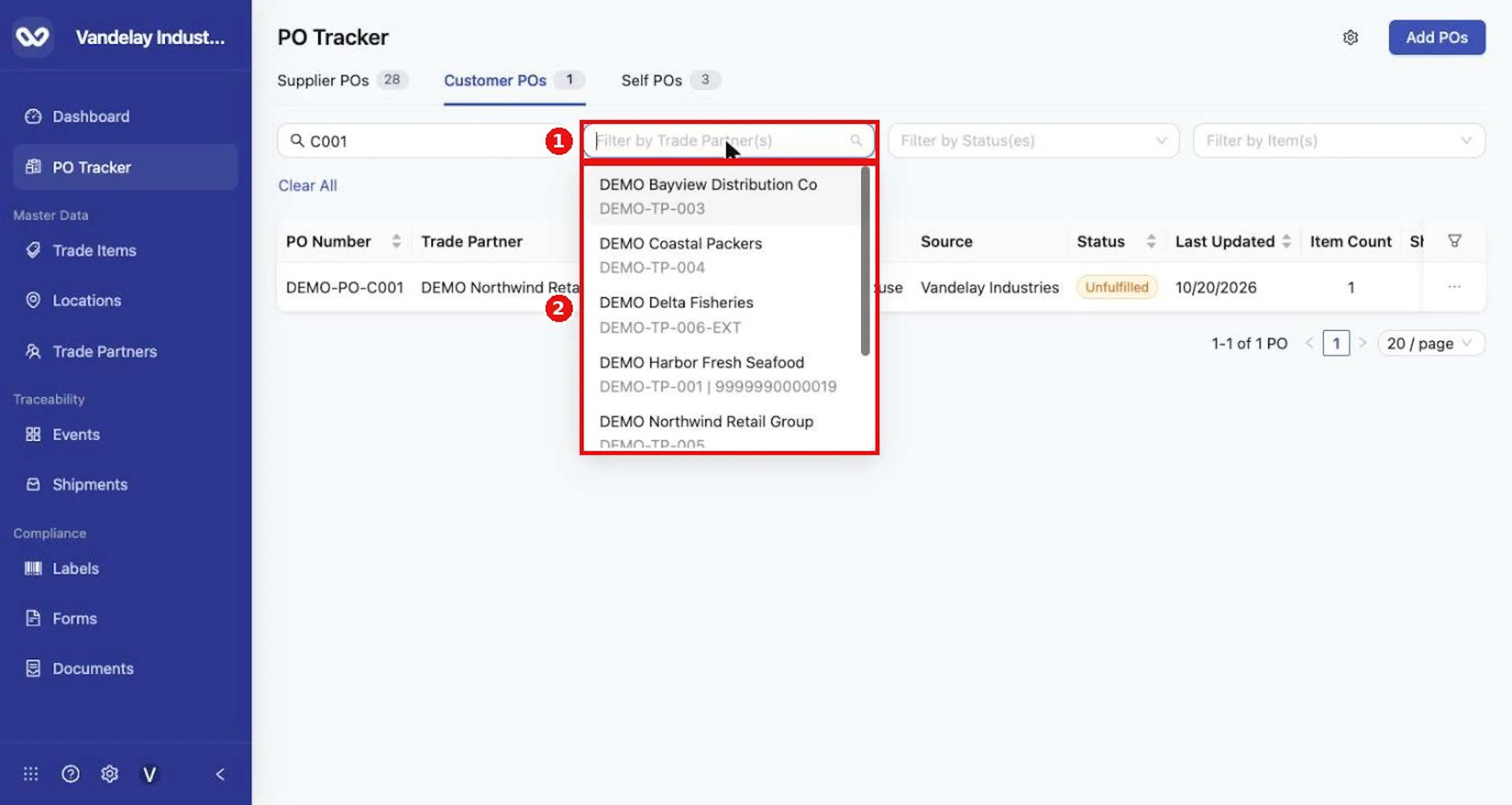
Filter by status
Open Filter by Status(es) and choose Unfulfilled, Fulfilled, Other or Cancelled.
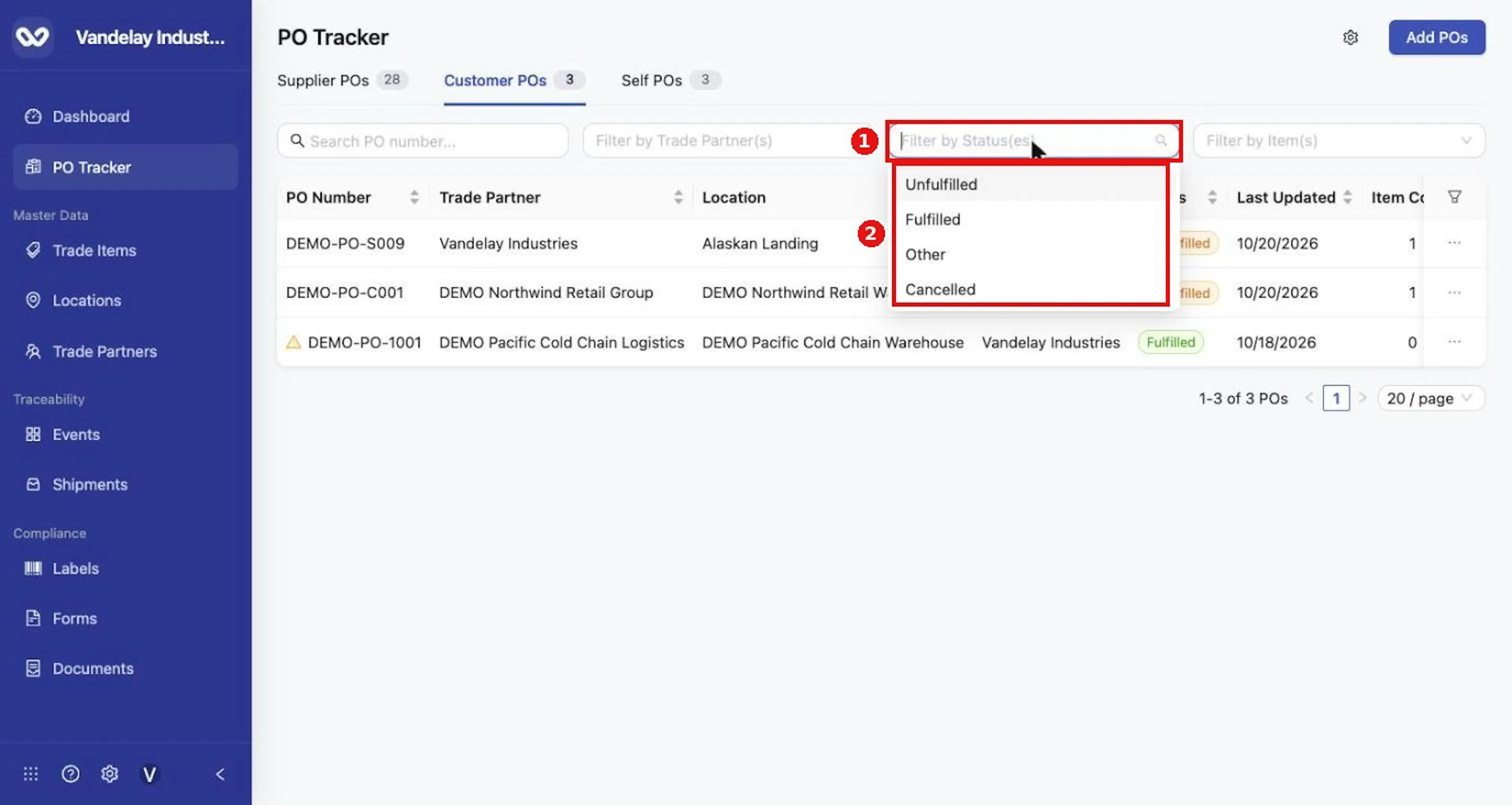
Filter by item
Open Filter by Item(s) and choose one or more Trade Items.
Select Clear All to remove the search and every filter
Select Clear All to remove the search and every filter.
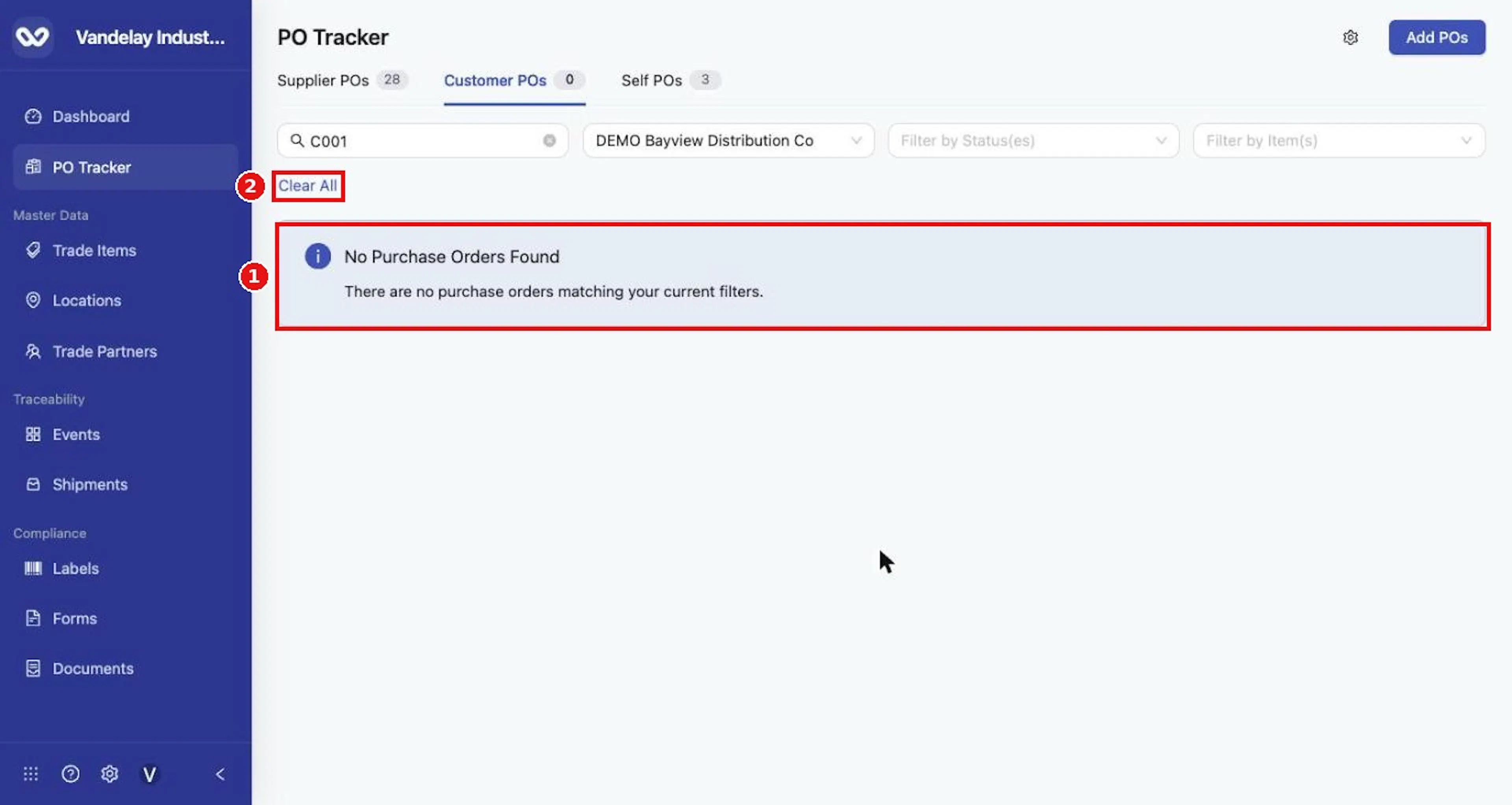
Expected result. Filters work together: a PO must match all of them. The tab counts follow the filters. When nothing matches, the list shows No Purchase Orders Found.
Troubleshooting. If you cannot find a PO, select Clear All and check the other tabs. A PO's tab depends on who owns its origin and destination Locations (see the About PO Tracker page).
Choose which columns to show
Open Column Display
Select the funnel icon at the right of the table header to open Column Display.
Hide or reorder columns
Clear a checkbox to hide a column, or use the arrows or drag handle to change the order.
Select Reset to return to the default columns
Select Reset to return to the default columns.
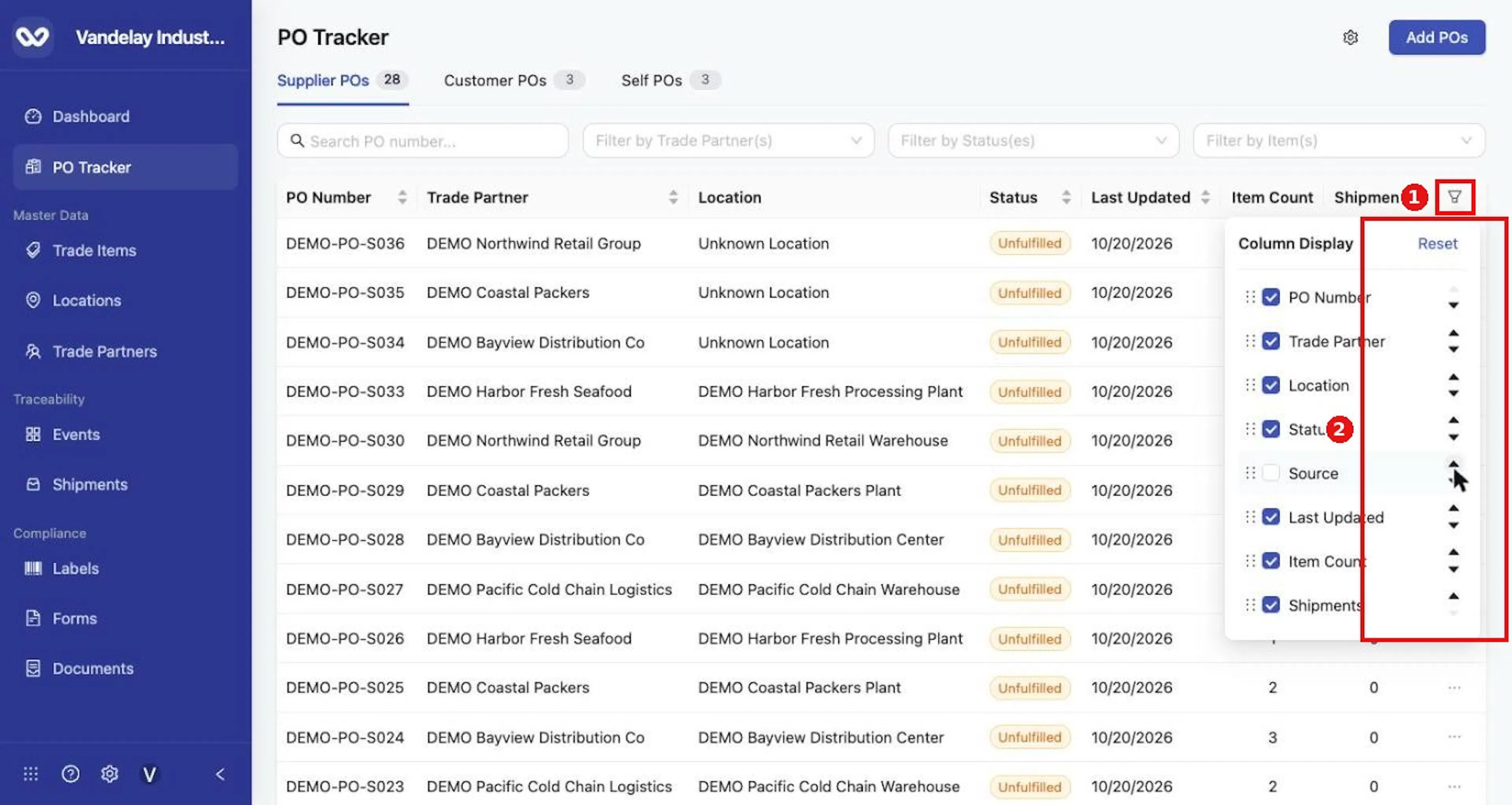
Expected result. Changes apply at once, stay after you reload, and apply to all three tabs. Column preferences are per user.
Troubleshooting. If PO Tracker is missing from the navigation, ask an administrator to turn on Purchase Orders in Organization Settings > Purchase Orders.
Field and action reference
Where to find it
Select PO Tracker in the left navigation, under the workspace name. The module opens on Supplier POs. The Purchase Orders access setting must be on (Organization Settings > Purchase Orders; see Settings).
Tabs
Your self Trade Partner is the Trade Partner that represents your own organization. The module has three tabs, which show a live count. A PO's tab depends on which Trade Partner owns the origin Location and which owns the destination Location.
| Tab | Origin Location belongs to | Destination Location belongs to |
|---|---|---|
| Supplier POs | A Trade Partner other than self | Self Trade Partner |
| Customer POs | Self Trade Partner | A Trade Partner other than self |
| Self POs | Self Trade Partner | Self Trade Partner |
Self POs usually arise automatically from traceability events. They give context for movements between your own Locations: what moved, between which Locations, and which items. Self POs are not added manually.
When you add a single PO, the tab that is open decides the type created. In a bulk upload, the PoType column decides the tab, not the open tab (see Bulk upload template).
Table columns
| Column | Description | Sortable |
|---|---|---|
| PO Number | The PO's number. | Yes |
| Trade Partner | The Trade Partner on the PO. | Yes |
| Location | The Location on the PO. Shows Unknown Location when none was entered. On a Supplier PO, a qualifying ship event that makes the PO Fulfilled updates it to the shipment's actual origin. When shipments from separate Locations are linked, it shows Multiple Locations. | No |
| Source | The Trade Partner that issued the PO, usually your self Trade Partner. | No |
| Status | Unfulfilled, Fulfilled, Other or Cancelled (see Statuses). | Yes |
| Last Updated | Date of the last update. | Yes |
| Item Count | Number of items. Starts from the PO details. When a qualifying ship event makes the PO Fulfilled, it updates to the number of unique items across all linked ship events. | No |
| Shipments | Number of linked shipments. | No |
| Row menu (...) | Row actions (see Row actions). | No |
An auto-created PO shows a warning triangle beside its PO number (see Auto-created purchase orders).
Search and filters
| Control | Behavior |
|---|---|
| Search box (Search PO number...) | Partial match on PO number. |
| Filter by Trade Partner(s) | Searchable list. Each option shows the Trade Partner name and identifier. |
| Filter by Status(es) | Options: Unfulfilled, Fulfilled, Other, Cancelled. |
| Filter by Item(s) | Searchable list. Each option shows the item name and identifier. |
Filters combine (a PO must match all of them). Clear All appears when any filter is active. The tab counts follow the filters. When nothing matches, the screen shows No Purchase Orders Found and "There are no purchase orders matching your current filters."
Column Display
Select the funnel icon at the right of the table header to open Column Display. Each column has a checkbox, a drag handle and up/down arrows. Changes apply immediately, are kept after you reload, and apply to all three tabs. Column preferences are per user. Select Reset to restore all eight columns in the default order.