

Set sharing defaults
Choose how new Supplier POs are shared with suppliers and which Trade Items and locations suppliers can use.
Purpose. Choose how new Supplier POs are shared with suppliers, and which resources suppliers can use.
Before you begin. You need access to Settings.
Open Settings
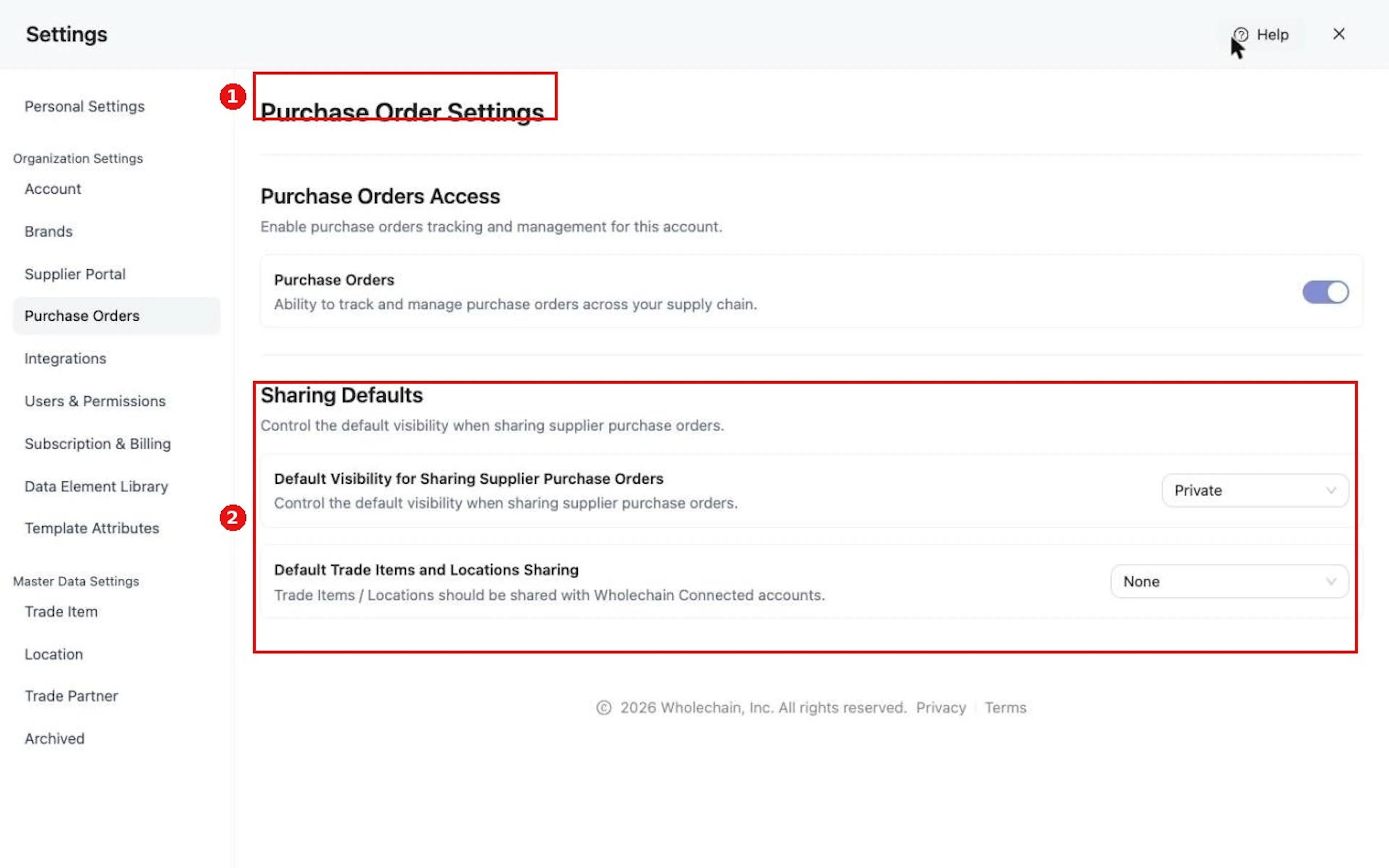
Select the gear icon at the top of the PO Tracker page (any tab). Settings opens on Organization Settings > Purchase Orders, where sharing is managed.
Check Purchase Orders Access
Check that Purchase Orders is on under Purchase Orders Access.
Choose the Default Visibility
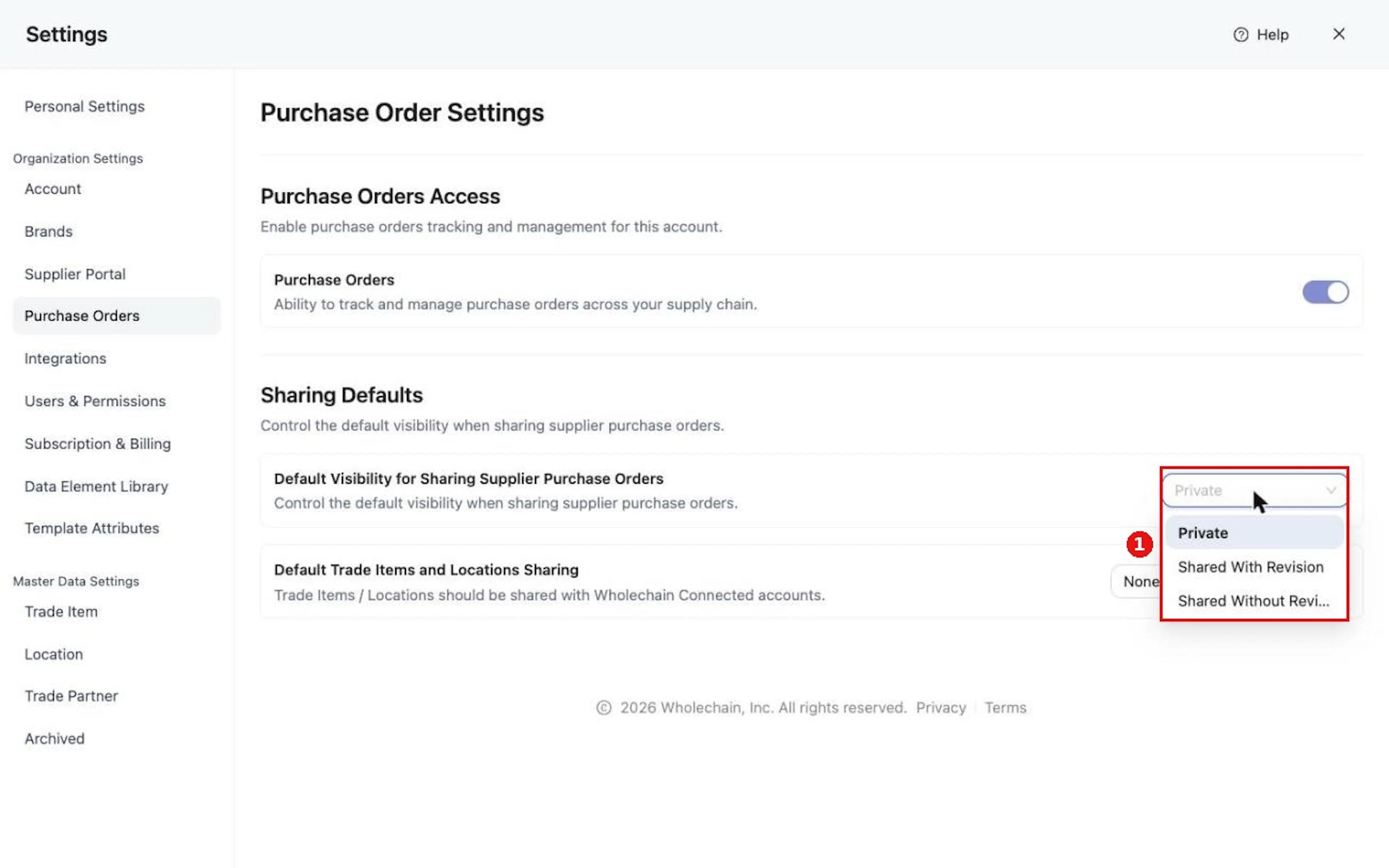
Under Default Visibility for Sharing Supplier Purchase Orders, choose:
- Private: the PO is not shared with suppliers. This is the default.
- Shared With Revision: shares the Supplier PO with a connected Wholechain Trade Partner and lets that partner propose changes to the PO details. You are prompted to accept or deny the changes.
- Shared Without Revision: shares the PO with the connected partner without letting them change it.
Choose the Default Trade Items and Locations Sharing
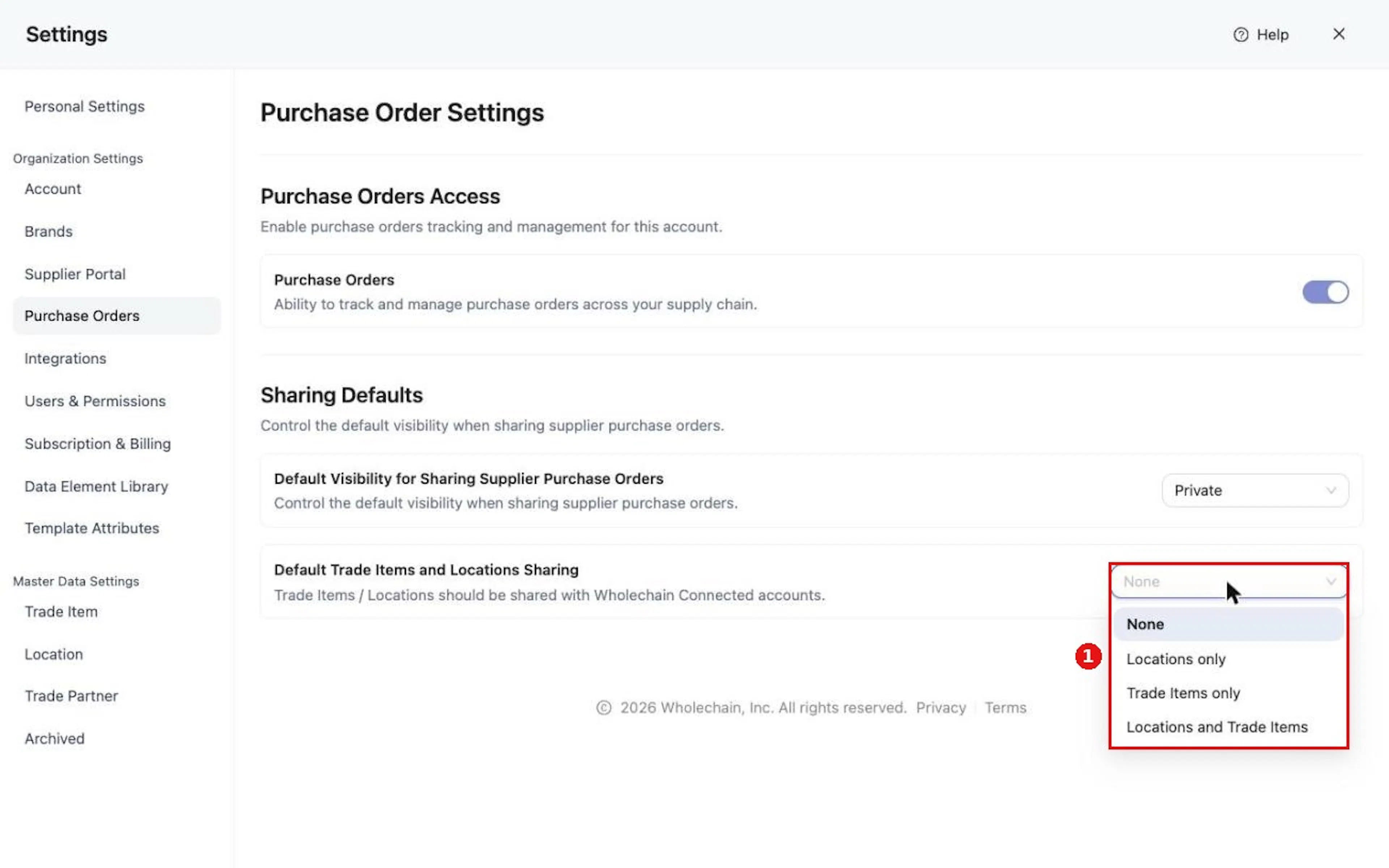
Under Default Trade Items and Locations Sharing, choose None, Locations only, Trade Items only or Locations and Trade Items.
Why it matters. The visibility defaults apply to Supplier POs only, not to Customer POs or Self POs. A new Supplier PO inherits the default, and you can override the resource sharing on each PO. Sharing Trade Items and Locations matters when you onboard suppliers: a supplier completing the ship event form needs access to your shared Trade Items and target Locations. It supports supplier event submission and progress toward automated traceability collection, though it does not by itself set up a complete automation workflow.
Expected result. New Supplier POs use the defaults you chose.
Field and action reference
Settings
Select the gear icon at the top of the PO Tracker page (any tab) to open Organization Settings > Purchase Orders (sharing management). You can also open Settings with the gear icon at the bottom of the left-hand navigation bar, or with the Settings button on the Dashboard, then select the Purchase Orders tab under Organization Settings.
| Setting | Options | Default |
|---|---|---|
| Purchase Orders access | On / Off. The PO Tracker module is disabled until this is turned on, and only then appears in the left-hand navigation bar. | Off |
| Default Visibility for Sharing Supplier Purchase Orders | Private: the PO is not shared. Shared With Revision: shares the Supplier PO with a connected Wholechain Trade Partner and lets that partner propose changes, which the PO issuer accepts or denies. Shared Without Revision: shares the PO with the connected partner without letting them change it. | Private |
| Default Trade Items and Locations Sharing | None, Locations only, Trade Items only, Locations and Trade Items | None |
The visibility defaults apply to Supplier POs only, not to Customer POs or Self POs. Private means the PO is not shared with suppliers. A new Supplier PO inherits the default, and you can override the sharing choices on the PO with the Share Locations with Partner and Share Trade Items with Partner checkboxes.
Sharing Trade Items and Locations matters when you onboard suppliers: a supplier completing the ship event form needs access to your shared Trade Items and target Locations. Sharing supports supplier event submission and progress toward automated traceability collection. It does not by itself set up a complete automation workflow.