

Add a single purchase order
Record one purchase order in PO Tracker with its shipping information, order information and line items.
Purpose. Record one PO so shipments can be linked to it.
Before you begin. Open Supplier POs or Customer POs. The tab you are on decides which type of PO is created. Self POs are not added manually. Make sure the Trade Partners, Locations and Trade Items you need already exist.
Example values: PO number PO-2026-0101, supplier Harbor Fresh Seafood, product Atlantic Cod Fillet 10 lb Case, quantity 100.
Open the form
Select Add POs
Select Add POs. The Add Purchase Orders drawer opens on Single Purchase Orders.
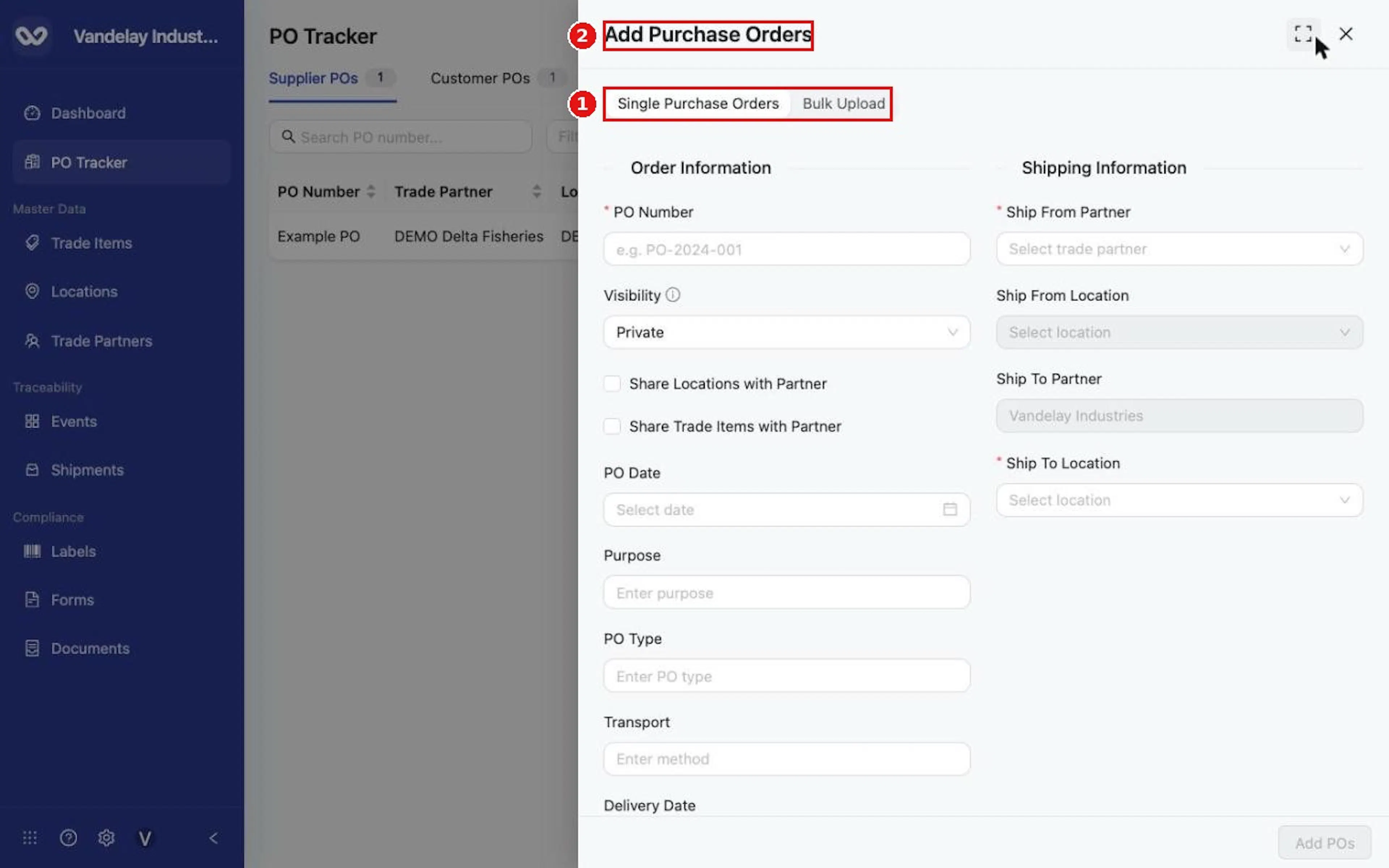
Enter the PO Number
Enter the PO Number. It is always required.
Shipping information
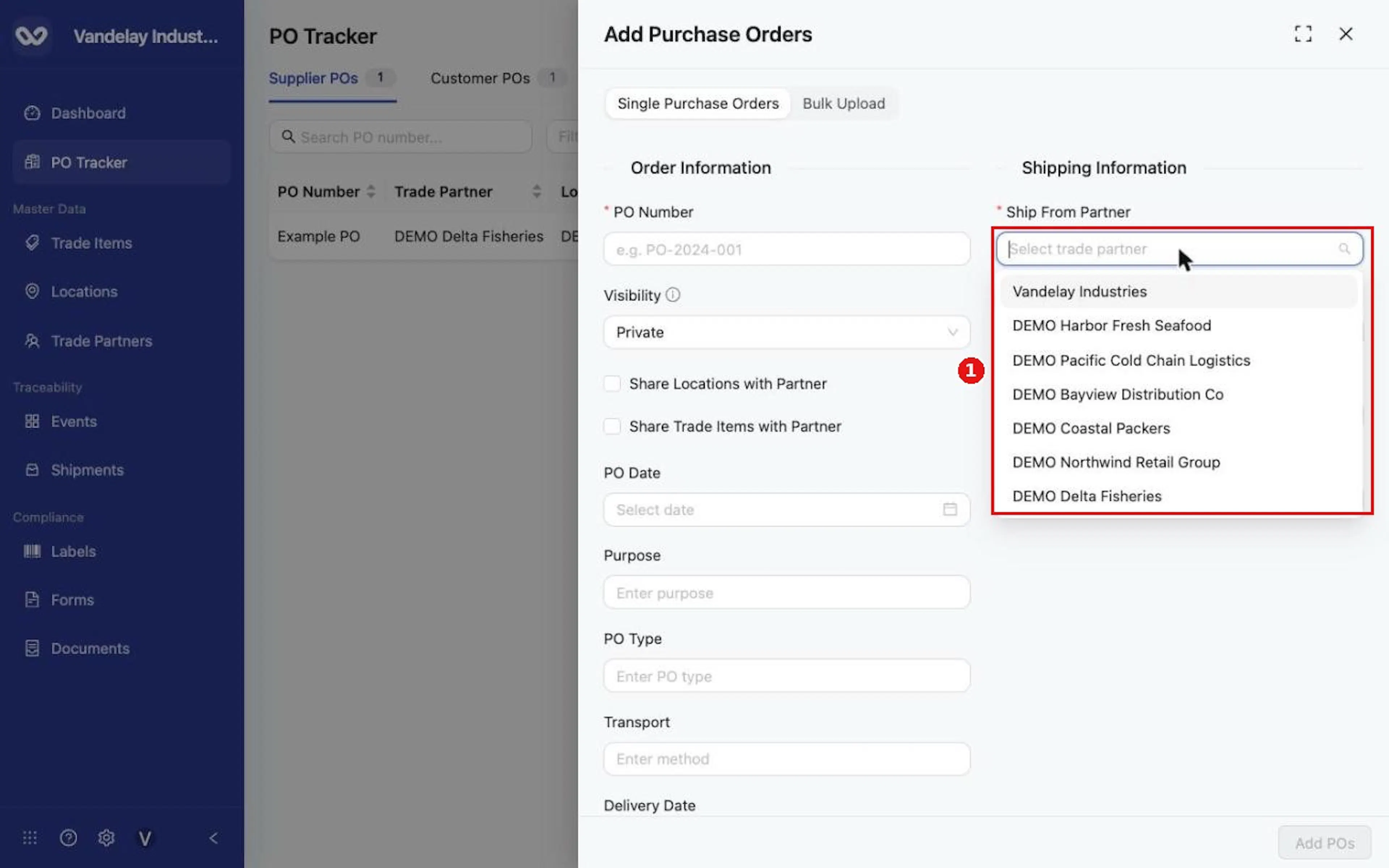
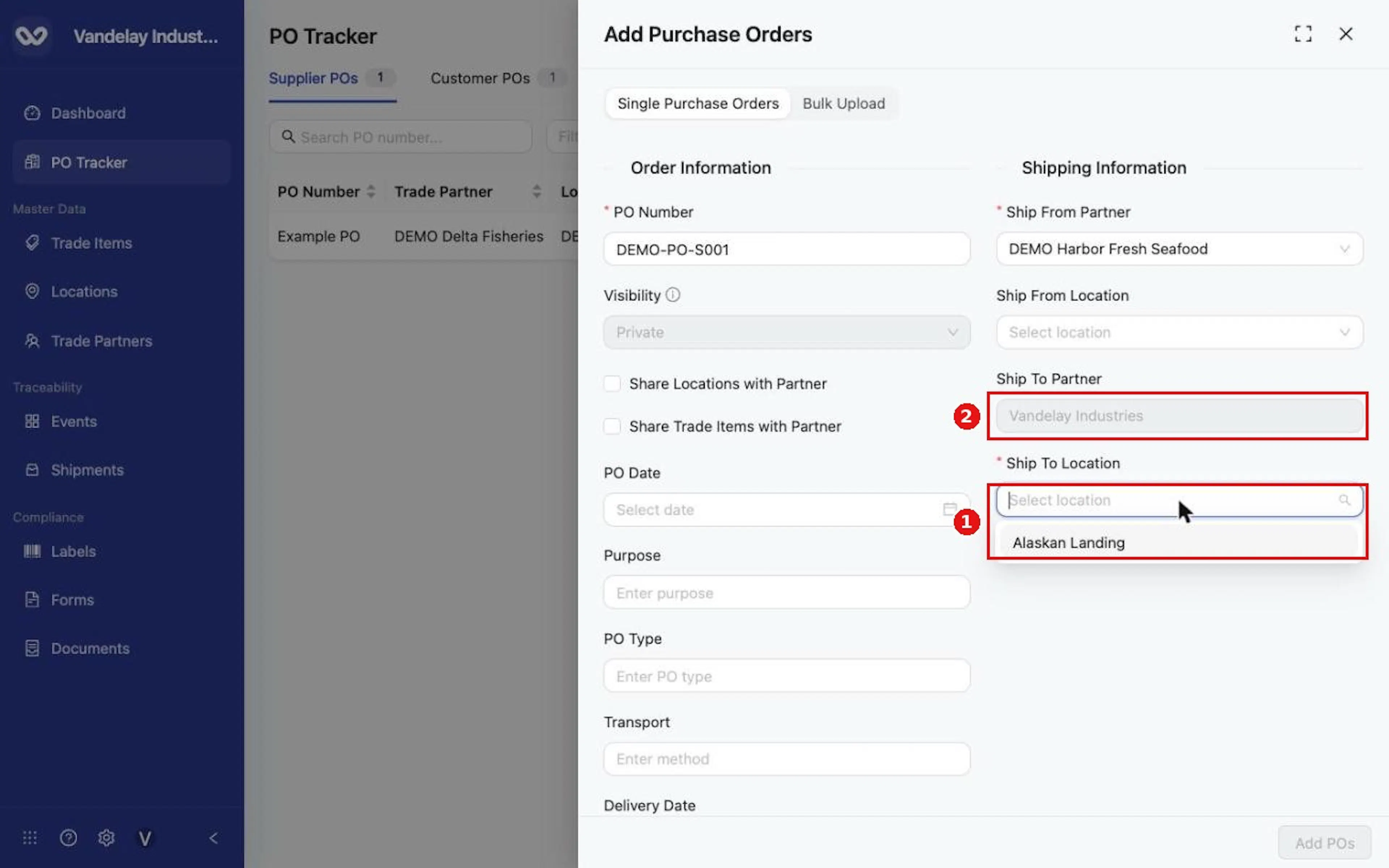
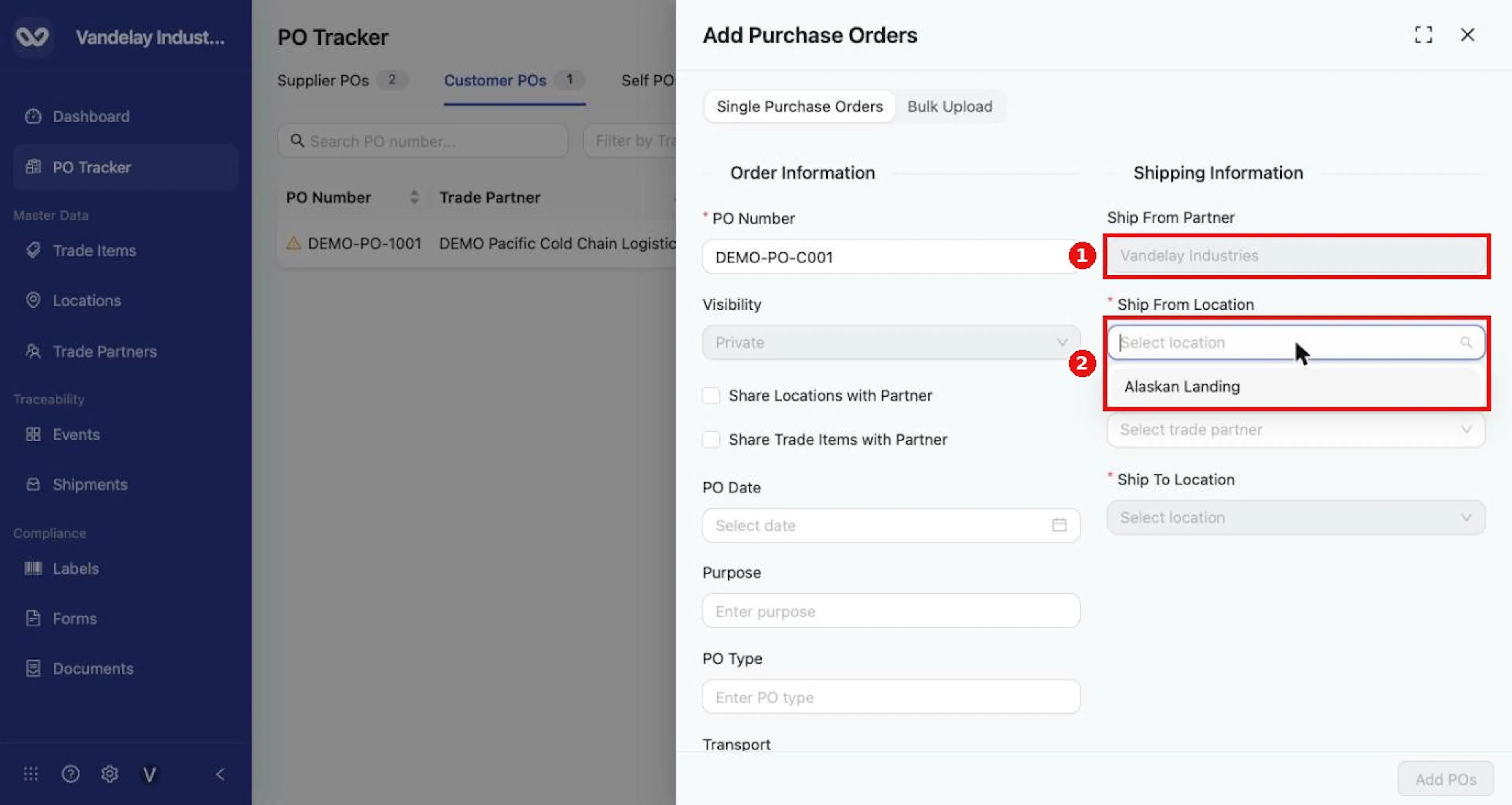
Fields that are grayed out cannot be selected or edited. The Location fields unlock after you choose the partner.
| Field | Supplier PO | Customer PO |
|---|---|---|
| Ship From Partner | You select the supplier. | Set to your self Trade Partner. |
| Ship From Location | Unlocks after you choose the supplier; optional. The supplier's ship event establishes the actual origin. | You select your origin Location (required). |
| Ship To Partner | Set to your self Trade Partner. | You select the customer. |
| Ship To Location | You select one of your Locations (required). | Unlocks after you choose the customer; required. Destination targets can change through rerouting; the receive event establishes where receipt occurred. |
Supplier PO: choose the supplier and your Location
For a Supplier PO, choose the Ship From Partner, then your Ship To Location.
Customer PO: choose the Locations and customer
For a Customer PO, choose your Ship From Location, then the Ship To Partner and the Ship To Location.
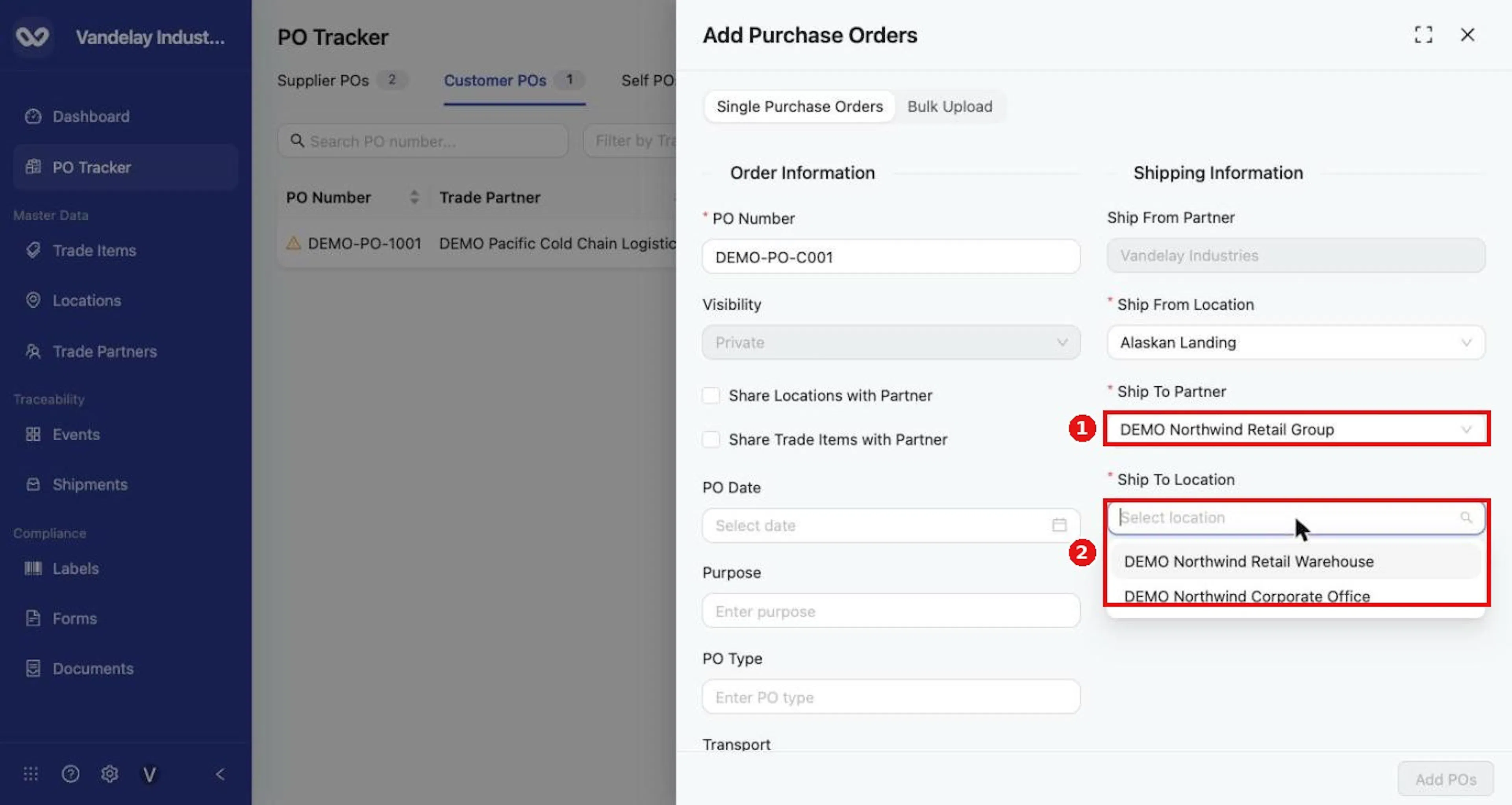
Order information
Check Visibility and the sharing checkboxes
Visibility shows whether the PO is Private, Shared With Revision or Shared Without Revision. A Supplier PO inherits the account default. If needed, select Share Locations with Partner or Share Trade Items with Partner to override the resource sharing defaults for this PO.
Optionally complete the other fields
Optionally complete the other fields. Use the values that fit your own process.
| Field | Input |
|---|---|
| PO Date | Date selection |
| Purpose | Free text |
| PO Type | Free text |
| Transport | Free text |
| Delivery Date | Date selection |
| Cancel After | Date selection |
Line items and allocations
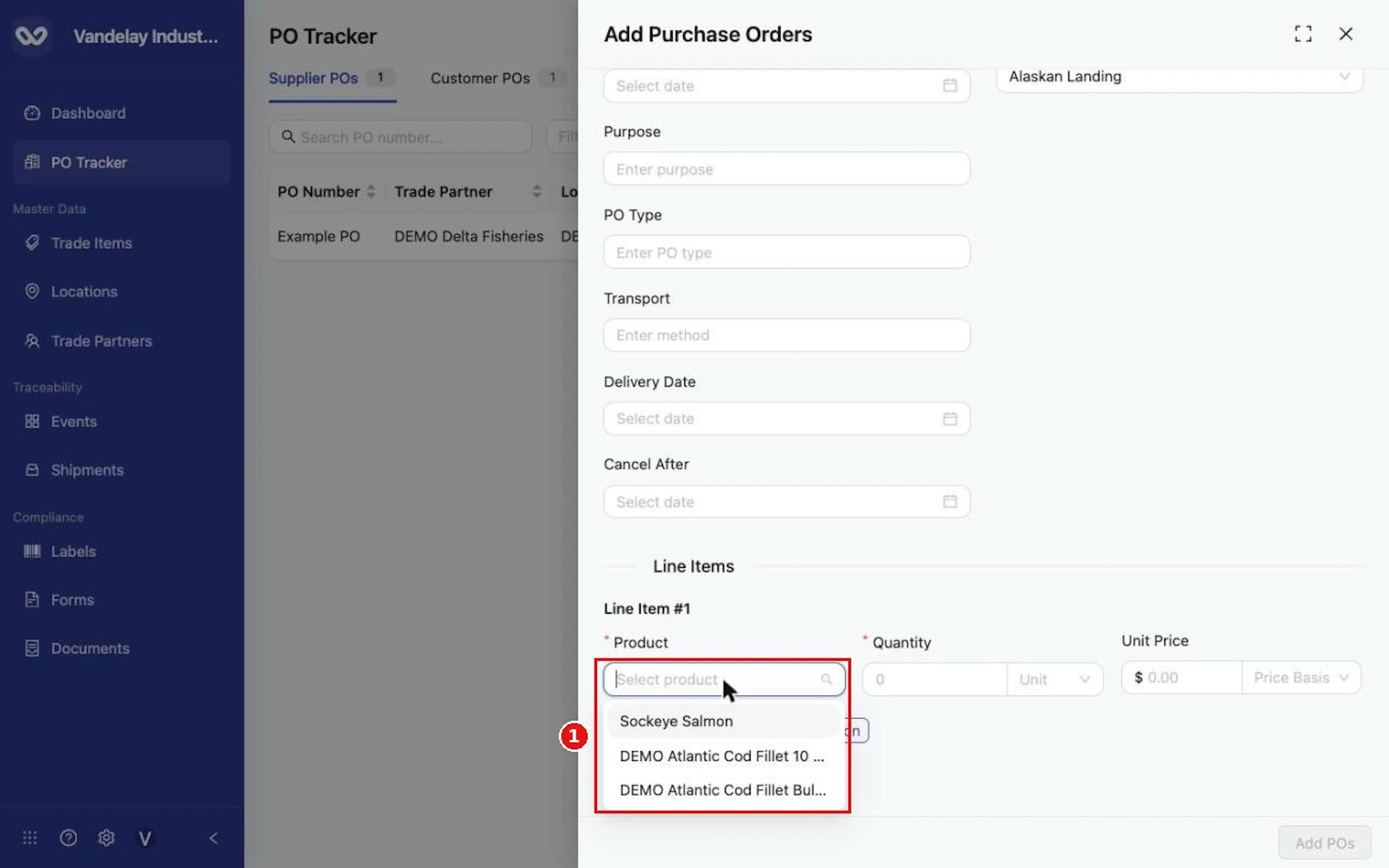
Under Line Items, choose the Product for Line Item #1
Under Line Items, choose the Product for Line Item #1. For a Supplier PO, choose a Trade Item your organization owns, which you may share with the supplier.
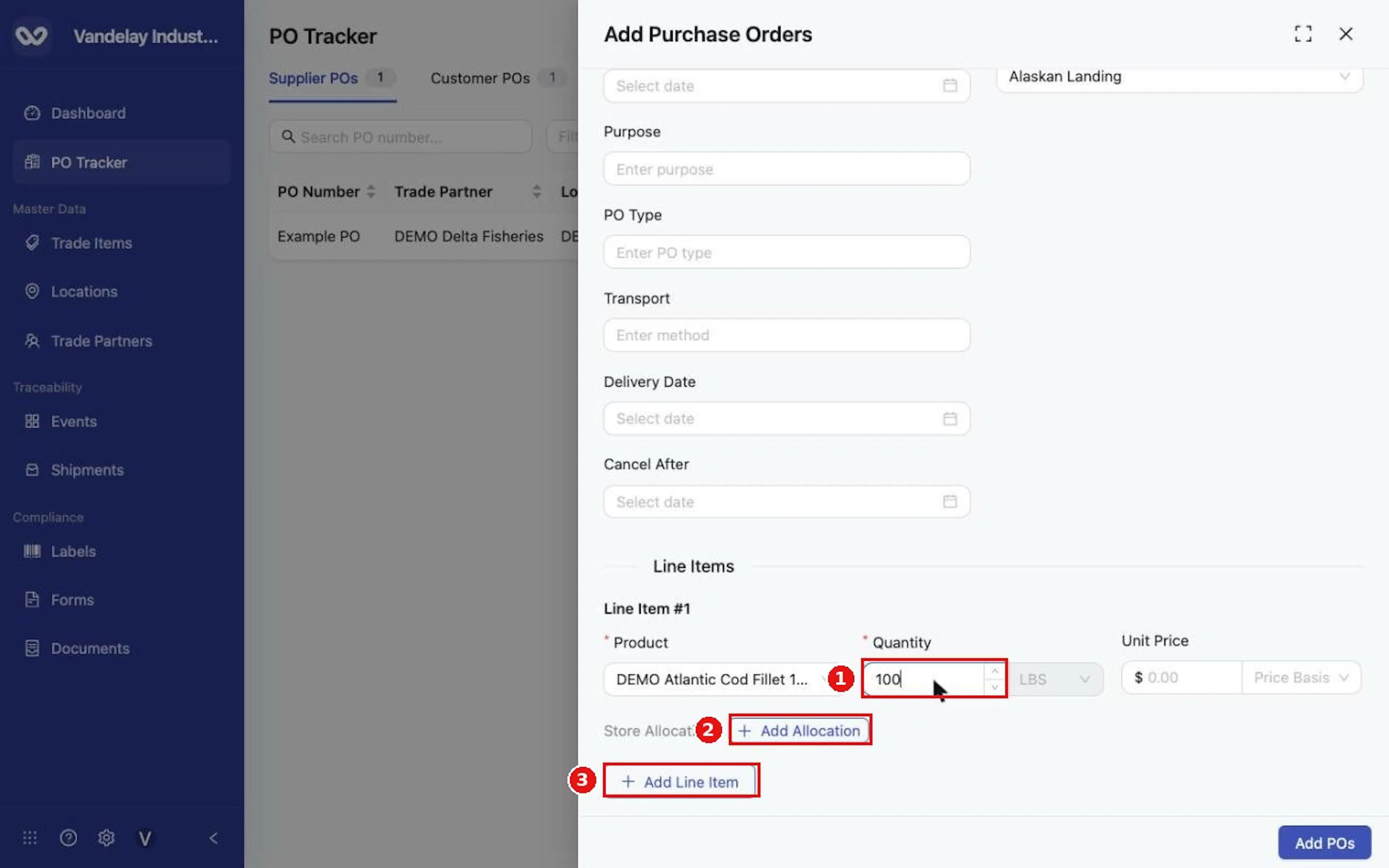
Enter the Quantity
Enter the Quantity. Unit starts from the Trade Item and offers LBS, KGM, CASES and UNITS.
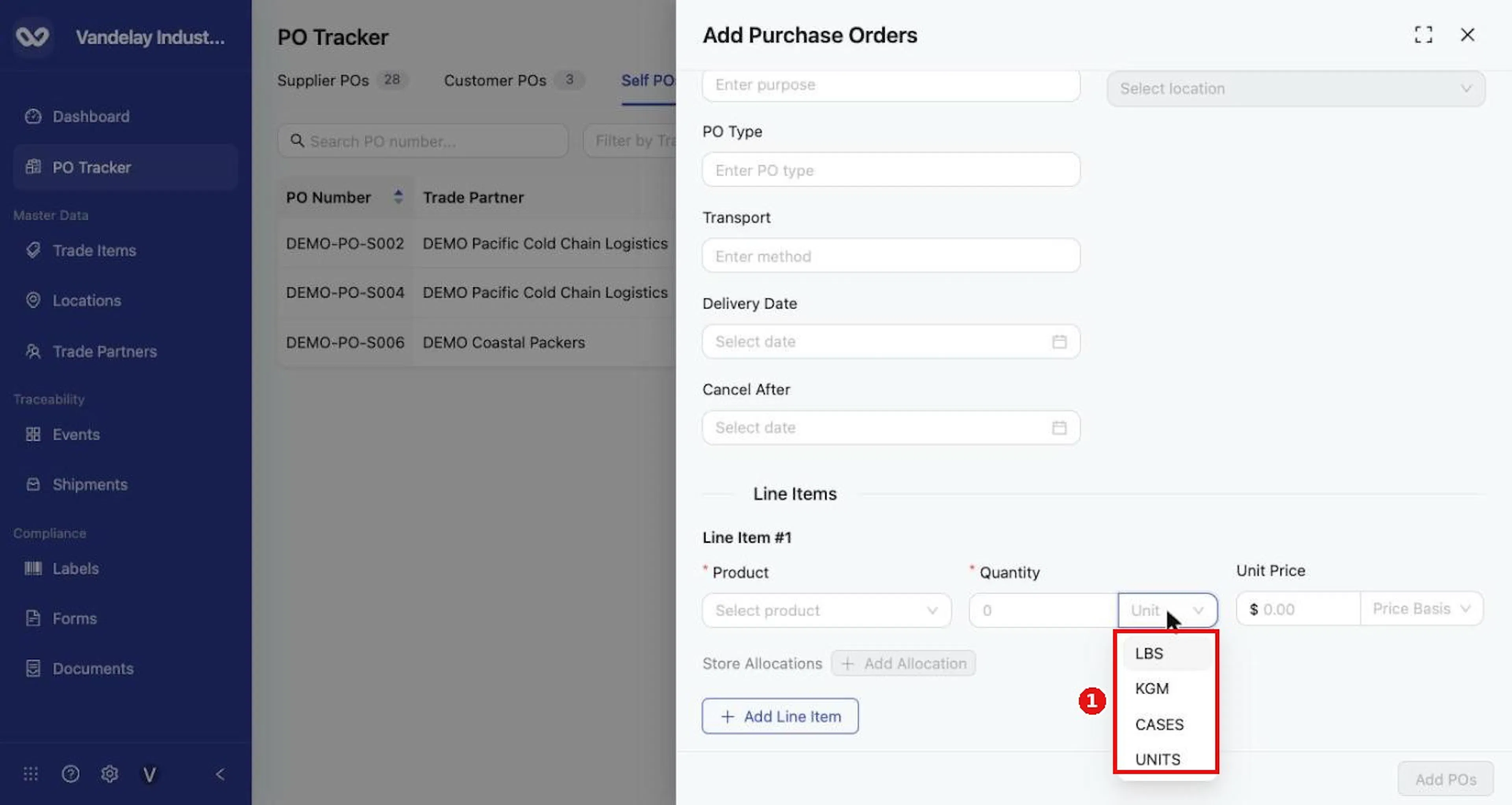
Enter a Unit Price and Price Basis (optional)
Optionally enter a Unit Price and choose a Price Basis of Per Unit, Per Case or Per Pallet.
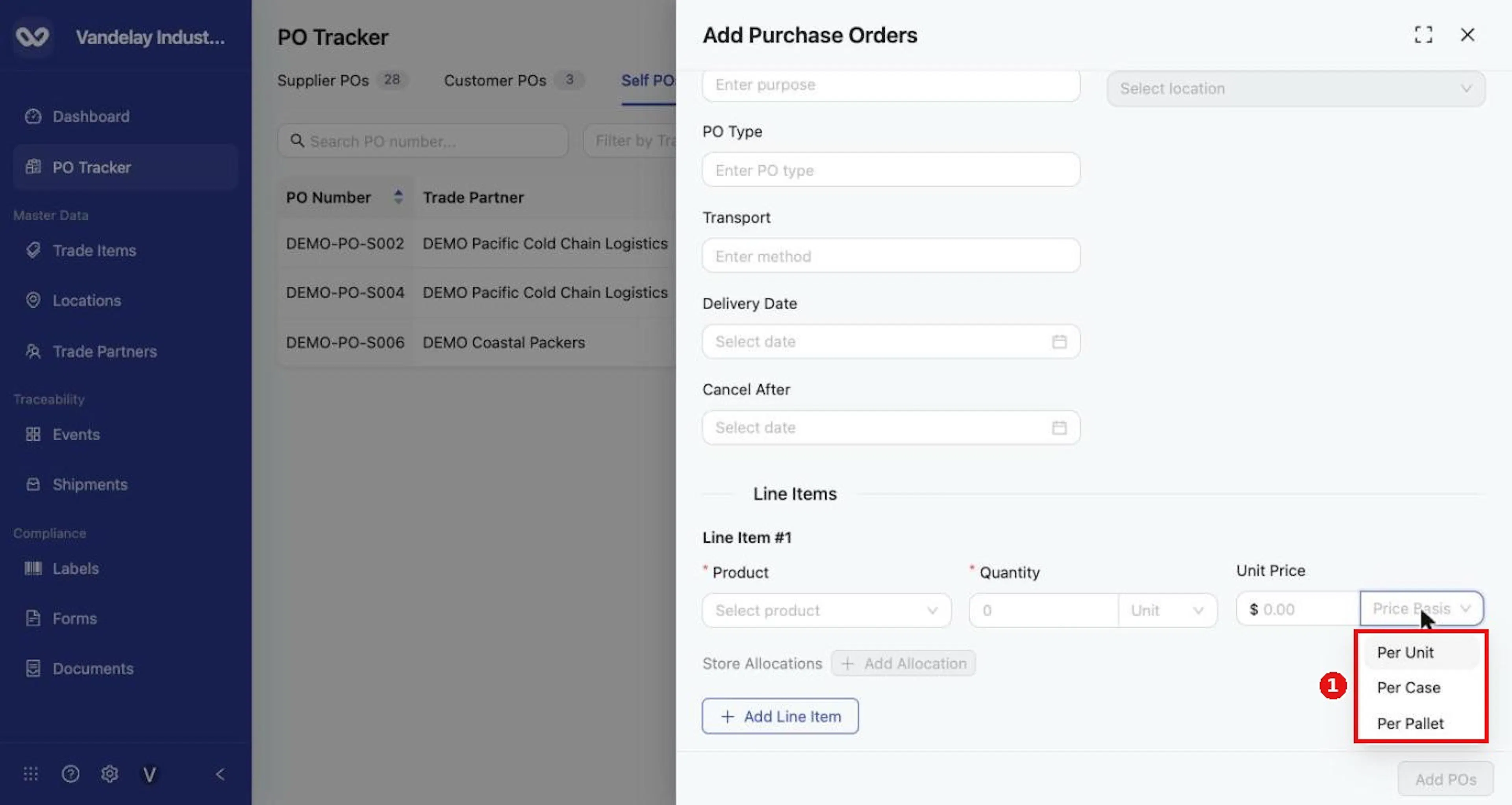
Add Store Allocations (optional)
Optionally select Add Allocation under Store Allocations to enter quantities for one or more Locations.
Select Add Line Item to add more products
Select Add Line Item to add more products. Product and Quantity are required on each line; price and allocations are optional.
Select Add POs
Select Add POs.
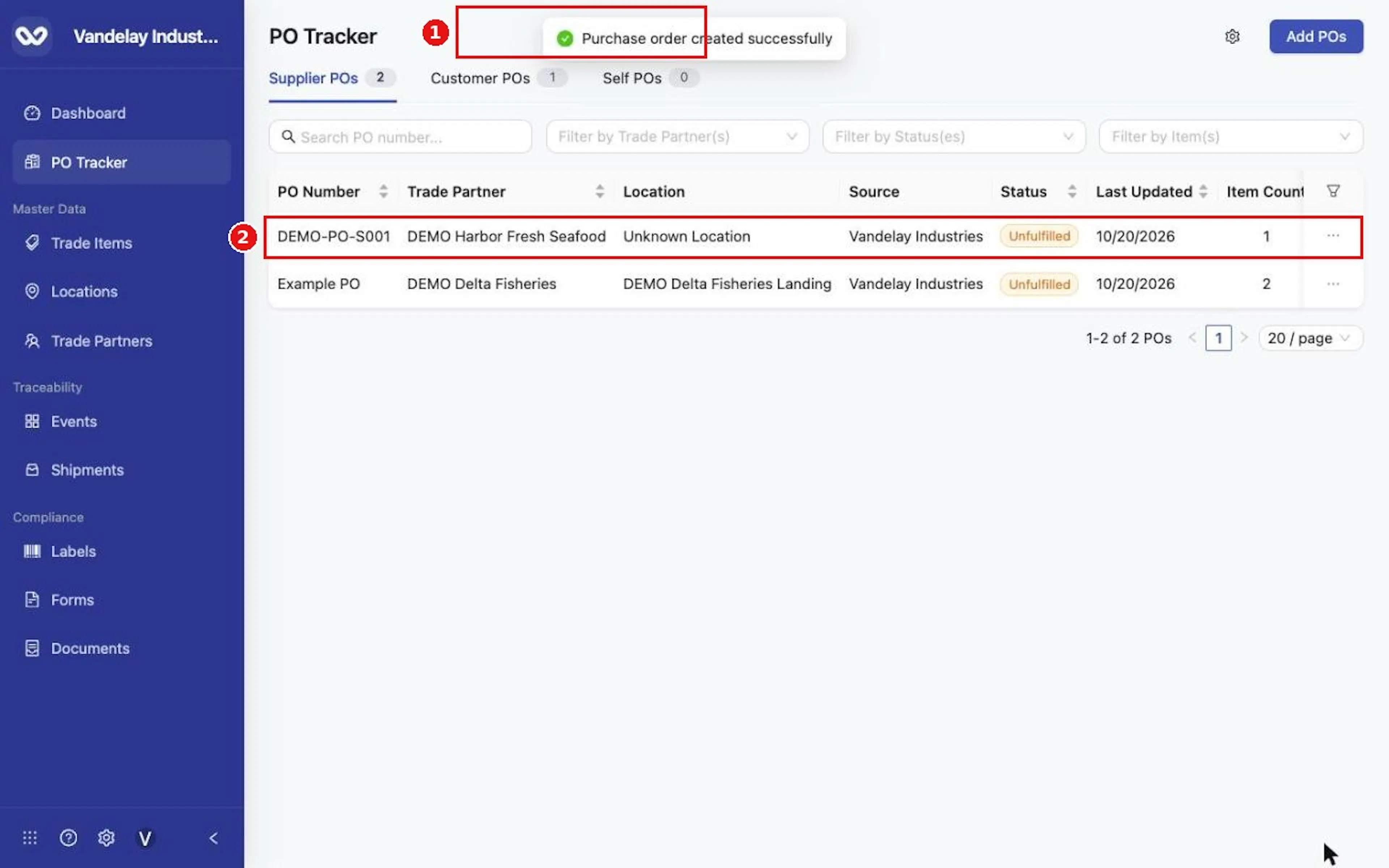
Why it matters. The PO record is what shipments are linked to. Choosing the right Trade Partner and Locations lets Wholechain match events to it.
Expected result. The message Purchase order created successfully appears and a new row shows in the tracker.
Troubleshooting.
- Add POs stays disabled until every field marked with a red asterisk is complete.
- Location fields are grayed out until you choose the partner.
- Visibility is unavailable when the Trade Partner is not connected on Wholechain; the PO stays Private.
- A PO with no Location entered shows Unknown Location in the list.
Field and action reference
Single purchase order form
Order information
| Field | Req. | Type | Values and validation | Default |
|---|---|---|---|---|
| PO Number | Yes | Text | Your PO number. | Empty |
| Visibility | No | List | Private, Shared With Revision, Shared Without Revision. On Supplier POs it inherits the account default. Disabled in some cases (see Rules and restrictions). | Account default |
| PO Date | No | Date | Date picker. | Empty |
| Purpose | No | Text | Free text. | Empty |
| PO Type | No | Text | Free text. | Empty |
| Transport | No | Text | Free text (transport method). | Empty |
| Delivery Date | No | Date | Date picker. | Empty |
| Cancel After | No | Date | Date picker. | Empty |
| Share Locations with Partner | No | Checkbox | Overrides the account sharing default for this PO. | Account default |
| Share Trade Items with Partner | No | Checkbox | Overrides the account sharing default for this PO. | Account default |
Shipping information
| Field | Supplier PO | Customer PO |
|---|---|---|
| Ship From Partner | Required. You select the supplier. | Set automatically to your self Trade Partner (not editable). |
| Ship From Location | Disabled until a supplier is chosen; then optional, and lists that supplier's Locations. The supplier's ship event establishes the actual origin. | Required. You select your origin Location. |
| Ship To Partner | Set automatically to your self Trade Partner (not editable). | Required. You select the customer. |
| Ship To Location | Required. You select one of your Locations. | Disabled until a customer is chosen; then required, and lists that customer's Locations. |
Grayed-out fields cannot be selected or edited. Destination Locations can be targets that change through rerouting; the receive event establishes where receipt actually occurred.
Line items
| Field | Req. | Type | Values and validation |
|---|---|---|---|
| Product | Yes | List | Trade Items in the account. On Supplier POs, choose Trade Items your organization owns, which you may share with suppliers. |
| Quantity | Yes | Number | Required. |
| Unit | No | List | LBS, KGM, CASES, UNITS. Defaults to the Trade Item's unit when it has one. |
| Unit Price | No | Currency | Amount in $. |
| Price Basis | No | List | Per Unit, Per Case, Per Pallet. |
| Store Allocations | No | Rows | Select Add Allocation to enter a quantity for one or more Locations. Use Add Line Item for more lines. |
Add POs is disabled until all required fields are complete. On success the screen shows Purchase order created successfully.