

Add many purchase orders with Bulk Upload
Create several purchase orders from one Excel file using the PO Tracker bulk upload template.
Purpose. Create several POs from one Excel file.
Before you begin. Open Supplier POs or Customer POs. Collect the identifiers of the Trade Partners, Locations and Trade Items from their pages, because the file refers to them by identifier.
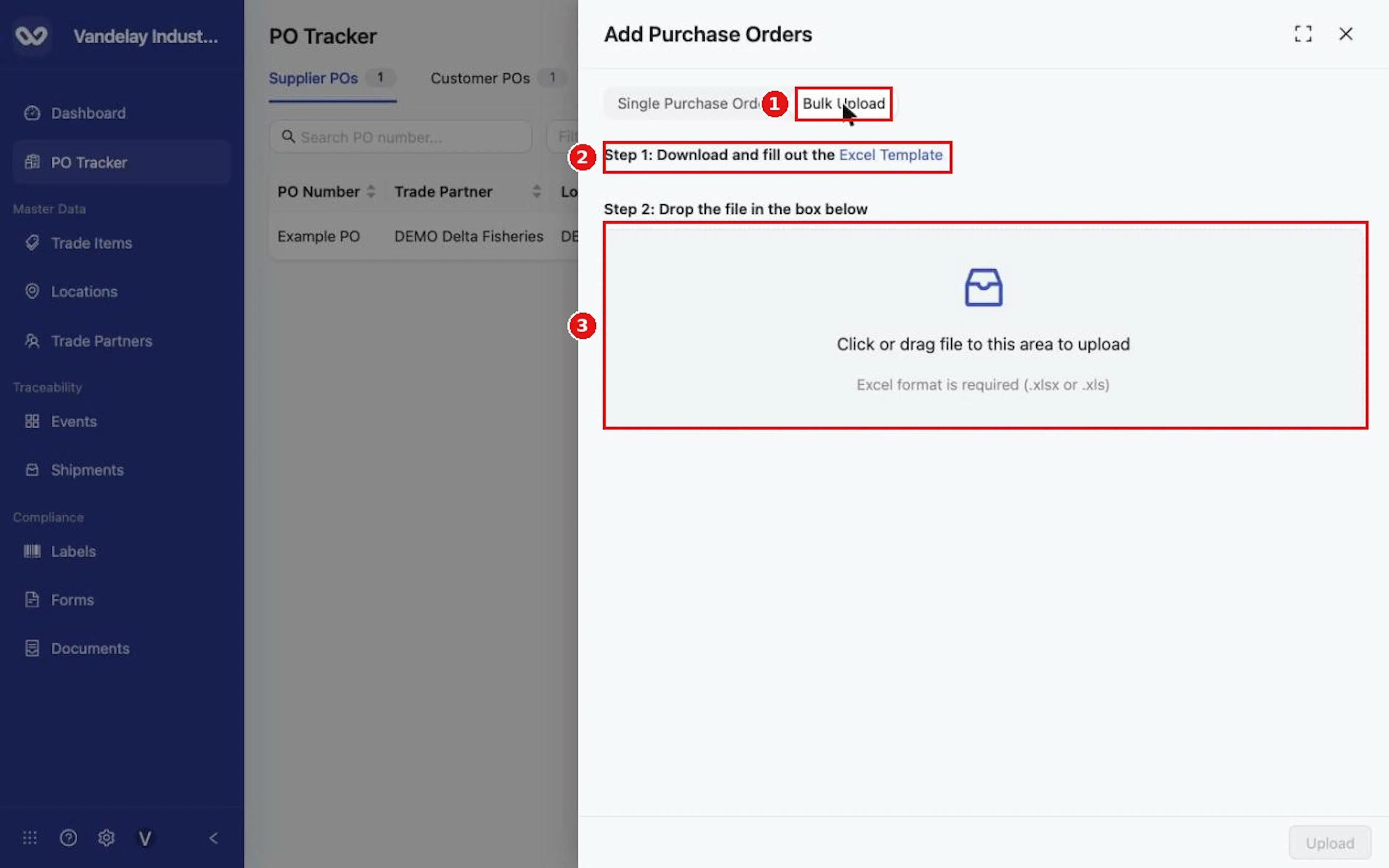
Select Add POs, then the Bulk Upload tab
Select Add POs, then the Bulk Upload tab.
Download the Excel Template
Select the Excel Template link in step 1 and download the template.
Complete the workbook
Complete the workbook. It has three sheets; row 1 holds the column names and row 2 the keys. Use the same PurchaseOrderNumber on every sheet to link the rows of one PO.
Purchase Orders
| Column | Required | Values |
|---|---|---|
| PurchaseOrderNumber | Yes | The PO number. |
| PoType | Yes | Supplier for Supplier POs, Customer for Customer POs. This column decides which tab the PO lands on. |
| ShipFromTradePartner ID / URN | Yes | Trade Partner identifier. |
| ShipFromLocation ID / URN | Conditional | Location identifier. |
| ShipToTradePartner ID / URN | Yes | Trade Partner identifier. |
| ShipToLocation ID / URN | Conditional | Location identifier. |
| PurposeCode, PoTypeCode, TransportationMethod | No | Free text. |
| PurchaseOrderDate, RequestedDeliveryDate, CancelAfterDate | No | Dates. |
| Visibility | No | Private, Shared With Revision or Shared Without Revision. |
| LocationShare, ProductShare | No | True or False. |
Line Items
| Column | Required | Values |
|---|---|---|
| PurchaseOrderNumber, LineItemNumber | Yes | Link the line to its PO. |
| Product ID / URN | Yes | Trade Item identifier. |
| QuantityOrdered | Yes | Number. |
| UnitOfMeasure | No | LBS, KGM, CASES or UNITS. |
| UnitPrice | No | Number. |
| PriceBasisCode | No | UNIT, CASE or PALLET. |
| PackSize | No | Number. |
Store Allocations
| Column | Required | Values |
|---|---|---|
| PurchaseOrderNumber, LineItemNumber | Yes | Link the allocation to its line. |
| Location ID / URN | Yes | Location identifier. |
| Quantity | Yes | Number. |
A sample file is in Supplier_PO_bulk_upload.xlsx.
Drop the file and select Upload
Drop the completed file (.xlsx or .xls) in the box, then select Upload.
Wait, then refresh the list
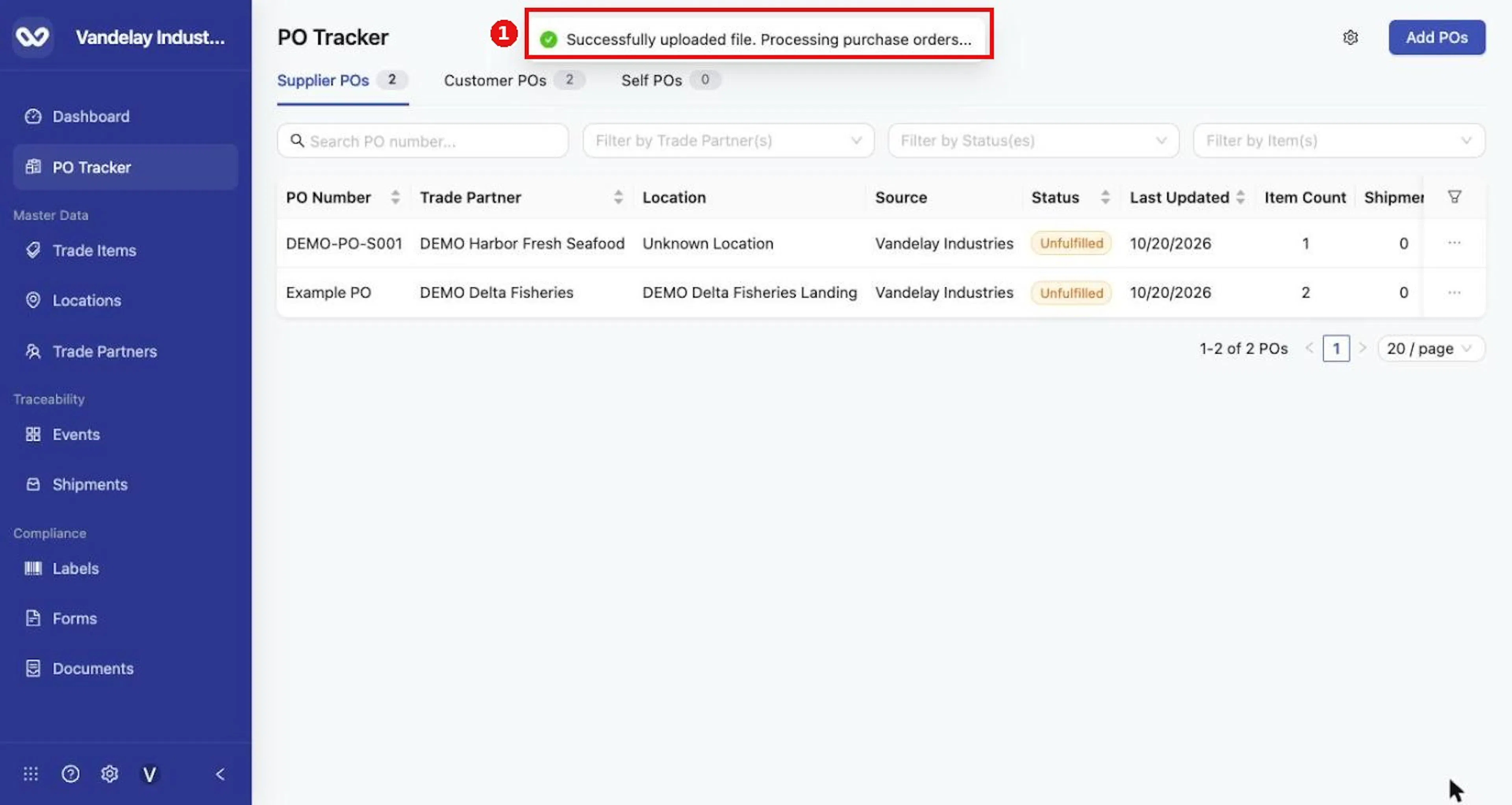
Wait about a minute for a file of about thirty POs, then refresh the list.
Why it matters. One upload can create a whole batch of POs with their line items and allocations.
Expected result. The message Successfully uploaded file. Processing purchase orders... appears. Processing runs in the background, and the POs appear on the tab that matches their PoType.
Troubleshooting.
- A PO whose Trade Partner, Location or product identifier does not match an existing record is not created, and no message is shown. Compare the tab counts with your file after each upload.
- Use LBS, KGM, CASES or UNITS for UnitOfMeasure.
- Do not enter Self in PoType; it is not accepted, because Self POs are not added manually.
Field and action reference
Bulk upload
The Bulk Upload tab shows: Step 1, "Download and fill out the Excel Template"; Step 2, "Drop the file in the box below". The note "Excel format is required (.xlsx or .xls)" applies. Select Upload to submit.
After upload, the screen shows Successfully uploaded file. Processing purchase orders... Processing runs in the background and a file of about thirty rows finishes in about a minute. Refresh the list to see the results. The screen does not show a completion message or an error report, so compare the tab counts with your file.
Bulk upload template
The template workbook has three sheets. Row 1 holds the column names; row 2 holds the keys.
Purchase Orders
| Column | Req. | Values |
|---|---|---|
| PurchaseOrderNumber | Yes | The PO number. Repeated on the other sheets to link rows. |
| PoType | Yes | Supplier: Supplier POs. Customer: Customer POs. Self is not accepted, because Self POs are not added manually. The column decides the tab; the tab open during upload does not. |
| ShipFromTradePartner ID / URN | Yes | Trade Partner identifier. |
| ShipFromLocation ID / URN | Conditional | Location identifier. |
| ShipToTradePartner ID / URN | Yes | Trade Partner identifier. |
| ShipToLocation ID / URN | Conditional | Location identifier. |
| PurposeCode | No | Free text. |
| PoTypeCode | No | Free text. |
| PurchaseOrderDate | No | Date. |
| RequestedDeliveryDate | No | Date. |
| CancelAfterDate | No | Date. |
| TransportationMethod | No | Text. |
| Visibility | No | Whether the PO is Private, Shared With Revision or Shared Without Revision. |
| LocationShare | No | True / False. |
| ProductShare | No | True / False. |
Line Items
| Column | Req. | Values |
|---|---|---|
| PurchaseOrderNumber | Yes | Matches a PO on the first sheet. |
| LineItemNumber | Yes | Line number. |
| Product ID / URN | Yes | Trade Item identifier. |
| QuantityOrdered | Yes | Number. |
| UnitOfMeasure | No | LBS, KGM, CASES, UNITS. |
| UnitPrice | No | Number. |
| PriceBasisCode | No | Per Unit (UNIT), Per Case (CASE), Per Pallet (PALLET). |
| PackSize | No | Number. |
Store Allocations
| Column | Req. | Values |
|---|---|---|
| PurchaseOrderNumber | Yes | Matches a PO. |
| LineItemNumber | Yes | Matches a line on the Line Items sheet. |
| Location ID / URN | Yes | Location identifier. |
| Quantity | Yes | Number. |
Identifiers must match an existing Trade Partner, Location or Trade Item. A PO that cannot be matched is not created and no message is shown (see Rules and restrictions).