

Open and complete a shared Ship Event form
Find a form that a buyer shared with you, open it, and fill in the vendor, origin, destination, and shipment details.
Applies to: Forms List (forms shared with your account), not Forms Manager
Audience: Suppliers completing a form a buyer shared
Prerequisites: a Trade Partner connection to the buyer, a shared form, your own Locations, and shared destinations
Related: Add products and submit a Ship Event form; Troubleshooting and FAQ; Field and settings reference
Purpose
Find a form that a buyer shared with you, open it, and fill in the vendor, origin, destination, and shipment details. Complete one form for each shipment and destination. You work in Forms List, not Forms Manager.
Before you begin
- A connected Trade Partner has shared a form with your account.
- Your own company is set up as a Trade Partner (your "self" Trade Partner), and your shipping Locations exist as Locations. Newly invited suppliers may need to create their own Location master data first; see Add Location.
- The buyer has shared destination Locations and Trade Items with you. Sharing a form does not share these; the buyer shares them separately.
- You have the shipment details to hand: purchase order number, traceability lot code (TLC), invoice number, quantities, and lot or serial numbers.
- Do not leave the drawer open on a form you are not ready to submit; entered values are not saved for later.
Steps
Find and open the form
In the left sidebar, open Compliance → Forms
In the left sidebar, open Compliance → Forms.
Make sure the Forms List tab is selected
Make sure the Forms List tab is selected.
Optionally, filter the table by typing part of a form name in Search forms
Optionally, type part of a form name in Search forms to filter the table.
Review the table
Review the table: Name is the form name, Shared By is the buyer that owns the form, and Last Updated is the date and time the owner last updated it.
Click the row of the form you want
Click the row of the form you want. The form opens in a side drawer.
Optional: select the expand icon at the top of the drawer to widen it.
Optional: select the expand icon at the top of the drawer to widen it.
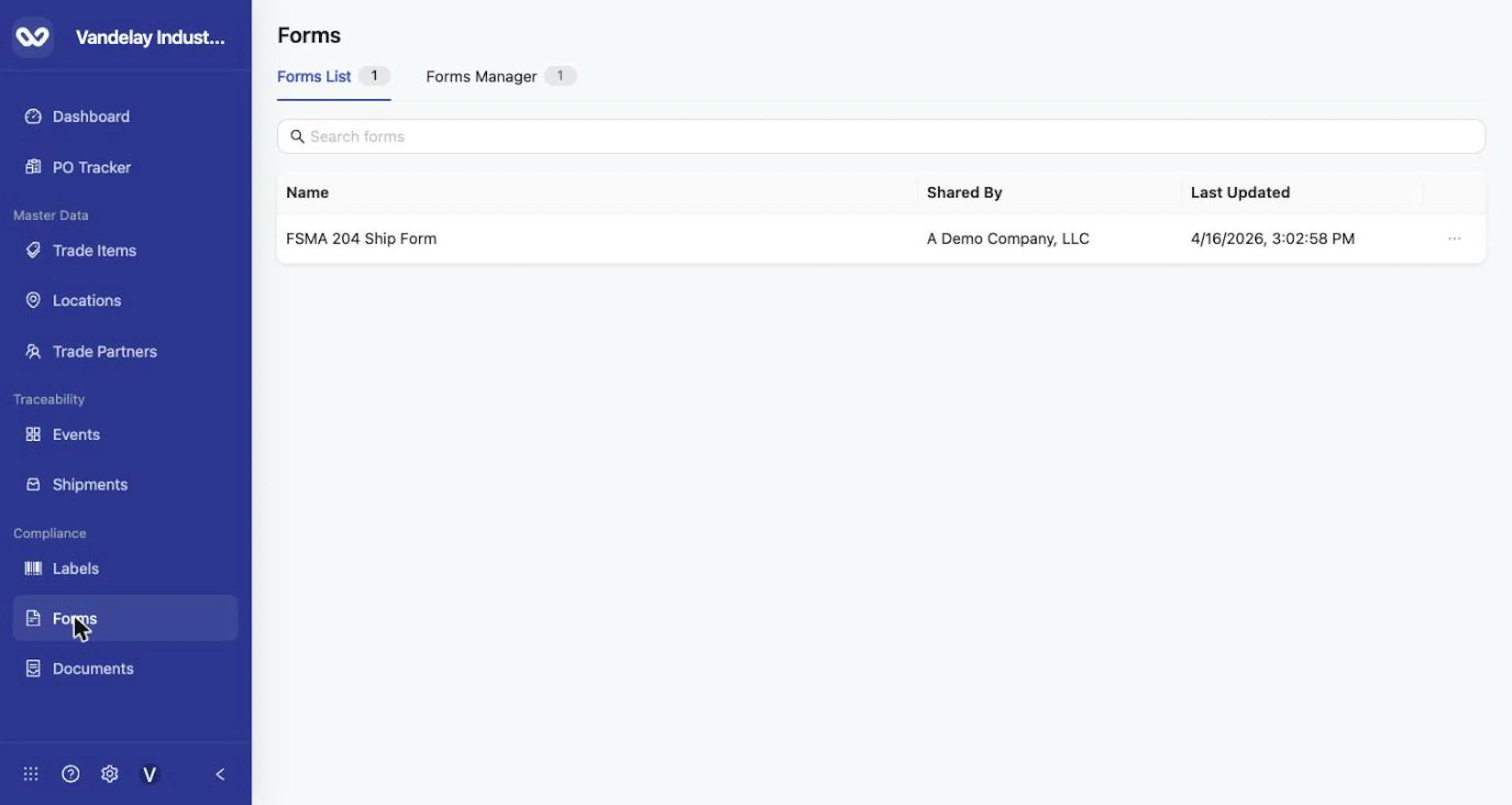
Forms List: forms that connected trade partners shared with your account.
Read Information and Instructions
Select Information and Instructions at the top of the drawer to expand it
At the top of the drawer, select Information and Instructions to expand it.
Read the buyer's guidance
Read the buyer's guidance. If the buyer attached an instruction document, open it before you continue.
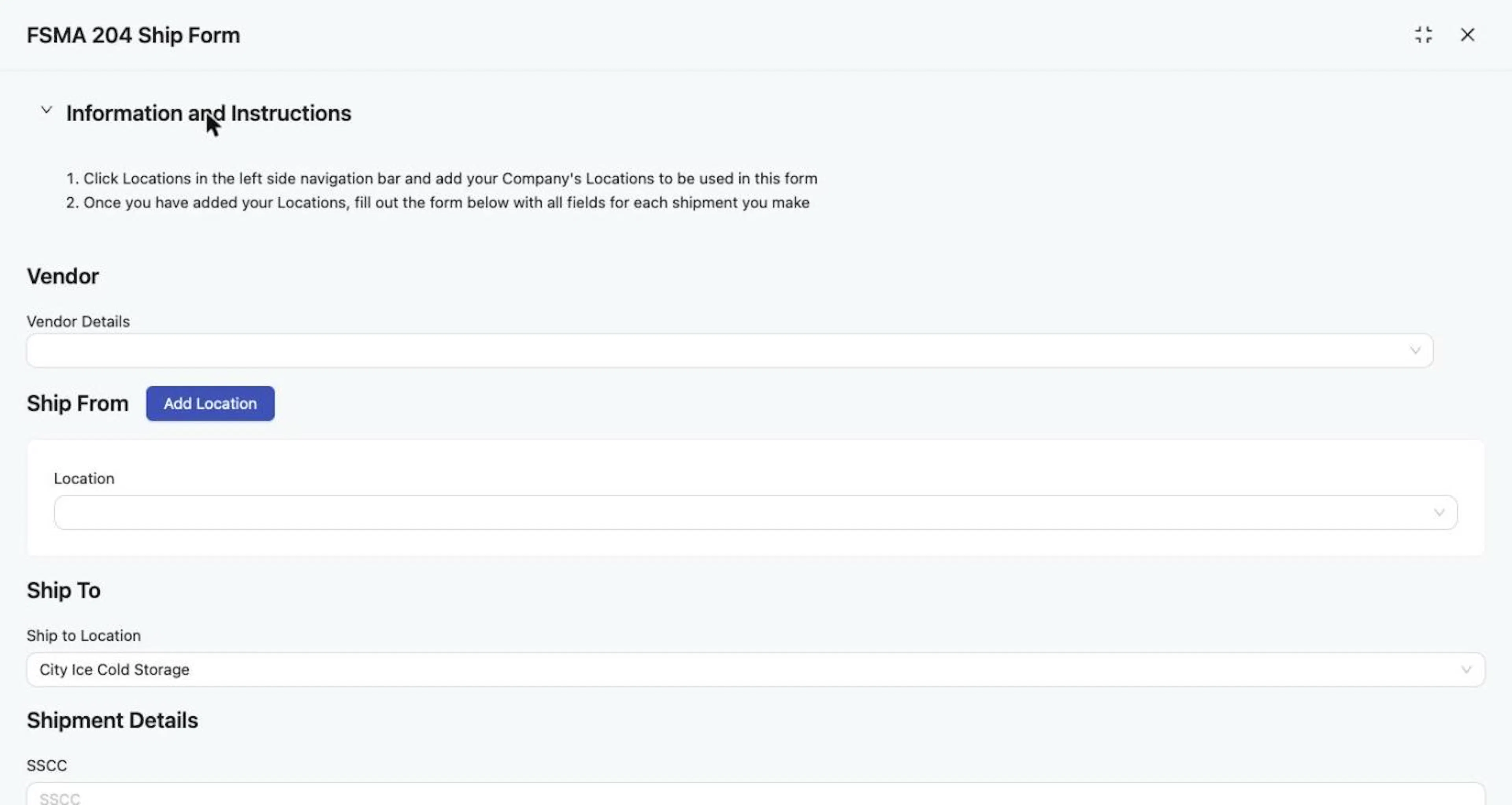
A shared form in the drawer, with Information and Instructions expanded.
Choose the Vendor
Choose your own company in Vendor Details
In Vendor Details, open the selector and choose your own company (your self Trade Partner).
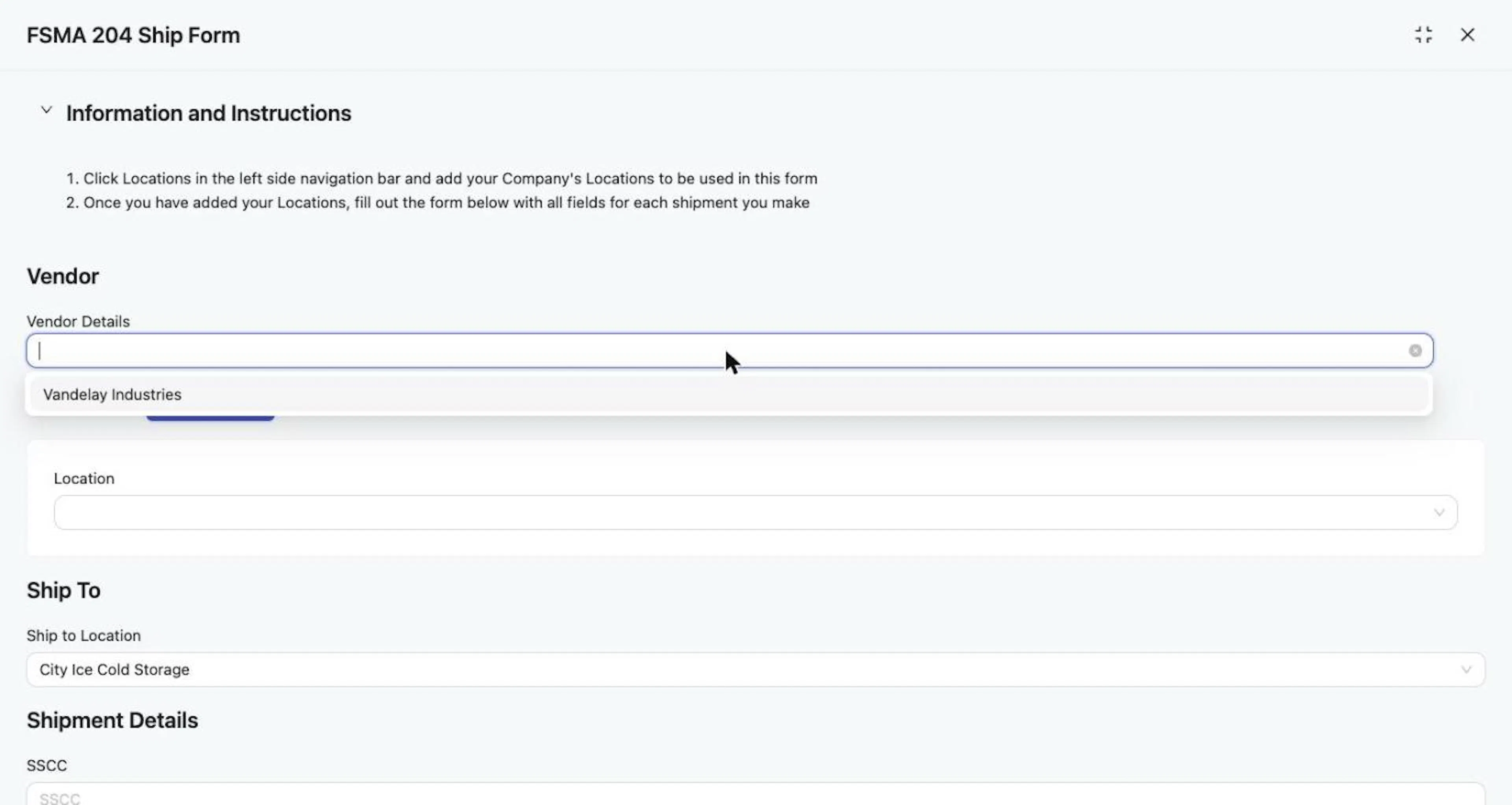
Choose your own company in Vendor Details.
Set Ship From
Under Ship From, open the Location selector
Under Ship From, open the Location selector. It lists Locations under your self Trade Partner. Each option can show the Location name, the Trade Partner, and an address or geographic coordinates.
Choose the Location the goods ship from
Choose the Location the goods ship from.
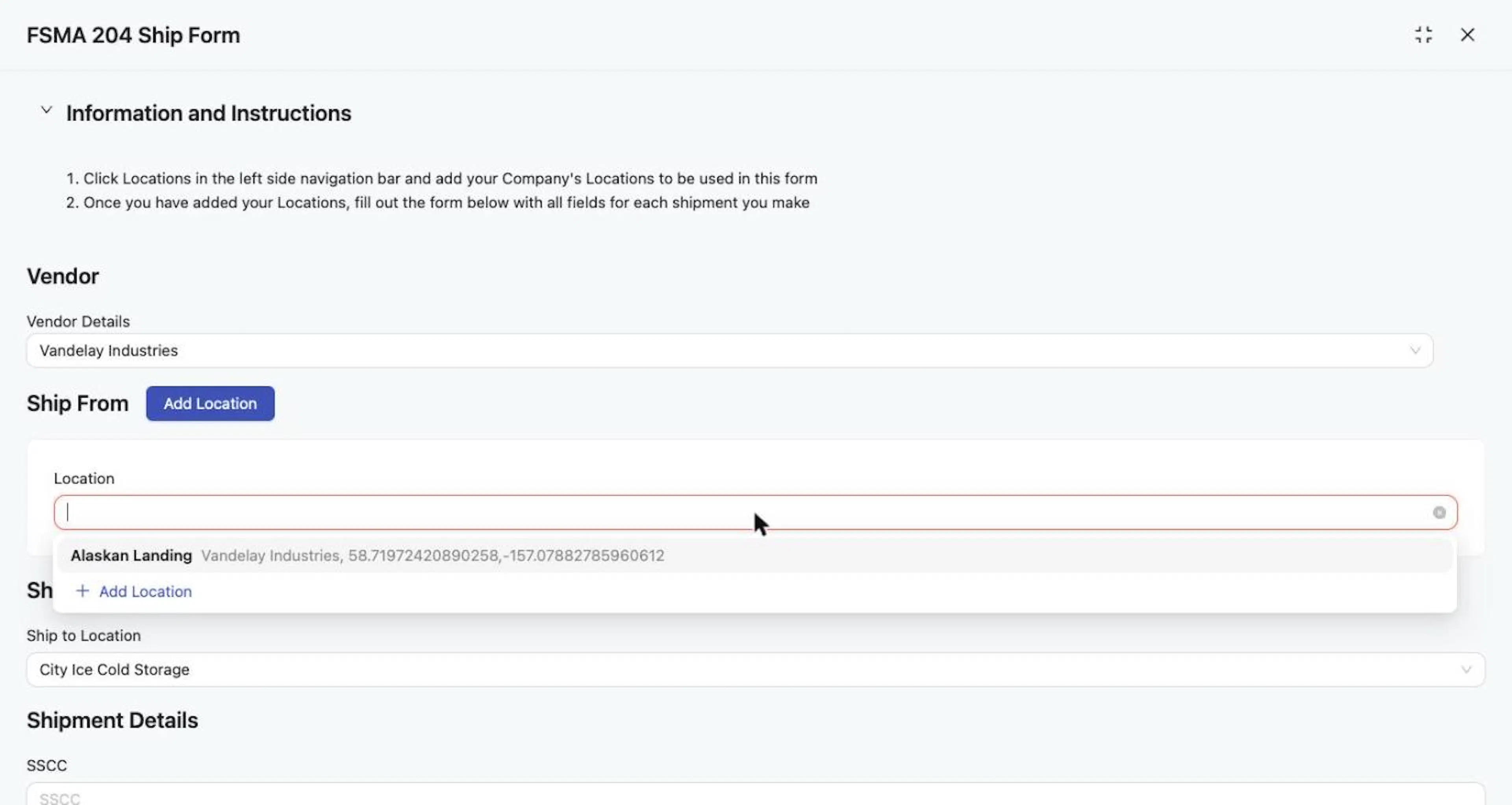
The Ship From Location selector shows name, Trade Partner and coordinates, plus an Add Location option.
The selector also contains Add Location. That option opens the Add Locations drawer for creating a Location in your master data, one at a time (Single Location) or in bulk (Bulk Upload). Use it only if the Location does not exist yet. See Add Location for the full procedure.
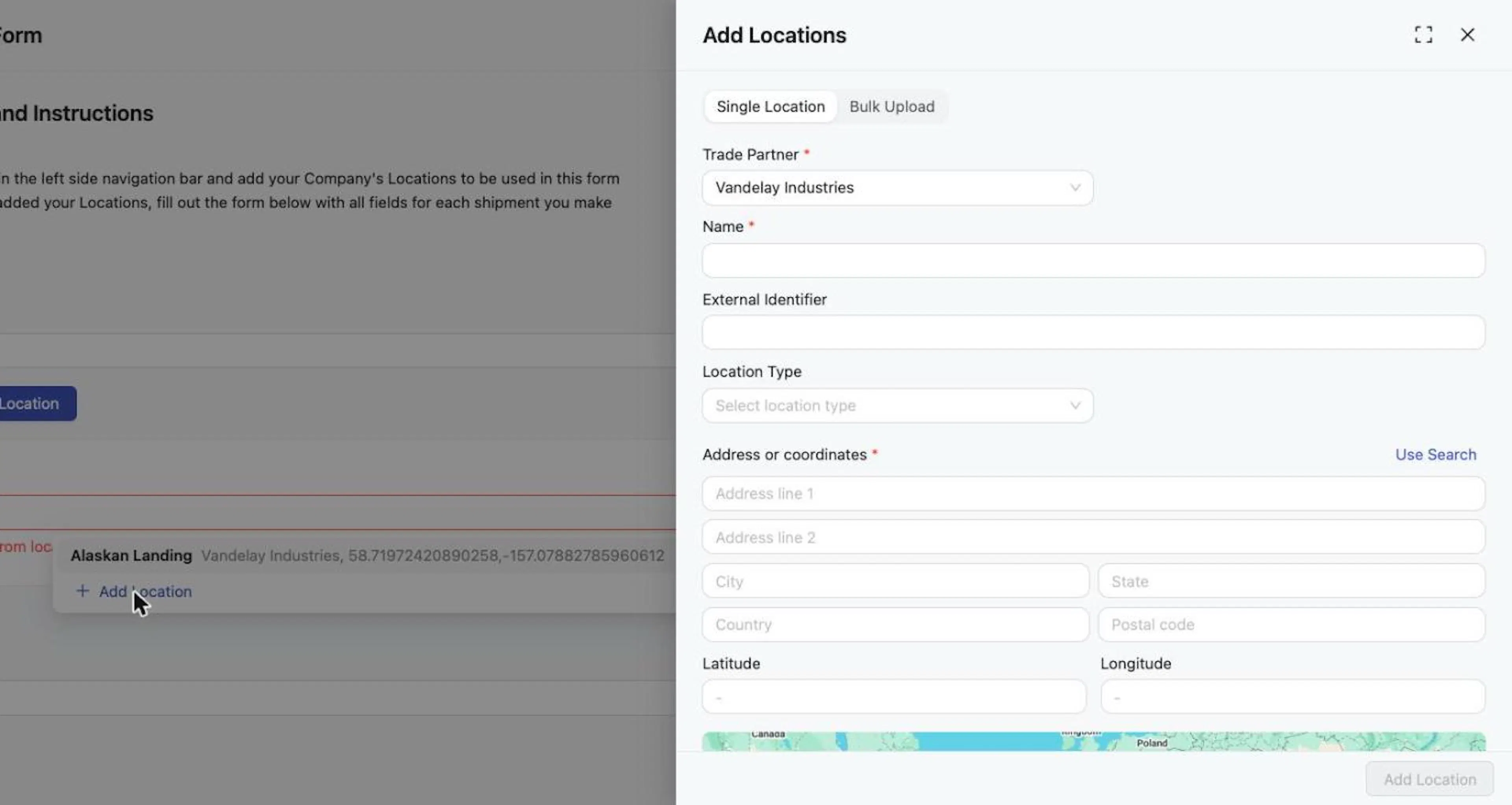
Add Locations drawer from the selector, with Single Location and Bulk Upload tabs.
Two different "Add Location" controls. The Add Location option inside the selector creates a master-data Location. The Add Location button beside the Ship From heading does something else: it adds another Location entry to this shipment form, so you can list additional Locations connected with where the goods originated. It does not create a master-data Location.
To list an additional Location, select the Add Location button beside Ship From. Each entry is numbered (Location 1, Location 2, ...) and has a Ship From Location toggle.
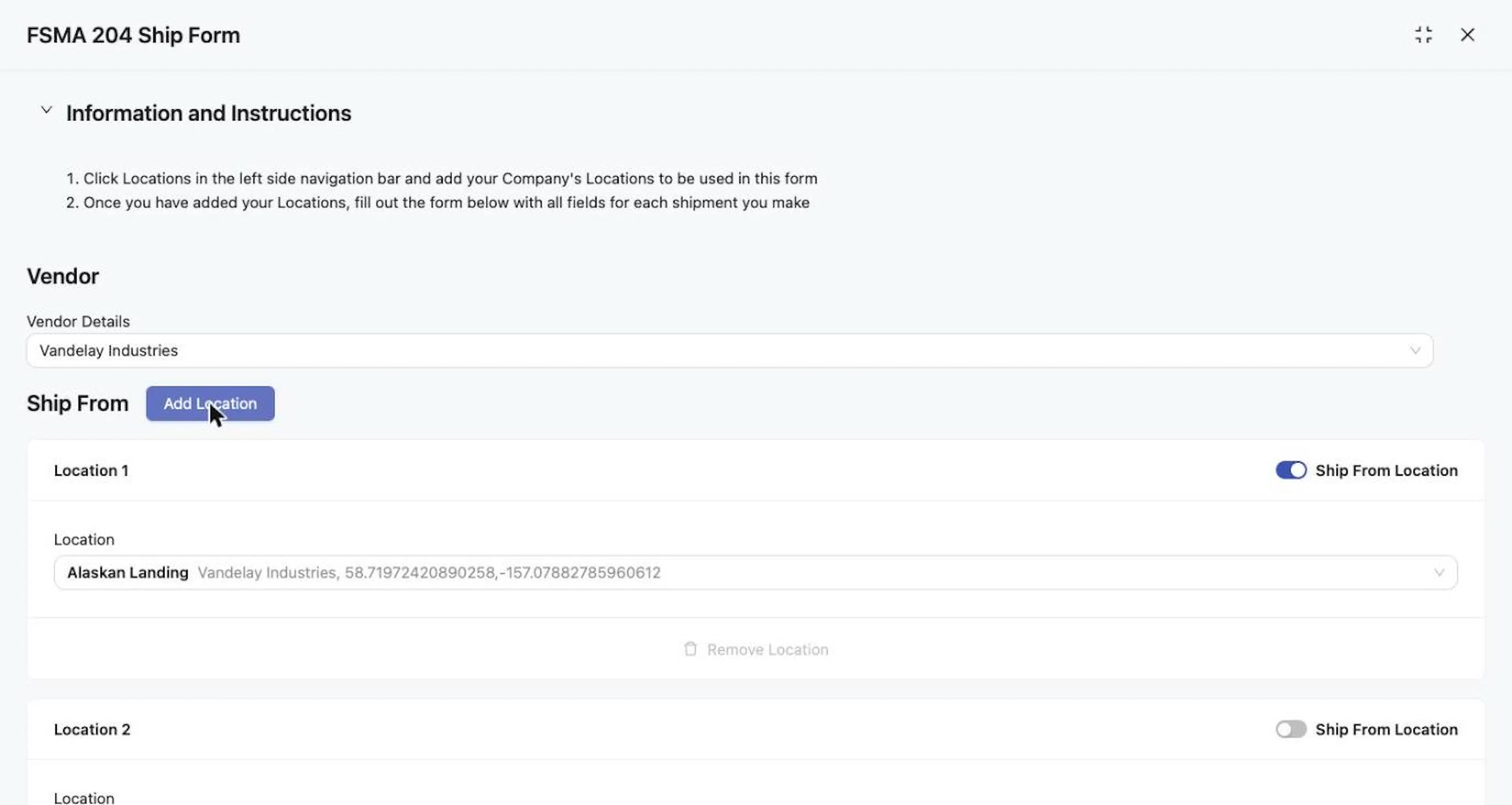
The Add Location button beside Ship From adds a second entry; Location 1 is the Ship From Location.
Only one entry is the Ship From Location at a time. Turning the toggle on for one entry turns it off for the other. The entry currently designated as the Ship From Location cannot be removed; its Remove Location control is unavailable. Other entries can be removed with Remove Location (trash icon).
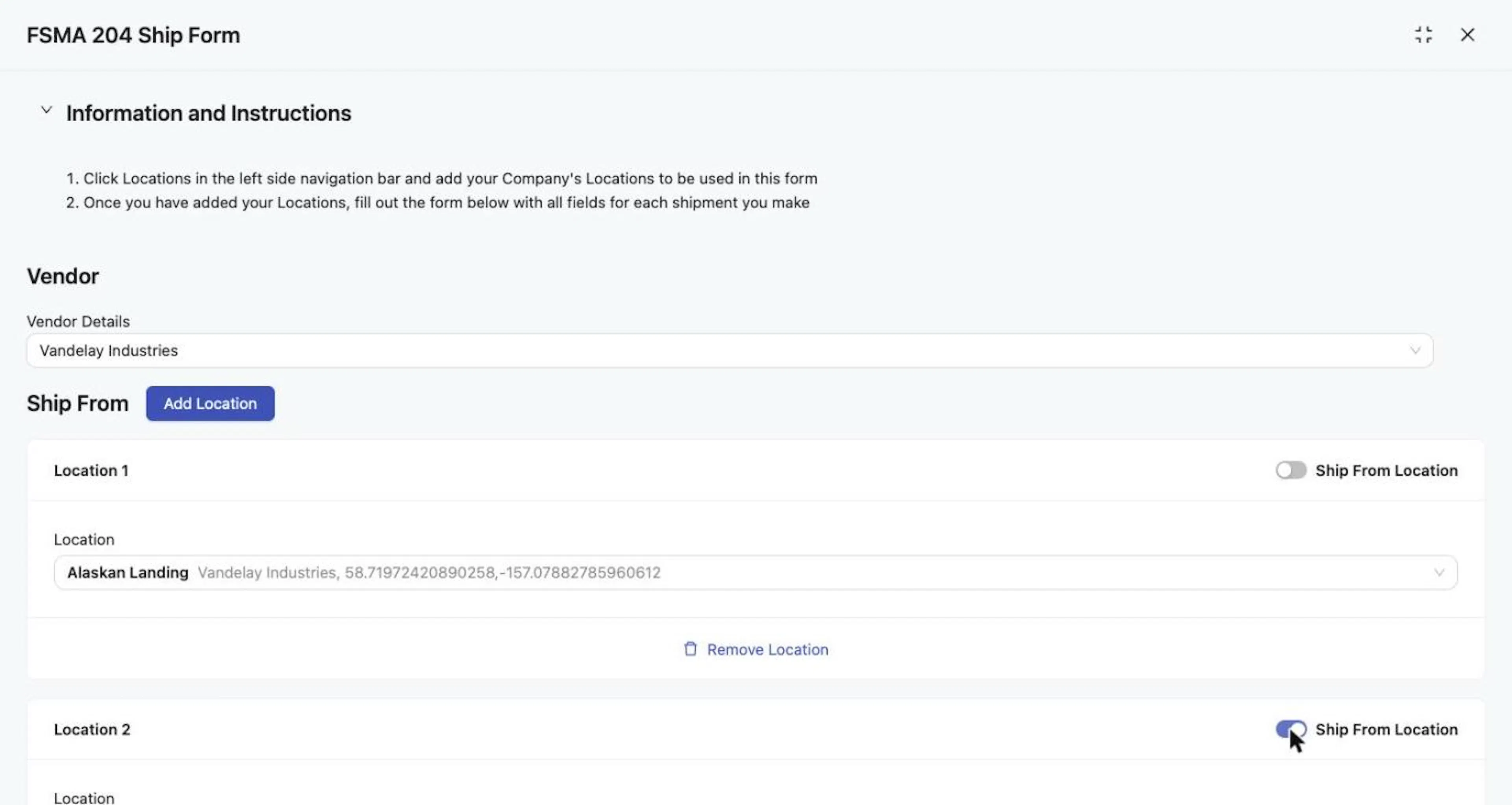
Turning on Ship From Location for Location 2 turns it off for Location 1.
Set Ship To
Under Ship To, open Ship to Location and choose the destination
Under Ship To, open Ship to Location and choose the destination. Destinations are Locations shared with you by the buyer that owns the form. A shipment has one destination. If a purchase order ships to several destinations, complete a separate form for each shipment and destination.
If the selector is empty, ask for destinations to be shared with you
If the selector is empty, contact the buyer or support@wholechain.com and ask for the destination Locations to be shared with your account.
Enter Shipment Details
Complete the fields under Shipment Details
Complete the fields under Shipment Details. Use the buyer's instructions and the tooltips for what to enter. Vendor Details, Ship From, Ship to Location, Purchase Order Number, TLC, TLC Source, and Shipment Date are required. SSCC depends on whether the shipment was sent in a container, and Invoice Number and any custom attributes are optional but encouraged.
| Field | What to enter |
|---|---|
| SSCC | The container code, if one applies. You decide whether the shipment was sent in a container. Leave it blank when no container identifier applies. If the owner turned on SSCC validation, the value must pass the GS1 check-digit validation. |
| Purchase Order Number | Free entry. Use the number the buying Trade Partner issued. |
| TLC | The traceability lot code. |
| TLC Source | Follow the buyer's instructions. |
| Shipment Date | Select a date from the calendar or type it as YYYY-MM-DD. After you choose a date, the time columns (hours, minutes, seconds) become available. Select OK to apply. Reopen the field to adjust. |
| Invoice Number | The invoice number issued to the buyer. Point to the information icon for the owner's guidance. |
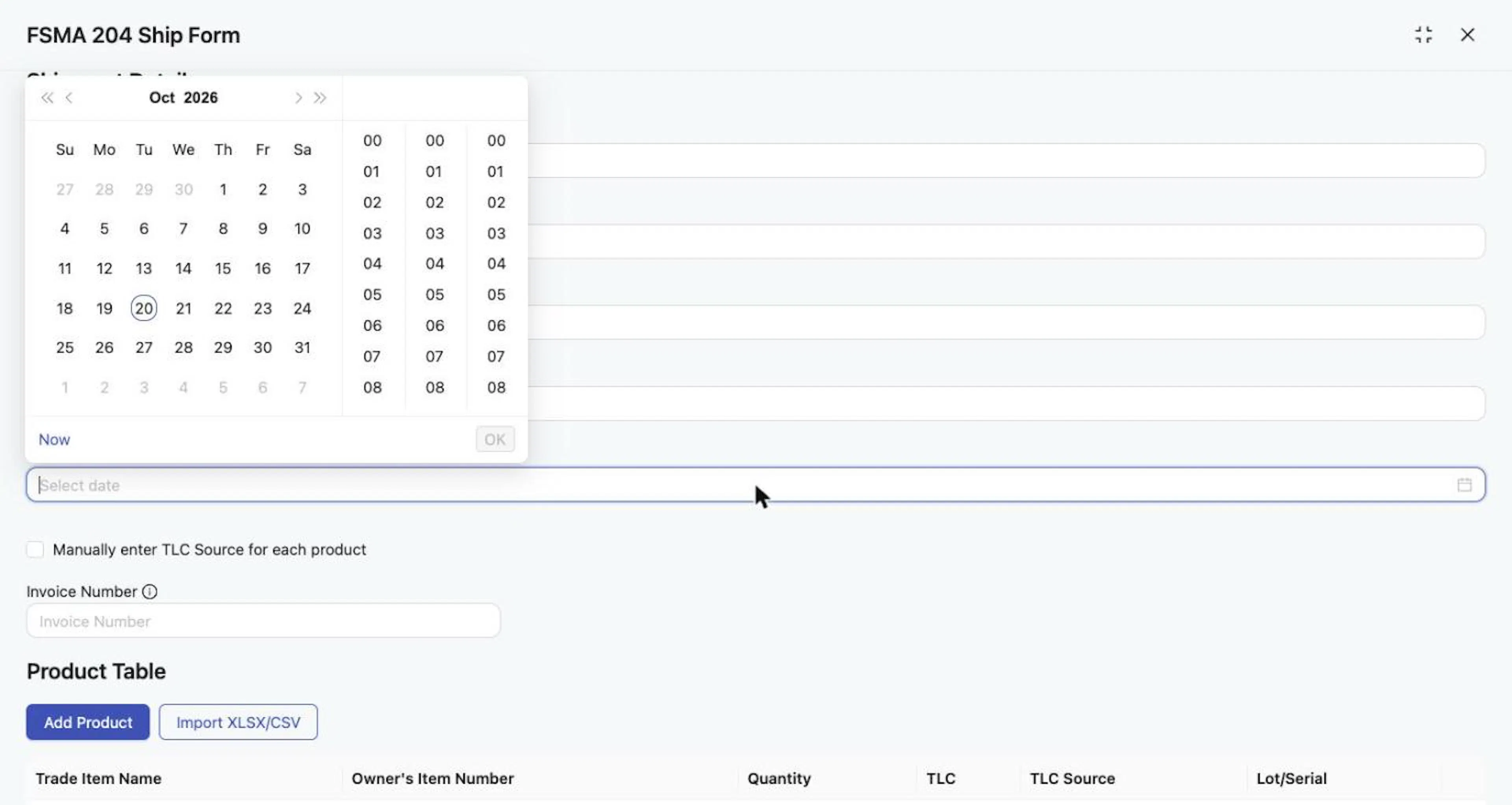
Shipment Date: choose a date, set the time, then select OK.
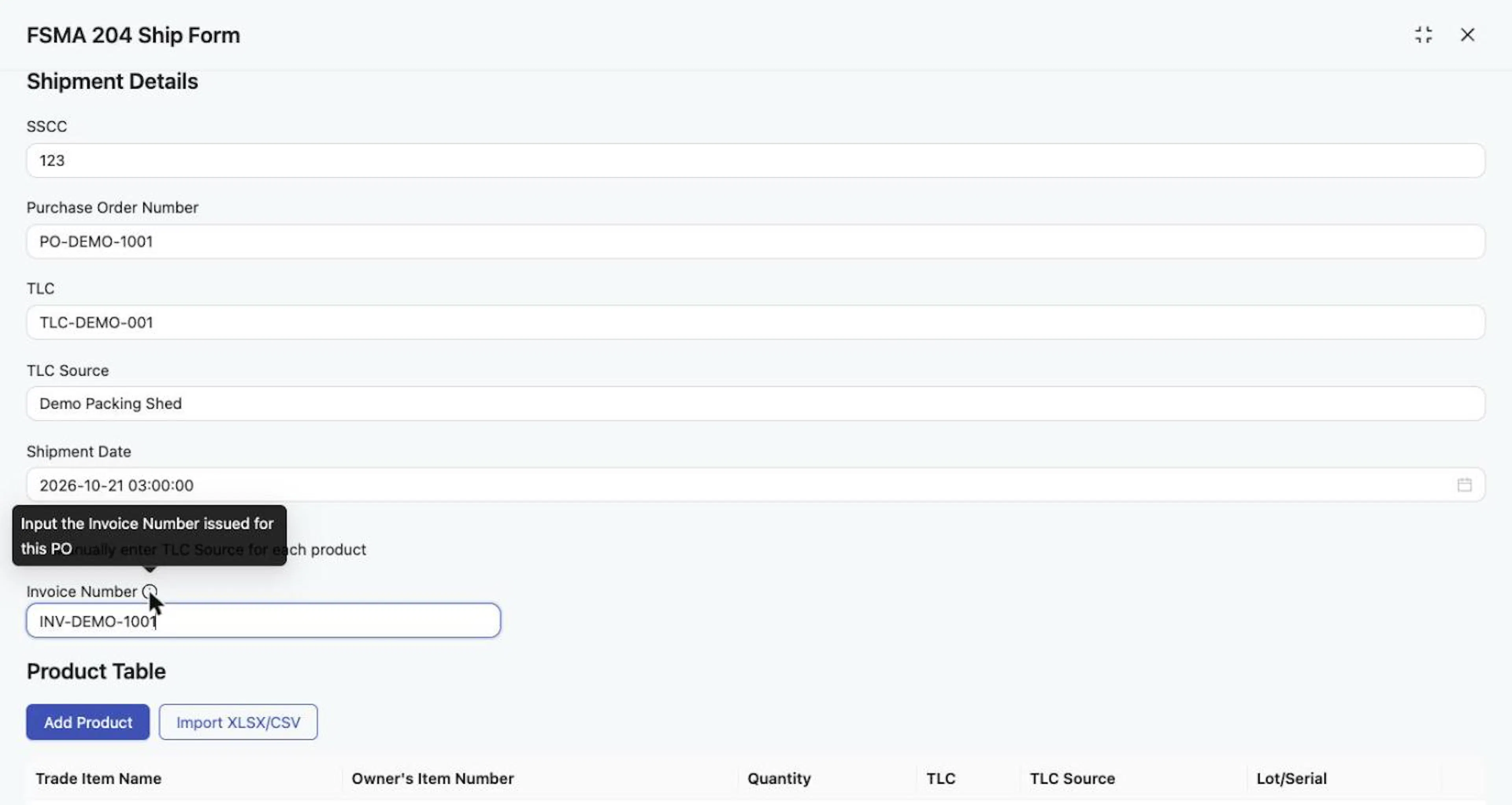
Shipment Details with example values; the Invoice Number tooltip is open.
If different products need different TLC Sources (for example, goods produced at different locations), tick Manually enter TLC Source for each product. The shared TLC Source field disappears and the TLC Source cell in each product row becomes editable. TLC Source is required either way: enter it once to apply it to all rows, or enter it on every row.
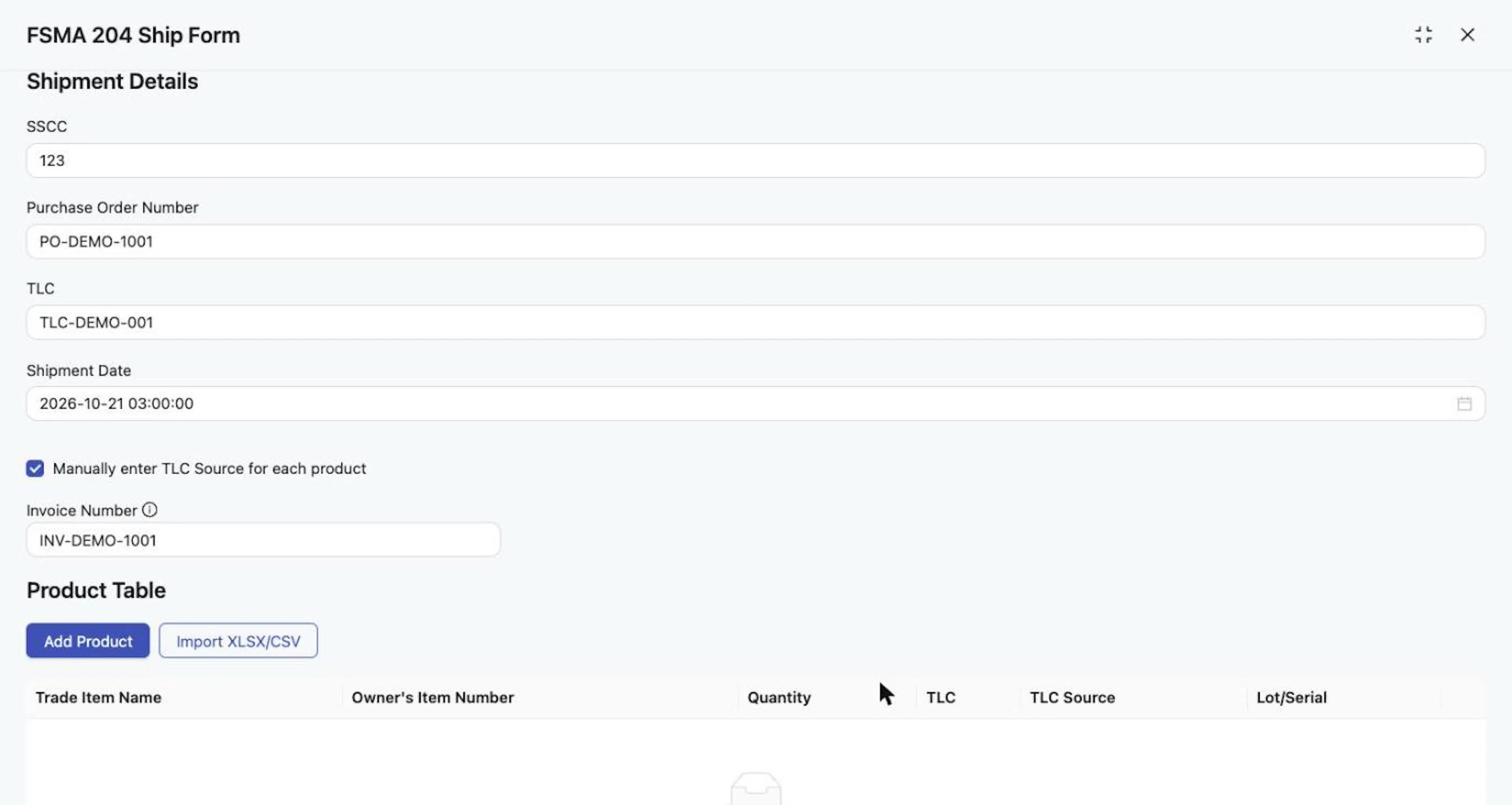
With Manually enter TLC Source for each product ticked, the shared TLC Source field disappears.
If your form has custom attributes, they appear between Shipment Details and the product table. Their labels, types, and requirements are set by the owner and vary between forms.
Expected result
You have opened the owner's form (its labels, instructions, tooltips, custom attributes, and visible product columns all come from the owner's configuration) and filled in every shipment-level field. Next, add the products in the shipment (see Add products and submit a Ship Event form).
Troubleshooting
- The form is not listed in Forms List. The form has not reached your account. Ask the buyer to confirm it is Published, that its Sharing is not Don't Share, and that your account is included. See Troubleshooting and FAQ.
- Ship From shows a red outline and "Please input a ship from location". Choose a Location. If the list is empty, create the Location through Add Location first.
- The SSCC is rejected. If SSCC validation is on, check all 18 digits, including the check digit. Leave the field blank if the shipment was not sent in a container.
- A selector is empty (Ship From or Ship To). See Troubleshooting and FAQ.
Field and action reference
Table columns
| Column | Description |
|---|---|
| Name | The form name. |
| Shared By | The Trade Partner that owns the form. |
| Last Updated | Date and time the owner last updated the form. |
Search and row action
| Item | Behavior |
|---|---|
| Search forms | Filters the table by form name. |
| Row click | Opens the form in a side drawer. The drawer has an expand icon to widen it. |
Sections and fields
| Section | Field or control | Req. | Behavior |
|---|---|---|---|
| Information and Instructions | Expand to read | n/a | Shows the owner's instructions and instruction document. |
| Vendor | Vendor Details | Yes | Selector. Choose your own company (your self Trade Partner). |
| Ship From | Location | Yes | Lists Locations under your self Trade Partner. Leaving it empty shows "Please input a ship from location". |
| Add Location (selector option) | n/a | Opens Add Locations (Single Location, Bulk Upload) to create a master-data Location. | |
| Add Location (button beside the heading) | n/a | Adds a numbered Location entry to this form. It does not create a master-data Location. | |
| Ship From Location toggle | n/a | Appears when more than one entry exists. Only one entry can be the Ship From Location. | |
| Remove Location | n/a | Unavailable on the entry designated as the Ship From Location. | |
| Ship To | Ship to Location | Yes | Lists Locations shared by the form owner. One destination per form. |
| Shipment Details | SSCC | No | The supplier decides whether the shipment was sent in a container. Complete it when it was; leave it blank when no container code applies. Validated only when Use SSCC Validation is on. |
| Purchase Order Number | Yes | Free entry. Use the number the buying Trade Partner issued. | |
| TLC | Yes | Traceability lot code. | |
| TLC Source | Yes | Follow the owner's instructions. Hidden when Manually enter TLC Source for each product is ticked; the TLC Source cell in each product row applies instead. | |
| Shipment Date | Yes | Date picker with hours, minutes and seconds columns. OK applies the value. | |
| Manually enter TLC Source for each product | No | Checkbox. Hides the shared TLC Source field and makes the TLC Source cell in each product row editable and required. | |
| Invoice Number | No (encouraged) | Complete it when an invoice exists. An information icon shows the owner's guidance. | |
| Custom attributes | Owner-defined | No (encouraged) | Appear between Shipment Details and the product table. Complete them when the form has them. |
| Product table | Add Product | n/a | Adds a product row. |
| Import XLSX/CSV | n/a | Opens the import window. | |
| Bottom of form | Clear Form | n/a | Empties entries without a confirmation window. A single shared destination in Ship To can stay selected. |
| Submit | n/a | Sends the form to the owner. |