

Publish, share, and manage a form
Make your latest configuration available to recipients, choose who receives it, and manage the form over time.
Applies to: Forms Manager (forms your account owns), not Forms List
Audience: Account owners publishing and sharing forms for suppliers
Prerequisites: a configured form; suppliers connected to your account as Trade Partners
Related: Create and configure a form; Field and settings reference; Troubleshooting and FAQ
Purpose
Make your latest configuration available to recipients, choose who receives it, and manage the form over time.
Before you begin
Configure the form (see Create and configure a form). Suppliers must also be connected to your account as Trade Partners. Remember that publishing and sharing are separate: publishing sets what recipients see, and sharing sets who can see it.
The Forms Manager table
| Column | Meaning |
|---|---|
| Name | The form name. |
| Status | Draft for a form that has never been published; Published once it has. An information icon beside Published says: "There is a newer edit version that has not been published yet." |
| Sharing | Don't Share, All Network Partners, or Specific Network Partners. |
| Last Updated | When the form was last changed. |
The three-dot menu on each row contains Publish (shown only when there are edits that have not been published), Edit Form, Manage Sharing, Copy URL, and Delete Form. Clicking a row opens the form's configuration.
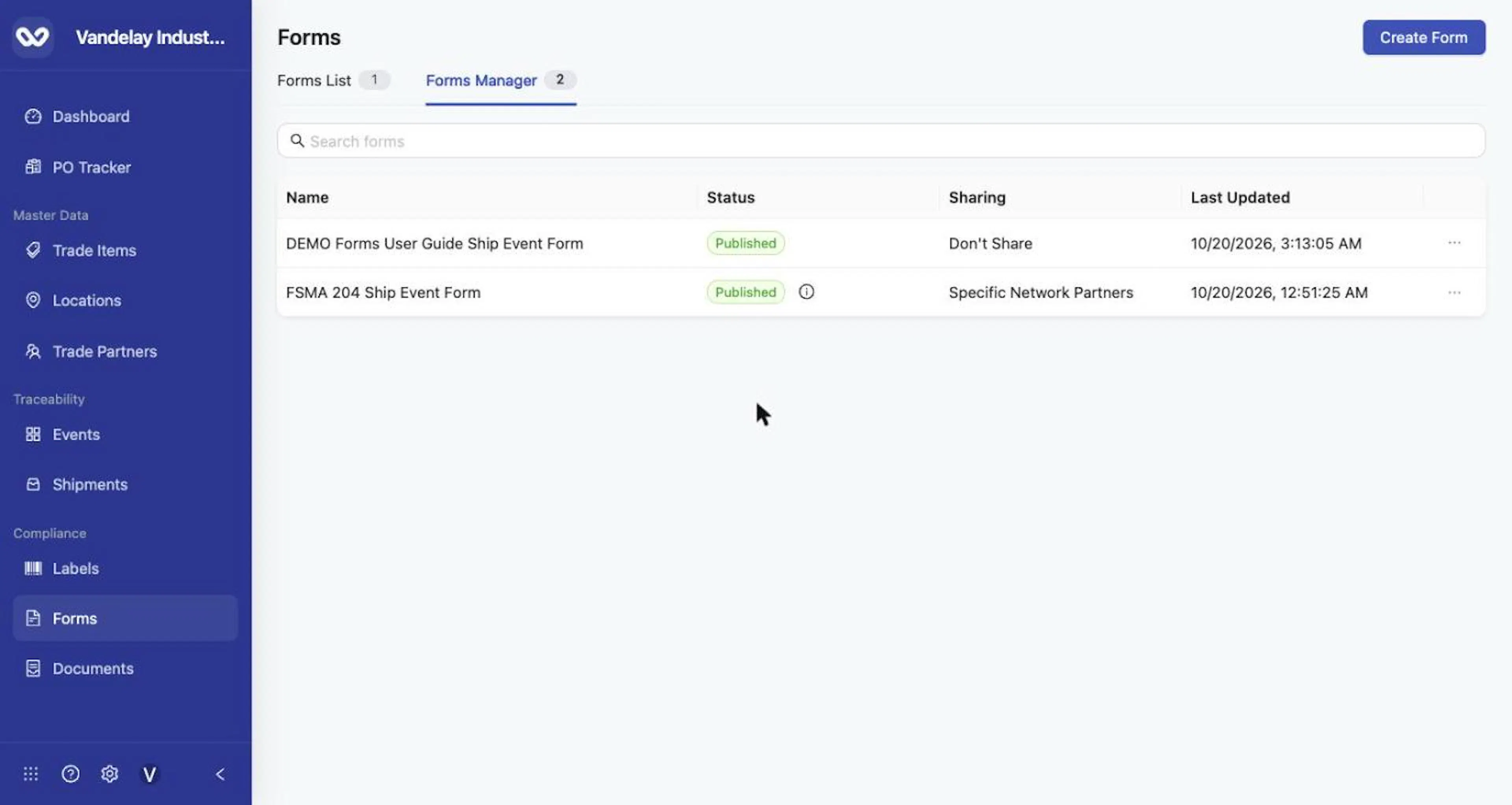
Forms Manager with a published form that is not shared.
Publish
Select Publish Draft in the form's configuration, or Publish in the row menu
Open the form's configuration and select Publish Draft at the bottom, or open the row's three-dot menu and select Publish when it is listed.
A green notification says Draft published successfully.
A green notification says "Draft published successfully."
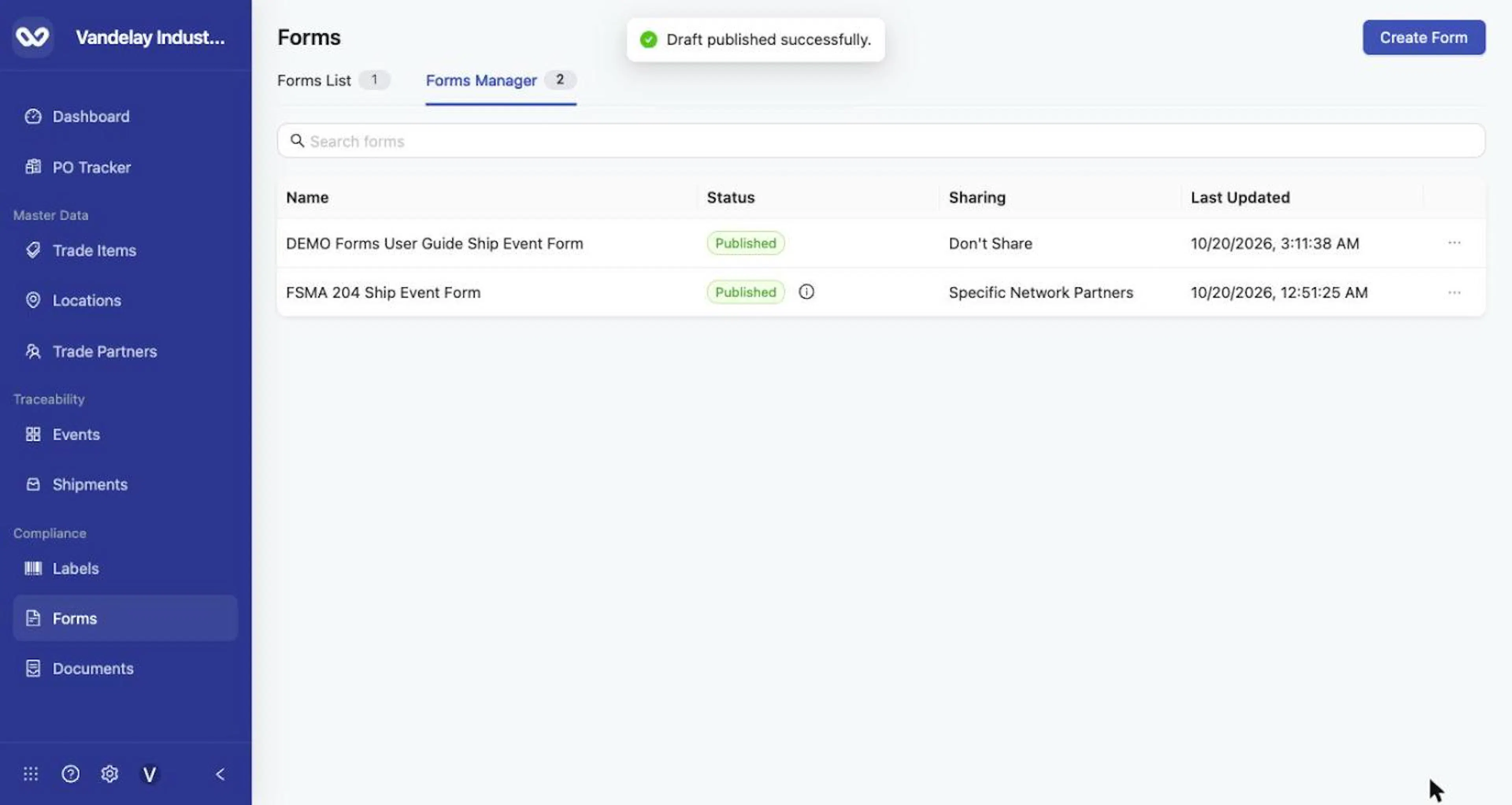
Publishing shows "Draft published successfully." and the form Status becomes Published.
Publishing makes the latest configuration the published version. Configuration changes you make later stay unpublished, and the form shows an information icon until you publish again. The draft you are editing and the version recipients see can therefore differ.
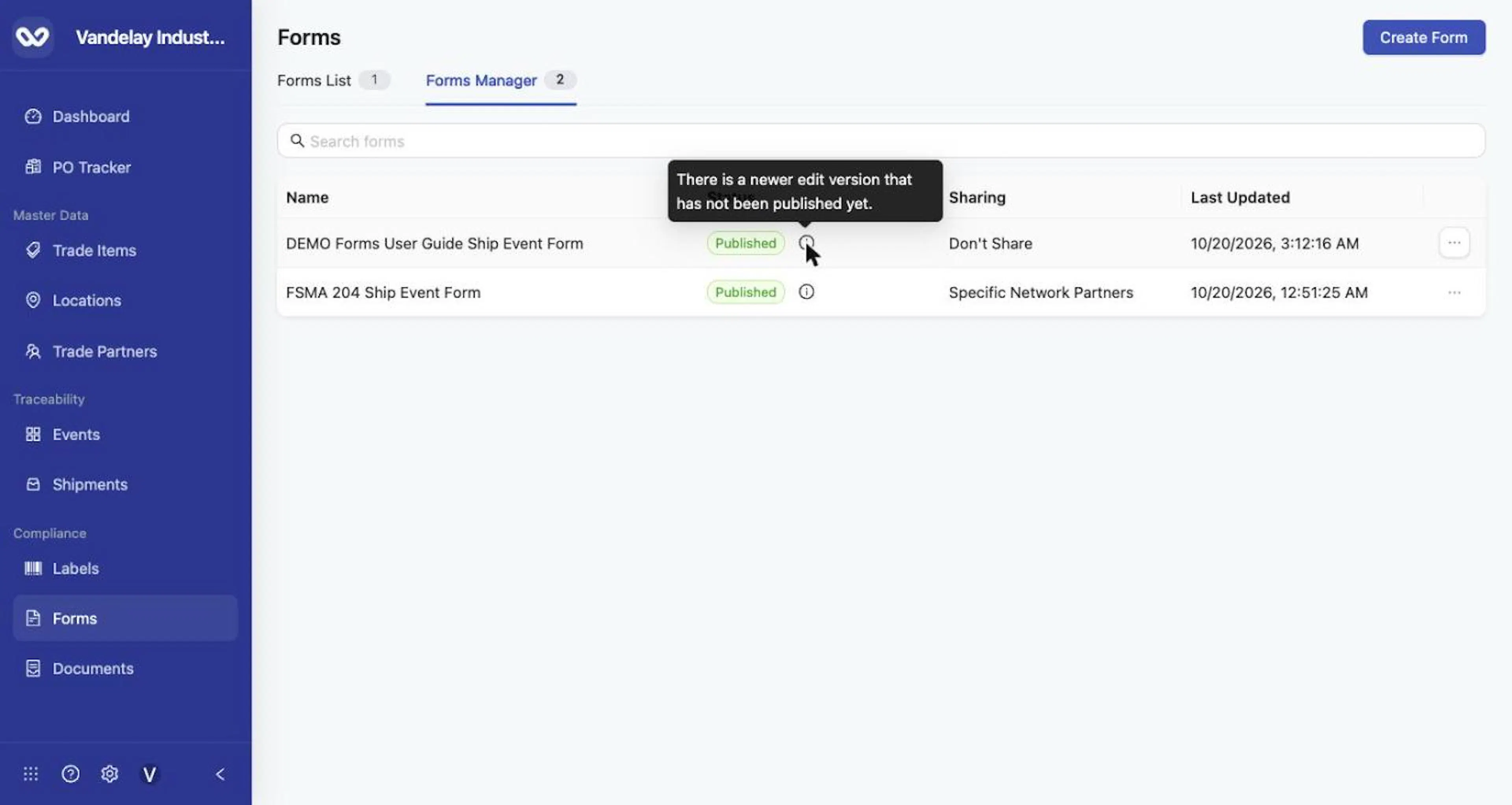
The information icon beside Published warns that a newer edit has not been published.
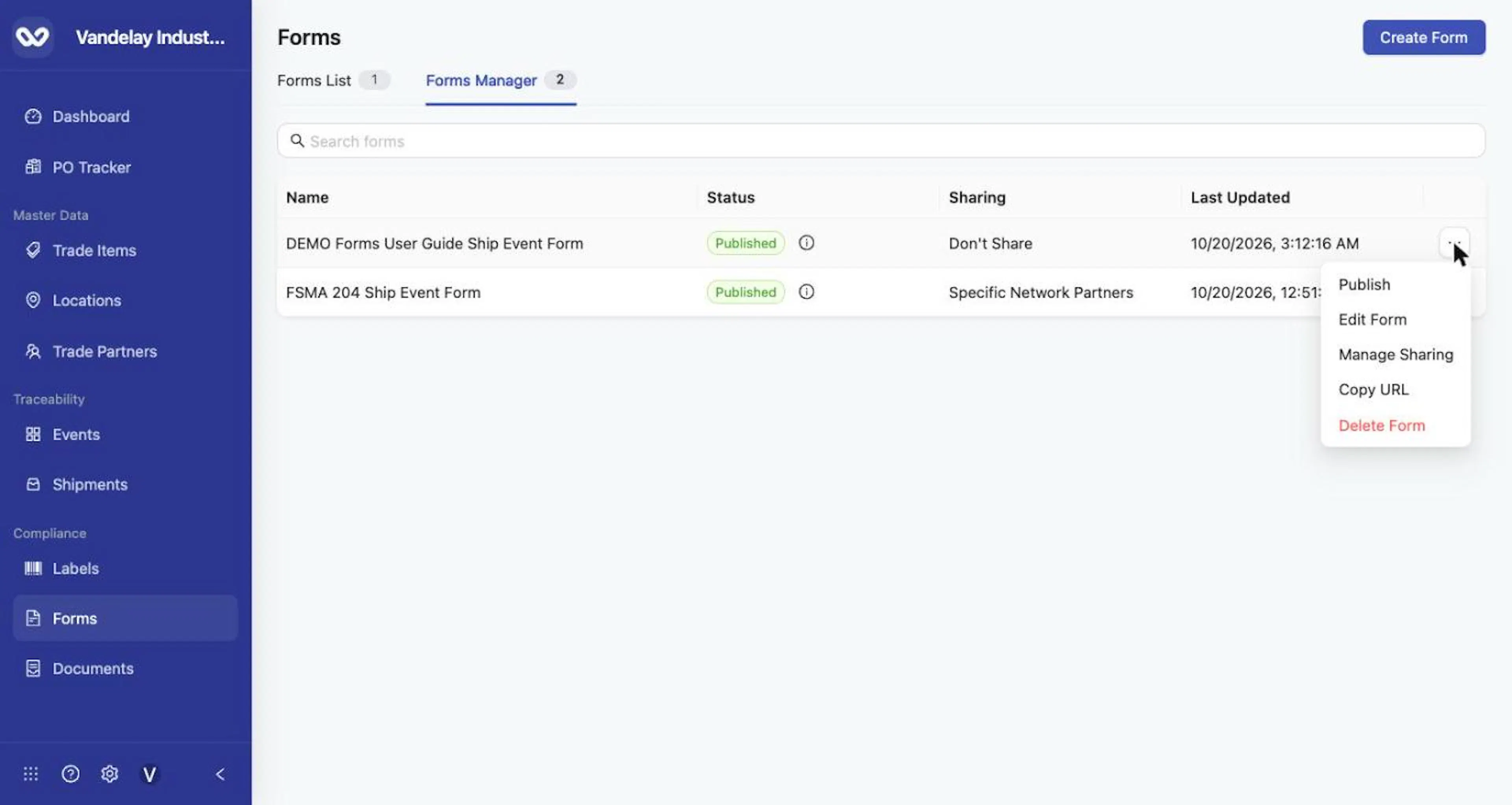
Publish appears in the row menu only when there are unpublished edits.
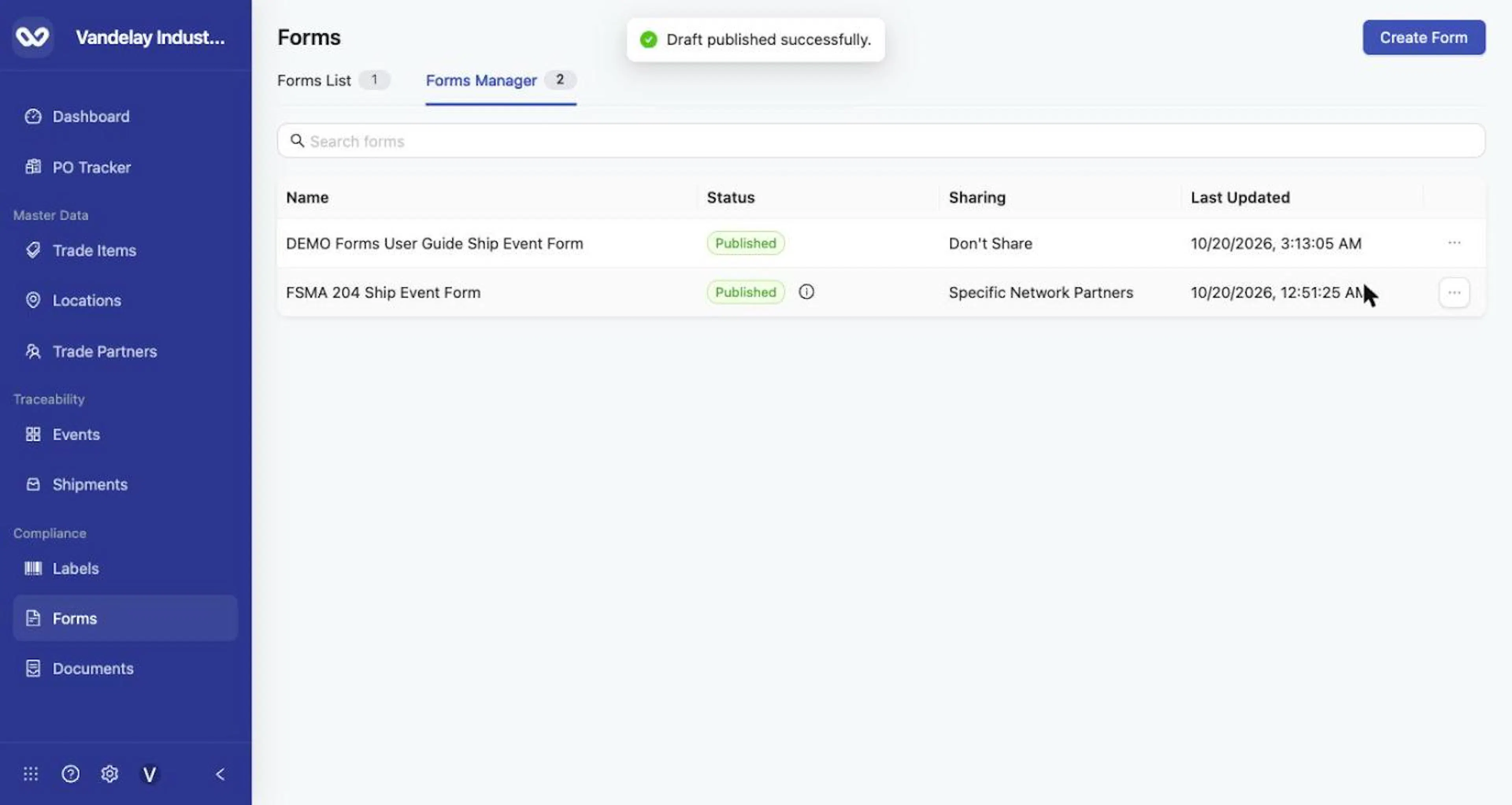
After publishing again, the information icon is gone.
Rename a form
Open the three-dot menu and select Edit Form
Open the three-dot menu and select Edit Form.
Change the Form Name and select Save Changes
Change the Form Name and select Save Changes.
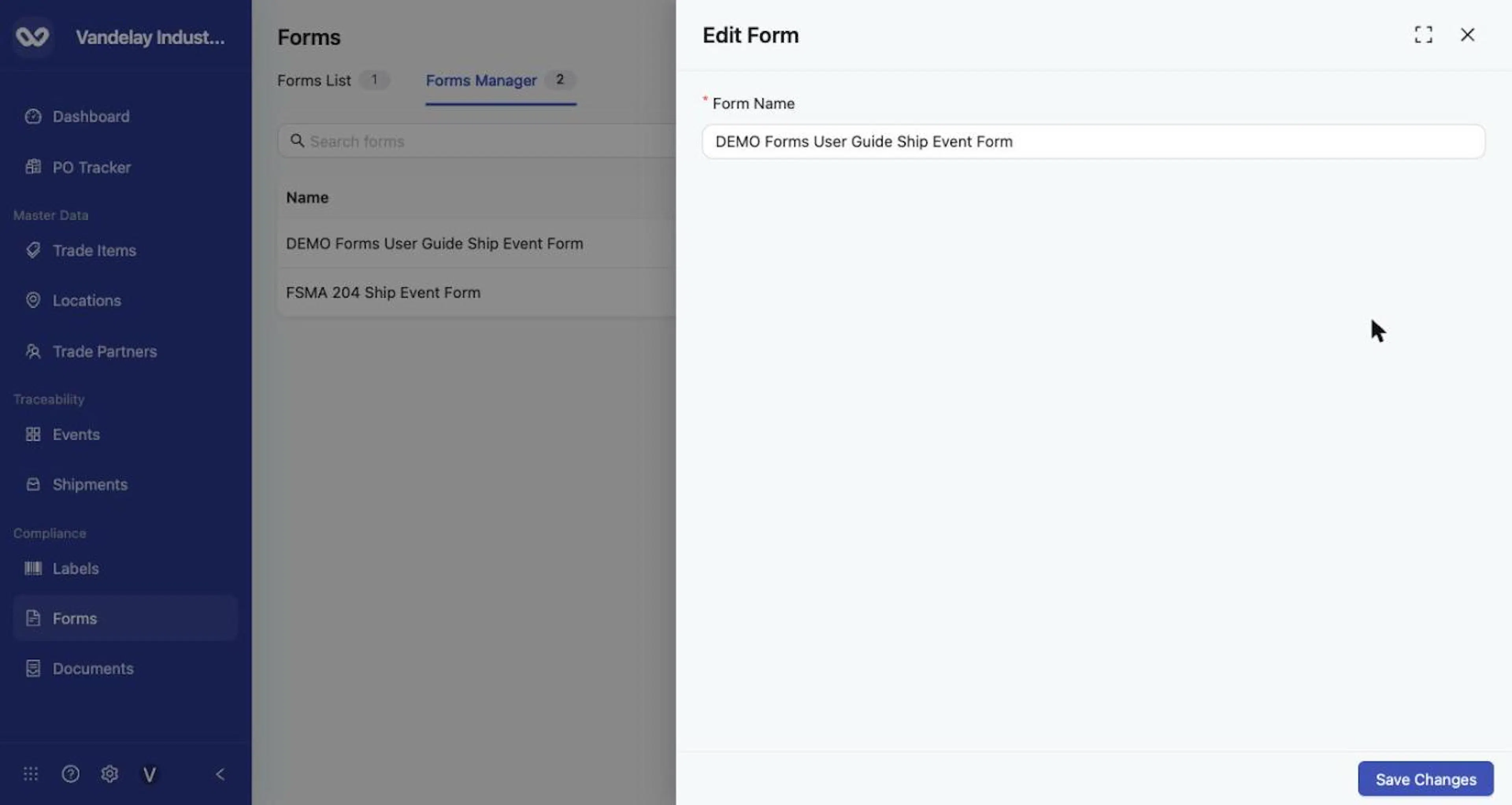
Edit Form opens a drawer to rename the form.
Share a form
Open the three-dot menu and select Manage Sharing
Open the three-dot menu and select Manage Sharing.
Choose a Sharing mode
Choose a Sharing mode:
- Don't Share keeps the form internal.
- All Network Partners shares it with all your connected Wholechain Trade Partners, including partners connected later.
- Specific Network Partners enables the Trade partners selector so you can choose connected accounts.
Select Save Sharing
Select Save Sharing.
Recipients receive access to the published version. Sharing a form does not share the destination Locations and Trade Items a supplier needs to complete it; share those separately from your master data.
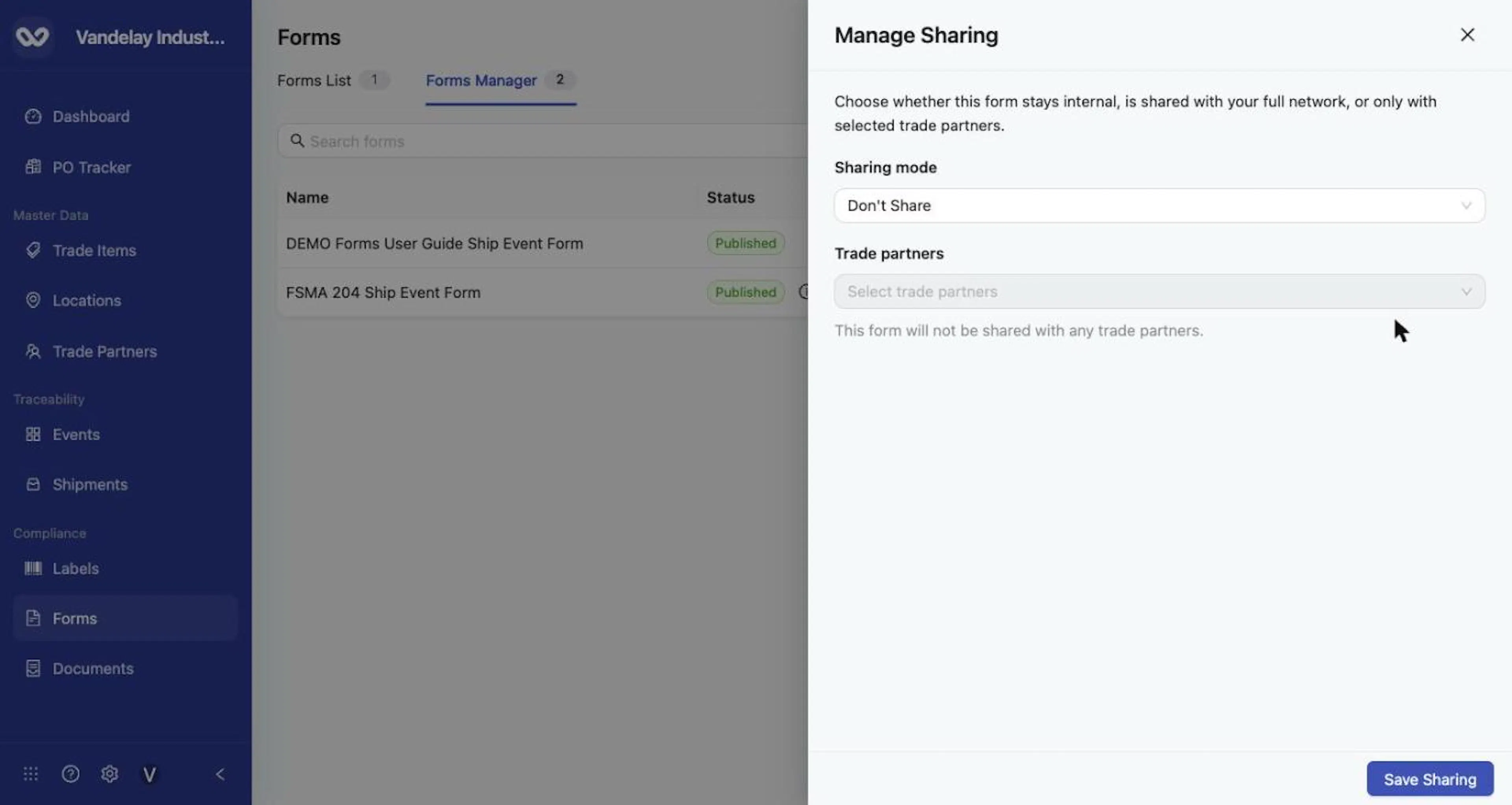
Manage Sharing: Sharing mode, Trade partners and Save Sharing.
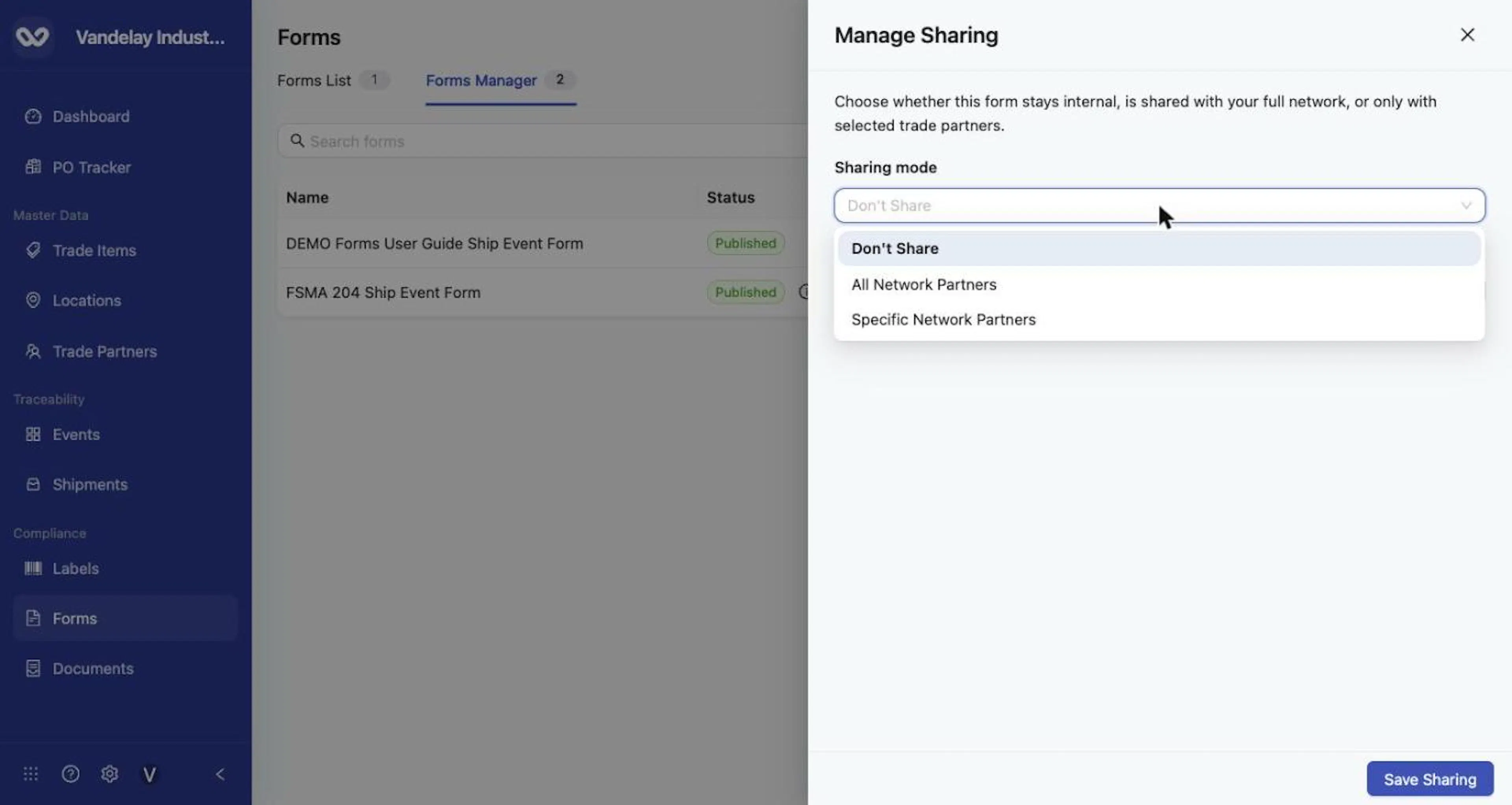
Sharing modes: Don't Share, All Network Partners, Specific Network Partners.
Copy a form URL
Select Copy URL from the three-dot menu. A notification says "Form URL copied to clipboard." Known limitation: the copied link does not currently open the form. The route for a supplier is Compliance → Forms → Forms List, where the shared form appears in the table.
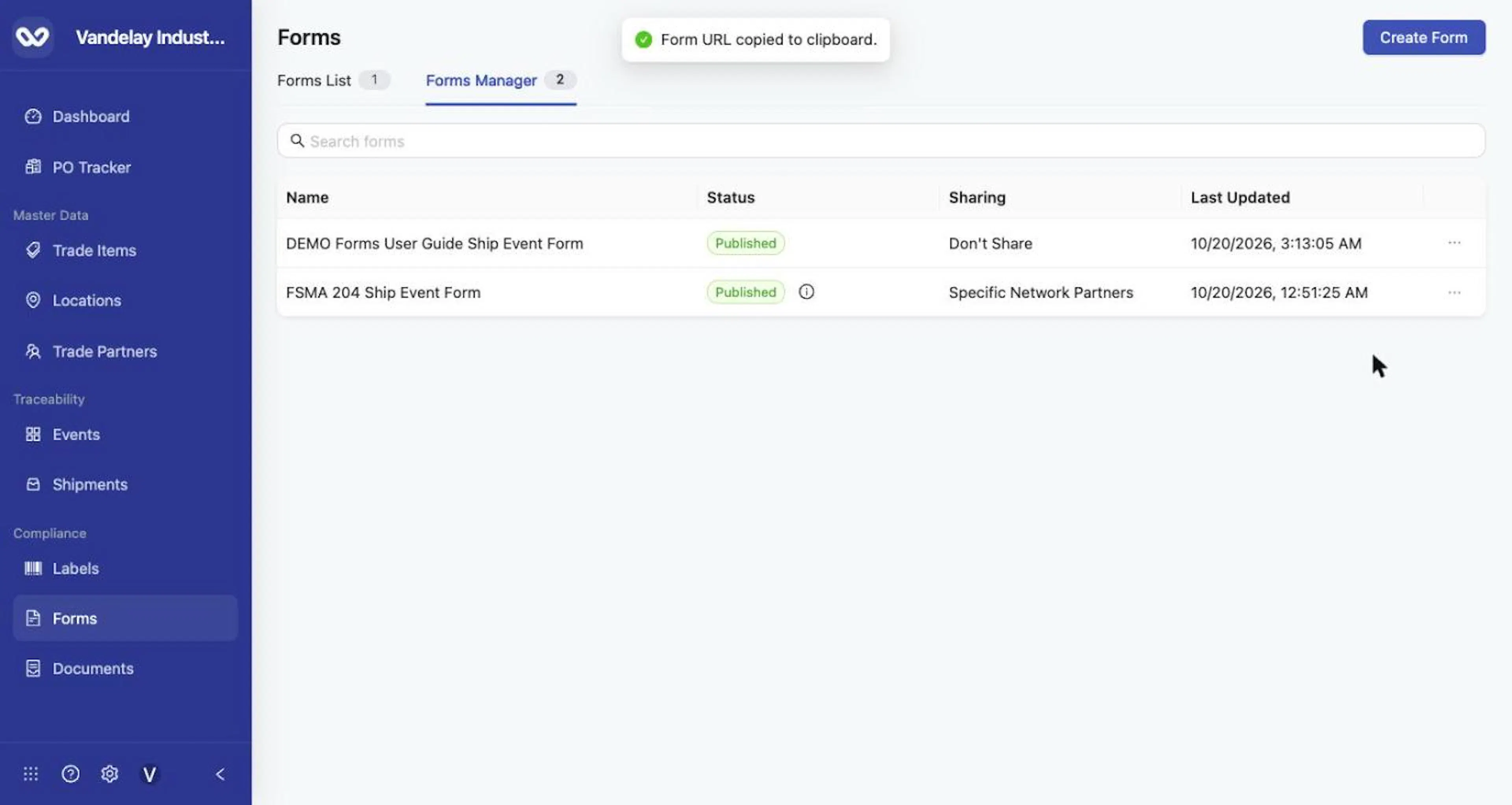
Copy URL shows "Form URL copied to clipboard."
Delete a form
Open the three-dot menu and select Delete Form
Open the three-dot menu and select Delete Form.
A confirmation window asks Delete Form? and names the form
A confirmation window asks Delete Form? and names the form. Select Cancel to keep it or Delete to remove it.
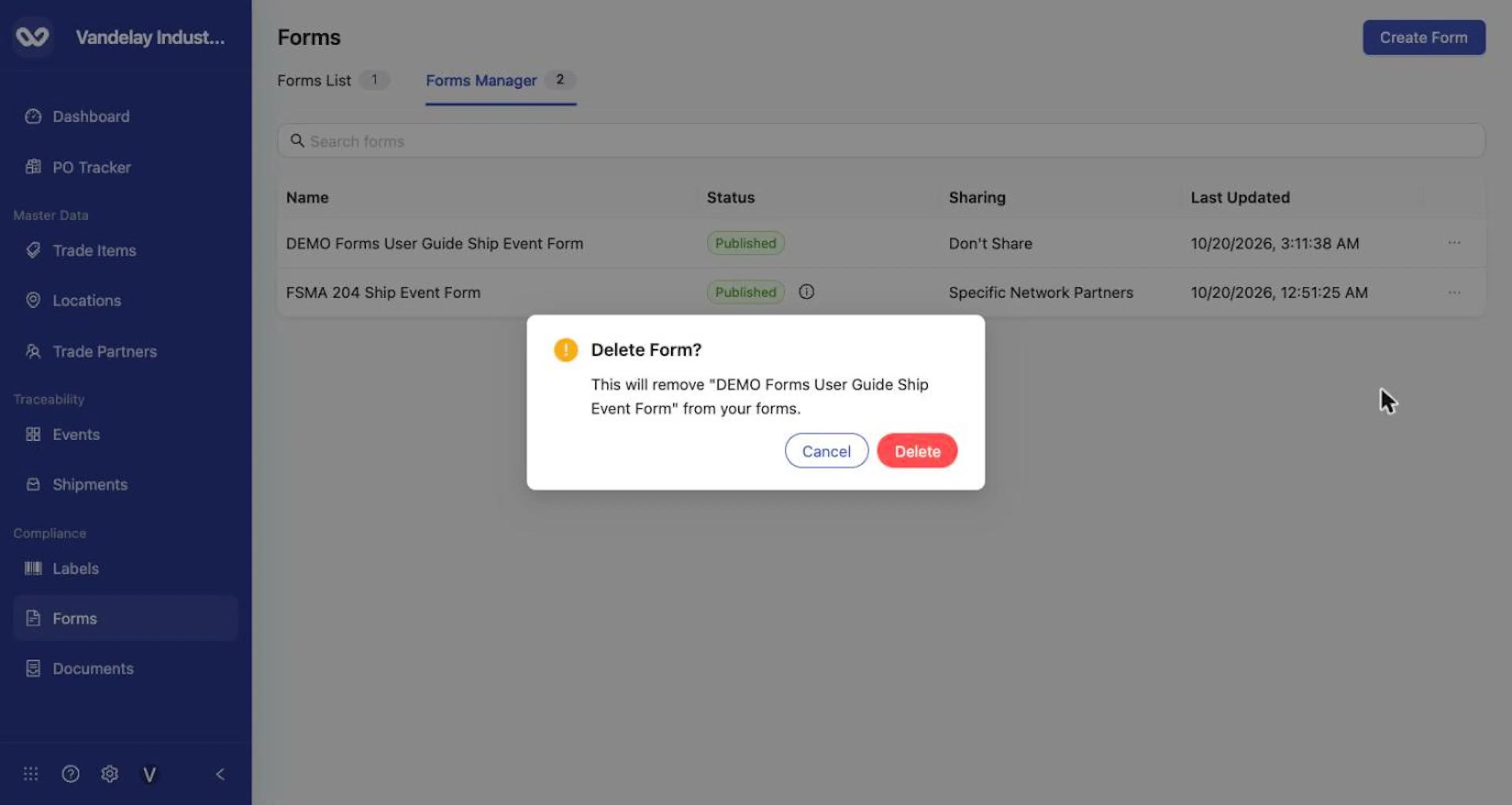
The Delete Form? confirmation names the form and offers Cancel and Delete.
Deleting a form cannot be undone. Recipients lose access and can no longer submit that form. A deleted form cannot be recovered; you would need to create a replacement and share it again.
Expected result
Your published form appears in the Forms List of the accounts you shared it with, and recipients can open and complete it.
Troubleshooting
- A supplier cannot see my form. Check that the form's Status is Published, its Sharing is not Don't Share, and the supplier is included if you chose Specific Network Partners. Confirm you saved the sharing change with Save Sharing.
- A supplier sees old labels. Publish your latest changes.
- A supplier's destination or product lists are empty. Share the destination Locations and Trade Items with the supplier. Sharing the form does not do this.
- I deleted a form by mistake. It cannot be recovered. Create a new form and share it again.
Field and action reference
Table columns
| Column | Description |
|---|---|
| Name | The form name. |
| Status | Draft or Published. An information icon beside Published shows "There is a newer edit version that has not been published yet." when later edits are unpublished. |
| Sharing | Don't Share, All Network Partners or Specific Network Partners. |
| Last Updated | When the form was last changed. |
Search and buttons
| Item | Behavior |
|---|---|
| Search forms | Filters the table by form name. |
| Create Form | Opens the Create Form drawer. |
| Row click | Opens the form's configuration. |
Row menu
| Action | When shown | Behavior |
|---|---|---|
| Publish | Only when edits exist that are not yet published. | Publishes the latest configuration. |
| Edit Form | Always | Opens a drawer to rename the form (Form Name, Save Changes). |
| Manage Sharing | Always | Opens the sharing drawer. |
| Copy URL | Always | Copies a link to the form. |
| Delete Form | Always | Opens the Delete Form? confirmation. |
Status values
| Status | Meaning |
|---|---|
| Draft | The form has never been published. |
| Published | A version is available to recipients. Later edits stay unpublished until you publish again. |
Publishing
| Item | Behavior |
|---|---|
| Publish Draft (configuration) or Publish (row menu) | Makes the latest configuration the published version. A confirmation reads "Draft published successfully." |
| After publishing | Later edits stay unpublished. The information icon beside Published shows until you publish again. |
Manage Sharing drawer
| Field | Req. | Values |
|---|---|---|
| Sharing mode | Yes | Don't Share, All Network Partners, Specific Network Partners. |
| Trade partners | Conditional | Selector enabled for Specific Network Partners. |
| Save Sharing | n/a | Saves the choice. |
Recipients receive access to the published version.
Copy URL
Copy URL copies a link to the form and shows "Form URL copied to clipboard." Known limitation: the copied link does not currently open the form or show a preview. Suppliers reach a shared form through Compliance → Forms → Forms List.
Delete Form
| Item | Behavior |
|---|---|
| Dialog | Delete Form? with the form name, and Cancel and Delete. |
| Result of Delete | The form is removed from your forms. Deleting cannot be undone. Recipients lose access and can no longer submit that form. A replacement form must be created and shared again. The dialog itself states only that the form will be removed. |