

Create and configure a form
Create a new Ship Event form that you own, then set the instructions, section titles, field labels, tooltips, custom attributes, and product columns your suppliers will see.
Applies to: Forms Manager (forms your account owns), not Forms List
Audience: Account owners creating forms for suppliers
Prerequisites: a plan that allows creating forms; optional instruction document already uploaded to Documents
Related: Publish, share, and manage a form; Field and settings reference; Troubleshooting and FAQ
Purpose
Create a new Ship Event form that you own, then set the instructions, section titles, field labels, tooltips, custom attributes, and product columns your suppliers will see. You work in Forms Manager, not Forms List.
Before you begin
- Your plan allows you to create forms. Plan limits vary; see wholechain.com/pricing or contact support@wholechain.com.
- Decide on a clear form name. Suppliers see it in their Forms List.
- If you want to attach an instruction document, upload it to Documents first. The Instruction Document selector lists existing documents; it cannot upload a new one.
- Keep in mind the four separate stages of a form's life: creating it, saving configuration changes (automatic), publishing it, and sharing it. Creating or configuring a form does not publish or share it.
Steps
Create the form
Open Compliance → Forms and select the Forms Manager tab
Open Compliance → Forms and select the Forms Manager tab.
Use Search forms to check whether a similar form already exists
Use Search forms to check whether a similar form already exists. When an account has no forms yet, Forms Manager shows an empty state with a prompt to create the first form.
Select Create Form at the top right
Select Create Form at the top right. The Create Form drawer opens.
Enter a Form Name (required)
Enter a Form Name (required). The field suggests an example such as "Packing list for network partners".
Select Create Form
Select Create Form.
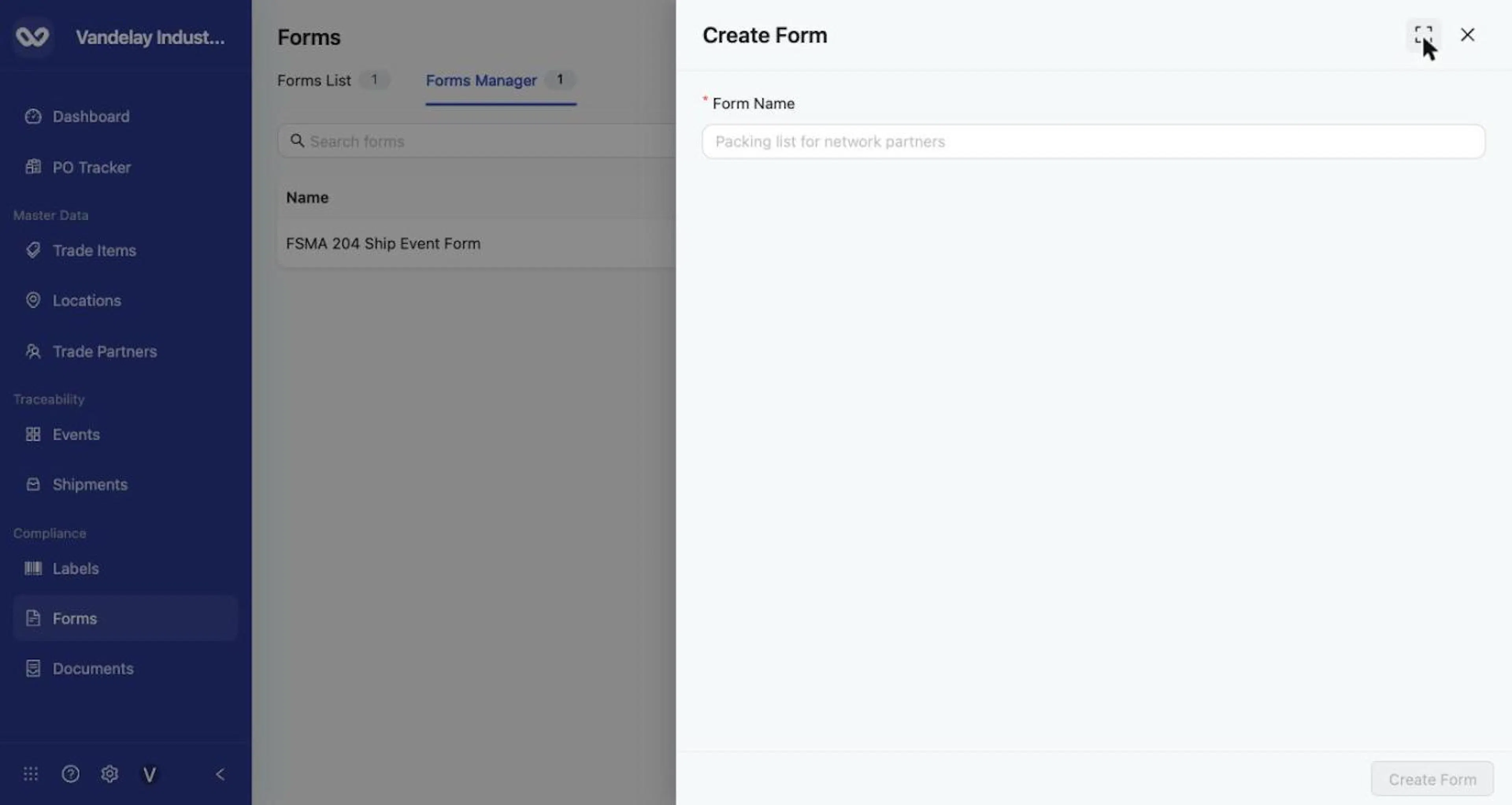
Select Create Form to open the drawer; Form Name is required.
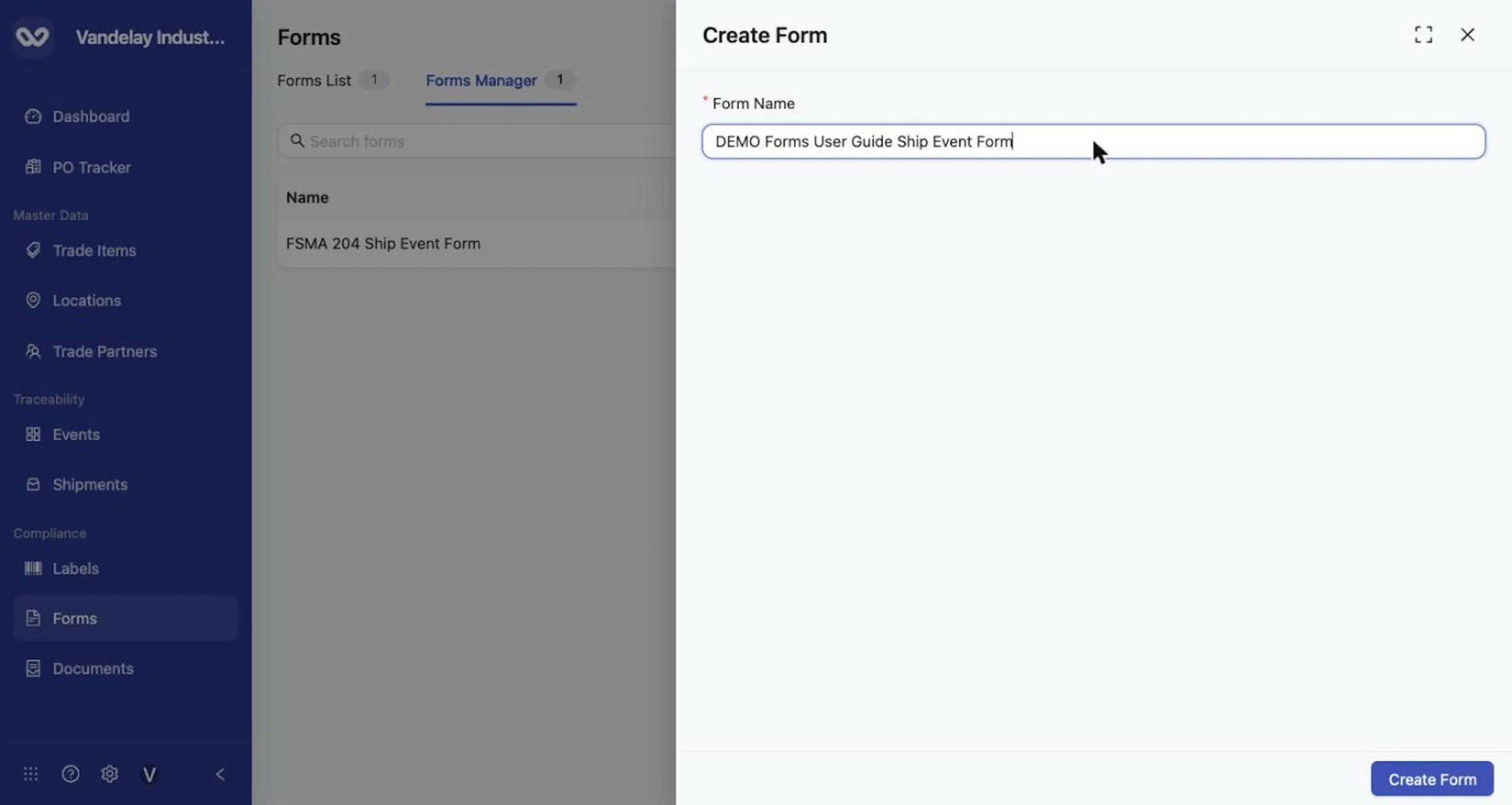
Enter a Form Name, then select Create Form.
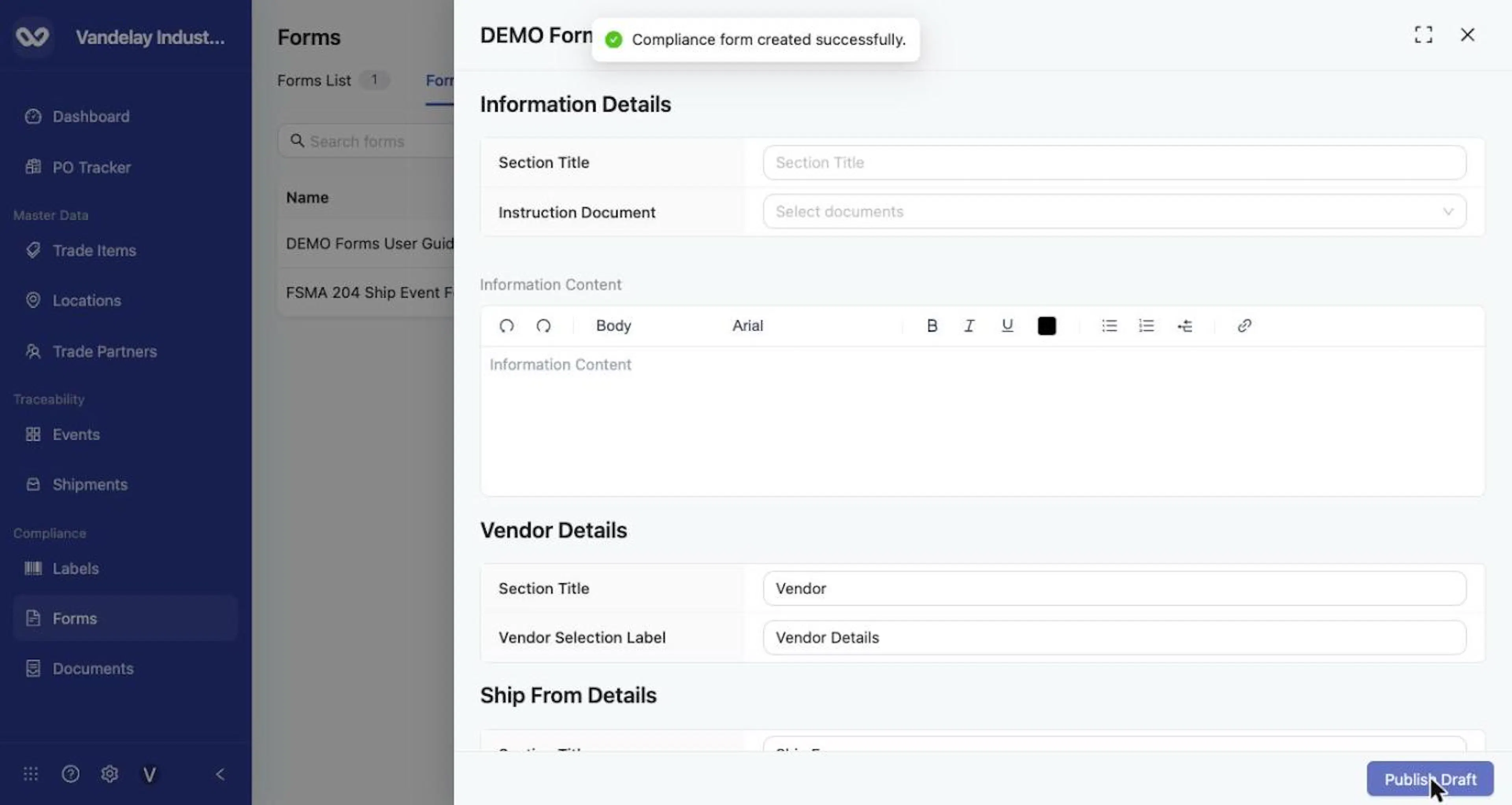
A green notification confirms the form was created and its configuration opens.
A green notification confirms the form was created, and its configuration opens in the drawer. In Forms Manager the new form has the Status Draft and the Sharing setting Don't Share.
How saving works
Changes to configuration fields save automatically after you edit a field and click away. A Saving indicator appears at the top of the drawer while a change saves, and Publish Draft is unavailable until saving finishes. Saved changes are a draft. Suppliers do not see them until you publish (see Publish, share, and manage a form).
Select the expand icon at the top of the drawer to widen it.
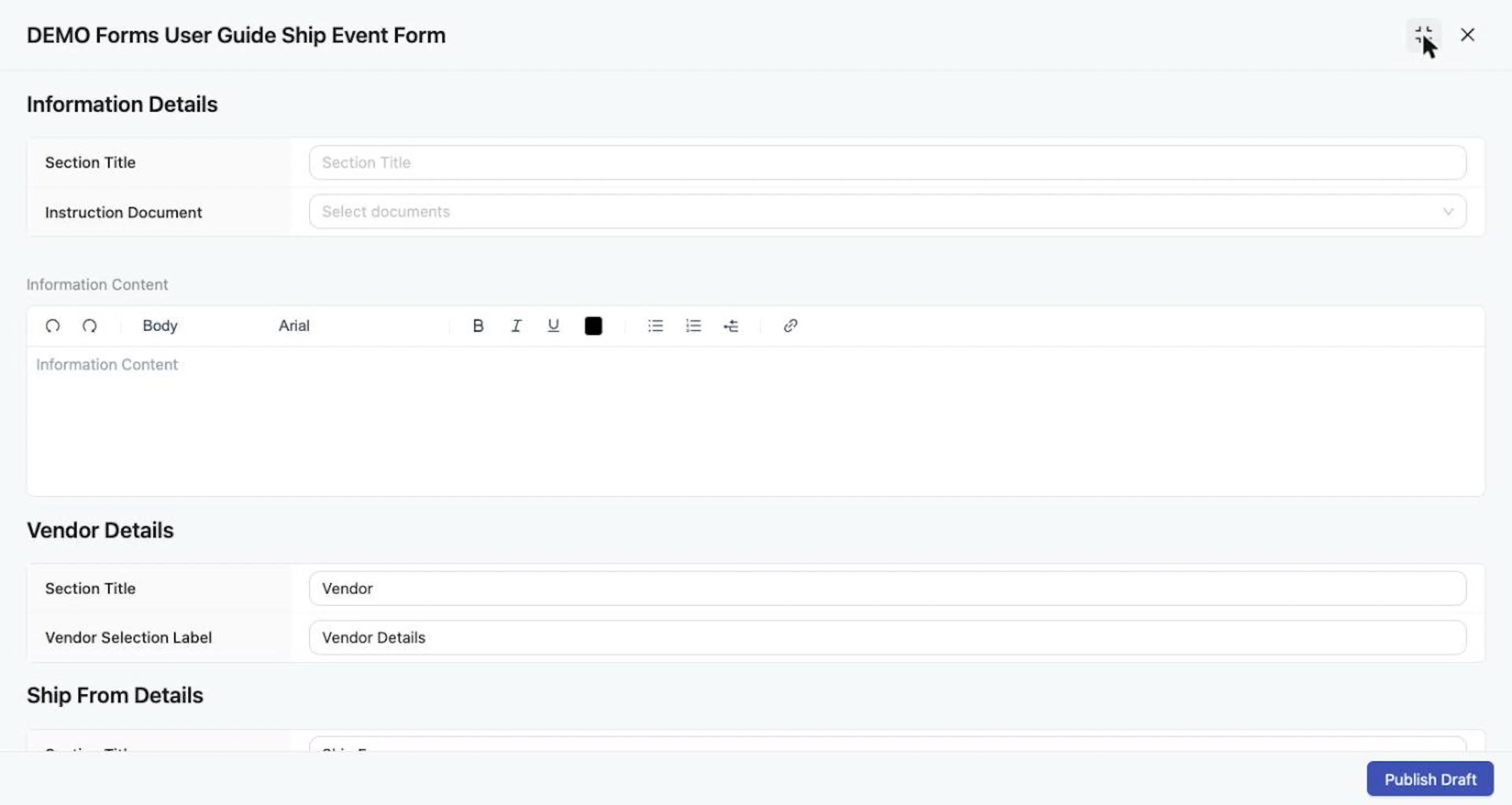
The configuration drawer, expanded. Changes save automatically.
Configure the form
Information Details
Enter a Section Title
Enter a Section Title. Suppliers see it as the heading of the collapsible instructions section (the supplier's view labels the section Information and Instructions by default).
Optional: open Instruction Document and choose an existing document.
Optional: open Instruction Document and choose an existing document.
Enter Information Content in the rich-text editor
Enter Information Content in the rich-text editor. The toolbar offers undo and redo; the styles Small, Body, Large, and Heading; the fonts Arial, Times New Roman, Helvetica, Georgia, and Verdana; bold, italic, underline, and font color; bulleted and numbered lists; and hyperlinks.
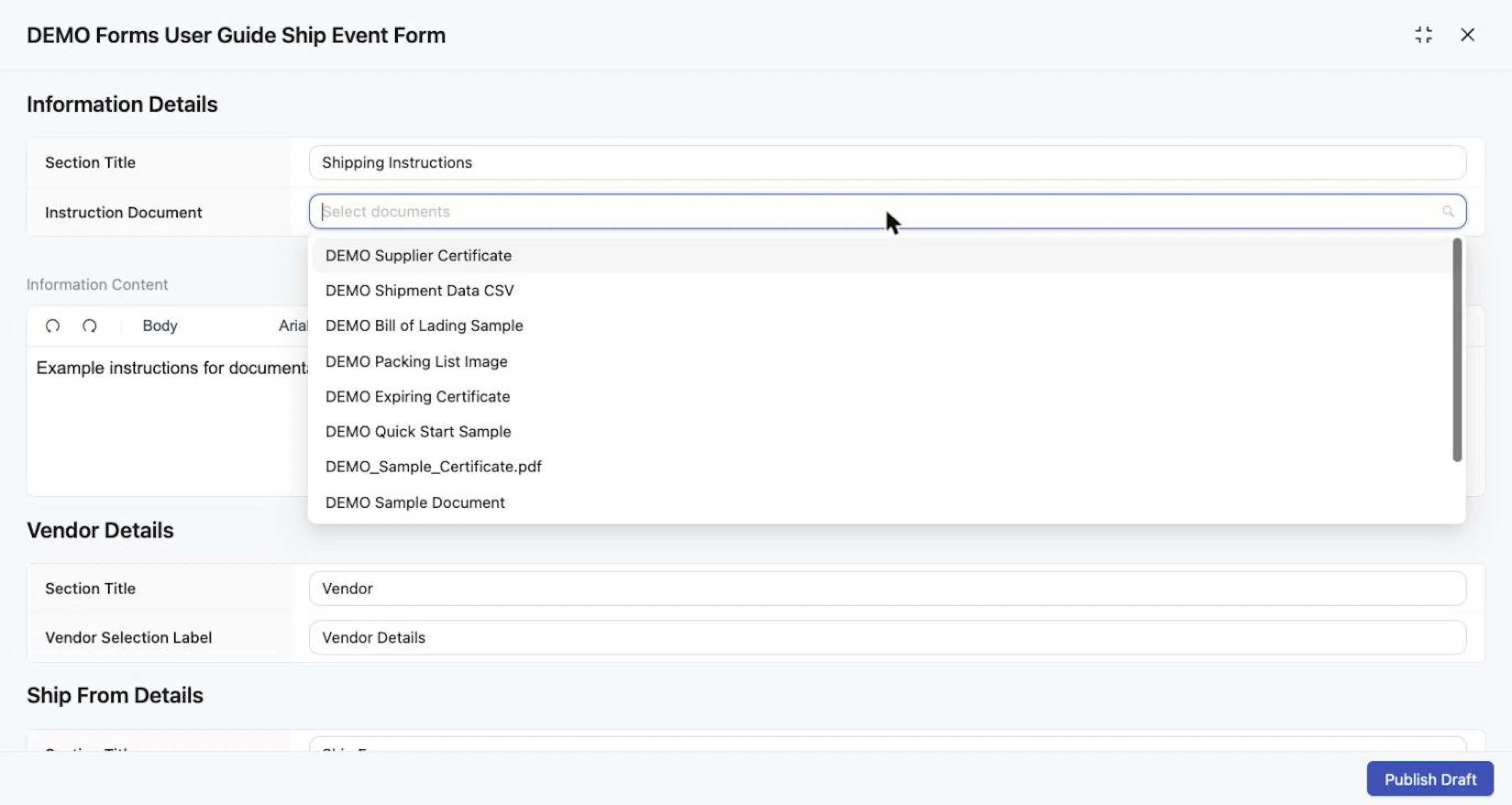
Instruction Document lists existing documents from the Documents module.
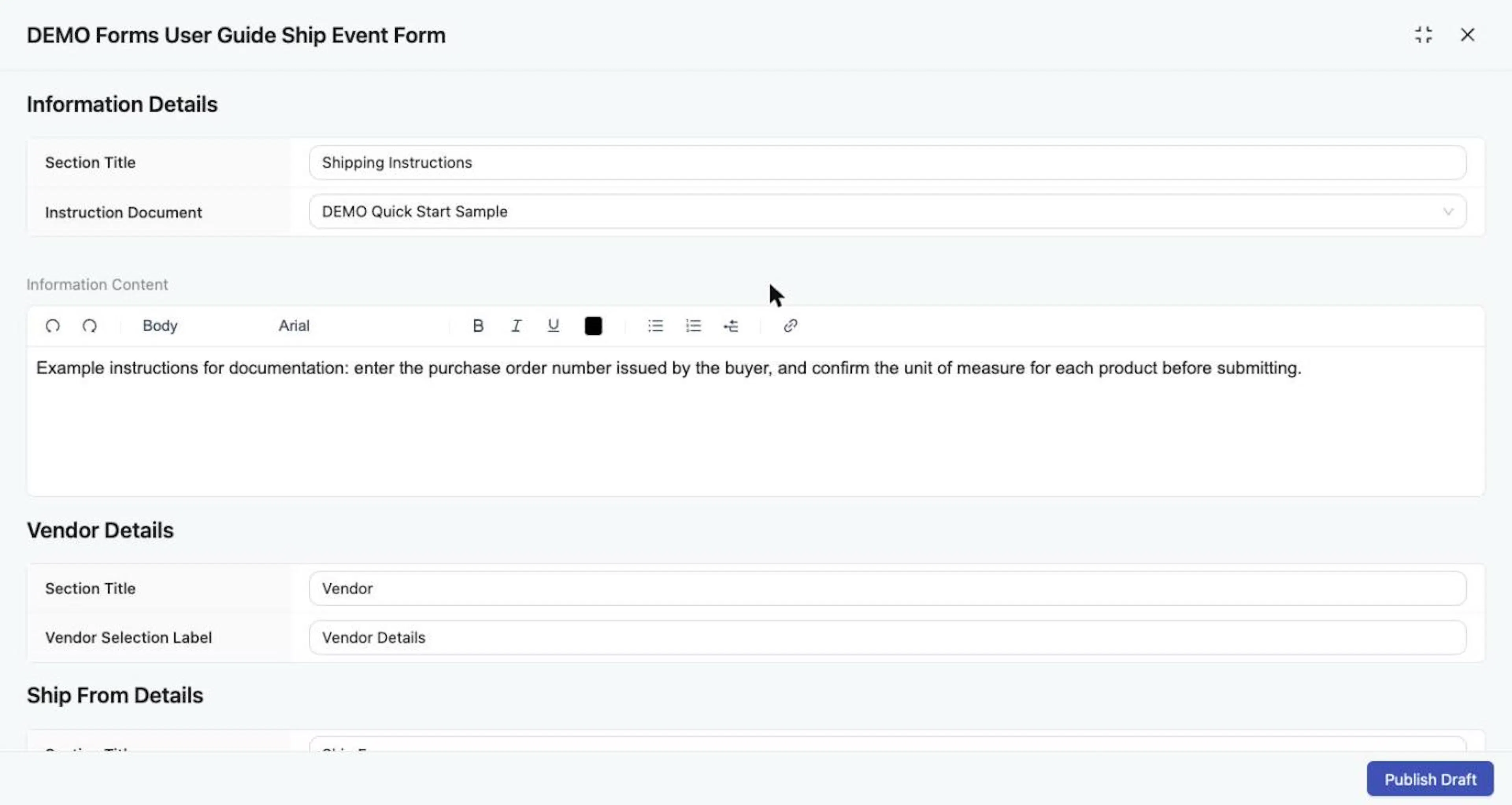
Information Details with a Section Title, an Instruction Document and Information Content.
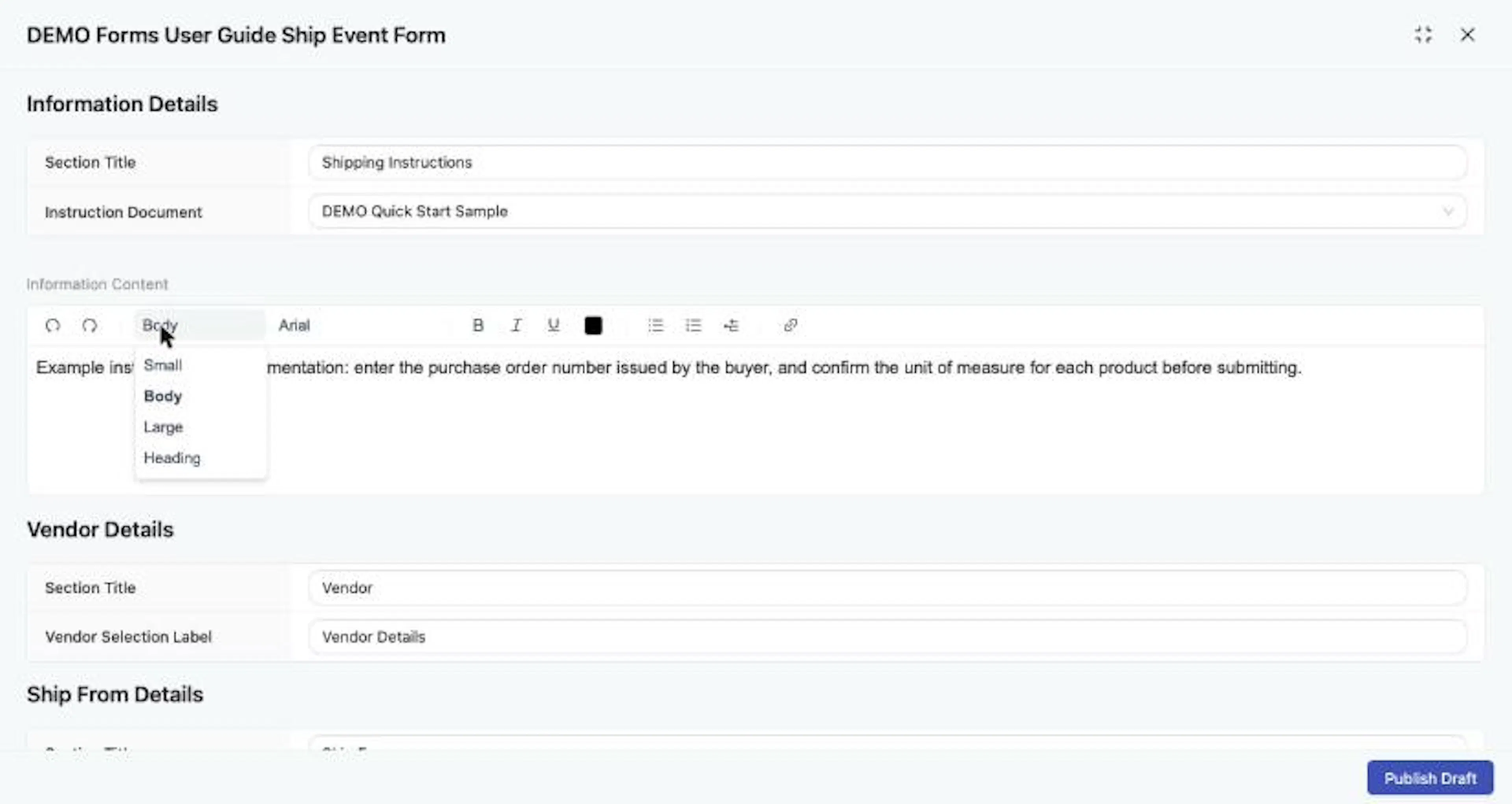
Rich-text styles: Small, Body, Large and Heading.
Vendor, Ship From, and Ship To
Under Vendor Details, set the Section Title and Vendor Selection Label
Under Vendor Details, set the Section Title (default Vendor) and the Vendor Selection Label (default Vendor Details).
Under Ship From Details, set the Section Title (default Ship From)
Under Ship From Details, set the Section Title (default Ship From).
Under Ship To Details, set the Section Title and the Shipping to Label
Under Ship To Details, set the Section Title (default Ship To) and the Shipping to Label (default Ship to Location).
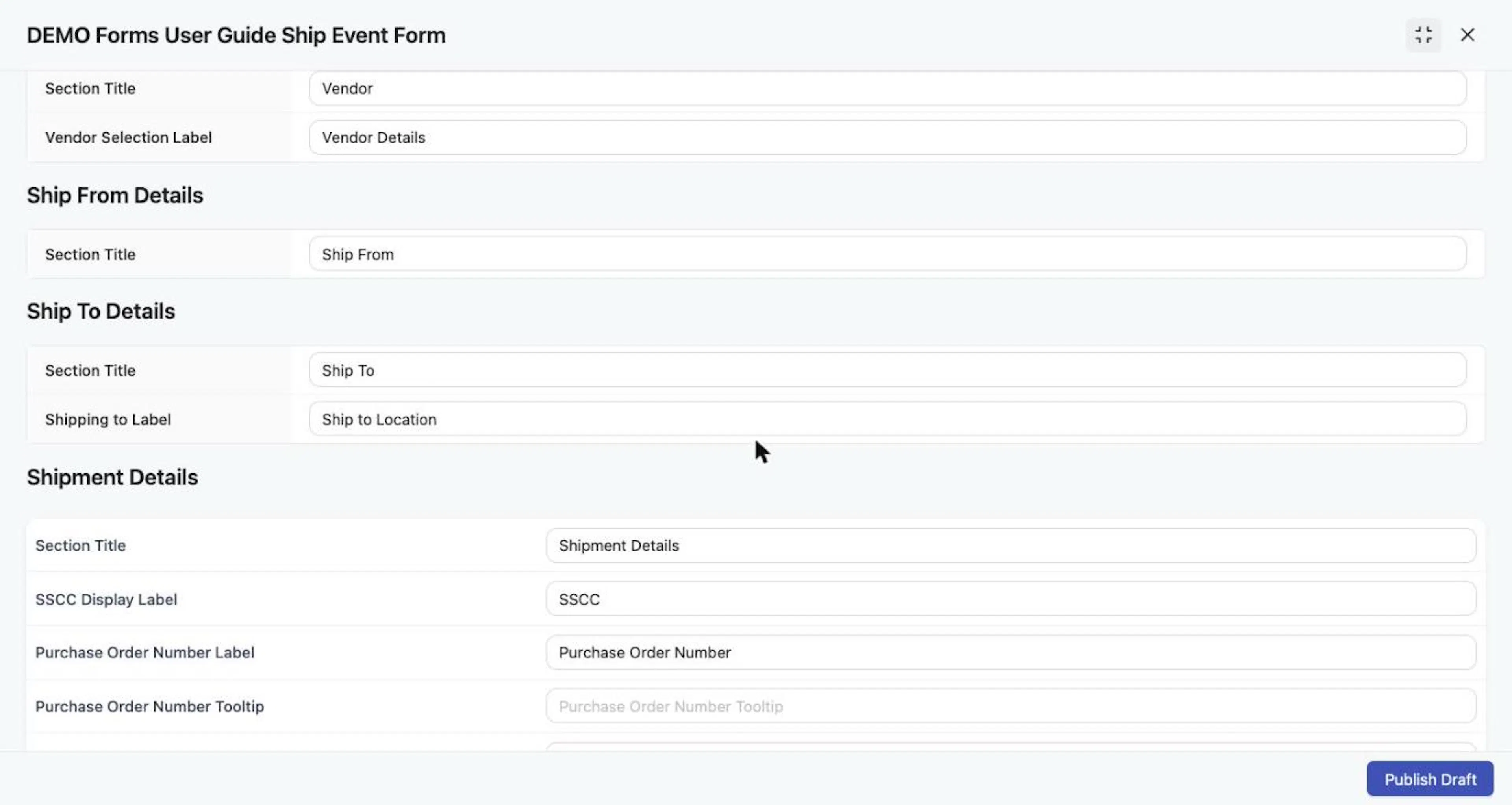
Vendor Details, Ship From Details, Ship To Details and the start of Shipment Details.
Shipment Details
Set the Shipment Details section title, labels and tooltips
Set the Section Title, SSCC Display Label, Purchase Order Number Label and Purchase Order Number Tooltip, Universal TLC Label and Universal TLC Tooltip, and TLC Source Label and TLC Source Tooltip. Tooltips are optional; a blank tooltip does not display to suppliers.
Decide on the two switches
Decide on the two switches:
- Use SSCC Validation: when on, SSCC values are validated using the GS1 check digit. It is off by default.
- Use Universal TLC Format: when on, the form uses one TLC across all product rows and lot or serial entries. It is off by default.
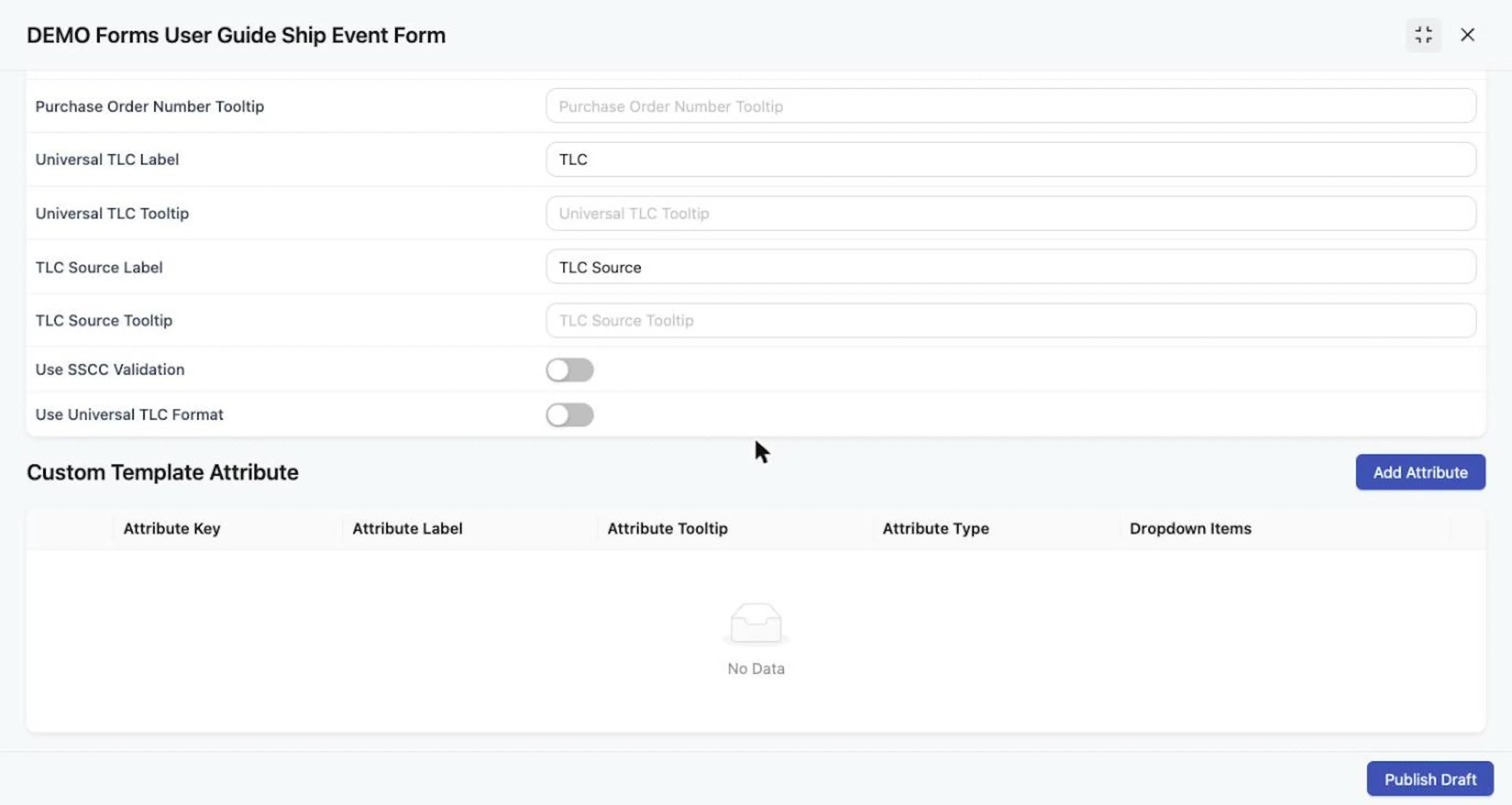
Shipment Details labels and tooltips, with Use SSCC Validation and Use Universal TLC Format switches (both off by default).
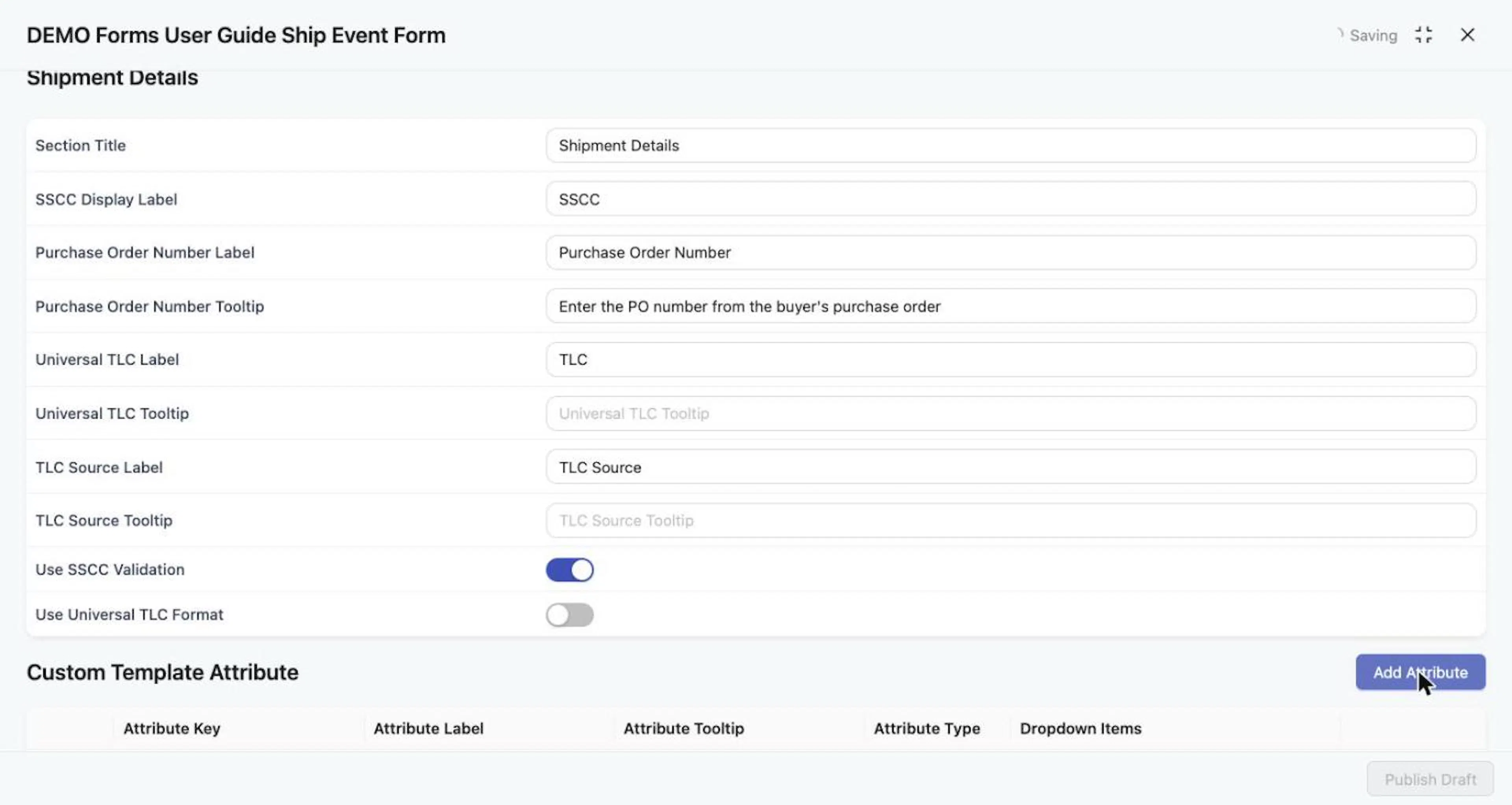
Use SSCC Validation switched on; the Saving indicator shows while the change saves.
Custom Template Attributes
Under Custom Template Attribute, select Add Attribute to add a row
Under Custom Template Attribute, select Add Attribute to add a row. Enter an Attribute Key and an Attribute Label (both required), and an optional Attribute Tooltip.
Choose the Attribute Type (required)
Choose the Attribute Type (required): Dropdown, Number, Text, or Date.
For Dropdown, enter the choices in Dropdown Items
For Dropdown, enter the choices in Dropdown Items by typing each value and pressing Enter.
To remove an attribute, select Delete on its row
To remove an attribute, select Delete on its row.
Custom attributes are optional, but an attribute needs all three of Attribute Key, Attribute Label, and Attribute Type before it can be created on the form. Suppliers see the attributes you create between Shipment Details and the product table. The configuration page has no control for making a custom attribute required for suppliers. Form Name is the only required field when you set up a form; labels, tooltips, custom attributes, and optional item columns are all optional.
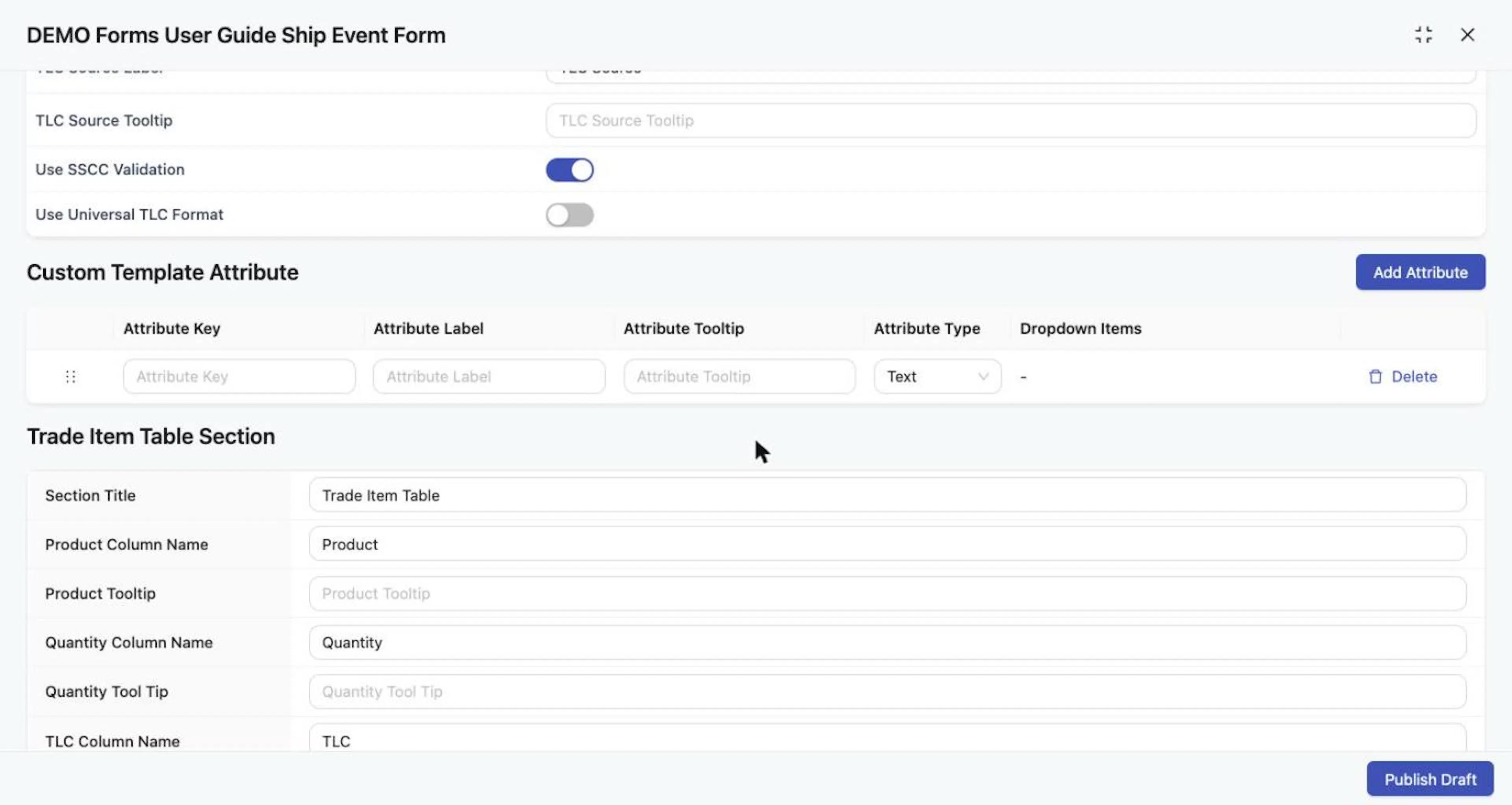
A custom attribute row with key, label, tooltip and type.
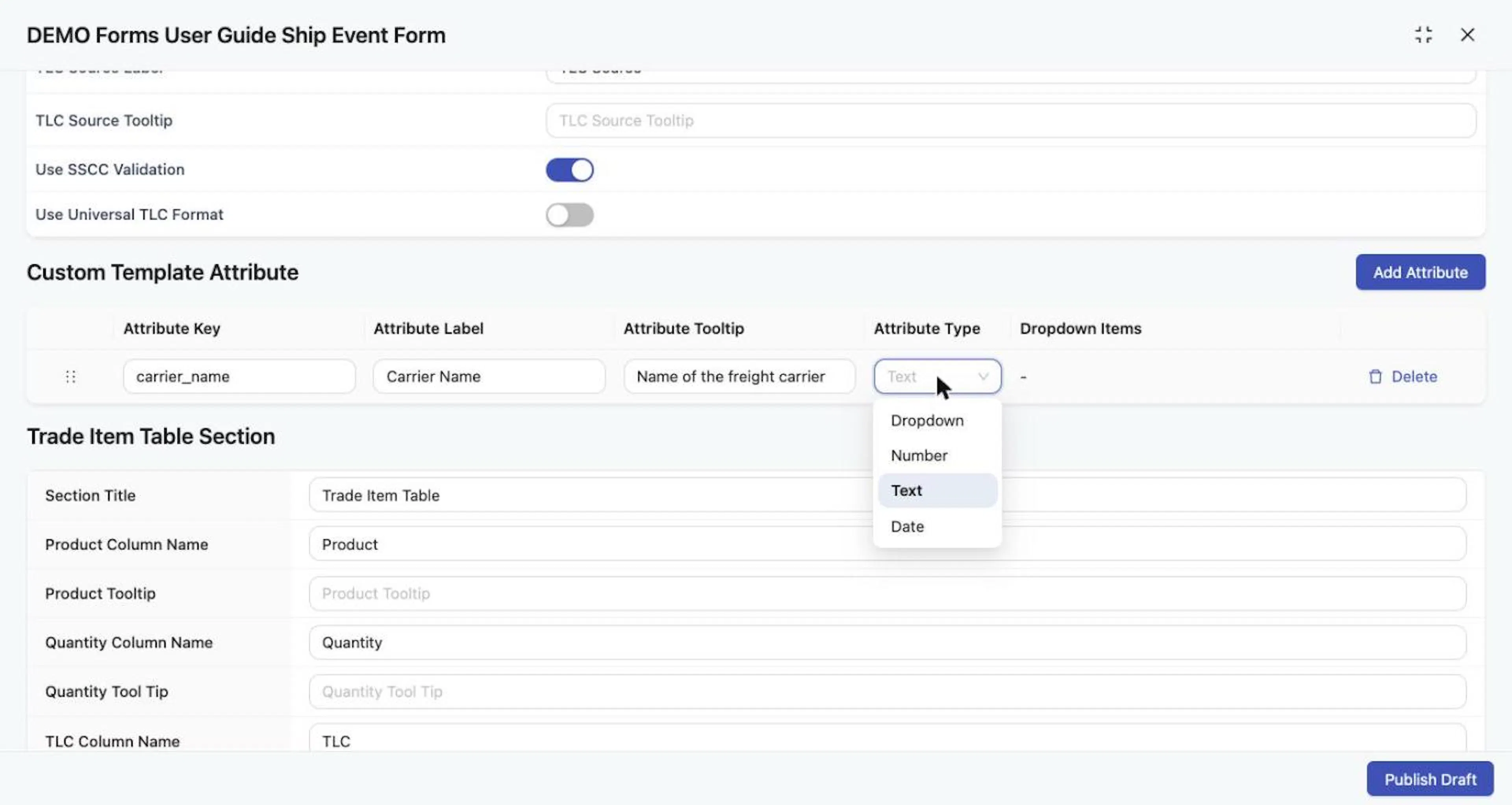
Attribute Type choices: Dropdown, Number, Text, Date.
Trade Item Table Section
Set the Section Title (default Trade Item Table) and the column names and optional tooltips for Product, Quantity, TLC, TLC Source, and Lot Serial (default Lot/Serial).
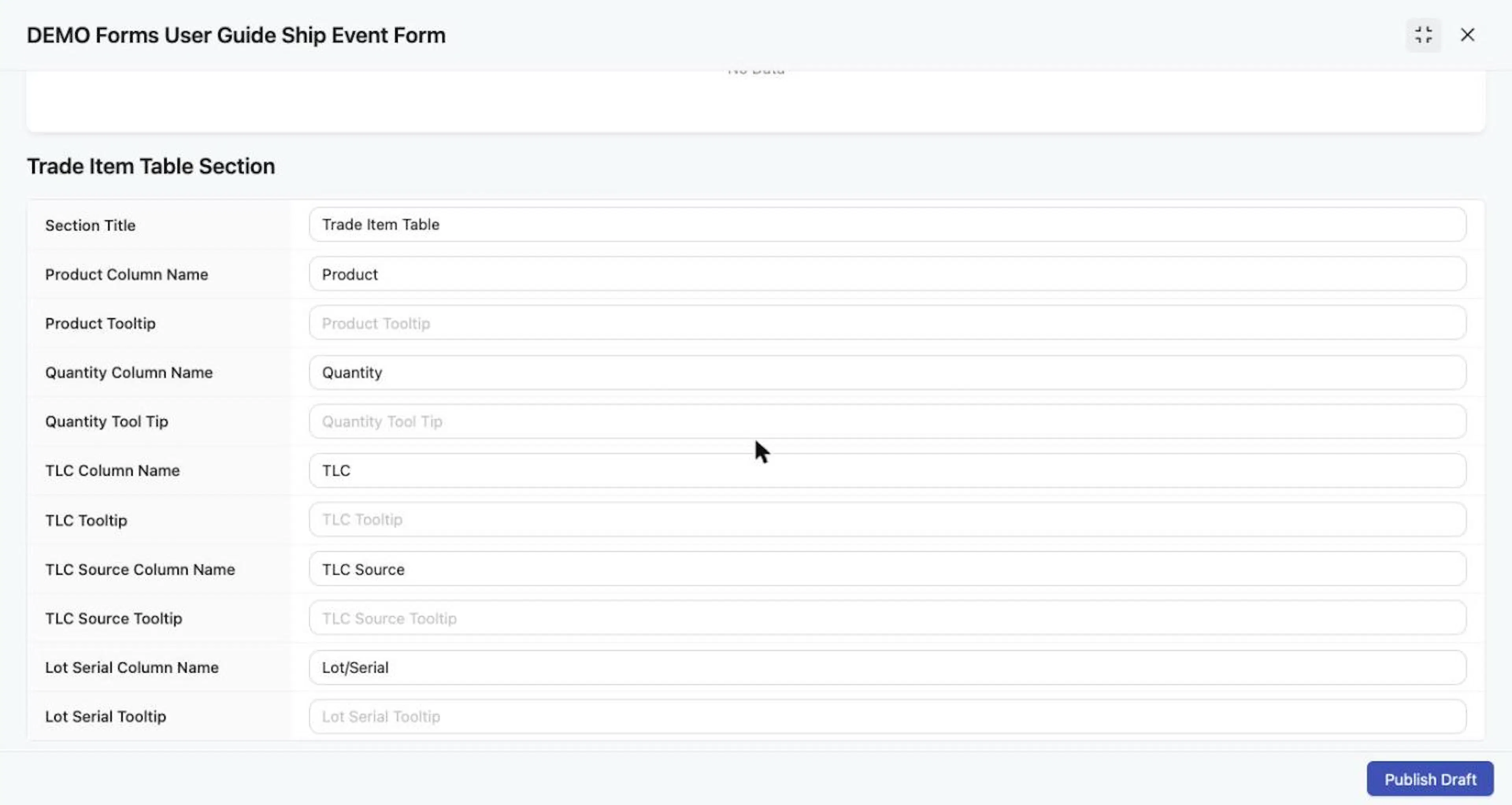
Trade Item Table Section: column names and optional tooltips.
Optional Trade Item Columns
Optional columns show read-only Trade Item details after a supplier selects a product, so they can confirm they chose the correct item. For each of Item Number, Owner's Item Number, UoM, GTIN, UPC, PLU, and Brand, set Visibility to Shown or Not Shown, and optionally rename the column and add a tooltip. All are Shown by default.
A visible column displays a value only when the underlying Trade Item has that data. Owner's Item Number is the item number that you, the form owner, assigned; Item Number is the supplier's item number.
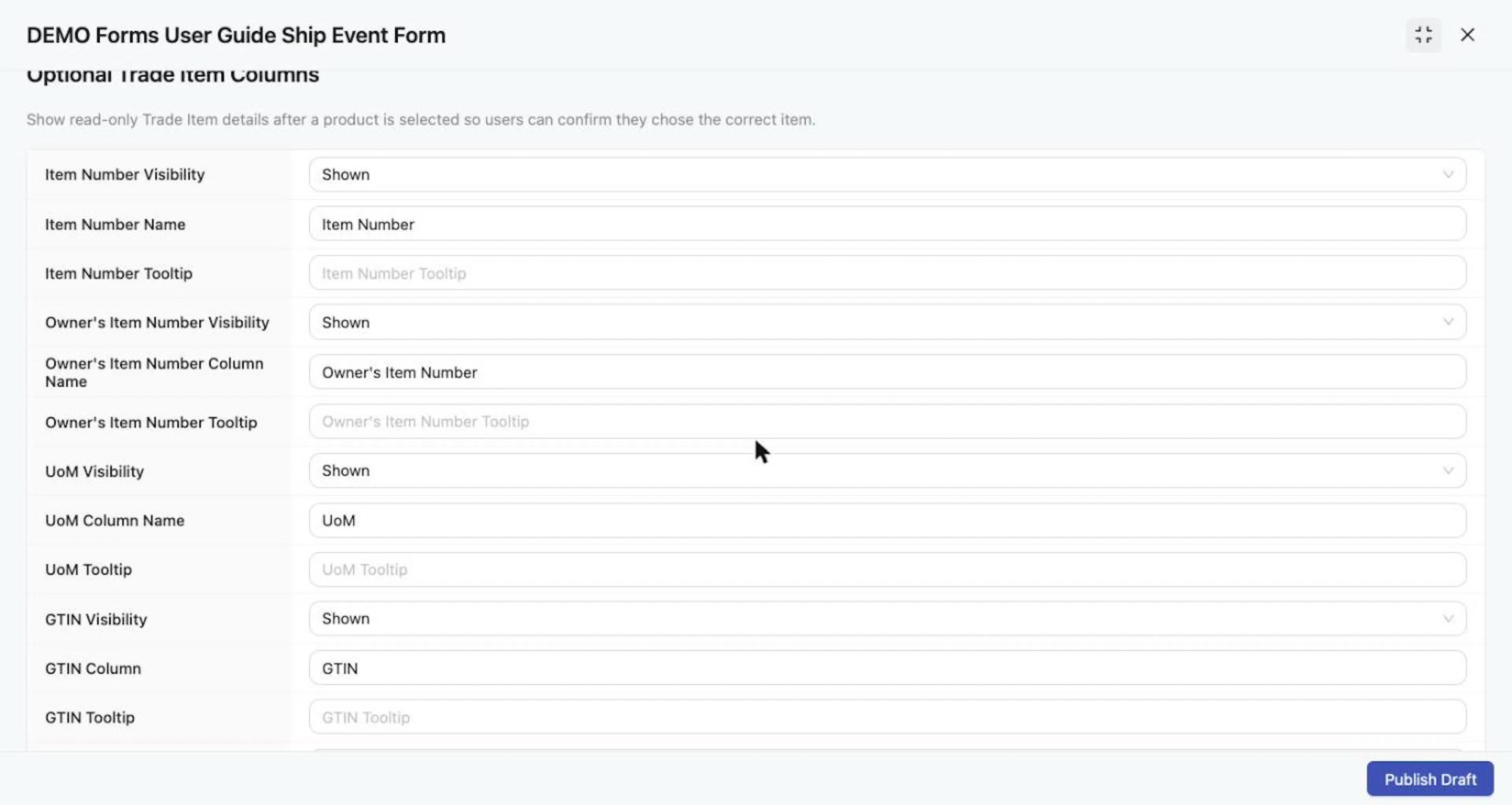
Optional Trade Item Columns: Item Number, Owner's Item Number, UoM and GTIN settings.
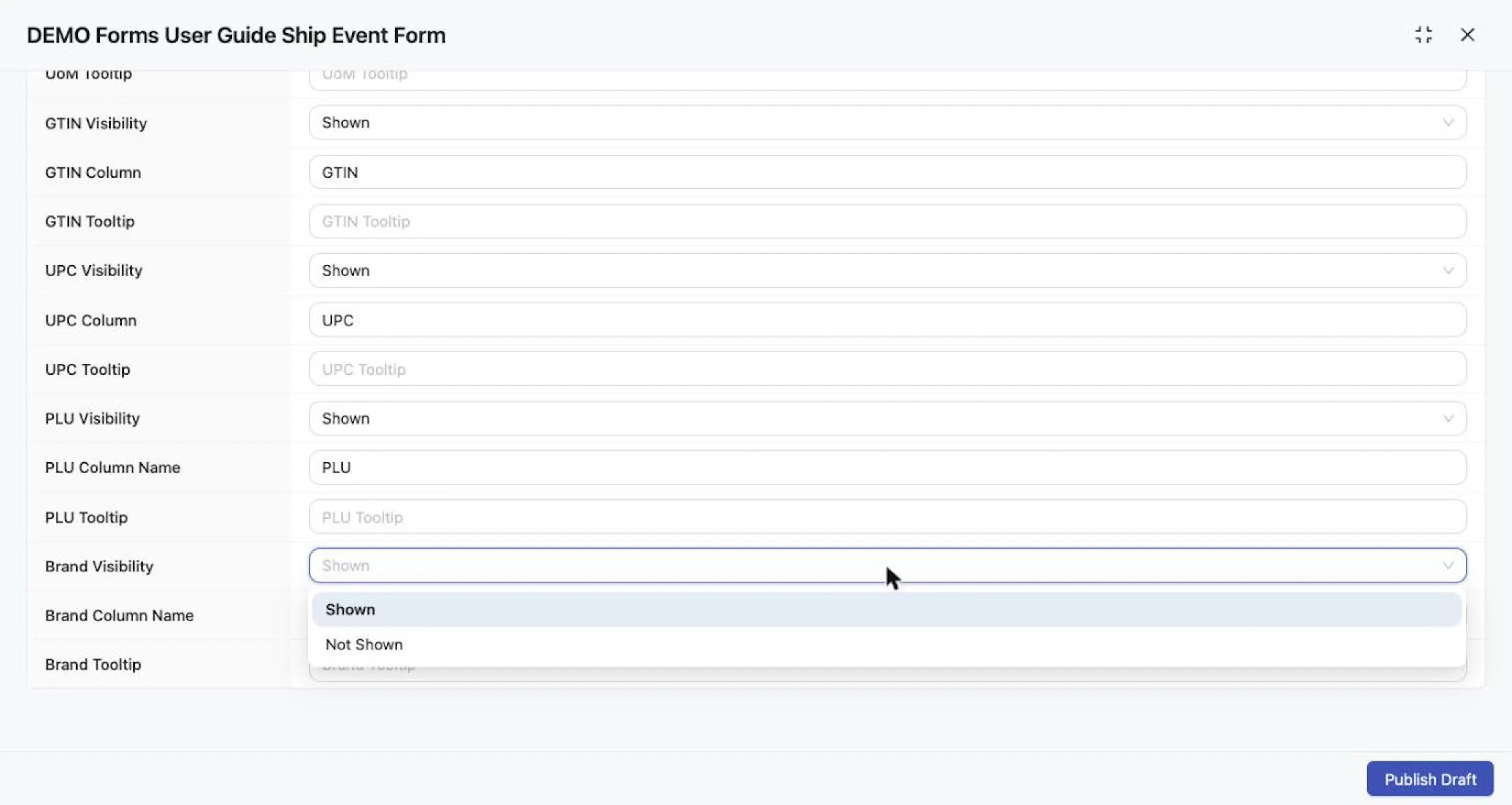
Each optional column has a Visibility setting: Shown or Not Shown.
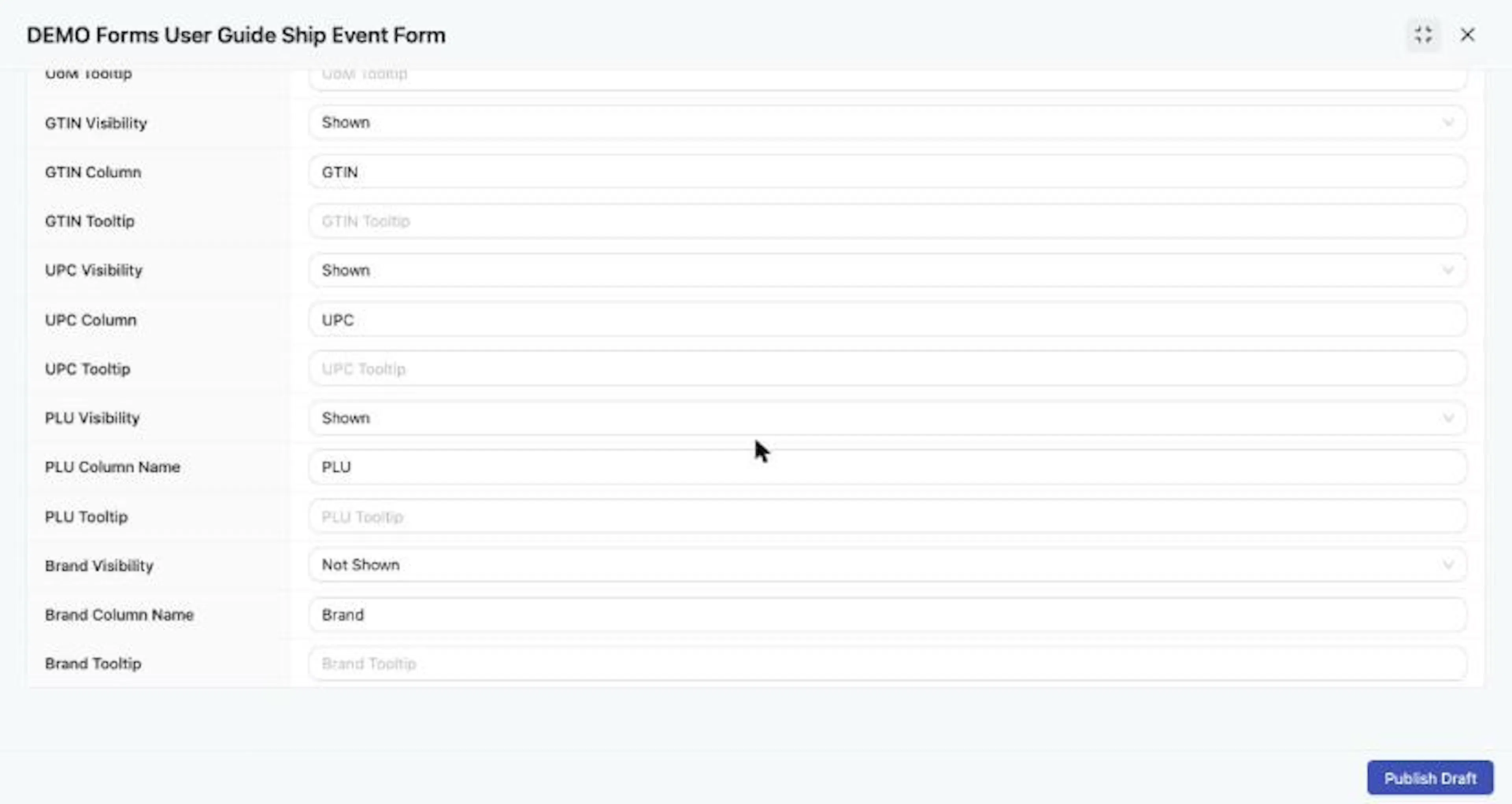
Brand Visibility set to Not Shown; the setting is kept when the form is reopened.
Expected result
Your changes are saved as a draft. The Status in Forms Manager stays Draft, or Published with an information icon if the form was already published. Suppliers see nothing until you publish (see Publish, share, and manage a form).
Troubleshooting
- The Create Form button is unavailable. Enter a Form Name; it is required.
- I cannot find my new form. It appears in Forms Manager, not Forms List.
- My supplier does not see my change. You have not published it. Select Publish Draft, or Publish from the row menu.
- The editor looks empty when I reopen the form. Reload the page. If the text is still missing, re-enter it and click away so it saves.
- A tooltip does not appear. Blank tooltips are not displayed; enter text to display one.
Field and action reference
Create Form drawer
| Field | Req. | Type | Values and validation | Default |
|---|---|---|---|---|
| Form Name | Yes | Text | Shown to recipients in their Forms List. | Blank |
Only the Ship Event form type is available. After creation, the form appears in Forms Manager with status Draft and sharing Don't Share, and its configuration opens.
Saving behavior
| Item | Behavior |
|---|---|
| Autosave | Configuration changes save automatically. A "Saving" indicator shows while a save runs. |
| Publish Draft | Button at the bottom of the configuration. Disabled while a save is running. |
All settings below are in the configuration opened from a Forms Manager row. No setting in this section is required to create or publish a form, except the three attribute fields noted under Custom Template Attribute. Owners can apply labels and tooltips, create custom data fields, and choose which optional item columns to show.
Information Details
| Setting | Req. | Type | Values | Default |
|---|---|---|---|---|
| Section Title | No | Text | Heading of the supplier's instructions section. | Blank |
| Instruction Document | No | Selector | An existing document from Documents. It cannot upload a new document. | None |
| Information Content | No | Rich text | Undo/redo; Small, Body, Large, Heading; Arial, Times New Roman, Helvetica, Georgia, Verdana; bold, italic, underline, color; bulleted and numbered lists; links. | Blank |
Vendor Details
| Setting | Req. | Type | Default |
|---|---|---|---|
| Section Title | No | Text | Vendor |
| Vendor Selection Label | No | Text | Vendor Details |
Ship From Details
| Setting | Req. | Type | Default |
|---|---|---|---|
| Section Title | No | Text | Ship From |
Ship To Details
| Setting | Req. | Type | Default |
|---|---|---|---|
| Section Title | No | Text | Ship To |
| Shipping to Label | No | Text | Ship to Location |
Shipment Details
| Setting | Req. | Type | Default | Notes |
|---|---|---|---|---|
| Section Title | No | Text | Shipment Details | |
| SSCC Display Label | No | Text | SSCC | |
| Purchase Order Number Label | No | Text | Purchase Order Number | |
| Purchase Order Number Tooltip | No | Text | None | |
| Universal TLC Label | No | Text | TLC | |
| Universal TLC Tooltip | No | Text | None | |
| TLC Source Label | No | Text | TLC Source | |
| TLC Source Tooltip | No | Text | None | |
| Use SSCC Validation | No | Switch | Off | When on, the SSCC must pass GS1 check-digit validation. |
| Use Universal TLC Format | No | Switch | Off | One TLC applies across all product rows and lot or serial entries. |
Custom Template Attribute
Adds extra fields that suppliers see between Shipment Details and the product table. All three of Attribute Key, Attribute Label and Attribute Type are required to create the attribute on the form. The configuration has no control for making the attribute itself required for suppliers.
| Setting | Req. | Type | Values |
|---|---|---|---|
| Attribute Key | Yes | Text | Identifier for the attribute. |
| Attribute Label | Yes | Text | Label suppliers see. |
| Attribute Tooltip | No | Text | Help text. |
| Attribute Type | Yes | Selector | Dropdown, Number, Text, Date. |
| Dropdown Items | Conditional | List | Used when the type is Dropdown. |
| Delete | n/a | Action | Removes the attribute row. |
Trade Item Table Section
| Setting | Default |
|---|---|
| Section Title | Trade Item Table |
| Product Column Name, Product Tooltip | Product |
| Quantity Column Name, Quantity Tool Tip | Quantity |
| TLC Column Name, TLC Tooltip | TLC |
| TLC Source Column Name, TLC Source Tooltip | TLC Source |
| Lot Serial Column Name, Lot Serial Tooltip | Lot/Serial |
Optional Trade Item Columns
Each column has a Visibility setting (Shown or Not Shown, default Shown), a column name and a Tooltip.
| Column | Shows (read-only, after a product is chosen) |
|---|---|
| Item Number | The supplier's item number. |
| Owner's Item Number | The item number assigned by the form owner. |
| UoM | Unit of measure. |
| GTIN | GTIN of the Trade Item. |
| UPC | UPC of the Trade Item. |
| PLU | PLU of the Trade Item. |
| Brand | Brand of the Trade Item. |
A column shows a value only when the Trade Item has that data.