

Add products and submit a Ship Event form
List the Trade Items in the shipment, with quantities and lot information, then review and submit the form.
Applies to: Forms List (the shared form you opened)
Audience: Suppliers completing a form a buyer shared
Prerequisites: the shipment-level fields from Open and complete a shared Ship Event form; Trade Items shared by the buyer
Related: Open and complete a shared Ship Event form; Troubleshooting and FAQ; Field and settings reference
Purpose
List the Trade Items in the shipment, with quantities and lot information, then review and submit the form. You can add products one at a time or import them from a spreadsheet. Importing populates the product table only; it does not submit the form.
Before you begin
- The buyer has shared the Trade Items with you.
- You know each quantity in the unit of measure (UOM) defined on the shared item. Check the UOM rather than assuming the buyer uses the unit you usually ship in.
- To import, each shared Trade Item you will import has a unique item number or ID assigned by you. The import matches item numbers or IDs, not item names, because names can be duplicated. Assign your item numbers to the shared items before importing.
- Remember that submitting sends information to the buyer who owns the form.
Steps
Add products manually
Scroll to the product table (called Product Table on the example form)
Scroll to the product table (called Product Table on the example form). Select Add Product. A new row appears.
In the first column, open the selector and choose the shared Trade Item
In the first column (Trade Item Name on the example form), open the selector and choose the shared Trade Item. You can browse the list or search by the item's name or by your item number or ID.
Check the read-only Owner's Item Number, when shown
Check the read-only Owner's Item Number, when shown. It is a reference value and cannot be edited.
Enter the Quantity, in the item's unit of measure
Enter the Quantity, in the item's unit of measure. The product, Quantity, and Lot/Serial are required for each row.
Review TLC, which is read-only when the owner uses a universal TLC
Review TLC. When the owner uses a universal TLC, this value reflects the shipment-level TLC and is read-only.
Check TLC Source, which is required on every row
Check TLC Source, which is required on every row. It takes the value you entered once in the shipment-level TLC Source field. If you ticked Manually enter TLC Source for each product, enter it on each row.
Enter Lot/Serial (required)
Enter Lot/Serial (required): the lot, serial, or production code. It can differ from the TLC.
Repeat for each product
Repeat for each product. To remove a row, open its three-dot menu and select Delete.
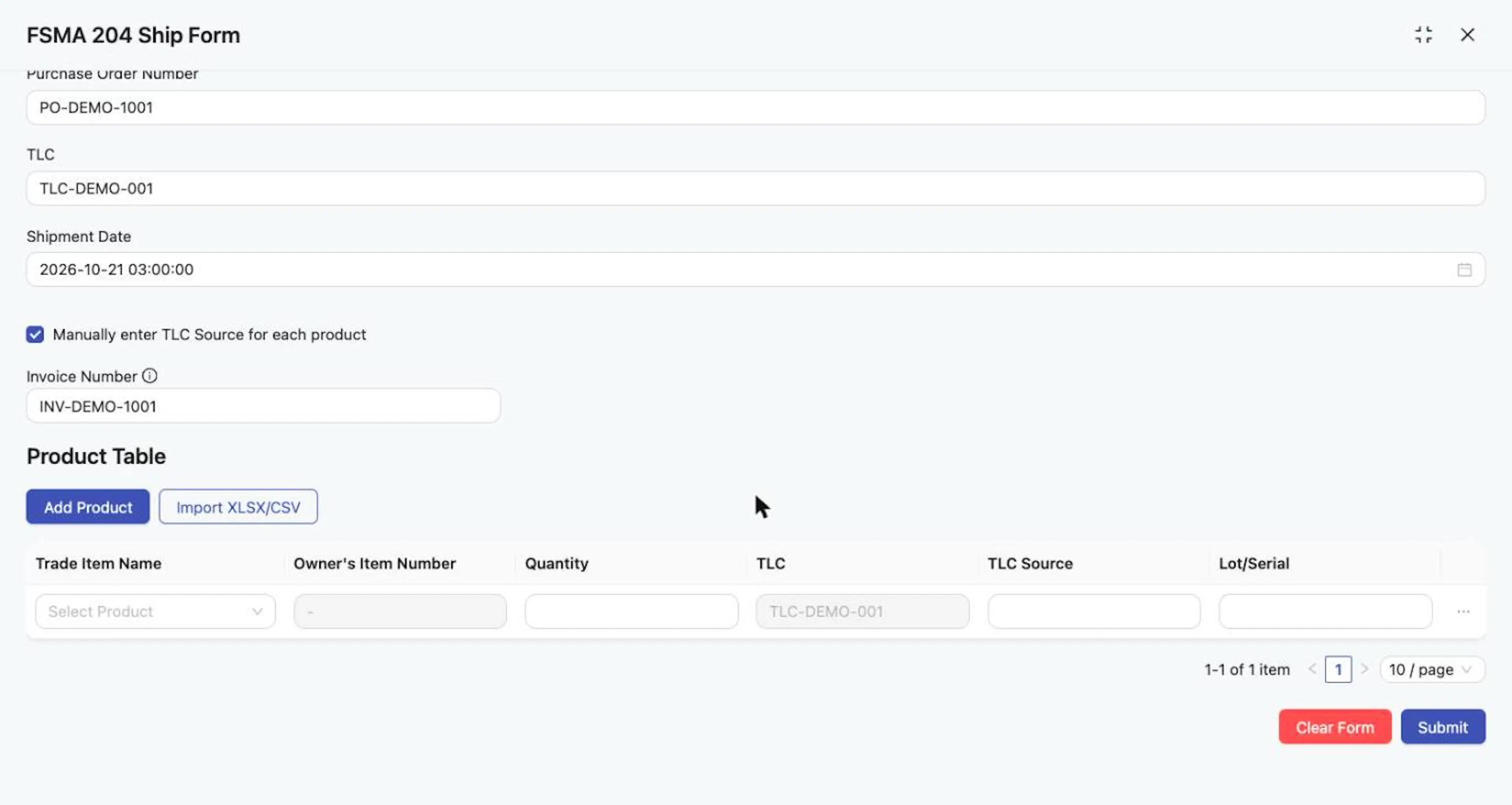
A product row: TLC is read-only and TLC Source is editable when per-product entry is on.
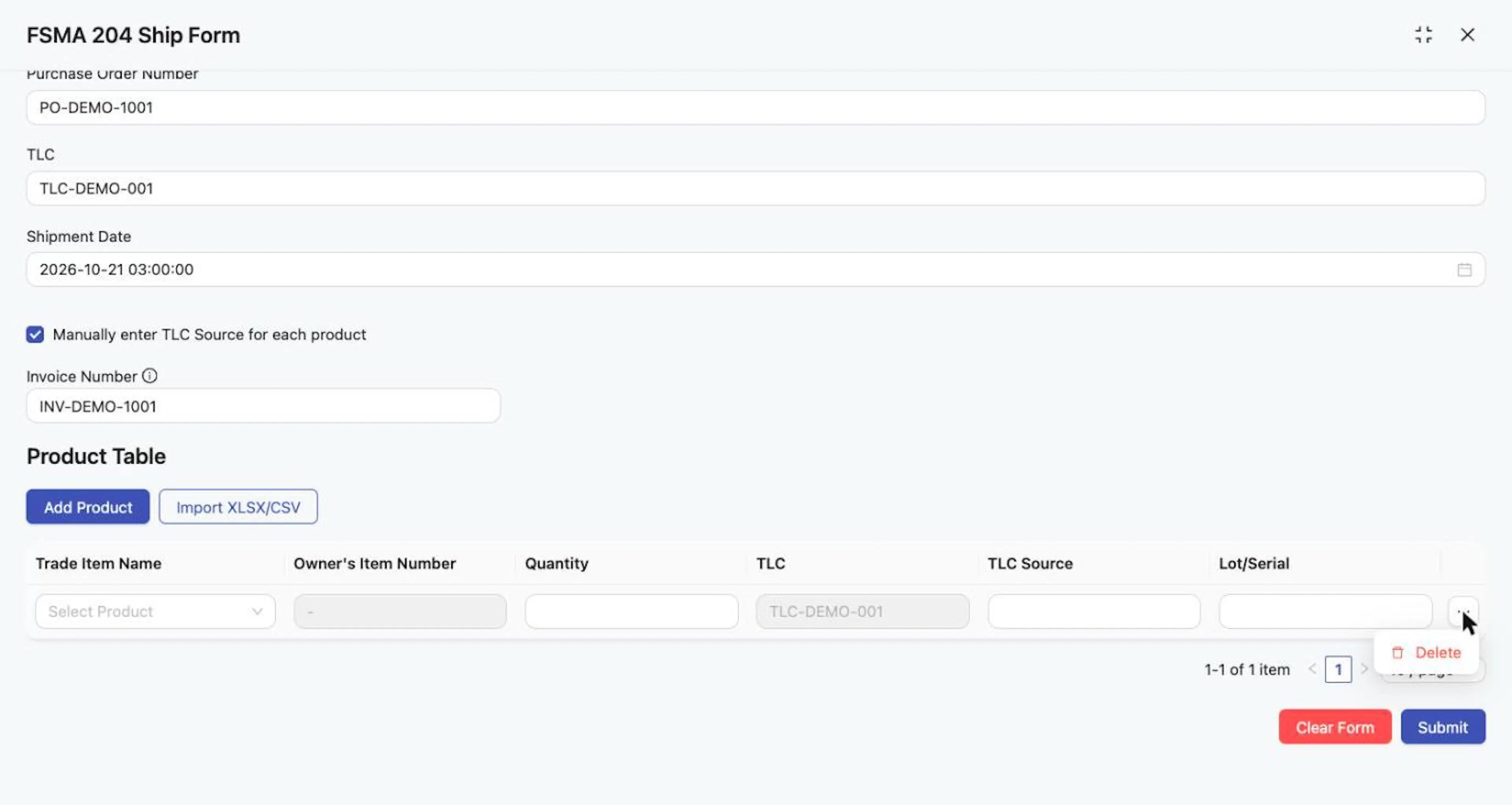
The row three-dot menu offers Delete.
Depending on the owner's configuration, extra read-only columns (item number, UOM, GTIN, UPC, PLU, brand) can appear after you select a product so that you can confirm you chose the right item. They show a value only when the underlying Trade Item has that data.
Import products from XLSX or CSV
Use this instead of adding rows by hand when you have a spreadsheet. Your file is a CSV or XLSX with one row per product and columns for the item number or ID, lot or serial, and quantity. It also needs TLC and TLC Source columns when your form requires them.
In the product table section, select Import XLSX/CSV
In the product table section, select Import XLSX/CSV. The Import Data from XLSX/CSV window opens.
Drag your file onto the upload area, or click it to choose a file
Drag your file onto Click or drag file to upload (it says "Supports CSV and XLSX."), or click it to choose a file.
Review the preview of the file that appears
Review the preview of the file that appears.
Set the number of rows to skip from the top of the file
Set the number of rows to skip from the top of the file. Skip the header row, and any other rows above your data.
Use the Map Attribute selector above each column to say what it contains
Above each column, use the Map Attribute selector to say what the column contains.
Map Item Number/ID, Lot/Serial, and Quantity
Map Item Number/ID, Lot/Serial, and Quantity. These mappings are required.
Map TLC and TLC Source when your form needs them
Map TLC and TLC Source when your form needs them. If the form has one shipment-level TLC, the product rows take that TLC. If you ticked Manually enter TLC Source for each product, map TLC Source so each row gets its own value.
Leave unrelated columns unmapped
Leave unrelated columns unmapped.
If the preview has more than one page, page through it to check the data
If the preview has more than one page, page through it to check the data.
Select Import. The rows are added to the product table. Review them.
Select Import. The rows are added to the product table. Review them.
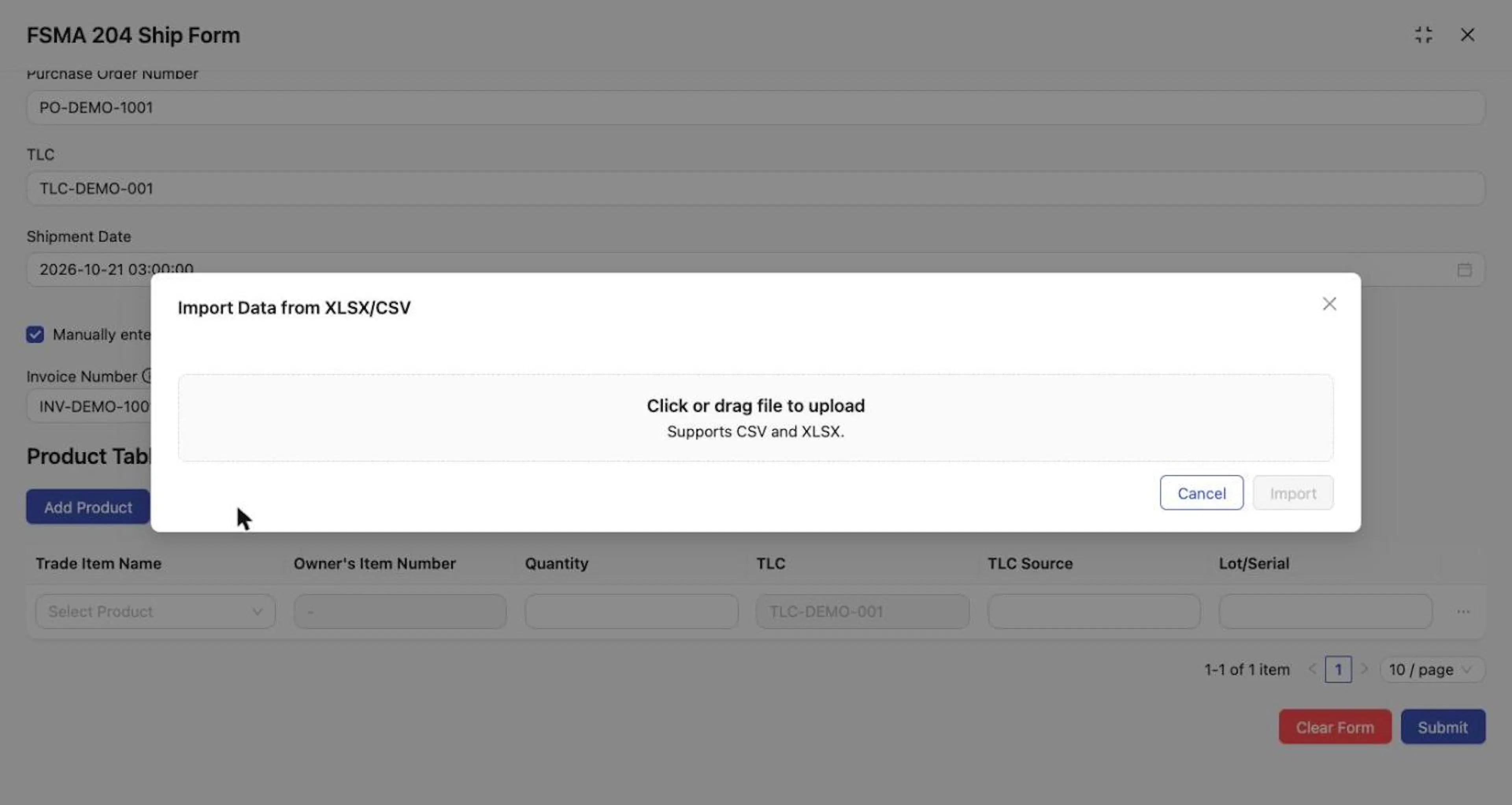
The Import Data from XLSX/CSV window.
A compact mapping example:
| File column | Map Attribute |
|---|---|
| Item Number | Item Number/ID |
| Item Name | (leave unmapped) |
| Lot | Lot/Serial |
| Qty | Quantity |
| TLC | TLC |
| TLC Source | TLC Source |
Clear the form (optional)
To start over, select Clear Form at the bottom of the drawer
To start over, select Clear Form at the bottom of the drawer. The shipment fields, the product rows, and the Ship From entry are emptied. There is no confirmation window, so check before you select it. A single shared destination in Ship To can stay selected.
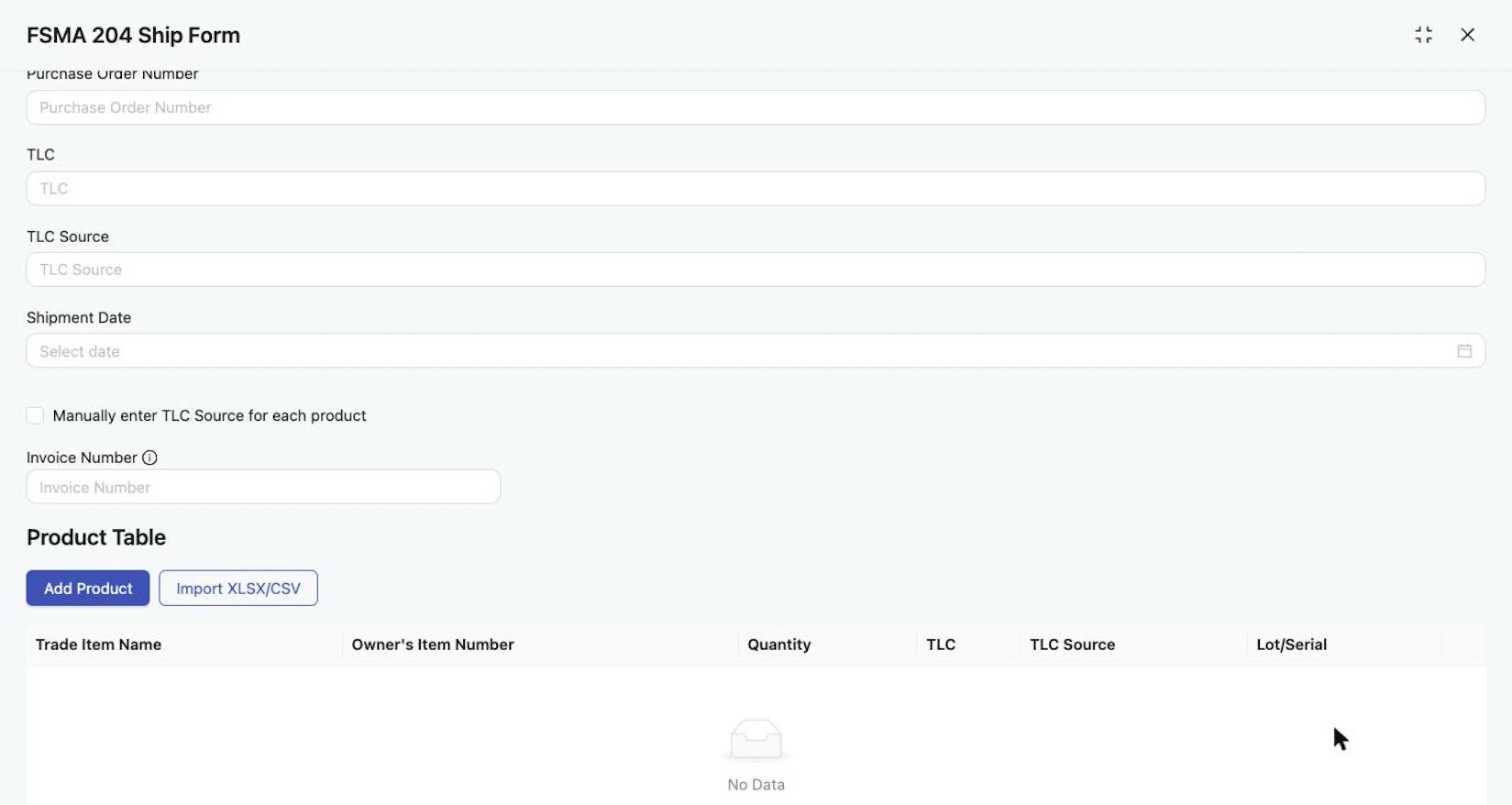
After Clear Form, the entries are emptied.
Submit
Review every section once more
Review every section once more.
Select Submit
Select Submit.
If any required field is incomplete, it is outlined in red
If any required field is incomplete, it is outlined in red. Product rows with a problem can show a red X with "Please input required fields." Correct each item and select Submit again.
A successful submission closes the drawer and shows a green notification
When the submission succeeds, the drawer closes and a green success notification appears.
Expected result
After a successful submission, Wholechain should:
- generate a packing-list-style PDF with the information you submitted, named from the purchase order information;
- tag the shipping Location and the included items;
- make the PDF available in Documents;
- show the shipment in Shipments → Outbound, where it can remain Pending until the receiving Trade Partner records receipt.
Check Documents and Shipments to confirm.
Troubleshooting
- The product list shows "No Data". The buyer has not shared Trade Items with your account. Ask the buyer to share the right items, or contact support@wholechain.com.
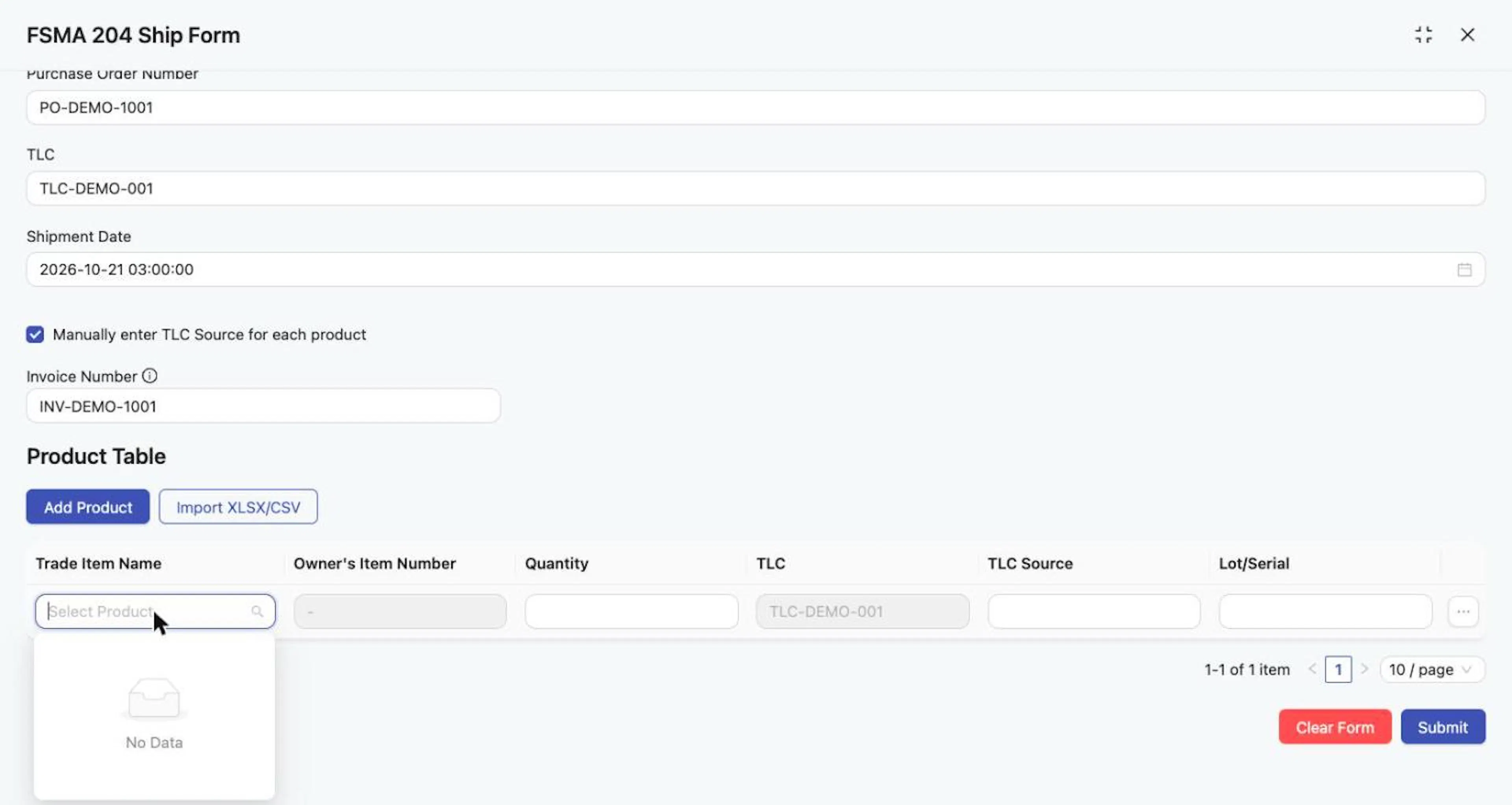
The product selector shows "No Data" when the buyer has not shared Trade Items.
- The quantity looks wrong to the buyer. Check the item's UOM and enter the quantity in that unit.
- My import matched no items. The import matches item numbers or IDs. Check that the values in your file match the item numbers assigned to the shared items exactly, and that those numbers are unique.
- Import is unavailable or a mapping is flagged. Map Item Number/ID, Lot/Serial, and Quantity, and check the number of rows skipped.
- Red outlines or a red X after Submit. Fill the outlined fields; a product row can show "Please input required fields."
- A shipment has several destinations. Submit one form for each shipment and destination.
Field and action reference
Product row
| Column | Req. | Editable | Values |
|---|---|---|---|
| Product (Trade Item Name on the example form) | Yes | Yes | A shared Trade Item. Shows "No Data" when none are shared. |
| Owner's Item Number | n/a | No | Reference value. |
| Quantity | Yes | Yes | Entered in the unit of measure on the shared Trade Item. |
| TLC | n/a | No when a universal TLC is used | Reflects the shipment-level TLC. |
| TLC Source | Yes | Only with Manually enter TLC Source for each product | Every row needs a TLC Source. Enter it once in the shipment-level TLC Source field to apply it to all rows, or tick Manually enter TLC Source for each product and enter it on each row. |
| Lot/Serial | Yes | Yes | Lot, serial or production code. It can differ from the TLC. |
| Row three-dot menu | n/a | n/a | Delete removes the row. |
Import window
| Item | Description |
|---|---|
| Title | Import Data from XLSX/CSV |
| Upload area | Click or drag file to upload. "Supports CSV and XLSX." |
| Buttons | Cancel, Import |
| Rows to skip | Number of rows skipped from the top of the file. |
| Map Attribute | Selector above each column. |
| Required mappings | Item Number/ID, Lot/Serial, Quantity. These match the product row requirements, except that the import identifies the item by Item Number/ID instead of the item name. |
| Conditional mappings | TLC and TLC Source when the form requires them. |
| Matching | By item number or ID, not item name. The supplier must have assigned an Item Number/ID to each item the form owner shared before importing. |
| Effect | Import fills the product table. It does not submit the form. |